Sign in at reportaproblem.apple.com to see every app, subscription, song, movie and book bought with your Apple ID.
The same list is available in the App Store on iPhone, iPad and Mac, in the Apple Music and Apple TV apps on Windows, and in iTunes on older machines.
The fastest way to see everything bought with your Apple ID
Apple now calls an Apple ID an Apple Account. The sign-in and the purchase list are unchanged.
- Open any browser and go to reportaproblem.apple.com.
- Sign in with the Apple Account you buy with.
- Read the list of purchases that appears, newest first.
- If you only know the amount you were charged, search for that amount.
This single list covers apps, in-app purchases, subscriptions, music, films, TV shows and books charged to that account.
Why is Viewing Your Purchased Items Important?
| What the list tells you | What that lets you do |
|---|---|
| Every item charged to the account, newest first | Match a bank line that reads apple.com/bill to a real purchase |
| The date and price of each purchase | Request a refund on an eligible item at reportaproblem.apple.com |
| Which Apple Account paid | Track down items bought on a second account you also use |
| Which family member bought an item | Settle an unfamiliar charge inside a Family Sharing group |
| Whether the charge is a subscription | Cancel it before the next renewal date |
| What you already own | Redownload an app, album or film instead of buying it twice |
What you need before you start
| Requirement | Why it matters |
|---|---|
| The Apple Account used for the purchase | Purchase history belongs to the account, not to the device |
| That account's password | reportaproblem.apple.com asks you to sign in before it shows anything |
| A browser, or the App Store app on iPhone, iPad or Mac | Both routes read the same purchase history |
| On Windows 10 or later: the Apple Music app or Apple TV app | Apple distributes both through the Microsoft Store |
| Family organiser status, for a family member's purchases | Only the organiser sees what the group was billed for |
Which method should you use?
| Your situation | Use this | Why |
|---|---|---|
| You want one list of everything | reportaproblem.apple.com | Covers apps, media and subscriptions in a single view |
| You are on an iPhone or iPad | App Store, then Apps & Purchase History | No browser sign-in, and it also lists your apps |
| You are on a Mac | App Store, then your name in the sidebar | Same history as the web list |
| You are on Windows 10 or later | Apple Music app or Apple TV app, then View My Account | Music and video moved out of iTunes on Windows |
| The machine still runs iTunes | Account > View My Account > See All | The only route on a Mac or PC old enough to use iTunes |
| You are the family organiser | reportaproblem.apple.com, then the Apple Account button | Lets you switch to a family member's purchases |
Viewing Purchased Items on an iPhone or iPad
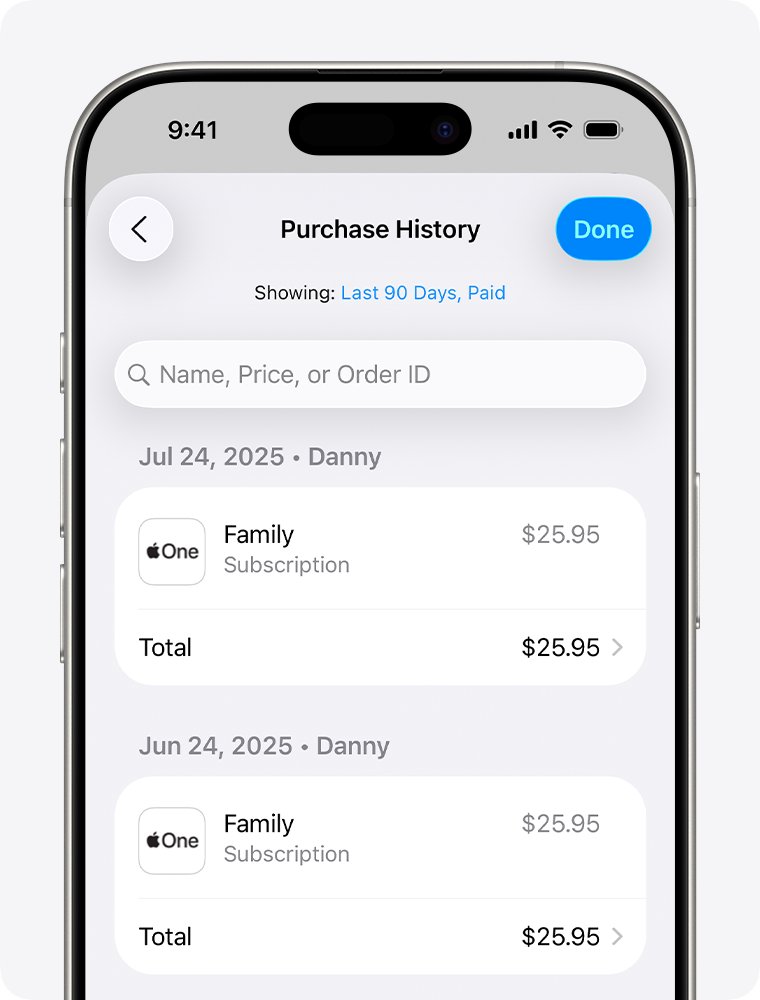
- Open the App Store and tap your photo or initials. If you are signed out, tap the My Account button and sign in.
- Tap Apps & Purchase History. You might be asked to sign in again.
- Tap Purchase History.
- Tap Last 90 days at the top of Purchase History and pick another range to go further back.
- Search for an amount if you are not sure what a charge was for.
Tap Your Apps on the same screen for the list of apps tied to the account, including ones not on this device.
Viewing Purchased Items on Mac
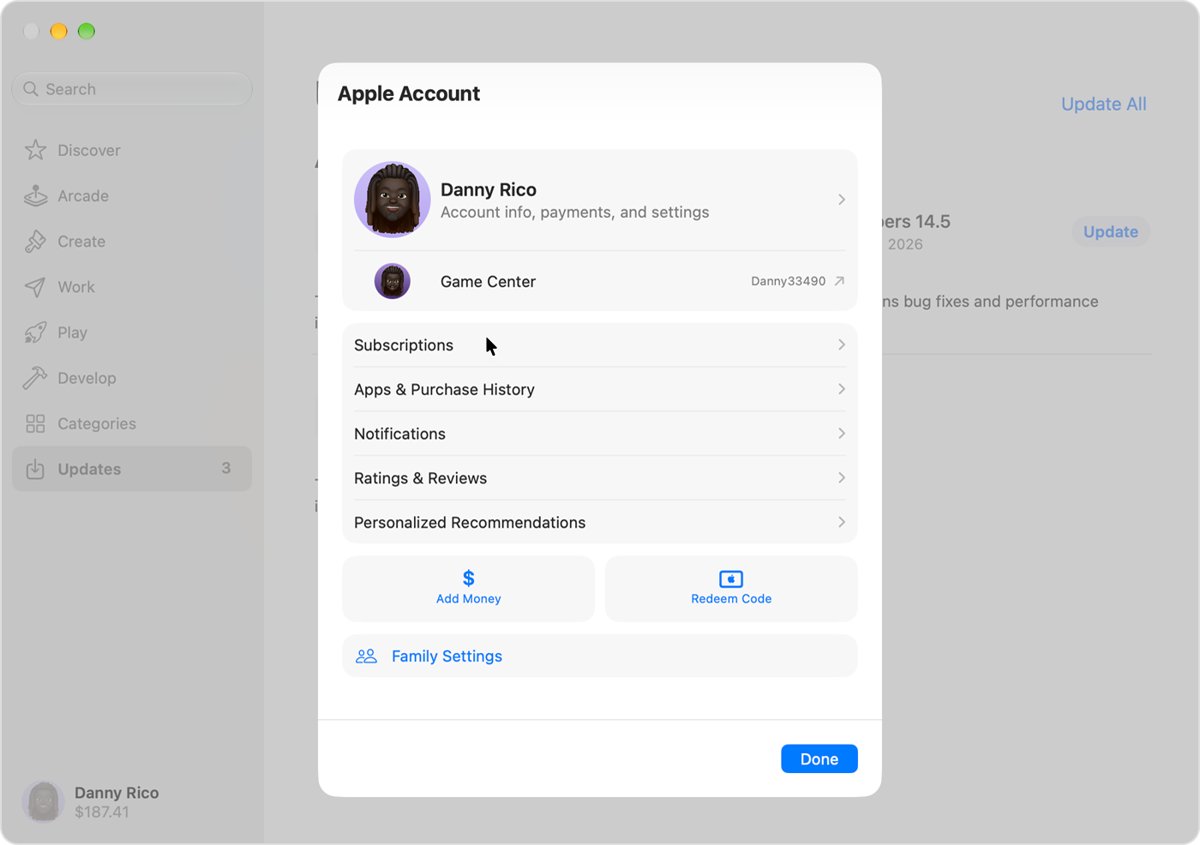
- Open the App Store and click your name at the bottom of the sidebar. If you are signed out, click Sign In first.
- Click Apps & Purchase History on the page that appears.
- Click Purchase History to see your purchases.
- Click Last 90 Days at the top of Purchase History and choose another range for older items.
View purchases on Windows in the Apple Music or Apple TV app
On Windows 10 and later, Apple splits iTunes into the Apple Music app, the Apple TV app and the Apple Devices app. Each is a Microsoft Store download.
- Open the Apple Music app or the Apple TV app.
- Click your name at the bottom of the sidebar, or click Sign In and sign in to your Apple Account.
- Click View My Account.
- Scroll to the Purchase History section, then click See All next to Most Recent Purchase. The list can take a moment to appear.
- Click Last 90 Days at the top of Purchase History to filter a different way.
Podcasts and audiobooks stay in iTunes for Windows, which Apple also ships through the Microsoft Store.
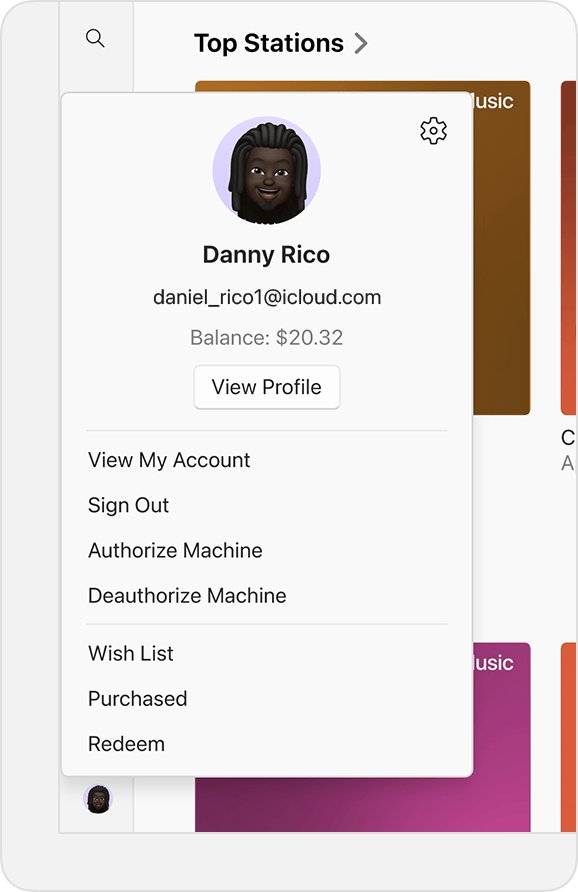
Accessing Purchase History via iTunes (For Older Macs or Windows)
- Open iTunes on the older Mac or PC.
- Choose Account > Sign In, enter your Apple ID and password, then click Next.
- Choose Account > View My Account and sign in when prompted.
- In the Account Information window, click See All below Purchase History.
- Click the More link below a price to see the detail of a single purchase.
- Choose a different timeframe, such as Last 90 Days, from the pop-up menu to reach earlier items.
Items bought in the iTunes Store are also added to the Purchased playlist in iTunes.
Viewing Purchased Items on Apple’s Web Platform
The web list is the only view that shows a family group's purchases and starts a refund request in the same place.
- Go to reportaproblem.apple.com and sign in.
- Check the account name shown at the top before reading the list.
- Search for a charge amount to jump straight to the matching item.
- Click the Apple Account button and choose a family member to see what they bought, if you are the family organiser.
- Select Request a refund on an eligible purchase to start a claim.
- Open apple.com/bill support if a bank statement line still does not match anything in the list.
Managing and Restoring Purchases
Anything already in the list can be downloaded again at no extra cost, on any device signed in to the same account.
| What you bought | Where to get it again | Path |
|---|---|---|
| Apps, on iPhone or iPad | App Store | My Account > Apps & Purchase History > Your Apps > Not on this iPhone > Redownload |
| Apps, on Mac | App Store | Your name in the sidebar > Apps & Purchase History > Your Apps > Redownload |
| Music, on iPhone or iPad | iTunes Store app | Purchased > Music > Not on This iPhone > the Download button |
| Films and TV shows, on iPhone, iPad or Mac | Apple TV app | Library > the title > the Download button |
| Films and TV shows, on a PC | Apple TV app | Library > Movies or TV Shows > the More button > Download |
| Music, films, TV shows, audiobooks, in iTunes | iTunes Store | Store > Purchased > the media type > the download button |
iTunes downloads previous purchases only to authorised computers, and an account can authorise up to 10 in total.
Films and TV shows included with an Apple TV subscription or an Apple TV channel are not purchases, so they never appear in this list.
Tips for Managing Your Purchase History
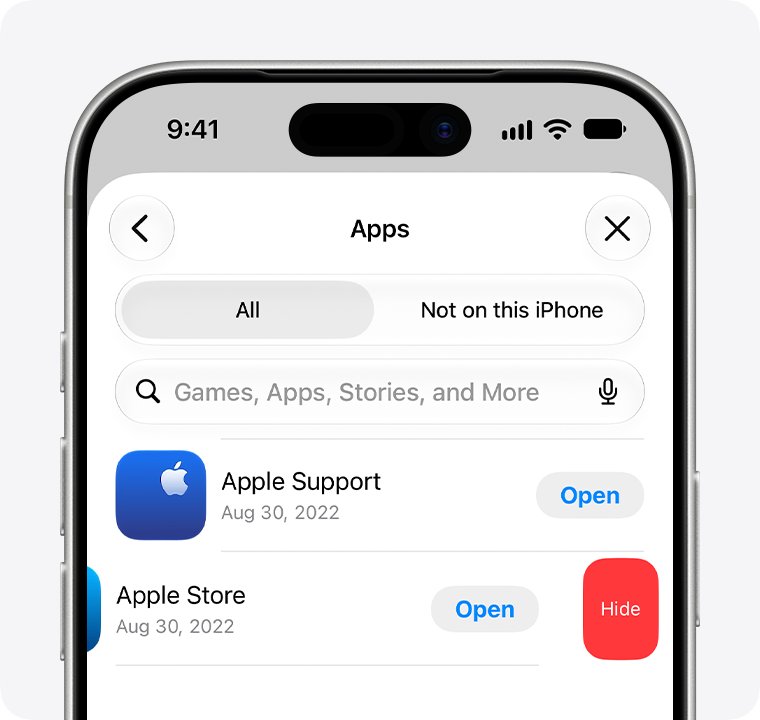
- Hide an app you would rather not see: in the App Store, tap your photo, tap Apps & Purchase History, tap Your Apps, swipe left on the app and tap Hide.
- Hide it on a Mac instead: hold the pointer over the app in Your Apps, click the More button, choose Hide Purchase, then confirm with Hide Purchase.
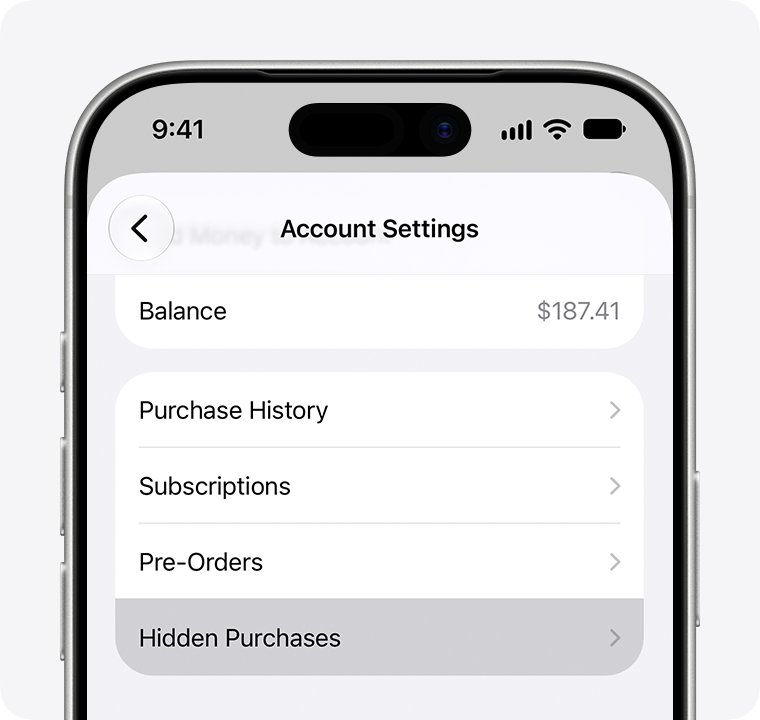
- Bring one back: open the App Store, tap or click your name, choose Hidden Purchases, find the app and select Unhide.
- Stop a recurring charge: in Settings, tap your name, tap Subscriptions, tap the subscription, then tap Cancel Subscription.
- Cancel a trial you do not want at least 24 hours before it ends.
Hiding an app removes it from the App Store purchase list only. The app and its in-app purchases stay in the complete purchase history in Settings, and the app stays on every device signed in to the account.
A hidden app is not shared with a Family Sharing group, and family members cannot redownload it while it stays hidden.
How to check you are looking at the right list
- Confirm the account name shown at reportaproblem.apple.com matches the address on your receipt email from Apple.
- Find one purchase you definitely remember, and check its date and price.
- On an iPhone, open Settings, tap your name and tap Media & Purchases to see which Apple Account buys content on that device.
- Open a redownloaded item to confirm it plays or launches without asking for payment.
Common Troubleshooting Tips
You cannot find a purchase you know you made
The item was almost always bought with a second Apple Account.
- Search your email for the words "receipt from Apple" or "invoice from Apple".
- Check which Apple Account appears on that receipt.
- Sign in to that account at reportaproblem.apple.com and look again.
- Check the device list as well, since an item missing from the web list can still appear in Purchase History on a device.
A charge on your statement does not match anything you bought
Apple groups several purchases and subscriptions into one bill, and a family member's purchase is billed to the organiser.
- Search the exact amount in Purchase History to find grouped items.
- Ask family members whether they bought the item.
- Require a password for every purchase if other people use your device.
- Change your Apple Account password if someone else knows your sign-in details.
An app is missing from Your Apps
The app was hidden from the App Store purchase list.
- Open the App Store and tap or click your name.
- Choose Hidden Purchases.
- Find the app and select Unhide.
- Redownload the app from the App Store if you had deleted it, because unhiding does not put it back on the Home Screen.
Purchased music will not download on an iPhone
Signing in with a different Apple Account removes that account's purchases from the device.
- Open Settings and tap your name.
- Tap Media & Purchases to see which Apple Account is used for purchases.
- Sign in with the account that bought the music if it is a different one.
- Check whether the music was hidden or deleted before buying it again.
A film or TV show is not in your library
Titles included with an Apple TV subscription or an Apple TV channel are not purchases.
- Open the Apple TV app and check the Library tab.
- Confirm the title was bought rather than streamed as part of a channel or subscription.
- Switch to the Apple Account that made the purchase if the title still does not appear.
- Stream the title instead on Apple TV 4K, Apple TV HD, smart TVs and other streaming devices, which cannot download purchases.
You got an email about a purchase you did not make
The message may not be from Apple at all.
- Do not use any link in the message.
- Sign in at reportaproblem.apple.com directly and check whether the charge is real.
- Compare the message against Apple's guidance on identifying genuine App Store and iTunes Store emails.
- Change your Apple Account password if the charge is real and you did not make it.
Frequently Asked Questions
How do you view purchases on Apple?
Go to reportaproblem.apple.com and sign in with your Apple Account. The page lists apps, in-app purchases, subscriptions, music, films, TV shows and books charged to that account, newest first, with the date and price of each one.
How do you see what you purchased without a computer?
On an iPhone or iPad, open the App Store, tap your photo or initials, tap Apps & Purchase History, then tap Purchase History. The list matches the one on the web, and the same screen lists the apps tied to the account.
How do you find purchases older than 90 days?
Purchase History opens on the last 90 days. Tap or click Last 90 Days at the top of the list and choose a different range to reach earlier purchases. The same filter exists on iPhone, iPad, Mac, Windows and iTunes.
How do you look up an item when you only know the amount charged?
Search for the amount inside Purchase History. Apple supports this specifically because a single bill can group several purchases and subscriptions together, which is why a statement line often does not match one item.
Why is an item missing from your purchase history?
The usual reason is a second Apple Account. Search your email for "receipt from Apple" or "invoice from Apple", check which account is on the receipt, then sign in to that account and look again.
Can you see a family member's purchases?
Yes, if you are the family organiser and Purchase Sharing is on. Sign in at reportaproblem.apple.com, then tap or click the Apple Account button and choose the family member whose purchases you want to see.
Does hiding an app delete it?
No. Hiding removes the app from your App Store purchase list only. It stays on every device signed in to the account, and it still appears with its in-app purchases in your complete purchase history in Settings.
Do you pay again to redownload something you bought?
No. Anything in your purchase list downloads again at no extra cost on any device signed in to the same Apple Account. In iTunes, downloads go to authorised computers only, and an account can authorise up to 10.
Where is purchase history on a Windows PC?
Open the Apple Music app or Apple TV app, click your name at the bottom of the sidebar, click View My Account, then click See All next to Most Recent Purchase in the Purchase History section.
What content can you share with family members?
Music from the iTunes Store, films and TV shows from the Apple TV app, books from Apple Books, and most App Store apps. Some apps, subscriptions and in-app purchases cannot be shared, and the developer decides.
How do you cancel a subscription you find in the list?
On an iPhone, open Settings, tap your name, tap Subscriptions, tap the subscription, then tap Cancel Subscription. If there is no Cancel button, or an expiry date shows in red, the subscription is already cancelled.
Bottom line
Start at reportaproblem.apple.com every time. It is the only view that covers apps, media and subscriptions together, switches between family members, and starts a refund request, and it works from any device with a browser.