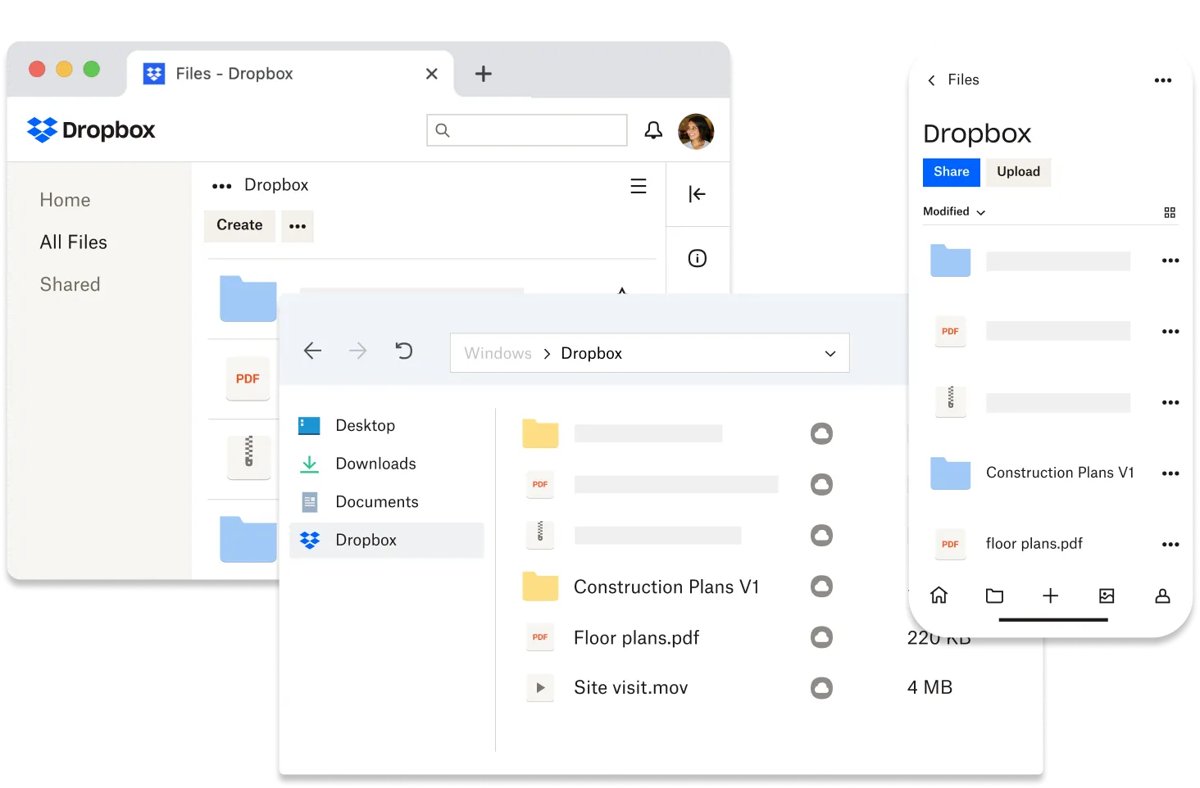
Download the Dropbox desktop app from dropbox.com/install, run it and sign in — the Dropbox folder then appears in File Explorer on Windows or Finder on Mac.
This guide covers the system requirements, the install and sign-in, selective sync, the file status icons and the fixes for a computer that will not connect.
The fastest way to connect Dropbox to your computer
One account covers every device you sign in on, so there is nothing to create a second time.
- Go to dropbox.com/install and download the desktop app for your operating system.
- Open the downloaded installer and follow the prompts. Enter an administrator password if the computer asks for one.
- Sign in with your Dropbox email address and password when the app opens.
- Follow the remaining prompts to finish setting up syncing.
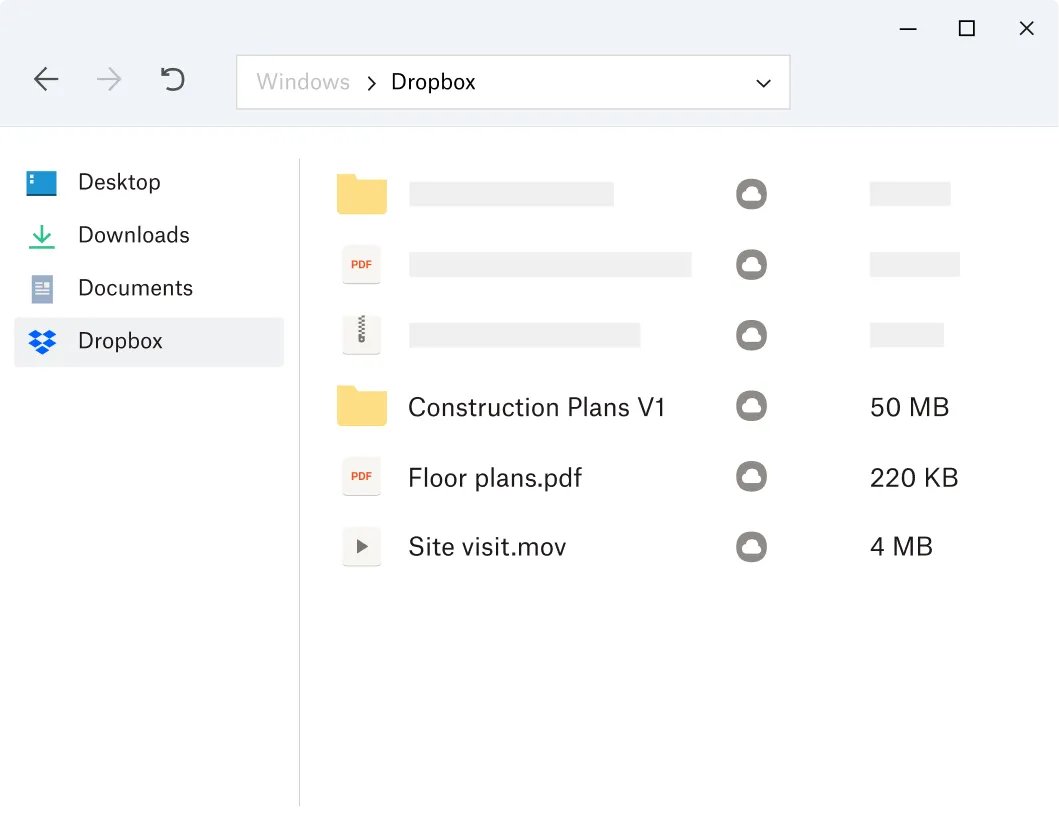
- Open File Explorer on Windows or Finder on Mac and select Dropbox in the sidebar.
No account yet? Create one free at dropbox.com/register first, then run the installer.
Which setup route should you use?
| Your situation | Use this route | Why |
|---|---|---|
| A normal Windows or Mac computer you control | Download the installer from dropbox.com/install | Fewest steps and it works on every plan |
| You are holding your phone, not the keyboard | Open dropbox.com/connect and scan the QR code in the Dropbox mobile app | The phone tells the computer's browser to start the installer download |
| You have no Dropbox account yet | Sign up at dropbox.com/register, then install | The installer only signs you in to an account that already exists |
| A managed work computer with no admin password | Use dropbox.com in a browser | The desktop app needs admin privileges for full functionality |
| A laptop with very little free space | Install, then set new files to online-only on the Sync tab | Files stay in the account until you open them |
| Windows Server | Use dropbox.com in a browser | Dropbox does not support Windows Server |
Check System Requirements and Prepare Your Dropbox Account
Two things stop most setups before they start: an unsupported file system and a Basic account already signed in on three devices.
| Item | Requirement | Why it matters |
|---|---|---|
| Windows | Windows 10 or 11 on an NTFS-formatted drive. ARM processors are supported | Windows Server is not supported at all |
| macOS | macOS 11 Big Sur or later for full functionality; macOS 10.13 to 10.15 get a simplified version | The drive must be HFS+ or APFS with extended attributes enabled |
| Linux | 64-bit Ubuntu 18.04 or later, or Fedora 28 or later, on ext4, zfs, xfs or btrfs | ARM processors are not supported on Linux |
| Account | One Dropbox account, created at dropbox.com/register | Dropbox Basic gives 2 GB of storage free with no time limit |
| Device slots | Basic and Simple allow three signed-in devices; Plus, Family, Professional and Essentials allow as many as you need | A fourth Basic device forces you to sign out of an older one first |
| Admin rights | An administrator password on the computer | The desktop app requires admin privileges to run with full functionality |
| Free space | Room for the folders you choose to keep locally | Selective sync and online-only storage keep the footprint small |
Signing in to dropbox.com in a browser does not use a device slot. Only the desktop and mobile apps do.
Download and Install the Dropbox Desktop App
- Open dropbox.com/install in any browser on the computer you want to connect.
- Select the download for Windows, Mac or Linux. The page offers the current release for that system.
- Open the downloaded installer from your browser's downloads list.
- On Windows, approve the User Account Control prompt, or type an administrator password if the account is a standard one.
- On Mac, drag Dropbox into Applications if the installer asks, then open it from Launchpad.
- Wait for the installer to finish and for the Dropbox sign-in window to open by itself.
Do not open the installer with Run as administrator. Open it normally and supply admin credentials when the installer asks for them.
Sign In and Link Dropbox to Your Computer
Signing in is what links the computer. The account then lists it under your devices.
- Enter the email address and password for your Dropbox account in the sign-in window, or use the Google or Apple sign-in buttons if you created the account that way.
- Select Sign up instead if this is a new account, then choose Continue with 2 GB Dropbox Basic Plan to stay on the free plan.
- Complete two-step verification if your account uses it.
- Follow the prompts that set up syncing and choose whether new files are stored offline or online-only.
- Wait for the Dropbox icon to appear in the Windows taskbar or the Mac menu bar.
- Open File Explorer or Finder and confirm that Dropbox now appears in the sidebar.
The same account can be signed in on a second and third computer the same way, and each one keeps its own sync settings.
Confirm that Dropbox is connected
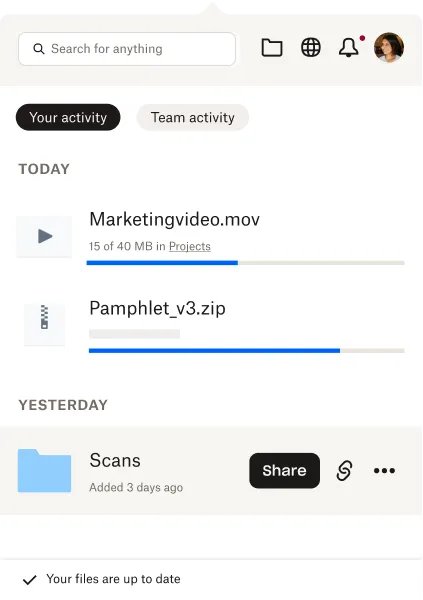
- Click the Dropbox icon in the taskbar on Windows or the menu bar on Mac.
- Read the status line at the bottom of the window. Your files are up to date means the computer is connected and current.
- Treat Indexing as normal on a fresh install; changes do not appear until indexing finishes.
- Open the Dropbox folder and check that files carry a green circle with a checkmark or a cloud outline, not a red cross.
- Save a small test file into the Dropbox folder, then sign in to dropbox.com and confirm the file is listed there.
- Open dropbox.com, click your avatar, click Settings, open the Security tab and confirm the computer appears under Devices.
Choose Your Sync Location and Selective Sync Settings
Selective sync settings are unique to each computer and do not change what the other devices keep locally.
Unticking a folder removes it from the hard drive but keeps it in your account on dropbox.com.
- Click the Dropbox icon in the taskbar (Windows) or menu bar (Mac), then click your account menu — your photo, initials or a person icon.
- Click Preferences, then open the Sync tab.
- Set Storage of new files to Online-only to save disk space, or leave it on the offline option to keep files on the drive.
- Under Selective Sync on Windows, or Select folders to sync to this Mac on Mac, click Modify.
- Tick the folders to keep on this computer and untick the ones to leave in the cloud. Whole folders only — single files cannot be unticked.
- Click Update to apply the change.
- To move the folder itself, stay on the Sync tab, find Dropbox folder location and click Move, then pick the new location.
Moving the Dropbox folder is available on Windows and Linux. Newer macOS versions do not offer it.
Add, Access, and Manage Dropbox Files on Your Computer
- Drag or save files into the Dropbox folder. Anything inside it uploads to your account automatically.
- Edit files in place with your normal apps; each save syncs to the other signed-in devices.
- Rename or move files inside the Dropbox folder rather than outside it, so the change follows to every device.
- Keep
*and/out of file names. Those characters are not compatible with all devices and block syncing. - Upload files under 2 TB from the desktop or mobile app; the limit through dropbox.com in a browser is 50 GB.
- Remember that deleting a file inside the Dropbox folder also removes it from your other computers and phones.
- Open the Dropbox folder quickly from the taskbar or menu bar icon instead of hunting for it in the sidebar.
Syncing is not a backup. A change made on one computer replaces the copy everywhere, which is the point of syncing and the risk of it. Pause syncing when you need a large batch of edits to settle first — the option has been in the desktop app since the release covered in Dropbox Gets Redesigned Setup Wizard and Pause Syncing Option.
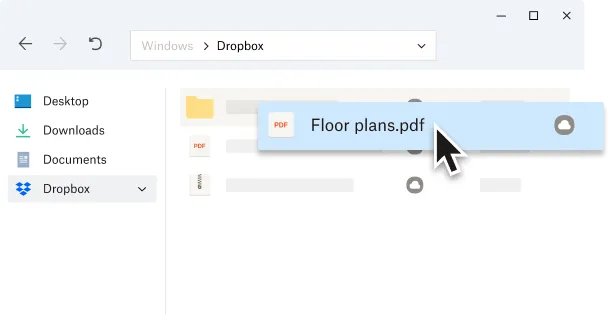
Understand Dropbox file status icons
The overlay icon on each file in File Explorer or Finder tells you where that file actually lives.
| Icon | Meaning | What to do |
|---|---|---|
| Green circle with a checkmark | Synced and available offline | Nothing — the file is on the drive and in your account |
| Cloud outline | Synced but online-only | Open it once and Dropbox downloads it on demand |
| White circle with a green border and checkmark | Downloaded but not marked offline | May revert to online-only if the drive runs low on space |
| Circular arrows | Uploading, downloading or waiting | Leave the computer awake until it clears |
| Red circle with a cross | The file cannot update or sync | Check the file name, size and your remaining storage |
| Grey circle with a minus sign | The file is ignored and will not sync | Remove the ignore setting if the file should sync |
| Solid Dropbox icon in the taskbar | Fully synced | Nothing |
| Grey Dropbox icon in the taskbar | Not connected to the internet | Fix the connection, then check the status line again |
Older desktop releases used a different icon set and a different preferences layout, as in Dropbox 3.0, What's New?.
Connect your phone to the same Dropbox account
- Install the Dropbox app from your phone's app store.
- Open it and sign in with the same email address and password you used on the computer.
- Complete two-step verification if the account uses it.
- Check the computer is still listed under Devices on the Security tab at dropbox.com if you are on Dropbox Basic, because that plan allows three signed-in devices.
- To install Dropbox on a computer from the phone, open the mobile app settings, choose Connect a Computer, then open dropbox.com/connect on the computer and scan the QR code.
- Cancel out of that screen at any point and install directly on the computer instead if the scan does not work.
How to unlink a computer from your Dropbox account
- Sign in to dropbox.com in a browser.
- Click your avatar in the bottom-left corner, then click Settings.
- Open the Security tab and find the computer under Devices.
- Click the trash can icon next to that device.
- Tick the box to delete files from the device if it is lost or stolen and your plan supports it.
- Click Unlink.
Synced files stay on that computer unless you ticked the delete box, but they stop receiving changes until you sign in again.
Troubleshoot Common Dropbox Connection and Sync Issues
Fix login and account linking problems
The wrong email address, a forgotten password, or a Basic account already signed in on three devices.
- Confirm you are using the email address the account was created with.
- Go to dropbox.com/login, enter that email address and click Continue to have a password reset link sent to it.
- Check the spam or junk folder if the reset email does not arrive, add [email protected] to your contacts and request it again.
- Reset the password in a browser. The mobile app cannot change or reset a Dropbox password.
- Sign out of an older device under Settings → Security → Devices if a Basic account refuses a fourth sign-in.
Can't connect to Dropbox
A blocked connection, a proxy, or a clock that is set wrong on the computer.
- Test the internet connection on the same computer by loading dropbox.com in a browser.
- Check that the date, time and time zone on the computer are correct.
- Allow the Dropbox app through the firewall or security software's application list.
- Enter your proxy server details on the network tab of Preferences if the network uses one.
- Update Dropbox to the latest version, then quit and reopen the app.
Resolve files that are not syncing
A rejected file name, a file outside the Dropbox folder, a full account, or a folder left unticked in selective sync.
- Click the taskbar or menu bar icon and look for [x] files are unable to sync, then click See issues.
- Remove characters such as
*and/from the file name and rename suffixes like thumbs.db or .ds_store out of the way. - Confirm the file is really inside the Dropbox folder and not in a folder that only looks similar.
- Check the account still has free storage at dropbox.com.
- Open Preferences → Sync and confirm the folder is ticked in selective sync.
- Clear the read-only attribute on a locked file, and grant Dropbox full disk access on Mac.
- Quit and reopen the app, then reinstall it if the errors persist.
Syncing paused until a later time
Syncing was paused manually or automatically and is waiting for the stated time.
- Click the Dropbox icon in the taskbar or menu bar.
- Read the Syncing paused until [x] line to see when it resumes.
- Open the account menu and resume syncing to start it now.
- Leave the computer awake and connected until the status reads Your files are up to date.
Dropbox is installed but the folder is nowhere in File Explorer
The Dropbox folder was moved out of the user folder on a previous install.
- Click the Dropbox icon in the taskbar or menu bar, click your account menu, then click Preferences.
- Click Sync and scroll to Dropbox folder location.
- Click the path shown there to copy it.
- Paste the path into the File Explorer address bar and press Enter, or on Mac use Go → Go to folder… and press Return.
- Pin the folder to Quick access or the Finder sidebar so it is easy to reach next time.
Nothing works and a clean start is needed
Settings left behind by a previous install are still in use.
- Quit Dropbox from the system tray or menu bar.
- Uninstall the app through Windows settings, or drag it to the Trash on Mac.
- Restart the computer.
- Follow the advanced reinstall instructions on Dropbox's help site to clear the leftover Client folders, then install the app again.
- Reapply your selective sync choices and folder location after signing back in.
An advanced reinstall does not delete the files inside your Dropbox folder. Never delete that folder itself while troubleshooting.
Frequently Asked Questions
How do I connect Dropbox to my PC?
Download the desktop app from dropbox.com/install, run the installer, and sign in with your Dropbox email and password. The app creates a Dropbox folder in File Explorer and keeps it in step with your account and your other devices.
Do I need the Dropbox desktop app, or can I just use Dropbox in a browser?
Both work. The browser at dropbox.com needs no install and no admin rights, but only the desktop app puts a Dropbox folder in File Explorer or Finder and syncs edits automatically as you save them.
Where will my Dropbox folder appear after I connect it to my computer?
By default the Dropbox folder sits in your user folder and appears in the File Explorer or Finder sidebar. If it was moved, the current path is shown under Dropbox folder location on the Sync tab of Preferences.
How do I choose which Dropbox folders sync to my computer?
Open Preferences from the Dropbox icon, click the Sync tab, then click Modify under Selective Sync. Untick any folder you want removed from the hard drive and click Update. The files stay safe on dropbox.com.
What should I do if Dropbox is installed but my files are not syncing?
Click the Dropbox icon and look for a sync error, then click See issues. Check the internet connection, the computer's clock, your remaining storage, and the file name for characters such as an asterisk or a forward slash.
Can I connect the same Dropbox account to more than one computer?
Yes. Dropbox Basic and Simple allow three signed-in devices at a time, while Plus, Family, Professional and Essentials allow as many as you need. Each computer keeps its own selective sync settings.
How do I connect my phone to Dropbox?
Install the Dropbox app from your phone's app store and sign in with the same account. The mobile app also offers Connect a Computer, which shows a QR code at dropbox.com/connect to start the desktop installer.
How does Dropbox work on a PC?
The desktop app watches a folder on the drive. Anything you put in it uploads to your account, and anything changed elsewhere downloads to the folder, so the same files are current on every signed-in device.
How do I set up a Dropbox account for free?
Go to dropbox.com/register, enter your email address, name and a password, accept the terms, then choose Continue with 2 GB Dropbox Basic Plan. That plan is free, has no time limit, and works with the desktop app.
How do I access my Dropbox files on my computer?
Open File Explorer or Finder and click Dropbox in the sidebar, or click the Dropbox icon in the taskbar or menu bar. Online-only files show a cloud icon and download when you open them.
What is Dropbox connected to?
Your account is connected to every device you sign the apps in on, listed under Devices on the Security tab of your account settings. Browser sessions at dropbox.com are not counted as devices there.
Why can't I connect to Dropbox?
The usual causes are a blocked connection, a network proxy, or an incorrect clock on the computer. Load dropbox.com in a browser to test the connection, correct the date and time, and allow Dropbox through your firewall.
Bottom Line
Install the desktop app and sign in on every computer you use, then set new files to online-only on the ones short of disk space. Signing in is the whole of the connection, and the online-only setting keeps a 2 GB or a 2 TB account from filling a small drive while leaving every file one double-click away.