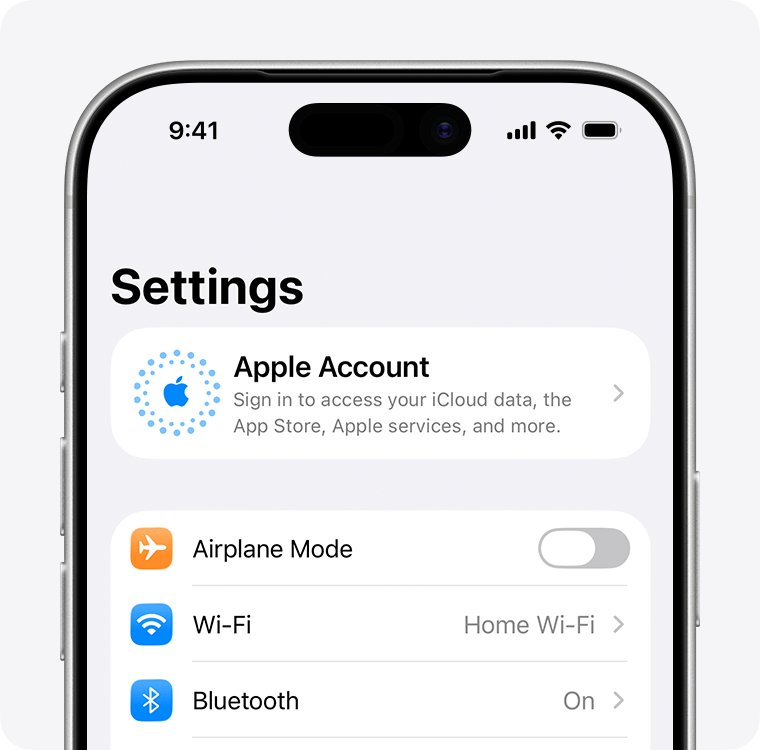
Open Settings, tap Apple Account at the top, then enter your Apple ID email address and password – the App Store signs in with that same account.
Apple now calls the Apple ID an Apple Account, and both names mean one account. The sections below cover signing in on iPhone, iPad, Mac, Apple TV and Windows, creating an account, switching the account used for purchases, and fixing sign-in and sign-out failures.
The fastest way to sign in to the App Store
One account covers the App Store, iCloud, iMessage and FaceTime, so signing in through Settings signs you in everywhere at once.
- Open Settings on your iPhone or iPad.
- Tap Apple Account at the top of the screen.
- Tap Sign in Manually.
- Enter the email address or phone number for your Apple ID, then enter the password.
- Enter the six-digit verification code shown on a trusted device or sent to your trusted phone number.
Holding another signed-in iPhone or iPad running iOS 17 or later? Tap Use Another Apple Device at step 3 and hold the two devices together instead of typing anything.
Why You Need an Apple ID
The App Store has no anonymous mode. Every download, free apps included, is recorded against an account.
| What the account unlocks | What happens without it |
|---|---|
| Downloading apps, free ones included | The App Store asks you to sign in before the download starts |
| Redownloading something you already own | Purchase history lives on the account, not on the device |
| App updates | Updates are delivered to the account that obtained the app |
| iCloud, iMessage, FaceTime and the Apple Games app | Those services use the same Apple Account |
| Family Sharing | Shared purchases reach each member only while that member is signed in |
| Subscriptions | Subscriptions bill to the account signed in for purchases |
Pre-Requisites for Signing In
| What you need | Why it matters |
|---|---|
| The email address or phone number on the account | Either one identifies the Apple Account at the sign-in prompt |
| The account password | Required on every device the account has not been used on before |
| A trusted device or trusted phone number | Two-factor authentication delivers the six-digit code there and nowhere else |
| A working internet connection | Apple verifies the password and the code on its servers |
| A payment method, in some cases | The App Store may ask for a credit card or other payment information the first time you sign in |
| A country or region on the account | The storefront you see follows the country or region set on the account |
Which sign-in route should you use?
| Your situation | Use this | Why |
|---|---|---|
| New iPhone or iPad, another Apple device nearby | Use Another Apple Device in Settings | No password typing and no code to read off a second screen |
| iPhone or iPad, no second device | Sign in Manually in Settings | Signs in the App Store and iCloud in one pass |
| Only the App Store app is signed out | The My Account button in the App Store | Leaves the iCloud account on the device untouched |
| Mac | Sign In at the bottom-left of the App Store app | Signs in for purchases without changing System Settings |
| Buying with a second account | Media & Purchases in Settings | Purchases and iCloud can use different accounts |
| No Apple device to hand | account.apple.com in a browser | Manages the account, though apps still download on a device |
Steps to Sign In to Your Apple ID on the App Store
This is the full pass on iPhone and iPad, from an empty Settings screen to a downloaded app.
- Open Settings and tap Apple Account at the top of the screen.
- Tap Sign in Manually.
- Enter your Apple ID email address or phone number, then enter the password.
- Enter the six-digit verification code that appears on a trusted device, or the code sent to your trusted phone number.
- Follow the onscreen prompts that set up iCloud and the other services tied to the account.
- Open the App Store app and tap the My Account button at the top of the screen.
- Add a credit card or other payment information if the App Store asks for it, then download an app to confirm the account works.
The App Store accepts one account at a time. Signing a second Apple ID in for purchases replaces the first, and content bought on one account cannot be updated by another.
Sign in to the App Store on a Mac
- Open the App Store app on your Mac.
- Click Sign In in the bottom-left corner of the window.
- Enter your Apple ID email address or phone number, then follow the onscreen instructions.
- Enter the six-digit verification code if two-factor authentication asks for one.
- Click your name in the bottom-left corner, then click Account Settings to check the billing information and purchase history on the account.
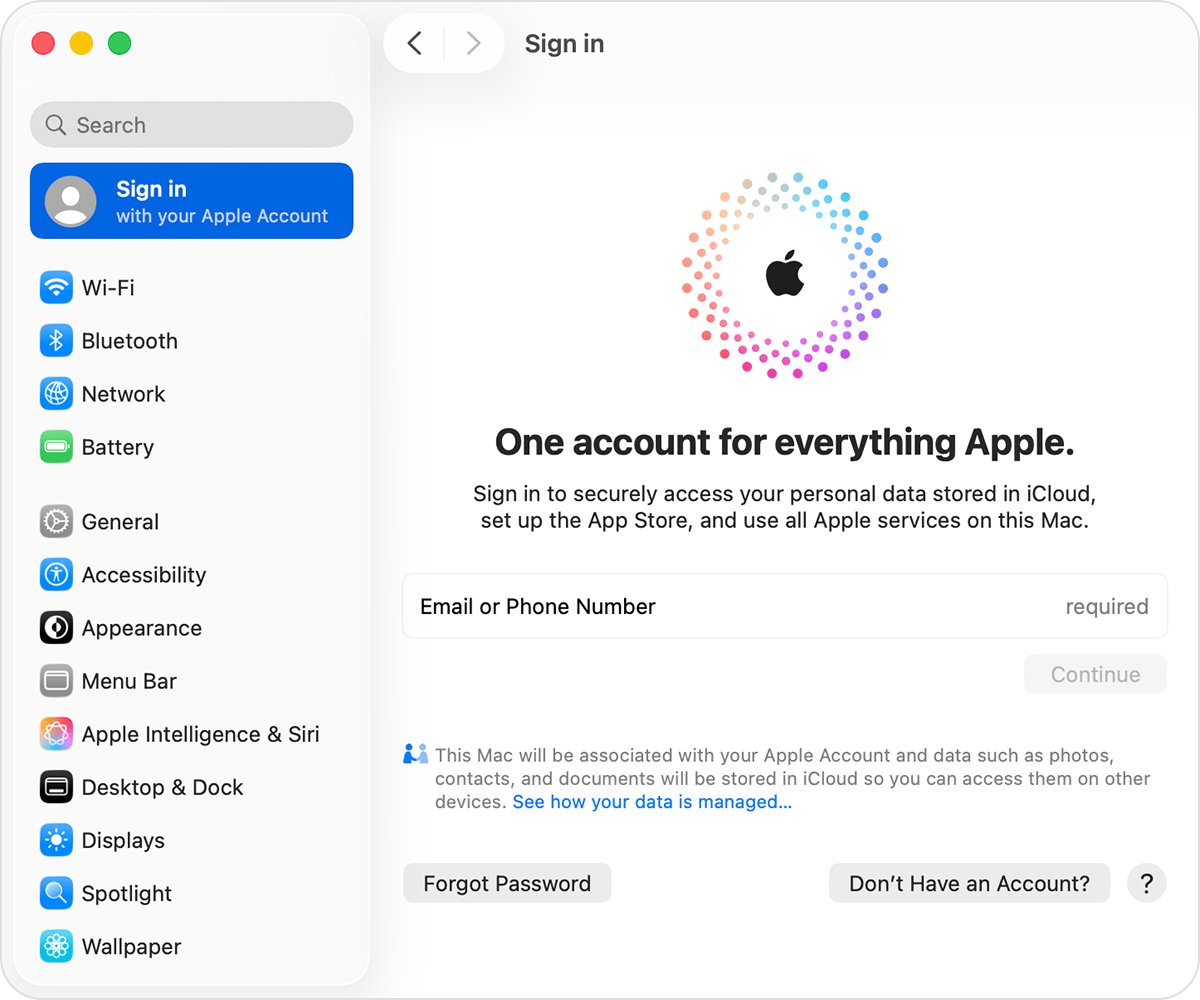
To sign the whole Mac in instead, choose Apple menu > System Settings, click Sign in in the sidebar, then enter the same details.
Sign in on iPad, Apple Watch, Apple TV, Windows and the web
| Device | Where to sign in | What to expect |
|---|---|---|
| iPad | Settings > Apple Account > Sign in Manually | Same screens as iPhone, and the App Store follows the account |
| Apple Watch | Nothing to do on the watch | Pairing with an iPhone that is already signed in signs the watch in to that same account |
| Apple TV 4K or Apple TV HD | Settings > Users and Accounts, then a suggested user or Add New User | Offers Use Another Apple Device or Sign in Manually |
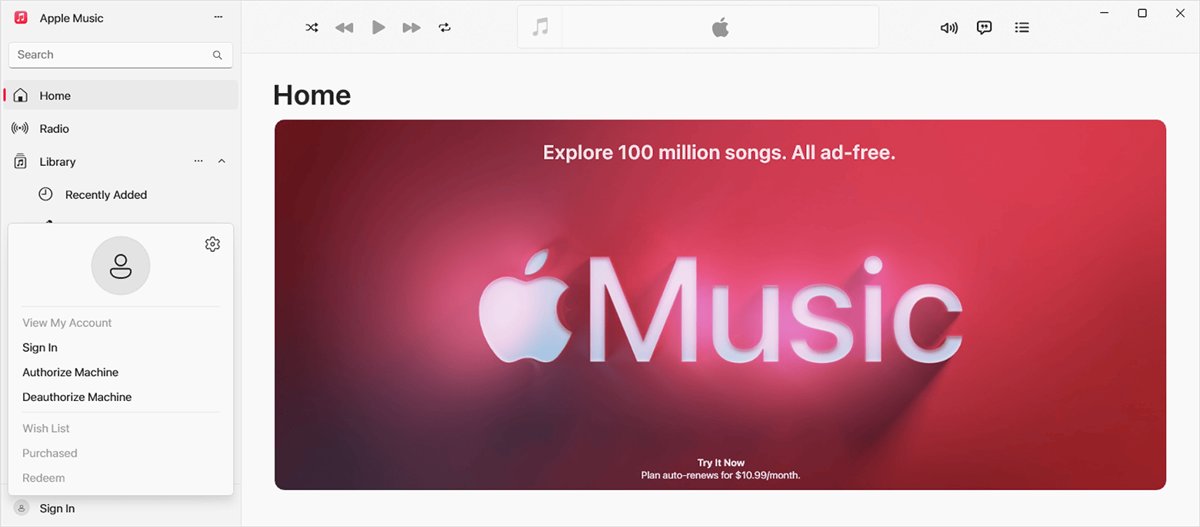
| Windows PC | The Apple Music or Apple TV app, or a browser | Windows has no App Store app; Apple's own media apps carry the sign-in, as does the iMessage on Windows route |
| Any browser | account.apple.com | Manages the account, trusted numbers and payment methods, not app downloads |
How to check it worked
- Open Settings and confirm your name now appears at the top of the screen instead of a sign-in prompt.
- Tap your name, then tap Media & Purchases and confirm the Apple ID listed is the one you meant to use.
- Open the App Store and tap the My Account button – your name shows there once the account is active.
- On a Mac, confirm your name sits in the bottom-left corner of the App Store window where Sign In used to be.
- Download a free app. It installs without a second sign-in prompt when the account is signed in correctly.
Creating an Apple ID
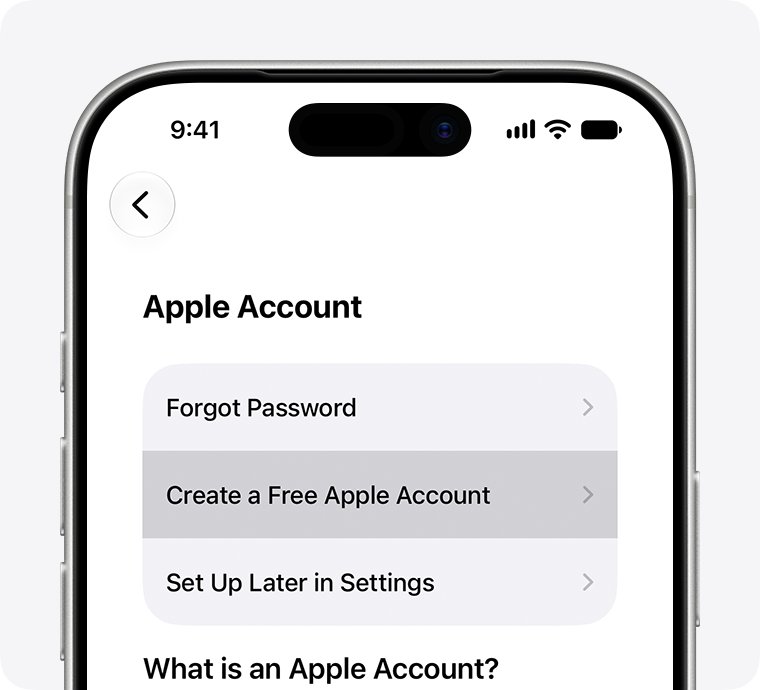
An Apple Account costs nothing and starts from the same sign-in screen.
- Open Settings and tap Apple Account at the top of the screen.
- Tap Forgot password or don't have an account?
- Tap Create a Free Apple Account.
- Select your birthday, enter your name, then tap Continue.
- Enter an email address, or tap Don't have an email address? to get a free iCloud address.
- Verify the email address, create a password, then set your country or region.
- Set up two-factor authentication with a phone number you can reach.
On a Mac, click Create Apple Account in the App Store, or choose Apple menu > System Settings > Sign in > Don't Have an Account?. In a browser, go to account.apple.com and click Create Your Apple Account. On Windows, open the Apple Music or Apple TV app, click Sign In, then click Create New Apple Account.
How to change the Apple ID used for purchases
iCloud and the App Store can run on two different accounts. The one under Media & Purchases is the one that owns your apps.
- Open Settings and tap your name.
- Tap Media & Purchases.
- Tap Sign Out.
- Tap Media & Purchases again, then choose Not [your name]?
- Enter the other Apple ID and password, then the verification code.
- On a Mac, choose Store > Sign Out in the App Store menu bar, click Sign In, then enter the other account.
To bring apps bought on a second account onto your main one, tap your name, tap Media & Purchases, tap View Account, then tap Migrate Purchases.
How to sign out of your Apple ID
- Open Settings and tap your name at the top of the screen.
- Scroll to the bottom of the screen and tap Sign Out.
- Enter your Apple ID password when asked, then answer the prompts about the data kept on the device.
- On a Mac, open the App Store and choose Store > Sign Out to leave the purchase account only.
- Sign back in through Settings > Apple Account whenever you need the App Store again.
Troubleshooting Sign-In Issues
Incorrect Apple ID or password
The email address belongs to a different account, or the password changed on another device.
- Try the phone number on the account instead of the email address – either one works at the prompt.
- Check for a second, older account by looking at which address Apple's receipts arrive on.
- Go to iforgot.apple.com in a browser and select Reset Password.
- Follow the onscreen steps, then sign in again with the new password.
No internet connection, or the App Store never finishes loading
Sign-in is verified on Apple's servers, so a dropped connection or a service outage stops it.
- Open Settings > Wi-Fi and confirm the device is joined to a network.
- Load any page in Safari to prove the connection carries traffic.
- Check the Apple System Status page at apple.com/support/systemstatus for an App Store or Apple Account outage.
- Retry the sign-in once the status page shows the service available.
The six-digit verification code never arrives
Two-factor authentication sends the code only to trusted devices and trusted phone numbers on the account.
- Look at every other Apple device signed in to the account – the code appears there automatically.
- Request the code as a text message or automated phone call to a trusted phone number.
- On a signed-in device, open Settings > your name > Sign-In & Security to check which phone numbers are trusted.
- Add a reachable trusted phone number there before you sign out of your last signed-in device.
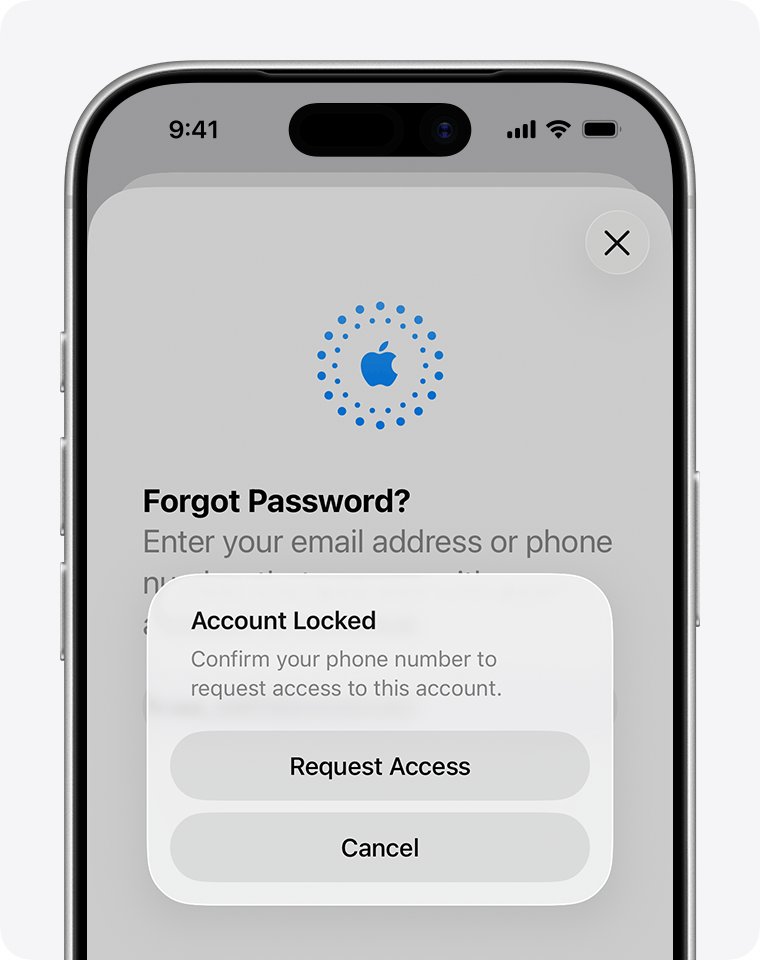
"This Apple ID has been disabled for security reasons"
The password or other account details were entered incorrectly too many times, so Apple locked the account.
- Tap Request Access in the alert if the message offers it.
- Otherwise open iforgot.apple.com in a browser and select Reset Password.
- Follow the onscreen steps to reset the password and unlock the account.
- Start account recovery when no reset option is available, then wait – recovery can take several days, and contacting Apple Support does not shorten it.
Fix Sign Out when it is greyed out or blocked
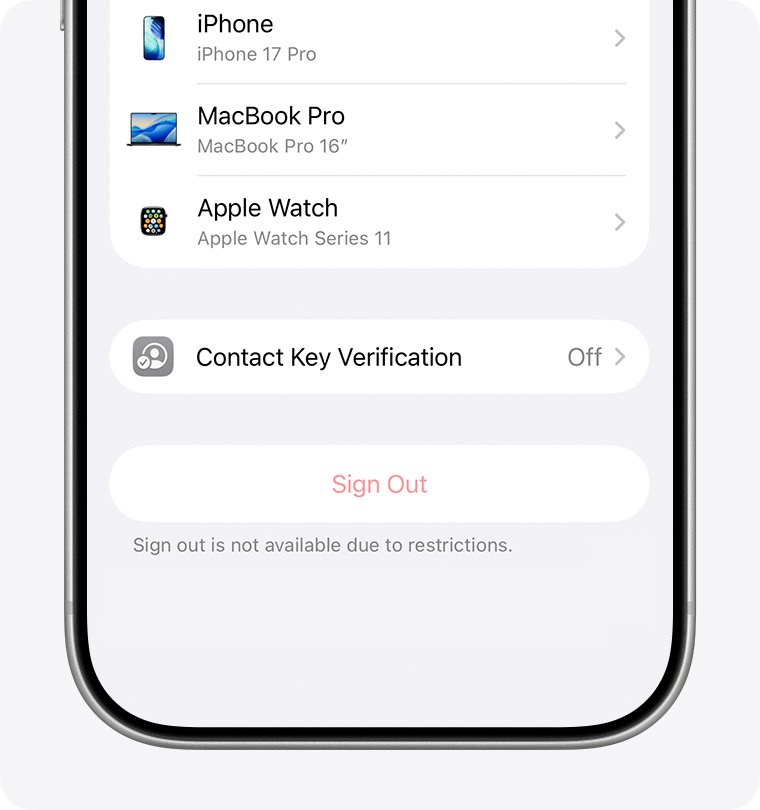
"Sign out is not available due to restrictions"
A Screen Time passcode is set on the device and blocks account changes.
- Open Settings > Screen Time.
- Scroll down and tap Manage Screen Time.
- Tap Change Screen Time Passcode.
- Tap Turn Off Screen Time Passcode, then enter the passcode.
- Return to Settings, tap your name, then tap Sign Out.
Your Apple ID is greyed out in Settings
Content & Privacy Restrictions are set to block account changes on the device.
- Open Settings > Screen Time > Content & Privacy Restrictions.
- Scroll to the privacy restrictions and tap Allow Changes to Settings.
- Tap Accounts and set it to Allow, entering the Screen Time passcode if prompted.
- Go back to Allow Changes to Settings and set any other Don't Allow entry you need to Allow.
- Return to your name in Settings – the account controls respond again.
A parent or guardian manages the iPhone or iPad
The device belongs to a child in a Family Sharing group, and parental controls hold the Screen Time passcode.
- Ask the parent or guardian in the Family Sharing group to enter the Screen Time passcode on the device.
- Have them set Accounts to Allow under Allow Changes to Settings.
- Sign out and sign in with the account you want once the restriction is lifted.
- Ask them to restore the restriction afterwards if the device is meant to stay managed.
Maintaining Your Apple ID Security
The account holds payment methods, photos and messages, so the sign-in is worth protecting once it works.
- Keep two-factor authentication turned on – it is the default protection on most Apple Accounts and is required for Apple Pay and Sign in with Apple.
- Use a password that protects nothing else, and change it anywhere it has been reused.
- Turn on Stolen Device Protection on iPhone so a thief who knows your passcode still cannot take the account.
- Review the trusted phone numbers under Settings > your name > Sign-In & Security, and remove numbers you no longer control.
- Keep verification codes to yourself – a six-digit code belongs only on the device doing the sign-in.
- Sign in to account.apple.com occasionally and remove devices you no longer own.
Bottom line
Sign in through Settings > Apple Account rather than inside the App Store app. One pass covers the App Store, iCloud and the rest of the account, and it leaves the trusted-device setup in place that every later verification code depends on.
Frequently Asked Questions
How do you sign in to an Apple ID on iPhone?
Open Settings, tap Apple Account at the top of the screen, then tap Sign in Manually. Enter the email address or phone number on the account, enter the password, then enter the six-digit verification code sent to a trusted device or trusted phone number.
How do you sign in to an Apple ID on iPad?
The iPad route matches the iPhone route. Open Settings, tap Apple Account, then choose Sign in Manually or Use Another Apple Device. The App Store on the iPad then uses that account for downloads, updates and subscriptions.
How do you sign in to an Apple ID on a computer?
On a Mac, open the App Store and click Sign In at the bottom-left, or choose Apple menu > System Settings and click Sign in in the sidebar. On a Windows PC, sign in through the Apple Music or Apple TV app, or at account.apple.com in a browser.
How do you sign in to an Apple ID on Apple Watch?
There is no separate sign-in on the watch. Pair the Apple Watch with an iPhone that is already signed in, and the watch uses that same Apple Account automatically for the App Store and other services.
Why can't I sign in to my Apple ID?
The three usual causes are a password changed elsewhere, a verification code that never reached a trusted device, and an account locked after too many wrong attempts. Reset the password at iforgot.apple.com, then sign in again.
Why is Sign Out of Apple ID greyed out?
Screen Time restrictions block account changes. Open Settings > Screen Time > Content & Privacy Restrictions, tap Allow Changes to Settings, tap Accounts, then set it to Allow. The sign-out controls respond again immediately.
Why can't I sign out of my Apple ID on iPhone?
A message reading "Sign out is not available due to restrictions" means a Screen Time passcode is set. Open Settings > Screen Time > Manage Screen Time > Change Screen Time Passcode, then tap Turn Off Screen Time Passcode and enter the passcode.
How do you sign out from an Apple ID?
Open Settings, tap your name at the top, scroll to the bottom, then tap Sign Out. Enter the account password and answer the prompts about which data stays on the device. On a Mac, choose Store > Sign Out in the App Store.
How do you sign in to an Apple ID account on the web?
Go to account.apple.com in any browser and enter the email address or phone number and password, then the verification code. The website manages passwords, trusted phone numbers, payment methods and devices, but apps still download on an Apple device.
Can you use two Apple IDs on one iPhone?
Yes, but in separate roles. One Apple Account signs in for iCloud, and a second can sign in under Settings > your name > Media & Purchases for App Store downloads. The App Store itself accepts only one account at a time.
Is an Apple ID free to create?
Yes. Tap Forgot password or don't have an account? on the sign-in screen, then tap Create a Free Apple Account. A payment method is optional at setup, and the App Store asks for one only when a purchase needs it.
What does "This Apple ID has been disabled" mean?
Apple locked the account after the password or account details were entered wrong too many times. Tap Request Access if the alert offers it, or reset the password at iforgot.apple.com. Account recovery, when it is needed, can take several days.