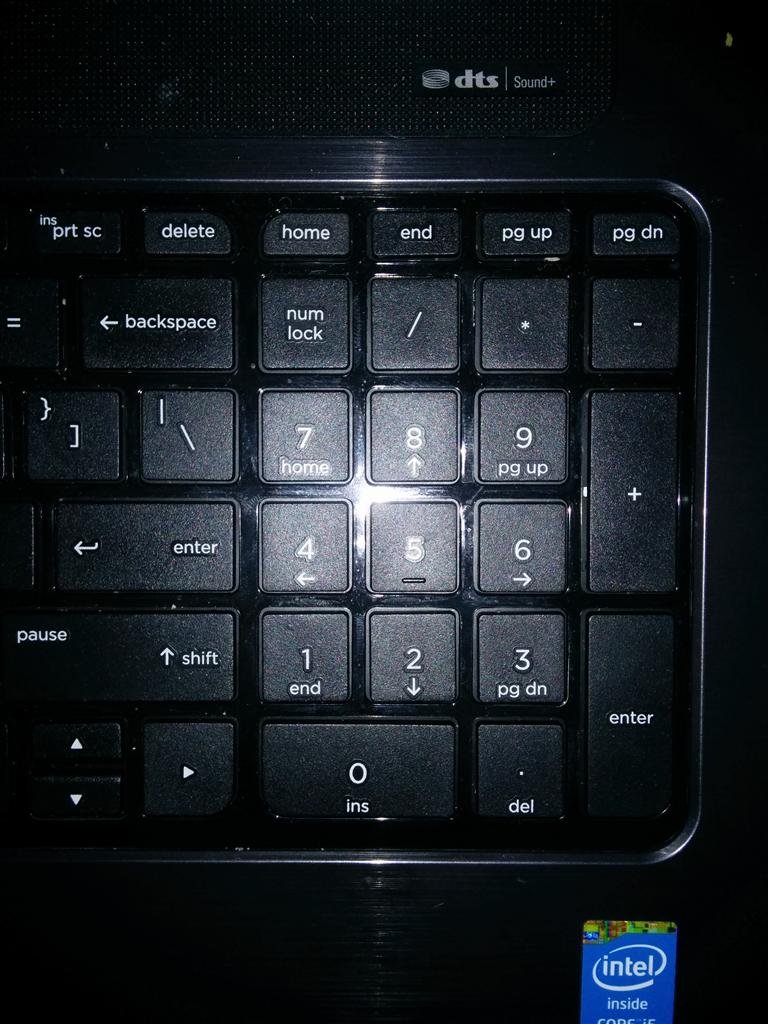
Press the Num Lock key once to enable the number pad in Windows 11 and Windows 10, and press it again to disable it.
This page covers keyboards with no Num Lock key, the On-Screen Keyboard, the UEFI setting, sign-in scripts, and the fixes for a pad that keeps switching itself off.
Quick Method: Press the Num Lock Key
One key does both jobs. There is no separate key for on and off.
- Press Num Lock once to enable the number pad.
- Type a digit on the pad to confirm it now sends numbers.
- Press Num Lock again to disable the pad and return it to its navigation keys.
If nothing changes, the key may be shared with Fn, or the pad may be taken over by Mouse keys. Both cases are covered below.
What Num Lock Does
Num Lock is a keyboard state, not an app setting. It decides what the keys in the numeric block send to Windows.
| State | What the number pad sends | How to tell |
|---|---|---|
| Num Lock on | Digits, plus the keypad add, subtract, multiply and divide keys | A keypad key types a number into Notepad |
| Num Lock off | Navigation instead of digits | A keypad key moves the cursor instead of typing |
| Mouse keys turned on | Pointer movement, because Mouse keys lets the numeric keypad control the mouse | The pointer moves when you press a keypad key |
| Toggle keys turned on | The same keys, plus an audible cue | Windows plays a sound whenever you press Num lock, Caps lock or Scroll lock |
Which method should you use?
| Your situation | Use this | Why |
|---|---|---|
| The keyboard has a Num Lock key | Press Num Lock | One key, no settings to open |
| A laptop with no Num Lock legend | The On-Screen Keyboard numeric key pad | It supplies a number pad the hardware does not have |
| The pad must be on at the sign-in screen | The firmware setting in BIOS or UEFI | It runs before Windows starts |
| The pad must be on once you are signed in | A logon task or a startup shortcut | It runs for the account that signs in |
| The pad moves the pointer | Turn off Mouse keys | Mouse keys claims the numeric keypad |
| You want the pad off and kept off | Firmware setting off, plus no logon task | Nothing is left to switch it back on |
How To Enable or Disable Num Lock on a Laptop
Laptop keyboards usually fold the number pad into the letter keys, so the Num Lock key is often shared.
- Look along the top row and the right of the keyboard for a key legended Num Lock, NumLk or Num.
- Press that key on its own if the legend is printed in the same colour as the main letters.
- Hold Fn and press it if the legend is printed in the Fn colour, or if it shares the key with another function.
- Press a key in the embedded pad and watch the screen: a digit means the pad is enabled.
- Repeat the same press to disable it.
Laptop input devices are switched the same way; the trackpad has its own toggle, covered in How to enable or disable Touchpad in Windows 11/10.
If no key carries the legend, use the On-Screen Keyboard instead.
Use the Windows On-Screen Keyboard
The On-Screen Keyboard carries its own number pad, so it works on a keyboard that has none.
- Press Windows key + Ctrl + O to turn on the On-Screen Keyboard.
- Select the Options key on the on-screen keyboard.
- Select Turn on numeric keypad to expand the keyboard with a pad.
- Select the keys on that pad to type digits without touching the hardware keyboard.
- Press Windows key + Ctrl + O again to close it.
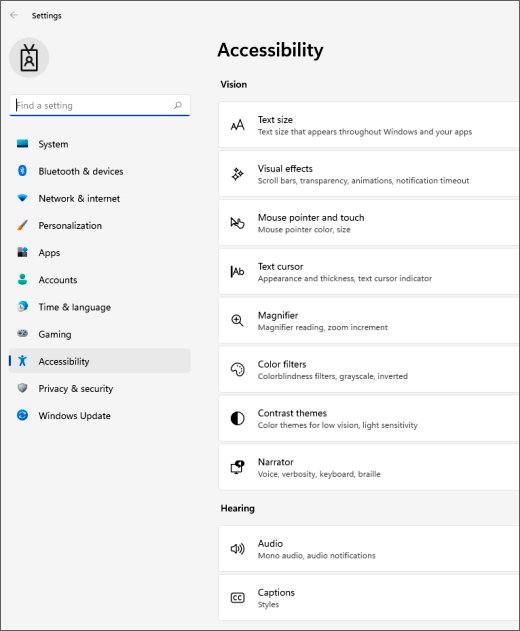
At the sign-in screen the same keyboard is available: select Accessibility in the lower-right corner on Windows 11, or Ease of Access on Windows 10, then select On-Screen Keyboard.
Where the Num Lock settings live in Windows 11 and Windows 10
Microsoft renamed the accessibility section between the two versions, so the same switch sits under a different name.
| Setting | Windows 11 | Windows 10 |
|---|---|---|
| On-Screen Keyboard | Start > Settings > Accessibility > Keyboard, then turn on On-Screen Keyboard | Start > Settings > Ease of Access > Keyboard, then turn on the toggle under Use the On-Screen Keyboard |
| Mouse keys | Start > Settings > Accessibility, then Mouse under Interaction | Start > Settings > Ease of Access > Mouse, then the toggle under Control your mouse with a keypad |
| Toggle keys sound | Keyboard accessibility settings, Toggle keys switch | Keyboard accessibility settings, Toggle keys switch |
| Advanced startup, for the firmware setting | Settings > System > Recovery | Settings > Update & Security > Recovery |
Windows logo key + U opens the accessibility settings directly on Windows 11.
What to know before editing the registry to enable Num Lock at startup
Registry edits for the startup keyboard state circulate widely, but Microsoft publishes no supported value for it.
Set the state in firmware or with a sign-in task rather than with an undocumented registry value. An undocumented value carries no guarantee that a future build still reads it, and a Fast Startup boot restores a saved kernel session rather than running a fresh start, so the value can appear to be ignored. The firmware setting runs before Windows loads and a logon task runs after the account signs in, and both are documented, repeatable and easy to remove.
Enable or Disable Num Lock in BIOS or UEFI
The firmware sets the keyboard state before Windows loads, so this is the route that reaches the sign-in screen.
- Select Start > Settings > System > Recovery on Windows 11, or Settings > Update & Security > Recovery on Windows 10.
- Select Restart now under Advanced startup.
- Select Troubleshoot, then Advanced options.
- Select UEFI Firmware Settings, then select Restart.
- Open the firmware's boot or keyboard page and set the Num Lock entry to on or off. The exact wording differs by manufacturer.
- Save the change and exit the firmware.
UEFI Firmware Settings appears only on devices whose firmware exposes a setup screen. If the entry is missing, use a sign-in task instead.
Bypass Fast Startup if Windows Does Not Remember Num Lock
Fast Startup puts the PC into a hibernation state instead of a full shutdown, and it is on by default on any PC that can hibernate.
The switch sits under Control Panel\All Control Panel Items\Power Options\System Settings, but Microsoft does not recommend turning it off. A full shutdown gets the same fresh boot without changing the setting.
Shutdown /s /t 0Shutdown.exe performs a full shutdown by default, so the next start is a complete boot rather than a resume from the saved hibernation file.
You should see: The PC powers off immediately, and the next start applies the firmware Num Lock setting cleanly.
Restart also gives a full boot, because the Fast Startup setting does not apply to Restart.
Use a Startup Script to Force Num Lock On or Off
This command checks the current state first, so it never toggles a pad that is already correct.
Save it in a .cmd file, for example C:\Scripts\numlock.cmd.
powershell.exe -WindowStyle Hidden -Command "Add-Type -AssemblyName System.Windows.Forms; if (-not [System.Windows.Forms.Control]::IsKeyLocked('NumLock')) { [System.Windows.Forms.SendKeys]::SendWait('{NUMLOCK}') }"Control.IsKeyLocked reports whether the NUM LOCK key is in effect, and SendKeys.SendWait sends {NUMLOCK}, the documented code for that key, only when the pad is off.
You should see: The number pad types digits, and running the command a second time changes nothing.
To force Num Lock off instead, delete -not from the condition so the key is sent only when the pad is already on.
To run it at sign-in, press Windows key + R, type shell:startup, press Enter, and drop a shortcut to the .cmd file into the folder that opens. That folder is %userprofile%\AppData\Roaming\Microsoft\Windows\Start Menu\Programs\Startup.
Use Task Scheduler to Set Num Lock at Sign-In
A scheduled task is easier to audit and remove than a shortcut in a startup folder. Run this from an elevated Command Prompt.
schtasks /create /tn "Num Lock On" /tr "C:\Scripts\numlock.cmd" /sc onlogon/sc onlogon runs the task whenever a user logs on, /tn names the task, and /tr gives the full path to the file it runs.
You should see: SUCCESS: The scheduled task "Num Lock On" has successfully been created.
Add /ru with an account name to run the task under a specific user; without it the task uses the current user's permissions.
Enable or Disable Num Lock for All Users
Windows keeps a second startup folder that runs for every account on the PC.
- Press Windows key + R, type
shell:common startupand press Enter. - Confirm the folder that opens is
%ProgramData%\Microsoft\Windows\Start Menu\Programs\Startup. - Copy the shortcut to
numlock.cmdinto it, and approve the administrator prompt. - Sign out, sign in with a second account, and press a keypad key to confirm the state.
- Delete the shortcut from that folder to remove the behaviour for everyone.
The schtasks /sc onlogon task above also fires for any user who logs on, which is the alternative when writing to %ProgramData% is blocked.
Check Mouse Keys if the Number Pad Moves the Pointer
Mouse keys lets the numeric keypad drive the mouse pointer, so the pad stops typing digits while it is on.
- Press Left Alt + Left Shift + Num lock to turn Mouse Keys on or off.
- Open Start > Settings > Accessibility on Windows 11, then select Mouse under Interaction.
- Turn off the Mouse keys switch.
- On Windows 10, open Start > Settings > Ease of Access > Mouse and turn off the toggle under Control your mouse with a keypad.
- Press a keypad digit and confirm it types a number instead of moving the pointer.
What To Do If There Is No Num Lock Key
Compact and tenkeyless keyboards drop the key entirely. Match the keyboard to a row and act.
| Keyboard | Do this | Why |
|---|---|---|
| Compact desktop keyboard with no numeric block | Turn on the On-Screen Keyboard and select Turn on numeric keypad | It supplies a number pad the hardware does not have |
| Laptop with an embedded pad under the letter keys | Hold Fn and press the key carrying the Num Lock legend | The legend is printed in the Fn colour on those models |
| Laptop with no legend anywhere | Check the manufacturer's manual for that model | Key assignments differ between models from the same maker |
| External USB number pad | Press the Num Lock key on the pad itself | The pad carries its own key |
| Sign-in screen, before any key works | Select Accessibility, then On-Screen Keyboard | It types the PIN without the hardware pad |
How to check it worked
- Open Notepad and press 4, 5 and 6 on the number pad. Digits appear when Num Lock is enabled.
- Press the same keys with Num Lock disabled. The cursor moves instead of typing.
- Turn on the Toggle keys switch in the keyboard accessibility settings to hear a sound each time the state changes.
- Sign out and sign back in to confirm a logon task or startup shortcut still applies the state.
- Shut down with
Shutdown /s /t 0and start the PC to confirm a firmware setting survives a full boot.
How to undo it
- Delete the scheduled task with
schtasks /delete /tn "Num Lock On" /ffrom an elevated Command Prompt. - Press Windows key + R, type
shell:startup, press Enter, and delete thenumlock.cmdshortcut. - Repeat with
shell:common startupto clear the all-users copy. - Return the firmware Num Lock entry to its original value through UEFI Firmware Settings.
- Press Num Lock once to set the pad the way you want it now.
Fix Num Lock Problems After Sleep or Wake
The number pad is off again after the PC wakes from sleep
A wake from sleep does not sign an account in again, so nothing that runs at logon gets a chance to set the state.
- Press Num Lock once to set the pad for the current session.
- Set the firmware Num Lock entry through UEFI Firmware Settings so the state is applied at every power-on.
- Turn on the Toggle keys switch so a sound tells you the state changed without watching the keyboard.
- Test with a full shutdown using
Shutdown /s /t 0, then start the PC and check the pad at the sign-in screen.
The pad is on in Windows but off at the sign-in screen
Startup shortcuts and logon tasks run after sign-in, so they cannot affect the screen that asks for the PIN.
- Set the Num Lock entry in the firmware, which runs before Windows loads.
- Select Restart rather than Shut down when testing, because Fast Startup does not apply to Restart.
- Use the sign-in Accessibility button and On-Screen Keyboard to enter the PIN until the firmware change is in place.
Common Num Lock Issues and Fixes
The keypad types arrows instead of numbers
Num Lock is disabled, so the block sends its navigation functions.
- Press Num Lock once.
- Hold Fn and press it if the key is shared on a laptop.
- Type a digit in Notepad to confirm.
Num Lock keeps turning itself back on
Something is setting the state: a firmware entry, a startup shortcut or a scheduled task.
- Set the firmware Num Lock entry to off through UEFI Firmware Settings.
- Delete any shortcut in
shell:startupandshell:common startupthat runs a Num Lock script. - Delete the logon task with
schtasks /delete /tn "Num Lock On" /f. - Sign out and back in to confirm the pad stays off.
Pressing a keypad key moves the mouse pointer
Mouse keys is on and has claimed the numeric keypad.
- Press Left Alt + Left Shift + Num lock.
- Turn off the Mouse keys switch in the accessibility settings for your Windows version.
- Press a keypad digit to confirm it types.
The Num Lock key does nothing at all
The key is shared with another function, or the keyboard has no such key.
- Hold Fn and press the key carrying the Num Lock legend.
- Press Windows key + Ctrl + O, select Options, then Turn on numeric keypad, and use the on-screen pad.
- Plug in a second keyboard and press its Num Lock key to rule out a hardware fault.
Frequently Asked Questions
How do you enable Num Lock?
Press the Num Lock key once. On a laptop where the legend shares a key with another function, hold Fn and press it. Type a digit on the number pad to confirm the pad now sends numbers rather than moving the cursor.
How do you disable Num Lock?
Press the same Num Lock key again. The numeric block then sends its navigation functions instead of digits. If the key keeps switching back on, check the firmware setting and any startup shortcut or logon task that sets the state.
How do you permanently enable Num Lock?
Set the Num Lock entry in BIOS or UEFI so the firmware applies it at every power-on, then add a logon task with schtasks /create /sc onlogon for the state after sign-in. Between them the pad is set before and after Windows loads.
How do you permanently disable Num Lock?
Set the firmware Num Lock entry to off, delete any shortcut in shell:startup and shell:common startup that runs a Num Lock script, and delete the logon task. With nothing left to set the state, the pad stays off across restarts.
How do you enable the numpad when the keyboard has no Num Lock key?
Press Windows key + Ctrl + O to open the On-Screen Keyboard, select Options, then select Turn on numeric keypad. The keyboard expands with a clickable pad that types digits without any hardware key.
How do you disable the numpad on a laptop?
Press Num Lock, or hold Fn and press the key carrying that legend, so the embedded pad returns to its letters and navigation. Turning off Mouse keys stops the keypad driving the pointer as well.
How do you make sure Num Lock is enabled before you type?
Turn on the Toggle keys switch in the keyboard accessibility settings. Windows then plays a sound whenever Num lock, Caps lock or Scroll lock changes, so a single press tells you which way the state moved.
Why does the number pad move the mouse pointer?
Mouse keys is on. That feature lets the numeric keypad control the mouse, so the keys stop typing digits. Press Left Alt + Left Shift + Num lock, or turn off the Mouse keys switch in the accessibility settings.
Does turning Num Lock on in BIOS affect the sign-in screen?
Yes. The firmware applies the state before Windows loads, so it reaches the screen that asks for a PIN or password. Startup shortcuts and scheduled tasks run only after an account signs in.
Why does Num Lock behave differently after shutting down than after restarting?
Fast Startup saves a hibernated kernel session on shutdown rather than closing it, and that setting does not apply to Restart. Use Shutdown /s /t 0 or select Restart when testing a firmware change.
Best Method for Most People
Press the Num Lock key for a one-off change, and set the firmware entry when the pad must be on at every sign-in. The key costs nothing and works on every desktop keyboard, while the firmware setting runs before Windows loads and therefore covers the sign-in screen that scripts and scheduled tasks cannot reach. Add a logon task only when the firmware has no Num Lock entry.