Open Start > Settings > Bluetooth & devices > Printers & scanners on Windows 11, or Start > Settings > Devices > Printers & scanners on Windows 10, to see every installed printer.
This guide also covers the Control Panel view, the Get-Printer command, Print Management, and what to do when a printer is missing from the list.
Check Installed Printers from Windows Settings
The Settings app lists printers and scanners together, including virtual printers and printers shared from other PCs.
- Select Start, then select Settings.
- On Windows 11, select Bluetooth & devices, then select Printers & scanners. On Windows 10, select Devices, then select Printers & scanners.
- Read the list. Each entry is an installed printer or scanner.
- Select a printer to open its page and read its status and queue.
- Use Add device on Windows 11, or Add a printer or scanner on Windows 10, if something is missing.
A printer listed here is installed on this PC. It does not have to be powered on to appear.
Which method should you use?
| Your situation | Use this | Why |
|---|---|---|
| You just want to see the printers | Settings > Printers & scanners | Two clicks, no commands, works on every edition |
| You want the list as text you can copy | Get-Printer in Windows PowerShell |
Returns one row per printer with driver and port |
| You are already in Command Prompt | powershell -Command "Get-Printer" |
WMIC no longer ships with current Windows 11 builds |
| You need the driver and port for each printer | Get-Printer | Format-List |
Prints every property instead of the default columns |
| You need printers from a print server | Get-Printer -ComputerName PrintServer |
Reads a remote computer without signing into it |
| You manage several print servers | Print Management (printmanagement.msc) |
Shows all servers in one tree with sortable columns |
Where the printer list lives in Windows 11 and Windows 10
Microsoft moved the printer page between Windows versions, and the Control Panel view still exists alongside it.
| Windows version | Path to the list | What the list shows |
|---|---|---|
| Windows 11 | Start > Settings > Bluetooth & devices > Printers & scanners | Installed printers and scanners, plus Add device |
| Windows 10 | Start > Settings > Devices > Printers & scanners | Installed printers and scanners, plus Add a printer or scanner |
| Windows 10 or Windows 11, classic view | Control Panel > Devices and Printers | The same printers as icons, with right-click menus |
| Windows 10 or Windows 11, no interface | Get-Printer in Windows PowerShell |
Name, driver and port for local or remote printers |
View Printers Using Control Panel
Devices and Printers is still a Control Panel item in Windows 10 and Windows 11.
- Type Control Panel in the search box on the taskbar and open it.
- Select Devices and Printers.
- Read the printers shown in the window. Each icon is one installed printer.
- Right-click a printer and select Printer properties to read its port and driver.
- Close the window when you have the names you need.
Group Policy can hide this item. If Devices and Printers is absent from Control Panel, use Settings or Get-Printer instead.
List Printers with Command Prompt
Command Prompt has no printer command of its own any more. WMIC is deprecated as of Windows 10, version 21H1, and starting in August 2026 Windows 11, versions 24H2 and 25H2 no longer include it and it cannot be added back as a Feature on Demand.
Call PowerShell from Command Prompt instead. The command below runs in a normal, non-elevated window.
powershell -Command "Get-Printer | Format-Table Name, DriverName, PortName"powershell -Command runs a single PowerShell command and returns to Command Prompt. Get-Printer retrieves the printers installed on this computer, and Format-Table limits the output to the printer name, its Windows printer driver and the port that carries data to it.
You should see: A three-column table appears, with one row for every installed printer. An empty result means no printer is installed for the signed-in user.
Get Installed Printers Using PowerShell
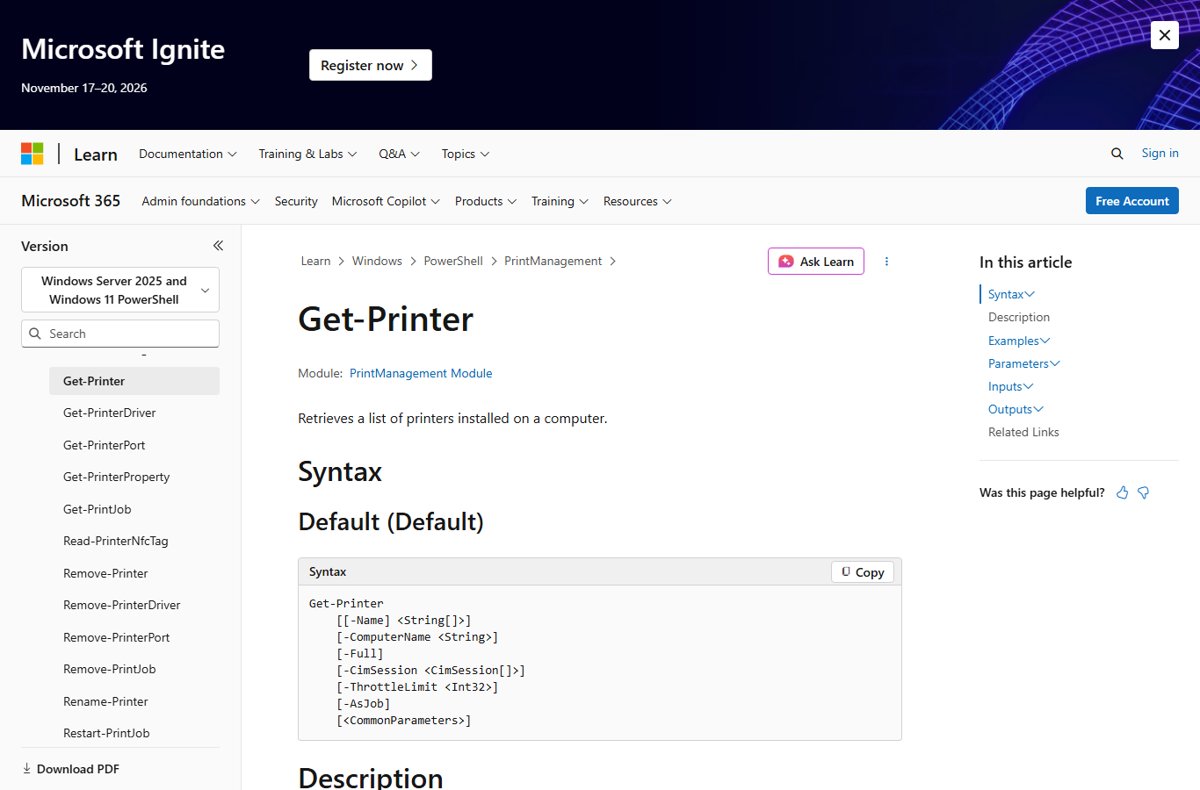
Get-Printer is part of the built-in PrintManagement module. Administrator credentials are not required to run it.
Get-PrinterRetrieves a list of printers and printer connections on the local computer. Add -Name to target one printer, -Full to include RenderingMode and PermissionSDDL, or -ComputerName to read a print server.
You should see: PowerShell prints one row per printer. Get-Printer -Name "Microsoft XPS Document Writer" | Format-List then shows every property of a single printer.
Wildcards work in the -Name value, so Get-Printer -Name "HP*" narrows a long list.
Useful PowerShell Commands for Printer Details
The PrintManagement module carries a read-only cmdlet for each part of the print stack.
| Command | What it returns |
|---|---|
Get-Printer |
Printers and printer connections on the local computer |
Get-Printer -Name "<printer>" | Format-List |
Every property of one named printer |
Get-Printer -Full |
The printer list plus RenderingMode and PermissionSDDL |
Get-Printer -ComputerName PrintServer |
The printer list from the computer named PrintServer |
Get-PrinterDriver |
The printer drivers installed on the computer |
Get-PrinterPort |
The printer ports installed on the computer |
Get-PrinterProperty |
Printer properties for a specified printer |
Get-PrintConfiguration |
The configuration information of a printer |
Get-PrintJob |
The print jobs sitting in a specified printer's queue |
Get-CimInstance -ClassName Win32_Printer |
The WMI view, including the Default, Local, Network and Shared flags |
The same pattern works for other inventories. Techdows covers one for background services in Get a list of Services Running on your computer.
How to Identify Local, Network, and Virtual Printers
The Settings list does not label a printer as local or network. The WMI class behind it does, through the properties below.
Read them with Get-CimInstance -ClassName Win32_Printer | Select-Object Name, Local, Network, Shared, Default, PortName, DriverName.
| Property | Type | What it tells you |
|---|---|---|
Local |
boolean | TRUE means the printer is not attached to a network |
Network |
boolean | TRUE means the printer is a network printer. If Local and Network are both TRUE, it is a network printer |
Shared |
boolean | TRUE means the printer is available as a shared network resource |
Default |
boolean | TRUE means this is the default printer |
ServerName |
string | The server that controls the printer. NULL means the printer is controlled locally |
PortName |
string | The port used to transmit data to the printer, such as LPT1: |
DriverName |
string | The name of the Windows printer driver, such as Windows Fax Driver |
WorkOffline |
boolean | TRUE means jobs can queue on the PC while the printer is offline |
A virtual printer such as Microsoft XPS Document Writer reports Local as TRUE like a USB printer. Tell the two apart by DriverName and PortName, since a virtual printer writes to a file rather than to a hardware port.
Find Printers in Print Management
Print Management is a snap-in in Microsoft Management Console that installs, views and manages printers, including printers on other print servers.
- Press Win + R, type
printmanagement.mscand press Enter. - In the Print Management tree, expand Custom Printer Filters.
- Select All Printers to see every printer on every server that Print Management is monitoring.
- To see one machine only, expand Print Servers, expand the server, then select Printers.
- Right-click Printers, point to View, then select Add/Remove Columns to show details such as driver version, queue status and location.
- Right-click Printers and select Export List to save the visible columns to a text file.
Print Management is not on every PC. When printmanagement.msc does not open, use Get-Printer instead; it reads the same printer list and needs no console. On a client with Windows protected print mode enabled, Print Management also cannot manage servers that have Windows protected print mode disabled.
How to check the list is complete
Two sources agreeing is the proof. Compare the command output with the Settings page before you act on it.
- Run
Get-Printerand count the rows returned. - Open Settings > Printers & scanners and count the printers listed.
- If the counts differ, run
Get-Printer -ComputerName <name>against the print server to see printers you connect to but have not installed locally. - Run
Get-CimInstance -ClassName Win32_Printer | Where-Object { $_.Default -eq $true }and confirm one printer is returned. - Run
Get-Printer -Name "<printer>" | Format-Listfor any name you are unsure about and read its driver and port.
To keep a copy, add | Out-File printers.txt to the Get-Printer command. The same idea applies to software; see How to Export List of Installed Programs using Revo Uninstaller Free?.
What to Do If an Installed Printer Is Missing
The printer does not appear in Printers & scanners
The physical or network connection dropped, so Windows never reports the device.
- Turn the printer off, unplug it, wait 30 seconds, then plug it back in and turn it on.
- For a USB printer, reseat the cable at both ends and try a different port on the PC.
- For a wireless printer, use the printer's own menu to confirm it is on the same network as the PC.
- Return to Settings > Printers & scanners and wait for the list to repopulate.
- Run the automated Printer troubleshooter in the Get Help app if the entry is still absent.
Printers are listed but nothing prints and the list looks stale
The Print Spooler service has stopped or hung, so the print subsystem returns nothing new.
- Press Win + R, type
services.mscand press Enter. - Scroll down and locate Print Spooler.
- Right-click Print Spooler and select Restart.
- Run
Get-Printeragain and confirm the list returns. - Restart the PC if the service stops again on its own.
The printer is listed but shows as offline
Windows marked the queue offline, or the queue is paused after a failed job.
- On Windows 11, open Settings > Bluetooth & devices > Printers & scanners, select the printer, then select Set as default.
- Open the print queue, select the ellipsis menu and select Cancel all to clear stuck jobs.
- On Windows 10, open Settings > Devices > Printers & scanners, select the printer and select Open queue.
- On the Printer menu, select Set As Default Printer and clear Pause Printing and Use Printer Offline if either is selected.
- Restart the PC to refresh the connection to the printer.
Re-adding the printer is the only thing left
The installed queue is damaged, so Windows keeps the broken entry instead of rebuilding it.
- Open Settings > Bluetooth & devices > Printers & scanners.
- Select the printer and select Remove.
- Return to Printers & scanners and select Add device next to Add a printer or scanner.
- If the printer is not found, select Add a new device manually next to The printer that I want isn't listed.
- Follow the prompts to reinstall the printer, then confirm it with
Get-Printer.
A shared printer on another PC never shows up
Sharing, network discovery or the account used to reach the host PC is blocking the connection.
- On the host PC, open the printer's properties and select Share this printer, then note the share name.
- Confirm both PCs are on the same local network.
- Turn on Network discovery and File and printer sharing in the advanced sharing settings on both PCs.
- Sign in with the same account on both PCs, or supply the host PC's user name and password when prompted.
- Add the printer manually using the path
\\ComputerName\PrinterShareName.
The printer is listed with the wrong driver
Windows installed a generic driver, or the manufacturer's driver was replaced during an update.
- Run
Get-PrinterDriverand read the driver names currently installed. - Remove the printer in Settings > Printers & scanners.
- Download the correct driver from the printer manufacturer's own support site. For one worked example, see Download And Install KYOCERA Printer Drivers For Windows 11/10/8/7.
- Install the driver, then add the printer again with Add device.
- Run
Get-Printer | Format-Listand confirm the driver name now matches the model.
Print Management will not open on this PC
The Print Management console is not installed on every edition or configuration of Windows.
- Open Windows PowerShell from the Start menu.
- Run
Get-Printerto read the same printer list without the console. - Run
Get-PrinterDriverandGet-PrinterPortfor the driver and port detail the console would have shown. - Run
Get-Printer -ComputerName <server>to inspect a print server remotely. - Use
Get-Printer | Out-File printers.txtin place of the console's Export List command.
Frequently Asked Questions
How do I see both local and network printers installed on my Windows PC?
Run Get-CimInstance -ClassName Win32_Printer | Select-Object Name, Local, Network, Shared. A printer with Local set to TRUE is not attached to a network. A printer with Network set to TRUE is a network printer, and Settings lists both together.
What is the fastest command to list installed printers in Windows 10 or Windows 11?
Get-Printer. It retrieves a list of printers and printer connections on the local computer, needs no switches and needs no administrator credentials. Add | Format-List when you want every property rather than the default columns.
Can I check installed printers without opening Windows Settings?
Yes. Run Get-Printer in Windows PowerShell, open Devices and Printers in Control Panel, or open Print Management with printmanagement.msc. All three read the same installed printers as the Settings page.
How can I tell which printer is the default printer?
Run Get-CimInstance -ClassName Win32_Printer | Where-Object { $_.Default -eq $true }. The Default property is TRUE on exactly one printer. In Settings you can also open a printer's page and select Set as default to change it.
What should I do if an installed printer does not appear in the list?
Power-cycle the printer and check its cable or network connection first. Then restart the Print Spooler service from services.msc. If it is still missing, remove the printer and add it again with Add device.
Does listing installed printers need administrator rights?
No. Microsoft states that administrator credentials are not required to run Get-Printer. Print Management also opens and monitors print servers without administrative privileges, although adding or deleting printers and drivers does need them.
Can I list the printers installed on another computer?
Yes. Run Get-Printer -ComputerName PrintServer, replacing PrintServer with the computer name. Get-Printer also works inside a Windows PowerShell remoting session, and accepts -CimSession for an existing remote session.
Does the wmic printer command still work?
Not on current builds. WMIC is deprecated as of Windows 10, version 21H1, and from August 2026 Windows 11, versions 24H2 and 25H2 no longer include it and it cannot be added back as a Feature on Demand. Use Get-Printer instead.
How do I see which driver and port each printer uses?
Run Get-Printer | Format-Table Name, DriverName, PortName. DriverName is the name of the Windows printer driver, and PortName is the port that carries data to the printer, such as LPT1:.
Bottom Line
Use Get-Printer in Windows PowerShell to get the list of all installed printers, and keep Settings for the two-click visual check. Get-Printer returns the name, driver and port for every printer in one line, runs without administrator credentials, reads remote print servers, and still works on builds where WMIC and the Print Management console are absent.