VLC is unable to open the MRL when the address it was handed is wrong, unreachable, or blocked, so retype the address and let VLC build it for you before changing any setting.
This guide covers the MRL syntax VideoLAN documents, the fixes in order, resetting preferences and the plugin cache, firewall access, caching, the Messages log, and the symptoms that look like this error but are not.
The fastest way to clear the MRL error
Most MRL failures are a typo, a stale link, or a path VLC cannot reach. Letting VLC build the address removes all three.
- Close the error dialog.
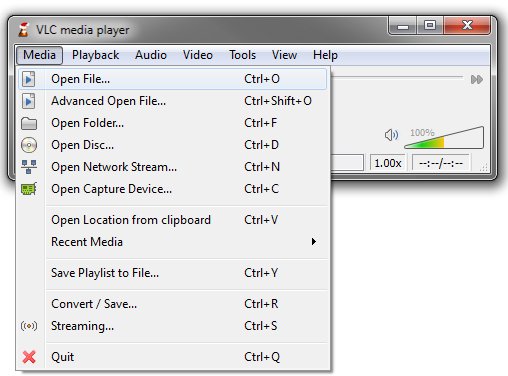
- For a file on your PC, press Ctrl + O, pick the file in the Open File dialog and select Open. VLC writes the
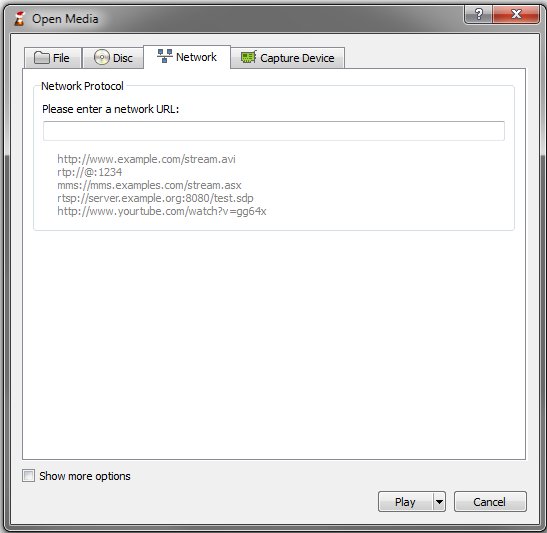
file://address itself. - For a stream, copy the address again from its source page, then press Ctrl + N for Open Network Stream.
- Clear the address box, paste the address with Ctrl + V, and check it still starts with
http://,https://,rtsp://,mms://,ftp://orsmb://. - Select Play.
- If it fails again, close VLC and run VideoLAN > Reset VLC media player preferences and cache files from the Start menu, then repeat the step above.
Which fix matches your case?
Find the row that describes what you were opening when the error appeared.
| What you were opening | Do this first | Why |
|---|---|---|
| A file on your own drive | Re-open it with Ctrl + O instead of a saved playlist entry | The file was moved, renamed or deleted, so the stored path no longer resolves |
| A file on a NAS or shared folder | Open the share in File Explorer first, then use Ctrl + O | VLC needs the share mounted and your credentials accepted before smb:// works |
| A web stream or web radio | Copy the address again and paste it into Open Network Stream | Stream addresses expire, and a copied line often carries a trailing space |
| An RTSP camera or IPTV stream | Check the protocol prefix and port, then raise caching | rtsp:// streams fail when the port is wrong or the first packets arrive late |
| A DVD, Blu-ray or audio CD | Use Media > Open Disc and pick the drive letter | Typing a disc address by hand is where the dvd:// syntax usually goes wrong |
| Anything, immediately after a VLC update | Reset the preferences and plugin cache | VideoLAN attributes many VLC problems to incorrect settings or a broken plugin cache |
| Everything, on every file | Reinstall VLC from videolan.org | A damaged install cannot load the access module the address needs |
Understanding the "VLC is Unable to Open MRL File" Error
MRL stands for media resource locator. VideoLAN defines it as a string that identifies a multimedia resource, or part of one, used as an input or an output to VLC.
The message means VLC parsed the string, chose an access module, and got nothing playable back. The table below breaks the string into the parts that can each fail.
| Part of the MRL | What it does | How it causes this error |
|---|---|---|
Full syntax: [[access][/demux]://]URL[#[title][:chapter]] [:option=value ...] |
The documented shape of every MRL VLC accepts | A missing :// turns the whole string into a filename VLC cannot find |
access |
How VLC fetches the data: file, http, ftp, smb, mms, rtp, rtsp, udp, tcp, dvd, cdda, vcdx, dir |
An access method that does not exist, such as a mistyped htttp, leaves no module able to open the resource |
demux |
Forces the format parser, written after a slash, as in dv/rawdv:// |
Forcing the wrong demuxer makes a valid source unreadable |
URL |
The address of the source itself | A typo, a moved file, an expired link or a host that is down all end here |
#title:chapter |
Selects a title and chapter on a disc, both positive integers | Older VLC releases used @ as the delimiter, so old instructions copied from the web fail |
:option=value |
Options applied to that one MRL only | An option name that no module recognises stops the item from opening |
udp://@:1234 |
The documented exception for UDP and RTP listening addresses | Writing udp://localhost:1234 instead does not work in this case |
Common Scenarios Where the Error Appears
The same dialog covers very different failures. Match your situation to the middle column before you change any setting.
| Scenario | What VLC was actually doing | First thing to check |
|---|---|---|
| Playing an old playlist entry | Resolving a stored file:// path |
Whether the file still sits at that exact path and name |
| Opening a file from a USB drive | Reading a path on a drive letter | That the drive is still connected and holds the same letter |
| Opening a network share | Authenticating over smb:// |
That the share opens in File Explorer with the same account |
| Pasting a web radio or WebTV link | Fetching over http:// or https:// |
That the address is current and has no trailing space or line break |
| Opening a camera or IPTV feed | Negotiating rtsp:// on a specific port |
The port number and whether the feed is reachable from this network |
| Receiving a multicast feed | Listening on udp://@:port or rtp://@:port |
That the @ is present and the port matches the sender |
| Opening a DVD or disc | Loading dvd:// against a drive |
The drive letter, written as dvd:///D:/ on Windows |
| A website page address pasted into VLC | Trying to demux an HTML page | Whether the link points at a media file or stream at all |
Step-by-Step Troubleshooting and Fixing the Error
Work down this list and test after each step. Stop as soon as the media plays.
- Retype or re-copy the address, then compare it character by character with the source. Strip any space before or after it.
- Confirm the syntax matches
access://URL, for examplehttp://www.example.org/your_file.mpgorrtsp://www.example.org/your_stream. - Open the same address in a browser, or open the same file in File Explorer, to prove the resource exists.
- Check the connection if the address is remote: open any website, then run
pingagainst the stream's host to confirm IP-level reachability. - Allow VLC through the firewall rather than switching protection off. Open Windows Security > Firewall & network protection > Allow an app through firewall and tick VLC for your network type. If Settings will not open at all, see how to fix the Settings app when it will not open.
- Update VLC from the official download page at videolan.org, since an old build can lack the access module a newer stream needs.
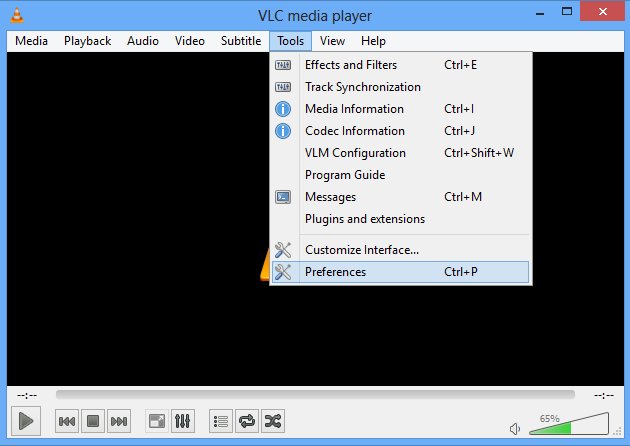
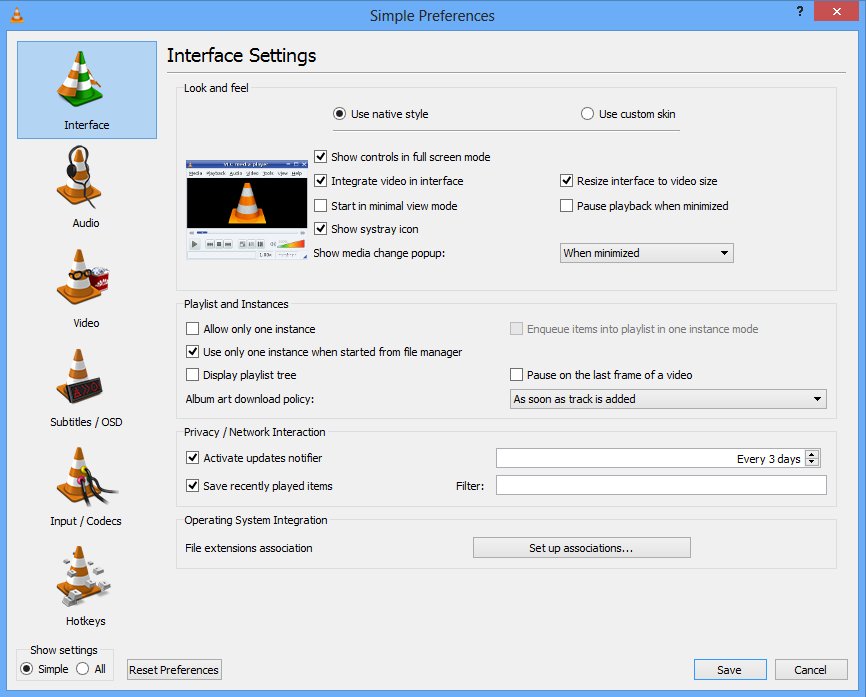
- Reset the preferences and the plugin cache using the Start menu shortcut or the Reset preferences button in Tools > Preferences.
- Start VLC as administrator by right-clicking its shortcut and choosing Run as administrator, then open the same address. This rules out a permission problem on a protected folder.
- Test a different file and a known-good stream. If both play, the fault belongs to the original address, not to VLC.
If VLC itself refuses to launch after an update, a missing runtime library is a common cause. See how to fix the missing MSVCP140.dll file.
Reset VLC's configuration and plugin cache from the command line
Use this when VLC starts but the graphical reset does not stick, or when the Start menu shortcut is missing.
vlc --reset-config --reset-plugins-cache--reset-config resets the current configuration to its default values. --reset-plugins-cache rebuilds VLC's cache of installed plugins, which VideoLAN names as a common cause of odd VLC behaviour. On Windows, run it from the folder that holds vlc.exe, or give the full path to it.
You should see: VLC opens with default settings: the simple Preferences panel again, no custom caching values, and any address you saved earlier gone from the playlist. Re-open your media and the MRL error should not return.
Where VLC keeps its settings and cache files
Deleting these removes every customised setting along with the broken cache. VLC recreates them at the next start.
| System | What to remove | How |
|---|---|---|
| Windows, the supported way | Preferences and cache together | Start menu > VideoLAN > Reset VLC media player preferences and cache files |
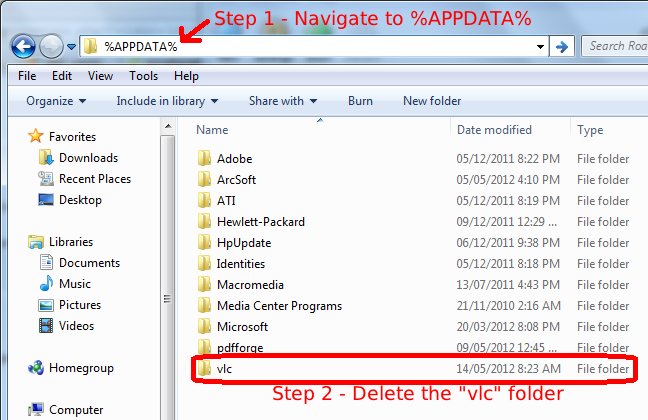
| Windows, manually | The vlc folder inside your AppData |
Type %APPDATA% in the File Explorer address bar, press Enter, delete the vlc folder |
| Windows, config file only | vlcrc |
It sits in your user's Application Data folder, created per user; there is no global config file |
| macOS, from VLC | All preferences | VLC menu > Preferences, then Reset All in the bottom left corner |
| macOS, manually | org.videolan.vlc defaults and every org.videolan.vlc.* file |
Quit VLC, run defaults delete org.videolan.vlc, then clear ~/Library/Preferences |
| Linux | ~/.config/vlc and ~/.cache/vlc |
Delete both folders, or run vlc --reset-config in a terminal |
| Android | App data | Settings > Applications > VLC > Clear data |
| iOS | The whole app | Delete VLC from the home screen and install it again from the App Store |
Raise the caching value when a stream opens late or not at all
A stream whose first packets arrive slowly can fail before playback starts. Buffering longer gives it room.
- Press Ctrl + N to open Open Network Stream.
- Tick Show more options.
- Raise the Caching value, which sets how many milliseconds VLC stores data before playback begins. Try 3000 first.
- Paste the address and select Play.
- For a one-off test from the command line, run
vlc --network-caching=3000 rtsp://example.org/stream. The value accepts 0 to 60000 milliseconds. - Use
--file-cachingfor local files,--disc-cachingfor optical media and--live-cachingfor cameras and microphones. - Lower the value again once playback is stable, because a high value delays the start of every stream.
Additional Common Fixes
These cover the cases where the address is right and VLC is healthy, but something between them is not.
- Disconnect the VPN and try the address again. A stream restricted by region fails through an exit node in the wrong country.
- Point VLC at your proxy if your network needs one: set HTTP proxy to the form
http://[user@]myproxy.mydomain:myport/, or run VLC with--http-proxy=. Left empty, VLC falls back to thehttp_proxyenvironment variable. - Set
--socks=address:portinstead when the network uses a SOCKS proxy for all TCP connections. - Turn on Auto re-connect for HTTP input, or pass
--http-reconnect, when a stream drops and never comes back. - Rebuild the plugin cache with
vlc --reset-plugins-cacheif the error started after an update, a partial install or a manual plugin copy. - Change hardware decoding with
--avcodec-hw=noneto rule out the decoder, then set it back toanyafterwards. - Try the media in another player as a test only. If a second player fails on the same address too, the source is the problem, not VLC.
Advanced Troubleshooting
The Messages window names the module that failed and the reason it gave. That single line usually ends the guesswork.
- Press Ctrl + M to open the Messages window.
- Set the verbosity to 2, which is the level VideoLAN asks for in bug reports.
- Reproduce the error by opening the same address again, then read the newest lines for the access module name and the failure reason.
- From a terminal, run
vlc -vvv "<your MRL>"to get the same detail on screen, since-vvvis the command-line equivalent. - Run
ping <host>against the stream's host. It verifies IP-level connectivity with ICMP echo requests and is the primary command for reachability and name resolution problems. - Install pending system updates: select Start > Settings > Windows Update > Check for Windows updates, then Download & install.
- List every option a module accepts with
vlc --longhelp --advancedwhen you need the exact switch name. - Report what the log says to VideoLAN's own support channels if the failure is in VLC itself.
How to check the MRL opens now
- Open the address again and confirm playback starts with no error dialog.
- Press Ctrl + J to open Codecs Information and confirm a video or audio stream is listed.
- Press Ctrl + M and confirm no new error lines appear while the media plays.
- Close VLC, reopen it, and play the same item from the playlist to confirm the fix survives a restart.
- Play a second file and a second stream to confirm the fix was not specific to one address.
Fix VLC when it still will not play after the MRL error
VLC will not open at all
A broken configuration, a damaged plugin cache, or a missing runtime library on Windows.
- Run VideoLAN > Reset VLC media player preferences and cache files from the Start menu.
- If that shortcut is missing, delete the
vlcfolder under%APPDATA%. - Reinstall the current build from the official download page at videolan.org.
- If Windows names a missing DLL instead, fix that first: see how to fix the missing MSVCP140.dll file.
VLC is not showing video, but the audio plays
The video output or the hardware decoder is failing while the audio path works.
- Press Ctrl + J and confirm a video stream is listed for the file.
- Restart VLC with
--avcodec-hw=noneto disable hardware decoding for that session. - Change the video output module in Tools > Preferences > Video, then restart VLC.
- Reset the preferences if the picture returns only with defaults.
VLC audio is not working
The wrong audio output device or module is selected, or the track itself is silent.
- Check the volume slider and the mute state in VLC itself first.
- Open Audio > Audio Device and pick the device you are actually listening on.
- Press Ctrl + J and confirm the file carries an audio stream.
- Reset the preferences to put the audio output module back to its default.
VLC is unable to open a DVD
The disc address or the drive is wrong, or the drive cannot give VLC raw access.
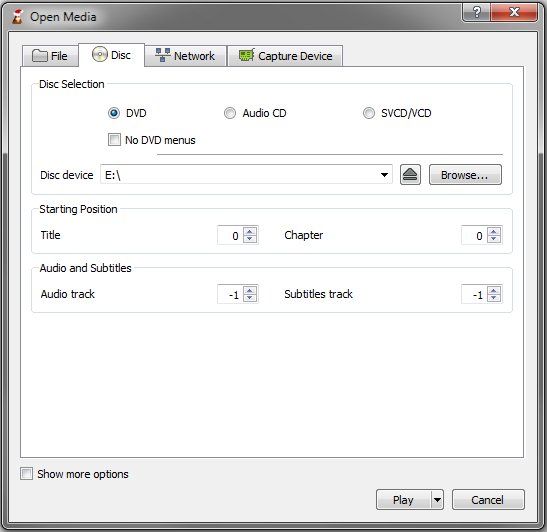
- Use Media > Open Disc, select DVD and pick the drive from the Disc Device list instead of typing an address.
- Tick No DVD menus to bypass the menu layer, which uses the
dvdsimple://access method. - On the command line, write the Windows drive as
vlc dvd:///D:/. - On Linux, install the
libdvdcsspackage and confirm you have access to the DVD device.
VLC cannot open YouTube or other website video
The pasted address points at a web page, not at a media stream, or the site changed how it serves video.
- Confirm the link ends at a media resource. A page address gives VLC HTML to demux, which fails.
- Update VLC to the current build from videolan.org, because site changes are handled in newer releases.
- Read Messages at verbosity 2 to see which access module rejected the address.
- Play the video in the browser instead when the site does not expose a direct stream.
VLC update is not working
The updater cannot reach the network, or the install is damaged.
- Allow VLC through the firewall in Windows Security > Firewall & network protection > Allow an app through firewall.
- Select Restore firewalls to default if past changes broke outbound access.
- Download the current installer from videolan.org and install it over the existing copy.
- Reset the preferences and plugin cache after the install completes.
Preventive Tips
Each of these removes one of the causes above before it can produce the error again.
- Open media with Ctrl + O, Ctrl + F or Media > Open Disc so VLC builds the address instead of you.
- Keep media in a stable folder, because moving or renaming a file breaks every saved playlist entry pointing at it.
- Save stream addresses in a playlist file rather than a note, so no stray space or line break creeps in.
- Update VLC from videolan.org on a schedule, not only after something breaks.
- Leave the caching value at its default and raise it only for the stream that needs it.
- Keep the VLC firewall exception in place after every reinstall, since a fresh install can drop it.
- Install Windows updates through Start > Settings > Windows Update to keep network and media components current.
Additional Resources
Every page below is run by VideoLAN or Microsoft. Nothing here needs a third-party utility.
| Resource | Where it lives | What it settles |
|---|---|---|
| MRL reference | VideoLAN wiki, Media resource locator | The full syntax, every access method and the title and chapter delimiter |
| Reset preferences guide | VideoLAN wiki, VSG:ResetPrefs | The reset route for Windows, macOS, Linux, Android and iOS |
| Command-line help | VideoLAN wiki, VLC command-line help | Exact switch names such as --network-caching, --http-proxy and --avcodec-hw |
| VLC FAQ | videolan.org/support/faq.html | Where the config file is stored and how to raise the verbosity level |
| Official download | videolan.org/vlc/ | The current VLC build for your system |
| VideoLAN support centre and forum | videolan.org/support/ | Where to report a failure that the log shows is inside VLC |
| Windows firewall settings | Microsoft Support, Firewall and network protection | Allowing an app through the firewall and restoring firewall defaults |
Frequently Asked Questions
Why won't VLC open?
A damaged configuration or plugin cache stops VLC from starting. Run the Start menu shortcut Reset VLC media player preferences and cache files, or delete the vlc folder under %APPDATA%. If Windows names a missing DLL instead, install that runtime before reinstalling VLC.
What does MRL mean in VLC?
MRL stands for media resource locator. VideoLAN defines it as a string that identifies a multimedia resource, or part of one, used as an input or output to VLC. Its syntax is access://URL, with optional demuxer, title, chapter and per-item options.
Why is VLC not playing video?
The file may carry no video stream, or the video output and hardware decoder may be failing. Press Ctrl + J to confirm a video stream exists, restart VLC with –avcodec-hw=none to rule out hardware decoding, then change the video output module in Preferences.
Why does VLC not work after an update?
A stale plugin cache survives some updates and blocks the modules VLC needs. Run vlc –reset-plugins-cache, or use the Start menu reset shortcut, which clears the preferences and the cache together. Reinstall from videolan.org if the error persists.
Why is VLC audio not working?
The wrong output device is usually selected. Check VLC's own volume and mute state, then open the Audio menu and pick the device you are listening on under Audio Device. Press Ctrl + J to confirm the media actually contains an audio track.
Why won't my VLC media player work with network streams?
The address, the firewall or the buffer is at fault. Re-copy the address into Open Network Stream, allow VLC through Windows Firewall, and raise the Caching value under Show more options so slow first packets do not end the attempt.
Why isn't my VLC media player working with a network share?
VLC needs the share reachable and your credentials accepted before an smb:// address resolves. Open the share in File Explorer first. Once it opens there, use Ctrl + O inside VLC so the correct path is built for you.
How do I fix VLC media player when every file fails?
Reset the preferences and plugin cache first, then reinstall the current build from videolan.org. If files still fail, open Messages with Ctrl + M at verbosity 2 and read which access module reported the failure.
Why is VLC unable to open a DVD?
The disc address or the drive access is wrong. Use Media > Open Disc and pick the drive letter rather than typing an address. On the command line a Windows drive is written dvd:///D:/, and on Linux the libdvdcss package must be installed.
Does the MRL error mean the file is corrupted?
Not by itself. The message only says VLC could not open what the address pointed at. A moved file, an expired link, a blocked port or a mistyped protocol prefix all produce it. Test a known-good file to separate the address from the media.