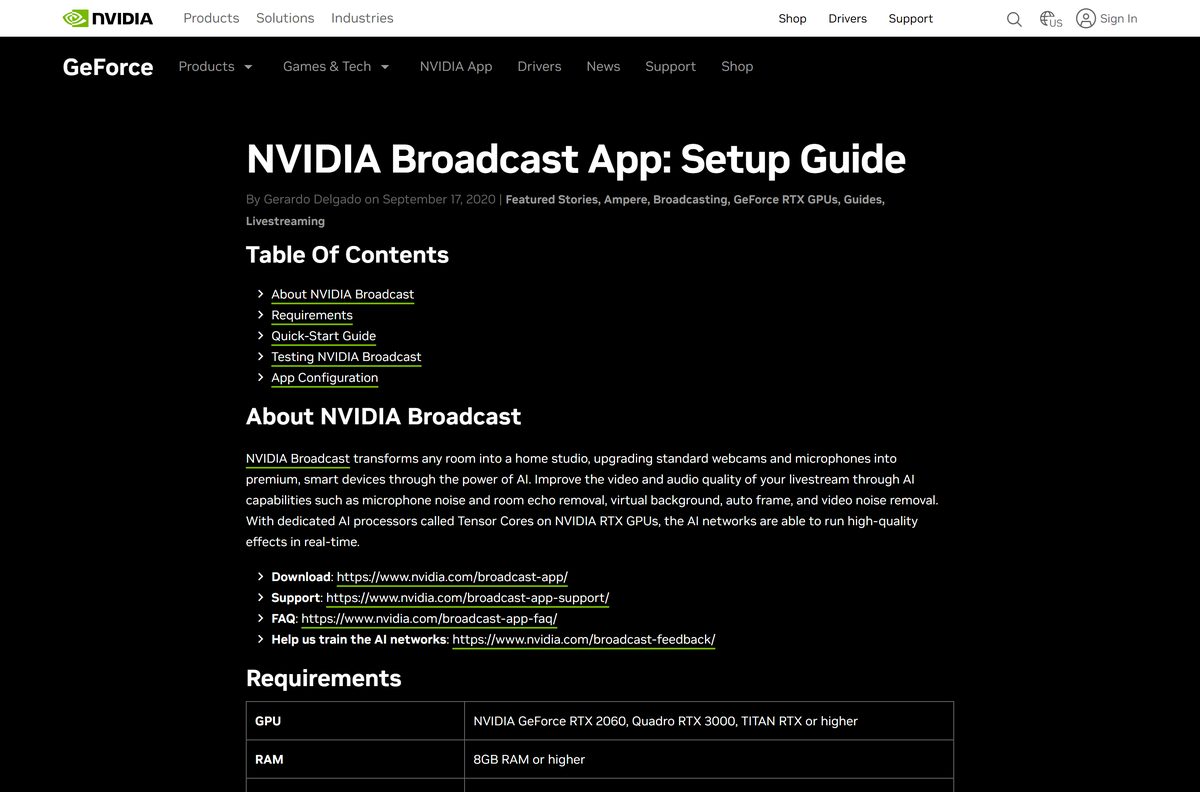
The NVIDIA Broadcast download for Windows 11 and Windows 10 is a free 179.7 MB installer on nvidia.com. It adds AI noise removal, Studio Voice, virtual backgrounds, Eye Contact and Auto Frame to your microphone, speakers and webcam.
The app runs on the Tensor Cores of an NVIDIA RTX graphics card, starting at the GeForce RTX 2060. It then shows up as a virtual camera, microphone and speaker in OBS Studio, Discord, Zoom, Teams and other apps.
This guide covers the official file, the GPU and driver it needs, installing and setting it up, updating, removing it, and fixes for NVIDIA Broadcast not installing.
Which NVIDIA Broadcast download do you need?
NVIDIA publishes one Windows installer for all RTX cards. What you get depends on your graphics card, so match your PC to a row.
| Your PC | What to get | Size |
|---|---|---|
| Windows 11 or 10 PC or laptop with a GeForce RTX 2060 or newer | NVIDIA Broadcast Windows installer | 179.7 MB plus about 3 GB of AI models |
| Workstation with Quadro RTX 3000, TITAN RTX or a newer RTX pro card | The same Windows installer | 179.7 MB |
| PC with a GeForce GTX card | Not supported; see the NVIDIA Broadcast FAQ | None |
| Developer adding the effects to an app | NVIDIA Broadcast SDK resources | Per GPU generation |
Studio Voice and Virtual Key Light need a GeForce RTX 3060 desktop GPU or higher. On an RTX 2060 or an RTX laptop GPU below that tier, the other effects still work.
Download NVIDIA Broadcast from nvidia.com
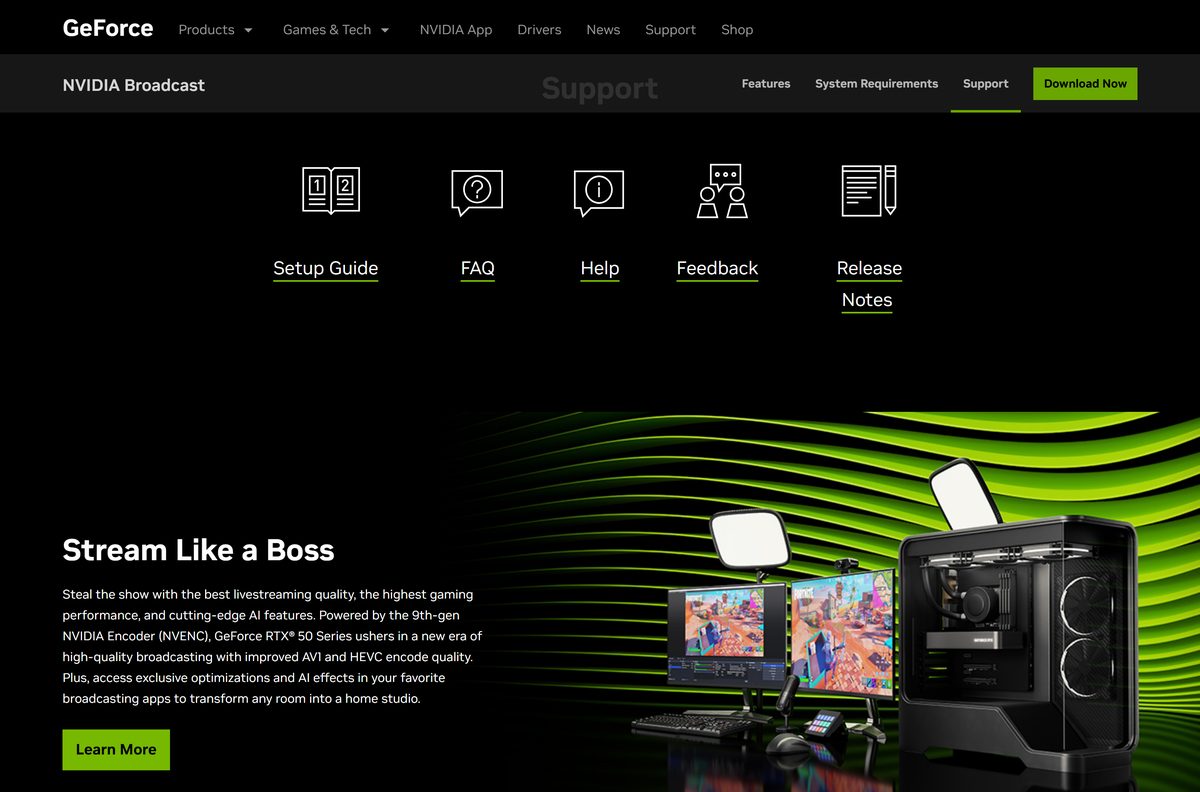
Open the NVIDIA Broadcast page on nvidia.com and click Download Now. The button delivers the installer from download.nvidia.com, NVIDIA’s own file server.
- NVIDIA Broadcast app page — the Download Now button, version and system requirements
- NVIDIA_Broadcast_v2.2.1.58338310.exe — 179.7 MB · the current Windows installer
- NVIDIA Broadcast release notes — what changed in each version
- NVIDIA Broadcast setup guide — per-app setup for OBS, Discord, Zoom and Teams
The installer fetches the AI models for your specific GPU during setup. Keep the PC online until it finishes.
How to install NVIDIA Broadcast on Windows 11 and 10
- Update your graphics driver to Game Ready or Studio Driver R570 or newer from NVIDIA Drivers.
- Open the NVIDIA Broadcast page and click Download Now.
- Double-click NVIDIA_Broadcast_v2.2.1.58338310.exe in your Downloads folder.
- Select Yes when User Account Control asks for permission.
- Follow the setup screens and keep the PC connected while it downloads about 3 GB of AI models.
- Open NVIDIA Broadcast from the Start menu.
- Open the Microphone tab, pick your real microphone at the top and turn on Noise Removal.
- Open the Camera tab, pick your webcam and choose an effect such as Background Blur.
Turn on only the effects you need. Each extra effect adds GPU load, and the GPU Utilization indicator in Settings shows how much.
How to select NVIDIA Broadcast in OBS, Discord, Zoom and Teams
NVIDIA Broadcast creates virtual devices named Microphone (NVIDIA Broadcast), Speakers (NVIDIA Broadcast) and Camera (NVIDIA Broadcast). Pick them in each app instead of your physical hardware.
- In OBS Studio, open Settings > Audio and set Mic/Auxiliary to Microphone (NVIDIA Broadcast).
- In OBS, add a Video Capture Source and select Camera (NVIDIA Broadcast).
- In Discord, open Settings > Voice and Video and select NVIDIA Broadcast for microphone, speaker and camera.
- In Zoom, open Settings > Audio and select NVIDIA Broadcast as speaker and microphone, then choose Camera (NVIDIA Broadcast) under Video.
- In Microsoft Teams, open Calls > Devices > Custom Setup and select the NVIDIA Broadcast devices.
- Turn off the app’s own noise suppression so the effect is not applied twice.
- In Windows Settings > System > Sound, keep your real headset or speakers as the output device.
Setting NVIDIA Broadcast Speakers as the Windows default filters every system sound. Use it only inside voice chat apps.
Is NVIDIA Broadcast free?
Yes, NVIDIA Broadcast is free for anyone with an NVIDIA RTX GPU. NVIDIA describes Broadcast as a free application for RTX PCs and workstations, and the Download Now button on nvidia.com needs no account or payment. The cost is the hardware: a GeForce RTX 2060, Quadro RTX 3000, TITAN RTX or newer card. A site that charges for the app, or offers a GTX or AMD build, is not NVIDIA.
Which NVIDIA Broadcast option works for your Mac or non-RTX PC?
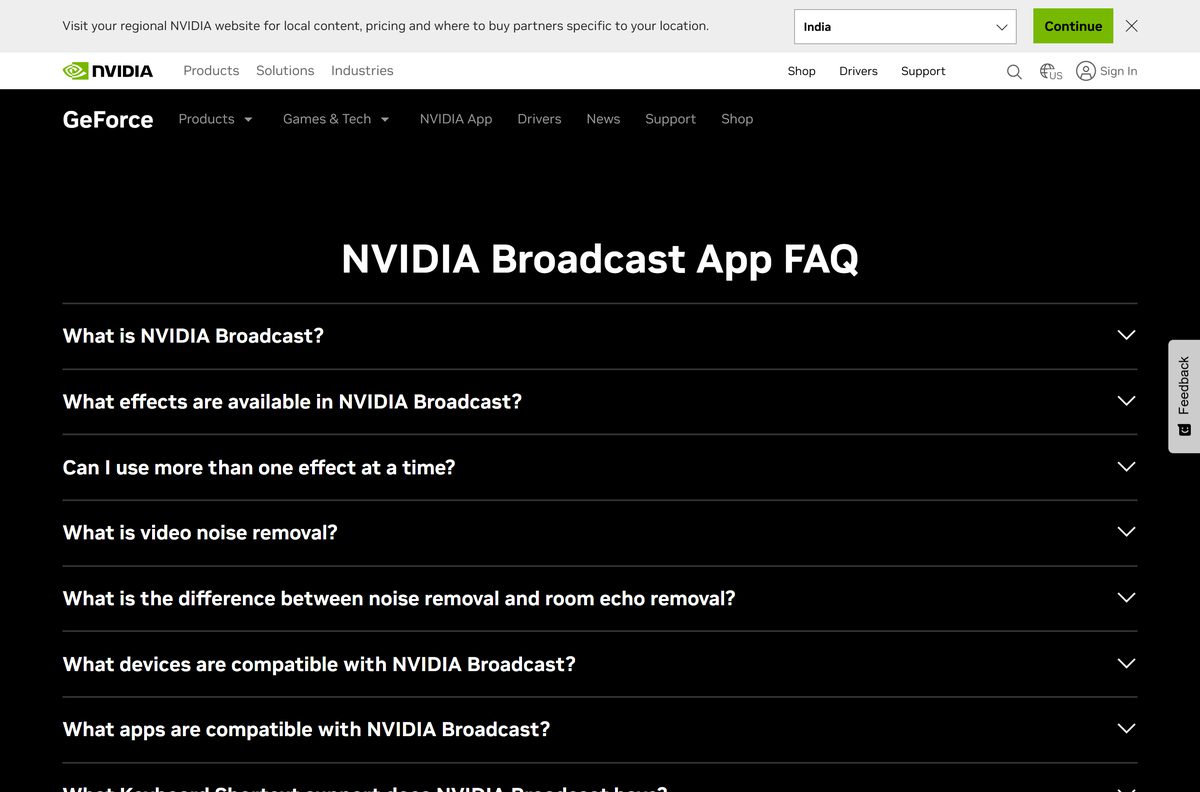
NVIDIA Broadcast is a Windows-only app. NVIDIA lists Windows 10 64-bit and Windows 11, and the effects need Tensor Cores that only NVIDIA RTX GPUs have.
| Your setup | What to do | Link |
|---|---|---|
| Mac, including Apple silicon | No macOS build exists; run the app on a Windows PC with an RTX GPU | NVIDIA Broadcast system requirements |
| Windows PC with a GeForce GTX card | Broadcast will not run; NVIDIA points GTX owners to RTX Voice for noise removal only | NVIDIA Broadcast FAQ |
| Windows PC with AMD or Intel graphics only | Broadcast will not run; an NVIDIA RTX GPU is required | NVIDIA Broadcast FAQ |
| Windows laptop with an RTX GPU | Install the standard Windows installer | NVIDIA Broadcast page |
Choose between the current installer and the old offline pack
The current NVIDIA Broadcast installer is not fully offline. It downloads the AI models for your GPU during setup, which keeps the package small and the models current.
NVIDIA’s workstation page still links an IT offline pack, offline-installers.zip, for version 1.4.0.29. It is 2.0 GB and dates from February 2023.
Install version 2.2.1 with the standard installer. Use the 1.4 offline pack only on a PC that can never go online. Version 1.4 predates multi-effect support, which arrived in 2.0.0, and the RTX 50 Series optimisations added in 2.0.2. No offline pack exists for 2.2.1.
How to check your NVIDIA Broadcast version and update it
- Press Win + I to open Settings.
- Select Apps, then Installed apps.
- Search for NVIDIA Broadcast and read the version number under its name.
- Compare it with the Version shown on the NVIDIA Broadcast page.
- Click Download Now there if your copy is older.
- Close NVIDIA Broadcast and run the new installer over your existing copy.
Update the graphics driver first when a new release raises the minimum driver version. Version 2.2.1 needs R570 or newer.
Check the NVIDIA Broadcast system requirements
The GPU is the requirement that matters. Memory and processor limits are modest, but the app refuses to run without an RTX card.
| Field | Value |
|---|---|
| Software | NVIDIA Broadcast |
| Developer | NVIDIA Corporation |
| Latest version | 2.2.1 |
| License / Price | Free for NVIDIA RTX GPU owners |
| File size | 179.7 MB installer, plus about 3 GB downloaded during setup |
| Supported OS | Windows 10 64-bit and Windows 11 |
| Architecture | 64-bit (x64) only |
| GPU | GeForce RTX 2060, Quadro RTX 3000, TITAN RTX or higher; RTX 3060 desktop or higher for Studio Voice and Virtual Key Light |
| Driver | Game Ready, Studio or RTX Enterprise Driver R570 and above |
| RAM | 8 GB or more |
| CPU (recommended) | Intel Core i5 8600 or AMD Ryzen 5 2600 or higher |
| macOS | Not available |
| Offline installer | No; setup needs an internet connection |
| Official download source | nvidia.com |
| Last verified | 2026-09-19 |
Press Win + R, type dxdiag and press Enter, then open the Display tab to see your GPU name before you download.
Fix NVIDIA Broadcast not installing or not working
Setup says your hardware is not supported
The PC has a GeForce GTX, AMD or Intel GPU. Broadcast needs the Tensor Cores on an RTX card.
- Run dxdiag from the Win + R box and check the GPU name on the Display tab.
- Confirm it is a GeForce RTX 2060, Quadro RTX 3000, TITAN RTX or newer.
- On a laptop with two GPUs, make sure the RTX GPU is enabled in Device Manager > Display adapters.
The installer stops or fails partway through
Setup downloads about 3 GB of AI models and fails without a stable connection or enough disk space.
- Free at least 3 GB on the system drive.
- Connect to a stable network and pause any VPN or metered-connection limit.
- Download a fresh copy from the NVIDIA Broadcast page.
- Right-click the installer and select Run as administrator.
Setup reports an outdated or incompatible driver
Version 2.2.1 needs an R570 or newer NVIDIA driver.
- Open NVIDIA Drivers or the NVIDIA app.
- Install the latest Game Ready or Studio Driver for your card.
- Restart the PC and run the Broadcast installer again.
The camera or microphone effect does nothing in your app
The app is still using the physical device, or applies its own filter on top.
- Select Camera (NVIDIA Broadcast) or Microphone (NVIDIA Broadcast) in the app’s settings.
- Pick your real webcam or microphone at the top of the matching tab in NVIDIA Broadcast.
- Turn off the app’s own noise suppression or background effects.
Studio Voice or Virtual Key Light is missing
Both effects need a GeForce RTX 3060 desktop GPU or higher.
- Check your GPU model in dxdiag .
- Use Noise Removal and Background Blur instead on lower-tier or laptop RTX GPUs.
How to uninstall NVIDIA Broadcast
- Close NVIDIA Broadcast.
- In OBS, Discord, Zoom and other apps, switch the camera and microphone back to your physical devices.
- Press Win + I and open Apps > Installed apps.
- Search for NVIDIA Broadcast.
- Click the … menu next to it and select Uninstall.
- Confirm and select Yes at the User Account Control prompt.
- Restart the PC when setup finishes.
Removing NVIDIA Broadcast does not touch your graphics driver or the NVIDIA app. Any app still set to an NVIDIA Broadcast device loses its camera or microphone until you switch it back.
Which NVIDIA tool to use instead of NVIDIA Broadcast
| Option | Best for | Needs | Link |
|---|---|---|---|
| RTX Voice | AI noise removal on older GeForce GTX cards | NVIDIA GTX or RTX GPU; results vary on older cards | NVIDIA Broadcast FAQ |
| NVIDIA Broadcast SDK effects | OBS Studio and other apps with built-in NVIDIA filters | RTX 2060 or higher, Windows 10 64-bit | SDK download resources |
| NVIDIA app | Drivers, recording and GPU settings | NVIDIA GPU on Windows | nvidia.com/software/nvidia-app |
On any RTX PC, keep NVIDIA Broadcast. It is the only one of these that turns its effects into a virtual webcam, microphone and speaker for every app at once.
Frequently asked questions
Is NVIDIA Broadcast free?
Yes. NVIDIA Broadcast is free for anyone with an NVIDIA RTX graphics card. Download it from nvidia.com with no account or payment. The only cost is the RTX GPU the app needs to run.
Where is the official NVIDIA Broadcast download?
The official page is nvidia.com/en-us/geforce/broadcasting/broadcast-app. Its Download Now button delivers the Windows installer from download.nvidia.com, NVIDIA’s own file server. Any other download site is a third-party copy.
Does NVIDIA Broadcast work on Windows 11?
Yes. NVIDIA Broadcast runs on Windows 11 and on 64-bit Windows 10. It also needs an NVIDIA RTX GPU and a Game Ready, Studio or RTX Enterprise driver from the R570 branch or newer.
How big is the NVIDIA Broadcast download?
The NVIDIA Broadcast 2.2.1 installer is 179.7 MB. During setup it downloads the AI models for your GPU, which NVIDIA says need about 3 GB of additional storage.
Is there an NVIDIA Broadcast offline installer?
No, not for the current version. The 2.2.1 installer downloads AI models during setup and needs internet access. NVIDIA still hosts a 2.0 GB offline pack for the older version 1.4.0.29.
Is NVIDIA Broadcast available for Mac?
No. NVIDIA Broadcast is a Windows-only app because its effects run on the Tensor Cores of NVIDIA RTX GPUs. Macs, including Apple silicon models, have no supported version.
Does NVIDIA Broadcast work with a GTX or AMD graphics card?
No. NVIDIA Broadcast needs a GeForce RTX 2060, Quadro RTX 3000, TITAN RTX or newer GPU. NVIDIA points GTX owners to RTX Voice for noise removal only, and there is no AMD version.
Is NVIDIA Broadcast safe?
Yes, when you download it from nvidia.com. The installer comes from download.nvidia.com and is published by NVIDIA Corporation. Avoid download portals that repackage it or claim to offer GTX or Mac builds.
What is the latest version of NVIDIA Broadcast?
The latest version is NVIDIA Broadcast 2.2.1. The 2.2 release took Studio Voice out of beta and added keyboard shortcut and Elgato Stream Deck support for toggling effects.
Why won’t NVIDIA Broadcast install?
The usual causes are a non-RTX GPU, a driver older than R570, or a lost connection while setup downloads its 3 GB of AI models. Check your GPU, update the driver, free disk space and run the installer again.
Can I uninstall NVIDIA Broadcast safely?
Yes. NVIDIA Broadcast is optional and removing it does not affect your graphics driver or games. Switch your apps back to your physical camera and microphone first, then uninstall it from Settings.
Does NVIDIA Broadcast work on laptops?
Yes, on laptops with an NVIDIA RTX GPU. Studio Voice and Virtual Key Light need a GeForce RTX 3060 desktop GPU or higher, so those two effects are limited on many laptops.