You do not copy Microsoft Office to a new computer: you sign in with the account that owns it, reinstall it from Microsoft, and then sign out of or remove it from the old PC.
This guide covers Microsoft 365 subscriptions, one-time purchases such as Office 2024 and Office 2021, work or school licences and Office that came preinstalled, plus the licence rules Microsoft sets for each.
The fastest way to move Microsoft 365 to a new computer
If you pay for Microsoft 365 Personal, Family or a business plan, the new PC needs only a fresh install and a sign-in. Nothing has to be deactivated first.
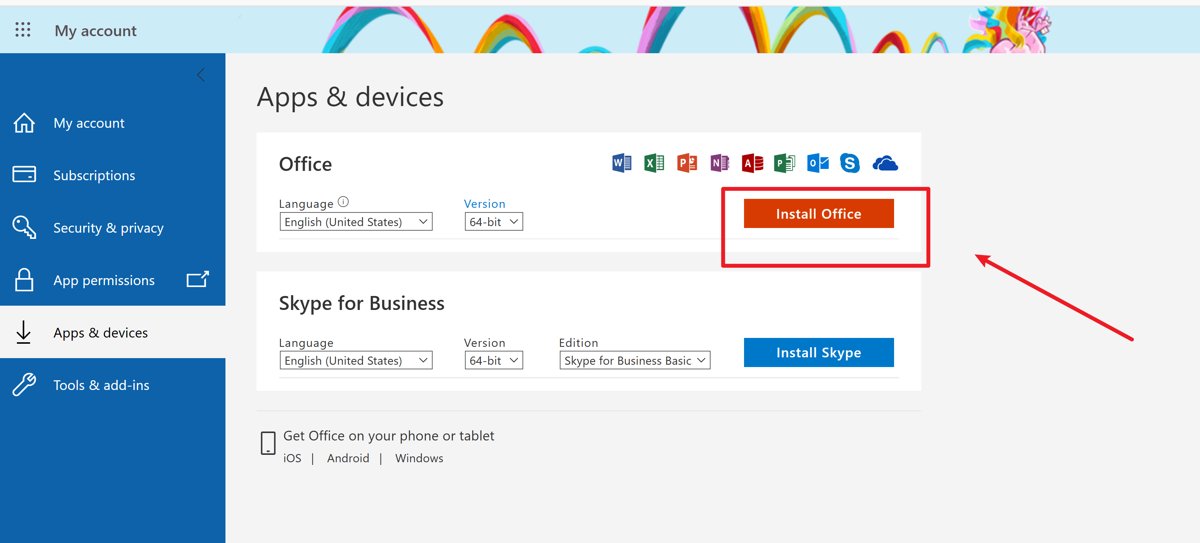
- On the new computer, open a browser and go to m365.cloud.microsoft/apps.
- Select Sign in and use the Microsoft account, or work or school account, that holds your subscription.
- Select Install apps, then Install (a work or school account shows Microsoft 365 apps instead).
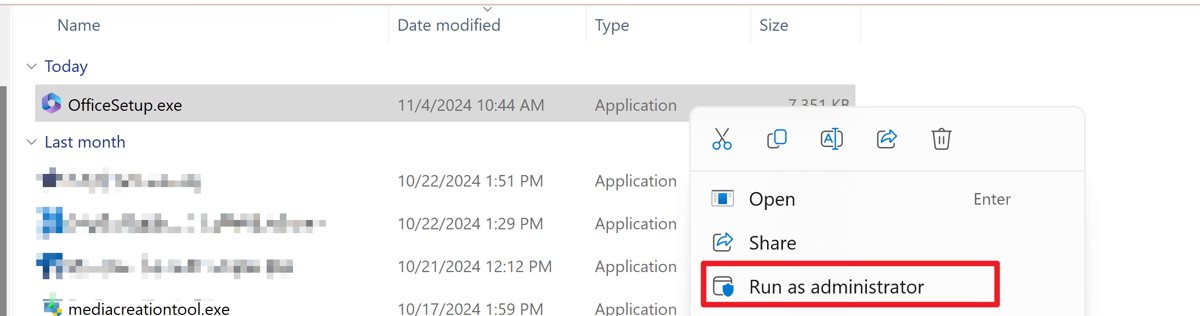
- Run the downloaded file: select Run in Microsoft Edge, Setup in Chrome or Save File in Firefox.
- Select Yes at the User Account Control prompt and wait for You're all set! Office is installed now, then select Close.
- Open Word from the Start menu, accept the licence agreement and sign in when asked. Office activates on that account.
The 64-bit edition installs by default. The old PC keeps working until you sign out of it or it drops off your five-device sign-in limit.
Which transfer route matches your copy of Office?
The steps depend on how you got Office, not on which computer you bought. Find your case in the first column.
| What you have | What to do on the new computer | What happens to the old computer |
|---|---|---|
| Microsoft 365 Personal or Family | Sign in at m365.cloud.microsoft/apps and install | Nothing required; sign out of it to free a slot |
| Microsoft 365 for business (work or school account) | Sign in with the work account and install, if a licence is assigned to you | Sign out of it from your work account's apps and devices page |
| Office 2024 or Office 2021 one-time purchase | Sign in with the Microsoft account you redeemed the key on and reinstall | Uninstall Office from it; the licence covers one PC |
| Office 2019 or Office 2016 one-time purchase | Reinstall, then activate by phone if Office reports too many activations | Uninstall Office from it |
| Office preinstalled on the new PC | Open an app and sign in with your account; your existing licence or the included offer activates it | Depends on the licence you use: see the rows above |
| Volume licence (Office LTSC, Professional Plus) | Ask your IT department; installs use deployment tools | Handled by IT |
IT staff who install Office for many PCs usually script it with the Office Deployment Tool rather than the web installer.
Understanding Licensing
Once you redeem a product key, Microsoft adds the licence to your Microsoft account, so the licence travels with the account rather than the hard drive. The limits differ sharply between a subscription and a one-time purchase.
| Licence type | Install limit | Moving to a new PC | Source of the rule |
|---|---|---|---|
| Microsoft 365 (home) | Install on all your devices; signed in on 5 at the same time | Sign in on the new PC; the oldest sign-in is dropped automatically past 5 | Microsoft Support: Sign in to Microsoft 365 |
| Office 2024 or Office 2021 (Home, Home & Student, Home & Business) | 1 PC or Mac | Allowed to another computer you own, at most once every 90 days | Microsoft Support: Transfer your Office license |
| Transfer after a hardware failure | 1 PC or Mac | Allowed sooner than 90 days | Microsoft Support: Transfer your Office license |
| Office 2019 and Office 2016 | 1 computer | Transfer terms are in section 3 of the Software License Terms; support ended October 14, 2025 | Microsoft Support: Activate Office after reinstalling |
| Giving the licence to another person | Not applicable | EEA users can transfer to another person by contacting customer support | Microsoft Support: Transfer your Office license |
For any one-time purchase, you must remove Office from the prior computer and keep no copies when you transfer it.
To read the exact terms for your copy, open Word and go to File > Account > About Word > View the Microsoft Software License Terms.
Steps to Transfer Microsoft Office
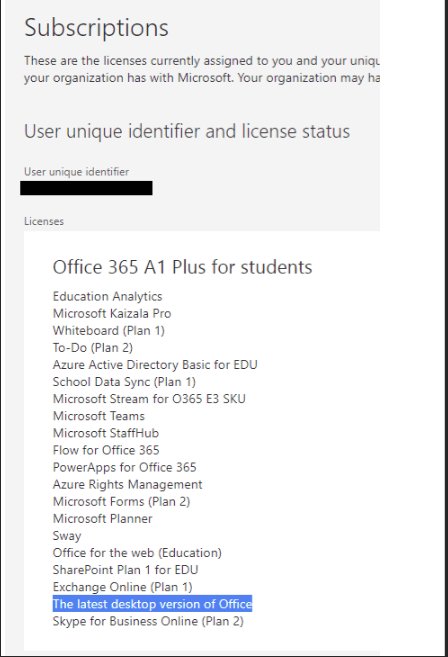
These steps are for a one-time purchase such as Office 2024 or Office 2021 that you redeemed on a Microsoft account. The reinstall uses the same page as Microsoft 365.
- On the new computer, go to m365.cloud.microsoft/apps and select Sign in.
- Sign in with the same Microsoft account you used to redeem the product key at microsoft365.com/setup.
- Select Install apps, then Install, and run the downloaded setup file.
- Open Word, accept the licence agreement and let Office activate.
- If Office says you have reached the maximum number of activations, complete Activate by telephone in the Activation Wizard.
- On the old computer, uninstall Office so only one PC holds the licence.
You redeem a product key only once. After that, every reinstall starts from the sign-in, and the key does not need to be typed again.
Activate Office that came preinstalled on the new computer
Many new Windows PCs ship with Microsoft 365 already installed. What it activates as depends on what your Microsoft account already owns and what the PC maker included.
- Open Word or another Office app on the new PC.
- Sign in with the Microsoft account, or work or school account, that you used to buy or subscribe to Microsoft 365.
- If your account holds a subscription or one-time purchase, follow the prompts and Office activates with it.
- If the PC came with a one-year subscription or one-time purchase included, sign in on the activation screen; the digital product key adds that product to your account.
- If you see the trial screen, your account has no Office product. Start the one-month Microsoft 365 Family trial, buy Microsoft 365, add it to an existing subscription or enter a new product key.
- If you own an older one-time copy of Office, you can install that copy instead of using the preinstalled trial.
Once the included product is on your account, you can reinstall it later without a product key.
Sign out of Office on the old computer
Signing out remotely deactivates Office on a PC you no longer use, including one you have already wiped or sold. It does not uninstall Office, delete documents or cancel the subscription.
- For Microsoft 365 Family or Personal, open your Microsoft account's Installs page from any device and sign in.
- Under Devices, select Sign out of Office next to the old computer.
- For Microsoft 365 for business, go to portal.office.com/Account and sign in with your work or school account.
- On the Office apps & devices tile, select View apps and devices.
- Under Apps & devices, open the DEVICES list and select Sign out next to the old computer.
- Allow up to 72 hours for Office on that PC to detect the remote sign-out.
After the sign-out, the old PC can still open and print documents but cannot edit them or create new ones.
How to check Office is activated on the new computer
- Open Word or Excel on the new computer.
- Select File > Account.
- Confirm the account shown is the one that owns your subscription or one-time purchase.
- Create a new document and type in it. An unlicensed or signed-out copy opens files for viewing and printing only.
- If the Activation Wizard opens instead, complete its steps; it appears only when Office has trouble activating.
Troubleshooting Common Issues
These are the problems Microsoft documents for reinstalling Office on a different computer.
"You've reached the maximum number of activations"
Office Home & Business, Home & Student and Professional are licensed for one computer, and a second install trips the activation count.
- Check that the transfer follows the Software License Terms for your version.
- Run the Activation Wizard and choose to activate by telephone.
- Uninstall Office from the original computer.
No install option after signing in
You signed in with a different account from the one that owns Office, or a business licence has not been assigned to you.
- Sign out of the Microsoft 365 page and sign in with the account you used to redeem the product key.
- For a work or school account, ask your Microsoft 365 admin to assign a licence that includes the desktop apps.
- Reload m365.cloud.microsoft/apps and select Install apps again.
Office on the old computer says you are signed out
You signed in on a sixth device, so Microsoft 365 signed you out of another one to stay within the limit of five.
- Decide whether you still need Office on the old computer.
- If you do, open any Office app there and sign back in with the subscription account.
- If you do not, leave it signed out or uninstall Office from it.
"The products we found in your account can't be used to activate"
The preinstalled Microsoft 365 apps include an app your one-time Office does not, such as Outlook with Home & Student.
- Compare the apps on the new PC with the apps your Office edition includes.
- Buy the missing app on its own from the Microsoft Store, or upgrade to Microsoft 365.
- If you use an Office 2019 key on a preinstalled copy, install Office updates first, then try activation again.
Office installed as 32-bit, or you need the other edition
Setup installs 32-bit when it finds an existing 32-bit Office, Project or Visio on the PC.
- Uninstall Microsoft 365, including any stand-alone Project or Visio.
- Sign in again at m365.cloud.microsoft/apps and select Install apps.
- In the Install apps window, pick the language and the 64-bit or 32-bit version, then select Install.
Important Considerations
| Before you move Office | Why it matters |
|---|---|
| Know which account holds the licence | Reinstalling and activating both depend on signing in with that exact account |
| Count your 90 days on Office 2024 or 2021 | Microsoft allows one transfer to another computer you own every 90 days, unless the hardware failed |
| Remove Office from the old PC before selling or giving it away | A one-time licence may not remain on the prior computer after a transfer |
| Signing out is not uninstalling | Remote sign-out deactivates Office but leaves the apps and your documents on the old PC |
| Office preinstalled on the new PC | Without a matching product on your account it runs only as a trial and later loses editing |
| Office 2019 or 2016 on the old PC | Support ended on October 14, 2025, so a new PC is a natural point to move to a supported version |
Conclusion
Reinstall Office on the new computer by signing in at m365.cloud.microsoft/apps, then sign out of or uninstall it on the old one. Both Microsoft 365 and current one-time purchases are tied to your Microsoft account, so the sign-in carries the licence and no files need copying.
Frequently Asked Questions
Can I transfer Microsoft Office to a new computer?
Yes. Microsoft 365 installs on all your devices, and Office 2024 or Office 2021 can move to another computer you own. For a one-time purchase, remove Office from the old computer after the transfer and keep no copies.
How many computers can I use Microsoft 365 on?
Microsoft 365 for home installs on all your devices and stays signed in on five at the same time, in any mix of PCs, Macs, tablets and phones. A sixth sign-in signs you out of another device automatically.
How often can I transfer Office 2021 or Office 2024?
Microsoft allows a transfer to another computer you own no more than once every 90 days. After a hardware failure you may transfer sooner, but the licence still covers only one PC or Mac.
Do I need my product key to reinstall Office on a new computer?
No, if you already redeemed it. Redeeming the key at microsoft365.com/setup attaches the licence to your Microsoft account once, and every later install starts by signing in with that account.
Do I have to uninstall Microsoft 365 from my old computer?
No. A Microsoft 365 subscription allows installs on all your devices. Sign out of the old PC from your account's Installs page if you want to free one of the five sign-in slots.
Does signing out of Office delete my documents?
No. Signing out deactivates Office on that device but does not uninstall it, remove documents or cancel your subscription. The device can still view and print files, but not edit or create them.
Can I give my Office licence to another person?
Users in the European Economic Area can transfer a one-time Office licence to another person by contacting Microsoft customer support. Microsoft verifies your identity, cancels your entitlement and emails the new licensee setup instructions.
Why does Office say I have reached the maximum number of activations?
One-time editions such as Home & Business, Home & Student and Professional are licensed for one computer. When you move one within the licence terms, activate it by telephone and then uninstall Office from the original computer.