Windows 10 has no HDMI on/off switch: connect the cable, press Windows logo key + P, choose Duplicate or Extend, and select Detect in Display settings if the screen is not listed.
When that is not enough, the port is being held back by the input setting on the TV or monitor, the display adapter driver, or the sound output device, and the sections below fix each one in order.
The fastest way to get the HDMI port working on Windows 10
An HDMI port is part of your display adapter, so it is live whenever the adapter and its driver are working. Getting a picture is a matter of telling Windows how to use the screen.
- Plug the HDMI cable firmly into the PC and into the TV or monitor, then turn the display on.
- Set the TV or monitor to the HDMI input the cable is plugged into, using its own menu or remote.
- Press Windows logo key + P and select Duplicate to mirror the screen or Extend to add desktop space.
- If the display stays blank, select Start > Settings > System > Display.
- Under Multiple displays, select Detect.
Once the display appears as a numbered box on the Display page, the HDMI port is working. Setting up more than one screen works almost the same on Windows 10.
Understanding HDMI Ports and Their Functionality
Most "enable HDMI" searches come from expecting a switch that Windows does not have. The table shows which part of Windows actually controls each thing the port does.
| What the HDMI port does | What controls it in Windows 10 | Where to change it |
|---|---|---|
| Sends the picture to a TV, monitor or projector | The display adapter (graphics card) and its driver | Device Manager > Display adapters |
| Decides whether the second screen mirrors, extends or replaces the laptop screen | The projection mode | Windows logo key + P |
| Makes Windows notice a newly connected screen | Display detection | Settings > System > Display > Detect |
| Carries sound to TV speakers or a monitor with speakers | The default playback device | Control Panel > Hardware and Sound > Sound > Playback |
| Sets sharpness and smoothness on the HDMI screen | Resolution and refresh rate | Display > Display resolution and Advanced display settings |
A PC maker can add a firmware or utility setting that affects video outputs. If you believe your port has been switched off that way, the maker's support page for your model is the only reliable source for it.
Common Reasons Why HDMI Port Might Not Be Working
Match what you see to a row, then go straight to the fix it names.
| What you see | Likely reason | Go to |
|---|---|---|
| The TV or monitor says it has no signal | Wrong input selected on the display, a loose or faulty cable, or the projection mode is PC screen only | Step-by-step guide, steps 1 to 6 |
| The display is on but Windows does not list it | Windows has not detected the screen | Select Detect under Multiple displays |
| The picture works but sound still comes from the laptop | The HDMI device is not the default playback device | Send sound through the HDMI cable |
| The display adapter shows a warning or a disabled status in Device Manager | The adapter is disabled or its driver has a problem | Check the display adapter in Device Manager |
| HDMI stopped working after an update | A new display driver does not suit the hardware | Update, roll back or reinstall the display driver |
| The picture is blurry, stretched or flickers | Resolution or refresh rate does not suit the screen | Set the resolution and refresh rate for the HDMI screen |
| Nothing works on this PC, but the screen and cable work elsewhere | A fault in the port or the adapter | Advanced Troubleshooting Tips |
Step-by-Step Guide to Enable and Troubleshoot HDMI Port on Windows 10
Microsoft's own advice starts with the hardware, because a blank HDMI screen is most often a cable or input problem rather than a Windows one. Work through these checks in order and stop when the picture appears.
- Disconnect docks, dongles and adapters, and plug the HDMI cable directly into the PC. Microsoft notes these accessories can cause conflicts.
- Reseat both ends of the cable so they are fully inserted.
- Select the matching HDMI input on the TV or monitor. Many displays have several HDMI inputs and show only one at a time.
- Try a different HDMI cable. If the new one works, the old cable was faulty.
- If the PC has more than one video output, try another one, such as a second HDMI port or DisplayPort.
- Press Windows logo key + P and select Extend or Duplicate, not PC screen only.
- Select Start > Settings > System > Display, then select Detect under Multiple displays.
- If the screen is still missing, restart the PC with the display connected and switched on.
If the display now shows up, continue with sound and resolution below. If not, the display adapter is the next place to look.
Choose how Windows uses the HDMI screen with Windows + P
The projection mode decides what appears on the HDMI screen. If it is set to PC screen only, the port works but sends nothing.
| If you want to | Choose |
|---|---|
| Use only the laptop or main screen and ignore the HDMI display | PC screen only |
| Show the same picture on both screens, for a TV or a presentation | Duplicate |
| Spread the desktop across both screens and move windows between them | Extend |
| Show everything on the HDMI screen only | Second screen only |
In Extend mode, drag the numbered boxes on the Display page to match where the screens sit on your desk, then select Apply.
Check the display adapter in Device Manager
Device Manager shows whether the adapter behind the HDMI port is running. A disabled adapter is the one case where "enabling" really applies.
- In the search box on the taskbar, type device manager and select Device Manager.
- Select the arrow next to Display adapters to expand it. You see the maker and name of each adapter.
- Right-click the adapter and select Properties, then read the device status on the General tab.
- If it says This device is disabled. (Code 22), close the dialog, right-click the adapter and select Enable Device.
- If the adapter shows a yellow exclamation point, note the error message and go to the driver section below.
- If the adapter you expect is missing, select View > Show hidden devices to list devices Windows is hiding.
Laptops with two graphics chips list both adapters here. The HDMI port may be wired to either one, which matters for the advanced tips further down.
Update, roll back or reinstall the display driver
A missing or unsuitable display driver is the usual reason an HDMI port that once worked goes dark. Pick the fix that matches your history with the PC.
- Install pending updates first: select Start > Settings > Update & Security > Windows Update > Check for updates. Windows Update is Microsoft's recommended source for video card drivers.
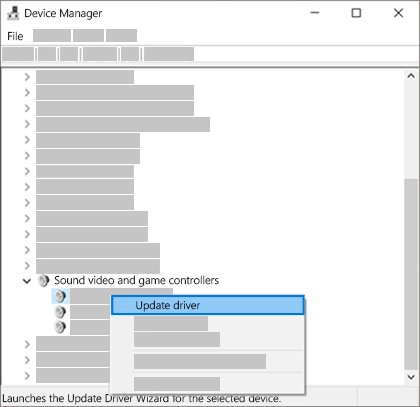
- To update manually, open Device Manager, expand Display adapters, right-click the adapter and select Update driver > Search automatically for updated driver software.
- If HDMI broke right after an update, right-click the adapter, select Properties, open the Driver tab and select Roll Back Driver.
- If there is no roll back option, right-click the adapter, select Uninstall device, tick Attempt to remove the driver for this device and select Uninstall.
- Restart the PC when asked, then open Device Manager again.
- Right-click the adapter, select Update driver and choose Search automatically for updated driver software.
If Windows finds nothing, get the driver from the support page of your PC maker or graphics card maker. Avoid third-party "driver updater" tools.
Send sound through the HDMI cable
HDMI carries audio, but Windows 10 keeps playing through the laptop speakers until you make the TV or monitor the default device. If the monitor has no speakers, choosing it leaves you with no sound at all.
- In the search box on the taskbar, type control panel and select it.
- Select Hardware and Sound, then select Sound.
- On the Playback tab, right-click the entry for your TV or monitor.
- Select Set as Default Device, then select OK.
- If the entry is greyed out, right-click it, select Properties, and make sure the device is not disabled.
- If sound still fails, select Start > Settings > Update & Security > Troubleshoot, select Playing audio and then Run the troubleshooter.
Set the resolution and refresh rate for the HDMI screen
A blurry or flickering picture on a working HDMI connection is usually a settings mismatch. Windows lets you set each screen separately.
- Select Start > Settings > System > Display.
- Select the box for the HDMI screen at the top of the page. Select Identify if you are unsure which number it is.
- Under Display resolution, choose the option marked (Recommended).
- Select Advanced display settings and pick the HDMI screen under Choose Display.
- Under Refresh rate, select the rate you want. The list only offers rates the display supports.
How to check the HDMI port is working
These checks answer "is my HDMI port enabled" without guesswork.
- Open Settings > System > Display. A working HDMI screen appears as its own numbered box.
- Select Identify. The same number appears on the TV or monitor.
- Press Windows logo key + P and switch between Duplicate and Extend. The HDMI screen should change with each choice.
- Open Device Manager > Display adapters. The adapter should show no warning icon.
- Play a video and confirm the sound comes from the TV or monitor if you set it as the default device.
Advanced Troubleshooting Tips
Use these when the step-by-step guide and driver fixes have not brought the HDMI screen back.
HDMI worked before and suddenly stopped
The graphics driver has stopped responding, or a recent change is interfering.
- Press Windows logo key + Ctrl + Shift + B to reset the graphics driver.
- If that does not help, select Start > Power > Restart.
- If it still fails, select Start > Power > Shut down, then turn the PC back on.
- Roll back the display driver as described in the driver section.
The PC has a separate graphics card and the HDMI screen stays blank
The screen is on a port of the adapter Windows is not using by default.
- Plug the cable into the other video output, for example a port on the graphics card instead of another video port on the PC.
- Right-click the desktop and open the control software for the additional display adapter, where your device provides one.
- Change the default display adapter there. The exact steps vary by device, so follow the maker's instructions.
One HDMI screen works but a second or third does not
The display adapter or port count limits how many screens can run.
- Confirm one external screen works on its own first.
- Check with the adapter's maker how many monitors it supports.
- Replace any HDMI splitter. A splitter duplicates one signal and cannot extend to two screens.
- Add a docking station or a USB-C video adapter if the PC has only one video output.
Nothing works on this PC with any cable
A hardware fault in the port, the cable, the display or the adapter.
- Connect the same display and cable to another computer to see whether the display works.
- Connect another display to this PC's HDMI port.
- Check the PC maker's support site for firmware (BIOS) and driver updates for your model.
- If the port fails with known-good screens and cables, contact the PC maker for repair.
Preventative Measures and Best Practices
Most HDMI failures come back to the same few habits. These keep the port working once it is set up.
| Practice | Why it helps |
|---|---|
| Keep Windows Update current, including driver updates | Display and audio drivers for most adapters arrive through Windows Update |
| Note the date of driver changes | You know when to use Roll Back Driver if HDMI breaks afterwards |
| Leave the cable seated and avoid sharp bends near the plug | Loose or damaged cables are the first cause Microsoft lists |
| Connect straight to the PC when a dock misbehaves | Docks, dongles and adapters can cause conflicts |
| Check the sound output after connecting a new screen | Windows may switch audio to a monitor with no speakers |
| Get firmware and drivers only from Microsoft or your PC maker | Third-party driver updaters can install the wrong driver |
Frequently Asked Questions
How do I turn on the HDMI port in Windows 10?
There is no HDMI switch to turn on. Connect the cable, select the HDMI input on the display, press Windows logo key + P and choose Duplicate or Extend. If the screen is not listed, open Settings > System > Display and select Detect.
How do I enable the HDMI port on Windows 11?
Windows 11 works the same way. Press Windows logo key + P to choose a mode, and select Start > Settings > System > Display > Multiple displays > Detect if the screen is missing. The multiple monitors guide covers arranging screens.
How do I enable the HDMI port on a laptop?
A laptop's HDMI port is live as long as its display adapter works. Plug in the display, choose its HDMI input, and press Windows logo key + P. If nothing shows, check Display adapters in Device Manager for a disabled or failing adapter.
Is my HDMI port enabled?
Yes, if the display adapter in Device Manager shows no warning and is not disabled. Code 22 means it has been disabled; right-click the adapter and select Enable device. A connected screen that appears on the Display settings page confirms the port works.
How do I know if my HDMI port is working?
Connect a display that works elsewhere and open Settings > System > Display. If the screen appears as a numbered box and Identify shows that number on it, the port works. A blank screen with a known-good cable and display points to the adapter or port.
How do I use the HDMI port on my PC?
Plug an HDMI cable from the PC into a TV, monitor or projector and select that HDMI input on the display. Then press Windows logo key + P and pick Duplicate, Extend or Second screen only, depending on how you want to use it.
How do I access the HDMI port on a desktop PC with a graphics card?
Use the port on the graphics card if one is installed. If the screen stays blank on one output, try the other video output. Changing the default display adapter varies by device, so follow the maker's instructions.
Why does a laptop have an HDMI port?
It lets the laptop send picture and sound to a larger display such as a TV, monitor or projector. You can mirror the laptop screen for a presentation or extend the desktop for more working space.
Why is there no sound through HDMI?
Windows is still playing through another device. Open Control Panel > Hardware and Sound > Sound, right-click the TV or monitor on the Playback tab and select Set as Default Device. A monitor without speakers cannot play HDMI audio.
How do I enable HDMI connections on a computer with a TV?
Connect the PC to the TV with an HDMI cable, switch the TV to that HDMI input, and press Windows logo key + P to choose Duplicate or Extend. Then set the TV as the default playback device if you want sound from its speakers.