To run ipconfig on Windows, open Command Prompt, type ipconfig /all and press Enter to see the full network configuration of every adapter.
This guide covers every switch in Microsoft's ipconfig reference, how to read the output, batch scripts and scheduling, and fixes when the command fails on Windows 11 and Windows 10.
How to Run ipconfig on Windows 11
These steps work the same on Windows 11 and Windows 10. Viewing your settings needs no administrator rights.
- Select Search on the taskbar and type
cmd. - Select Command Prompt in the results to open it.
- Type
ipconfigand press Enter to see each adapter's IPv4 address, IPv6 address, subnet mask and default gateway. - Type
ipconfig /alland press Enter to see the full TCP/IP configuration, including DNS servers. - Scroll up to the section for your active adapter, such as Wi-Fi or Ethernet, and read the values.
Type a space between ipconfig and the slash. Every switch below follows the same pattern: ipconfig, a space, then the switch.
What Is IPConfig?
ipconfig is a built-in Windows command-line tool. Microsoft describes it as a command that displays all current TCP/IP configuration values and refreshes DHCP and DNS settings.
| What it does | Switches that do it | Typical reason |
|---|---|---|
| Shows your network configuration | none, /all |
Find your IP address, gateway or DNS servers |
| Refreshes the address handed out by DHCP | /release, /renew, /release6, /renew6 |
Fix a missing, wrong or 169.254.x.x address |
| Manages the DNS client cache | /displaydns, /flushdns |
Fix websites that resolve to old or failed addresses |
| Re-registers the PC in DNS | /registerdns |
Fix a domain PC whose name is missing from DNS |
| Reads or sets the DHCP class ID | /showclassid, /setclassid |
Match a class-based policy on a DHCP server |
The purpose of ipconfig is diagnosis first. Microsoft notes it is most useful on computers set to obtain an address automatically, because it shows whether values came from DHCP, Automatic Private IP Addressing (APIPA) or an alternate configuration.
Prerequisites for Using Ipconfig on Windows 11
| Requirement | Needed for | Details |
|---|---|---|
| Any Windows 11 or Windows 10 PC | Every switch | Microsoft's reference lists Windows 11 and Windows 10 as supported; nothing to install |
| A standard Command Prompt or PowerShell window | ipconfig, /all, /displaydns, /? |
Reading settings changes nothing |
| An administrator window | /release, /renew, /flushdns, /registerdns, /setclassid |
Microsoft's own troubleshooting steps run these from an elevated prompt |
| An adapter set to obtain an address automatically | /renew, /renew6, /showclassid, /setclassid |
Microsoft says these are available only on DHCP adapters |
| The exact adapter name | Any switch aimed at one adapter | Copy it from plain ipconfig output; quote names that contain spaces |
How To Open Command Prompt, PowerShell, or Windows Terminal
ipconfig runs the same way in all three. Pick the route that fits what you need to run.
| Your situation | Open it this way | Why |
|---|---|---|
| You only want to view settings | Using the search bar: select Search, type cmd, select Command Prompt |
Fastest route, no elevation prompt |
You need /release, /renew or /flushdns |
Select Search, type command prompt, select Run as administrator, then Yes |
Microsoft's network fixes use an admin prompt |
| Your hands are on the keyboard | Using the Run dialog: press Windows key + R, type cmd, press Enter |
Opens a standard Command Prompt in two keystrokes |
| You prefer Windows Terminal | Accessing via Windows Terminal: press Windows key + X, select Windows Terminal (Admin) | Opens an elevated Terminal tab running PowerShell or Command Prompt |
| You already have PowerShell open | Type ipconfig /all directly |
PowerShell runs ipconfig without changes |
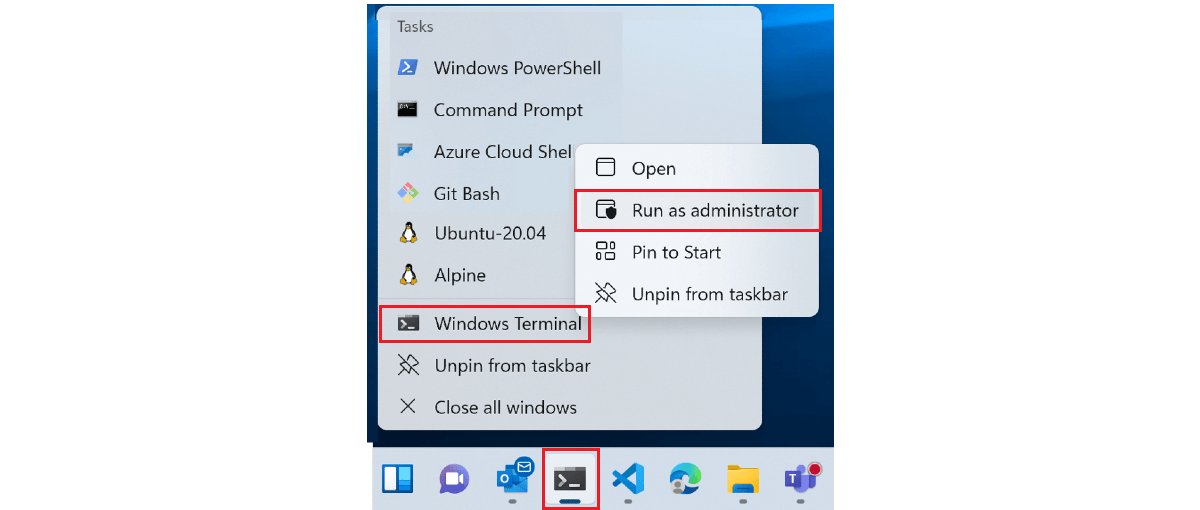
To run Windows Terminal elevated from its icon, right-click Windows Terminal, right-click the Windows Terminal title that appears, and select Run as administrator.
Basic IPConfig Command
Used without switches, ipconfig shows the basic configuration for every adapter. This is the quickest way to view network configuration on Windows 11.
ipconfigLists each adapter with its IPv4 address, IPv6 address, subnet mask and default gateway. It changes nothing, so it is safe to run in a standard window.
You should see: One block per adapter appears. Your active connection shows an IPv4 Address and a Default Gateway; unused adapters show fewer lines.
IPConfig /All: Show Full Network Details
/all shows the full TCP/IP configuration for all adapters, physical and logical. Use it to view detailed network information such as DNS servers and the connection-specific DNS suffix.
ipconfig /all
ipconfig /all > ipconfig.txt
ipconfig /all | find "IPv4"
The first line prints everything. The second saves the output to ipconfig.txt in the current folder using the > redirection operator, which is handy for sending to IT support. The third pipes the output through the find filter so only lines containing IPv4 appear.
You should see: The full listing includes DNS server addresses for each connected adapter. The saved file opens in Notepad with the same text as the screen.
Use >> instead of > to append to an existing file rather than replace it.
IPConfig /Release: Release Your Current IPv4 Address
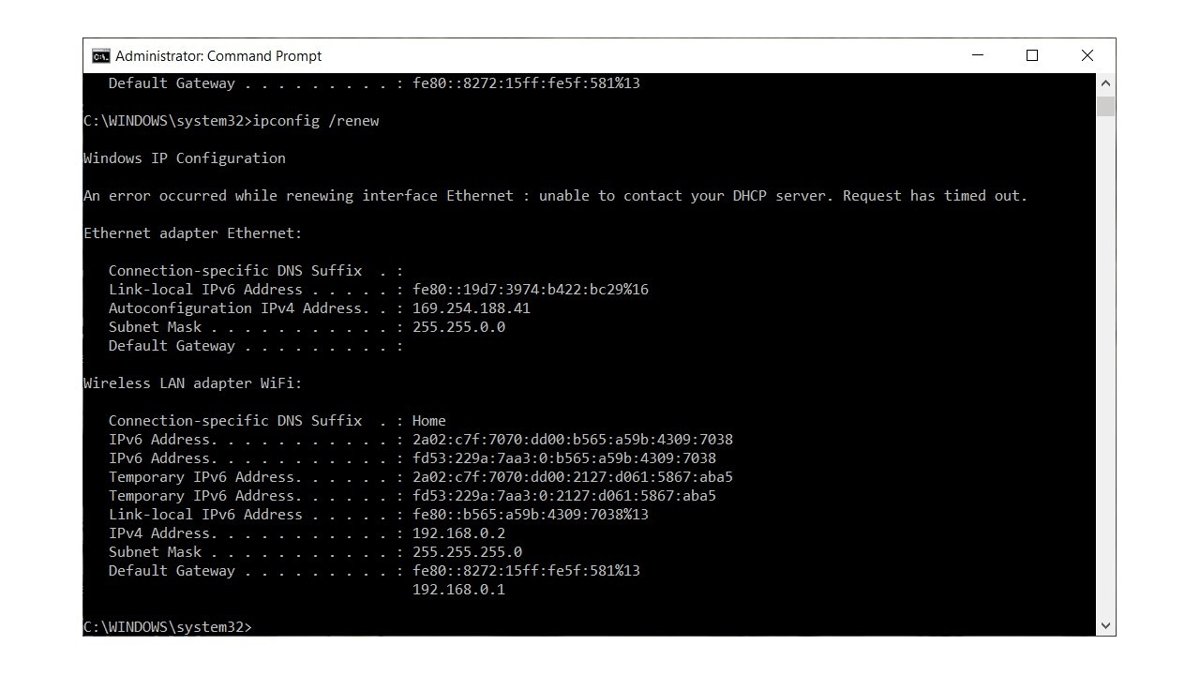
/release sends a DHCPRELEASE message to the DHCP server and discards the IPv4 configuration. The connection stops until you renew.
ipconfig /release
ipconfig /release "Wi-Fi"
Run it from an administrator window. Without an adapter name it releases every DHCP adapter; with a name it releases only that one.
You should see: The released adapter no longer shows an IPv4 address in ipconfig output.
Never run /release over Remote Desktop, because the session drops before you can renew.
IPConfig /Renew: Get a New IPv4 Address
/renew asks the DHCP server, usually your router, for a fresh lease. Releasing and renewing a specific adapter works by adding its name after the switch.
ipconfig /renew
ipconfig /renew "Wi-Fi"
ipconfig /renew Ether*
The asterisk wildcard matches adapter names: Ether* renews every adapter whose name starts with Ether. /renew works only on adapters set to obtain an address automatically.
You should see: The adapter shows an IPv4 address in your router's range and a filled-in Default Gateway.
The full steps to release and renew an IP address on Windows 11, plus error fixes, are in ipconfig /release and renew: How to? All You Need to Know.
IPConfig /FlushDNS: Clear the DNS Resolver Cache
Flushing the DNS cache discards stored name lookups, including cached failures. Windows then asks the DNS server again the next time you open a site.
ipconfig /flushdnsFlushes and resets the DNS client resolver cache. Run it from an administrator window when a site loads an old address or keeps failing on this PC only.
You should see: A confirmation line appears and ipconfig /displaydns shows far fewer entries.
The step-by-step guide, with the PowerShell equivalent and fixes, is in How to Use ipconfig flushdns at the Command Prompt.
IPConfig /DisplayDNS: View Cached DNS Records
/displaydns shows the DNS client resolver cache. It holds entries preloaded from the local Hosts file and records for names the PC resolved recently.
ipconfig /displaydns
ipconfig /displaydns | find "example.com"
ipconfig /displaydns > dnscache.txt
The output is long, so filter it with find for the site you care about, or save it to a file and search it in Notepad. Replace example.com with the name that fails.
You should see: Each cached name appears with its record data. Microsoft says Name does not exist under a failing name means a negative answer was cached; clear it with ipconfig /flushdns.
IPConfig /RegisterDNS: Re-Register DNS Records
/registerdns starts a manual dynamic registration of the PC's DNS names and IP addresses. It matters mostly on work networks, where the company DNS server tracks each PC by name.
ipconfig /registerdnsMicrosoft recommends it to troubleshoot a failed DNS name registration or a dynamic update problem between the PC and the DNS server, without rebooting. Run it from an administrator window.
You should see: The command returns to the prompt without an error. Ask IT to confirm the record appears on the DNS server.
Registering DNS does not refresh your own DNS server settings. To refresh those, renew the DHCP lease with ipconfig /renew.
IPv6 IPConfig Commands
The IPv6 switches are separate from the IPv4 ones. /release and /renew never touch a DHCPv6 lease.
ipconfig /release6
ipconfig /renew6
ipconfig /renew6 "Ethernet"
/release6 sends a DHCPRELEASE message to the DHCPv6 server and discards the IPv6 configuration. /renew6 renews the DHCPv6 configuration, and only on adapters set to obtain an IPv6 address automatically. Both accept an adapter name.
You should see: After /renew6, the adapter lists an IPv6 address again in ipconfig output.
Microsoft's reference lists these as the only IPv6 lease switches; there is no separate IPv6 flush or display switch.
IPConfig /ShowClassID and /SetClassID
A DHCP class ID lets a DHCP server give a group of PCs different options. Home users rarely need these switches.
ipconfig /showclassid *
ipconfig /showclassid Local*
ipconfig /setclassid "Local Area Connection" TEST
ipconfig /setclassid "Local Area Connection"
/showclassid displays the class ID for an adapter; * covers all adapters. /setclassid sets it, and running it without a class ID removes the current one. Both work only on adapters set to obtain an address automatically.
You should see: /showclassid lists the class ID now set for each matching adapter.
IPv6 DHCP class ID commands such as /showclassid6 and /setclassid6 do not appear in Microsoft's current ipconfig reference, so they are not covered here. Use the IPv4 switches above.
IPConfig /?: Display Help
ipconfig /?Prints the built-in help at the command prompt, including the syntax line and usage examples for your Windows version.
You should see: A help listing appears and nothing on the PC changes.
Complete IPConfig Command Reference
These are the advanced ipconfig commands and options from Microsoft's syntax line. The Admin column shows which switches change settings.
| Command | What it does | Changes settings |
|---|---|---|
ipconfig |
IPv4 and IPv6 address, subnet mask and default gateway for all adapters | No |
ipconfig /all |
Full TCP/IP configuration for all adapters | No |
ipconfig /release [adapter] |
Releases the DHCP IPv4 lease and disables TCP/IP on DHCP adapters | Yes |
ipconfig /renew [adapter] |
Renews the DHCP IPv4 configuration | Yes |
ipconfig /release6 [adapter] |
Releases the DHCPv6 lease | Yes |
ipconfig /renew6 [adapter] |
Renews the DHCPv6 configuration | Yes |
ipconfig /flushdns |
Clears the DNS client resolver cache | Yes |
ipconfig /displaydns |
Shows the DNS client resolver cache | No |
ipconfig /registerdns |
Starts manual dynamic DNS registration | Yes |
ipconfig /showclassid <adapter> |
Shows the DHCP class ID | No |
ipconfig /setclassid <adapter> [classID] |
Sets or removes the DHCP class ID | Yes |
ipconfig /allcompartments |
Listed in the syntax line; Microsoft's parameter table gives no description | No |
ipconfig /? |
Displays help | No |
The key ipconfig commands for troubleshooting are /all, /renew and /flushdns. The rest serve specific DHCP or DNS jobs.
Understanding IPConfig Output
Interpreting ipconfig output means reading one adapter block at a time. These are the key sections of the output and what a healthy value looks like.
| Line in the output | What it tells you | What to look for |
|---|---|---|
| Adapter heading ending in the adapter name, such as Wi-Fi or Ethernet | Which connection the block describes | The name you type after /renew or /release |
| IPv4 Address | The PC's address on the local network | An address in your router's range; 169.254.x.x means Windows got no address from the router |
| Subnet Mask | Which addresses count as local | Matches the other devices on your network |
| Default Gateway | The router address traffic leaves through | Filled in; a blank gateway means no route out |
| IPv6 Address | A global IPv6 address, if your network provides one | Present on IPv6-capable networks |
| Link-local IPv6 Address | An address valid only on the local link | Present on most adapters and normal |
DNS servers (with /all) |
Where the PC sends name lookups | The addresses your router or IT expects |
Connection-specific DNS suffix (with /all) |
The domain added to short names | Correct for your work network |
To find the same address in Settings instead, see How to Find Your IP Address on Windows.
Common Troubleshooting Workflows Using IPConfig
This troubleshooting workflow follows Microsoft's DNS client and Wi-Fi guidance. Stop at the step that fixes the connection.
- Open Command Prompt as administrator and run
ipconfig /all. - Check the adapter has a valid IPv4 address, subnet mask and default gateway. If the address starts with 169.254, run
ipconfig /renew. - Check the DNS servers listed are the ones you expect.
- Run
pingfollowed by the Default Gateway address to test the link to your router. - Ping a DNS server by its IP address. No reply points to a connectivity problem, not a DNS one.
- If one name still fails, run
ipconfig /displaydns, look for Name does not exist under it, and runipconfig /flushdns. - If nothing works, run
netsh winsock reset,netsh int ip reset,ipconfig /release,ipconfig /renewandipconfig /flushdnsin that order, then restart the PC.
Common IPConfig Errors and What They Mean
| What you see | What it means | What to do |
|---|---|---|
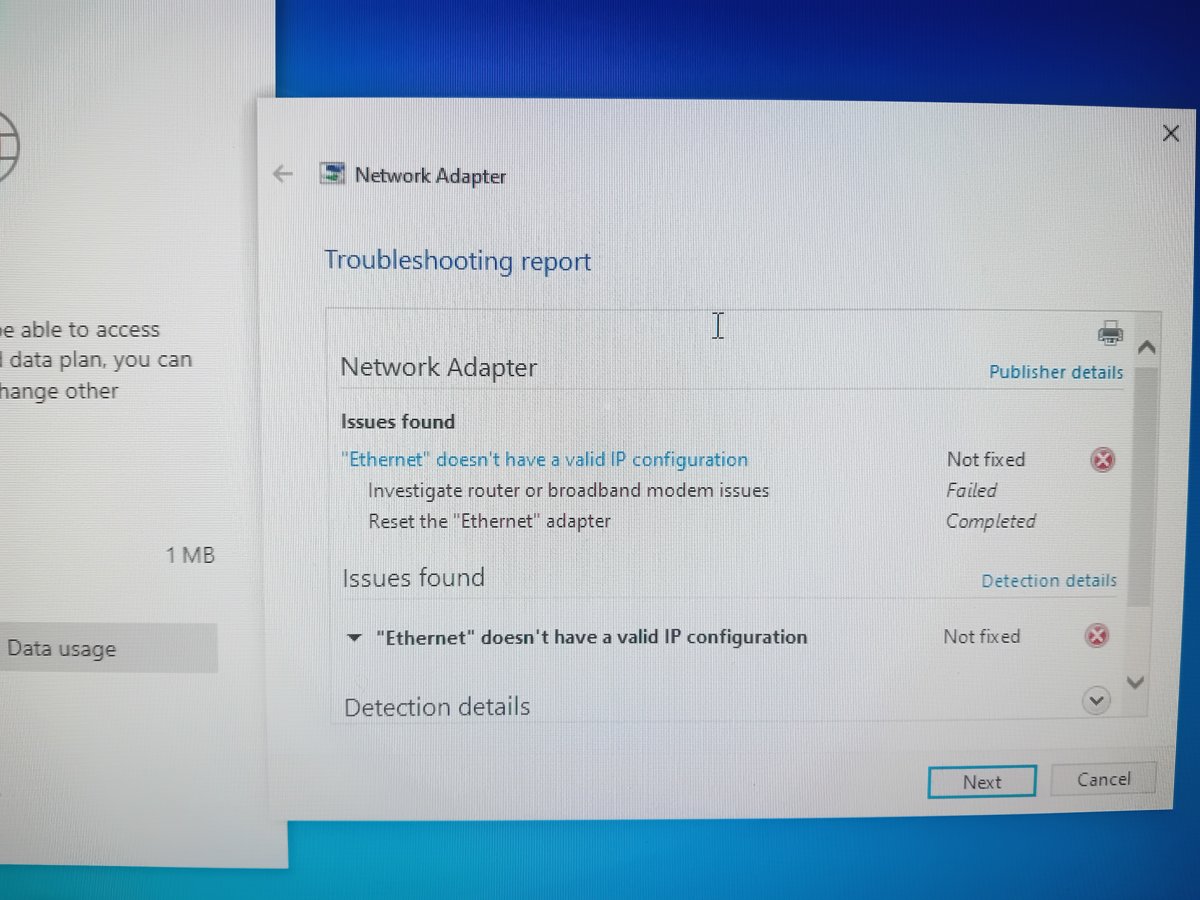
| IPv4 address starts with 169.254 | APIPA: Windows could not get an address from the router's DHCP server | Restart the router, then run ipconfig /renew |
| Default Gateway is blank | The adapter has no route to the router | Renew the lease; check the cable or Wi-Fi link |
/renew fails on an adapter |
The adapter may use a static address; /renew works only on DHCP adapters |
Set IP assignment to Automatic (DHCP) in Settings |
Name does not exist in /displaydns |
A failed DNS answer is cached | Run ipconfig /flushdns |
| An elevation or access error | The window lacks administrator rights | Reopen with Run as administrator |
| ipconfig is not recognized | The command was mistyped or typed into the wrong place | See the first fix under troubleshooting below |
IPConfig vs. Other Network Commands
ipconfig shows and refreshes this PC's configuration. Other built-in commands test the path beyond it.
| Command | What it shows | Use it instead of ipconfig when |
|---|---|---|
ping |
Whether a host answers | You need to test the router or a DNS server |
tracert |
The route packets take, router by router | A site is slow or unreachable beyond your router |
nslookup |
A direct DNS query that skips the local cache | You need to test the DNS server itself |
netstat |
Active TCP connections and listening ports | You need to see what the PC is connected to |
getmac |
The MAC address of each network card | You only need the hardware address |
hostname |
The computer's host name | You only need the PC's name |
Get-NetIPConfiguration |
Interfaces, IP addresses and DNS servers in PowerShell | You want objects for a PowerShell script |
Automating Ipconfig Tasks with Batch Scripts
Creating a basic ipconfig batch script saves you retyping the same sequence. Save the lines below in Notepad as netfix.bat, then right-click the file and select Run as administrator.
@echo off
ipconfig /all > "%USERPROFILE%\Desktop\ipconfig-before.txt"
ipconfig /release
ipconfig /renew
ipconfig /flushdns
ipconfig /all > "%USERPROFILE%\Desktop\ipconfig-after.txt"
pause
The script saves the configuration, runs the common release, renew and flush sequence, then saves the new configuration. The two text files let you compare before and after. pause keeps the window open so you can read any errors.
You should see: Two text files appear on your desktop and the window waits for a key press.
For logging only, a one-line script such as ipconfig /all >> "%USERPROFILE%\Desktop\ipconfig-log.txt" appends a snapshot each time it runs.
Scheduling Scripts for Regular Use
Task Scheduler can run the logging script on a timetable. The schtasks command creates the task from Command Prompt.
schtasks /create /tn "IPConfig Log" /tr "C:\Scripts\iplog.bat" /sc daily /st 09:00/tn names the task, /tr gives the full path to the batch file, /sc daily sets a daily schedule and /st sets the start time in 24-hour HH:mm format. Change the path to wherever you saved the script.
You should see: Command Prompt reports that the task was created, and a new log entry appears at the scheduled time.
Schedule only logging scripts. A scheduled /release cuts the connection with nobody there to notice.
How to check the command worked
- Run
ipconfigagain and find your active adapter's block. - Confirm the IPv4 Address is not 169.254.x.x and the Default Gateway is filled in.
- Run
ipconfig /alland confirm DNS servers are listed for that adapter. - Run
pingfollowed by the gateway address and check for replies. - Open a website to confirm the connection works end to end.
Security and Privacy Considerations
| Risk | Why it matters | What to do |
|---|---|---|
Sharing ipconfig /all output |
It exposes internal addresses, DNS servers, domain suffix and the PC's host name | Share it only with IT support you trust |
| Saved output files | Text files keep that detail after you close the window | Delete them when the problem is fixed |
Running /release remotely |
The remote session drops and cannot send /renew |
Run it only at the PC itself |
| Running a batch file from elsewhere | An elevated script can change any setting | Open it in Notepad and read every line before running it |
Best Practices When Using IPConfig
The most important tips come first; the additional ones cover mistakes that cause failed runs.
| Practice | Reason |
|---|---|
Run ipconfig /all before changing anything and save it |
You can compare values after the fix |
| Name the adapter when you have a VPN or virtual adapters | Without a name, /release and /renew hit every DHCP adapter |
| Quote adapter names that contain spaces | Microsoft's syntax requires "adapter name" |
| Use an admin window only for switches that change settings | Viewing needs no elevation |
| Flush DNS for one broken site; renew for a broken address | Each switch fixes a different layer |
| Restart the router when every device is offline | ipconfig fixes one PC, not the router |
Troubleshooting Common Ipconfig Problems
1. Command Not Recognized
The command was mistyped, or it was typed somewhere other than Command Prompt or PowerShell.
- Check the spelling:
ipconfig, with the letters i-p-c-o-n-f-i-g. - Put a space before the switch, as in
ipconfig /all. - Open Command Prompt from Search and run the command there, not in a browser or the File Explorer address bar.
- If you pressed Windows key + R, type
cmdfirst, then run ipconfig in the window that opens.
2. No Output or Incomplete Information
Plain ipconfig shows only basic values, or the adapter is disabled or disconnected.
- Run
ipconfig /allto see the full configuration, including DNS servers. - Scroll up; the output for several adapters is longer than one screen.
- Open Device Manager, expand Network adapters, right-click your adapter and select Enable device if it is off.
- Plug in the cable or connect to Wi-Fi, then run the command again.
3. Wrong or Outdated IP Address
The PC kept an old lease, or it got a 169.254.x.x APIPA address because the router did not answer.
- In an administrator window, run
ipconfig /release, thenipconfig /renew. - If the address still starts with 169.254, unplug the router and modem, wait at least 30 seconds and plug them back in.
- Run
ipconfig /renewagain once the router is back. - If the address never changes, open Settings > Network & internet, select your connection, select Edit next to IP assignment and choose Automatic (DHCP).
4. DNS Resolution Problems
A failed or stale DNS answer is cached, or the DNS server cannot be reached.
- Run
ipconfig /alland check the DNS servers listed. - Ping a DNS server by its IP address; no reply means a connectivity problem.
- Run
ipconfig /displaydnsand look for Name does not exist under the failing name. - Run
ipconfig /flushdnsin an administrator window and try the site again.
5. Persistent Errors
The network stack or adapter settings are damaged, so a fresh lease alone cannot fix it.
- In an administrator Command Prompt, run
netsh winsock reset, thennetsh int ip reset. - Run
ipconfig /release,ipconfig /renewandipconfig /flushdns, then restart the PC. - If it still fails, open Settings > Network & internet. On Windows 11 select Advanced network settings > Network reset; on Windows 10 select Status > Network reset.
- Select Reset now > Yes, let the PC restart, and reconnect to Wi-Fi.
Frequently Asked Questions
How do I run ipconfig?
Select Search on the taskbar, type cmd and open Command Prompt. Type ipconfig and press Enter. Add /all for the full configuration. The same command works in PowerShell and Windows Terminal on Windows 11 and Windows 10.
How do I use the ipconfig command?
Type ipconfig, a space, then a switch, and press Enter. Use /all to view settings, /release and /renew to refresh the IP address, and /flushdns to clear the DNS cache. Type ipconfig /? to list every switch.
How do I use ipconfig in cmd?
Open Command Prompt, type ipconfig /all and press Enter. The output lists every adapter with its IP address, subnet mask, default gateway and DNS servers. Open Command Prompt as administrator for switches that change settings, such as /renew.
Where do I run ipconfig?
Run ipconfig in Command Prompt, Windows PowerShell or Windows Terminal. It is a command-line tool, so it has no Start menu entry or settings window of its own. Open any of those three, then type the command.
Why does Command Prompt run ipconfig?
ipconfig is a command-line program built into Windows, so it runs inside a command shell such as Command Prompt. The shell displays its text output. Start cmd first, then type the command in that window.
How do I do ipconfig on Windows 11?
Press Windows key + R, type cmd and press Enter. Type ipconfig /all and press Enter. Find your Wi-Fi or Ethernet adapter in the output to read its IPv4 address, default gateway and DNS servers.
What is the ipconfig command to get my IP address?
Run ipconfig. Your address is on the IPv4 Address line under your active adapter, such as Wi-Fi or Ethernet. This is your address on the local network, which is different from the public address websites see.
What is the difference between ipconfig and ipconfig /all?
Plain ipconfig shows each adapter's IP addresses, subnet mask and default gateway. ipconfig /all shows the full TCP/IP configuration, including DNS servers and the connection-specific DNS suffix. Use /all when troubleshooting.
Do I need administrator rights to run ipconfig?
Not to view settings. ipconfig and ipconfig /all run in a standard window. Microsoft's troubleshooting steps use an administrator Command Prompt for switches that change settings, such as /release, /renew and /flushdns.