To copy and paste on a MacBook, select the text, image, file, or other item, press Command + C to copy it, then press Command + V where you want to paste it. These shortcuts work across most Mac apps, including Safari, Finder, Notes, Pages, Mail, Chrome, Microsoft Word, and Messages.
You can also copy and paste with the MacBook trackpad, the Edit menu, or a mouse. macOS also supports Paste and Match Style, copying files in Finder, Universal Clipboard between a Mac and iPhone, and clipboard history on newer versions of macOS.
This guide covers the main Mac copy-and-paste shortcuts, right-click and trackpad methods, copying files and photos, pasting without formatting, moving files, Universal Clipboard, and fixes when Command-C or Command-V stops working.
How to Copy and Paste on MacBook with Keyboard Shortcuts
The keyboard method is the fastest way to copy and paste on a MacBook Air, MacBook Pro, iMac, Mac mini, and other Macs.
| Action | Mac shortcut |
|---|---|
| Copy | Command + C |
| Paste | Command + V |
| Cut text | Command + X |
| Undo | Command + Z |
| Paste and Match Style | Option + Shift + Command + V |
Copy text on a MacBook
- Click and drag over the text you want to copy.
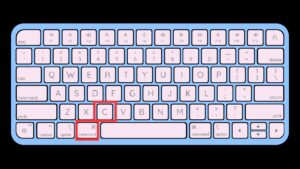
- Press Command + C.
- Click where you want to insert the copied text.
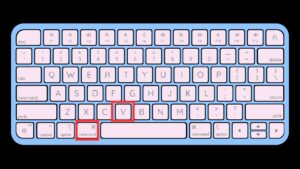
- Press Command + V.
The copied content stays on the Mac clipboard until you copy something else. You can therefore press Command-V more than once to paste the same content into several locations.
Copy an entire document or page
If you want to copy all selectable content inside a document or text field, press Command + A to select everything, then press Command + C. Move to the destination and press Command-V.
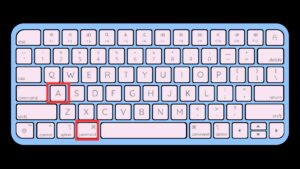
Command-A works within the currently active area. In Finder, for example, it selects all displayed files rather than all files on the Mac.
How to Copy and Paste on MacBook with Trackpad
You do not need keyboard shortcuts to copy and paste on a MacBook. The built-in trackpad can open the same Copy and Paste commands through a secondary click.
- Select the text, image, or file you want to copy.
- Click or tap the trackpad with two fingers.
- Select Copy from the shortcut menu.
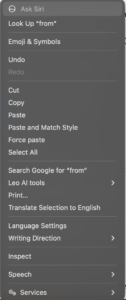
- Move to the destination.
- Click with two fingers again.
- Select Paste.
Apple calls a right-click a secondary click. The default trackpad gesture is usually a two-finger click or tap. :contentReference[oaicite:0]{index=0}
Enable right-click on a MacBook trackpad
If two-finger right-click does not work:
- Open System Settings.
- Select Trackpad.
- Find Secondary click.
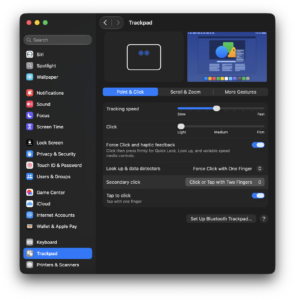
- Turn it on.
- Select Click or Tap with Two Fingers, or another preferred gesture.
You can also hold the Control key while clicking an item to open its shortcut menu.
How to Copy and Paste on Mac with a Mouse
A standard USB or Bluetooth mouse works much like it does on Windows once secondary click is enabled.
- Select the text, image, or file.
- Right-click the selection.
- Select Copy.
- Right-click the destination.
- Select Paste.
For an Apple Magic Mouse, open System Settings > Mouse and enable Secondary click if right-click is unavailable. You can choose which side of the mouse performs the secondary click.
How to Copy and Paste Using the Mac Edit Menu
Most Mac apps include Copy and Paste inside the Edit menu at the top of the screen. This method is useful when you are learning Mac keyboard shortcuts or when one of the keys is not working.
- Select the text or item.
- Click Edit in the Mac menu bar.
- Select Copy.
- Move to the destination.
- Open Edit again.
- Select Paste.
If Copy or Paste appears greyed out, the selected app or location does not currently support that action. Apple notes that individual apps decide which content can be copied and where it can be pasted.
How to Copy and Paste Without Formatting on Mac
Normal Command-V often keeps the original font, size, colour, links, and other formatting. Use Paste and Match Style when you want the copied text to adopt the formatting of the destination document.
Press:
Option + Shift + Command + V
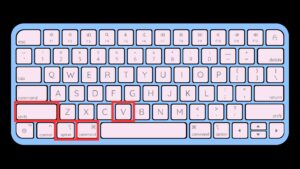
This is useful when copying text from a website into Mail, Notes, Pages, or another document and you do not want the website’s font or formatting to follow it.
You can also open the Edit menu and select Paste and Match Style in apps that support it. Apple documents the same shortcut in current macOS versions.
How to Copy and Paste Files on MacBook
Finder lets you copy documents, photos, videos, folders, applications, and other files using the same Command-C and Command-V shortcuts.
- Open Finder.
- Select the file or folder you want to copy.
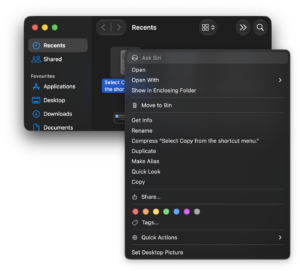
- Press Command + C.
- Open the destination folder or drive.
- Press Command + V.
macOS creates another copy in the destination while leaving the original file where it was.
Copy multiple files at once
Hold Command while clicking individual files to select several non-adjacent items. To select a continuous group, click the first file, hold Shift, and click the last one.
After selecting the files, press Command-C and paste them into another Finder location with Command-V.
How to Cut and Paste Files on Mac
The Finder does not use the normal Command-X shortcut to cut files in the same way Windows Explorer does. Instead, you copy the file first and then use a different paste shortcut to move it.
- Select the file in Finder.
- Press Command + C.
- Open the destination folder.
- Press Option + Command + V.
This moves the original file to the destination instead of creating a duplicate.
You can also drag files between folders. When moving files between different drives, macOS can copy rather than move them, so the keyboard method gives you more control when you specifically want to relocate a file.
How to Copy and Paste Photos on Mac
You can copy images from Finder, Photos, browsers, documents, and many other apps.
Copy an image from a website
- Control-click or right-click the image.
- Select Copy Image if the website allows it.
- Open the destination app.
- Press Command + V.
Some websites block image copying or use page designs where the image is not directly selectable. In those cases, downloading the image or taking a screenshot can be more appropriate, subject to the site’s permissions and copyright rules.
Copy a photo from Finder
Select the image file in Finder, press Command-C, navigate to another folder, and press Command-V. This duplicates the actual image file rather than copying only the visible picture into the clipboard.
How to Copy and Paste Between Mac and iPhone
Apple’s Universal Clipboard lets you copy text, images, photos, videos, and other supported content on one Apple device and paste it on another. For example, you can copy a link on your iPhone and immediately paste it into Safari on your MacBook. :contentReference[oaicite:5]{index=5}
Universal Clipboard requires the devices to be nearby, signed in to the same Apple Account, with Wi-Fi, Bluetooth, and Handoff enabled. :contentReference[oaicite:6]{index=6}
Copy from iPhone and paste on Mac
- Copy text, an image, or another supported item on the iPhone.
- Move to your MacBook.
- Click where you want to paste it.
- Press Command + V.
The copied item remains available through Universal Clipboard briefly, so paste it soon after copying. :contentReference[oaicite:7]{index=7}
Copy from Mac and paste on iPhone
- Select the content on the Mac.
- Press Command + C.
- Tap the destination field on the iPhone.
- Tap Paste.
How to View Clipboard History on Mac
Current versions of macOS Tahoe or later include clipboard history that lets you browse recently copied text, links, images, and files. Apple added this capability to Spotlight, which makes it more useful than the older clipboard viewer that showed only the current clipboard item. :contentReference[oaicite:8]{index=8}
If your Mac runs an older version of macOS, the built-in clipboard generally keeps only the most recently copied item for normal paste operations. Copying something new replaces the previous clipboard content.
Third-party clipboard managers can store a longer history, but they can also gain access to sensitive text you copy, including passwords or personal information. Check their privacy policies and permissions before installing one.
How to Copy and Paste on Mac with a Windows Keyboard
If you connect a Windows keyboard to a Mac, the modifier keys can be confusing because the keyboard does not have an Apple Command symbol.
Apple says you can try the Windows logo key or Ctrl key when a keyboard does not include a Command key. :contentReference[oaicite:9]{index=9}
On many standard PC keyboards connected to macOS:
| Mac action | Common Windows-keyboard equivalent |
|---|---|
| Copy | Windows key + C |
| Paste | Windows key + V |
| Cut text | Windows key + X |
| Select all | Windows key + A |
| Undo | Windows key + Z |
The exact mapping depends on the keyboard and any modifier-key customizations configured in macOS.
Why Can’t I Copy and Paste on My Mac?
If Command-C or Command-V does nothing, first determine whether the problem affects one app or the entire Mac. Copying can be unavailable when an app prevents selection, the destination does not accept that content type, or a temporary app or clipboard process has stopped responding.
Try copy and paste in another app
Open Notes or TextEdit, type a short sentence, select it, and test Command-C followed by Command-V. If it works there, the original app or website is causing the problem rather than macOS itself.
Use the Edit menu
Select the item and check Edit > Copy. If Copy is greyed out, the application does not currently allow the selected content to be copied. If Paste is greyed out, the destination cannot accept the current clipboard content. :contentReference[oaicite:10]{index=10}
Restart the app
Quit the affected application completely and reopen it. For an unresponsive app, press Option + Command + Esc, select the app, and choose Force Quit.
Restart the Mac
Open the Apple menu and select Restart. This clears temporary clipboard and application problems without changing your files.
Check the Command key
Try another Command-based shortcut such as Command-A or Command-Z. If none of them work, test the other Command key or an external keyboard to determine whether one key is physically faulty.
Check keyboard shortcut settings
Open System Settings > Keyboard > Keyboard Shortcuts and review any custom shortcuts or modifier-key changes. Third-party keyboard utilities can also remap Command, Control, Option, or other keys.
Universal Clipboard Not Working Between Mac and iPhone
If you can copy and paste normally on each device but not between them, check the Universal Clipboard requirements.
- Make sure both devices use the same Apple Account.
- Turn on Wi-Fi on both devices.
- Turn on Bluetooth on both devices.
- Keep the devices near each other.
- Make sure Handoff is enabled.
- Install available macOS and iOS updates.
- Restart both devices if it still fails.
Apple recommends checking those settings and restarting the devices when Universal Clipboard stops working. :contentReference[oaicite:11]{index=11}
Frequently Asked Questions
What are the copy and paste shortcuts on Mac?
Press Command + C to copy and Command + V to paste. Command-X cuts selected text, while Command-Z undoes the previous action.
What is Ctrl+C on a MacBook?
The standard Mac equivalent of Windows Ctrl+C is Command + C. The Command key has a ⌘ symbol and sits beside the space bar.
What is Ctrl+V on a Mac?
The Mac equivalent of Windows Ctrl+V is Command + V.
How do I right-click copy and paste on a MacBook?
Select the item, click the trackpad with two fingers, and choose Copy. Move to the destination, two-finger click again, and select Paste.
How do I copy and paste without a mouse on Mac?
Select the content using the keyboard or trackpad, press Command-C, move the insertion point to the destination, and press Command-V.
How do I copy and paste without formatting on Mac?
Press Option + Shift + Command + V to use Paste and Match Style in supported apps. The pasted text adopts the formatting around it. :contentReference[oaicite:12]{index=12}
How do I cut and paste on a Mac?
For text, press Command-X and then Command-V. For files in Finder, press Command-C and then Option + Command + V to move the file to the new location.
Can I copy and paste between an iPhone and MacBook?
Yes. Universal Clipboard allows copying between nearby Apple devices signed in to the same Apple Account with Wi-Fi, Bluetooth, and Handoff enabled. :contentReference[oaicite:13]{index=13}
Can I copy and paste more than one thing on Mac?
On macOS Tahoe or later, Apple provides clipboard history for recently copied items. On older macOS versions, normal clipboard behaviour generally keeps the latest copied item available for pasting. :contentReference[oaicite:14]{index=14}
Why is Paste greyed out on my Mac?
The clipboard can be empty, or the current app may not accept the type of content you copied. Apps control which items can be copied and pasted in each location. :contentReference[oaicite:15]{index=15}
Does copying a file delete the original?
No. Command-C followed by Command-V creates another copy. To move a Finder file instead, use Command-C followed by Option-Command-V.
How do I undo a paste on Mac?
Press Command + Z immediately after pasting, or select Edit > Undo.





How To Copy and Paste With Keyboard Shortcuts In Windows PC & Laptop – Full Guide - Techdows
[…] On a Mac the same jobs use the Command key instead of Ctrl; see how to copy and paste on a MacBook. […]