To fix an overheating laptop, shut it down, clear dust from the air vents, set it on a hard flat surface, then close CPU-heavy apps and install the latest Windows, driver and BIOS updates.
This guide covers why laptops overheat, the signs that heat is a real problem rather than normal warmth, every fix from power settings to a fan test, and how to stop it happening again.
How to fix overheating laptops
These quick fixes need no disassembly and clear the most common causes in order, from airflow to software. Most laptops run cooler after the first four.
- Shut the laptop down, unplug the charger and let it cool for at least five minutes.
- Clear dust and lint from the air vents and fan grilles on the bottom, sides and back.
- Put the laptop on a hard, flat surface such as a desk, never a bed, pillow, couch or your lap.
- Turn it on, press Ctrl + Shift + Esc, select the CPU column in Task Manager and close apps you do not need near the top.
- Open Settings > System > Power & battery and set Power mode to Balanced or Best power efficiency.
- Open Settings > Windows Update, select Check for updates and install everything offered, including driver and firmware updates.
- Install the latest BIOS from your laptop maker's support site if the fan still runs hard at idle.
If the laptop still shuts down, the fan makes grinding noises, or the case is swollen, stop here and jump to the hardware checks below.
Why your laptop overheats
Laptops pack the processor, graphics chip and battery into a thin case with small fans. Anything that blocks airflow or keeps the processor busy pushes the temperature up.
| Cause | What happens | Fix in this guide |
|---|---|---|
| Blocked vents or dust on the cooling fins | Hot air cannot leave the case, so the fan spins faster and the chips still heat up | Clean the air vents and fans |
| Soft surfaces such as a bed, pillow or lap | Fabric covers the intake vents underneath | Ensure proper airflow |
| High CPU use from an app, background process or many startup programs | The processor runs at full power for long periods | Manage software and processes |
| Outdated drivers, BIOS or thermal software | Fan curves and power limits do not match the hardware; on Intel laptops a missing Intel Dynamic Tuning driver is a known cause | Update software and drivers |
| Malware such as hidden miners | Unknown processes keep the CPU busy around the clock | Scan for malware |
| High-performance power mode | The processor is allowed to draw more power and produce more heat | Adjust power settings |
| A BIOS thermal setting that conflicts with the software profile | The fan and power limits fight each other | Change the BIOS thermal setting |
| Failing fan, heat sink or dried thermal material | Heat no longer moves from the chip to the fins | Reapply thermal paste or repair the fan |
| Hot room or direct sunlight | Most laptops are rated for 0°C to 35°C (32°F to 95°F) ambient temperature | Move to a cooler place |
Signs your laptop is overheating
Warmth during heavy work is normal, and the processor slows itself to stay safe. Use these signs to diagnose a real cooling problem.
| Sign | Normal or a problem? |
|---|---|
| Fan runs fast during gaming, video export or large downloads | Normal under heavy load |
| Fan is loud or the case is hot with only a browser open | Problem: check processes, vents and power mode |
| Performance drops within minutes of light use | Problem: the processor is throttling too early |
| Random freezes, restarts or shutdowns | Problem: the laptop is hitting its temperature limit |
| A thermometer icon appears and the laptop turns off (Surface) | Problem: the device passed its maximum operating temperature |
| Fan never spins, or stops while the laptop is hot | Problem: likely a fan fault; run the fan test |
| Short battery life alongside constant heat | Problem: something is keeping the CPU busy |
| Swollen case, burning or chemical smell, too hot to touch after shutdown | Stop using it and contact the manufacturer |
Freezing can have causes other than heat; if the laptop stays cool and still locks up, work through the checks for a laptop that keeps freezing.
Clean the air vents and fans
Dust and lint on the cooling fins are the most common hardware cause. Clean the outside vents yourself. Deep cleaning the fan and heat sink requires opening the laptop, so leave that to an authorized service provider if your warranty requires it.
- Shut down the laptop fully and unplug the charger.
- Find the intake vents (usually underneath) and the exhaust vents (usually on the side or back hinge).
- Blow short bursts of compressed air across each vent at an angle, holding the can upright.
- Wipe lint off the grilles with a dry, soft brush or lint-free cloth.
- Turn the laptop on and listen; the fan should spin up briefly at boot, then settle when idle.
Ensure proper airflow
| Where you use the laptop | Do this | Why |
|---|---|---|
| Bed, sofa, pillow or blanket | Move it to a desk or put a tray or hard board under it | Fabric blocks the intake vents |
| On your lap | Use a lap desk with a hard top | Legs cover the vents, and long skin contact with a warm surface can cause discomfort or injury |
| Desk, but the laptop still runs hot | Use a cooling pad or a laptop stand | Its own fans push extra air into the intake |
| Near a window or in a warm room | Move away from direct sunlight and heat sources | Ambient heat above the rated range leaves no headroom |
| Papers or books against the sides | Keep the side and rear vents clear | Hot air recirculates back into the intake |
Manage software and processes
An app stuck at high CPU use keeps the fan running even when you are not doing anything. Task Manager shows which one.
If the fan roars while you only browse the web or read email, a background task is the usual reason. Windows Update and OneDrive syncing after a new setup are common examples.
- Right-click Start and select Task Manager, or press Ctrl + Shift + Esc.
- Select More details if Task Manager opens in compact view.
- On the Processes tab, select the CPU column header to sort by usage.
- Select an app you do not need and choose End task.
- Select the Startup apps tab, pick each app with High startup impact that you do not need, and select Disable.
- Restart the laptop and check that the fan settles at idle.
On Windows 11 you can also turn startup apps off in Settings > Apps > Startup. Leave your antivirus running; disabling it to quiet the fan trades heat for risk.
Update software and drivers
Laptop makers tune fan curves and power limits through BIOS, chipset and thermal driver updates. Older versions can run the processor hotter than intended.
- Open Settings > Windows Update and select Check for updates.
- Open your laptop maker's app (for example Dell SupportAssist, MyDell, HP Support Assistant, Lenovo Vantage or the Surface app) and run its update check.
- Install any BIOS, chipset, graphics or thermal management update offered for your exact model.
- Keep the charger connected during a BIOS update and do not shut down until it finishes.
- Restart when prompted.
On Intel laptops, Dell lists a missing or outdated Intel Dynamic Tuning driver as a cause of overheating; install it from the maker's driver page for your model.
Scan for malware
Malware such as cryptocurrency miners runs the processor hard in the background. A full scan checks every file, not just common locations.
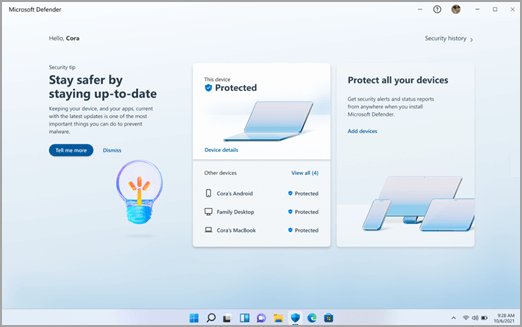
- Search the Start menu for Windows Security and open it.
- Select Virus & threat protection.
- Select Scan options.
- Choose Full scan and select Scan now.
- Remove anything it finds, then run Microsoft Defender Offline scan from the same list if the CPU stays busy.
Adjust power settings
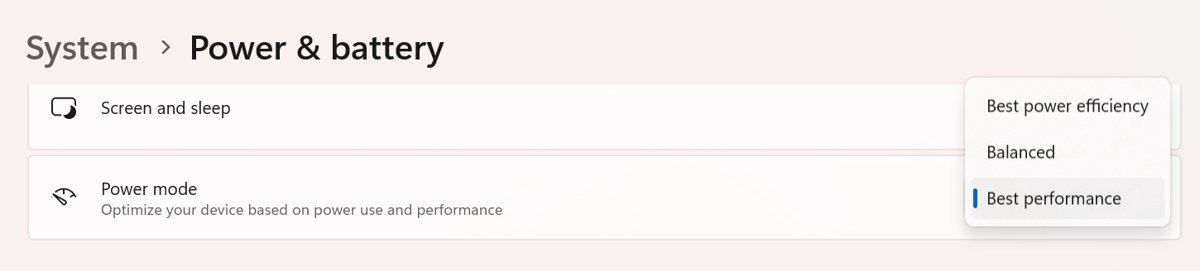
Best performance lets the processor draw the most power, which means the most heat and fan noise. A lower mode cools the laptop with little effect on everyday tasks.
- Select Start > Settings > System > Power & battery.
- Under Power mode, set Plugged in to Balanced or Best power efficiency.
- Set On battery to Best power efficiency.
- If you cannot change the power mode, open Control Panel > System and Security > Power Options and select Balanced.
- On Windows 10, select the battery icon on the taskbar and drag the slider toward better battery.
Many laptop makers add their own thermal profiles (for example Quiet or Cool) in their companion app. Choose the cooler one when heat matters more than speed.
Change the BIOS thermal setting
Some laptops have a thermal mode in the BIOS that can clash with the profile set in Windows. The menu names below are Dell's; other brands use similar labels.
- Restart the laptop and press the BIOS setup key as the logo appears (F2 on Dell laptops).
- Find the Thermal Management setting, usually under power or performance options.
- Choose Balanced, Quiet, Optimized or Cool if they are offered.
- Save the change and exit the BIOS.
Undervolting and software fan control on a laptop
Undervolting lowers the voltage the processor runs at, and software fan control changes how hard the fans spin. On most laptops neither is open to you directly: the maker sets the limits.
- Choose the cooler thermal profile in your maker's companion app, such as a quiet or cool mode; this is the supported form of software fan control.
- Set Power mode in Windows to Balanced or Best power efficiency, since operating system power plans also steer the thermal limits.
- Leave Intel Dynamic Tuning installed and enabled. Intel warns that disabling it without the system maker's instruction can lead to overheating, reduced battery life or instability.
- Check your processor model before you try to undervolt. Intel XTU supports only unlocked K-, X- and HX-series processors on chipsets that support overclocking, so most thin laptops cannot use it.
- If your laptop is supported, lower one setting at a time in Intel XTU and run its stress test after each change; undo the change if the laptop freezes or restarts.
Intel says its Dynamic Tuning Technology has no user settings; the laptop maker defines its behavior through BIOS performance modes, its own utilities and Windows power plans.
Run a laptop fan test
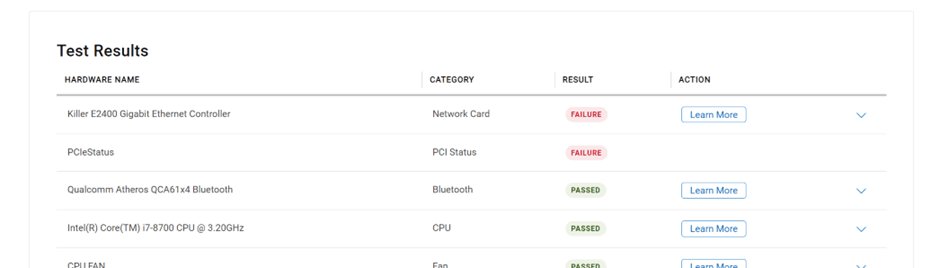
A fan that has failed or slowed down cannot be fixed in software. The maker's built-in diagnostics confirm it and produce an error code, so the manufacturer can replace the cooling fan if necessary.
- On a Dell laptop, restart and press F12 at the logo.
- Select Diagnostics.
- Choose Advanced Test and run a thorough test on every fan entry.
- Note any error and validation codes shown and give them to the manufacturer's support.
- On other brands, run the hardware diagnostics built into the maker's support app or its pre-boot diagnostics menu.
Reapply thermal paste or check the battery?
When cleaning and software fixes fail, the remaining causes are inside the case. Match your symptom to a row before opening anything.
| Symptom | Likely hardware cause | What to do |
|---|---|---|
| Fan runs at full speed, vents are clean, laptop still throttles under light use | Dried thermal paste or a heat sink no longer seated | Have the thermal material replaced by the manufacturer or an authorized repair shop; under warranty, opening the case yourself can void cover |
| Fan fails the diagnostics test or never spins | Failed fan | Book a fan replacement with the manufacturer |
| Case bulges, trackpad lifts or keyboard is uneven | Swollen battery | Shut down, unplug the charger, stop using the laptop and contact the manufacturer; do not remove a swollen battery yourself |
| Laptop is hottest near the battery while charging | Battery or charging circuit working hard | Let it finish charging on a hard surface; if it stays hot when full, run the maker's battery test |
| Burning or chemical smell | Electrical fault | Turn it off, unplug it and contact support before using it again |
A broken fan, a swollen battery or a burning smell is not a home repair. This is when to seek professional help: take the laptop to the manufacturer or an authorized service provider for fan replacement, deep cleaning of the heat sink or new thermal paste.
How to check laptop temperature
Monitoring temperature tells you whether the processor is actually reaching its limit or just running warm. Use the tool that matches your laptop, then read the result against the limits below.
| Method | What it shows | Works on |
|---|---|---|
| Task Manager Performance tab | CPU speed and use; a sharp speed drop during light work means the processor is throttling from heat | Every Windows laptop |
| Laptop maker's diagnostics or companion app | Fan and thermal test results with error codes for a repair claim | Dell, HP, Lenovo, Surface and most other brands |
| Intel Extreme Tuning Utility (Intel XTU) | A system monitor with processor temperature, plus stress tests | Only unlocked Intel processors, such as K-, X- and HX-series, on a chipset that supports overclocking |
Intel processors throttle at their Tjunction maximum, usually 100°C to 110°C. Touching that briefly under heavy load is expected; reaching it while you browse the web means a cooling fault.
How to check if your laptop is still overheating
- Leave the laptop idle on the desktop for five minutes with only Task Manager open.
- Confirm the fan settles to quiet or off and total CPU use in Task Manager stays low.
- Open the Performance tab and watch the CPU speed during a normal task; it should not drop sharply within a few minutes of light use.
- Use the laptop for an hour of your usual work and confirm there are no freezes, restarts or shutdowns.
- Rerun the maker's fan test if the fan is still loud at idle.
Fan noise at idle is the first thing to recheck after any fix, because a quiet idle fan means the cooling and background load are back under control. The expected improvement is a fan that settles at idle and no throttling or shutdowns during light work, rather than a laptop that never gets warm.
How to prevent overheating in the future
The preventive measures that mitigate overheating are mostly habits. Build these into how you use the laptop to keep it cool long term.
| Habit | How often | Why it helps |
|---|---|---|
| Use the laptop on a hard, flat surface | Every time | Keeps the intake vents uncovered |
| Clean dust from the vents | Regularly, more often with pets or carpets | Dust builds up on the fins and blocks airflow |
| Keep Windows, drivers and BIOS updated | Monthly | Updates carry fan and power tuning for your model |
| Review startup apps and background processes | When the fan gets louder than usual | Fewer background tasks means less idle heat |
| Use a balanced or efficient power mode for everyday work | Set once | Caps power draw unless you choose otherwise |
| Use a cooling pad for gaming or long video work | During heavy sessions | Adds airflow when the processor runs at full power |
| Keep the room below 35°C (95°F) and out of direct sun | Always | The laptop needs cool air to shed heat |
| Keep antivirus on and run occasional full scans | Monthly | Catches hidden miners before they cook the CPU |
| Turn on the battery charge limit in the maker's app if the laptop stays plugged in | Set once | Avoids overcharging strain from sitting at full charge; Lenovo's Conservation mode, for example, holds it at 75% to 80% for long-term battery health |
Laptop overheating fixes by symptom
My laptop keeps overheating even after cleaning
The cause is software, a thermal setting or failing internal parts rather than dust.
- Sort Task Manager by CPU and end any process near the top you do not recognise or need.
- Run a Full scan in Windows Security.
- Set Power mode to Balanced or lower, and pick the cooler profile in the maker's app.
- Update the BIOS and thermal drivers, then run the fan test.
- If the fan passes but heat continues, ask the manufacturer about replacing the thermal paste.
Laptop CPU overheating at idle
A background process, startup apps or updates running after setup keep the processor busy.
- Open Task Manager and sort by CPU to find the process.
- Let Windows Update and OneDrive finish if a new setup or big update is in progress.
- Disable unneeded Startup apps with High impact and restart.
- On Intel laptops, install the latest Intel Dynamic Tuning driver from the maker's site.
Laptop shuts down from overheating
The processor reached its maximum temperature and the laptop powered off to prevent damage.
- Leave it off in a cooler place for at least five minutes before turning it on.
- Check that the vents are clear and the laptop is on a hard surface.
- Run the maker's fan diagnostics.
- If it shuts down again with clear vents and light use, contact the manufacturer for repair.
Overheating laptop FAQ
How do I fix an overheating laptop?
Shut it down, clean the vents, and use it on a hard flat surface. Then close CPU-heavy apps in Task Manager, switch to a balanced power mode, and install Windows, driver and BIOS updates. If it still overheats, run the maker's fan test.
How do I prevent laptop overheating?
Keep the vents clear and use the laptop on a desk or hard tray rather than a bed or lap. Clean dust regularly, keep the BIOS and drivers updated, and use a cooling pad for gaming or long video work.
How do I solve a laptop overheating problem without opening it?
Most heat problems are fixed from outside the case: blow compressed air through the vents, improve airflow, end high-CPU processes, disable unneeded startup apps, scan for malware and update the BIOS. Only a failed fan or dried thermal paste needs the case opened.
How can I help my laptop from overheating while gaming?
Play on a hard surface with a cooling pad, close background apps first, and keep the graphics and BIOS drivers current. If the laptop still throttles, pick a balanced thermal profile in the maker's app or lower in-game graphics settings.
How do I deal with an overheating laptop that keeps shutting down?
Turn it off and let it cool for at least five minutes in a cooler spot. Clear the vents, then run the maker's fan diagnostics. Repeated shutdowns during light use mean a hardware fault, so contact the manufacturer.
How do I fix computer overheating on a desktop PC?
The same causes behind a computer overheating issue apply to a desktop: dust, blocked airflow, busy processes and outdated BIOS. Clean the case fans and filters, keep the case away from walls, end high-CPU apps in Task Manager, and update the BIOS and drivers from the maker's site.
Is it bad to overheat a laptop on purpose?
Yes. Running a laptop hot on purpose gains nothing; the processor slows itself at its temperature limit and shuts down if throttling is not enough.
What temperature is too hot for a laptop CPU?
Intel processors throttle at their Tjunction maximum, usually 100°C to 110°C depending on the model. Reaching that briefly under heavy load is expected; reaching it during light use points to a cooling problem.
Will an SSD or RAM upgrade stop a laptop overheating?
Upgrading the SSD or RAM does not fix a cooling fault such as blocked vents, a failed fan or dried thermal paste. Work through the cleaning, airflow, software and power fixes first.
Does a cooling pad help an overheating laptop?
Yes. A cooling pad has its own fans that push extra air into the laptop's intake. It helps most during gaming or long renders, but it does not fix a clogged vent, a failed fan or a runaway process.
Can overheating damage a laptop?
Processors protect themselves by throttling and shutting down, so a single hot session rarely causes damage. A swollen battery, a burning smell or a case too hot to touch after shutdown needs the manufacturer's service.
Bottom line: what fixes most overheating laptops
Final recommendation: start with clean vents, a hard surface and a check of Task Manager, then update the BIOS and drivers before suspecting hardware. Blocked airflow and busy background processes cause most overheating, and both are free to fix. A fan that fails diagnostics, dried thermal paste or a swollen battery needs the manufacturer's repair rather than more software tweaks.

![Find passwords stored on this computer [3 ways]](https://techdows.com/wp-content/uploads/2026/10/Find-passwords-stored-on-this-computer-3-ways.jpg)
![7 best open-source PDF editors [Windows, Mac, Linux]](https://techdows.com/wp-content/uploads/2026/10/7-best-open-source-PDF-editors-Windows-Mac-Linux.jpg)