To play an old version of Minecraft, open the Minecraft Launcher, go to Minecraft: Java Edition, select Installations, create a new installation and choose the release you want from the version list.
This guide covers Java and Bedrock Edition, the free Classic version, backing up worlds first, playing an older release with friends, mods, and fixes when an old version will not start.
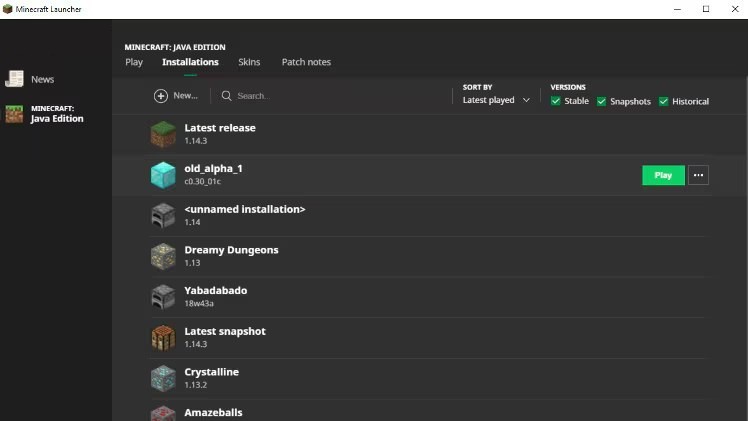
Using the official Minecraft Launcher
The launcher builds a separate installation for each version you pick and downloads that version's game files itself. Back up your worlds before you start, because opening a current world in an older version can damage it permanently.
- Open the Minecraft Launcher and sign in with the Microsoft account that owns Minecraft.
- Select Minecraft: Java Edition on the left.
- Select the Installations tab at the top.
- Select New installation.
- Enter a name, such as the version number, and choose the release from the Version list.
- Clear Launch after Install if you want to start the game yourself later.
- Select Install, then select Play when the files finish downloading.
Your current installation stays untouched. Each installation keeps its own version, so you can switch between a modern release and an old one at any time.
Which way to play an old Minecraft version fits you?
| You want to play | Use this | Why |
|---|---|---|
| Any earlier Java Edition release | A new installation in the Minecraft Launcher | Official, free for Java owners, and keeps your current setup |
| The original free 2009-era game | Minecraft Classic at classic.minecraft.net | Mojang's own free browser version for Windows, Mac and Linux |
| An upcoming version, not an old one | Latest Snapshot in the version menu | Snapshots are in-development builds, separate from releases |
| An older Bedrock Edition release | No supported route | Mojang's Bedrock steps in the launcher only check for updates |
| A world saved in an old version | An installation set to that same version | Matching the version avoids conversion damage |
Understanding Minecraft versions
Old versions are a Java Edition feature. The other editions either update automatically or are fixed, separate games.
| Edition or build | Platforms | Can you pick an older release? |
|---|---|---|
| Minecraft: Java Edition releases | Windows, Mac, Linux | Yes, through launcher installations |
| Java Edition snapshots | Windows, Mac, Linux | The launcher offers the latest snapshot; snapshots preview features before release |
| Minecraft: Bedrock Edition | Windows 10 and later, Xbox, PlayStation, Switch, iOS, Android, Fire tablets | No; updates install automatically through the launcher or store |
| Minecraft Classic | Any browser on Windows, Mac or Linux | It is itself the original version, free to play |
| Minecraft: Education | Windows, iPad, Mac, Chromebook | No; it is a separate edition for schools |
| Minecraft: Pi Edition | Raspberry Pi | No; a separate teaching edition |
On PC, Java Edition and Bedrock Edition have been sold as one bundle since June 7, 2022, so most PC owners already have the Java Edition needed for old versions; anyone without it can get Minecraft for PC as that bundle.
What you need to play old versions of Minecraft
| Requirement | Details |
|---|---|
| Java Edition ownership | The launcher shows Play or Install under Minecraft: Java Edition if your account owns it, and Buy Now if it does not |
| Minecraft Launcher | Windows 10 or later, macOS 10.15 or later, or Ubuntu 19.10 or later to receive launcher updates; on a PC, install the Minecraft Launcher on Windows if it is missing |
| The right account | The same Microsoft account that bought Minecraft, in both the launcher and the Microsoft Store |
| A world backup | A copy of every world you might open in the older version |
| Internet connection | Needed the first time, while the launcher downloads the old version's files |
Back up Minecraft worlds before you switch versions
Mojang warns that loading a current world in an older version can permanently damage it. Java Edition has a built-in backup button, so this takes under a minute per world.
- Launch Minecraft: Java Edition on your current version.
- Select Singleplayer.
- Select the world you want to protect, then select Edit.
- Select Make Backup on the Edit World screen.
- Select Open Backups Folder to confirm the dated .zip file is there.
For safety, play old versions in a brand-new world, or in a world that was created in that same version.
Downloading old versions of Minecraft
You never need an installer from a download site. The launcher fetches the selected version's files from Mojang the first time you run that installation, and keeps them for later sessions.
- Open the Minecraft Launcher and select Minecraft: Java Edition.
- Select the version menu to the left of the Play button; it usually reads Latest Release.
- Pick the installation you created for the old version.
- Select Play and wait for the first download to finish.
- To return to the current game, pick Latest Release from the same menu before selecting Play.
The older launcher layout labels these buttons New and Create instead of New installation and Install; the process is the same.
Playing with friends in older versions of Minecraft
Multiplayer only works when everyone runs the same version. Mojang states this outright for snapshots, and the same rule applies to old releases: a client on a different version cannot join the game.
| How you play together | What every player does | Note |
|---|---|---|
| Same home network (LAN) | Create an installation with the identical version, then the host opens the world to LAN | Simplest for two or three players in one house |
| A self-hosted server | Run the Minecraft server software on the old version and give every player a matching installation | The server's version decides what clients must use |
| A third-party server | Check which version the server runs and create that installation | Some servers accept several versions; follow the server's own rules |
| Bedrock players joining | Not possible with an old Java version | Java and Bedrock are separate games on PC |
Players on an operating system Mojang no longer supports cannot join games with players on the newest version, which is another reason to agree on one version first.
Minecraft mods and old versions
Mods are built for a specific Minecraft version, which is the main reason players keep old releases around. Give each modded setup its own installation so a broken mod never touches your clean game.
- Note the exact game version each mod lists as supported.
- In the launcher, select Installations, then New installation.
- Name it after the mod pack and choose the matching version.
- Install the mod loader and mods for that version only, following the mod author's instructions.
- If the game crashes, for example with Minecraft exit code 1, create a fresh installation of the same version with no mods to see whether a mod is the cause.
Only download mods from sources you trust, and scan downloaded files with your security software before using them.
Change how much memory an old Minecraft version uses
Since version 26.1-snapshot-2 the default allocation is 4 GB. If an older or modded installation stutters or crashes, adjust its JVM arguments.
- Check your installed RAM in Settings > System > About on Windows, or Apple menu > About This Mac.
- In the launcher, select Minecraft: Java Edition, then the Installations tab.
- Select the installation, then More Options.
- Copy the JVM arguments text into Notepad or TextEdit and save it as a backup.
- Change the
-Xmx2Gvalue, for example to-Xmx4Gfor 4 GB. - Select Save.
Use 2 GB on PCs with 4 GB of RAM or less. On a 64-bit system, half your RAM is the recommended maximum; on 32-bit systems, 4 GB is the limit.
How to check the old Minecraft version is running
- Open the Installations tab and confirm your new entry lists the version you chose.
- Open the version menu next to Play and confirm the installation appears there.
- Start the game and check that the features and textures match the release you expected.
- Create a test world first; open any older world only after its backup exists.
The appeal of old versions of Minecraft
| Reason players go back | What to choose |
|---|---|
| Nostalgia for the earliest game | Minecraft Classic in the browser, free |
| A mod or mod pack that never updated | A Java installation on the mod's supported version |
| A favourite mechanic that later changed | The last Java release before the change |
| Revisiting an old world as it was built | An installation on the version that created the world |
| A server that stays on one release | An installation that matches the server |
Fix an old Minecraft version that will not play
Crashes, no sound or screen glitches
A damaged installation, a mod, or a memory setting that does not suit the PC.
- Create a new installation of the same version with default settings.
- If that works, remove mods or advanced settings from the old installation.
- Lower the memory value in JVM arguments to 2 GB on PCs with 4 GB of RAM or less.
- Restore the JVM arguments from your saved text file if the game stopped launching after an edit.
The Play button is missing
The launcher is signed in to a Microsoft account that does not own Minecraft.
- Select the account name in the top-left corner of the launcher and select Log out.
- Sign in with the account that owns Minecraft or has Xbox Game Pass for PC.
- In the Microsoft Store, sign out from the profile icon and sign back in with that same account.
Friends cannot join the old-version world
Their installation runs a different version from the host.
- Ask each player to open Installations and check the version of the installation they launched.
- Create a matching installation on any PC that differs.
- Restart the world or server and join again.
An old world is broken after opening it
It was loaded in a version older than the one that saved it.
- Close the game without saving further.
- Select Edit on the world, then Open Backups Folder.
- Restore the backup .zip into your saves and open it in the original version.
Old Minecraft versions: frequently asked questions
Can you play old versions of Minecraft?
Yes. Java Edition owners can play earlier releases for free by creating a new installation in the Minecraft Launcher and choosing the version. Anyone can also play Minecraft Classic, the original version, free in a browser at classic.minecraft.net.
How do you play old versions of Minecraft Java?
Open the Minecraft Launcher, select Minecraft: Java Edition, then the Installations tab and New installation. Choose the release from the version list, select Install, and launch it from the menu next to the Play button.
How do you play old versions of Minecraft Bedrock?
Mojang offers no supported way to roll Bedrock Edition back. The Bedrock section of the launcher only checks for updates, and console and mobile versions update through their stores. For older gameplay on PC, use a Java Edition installation instead.
Do I have to buy Minecraft again to play an older version?
No. Owning Minecraft: Java Edition gives you every release through the launcher at no extra cost. PC copies bought since June 7, 2022 include both Java and Bedrock Edition, so most owners already have access.
Will playing an old version damage my world?
It can. Mojang warns that opening a current world in an older version may damage it permanently. Use the Make Backup button on the Edit World screen before switching, or create a new world in the old version.
Can I play an old Minecraft version with friends?
Yes, if every player runs exactly the same version. Each friend creates an installation with that version in the launcher, then joins over LAN or a server running the same release.
How do I go back to the newest version?
Open the version menu to the left of the Play button in the launcher and choose Latest Release, then select Play. Your old-version installation stays in the list for next time.
Best way to play old versions of Minecraft
Use a separate Java Edition installation in the official Minecraft Launcher for any older release, and Minecraft Classic for the original game. Both are free for owners, come straight from Mojang, and leave your current game and worlds untouched as long as you back up first.

![[Fix] Microsoft Software Protection Platform (sppsvc) high CPU usage](https://techdows.com/wp-content/uploads/2026/10/Fix-Microsoft-Software-Protection-Platform-sppsvc-high-CPU-usage-600x338.jpg)