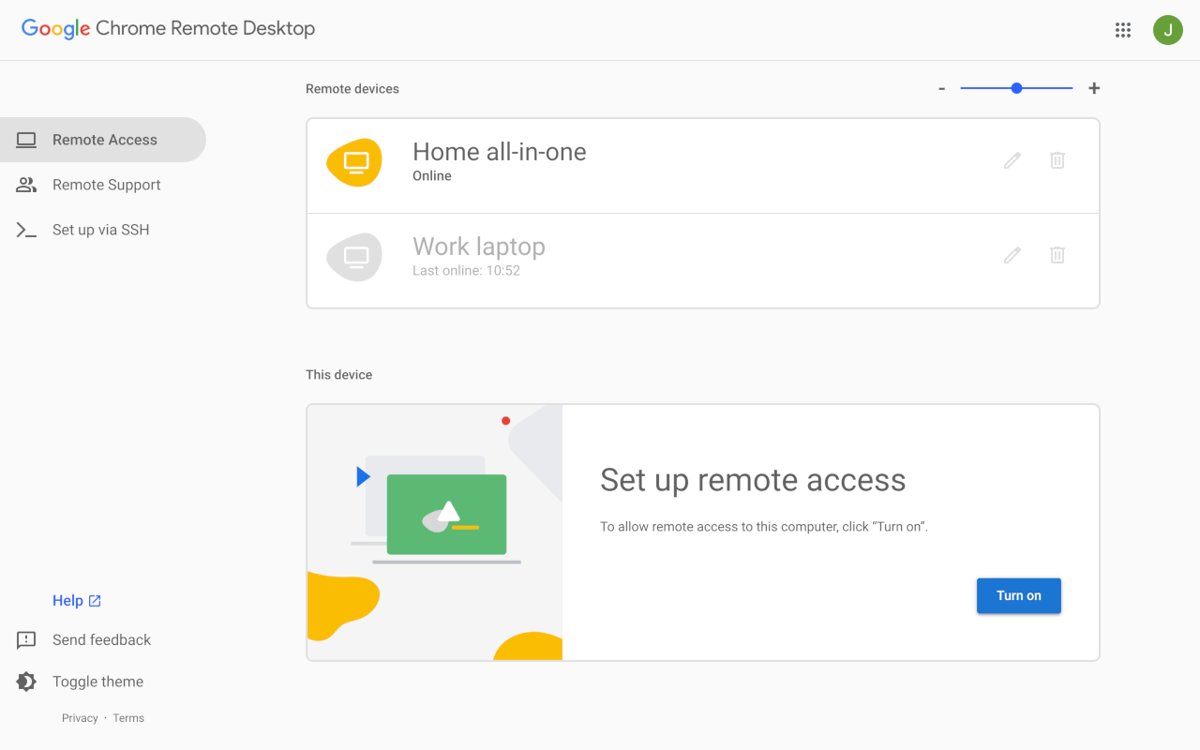
To configure Google Chrome Remote Desktop, open remotedesktop.google.com/access in Chrome on the computer you want to reach, install the host, name the computer and set a PIN.
After that, you can sign in to the same Google Account on another computer, phone or tablet and control that machine from anywhere. This guide covers both modes, the Mac permissions, file transfer, mobile use, security and fixes for failed connections.
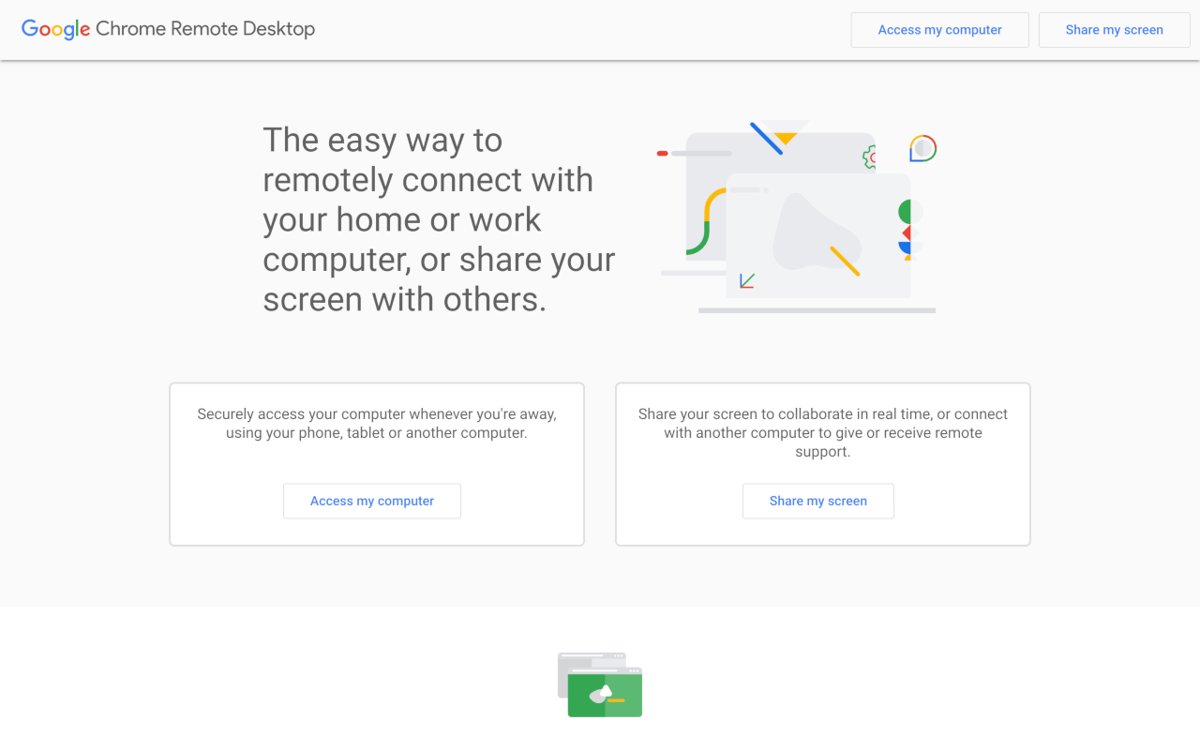
How to set up Chrome Remote Desktop for remote access
Do this on the computer you want to control later, called the host. It works on Windows, Mac and Linux.
- Open Chrome on the host computer and sign in to your Google Account.
- Type remotedesktop.google.com/access in the address bar and press Enter.
- Under Set up Remote Access, click Download.
- Open the downloaded installer and follow the onscreen directions to install Chrome Remote Desktop.
- Enter your computer password if Chrome Remote Desktop asks for permission to install.
- Type a name for the computer that you will recognise in a list, such as "Office desktop".
- Choose a PIN when prompted and confirm it to turn on remote access.
If you prefer to grab the installer first, the Chrome Remote Desktop download page lists the host package for each platform. On a Mac, finish the permission settings below before you leave the computer.
What Google Chrome Remote Desktop does
Chrome Remote Desktop lets one device display and control another computer's desktop over the internet. It runs in the browser on computers and through an app on phones and tablets.
| Capability | What it means in practice |
|---|---|
| Remote access | Reach your own Windows, Mac or Linux computer from anywhere with a PIN |
| Remote support | Let someone else control your computer for one session with a one-time code |
| Browser-based client | Connect from Chrome at remotedesktop.google.com with no separate viewer program |
| Mobile apps | Control a computer from Android, iPhone or iPad with a virtual trackpad |
| File transfer | Move files between the two computers during a remote access session |
| Clipboard sync | Copy on one computer and paste on the other, unless an administrator limits it |
| Encryption | Google states that all remote desktop sessions are fully encrypted |
What you need to set up Chrome Remote Desktop
| Requirement | Details |
|---|---|
| Google Account | The same account on the host and on every device you connect from |
| Chrome browser | The latest version of Chrome or ChromeOS on each computer |
| Host operating system | Windows, macOS or Linux (Linux uses a 64-bit Debian package) |
| Permission to install | Your computer password, and on a Mac, access to Privacy & Security settings |
| Internet connection | Both sides must be online; the host must stay awake |
| Network access | Outbound UDP, inbound UDP responses, TCP port 443 and TCP/UDP port 3478 must not be blocked |
| Mobile app (optional) | Chrome Remote Desktop from Google Play or the App Store |
Work and school computers can be managed by an administrator who turns the feature off. Check with your IT team before you install the host on a company machine.
Understand the two modes: Remote access vs remote support
Remote access is for your own computers and stays set up. Remote support is for one-time help and ends when the session closes.
| Your situation | Use this mode | Why |
|---|---|---|
| You want to reach your home or office PC later | Remote Access (remotedesktop.google.com/access) | The computer stays in your list and a PIN unlocks it |
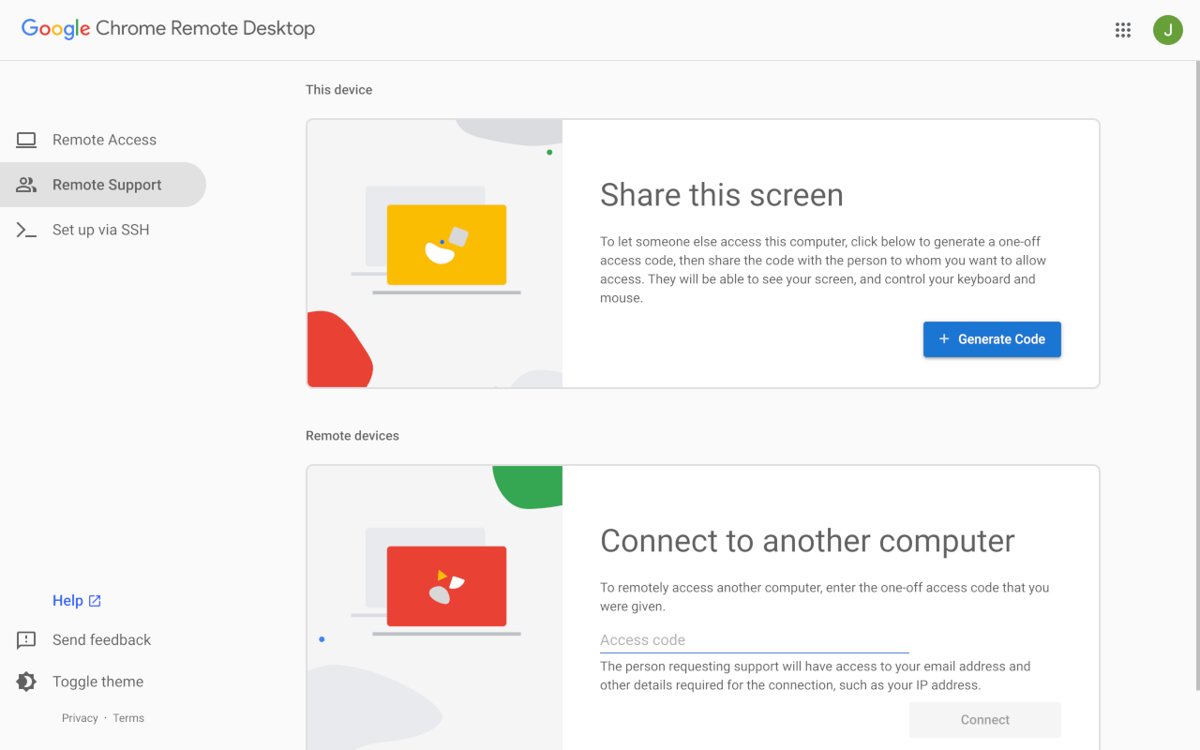
| A friend or relative needs help right now | Remote Support (remotedesktop.google.com/support) | A one-time code gives access for this session only |
| You need to move files between machines | Remote Access | File transfer does not work in remote support sessions |
| You do not want to leave anything permanently open | Remote Support | The code works once and the host asks to confirm sharing every 30 minutes |
| The other person is not signed in to your Google Account | Remote Support | Remote access lists only computers set up under your own account |
Important macOS permission settings for Chrome Remote Desktop
macOS blocks screen capture and input control by default. Without these two permissions, a session connects but shows a blank screen or ignores your clicks.
- When the installer shows a security alert, click Open System Settings.
- Otherwise, choose Apple menu > System Settings, then click Privacy & Security in the sidebar.
- Click Accessibility and turn on the Chrome Remote Desktop entry.
- Go back to Privacy & Security and click Screen & System Audio Recording.
- Turn on the Chrome Remote Desktop entry in that list as well.
- If the entry is missing, click the Add button below the list, select the app and click Open.
- Enter your Mac password when prompted to save each change.
How to connect to your computer remotely
- On the other computer, open Chrome and sign in to the same Google Account.
- Type remotedesktop.google.com/access in the address bar and press Enter.
- Click Access and select the computer you want from the list.
- Enter the PIN you set during setup.
- Select the arrow to connect.
- Work on the remote desktop as if you were sitting at it.
- Close the tab, or select Options > Disconnect, when you finish.
At connection time you can pair the client and host so you do not enter the PIN every time, unless an administrator has disabled pairing.
Using the Chrome Remote Desktop session toolbar
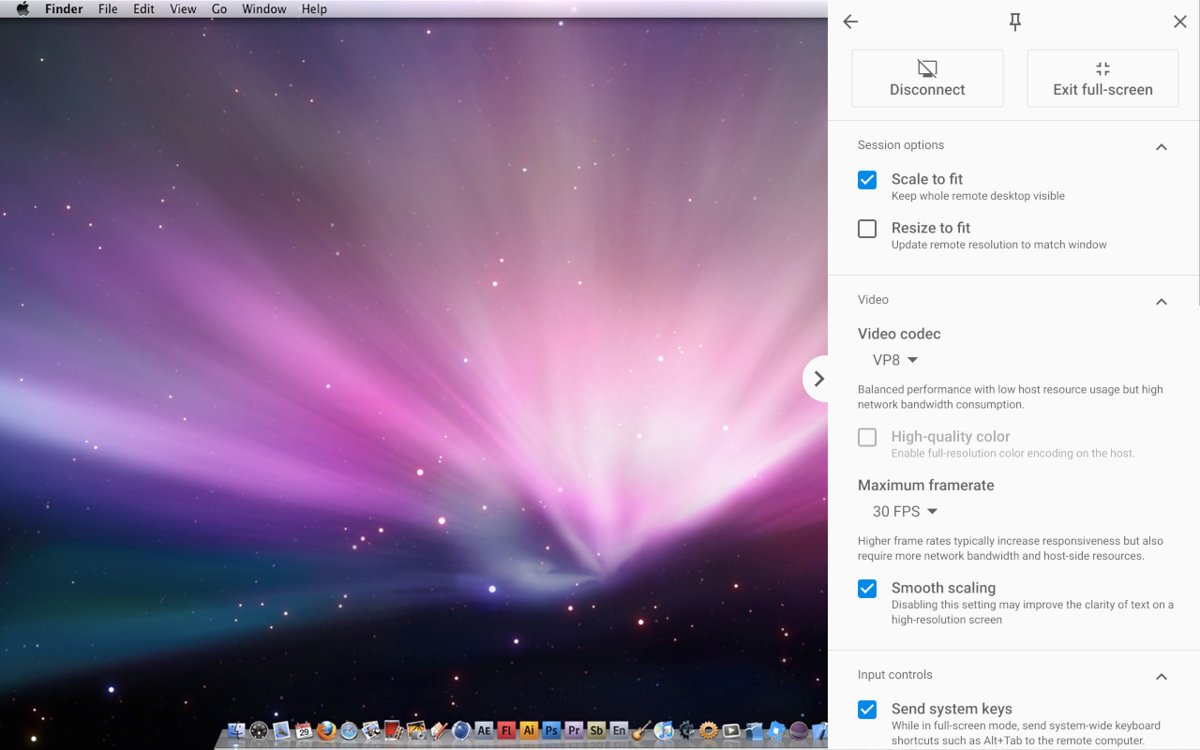
The Options menu inside a session holds the controls you need while connected. What appears can depend on the host platform and on any policies an administrator has set.
| Control | What it does | Limits |
|---|---|---|
| Options > Disconnect | Ends the session cleanly | Closing the browser tab does the same |
| File transfer | Uploads a file to the host or downloads one from it | Remote access sessions only |
| Clipboard sync | Carries copied text between the two computers | An administrator can limit its size or turn it off |
| PIN pairing | Remembers this client so the PIN is not needed each time | Can be disabled by policy |
| Configure touch input (mobile) | Switches between trackpad and direct touch control | Touch input modes work with Windows hosts only |
How to transfer files with Chrome Remote Desktop
File transfer works inside a remote access session and uses the file options in the session menu. Pick upload to send a file from the computer in front of you to the host, or download to pull one from the host.
| Scenario | Can you transfer files? | What to do instead |
|---|---|---|
| Remote access to your own computer | Yes, in both directions | Use the upload or download file option in the session menu |
| Remote support session with a one-time code | No, remote support does not support file transfer | Share the file through email or cloud storage |
| Work computer with an admin policy | Only if the administrator allows it | Ask IT; the policy can block transfer entirely |
| Small amounts of text | Yes, through clipboard sync | Copy on one side and paste on the other |
How to use Chrome Remote Desktop remote support
The person receiving help generates a code. The person giving help types it in. Each side then follows its own steps.
- Person receiving help: open Chrome and go to remotedesktop.google.com/support.
- Under Get Support, click Download and install Chrome Remote Desktop.
- Under Get Support, select Generate Code, then copy the code and send it to your helper.
- Person giving help: open remotedesktop.google.com/support, enter the code under Give support and click Connect.
- Person receiving help: check the email address in the dialog and select Share to allow full access.
- Confirm sharing again when asked every 30 minutes.
- Click Stop Sharing to end the session at any time.
The helper gets full access to your apps, files, email, documents and history. Only share a code with someone you know, and never read it out to an unsolicited caller.
Using Chrome Remote Desktop on Android, iPhone, and iPad
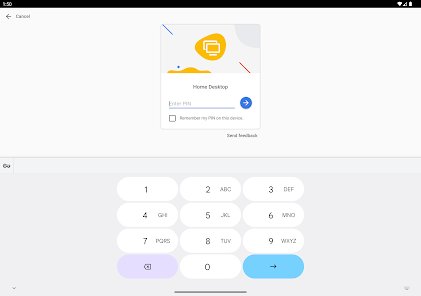
Phones and tablets connect through the app, not the website. They reach computers already set up for remote access under your account.
- Install the Chrome Remote Desktop app from Google Play or the App Store.
- Open the app and sign in with the Google Account used on the host.
- Tap Menu > Remote Access.
- Tap the computer you want to control from the list.
- Enter the PIN and tap the arrow.
- Control the computer with the virtual trackpad.
- Close the app, or select Options > Disconnect, to end the session.
Touch gestures for controlling a computer from a phone
Trackpad mode is the default. These gestures work on Android, iPhone and iPad.
| Action on the computer | Gesture on the phone or tablet |
|---|---|
| Move the pointer | Swipe anywhere on the screen |
| Left-click | Tap the screen |
| Right-click | Tap with two fingers |
| Middle-click | Tap with three fingers |
| Scroll | Swipe up or down with two fingers |
| Zoom | Pinch or stretch with two fingers |
| Click and drag (iPhone and iPad) | Press and hold until a gray circle appears, then drag |
With a Windows host, tap Configure touch input in the session menu to switch to direct touch or two- and three-finger pan and zoom.
Chrome Remote Desktop security best practices
Anyone who controls your Google Account and knows your PIN can open your computer. Protect both.
| Practice | How to do it | Why it matters |
|---|---|---|
| Use a strong Google Account password | Set a unique password not used on any other site | The account is the first gate to every host |
| Turn on 2-Step Verification | Open your Google Account, tap Security & sign-in, then Turn on 2-Step Verification | A stolen password alone is no longer enough |
| Choose a good PIN | Avoid birthdays, repeats such as 111111 and sequences such as 123456 | The PIN is the second gate after the account |
| Remove computers you no longer use | Click Disable remote connections next to the computer at remotedesktop.google.com/access | Old hosts remain reachable until disabled |
| Be careful with remote support codes | Share a code only with someone you contacted yourself | The helper gets full access to your files and email |
| Watch unattended sessions | Remember that people near the host can see the screen during a session | Screen curtaining is an admin policy and only on some Windows editions |
How to change the PIN or rename a computer
The dependable way to change a PIN or a computer name is to turn remote access off and set it up again. It takes about a minute on the host.
- On the host computer, open Chrome and go to remotedesktop.google.com/access.
- Next to the computer, click Disable remote connections.
- Under Set up Remote Access, start the setup again.
- Type the new computer name.
- Enter the new PIN and confirm it.
- Connect once from another device to confirm the new PIN works.
How to keep the host computer available
A computer that is asleep, shut down or offline does not accept connections. Stop the host from sleeping before you leave it.
| Host computer | Where to change it | Setting to use |
|---|---|---|
| Windows 11 | Settings > System > Power & battery > Screen, sleep, & hibernate timeouts | Set Make my device sleep after to Never when plugged in |
| Mac desktop | Apple menu > System Settings > Energy | Turn on Prevent automatic sleeping when the display is off and Wake for network access |
| Mac laptop | Apple menu > System Settings > Battery > Options | Turn on Prevent automatic sleeping on power adapter when the display is off |
| Any computer | The power cable and network | Keep it plugged in and connected to the internet |
How to check Chrome Remote Desktop is working
- On a second device, open remotedesktop.google.com/access while signed in to the same account.
- Confirm the host appears in the list under the name you chose.
- Connect with your PIN and confirm the host's desktop appears.
- Move the pointer and open a menu to prove input reaches the host.
- On a Mac host, confirm the screen shows live content, not a blank or frozen image.
- Select Options > Disconnect and confirm the session ends.
Troubleshooting common Chrome Remote Desktop problems
The remotedesktop.google.com page will not open
The device has no working internet connection.
- Open another website to test the connection.
- Check your network settings and reconnect to Wi-Fi or Ethernet.
- Reload remotedesktop.google.com/access.
The computer is in the list but the connection fails
A firewall or security suite is blocking the traffic Chrome Remote Desktop uses.
- Open your security software's firewall or network rules.
- Allow outbound UDP traffic and inbound UDP responses.
- Allow traffic on TCP port 443 (HTTPS).
- Allow TCP and UDP traffic on port 3478 (STUN).
- Try the connection again.
The computer shows as offline
The host is asleep, shut down or disconnected from the internet.
- Wake the host or ask someone nearby to turn it on.
- Change its sleep settings as shown in the section above.
- Refresh the remote access list and connect again.
Mac session shows a blank screen or ignores clicks
Screen recording or Accessibility permission is off for Chrome Remote Desktop.
- On the Mac, open System Settings > Privacy & Security.
- Turn on Chrome Remote Desktop under Accessibility.
- Turn it on under Screen & System Audio Recording.
- Disconnect and reconnect.
You cannot share or set up a work or school computer
The network or a managed account restricts Chrome Remote Desktop.
- Check whether you are signed in with a work or school account.
- Contact your administrator, who can turn the feature on or off in the Google Admin console.
- Use a personal computer and account for personal remote access.
Setup or connection behaves oddly after an update
An outdated Chrome or ChromeOS version.
- Update Chrome or ChromeOS on both devices.
- Restart the browser.
- Try the connection again.
Uninstalling Chrome Remote Desktop on Windows and Mac
First click Disable remote connections next to the computer at remotedesktop.google.com/access. Then remove the host software.
- Windows: open Control Panel and go to Programs.
- Windows: find Chrome Remote Desktop in the list of installed programs and remove it.
- Mac: find the Chrome Remote Desktop Host Uninstaller application.
- Mac: launch it and click Uninstall.
- Open remotedesktop.google.com/access from another device and confirm the computer is gone or offline.
Good ways to use Chrome Remote Desktop
| Use case | Mode | Tip |
|---|---|---|
| Open a file you left on your office or home PC | Remote access | Keep the host plugged in and awake |
| Help a parent fix a setting | Remote support | Ask them to read you the code and click Share |
| Check a long download or render from your phone | Remote access via the app | Use two-finger pinch to zoom into small text |
| Reach a Linux machine without a monitor | Remote access | Install the 64-bit Debian package and allow remote connections |
| Run a Windows-only app from a Mac or Chromebook | Remote access | Connect from Chrome to a Windows host you own |
Chrome Remote Desktop vs other remote access tools
| Tool | Host requirement | Best for |
|---|---|---|
| Chrome Remote Desktop | Windows, Mac or Linux with Chrome and a Google Account | Personal cross-platform access and quick one-off help |
| Microsoft Remote Desktop | The remote PC must run a Pro edition of Windows; Home cannot be a host | Full Windows sessions on a Pro PC |
| Quick Assist | Windows 11 or Windows 10, joined with a 6-digit code | Helping family or friends on Windows |
On a Windows 10 Pro PC, you can connect with Microsoft Remote Desktop without installing a Chrome host. On Windows 11 Pro, turn on Remote Desktop in Settings before you connect. Several other remote desktop clients for Windows, macOS and Linux suit mixed setups too.
Chrome Remote Desktop: frequently asked questions
Can I use Chrome Remote Desktop to access someone else's PC?
Yes, through remote support. The other person opens remotedesktop.google.com/support, generates a code and sends it to you. You enter it under Give support, and they select Share to allow full access.
How long does a Chrome Remote Desktop support code last?
A remote support access code works only one time. During the session, the person sharing their computer is asked every 30 minutes to confirm they still want to share it.
Can I transfer files during a remote support session?
No. File transfer works only in remote access sessions to computers set up under your account. Remote support connections do not support file transfer, so send files by email or cloud storage instead.
Is a Chrome Remote Desktop connection secure?
Google states that all remote desktop sessions are fully encrypted. Access still depends on your Google Account and PIN, so use a strong password, turn on 2-Step Verification and pick a PIN that is hard to guess.
Do I have to enter the PIN every time I connect?
Not always. At connection time you can pair the client with the host so the PIN is not requested each time. An administrator can turn this pairing option off on managed computers.
Can people near the host see what I am doing remotely?
Yes, by default both local and remote users can see and use the host during a session. Curtaining, which hides the session, is an admin policy that works only on some Windows editions and not on macOS Big Sur or later.
Does Chrome Remote Desktop work on Windows Home?
Google lists Windows, Mac and Linux as supported hosts without an edition requirement. That differs from Microsoft Remote Desktop, where the computer you connect to must run a Pro edition of Windows.
How do I stop a Chrome Remote Desktop session?
Close the browser tab or app, or select Options and then Disconnect. If you are sharing your computer through remote support, click Stop Sharing to end the session immediately.
Can I use Chrome Remote Desktop from a Chromebook?
Yes. Open Chrome on the Chromebook, go to remotedesktop.google.com/access and connect to any computer set up under your account. Keep ChromeOS updated, as an outdated version can cause connection problems.
Chrome Remote Desktop: final tips
Set up remote access on each computer you own before you need it, keep those hosts awake and protected by 2-Step Verification, and use remote support codes only for one-off help. Setup has to happen at the host, so a computer you did not prepare cannot be reached later, and a sleeping host or weak account undoes the rest.

![How to appear offline on Steam [easy & quick guide]](https://techdows.com/wp-content/uploads/2026/10/Steam-Friends-List-in-a-browser-with-the-status-line-under-the-profile-name-600x338.jpg)