To allow port 443 in Windows Firewall, create an inbound rule for TCP local port 443 with the action Allow the connection, limited to the network profile that needs it.
This guide covers the Advanced Security console, PowerShell and Command Prompt, UDP 443 for HTTP/3, how to scope and test the rule, and what to check when HTTPS still fails.
The fastest way to allow port 443
One PowerShell line creates the rule, and it takes effect immediately. This example allows HTTPS only on the Domain and Private profiles, so a laptop on public Wi-Fi stays closed.
- Open PowerShell as administrator: select Start, type
PowerShell, and select Run as administrator. - Run
New-NetFirewallRule -DisplayName "Allow HTTPS TCP 443 In" -Direction Inbound -Protocol TCP -LocalPort 443 -Action Allow -Profile Domain,Private. - Confirm the output shows Enabled : True and Action : Allow.
- Test from another device with
Test-NetConnection -ComputerName <server> -Port 443and look for TcpTestSucceeded : True.
A browser on the same PC does not need this rule. Outbound HTTPS is already allowed, because Windows Firewall allows all outbound traffic by default.
What port 443 is used for
Port 443 is the default port for HTTPS, which is HTTP carried over TLS. On Windows, these services listen on it by default.
| Service | Protocol | What it does on 443 |
|---|---|---|
| IIS (World Wide Web Publishing Service) | TCP | Serves websites through an https binding such as *:443 |
| HTTP.sys (HTTP SSL) | TCP | The kernel listener IIS and other Windows web apps hand their bindings to |
| WinRM 1.1 and earlier | TCP | Remote management over HTTPS |
| BranchCache hosted cache | TCP | Accepts content offers from clients |
| HTTP/3 web servers | UDP | QUIC transport for HTTP/3, which runs over UDP instead of TCP |
Every HTTPS website you visit also uses 443, but as the remote port on the server, not a port open on your PC.
Inbound vs. outbound: which port 443 rule do you need?
| Your situation | Rule to create | Why |
|---|---|---|
| This PC hosts a website, API or service on 443 | Inbound, TCP, local port 443 | Inbound connections are blocked by default until an allow rule matches |
| The server also offers HTTP/3 | A second inbound rule, UDP, local port 443 | QUIC runs on UDP, so the TCP rule does not cover it |
| Browsers or apps on this PC cannot reach HTTPS sites | Usually none; look for a block rule first | Outbound traffic is allowed by default unless a rule or policy blocks it |
| Outbound traffic is set to block by policy | Outbound, TCP, remote port 443 | Outbound rules match the remote port, not the local one |
| Only one program should accept the traffic | Inbound port rule plus This program path | Other programs cannot receive traffic on 443 through that rule |
Before you start: confirm a service is listening on port 443
A firewall rule only lets traffic reach a port. If nothing is listening on 443, the connection fails whatever the firewall says. You also need administrative rights to change firewall rules.
- Open PowerShell as administrator.
- Run
Get-NetTCPConnection -LocalPort 443 -State Listen. - Note the OwningProcess number in the output. No output means no program is listening on TCP 443.
- In Command Prompt, run
netstat -anoinstead and look for:443with the state LISTENING. - Match the PID in the last column to a program in Task Manager.
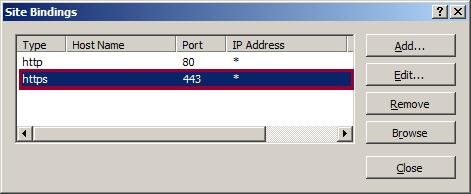
- For IIS, confirm the site has an https binding and a certificate in IIS Manager before touching the firewall.
Method 1: Allow port 443 using Windows Defender Firewall advanced settings
The Custom rule type shows every page of the wizard, including Scope, which the plain Port type skips.
- Select Start, type
wf.mscand press Enter. - Select Inbound Rules in the left pane, then select Action > New Rule.
- On Rule Type, select Custom and then Next.
- On Program, keep All programs, or select This program path and enter the full path of your server program, then select Next.
- On Protocol and Ports, set Protocol type to TCP, set Local port to Specific Ports, type
443and select Next. - On Scope, add the remote IP addresses or subnets that should connect, or leave Any IP address for a public site, then select Next.
- On Action, select Allow the connection and then Next.
- On Profile, tick only the profiles that need it, usually Domain and Private, then select Next.
- Type a name such as
Allow HTTPS TCP 443 In, add a description, and select Finish.
The rule appears in Inbound Rules with a green check mark and works at once. No restart is needed.
Method 2: Allow port 443 using PowerShell
Run this from an elevated PowerShell window. PowerShell sets the port, profile, remote addresses and program in one command. Replace the program path with your own server's executable, or drop -Program for IIS, whose listener is HTTP.sys rather than a separate program file.
New-NetFirewallRule -DisplayName "Allow HTTPS TCP 443 In" -Direction Inbound -Protocol TCP -LocalPort 443 -Action Allow -Profile Domain,Private -RemoteAddress LocalSubnet -Program "C:\Apps\MyServer\server.exe"-Direction Inbound matches connections arriving at this PC. -Protocol TCP is required whenever a port number is given. -Profile takes Domain, Private, Public or Any, comma separated with no spaces. -RemoteAddress accepts an IP, a subnet such as 192.168.1.0/24, a range, or keywords like LocalSubnet and Internet. -Program limits the rule to one executable by full path.
You should see: PowerShell prints the new rule with Enabled : True, Direction : Inbound and Action : Allow.
For a public web server, replace LocalSubnet with Any or omit -RemoteAddress, and keep -Profile to the profile the server actually uses.
Method 3: Allow port 443 using Command Prompt
Use netsh advfirewall firewall, not the older netsh firewall context, which Microsoft lists as deprecated. Open Command Prompt with Run as administrator first.
netsh advfirewall firewall add rule name="Allow HTTPS TCP 443 In" dir=in action=allow protocol=TCP localport=443 profile=private remoteip=LocalSubnetdir=in creates an inbound rule. protocol=TCP localport=443 matches HTTPS. profile=private applies it to one profile; run the command again with profile=domain to add another. remoteip= takes addresses, subnets such as 172.16.0.0/16, or LocalSubnet. Add program="C:\Apps\MyServer\server.exe" to tie the rule to one program.
You should see: Command Prompt replies Ok.
How to allow UDP port 443 for HTTP/3 or QUIC
HTTP/3 uses QUIC, and QUIC runs over UDP, so a server that offers HTTP/3 on 443 needs a UDP rule next to the TCP one. QUIC on Windows requires Windows 11, Windows Server 2022 or later.
Browsers find HTTP/3 through the server's alt-svc header on a first TCP request, so keep the TCP 443 rule in place.
- Open PowerShell as administrator.
- Run
New-NetFirewallRule -DisplayName "Allow HTTPS UDP 443 In" -Direction Inbound -Protocol UDP -LocalPort 443 -Action Allow -Profile Domain,Private. - In Command Prompt, the equivalent is
netsh advfirewall firewall add rule name="Allow HTTPS UDP 443 In" dir=in action=allow protocol=UDP localport=443 profile=private. - In
wf.msc, repeat Method 1 and pick UDP instead of TCP on Protocol and Ports. - Confirm the UDP listener with
netstat -ano -p udpand look for:443.
If HTTP/3 traffic is blocked somewhere upstream, clients fall back to HTTP/2 or HTTP/1.1 over TCP 443, so the site still loads.
How to restrict port 443 for better security
An allow rule for 443 with every field left at Any opens that port to every network the PC joins. Tighten it with these conditions.
| Restriction | Where to set it | Example |
|---|---|---|
| Restrict by network profile | Profile page, or -Profile |
-Profile Domain,Private keeps 443 closed on public Wi-Fi |
| Restrict by remote IP address | Scope page, or -RemoteAddress / remoteip= |
-RemoteAddress 192.168.1.0/24 or LocalSubnet for home and office use |
| Allow an app instead of a port | Program page > This program path, or -Program |
Only the named executable can accept traffic through the rule |
| Combine port and program | Both pages in one Custom rule | The program cannot listen on other ports and other programs cannot use 443 |
| Document the rule | Name page description, or -Description |
Record the app, the port and the date it was created |
Microsoft's guidance is to keep the default inbound block in place and be as specific as possible in every allow rule. Never set inbound traffic to allow by default.
How to test whether port 443 is open
- Check whether the rule exists: run
Get-NetFirewallRule -DisplayName "Allow HTTPS TCP 443 In" | Get-NetFirewallPortFilterand confirm Protocol : TCP and LocalPort : 443. - Test with PowerShell from another computer on the same network: run
Test-NetConnection -ComputerName <server name or IP> -Port 443. - Read the result: TcpTestSucceeded : True means the port is reachable; False means a firewall, the network or a missing listener stopped it.
- Test in a browser: open
https://<server name or IP>on the other computer. A certificate warning still proves the port is open. - Test from outside your network: run the same
Test-NetConnectionfrom a device on mobile data against your public IP or domain name.
Testing against localhost on the server itself proves only that the service listens, so always confirm from a second device.
Common reasons port 443 still does not work
No service is listening
The web server is stopped, bound to another port, or has no HTTPS binding.
- Run
Get-NetTCPConnection -LocalPort 443 -State Listen. - Start the service or add the https binding on port 443 in IIS Manager.
- Run
Test-NetConnectionagain from another device.
The rule was created for the wrong direction
An outbound rule was made for a server, or an inbound rule for a client problem.
- Open
wf.mscand look in both Inbound Rules and Outbound Rules for the rule name. - Delete the wrong one and create an inbound TCP 443 rule for a server.
The rule works at the office but not elsewhere
The rule applies only to Domain or Private, and the network is identified as Public. A disconnected network card is also treated as Public.
- Check which profile the connection uses in Windows Security > Firewall & network protection.
- Add that profile to the rule only if the service must be reachable there.
An allow rule exists but traffic is still blocked
An explicit block rule always overrides a matching allow rule, including block rules created when someone dismissed the first-run firewall prompt.
- Run
Get-NetFirewallRule -Action Blockand look for rules naming your server program. - Disable or remove the conflicting block rule, not the whole firewall. If someone already switched it off, turn Windows Firewall back on.
Port 443 is open inside the network but not from the internet
The router, cloud security group or upstream firewall is not forwarding 443 to the server.
- Forward TCP 443 (and UDP 443 for HTTP/3) on the router to the server's local IP.
- On a cloud VM, open 443 in the provider's network rules as well as in Windows.
- Test again from a device outside the network.
HTTPS works but HTTP/3 does not
Only TCP 443 is allowed, or the OS is older than Windows 11 or Windows Server 2022.
- Add the UDP 443 inbound rule from the HTTP/3 section.
- Confirm the server sends an alt-svc header on its TCP responses.
How to edit, disable, or remove the port 443 rule
Disabling keeps the rule so it can be switched back on; removing deletes it permanently.
- In
wf.msc, select Inbound Rules, double-click the rule and change its ports, scope or profiles in the properties window. - To edit in PowerShell, run
Set-NetFirewallRule -DisplayName "Allow HTTPS TCP 443 In" -RemoteAddress 192.168.1.0/24. - To disable it, run
Disable-NetFirewallRule -DisplayName "Allow HTTPS TCP 443 In";Enable-NetFirewallRuleturns it back on. - To remove it, run
Remove-NetFirewallRule -DisplayName "Allow HTTPS TCP 443 In". Add-WhatIffirst to preview what matches. - In Command Prompt, run
netsh advfirewall firewall delete rule name="Allow HTTPS TCP 443 In" protocol=TCP localport=443.
Windows Server and Group Policy considerations
| Situation | What to do | Why |
|---|---|---|
| Several servers need 443 | Create the rule in a GPO: Computer Configuration > Policies > Windows Settings > Security Settings > Windows Firewall with Advanced Security | One rule reaches every server in the OU |
| Scripting a GPO rule | Add -PolicyStore domain.contoso.com\gpo_name to New-NetFirewallRule |
Writes the rule into the GPO instead of the local store |
| Local rule is ignored on a domain PC | Ask the admin whether local policy merge is disabled | When merge is off, only centrally deployed rules apply |
| GPO rule has not arrived yet | Run gpupdate /force |
Background refresh runs every 90 minutes plus a random 0 to 30 minute offset, so force a Group Policy update to apply it now |
| Server never moves networks | Consider applying the rule to all three profiles | A NIC change or unplugged cable can switch the network to Public |
| IIS site on 443 | Add the https binding and certificate, then the firewall rule | HTTP.sys only listens on 443 once the binding exists |
Best practices for opening port 443
| Do this | Avoid this |
|---|---|
| Open 443 only on a machine that actually serves HTTPS | Opening 443 on a desktop just in case |
| Limit the rule to one profile and, where possible, a remote subnet | Leaving Profile and Scope at Any on a laptop |
| Tie the rule to the server program where it has its own executable | Allowing all programs when one program needs the port |
| Keep the service patched and its TLS certificate valid | Treating an open port as secure because the traffic is encrypted |
| Give the rule a clear name and description | Unnamed rules nobody can audit later |
| Fix a blocking rule or scope when traffic fails | Turning Windows Firewall off; Microsoft advises against it |
Port 443 in Windows Firewall: frequently asked questions
What is port 443 typically used for?
Port 443 is the default port for HTTPS, the encrypted version of HTTP. Web servers such as IIS accept secure website traffic on TCP 443, and HTTP/3 servers also use UDP 443. Older WinRM versions and BranchCache hosted cache use it too.
What is port 443 on the internet?
On the internet, port 443 is where web servers accept HTTPS connections. When you open a site starting with https://, your browser connects to port 443 on that server unless the address names a different port.
Should port 443 be open?
Port 443 should be open inbound only on a machine that hosts an HTTPS service. A normal desktop or laptop does not need an inbound 443 rule to browse, because outbound HTTPS is already allowed by Windows Firewall.
How do I open port 443 on a server?
Confirm the server listens on 443, then create an inbound TCP 443 allow rule in wf.msc, with New-NetFirewallRule or with netsh advfirewall. Limit it to the right profile, add a UDP 443 rule for HTTP/3, and forward the port on the router.
How do I check if port 443 is open?
Run Test-NetConnection -ComputerName <server> -Port 443 from another computer. TcpTestSucceeded : True means the port is reachable. On the server, Get-NetTCPConnection -LocalPort 443 -State Listen shows whether anything is listening.
How do I find what is using port 443?
Run netstat -ano in Command Prompt and find the line with :443 and LISTENING. The last column is the process ID, which you can match to a program in Task Manager. Get-NetTCPConnection shows the same value as OwningProcess.
How do I allow outbound TCP port 443?
Windows Firewall allows outbound traffic by default, so no rule is normally needed. If outbound traffic is set to block, create an outbound rule with -Direction Outbound -Protocol TCP -RemotePort 443 -Action Allow.
How do I access port 443?
Browse to https:// followed by the server's name or IP address; 443 is implied, so you do not type it. If the page does not load, test the port with Test-NetConnection and check the firewall rule and the service.
Allowing port 443 in Windows Firewall: conclusion
Create one inbound TCP 443 rule limited to the profile and remote addresses that need it, add UDP 443 only if you serve HTTP/3, and test from a second device. A narrow rule gets HTTPS working while the default inbound block keeps protecting everything else on the machine.