To synchronize an iPhone with Ford SYNC, turn on Bluetooth on the iPhone, choose Add a Phone (SYNC 4 and 4A) or Add Bluetooth Device (SYNC 3) on the vehicle screen, select the vehicle under Settings > Bluetooth on the iPhone, and confirm that the PIN matches.
This guide covers Bluetooth pairing for every SYNC generation, wired and wireless Apple CarPlay, how to tell which SYNC you have, resets, software updates, and fixes for phones that will not pair, reconnect or launch CarPlay.
How do you pair an iPhone with Ford SYNC over Bluetooth?
Park the vehicle and leave it running before you start. Ford asks for an open, well-ventilated area, and some phone features are locked out while the vehicle is in gear.
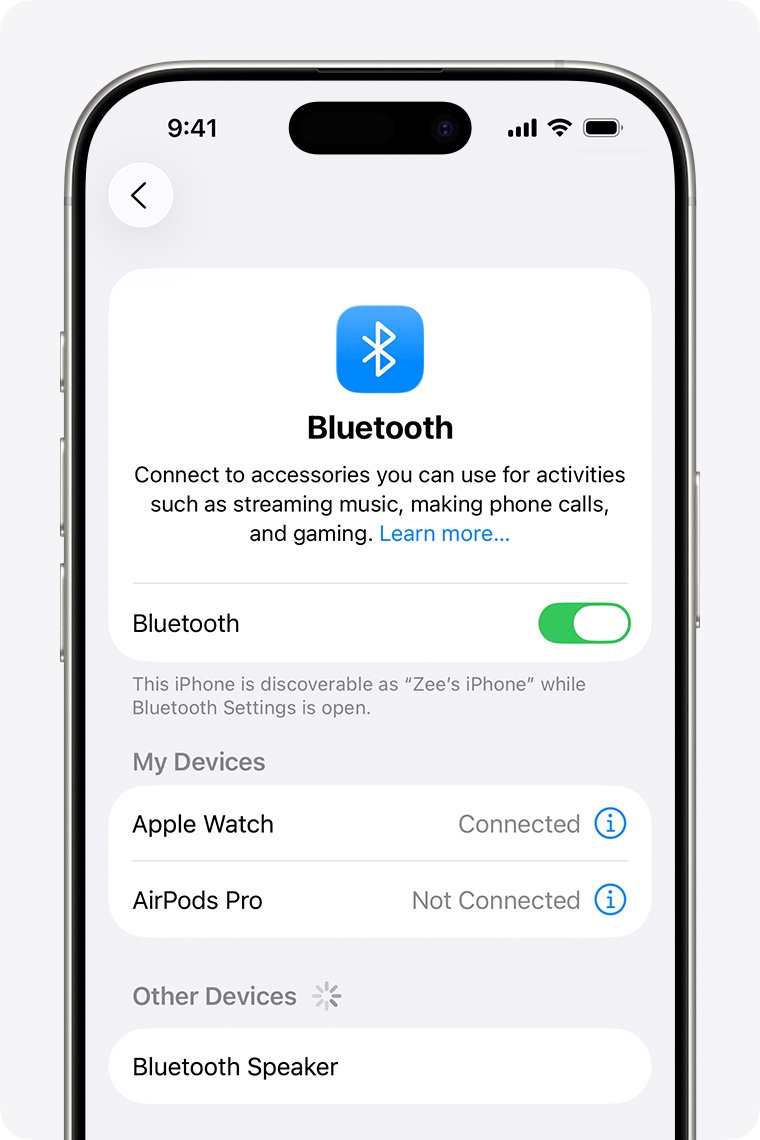
- On the iPhone, open Settings > Bluetooth and turn Bluetooth on.
- On a SYNC 4 screen, tap Settings and select Add a Phone. On SYNC 4A, tap Settings or the Home icon, then Add a Phone. On a SYNC 3 touchscreen, press the Phone button and tap Add Bluetooth Device.
- On the iPhone, select your vehicle name (shown as SYNC on SYNC 3) in the Bluetooth device list.
- Compare the 6-digit PIN on the iPhone with the one on the SYNC screen. Continue only if they match.
- Tap Pair on the iPhone and confirm on the vehicle screen.
- Tap Allow on the iPhone when it asks to share contacts, so SYNC can download your phonebook.
- On SYNC 4 or 4A, select Use CarPlay if you also want Apple CarPlay, then tap Enable on the SYNC screen.
If the PINs do not match, cancel and start the pairing again. Ford also notes that removing the phone from SYNC, or removing SYNC from the phone, means you must pair again from the start.
Which connection should you choose?
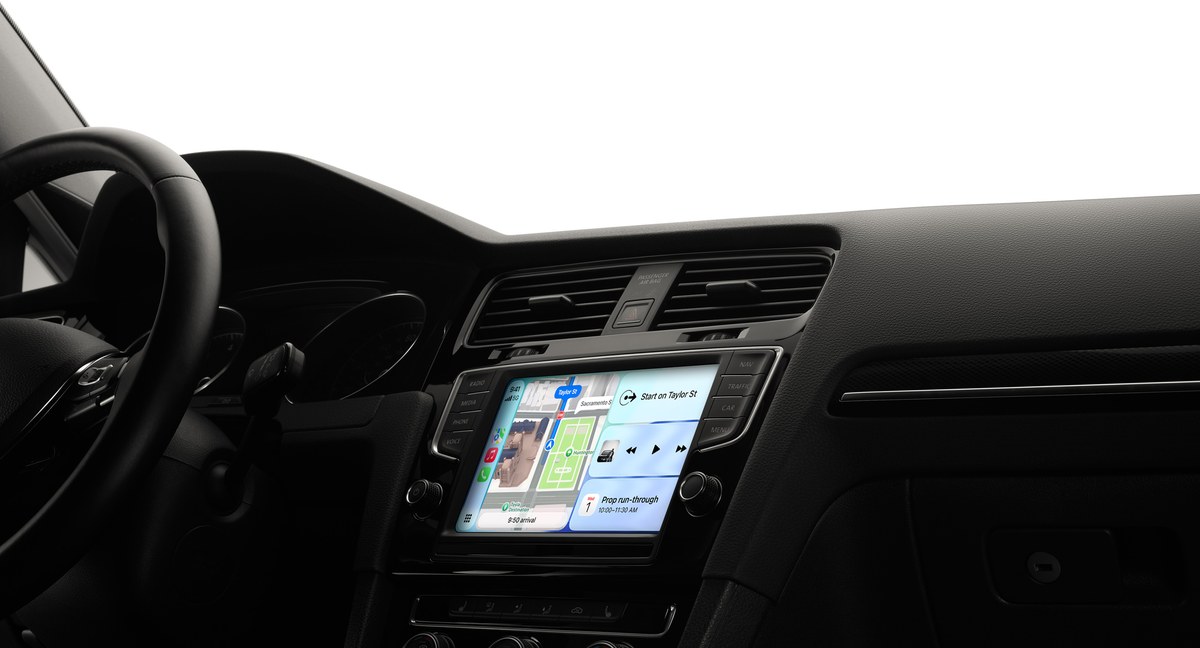
Bluetooth pairing and Apple CarPlay are two separate links. Bluetooth carries calls and audio through SYNC's own menus; CarPlay puts the iPhone's own interface on the SYNC screen.
| Your situation | Use this | Why |
|---|---|---|
| You only want hands-free calls, texts and audio | Bluetooth pairing | Works on every SYNC generation, from Gen 1 to SYNC 4A |
| SYNC 3 and you want Maps, Messages and music apps on the screen | Wired Apple CarPlay over USB | SYNC 3 does not support wireless CarPlay |
| SYNC 4 or SYNC 4A and you want no cable | Wireless Apple CarPlay | Both support cord-free CarPlay after a Bluetooth pairing |
| Wireless CarPlay drops or will not start | Wired CarPlay through the USB port nearest the screen | Ford's fallback when the wireless link fails |
| You use the vehicle's Wi-Fi hotspot on that drive | Wired CarPlay | Ford says not to use wireless CarPlay while connected to the vehicle hotspot |
| SYNC Gen 1, MyFord or MyFord Touch | Bluetooth pairing | Ford lists CarPlay steps only for SYNC 3, SYNC 4, SYNC 4A and Digital Experience |
How should you prepare the iPhone before pairing?
Run these checks before you start. Most are switches you open from the phone's Settings app.
| Check | Why it matters | Where |
|---|---|---|
| Bluetooth on | SYNC cannot find a phone that is not discoverable | Settings > Bluetooth on the iPhone |
| Siri on | Apple requires Siri for CarPlay, and Ford lists it first for SYNC 3 CarPlay | The Siri settings in the iPhone's Settings app |
| Wi-Fi on | Wireless CarPlay runs over Wi-Fi after the Bluetooth handshake | Settings > Wi-Fi on the iPhone |
| Latest iOS | Ford's fixes include installing device software updates | Settings > General > Software Update |
| Apple-approved USB cable | Wired CarPlay fails with poor cables; use Lightning or USB-C to USB-A to match your iPhone | The USB port nearest the SYNC screen |
| Current SYNC software | Ford lists updating SYNC as a first fix for CarPlay problems | VIN lookup on Ford's software updates page |
| Vehicle parked and running | Ford's pairing and reset steps assume a parked vehicle; some features lock out in gear | An open, well-ventilated area |
SYNC 3 CarPlay needs an iPhone 5 or newer with iOS 7.1 or later. Ford also lists a compatible active data plan as a CarPlay requirement, so if the iPhone shows SOS in the status bar, fix the SOS-only signal before you test CarPlay. Ford also states that SYNC does not support Apple Watch, so connect the iPhone itself.
Which Ford SYNC system do you have?
Menu names differ by generation, so identify yours before you follow any steps. Ford's software updates page shows the version for your VIN.
- Find the 17-character VIN on the driver's side doorframe, the lower driver's-side corner of the windshield, or your registration or insurance card.
- Open ford.com/support/software-updates in a browser.
- Enter the VIN and select Search. If you have a Ford account, sign in, choose the vehicle and select Select Vehicle instead.
- Read the generation listed under SYNC Current Version.
- If you cannot look it up, compare your screen with Ford's SYNC Visual Reference Guide, which shows each generation.
SYNC 4A adds Adaptive Dash Cards that keep frequently used items at the top of the screen. Ford states that SYNC 4 cannot be upgraded to SYNC 4A, and both come with screens from 8 to 15.5 inches. Newer Fords with Ford Digital Experience use Add phone > Add device on the first pairing.
Bluetooth pairing steps for SYNC 3 without a touchscreen, MyFord Touch and older SYNC
Older systems use the radio's buttons. In each case, put the iPhone on its Settings > Bluetooth screen first so it is discoverable.
| SYNC version | Steps on the vehicle | Steps on the iPhone |
|---|---|---|
| SYNC 3 without a touchscreen | Press the radio's Phone button and use the seek or arrow controls to add a device | Select SYNC, enter the passcode and confirm on both devices |
| SYNC with MyFord Touch | Press Connect or Add a Phone, then Add Device | Select the vehicle and confirm the 6-digit PIN on both devices |
| SYNC with MyFord | Press the Phone button, then use Add Bluetooth Device and Find SYNC | Select SYNC and enter the PIN shown on the vehicle screen |
| SYNC with Voice-Activated Navigation | Press the Phone button, the Settings tab, then Add | Select SYNC and enter the PIN |
| SYNC Gen 1.1 and Gen 1 | Add a device from the Phone button; Gen 1 uses the radio's Bluetooth menus | Search for SYNC and enter the PIN if prompted |
| Ford Digital Experience (extra phones) | Open Settings, the Vehicle icon, Bluetooth, then Add device | Confirm the passcode matches and approve |
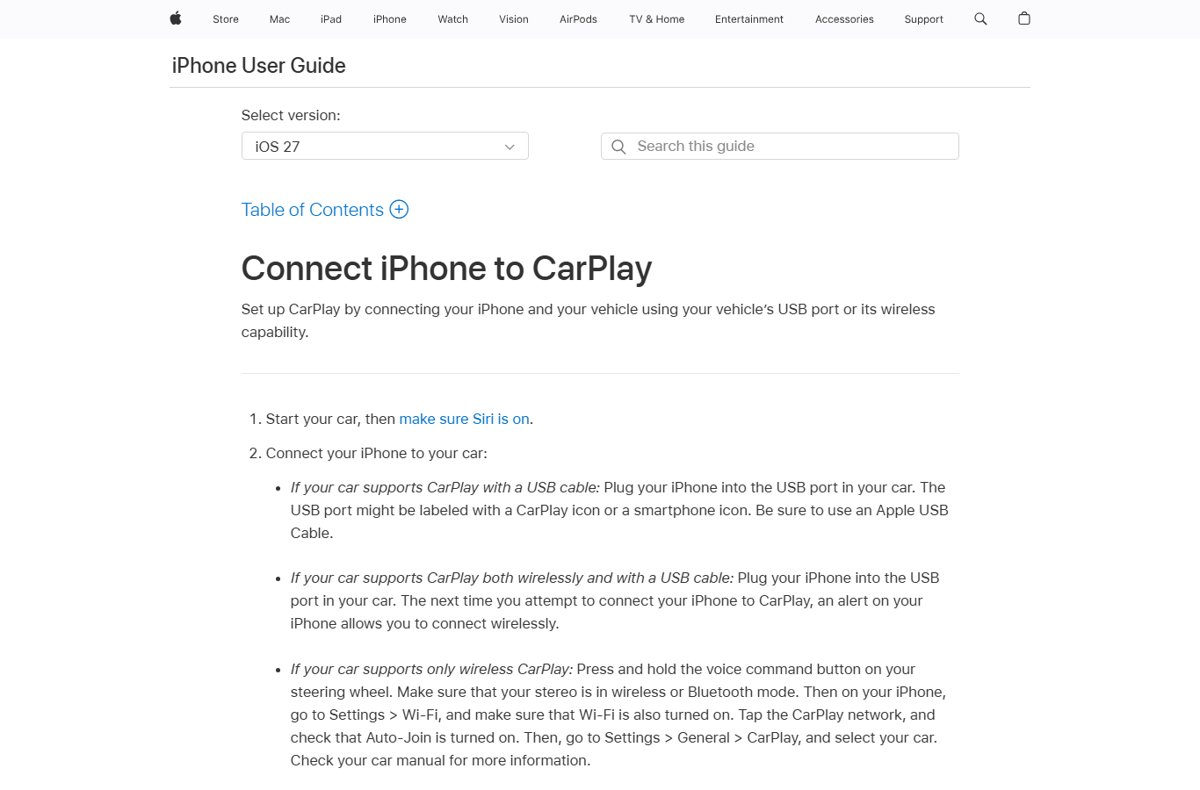
How do you connect an iPhone to Ford SYNC with wired Apple CarPlay?
SYNC 3 runs CarPlay only over USB. SYNC 4 and 4A can also start it over USB, which is the quickest first connection.
- Turn on Siri on the iPhone.
- Plug the iPhone into the vehicle USB port nearest the SYNC screen with an Apple-approved cable. Apple notes the port may carry a CarPlay or smartphone icon.
- On SYNC 3, tap Continue on the pop-up.
- Read the Terms & Conditions and select Agree.
- Tap Allow on the iPhone.
- Wait for CarPlay to open on the screen. If CarPlay Home does not appear, select the CarPlay logo on the vehicle display.
On SYNC 4 and 4A, follow the on-screen prompts after you plug in. Ford notes you can turn on Enable Wireless CarPlay on the iPhone at that point, so later drives connect without the cable. For 2016 vehicles, Ford states that SYNC 3 software 2.0 or later needs both a software and a hardware upgrade to run CarPlay.
How do you set up wireless Apple CarPlay in SYNC 4 or SYNC 4A?
Wireless CarPlay starts from a Bluetooth pairing. If the iPhone is already paired, open Settings (or Home on SYNC 4A) > Phone List, select the iPhone and press Enable.
- Turn on Siri, Wi-Fi and Bluetooth on the iPhone.
- On SYNC 4, tap Phone, then Add Phone. On SYNC 4A, tap Settings or Home, select Phone, then Add Phone.
- On the iPhone, go to Settings > Bluetooth and select your vehicle name.
- Confirm the PIN on the iPhone matches the SYNC screen, then tap Yes on SYNC.
- Select Pair on the iPhone, then tap Allow to download contacts.
- Select Use CarPlay on the iPhone, then tap Enable on the SYNC screen. CarPlay launches on the display.
On Ford Digital Experience vehicles, turn on Bluetooth and select Start Apple CarPlay when the pop-up appears; a CarPlay icon then sits in the left-side menu. Ford lists iOS 9 or newer for wireless CarPlay on SYNC 4 and 4A.
How do you test the iPhone connection safely?
Run every check with the vehicle parked. Ford warns against driving distracted and recommends voice controls while moving.
- Open Settings > Phone List on SYNC 4 or 4A, or Settings > Bluetooth > View Devices on SYNC 3, and confirm the iPhone is listed.
- Check that contacts appear in the SYNC phone menu. They download only after you tap Allow on the iPhone during pairing.
- For CarPlay, confirm CarPlay Home is on the screen, or select the CarPlay logo to open it.
- Turn the vehicle off and on again (a key cycle) with the iPhone nearby. A working pairing reconnects on its own.
- For wired CarPlay, set the audio source to USB and play music. If USB audio fails too, Ford says the next step is a dealer visit.
What does “synchronize” mean on Ford SYNC?
Ford's own pages say pair and connect rather than synchronize. Syncing an iPhone means creating one or both of the links below.
| Link | What it shares | Generations |
|---|---|---|
| Bluetooth pairing | Calls, contacts download, text messages and audio through SYNC's menus | Every SYNC generation |
| Wired Apple CarPlay | The iPhone's CarPlay apps on the SYNC screen, over a USB cable | SYNC 3, SYNC 4, SYNC 4A |
| Wireless Apple CarPlay | The same CarPlay screen without a cable | SYNC 4, SYNC 4A, Ford Digital Experience |
| Not supported | Apple Watch connections to SYNC | All generations |
How do you check for Ford SYNC software updates?
Ford recommends keeping automatic updates on, and vehicles ship with them enabled. Updating SYNC is also on every one of Ford's phone and CarPlay fix lists.
- Enter your VIN at ford.com/support/software-updates and select Search to see whether an update is available.
- On SYNC 4, tap Settings > Software Updates and check that the Automatic Updates toggle is on.
- On SYNC 4A, tap Settings or the Home icon, then Software Updates, and set Automatic Updates.
- On Ford Digital Experience, open the App Drawer, select Software Updates, press the Settings icon and set Automatic updates.
- In the Ford app, tap the Vehicle tab, then Settings > Software Updates, and set Automatic Updates.
- If automatic updates are off, accept the update prompt when SYNC shows it.
What should you do if the iPhone does not appear in SYNC?
SYNC cannot find the iPhone, or the iPhone cannot see SYNC
Bluetooth is stuck, an old pairing is in the way, or the phone or SYNC software is out of date.
- Turn Bluetooth off and on again on the iPhone, then restart the iPhone.
- Delete SYNC from the iPhone's Bluetooth menu.
- Delete the iPhone on the SYNC screen. On SYNC 4 or 4A: Settings or Home > Phone List > the phone > Delete icon > Yes. On SYNC 3: Settings > Bluetooth > View Devices > the phone > Delete.
- Restart the vehicle and the iPhone, then pair again from the SYNC screen.
- If the vehicle still does not show up, try a reverse pairing, starting the search from the phone if your SYNC allows it.
- Update the iPhone and check for SYNC updates, then contact a Ford dealer if pairing still fails.
Pairing started but the PIN codes do not match
The phone tried to pair with a different request or an earlier attempt.
- Cancel on both devices.
- Start again from Add a Phone or Add Bluetooth Device on SYNC.
- Pair only when both screens show the same code.
Why does the iPhone pair but fail to reconnect automatically?
The iPhone is listed in SYNC but stays disconnected after you start the vehicle
A stale pairing record or a SYNC module that needs a restart.
- Turn Bluetooth off and on again on the iPhone.
- Connect the iPhone manually from the SYNC phone menu.
- Do a key cycle: turn the vehicle off and on. If the iPhone now reconnects on its own, the problem is fixed.
- If not, run a SYNC module (system) reset; the steps are in the reset section below.
- Delete the iPhone in SYNC, delete SYNC from the iPhone's Bluetooth menu, then pair again.
- Soft-reset the iPhone and check for SYNC updates.
The iPhone stopped connecting after an iOS update
Pairing data can fail after a device update.
- Turn the iPhone off.
- Wait 60 seconds, then turn it back on.
- Start the vehicle and let SYNC reconnect, or pair again if it does not.
Why does CarPlay not appear over USB?
Plugging in the iPhone charges it but CarPlay never opens
A poor cable, the wrong USB port, Siri turned off, or out-of-date software.
- Confirm Siri is turned on.
- Try another Apple-approved cable; some iPhones need USB-C to USB-A.
- Plug into the USB port nearest the SYNC screen.
- Set the audio source to USB and play music. If USB audio fails, see a Ford dealer.
- On SYNC 3, open Settings > Apple CarPlay Preferences, select the iPhone and choose Remove, then plug it in again.
- Unplug the cable, run a SYNC module reset, then reconnect and follow the prompts.
- Update the iPhone, then soft reset the iPhone, start the vehicle and plug in again.
Apple CarPlay Preferences is missing on SYNC 3
Ford's fix for this case is a master reset.
- Run a SYNC 3 master reset from Settings > General > Master Reset.
- Pair the iPhone over Bluetooth again.
- Plug it in with an approved cable and accept the CarPlay prompts.
What should you do when wireless CarPlay fails?
Wireless CarPlay will not start on SYNC 4 or SYNC 4A
Wi-Fi, Siri or Bluetooth is off, the vehicle hotspot is in use, or the pairing is damaged.
- Turn on Siri, Wi-Fi and Bluetooth on the iPhone.
- Disconnect the iPhone from the vehicle's Wi-Fi hotspot; Ford says not to use CarPlay while connected to it.
- If pairing fails, press and hold the voice button on the steering wheel, then select Add a Phone in SYNC.
- Run a SYNC module reset and install any iPhone updates.
- Delete the iPhone in SYNC (Settings > Phone List > the phone > Delete), delete SYNC from the iPhone's Bluetooth menu, then pair again.
- If wireless still fails, plug into the USB port nearest the screen and use wired CarPlay.
How do you reset Ford SYNC safely?
Try a system (module) reset first. It restarts SYNC and deletes nothing. A master or factory reset erases call history, texts, paired phones, navigation favorites, personal keyless entry codes and modem activation.
| SYNC version | System reset (keeps data) | Master or factory reset (erases data) |
|---|---|---|
| SYNC 4 and SYNC 4A | Hold Power (center of the volume knob) and Seek Right for 10 seconds, or Volume Down and Seek Right on the steering wheel | Settings (or Home on 4A) > General > Reset > Factory Reset |
| SYNC 3 touchscreen | Hold Seek up and the audio Power button until the screen goes black, then press Power | Settings > General > Master Reset > Continue |
| SYNC 3 without a touchscreen | Not listed by Ford | Menu > General > Master Reset > Continue |
| SYNC with MyFord Touch | Same as SYNC 3 touchscreen | Gear icon > Settings > System > Master Reset, disconnect USB, Bluetooth and SD devices, then Yes |
| Ford Digital Experience | Hold Power (center of the volume knob) for up to 10 seconds | Apps or Vehicle icon > Settings > System > Reset options > Factory reset |
After a factory reset on SYNC 4, 4A or Digital Experience, some connected services such as Navigation and BlueCruise can be unavailable for up to 10 business days, and you re-activate the modem in the Ford app. A reset does not roll SYNC back to older software.
Ford SYNC and iPhone frequently asked questions
How do I sync my iPhone to Ford SYNC?
Turn on Bluetooth on the iPhone, choose Add a Phone on SYNC 4 or 4A or Add Bluetooth Device on SYNC 3, select the vehicle under Settings > Bluetooth on the iPhone, and confirm the matching PIN.
What does syncing an iPhone with Ford SYNC do?
It lets SYNC handle calls, download contacts, read texts and play audio from the iPhone. If you also enable Apple CarPlay, the iPhone's Maps, Messages and music apps appear on the SYNC screen.
Is Bluetooth pairing the same as Apple CarPlay in Ford SYNC?
No. Bluetooth pairing runs calls and audio through SYNC's own menus on every generation. CarPlay shows the iPhone's interface on the screen and needs SYNC 3 or newer; wireless CarPlay on SYNC 4 and 4A starts from a Bluetooth pairing.
Does Ford SYNC 3 support wireless Apple CarPlay?
No. Ford states that SYNC 3 does not support wireless CarPlay. Connect the iPhone to the USB port nearest the screen with an Apple-approved cable. SYNC 4 and SYNC 4A support wireless CarPlay.
What cable do I need for wired Apple CarPlay in a Ford?
An Apple-approved USB cable: Lightning or USB-C, depending on your iPhone, with a USB-A end if your vehicle port is USB-A. Ford recommends trying another approved cable first when CarPlay does not start.
Will resetting Ford SYNC delete my paired phone?
A system (module) reset does not delete anything. A master or factory reset erases paired phones, call history, texts and navigation favorites, so you pair the iPhone again afterwards.
How do I stop my iPhone from syncing with my Ford?
Delete the iPhone in SYNC (Phone List on SYNC 4 or 4A, Bluetooth > View Devices on SYNC 3) and delete SYNC from the iPhone's Bluetooth menu. It will not reconnect until you pair it again.
Can I connect an Apple Watch to Ford SYNC?
No. Ford states that SYNC does not support Apple Watch. Pair the iPhone with SYNC for calls, contacts and audio, and add Apple CarPlay on SYNC 3 or newer if you want the iPhone's apps on the vehicle screen.
The bottom line on syncing an iPhone with Ford SYNC
Pair the iPhone over Bluetooth first, then add CarPlay: wireless on SYNC 4 or 4A, and through the USB port nearest the screen on SYNC 3. Bluetooth works on every SYNC generation and is the base for wireless CarPlay. Most failures clear with Ford's own sequence: approved cable, module reset, delete and re-pair, then a SYNC software update.