chmod 777 sets a file or directory so its owner, its group and every other account on the system can read, write and execute it.
This guide explains how Linux permissions and octal modes work, how to run chmod 777, why it is a security risk, which modes to use instead, and why it often fails to fix "Permission denied".
How to use chmod 777
Only the file's owner or root can change its mode, so prefix the command with sudo when you do not own the file.
Treat this as a short diagnostic test, not a fix to leave in place: mode 777 lets any account on the machine change or replace the file.
- Open a terminal.
- Check the current mode so you can restore it later:
ls -l file-namefor a file, orls -ld directory-namefor a directory. - Run
chmod 777 file-nameif you own the file, orsudo chmod 777 file-nameif you do not. - Run
ls -l file-nameagain and confirm the mode string now reads-rwxrwxrwx(ordrwxrwxrwxfor a directory). - Test the task that failed, then set a tighter mode such as
chmod 644 file-nameorchmod 755 directory-namestraight away.
Never add -R to this command on a system directory. chmod -R 777 changes every file and folder underneath it, and the original modes are not saved anywhere.
Chmod 777 vs 755 vs 644: which mode to use
Most "chmod 777" searches are really asking which mode a file or folder needs. Match your case to a row and use the least access that still works.
| Your situation | Use this mode | Why |
|---|---|---|
| Ordinary file other people only need to read | 644 (rw-r--r--) |
Owner edits, everyone else reads; this is the Red Hat default for new files |
| Directory or script others need to run or enter | 755 (rwxr-xr-x) |
Owner writes, others can list and enter but not create or delete |
| Private file such as a key or a config holding a password | 600 (rw-------) |
Nobody but the owner can read it |
| Private directory | 700 (rwx------) |
Only the owner can list, enter or change it |
| Team folder shared by one group | 770, or 2770 to keep new files in the folder's group | Group members get full access, outsiders get none |
| Shared drop directory like /tmp | 1777 | World-writable, but the sticky bit stops users deleting each other's files |
| One extra user needs access | Keep the mode and add an ACL with setfacl |
Grants one account access without opening the file to everyone |
| Short test to prove permissions are the cause | 777, then revert | Rules permissions in or out; never leave it set |
What does chmod mean?
chmod stands for "change mode". The GNU coreutils manual describes it as the command that changes the file mode bits of each file you name.
It accepts a mode in one of two forms: a symbolic change such as u+x, or an octal number such as 755. It can also copy the mode from another file.
| Form or option | Example | What it does |
|---|---|---|
| Octal mode | chmod 755 file |
Sets all permission bits at once from a number |
| Symbolic mode | chmod u+x file |
Adds, removes or sets specific bits for user, group, others or all |
--reference=RFILE |
chmod --reference=good.txt bad.txt |
Copies the mode from RFILE |
-R, --recursive |
chmod -R 755 dir |
Changes the directory and everything inside it |
-v, --verbose |
chmod -v 644 file |
Prints a line for every file processed |
-c, --changes |
chmod -c 644 * |
Prints a line only when a mode actually changes |
--preserve-root |
chmod -R --preserve-root 755 / |
Refuses to run recursively on / |
chmod never changes the permissions of a symbolic link. Named on the command line, a link passes the change to the file it points to. During a recursive run, chmod skips links.
How Linux file permissions work
Every file and directory has one owning user, one owning group and three sets of permission bits. The kernel picks exactly one set when a process asks for access.
This guide covers Linux. On macOS, you can manage file and folder permissions on a Mac with the tools Apple provides, and on Windows an administrator can fix Access Denied errors by taking ownership of the file.
| Class | Letter | When the kernel uses it |
|---|---|---|
| Owner (user) | u | The process's user ID matches the file's owner |
| Group | g | The file's group matches the process's group or one of its supplementary groups |
| Others | o | Neither of the above is true |
| All | a | Shorthand in chmod for u, g and o together |
| root and privileged processes | – | Bypass read and write checks; execute still needs at least one x bit set |
Only one class applies. If you own a file with mode 077, you get no access at all, even though the group and others have full rights.
New files start from a base of 666 and new directories from 777. The umask then removes bits, so with the usual umask of 022 new files land at 644 and new directories at 755.
Permission symbols and numbers explained
Each digit of an octal mode is the sum of read (4), write (2) and execute (1). The three digits apply to owner, group and others, in that order.
| Digit | Symbols | Permissions granted |
|---|---|---|
| 0 | --- |
None |
| 1 | --x |
Execute only |
| 2 | -w- |
Write only |
| 3 | -wx |
Write and execute |
| 4 | r-- |
Read only |
| 5 | r-x |
Read and execute |
| 6 | rw- |
Read and write |
| 7 | rwx |
Read, write and execute |
In ls -l output, the first character shows the type (- for a file, d for a directory). The next nine characters are the owner, group and others triplets. A trailing . marks an SELinux context, and a trailing + means the file has an ACL.
What does chmod 777 do?
Each 7 means read, write and execute, so chmod 777 grants all three to the owner, the group and every other account. The result shows as rwxrwxrwx in ls -l.
| Applied to | Owner | Group | Others (every other account) |
|---|---|---|---|
| A regular file | Read, edit, run | Read, edit, run | Read, edit, run |
| A directory | List, create, delete, rename, enter | List, create, delete, rename, enter | List, create, delete, rename, enter |
| Ownership | Unchanged | Unchanged | Unchanged |
On a directory, write plus search access lets any user create, delete or rename entries inside it, including files that belong to someone else. Only the sticky bit (mode 1777) stops that.
What does the first digit in a four-digit mode mean?
A numeric mode can have up to four octal digits. When you give three, chmod treats the missing leading digit as zero, so 777 and 0777 set the same permission bits on a file.
| First digit value | Bit | Effect |
|---|---|---|
| 4 | Set-user-ID (setuid) | A program runs with its owner's user ID |
| 2 | Set-group-ID (setgid) | A program runs with the file's group; on a directory, new files take the directory's group |
| 1 | Restricted deletion (sticky bit) | On a directory, only a file's owner, the directory's owner or root can delete or rename it |
| 0 | None | No special bits |
Directories keep existing setuid and setgid bits when you pass a three-digit mode. To clear them numerically, use an extra leading zero such as 00755, or a symbolic mode such as g-s.
Files and directories interpret rwx differently
The same three letters mean different things on a file and on a directory. This is the root of most permission confusion.
| Bit | On a regular file | On a directory |
|---|---|---|
| r (read) | Read the file's contents | List the names inside it |
| w (write) | Change the file's contents | Create, delete and rename entries inside it (needs x as well) |
| x (execute) | Run the file as a program or script | Search it: open files and enter it with cd |
Deleting a file depends on the directory's write bit, not the file's. A read-only file inside a world-writable directory can still be deleted by anyone unless the sticky bit is set.
Modifying file permissions with chmod
These are the everyday forms of the command. Replace the mode with the one your situation needs from the table above.
| Task | Command | Note |
|---|---|---|
| Change one file | chmod 644 report.txt |
Works only if you own the file |
| Change one directory | chmod 755 project |
Affects the directory itself, not its contents |
| Change a file you do not own | sudo chmod 644 /path/file |
Use sudo only when the owner check blocks you |
| Apply a mode recursively | chmod -R u=rwX,go=rX project |
Capital X sets execute on directories but not on plain files that lack it |
| Directories and files separately | find project -type d -exec chmod 755 {} + then find project -type f -exec chmod 644 {} + |
Gives every folder 755 and every file 644 |
| Copy permissions from another file | chmod --reference=good.conf new.conf |
Matches a known-good mode exactly |
| Make a script executable for you only | chmod u+x script.sh |
Leaves group and others untouched |
Use symbolic modes when they communicate intent better
Octal modes replace every bit. Symbolic modes change only what you name, which is safer when you want to add or remove one permission without resetting the rest.
The operators are + (add), - (remove) and = (set exactly, clearing anything not listed).
| Intent | Symbolic command | Octal result (from 644 or 755) |
|---|---|---|
| Let the owner run a script | chmod u+x script.sh |
644 becomes 744 |
| Remove write access for group and others | chmod go-w file |
666 becomes 644 |
| Make a file private | chmod go= file |
644 becomes 600 |
| Give everyone read access to a folder | chmod a+rX dir |
700 becomes 755 |
| Same as chmod 777 | chmod a=rwx file |
777 |
| Add the sticky bit to a shared folder | chmod +t shared |
777 becomes 1777 |
Why chmod 777 is usually a poor default
Red Hat's documentation tells administrators to set permissions carefully to protect data against unauthorized access. The umask exists to strip bits from new files for the same security reason, and regular files never get execute permission by default.
Mode 777 undoes all of that. The "others" class covers every account on the system, including service accounts used by web servers and other network-facing programs.
| Where 777 is set | What any user or compromised service can do |
|---|---|
| A script or program | Rewrite it with their own code, which then runs as whoever starts it next, including root |
| A config or data file | Read secrets in it and change or wipe its contents |
| A directory | Delete, rename or replace files owned by other users |
| A web or upload directory | Drop new files that a server process may later serve or execute |
A whole tree with chmod -R 777 |
Every regular file also becomes executable, and the original modes are lost |
A system path such as / or /etc |
Lets any account alter files the whole system trusts, with no record of the previous modes |
If a program needs to write somewhere, give that program's user or group ownership of the folder instead of opening it to everyone.
Check file permissions in Linux after chmod
Confirm the mode, owner and any ACL before you test again. These commands show what the kernel will actually check.
- Run
ls -l file-nameand read the nine-character mode string, the owner and the group. - Run
ls -ld directory-nameto see a directory's own mode instead of its contents. - Run
stat -c '%a %A %U %G %n' file-nameto print the octal mode, the symbolic mode, the owner and the group on one line. - Run
getfacl file-nameif the mode string ends in+, and read any#effectivecomments. - Run
find /path -xdev -type f -perm -o+wto list files any user can write; repeat with-type dfor world-writable directories.
The last command is worth running after any recursive change. Each result is a file every account on the system can modify.
Why chmod 777 may not fix “Permission denied”
Mode bits are only one of several checks. If 777 changes nothing, one of these is the real cause, so revert the mode and fix that instead.
Permission denied even though the file shows rwxrwxrwx
A parent directory is not searchable: every directory in the path needs the x bit for your user.
- Run
ls -ldon each directory in the path, starting at/. - Find the first one that lacks
xfor your class. - Add only search access, for example
chmod o+x /srv/app, or add your user to its group.
"chmod: changing permissions: Operation not permitted"
You are not the owner: only the owner or a privileged process can change a mode.
- Run
ls -l file-nameto see the owner. - Run
id -unto see which user you are. - Run the change with
sudo, or have the owner run it, or transfer ownership withsudo chown user:group file-name.
Mode looks right but one user still cannot write
An ACL changes the effective permissions, and its mask can cap what named users and the group get.
- Run
getfacl file-name. - Look for
#effectiveentries that are lower than the user's own entry. - Grant that user access with
setfacl -m u:username:rw- file-nameinstead of widening the mode.
Operation not permitted even as root
The file is immutable or append-only, set with chattr.
- Run
lsattr file-name. - Look for
i(immutable) ora(append only) in the flags. - Clear the flag with
sudo chattr -i file-nameorsudo chattr -a file-nameonly if you know why it was set.
Read-only file system error
The filesystem is read-only, so no mode change or write can succeed.
- Run
mountand check whether the filesystem holding the file is mounted withro. - Find out why it is read-only before you change anything; it may be read-only on purpose.
- Copy the file to a writable location if you only need to edit a copy.
Access denied to a service on Red Hat Enterprise Linux with SELinux
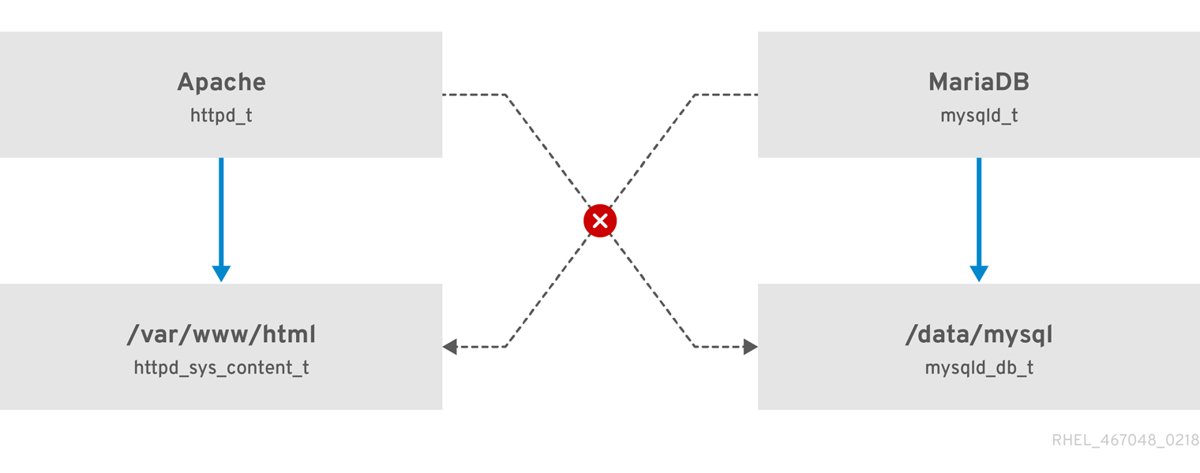
A mandatory security policy blocks access: SELinux rules are checked after the normal permission bits and can deny what 777 allows.
- Run
stat -c '%C' file-nameto see the file's SELinux security context. - Check
/var/log/audit/audit.logfortype=AVCdenial entries. - Fix the file's context or the policy rather than the mode bits.
"No such file or directory" or "Not a directory"
The pathname itself is invalid: a component is missing or is a file where a directory is expected.
- Check the spelling and case of each path component.
- Run
ls -ldon each component to confirm it exists and is a directory.
A safer troubleshooting sequence
Work through permission errors in this order. It finds the actual cause and leaves the system no more open than it was.
- Record the current modes with
ls -lso you can restore them. - Identify which user the failing program runs as, then run
idfor that user to see its groups. - Check every directory in the path with
ls -ldfor the search (x) bit. - Fix ownership with
chownif the file belongs to the wrong user or group. - Grant the smallest missing bit with a symbolic mode, such as
chmod g+w file-name. - Use
setfaclwhen only one extra user needs access. - Check
lsattr, the mount options and SELinux if the mode is already correct. - If you already ran
chmod 777, set the file back to 644 (or 755 for directories and scripts).
Chmod 777 FAQ
What is chmod in Linux?
chmod is the Linux command that changes a file's mode bits: the read, write and execute permissions for its owner, group and others, plus the setuid, setgid and sticky bits. It accepts octal modes such as 755 or symbolic modes such as u+x.
Is chmod 777 dangerous?
Yes. Mode 777 lets every account on the system read, change and run the file, or create and delete files in the directory. A compromised service or another user can replace its contents. Use it only as a brief test, then restore a tighter mode.
What is the difference between chmod 777 and chmod 755?
Both give the owner full access. Mode 755 gives the group and others read and execute only, so they can run or enter it but not change it. Mode 777 also gives them write access, which lets anyone modify the file or the directory's contents.
Does chmod 777 change ownership?
No. chmod changes only the mode bits; the owner and group stay the same. To change who owns a file, use chown, for example sudo chown user:group file-name.
What is the correct mode for a shared temporary directory?
Use 1777. The 777 part lets everyone create files, and the leading 1 sets the restricted deletion flag (sticky bit), so users can delete or rename only their own files. This is the arrangement used on directories such as /tmp.
Why does a mode-777 file still return Permission denied?
Something other than the file's mode is blocking access. The usual causes are a parent directory without search (x) permission, an ACL mask, an immutable attribute, a read-only filesystem or an SELinux denial. Check each before widening permissions further.
Should I use chmod -R 777 to fix a whole folder?
No. chmod -R 777 makes every file and subdirectory world-writable and executable, and the previous modes cannot be recovered. Set directories to 755 and files to 644 with find, or fix the folder's owner with chown.
Do I need sudo for chmod?
Only when you do not own the file. Linux lets a file's owner change its mode freely; anyone else needs root privileges, which sudo provides. Running chmod with sudo on files you own is unnecessary.
Does chmod 777 work on symbolic links?
chmod never changes a symbolic link's own permissions, because Linux ignores them. When you name a link on the command line, chmod changes the file it points to. During a recursive run, chmod skips links.
Bottom line: should you use chmod 777?
Use chmod 777 only as a short test to prove a problem is about permissions, then set 644 for files, 755 for directories and scripts, or fix ownership with chown. Mode 777 hands write access to every account on the machine, and most "Permission denied" errors come from ownership, a parent directory, an ACL or SELinux rather than the mode bits it changes.