To block time in Teams Calendar, select Calendar, select New or click an empty timeslot, give the event a title, leave the attendees empty, keep Show as on Busy, and save it.
This guide covers which Teams option fits each kind of block, recurring focus blocks, Viva Insights focus time, calendar views, work location, and the mistakes that leave your time open to meetings.
How to block time in Teams Calendar
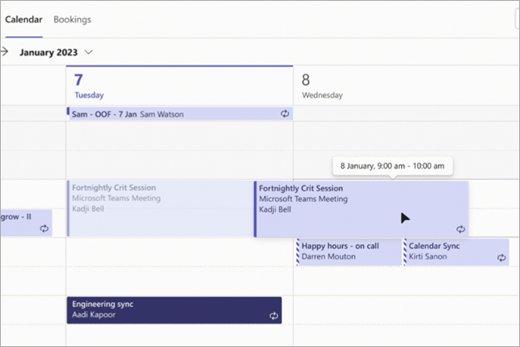
A time block in Teams is an ordinary calendar event with nobody else invited. Colleagues who check your availability see that slot as busy.
- Select Calendar on the left side of Teams.
- Select New, or click the empty timeslot you want to protect.
- Type a title that says what the time is for, such as "Draft Q4 budget".
- Set the date, start time and end time. Leave the attendee field empty.
- Leave the Teams meeting toggle off, because nobody is joining a call.
- Open the Show as dropdown in the action bar and confirm it reads Busy, which is the default.
- Select the save icon to add the block to your calendar.
The block appears in Teams and in Outlook, because both read the same Exchange calendar. On the Teams mobile app, tap Calendar > New event, enter a title, skip Add participants, and tap Done.
Which Teams calendar option should you use?
Teams has several features that sound like blocking time. Only a calendar event, or focus time booked by Viva Insights, actually reserves the slot.
| Your situation | Use this | Why |
|---|---|---|
| One protected slot today or this week | A solo calendar event set to Busy | Shows as busy to anyone checking your availability, sends no invite |
| The same deep-work slot every week | A recurring solo event | One series protects every week without retyping it |
| You want Teams to find and book focus time for you | Book focus time or a focus plan in Viva Insights | Books calendar blocks and mutes chats during them |
| A whole day away from your desk | An all-day event set to Out of office | Marks the full day as unavailable instead of busy |
| You only want fewer pings for the next hour | Teams status Do not disturb with a duration | Silences notifications but does not reserve calendar time |
| Telling people where you work today | Set work location | Shows office or remote on your profile card; it is not a block |
| You live in Outlook desktop rather than Teams | New Appointment in classic Outlook | Same calendar, so the block shows in Teams too |
Do not use Scheduler for a solo block
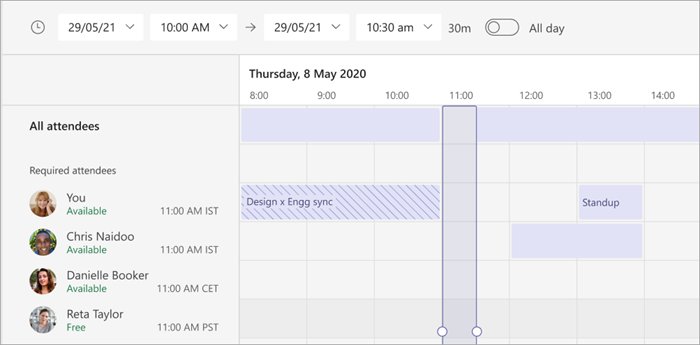
Scheduler opens attendees' time zones, schedules and availability so a group can find a free slot. With no attendees, it has nothing to compare, and it pushes you toward sending an invitation.
Pick the slot straight on the calendar grid instead.
- Switch the calendar to Work week or Week so you can see the gaps.
- Look for the unshaded slots, which are your free time.
- Click the start of the free slot to open a new event there.
- Adjust the end time in the event form instead of opening Scheduler.
- Select the save icon. Calendar events use save, while invitations use Send.
Use Scheduler later if a colleague needs part of that time: it shades busy and tentative slots for everyone, so your block is visible to them.
Make the block more useful with a specific title
A block called "Busy" invites a polite request to move it. A block that names the deliverable tells people the time is committed.
| Weak title | Specific title | Extra setting that helps |
|---|---|---|
| Busy | Write release notes for v2.4 | A color category for deep work |
| Focus | Review 6 open pull requests | Add the links in the event body |
| Admin | Inbox and expense reports, 30 min | A different category from deep work |
| Blocked | Prep for Thursday client call | Paste the agenda into the notes |
| Lunch | Lunch, offline | Show as Busy so nobody books over it |
To color a block, right-click the event in Teams Calendar and select Categorize, or select Category at the top of the event form. In Outlook you can also mark the event Private so people with read access to your calendar see the time but not the details.
Create recurring productivity blocks
A recurring block keeps the same slot protected every week. Set it up once from Teams or Outlook; both edit the same series.
- Create the block as in the first section: title, time, no attendees, Show as Busy.
- Before saving, set the event to repeat. In new Outlook and Outlook on the web this is Recurring, which opens the Repeat window.
- Choose the pattern, for example weekly on Tuesday and Thursday.
- Set an end date, such as the end of the quarter, rather than leaving the series open-ended.
- Select Save, then save the event.
- Check two future weeks on the calendar to confirm every occurrence appears.
In classic Outlook, select Recurrence in the Options group of the appointment, choose Daily, Weekly, Monthly or Yearly, and select OK. The tab then changes to Appointment Series.
Book focus time in Teams with Viva Insights
If your organization has Viva Insights in Teams, it can find and book focus time for you, and Teams shows your status as Focusing with notifications muted.
- Open the Viva Insights app in Microsoft Teams.
- Go to the Wellbeing tab and find the Act with intention section.
- Under Focus, find Book focus time.
- Use the arrows beside the date to browse up to a week of free slots.
- Select Book on the time you want.
- For daily blocks, select Set daily focus plan on the Start a daily focus plan card instead, then choose up to four focus hours a day and morning or afternoon.
To change the plan later, select the ellipses (…) at the top right of any Viva Insights tab, then Settings > Protect time. To stop it, select Leave plan.
Choose a calendar view that protects your working time
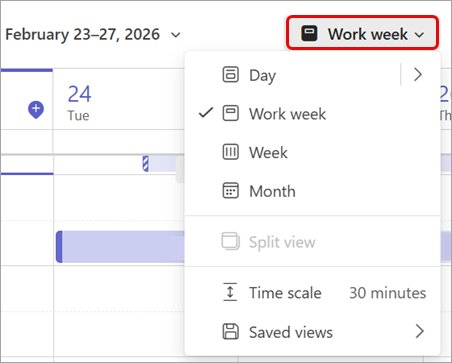
Teams Calendar opens in Work week by default. Select the view name at the top of the calendar to switch.
| View or setting | What it shows | Best for |
|---|---|---|
| Day | An agenda for one day; the arrow next to Day adds more days | Placing blocks around today's meetings |
| Work week | Monday to Friday | Planning the week's deep-work slots |
| Week | The full week including the weekend | Seeing whether work spills into the weekend |
| Month | The whole month | Spotting days already crowded with meetings |
| Time scale | Larger or smaller time increments in the grid | Short 15- or 30-minute blocks need a smaller scale |
| Filter | Hides chosen event types | Seeing only meetings, or only your blocks |
| Saved views > Save current view | Stores a view with its filters and calendar groups | A named "Planning" view you reopen every Monday |
Work location is not the same as blocked time
Set work location tells people whether you are in a building or working remotely. It applies to your work hours for the rest of the day and appears in Teams and Outlook, but it reserves no calendar time.
| Setting | Where you set it | What others see | Does it block calendar time? |
|---|---|---|---|
| Work location | Account manager (top right) > Set work location | "Working from" a building or remote on your profile card | No |
| Teams status (Busy, Do not disturb) | Profile picture > current status > Duration | A presence color and label | No |
| Calendar event set to Busy | Calendar > New | A busy slot in Scheduler and Scheduling Assistant | Yes |
| Event set to Working elsewhere | Show as dropdown | You are working, but not at your usual place | It marks the time with a working status rather than Busy |
| All-day event set to Out of office | Show as dropdown | You are away for that time | Yes |
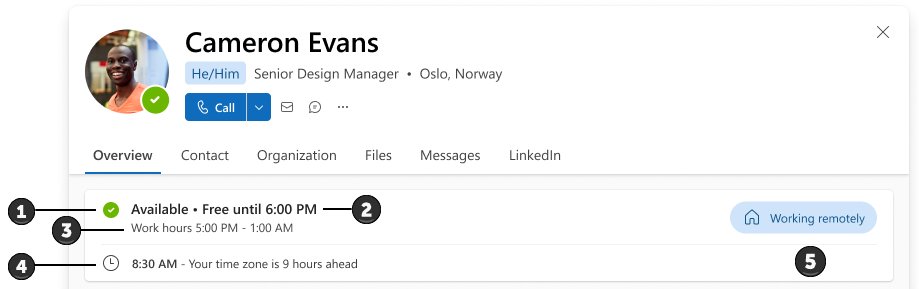
Availability on your profile card comes from your Teams status and your next free calendar slot, and only counts time inside your work hours.
How to check your Teams calendar block is working
- Open Calendar in Teams and confirm the block sits on the right day and time.
- Select the event and confirm Show as still reads Busy.
- Open Outlook and check the same block appears there.
- Start a test meeting with a colleague, open Scheduler, and confirm your block shows as a shaded slot.
- Discard the test meeting without sending it.
- For a recurring block, jump two or three weeks ahead and confirm the occurrences are there.
Common mistakes when blocking time in Teams
People still book meetings over the block (assuming Free is protected)
The event is set to Free or Tentative. Scheduler leaves Free time unshaded, so it looks open.
- Open the block in Teams Calendar.
- Open the Show as dropdown in the action bar.
- Select Busy, or Out of office for a full day away.
- Save the event, and choose all events in the series if it repeats.
Setting your Teams status to Busy does not block the calendar
Presence and calendar are separate. A status changes how you appear and which notifications arrive, not your free/busy time.
- Create a calendar event for the time instead, as in the first section.
- Use status as an extra: select your profile picture, your status, then Duration.
- Choose Do not disturb and set Reset status after to the end of the block.
- Select Done.
You sent an invitation to yourself (adding yourself as an attendee)
Adding your own name turns the block into a meeting with an RSVP and an invite email.
- Open the event and remove your name from Required attendees.
- Save the event as a plain calendar entry.
- Next time, leave the attendee field empty from the start.
The block shows a Join button (Teams meeting toggle enabled)
The Teams meeting toggle was on, which adds a meeting link nobody needs.
- Open the event.
- Turn off the Teams meeting toggle.
- Save the event.
Old focus blocks keep appearing months later (an unbounded recurring series)
The series has no end date, so it carries on after your priorities change.
- Open one occurrence and choose to edit the whole series.
- Open the repeat settings and set an end date.
- Save the series, then set a calendar reminder to review it at the end date.
How to block a day on Teams for leave or travel
A day of short blocks still leaves gaps for others to book.
- Select Calendar > New and add a title such as "Out of office: travel".
- Turn on All day for the date or dates.
- Set Show as to Out of office.
- Save the event.
If you mostly work in classic Outlook, the same rules apply: select New Appointment, set Show As in the Options group, and select Save & Close. For time off, also turn on automatic replies in Outlook so senders know when you return.
A practical weekly blocking routine
Time blocking helps because a reserved slot is harder to fill with meetings than a vague intention. This routine takes about 15 minutes a week.
| When | Block | Settings |
|---|---|---|
| Monday, first 15 minutes | Weekly planning: switch to Work week and place the week's blocks | Solo event, Busy |
| Two to four mornings a week | 90 to 120 minutes of deep work named after the deliverable | Recurring, Busy, deep-work category, end date set |
| Daily, after lunch | 30 minutes for email, chat and admin | Recurring, Busy, admin category |
| Daily | A lunch block | Recurring, Busy |
| Friday afternoon | Review what moved, then adjust next week's blocks | Solo event, Busy |
| During any deep-work block | Fewer interruptions | Teams status Do not disturb with Reset status after set |
Teams calendar time blocking FAQ
How do I block out time in my Teams calendar?
Select Calendar > New in Teams, add a title and time, leave attendees empty, keep Show as on Busy, and save. The slot then shows as busy to anyone who checks your availability, and no invitation is sent.
How do I block focus time in Teams?
Open the Viva Insights app in Teams, go to the Wellbeing tab, and select Book under Book focus time. For daily blocks, start a focus plan. If Viva Insights is not available to you, create a recurring solo event set to Busy.
Does setting my Teams status to Busy block my calendar?
No. Your Teams status only changes your presence and notifications. It does not create a calendar event, so colleagues checking your free time still see the slot as open. Create a calendar event set to Busy to reserve the time.
Will a Teams calendar block appear in Outlook?
Yes. The Teams calendar shows everything scheduled in Teams, Exchange and Outlook, so a block created in Teams appears in Outlook, and a block created in Outlook appears in Teams.
Can I block time without sending an invitation?
Yes. Leave the attendee field empty and save the event with the save icon. An invitation is only sent when you add attendees and select Send.
Should I use Scheduler to find time for myself?
No. Scheduler compares attendees' schedules and availability to find a common slot. For a solo block, pick an unshaded slot on the calendar grid directly.
What should I choose under Show as?
Choose Busy for focus blocks, which is the default. Use Out of office for a full day away. Free and Tentative leave room for others to book over you, so avoid them for time you need to protect.
How do I block a day on Teams?
Create a new calendar event, turn on All day, set Show as to Out of office or Busy, and save it. The whole day then shows as unavailable when colleagues look for a meeting time.
The bottom line on blocking time in Teams Calendar
Block time with a solo calendar event set to Busy, with a specific title, no attendees and the Teams meeting toggle off; make it recurring with an end date for weekly deep work. Only calendar events, including Viva Insights focus time, reserve the slot in your free/busy information. Teams status and work location change what people see, not whether they can book you.