To customize taskbar settings on Windows 10, right-click an empty part of the taskbar and select Taskbar settings, where every layout and behaviour option lives.
This guide covers pinning apps, moving, resizing and hiding the taskbar, the search box, tray icons, colour, button grouping and how to put everything back.
Customize taskbar settings on Windows 10
Every switch in this guide sits on one Settings page. Open it once and you can change most of the taskbar without leaving it.
- Right-click an empty area of the taskbar, away from any app icon.
- Select Taskbar settings at the bottom of the menu.
- Turn the switches you want On or Off, such as Lock the taskbar, Automatically hide the taskbar in desktop mode or Use small taskbar buttons.
- Pick a value from the drop-down lists, such as Taskbar location on screen or Combine taskbar buttons.
- Close the Settings window. Changes apply as soon as you make them, with no save button.
If right-clicking the taskbar does nothing, press Windows key + R, type ms-settings:taskbar and press Enter to open the same page.
Which Windows 10 taskbar setting do you need?
Match what bothers you about the taskbar to the setting that changes it, then jump to that section.
| What you want | Setting to change | Where it is |
|---|---|---|
| Faster access to an app | Pin to taskbar | Right-click the app icon, or the app in Start or Search |
| Taskbar at the top or side of the screen | Taskbar location on screen | Taskbar settings |
| More screen space | Automatically hide the taskbar in desktop mode | Taskbar settings |
| A thinner taskbar | Use small taskbar buttons | Taskbar settings |
| Less clutter next to Start | Search options and Show Task View button | Right-click menu on the taskbar |
| Fewer icons next to the clock | Select which icons appear on the taskbar | Taskbar settings > Notification area |
| App names visible on each button | Combine taskbar buttons: Never | Taskbar settings |
| A coloured taskbar | Show accent color on Start and taskbar | Settings > Personalization > Colors |
| No weather or headlines on the taskbar | Show news and interests on the taskbar | Taskbar settings > News and interests |
| Taskbar that cannot be moved by accident | Lock the taskbar | Taskbar settings or the right-click menu |
How to pin and unpin apps on the Windows 10 taskbar
A pinned app keeps its icon on the taskbar even when it is closed, so one click opens it. You can pin from three places.
- To pin an open app, right-click its icon on the taskbar and select Pin to taskbar.
- To pin an app that is not running, open Start, right-click the app in the list and select Pin to taskbar.
- To pin from search, type the app name in the taskbar search box, right-click the result and select Pin to taskbar.
- Drag any pinned icon left or right along the taskbar to change its position.
- To remove an icon, right-click it and select Unpin from taskbar.
On a touch screen, press and hold the icon instead of right-clicking it. Unpinning removes only the shortcut; the app stays installed.
How to move the taskbar to the top, left or right in Windows 10
Windows 10 lets you dock the taskbar on any of the four screen edges. A locked taskbar cannot be dragged, but the Settings list works either way.
- Right-click the taskbar and select Taskbar settings.
- Scroll to Taskbar location on screen.
- Open the drop-down list and select Left, Top, Right or Bottom.
- Check that the taskbar has jumped to the new edge, then close Settings.
A side taskbar shows more pinned icons on a wide screen but gives each button less room for labels.
How to resize and lock the taskbar in Windows 10
Locking freezes the taskbar's size and position. You have to unlock it before you can drag it taller or wider.
- Right-click the taskbar and clear the tick next to Lock the taskbar.
- Move the pointer over the inner border of the taskbar until it turns into a double arrow.
- Drag the border to the size you want, then release the mouse button.
- Right-click the taskbar again and select Lock the taskbar so the new size stays put.
- If you use more than one monitor, open Taskbar settings and turn on Lock all taskbars as well.
To make the bar thinner rather than taller, turn on Use small taskbar buttons in Taskbar settings instead of dragging.
How to auto-hide the taskbar in Windows 10
Auto-hide slides the taskbar off screen until you move the pointer to that edge. Desktop mode and tablet mode have separate switches.
- Right-click the taskbar and select Taskbar settings.
- Turn on Automatically hide the taskbar in desktop mode.
- On a 2-in-1 or tablet, also turn on Automatically hide the taskbar in tablet mode if you want the same behaviour there.
- Move the pointer away from the taskbar and confirm it slides out of view.
- Move the pointer to the screen edge where the taskbar sits to bring it back.
How to hide the search box and Task View button on the Windows 10 taskbar
The search box takes the most room on a default Windows 10 taskbar. Both it and Task View are controlled from the right-click menu, not Taskbar settings.
- Right-click an empty part of the taskbar and point to Search.
- Select Hidden to remove search, Show search icon only for a single magnifier icon, or Show search box for the full box.
- In the same menu, select Show search highlights if you want the box to show featured content, or clear it to keep the box plain.
- Select Open on hover to turn opening search by hovering on or off.
- Right-click the taskbar again and clear Show Task View button to remove the Task View icon.
Hiding search does not disable it. Press the Windows key and start typing to search from Start.
How to choose which icons appear in the Windows 10 notification area
The notification area, or system tray, is the group of icons beside the clock. App icons and system icons are managed in two separate lists.
- Right-click the taskbar and select Taskbar settings.
- Under Notification area, select Select which icons appear on the taskbar.
- Turn each app icon you want always visible to On, and the rest to Off so they sit in the hidden overflow area.
- Go back and select Turn system icons on or off.
- Turn system icons such as the clock, volume or network on or off as needed.
- To move an icon without Settings, drag it from the hidden area (the up arrow) onto the visible tray, or the other way.
How to turn off news and interests on the Windows 10 taskbar
News and interests is the weather and headlines button that later Windows 10 updates added to the taskbar.
- Right-click the taskbar and select Taskbar settings.
- Scroll to News and interests.
- Turn Show news and interests on the taskbar to Off to remove it, or On to bring it back.
If your PC has no News and interests heading, the feature is not installed on your build and there is nothing to turn off.
How to combine or uncombine taskbar buttons in Windows 10
By default Windows 10 stacks every window of an app into one icon with no label. Changing the combine setting shows each window as its own labelled button.
| Combine taskbar buttons option | What you see | Best for |
|---|---|---|
| Always, hide labels (default) | One icon per app, no text | Small screens and many open apps |
| When taskbar is full | Separate labelled buttons until space runs out, then grouped | Most desktop monitors |
| Never | A labelled button for every open window | Wide screens and frequent window switching |
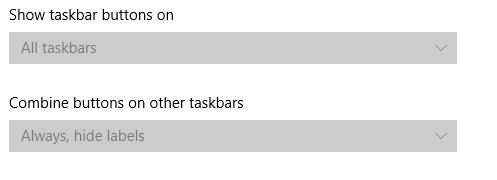
Set it in Taskbar settings under Combine taskbar buttons. With several monitors, Combine taskbar buttons on other taskbars under Multiple Displays sets a different choice for the extra screens.
In the same page, Show badges on taskbar buttons controls the small counters on app icons, such as unread mail.
How to change the taskbar color in Windows 10
Taskbar colour is set from the Colors page, not Taskbar settings. The accent option for the taskbar only works with the dark or custom colour mode.
- Open Settings and select Personalization > Colors.
- Set the colour mode to Dark or Custom.
- Pick an accent from the Windows colors grid, or leave the accent on automatic.
- Tick the option to show the accent colour on Start and taskbar.
- Turn transparency effects off if you want a solid colour instead of a see-through bar.
If the taskbar option is greyed out, the colour mode is still light. Switch it to dark or custom first.
How to edit quick actions in the Windows 10 Action Center
The Action Center sits at the right end of the Windows 10 taskbar. Its quick action tiles can be added, removed and reordered.
- Open Settings and go to Notifications & actions.
- Select Edit your quick actions. The Action Center opens in edit mode.
- Unpin a tile you do not use to remove it.
- Select Add to put a missing tile back.
- Select Done to save the layout.
Windows 11 replaced these tiles with a Quick Settings flyout, where you can customize the Quick Settings panel in a similar way.
Windows 10 taskbar settings explained
These are the switches on the Windows 10 Taskbar settings page and what each one does.
| Setting | What it does |
|---|---|
| Lock the taskbar | Stops the taskbar from being moved or resized by dragging |
| Automatically hide the taskbar in desktop mode | Hides the bar until the pointer reaches its edge |
| Automatically hide the taskbar in tablet mode | The same behaviour while tablet mode is on |
| Use small taskbar buttons | Shrinks icons and makes the bar thinner |
| Use Peek to preview the desktop | Shows the desktop when you hover over the Show desktop button at the end of the taskbar |
| Show badges on taskbar buttons | Shows counters such as unread messages on app icons |
| Taskbar location on screen | Docks the bar on the left, top, right or bottom edge |
| Combine taskbar buttons | Groups windows of one app: Always, When taskbar is full or Never |
| Notification area | Chooses which app and system icons appear beside the clock |
| Multiple Displays | Sets how the taskbar behaves on extra monitors |
| News and interests | Shows or hides the weather and headlines button |
How to check your Windows 10 taskbar changes worked
Taskbar changes apply instantly, so each one has a visible sign you can check without restarting.
- Right-click the taskbar. A tick beside Lock the taskbar confirms it is locked.
- Try to drag the taskbar to another edge. A locked bar stays where it is.
- Move the pointer away from the bar. With auto-hide on, it slides out of view.
- Open two windows of the same app, such as File Explorer. With Never set, you see two labelled buttons instead of one icon.
- Close a pinned app. Its icon stays on the taskbar.
- Look at the area beside the clock. Only the icons you turned on should show there.
How to reset Windows 10 taskbar settings back to normal
Windows 10 has no single reset button for the taskbar. Reverse each change on the same page you made it.
- Right-click the taskbar and select Taskbar settings.
- Set Taskbar location on screen back to Bottom.
- Set Combine taskbar buttons back to Always, hide labels.
- Turn off Automatically hide the taskbar in desktop mode and Use small taskbar buttons.
- Right-click the taskbar, point to Search and select Show search box, then tick Show Task View button.
- Turn Lock the taskbar back on.
For a full return to factory state, including the taskbar, you would need to reset Windows 10 to factory settings, which is far more than a taskbar change calls for.
Windows 10 taskbar customization FAQ
How do I customize my taskbar in Windows 10?
Right-click an empty part of the taskbar and select Taskbar settings. From there you can move, lock, auto-hide and shrink the taskbar, choose tray icons and set button grouping. Pinning apps and hiding the search box are done from right-click menus.
How do I open taskbar settings in Windows 10?
Right-click the taskbar and select Taskbar settings. If the menu does not appear, press Windows key + R, type ms-settings:taskbar and press Enter. Both routes open the same Settings page.
How do I customize the Windows taskbar on Windows 11?
Windows 11 uses a different taskbar page with options such as taskbar alignment, widgets and the system tray. It also adds badge flashing and window sharing controls. The Windows 10 steps in this guide do not all carry over to that page.
Can I customize the Microsoft taskbar without extra software?
Yes. Windows 10 lets you pin apps, move the bar to any screen edge, auto-hide it, shrink the buttons, change its colour and choose tray icons with built-in settings. No customizer app is needed for any of those changes.
How do I make the Windows 10 taskbar smaller?
Open Taskbar settings and turn on Use small taskbar buttons. If the bar was dragged taller, unlock it, drag its inner border back down until it is one row high, then lock it again.
Why can't I move or resize my taskbar?
The taskbar is locked. Right-click it and clear Lock the taskbar, then drag it or its border. You can also change its position from Taskbar location on screen in Taskbar settings, which works even while it is locked.
How do I change the taskbar colour in Windows 10?
Go to Settings > Personalization > Colors, set the colour mode to dark or custom, pick an accent colour and turn on the option to show it on Start and the taskbar. The option is greyed out while the mode is light.
How do I show app names on taskbar buttons in Windows 10?
Open Taskbar settings and set Combine taskbar buttons to Never, or to When taskbar is full. Each open window then gets its own button with the window title beside the icon.

![How to use a laptop screen as an external monitor [tutorial]](https://techdows.com/wp-content/uploads/2026/10/macOS-Displays-settings-with-an-iPad-added-as-an-extended-display-600x338.jpg)