To connect a PS5 controller to PC using DS4Windows, plug the DualSense in with a USB-C cable or pair it over Bluetooth, then run DS4Windows so games see an emulated Xbox 360 controller.
Check the project status first. The DS4Windows repository on GitHub (github.com/Ryochan7/DS4Windows) showed GitHub's Page not found error in October 2026, and the ViGEmBus driver it relies on was retired and archived by its author in November 2023.
This guide covers that status, the drivers, USB and Bluetooth pairing, HidHide, Steam, startup, updates and the fixes for a controller that will not connect or shows up twice.
How to connect a PS5 controller to PC with DS4Windows
This is the short route for Windows 11 and Windows 10 (64-bit), the two Windows versions Sony lists for the DualSense controller.
- Get DS4Windows only from the developer's GitHub Releases page, and keep it in a permanent folder.
- Install the ViGEmBus driver, which DS4Windows uses to create the virtual controller.
- Connect the DualSense with a USB Type-C cable, or pair it over Bluetooth with Settings > Bluetooth & devices.
- Run DS4Windows and wait for the controller to appear in its controller list.
- Start your game, which now sees an Xbox 360 controller.
If the game reacts to every button twice, hide the physical controller with HidHide or let only one program read the pad. Both fixes are below.
DS4Windows, ViGEmBus and HidHide status in 2026
All three projects are free, open-source software from independent developers, not from Sony or Microsoft. Their status decides where you can get them and whether they still receive fixes.
| Project | Official page | Current status |
|---|---|---|
| DS4Windows (Ryochan7) | github.com/Ryochan7/DS4Windows | The repository and its Releases page showed GitHub's Page not found error in October 2026, so no official download is currently available |
| ViGEmBus (nefarius) | github.com/nefarius/ViGEmBus | Retired by its author and archived on 2 November 2023; the repository is read-only, and ViGEmBus Setup 1.22.0 is the final release |
| HidHide (nefarius) | github.com/nefarius/HidHide | Available; HidHide Drivers v1.5.230 is the latest release, and the README says there is no capacity for major new work |
The HidHide README warns that its only official sources are its GitHub repository and sites on nefarius.at, and that other sites offering it are scams. Apply the same caution to DS4Windows: a copy hosted on any other site is not the developer's release.
What DS4Windows does for a PS5 controller
Windows can already use a DualSense in games that support generic controllers, but many PC games only read Xbox-style input. DS4Windows reads the DualSense and feeds a virtual controller created by the ViGEmBus driver, which emulates an Xbox 360 or a DualShock 4 controller.
Valve's Steam Input documentation confirms the effect: when a remapping tool such as DS4Windows is running, Steam detects an emulated Xbox 360 controller instead of the PlayStation pad.
| Without DS4Windows | With DS4Windows |
|---|---|
| Games that support generic controllers work; Xbox-only games may ignore the pad | Games see a standard Xbox 360 controller and use their normal Xbox prompts |
| The game, or Steam Input, handles button mapping | DS4Windows translates the DualSense into the virtual controller before the game sees it |
| Haptics and adaptive triggers work in games that support DualSense | An emulated Xbox 360 controller has no adaptive triggers or touchpad, so games cannot use those features |
| No extra drivers | Needs the ViGEmBus driver, and HidHide if games read the pad twice |
Before you start: What you need
| Requirement | Details |
|---|---|
| Windows version | Windows 11 or Windows 10 (64-bit). Sony lists these as the PC systems that support DualSense over USB and Bluetooth. |
| Processor type for HidHide | The current HidHide release supports 64-bit Windows 10 and 11 on Intel and AMD processors only. ViGEmBus 1.17 and later also supports ARM64. |
| USB cable | A cable with a USB Type-C connector that carries data, not a charge-only cable. |
| Bluetooth (optional) | Built-in Bluetooth or a USB Bluetooth adapter. Microsoft notes an adapter adds Bluetooth to a PC without it. |
| Administrator account | Needed to run the ViGEmBus and HidHide setups, which install kernel-mode drivers. |
| A copy of DS4Windows | From the developer's GitHub Releases page only. See the status table above before you look for one. |
| Charged controller | Microsoft notes that low battery stops some Bluetooth devices from pairing or staying connected. |
USB vs Bluetooth: Which connection should you use?
| Your situation | Use | Why |
|---|---|---|
| First-time setup or testing | USB | No pairing step, and the controller charges while you play |
| You want haptic feedback in a supporting PC game | USB | Sony states haptic feedback on PC requires a USB connection |
| You use a headset in the controller's headset jack | USB | Sony states the headset jack needs a wired connection on PC |
| You play from the couch or a long way from the PC | Bluetooth | No cable, and Windows reconnects it automatically when in range |
| Your PC has no Bluetooth | USB, or add a USB Bluetooth adapter | Bluetooth needs a radio in the PC |
Step 1: Download DS4Windows safely
The maintained DS4Windows is Ryochan7's version, distributed only through its GitHub Releases page. In October 2026 that page returned GitHub's Page not found error, so there is no official download to link here.
- Open github.com/Ryochan7/DS4Windows in your browser and select Releases.
- If GitHub shows Page not found, stop: the official download is not available, and a copy from another site is not the developer's release.
- If the Releases page loads, download from the release marked Latest and nowhere else.
- Keep DS4Windows in a permanent folder you own, such as a Tools folder in your user profile, rather than in Downloads.
- If you already use DS4Windows from that page, keep your existing copy and back up its folder before changing anything.
Step 2: Choose where DS4Windows saves settings
DS4Windows keeps its profiles and settings on disk, so the folder you choose decides whether they survive a clean-up or a reinstall. Pick the location once and back it up.
| Your situation | Keep DS4Windows and its settings in | Why |
|---|---|---|
| One person uses the PC | A folder in your own user profile | Your account can write there, and Windows clean-up tools do not empty it |
| Several Windows users share the PC | Each user's own profile folder | Each account keeps separate settings |
| The program sits in Downloads or a temporary folder | Move it to a permanent folder first | Clearing Downloads would delete the program and its settings |
Step 3: Install the required drivers
ViGEmBus is the driver that creates the emulated Xbox 360 or DualShock 4 controller, and DS4Windows is listed among its users. HidHide is a second, optional driver that hides the real DualSense from games so they see only the virtual pad.
Get each setup only from its Releases page: ViGEmBus releases and HidHide releases. ViGEmBus is retired, so its final release, ViGEmBus Setup 1.22.0, is the last one there will be.
- On the ViGEmBus Releases page, open ViGEmBus Setup 1.22.0, the release marked Latest, and download its setup from the release's assets.
- Run the ViGEmBus setup, click through it and approve the User Account Control prompt.
- On the HidHide Releases page, open the release marked Latest and download its setup.
- Run the HidHide setup, click through it and reboot when it prompts you to.
- Open DS4Windows after the restart.
ViGEmBus 1.17 and later is built for Windows 10 and 11 only, and its author does not support Windows Server. Both drivers install once per PC.
Step 4: Connect the PS5 controller by USB
Sony supports a direct connection to Windows with a USB cable that has a Type-C connector.
- Open DS4Windows and leave it running.
- Plug the USB Type-C end into the controller and the other end into a USB port on the PC.
- Check that the controller appears in the DS4Windows controller list.
- Try a different cable or port if nothing appears; a charge-only cable carries no data.
Step 5: Connect the PS5 controller by Bluetooth
These steps combine Sony's pairing-mode instructions with Microsoft's Windows Bluetooth steps.
- Disconnect any USB cable from the controller.
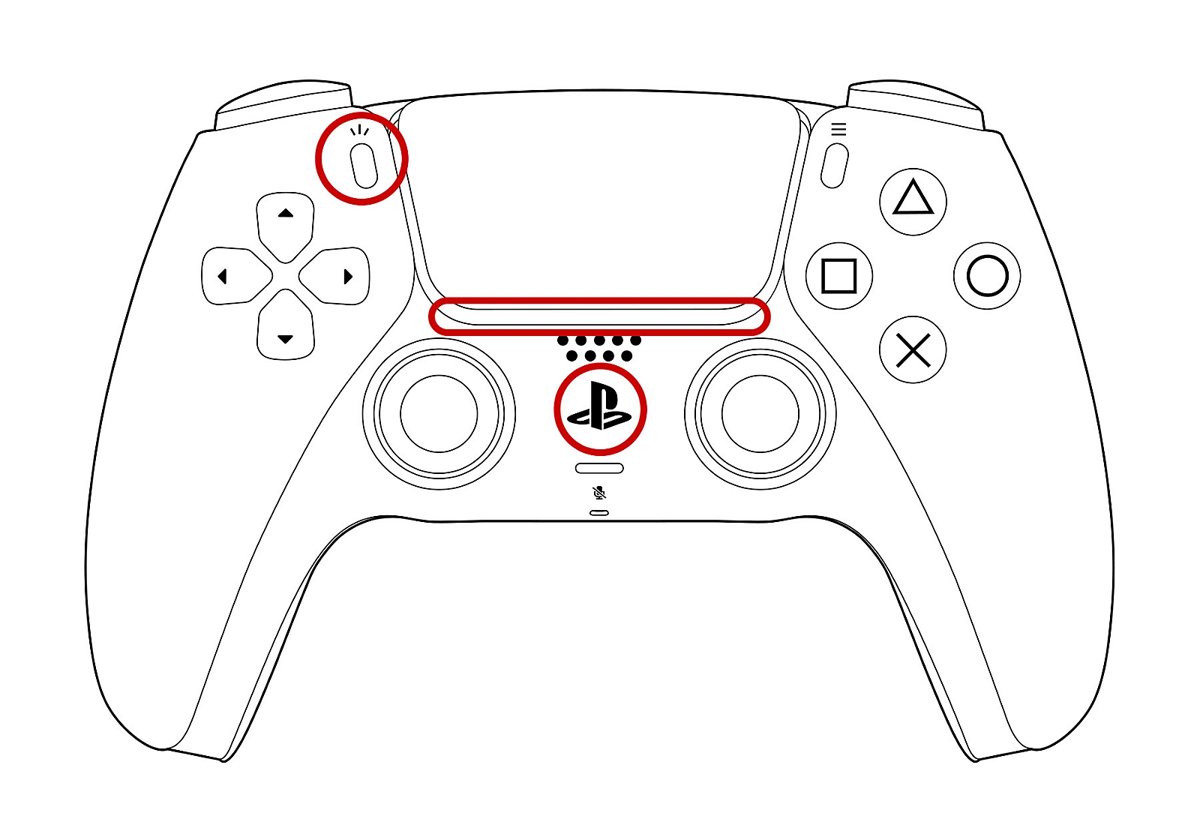
- If the player indicator is lit, press and hold the PS button until it turns off.
- While pressing and holding the Create button, press and hold the PS button until the light bar blinks.
- On the PC, select Start > Settings > Bluetooth & devices and make sure Bluetooth is On.
- Select Add device, then select the controller from the list.
- Wait until the light bar blinks and then the player indicator lights up, which means pairing is complete.
- Check that the controller appears in DS4Windows.
Sony notes that a DualSense must be paired again each time you change to a different device.
Step 6: Create or select a DS4Windows profile
A DS4Windows profile holds the controller settings you apply to the pad. The key choice is the output type: an emulated Xbox 360 controller, which Valve documents as what Steam sees from DS4Windows, suits most PC games.
| Your game | Output to aim for | Why |
|---|---|---|
| Most PC games, including games from the Xbox app and Epic Games Launcher | Xbox 360 controller | Almost every PC game reads Xbox controller input |
| A game or emulator that reads PlayStation controllers | DualShock 4 controller, which ViGEmBus can also emulate | The game then shows PlayStation button prompts |
| A Steam game | None: let Steam Input read the DualSense instead | Avoids two programs translating one pad (see Step 9) |
Step 7: Test the controller in Windows
The proof is that a program sees exactly one controller of the type you chose and responds to every input once.
- Confirm the DS4Windows controller list shows the DualSense.
- Open Steam, select Steam > Settings > Controller, and check the detected controllers.
- Look for an Xbox 360 controller there; Valve documents that Steam sees the emulated pad when DS4Windows is running.
- Launch a game that supports controllers and press each face button, both sticks and both triggers.
- If every input registers once, the setup works. If inputs register twice, continue to Step 8.
Step 8: Configure HidHide correctly
Double input happens when a game reads both the real DualSense and the virtual controller. HidHide fixes it by hiding chosen devices from every application except the ones on its allowed list. Its configuration utility does not need administrator rights.
- Search the Start menu for HidHide and open its configuration utility.
- On the Applications tab, press + and add the DS4Windows program file.
- On the Devices tab, tick the DualSense controller to hide it. If it is missing, clear the Gaming devices only filter.
- Tick Enable device hiding, then close the configuration utility.
- Reconnect the controller and confirm DS4Windows still shows it.
- Repeat Step 7 to confirm the game now sees one controller.
If DS4Windows loses the controller after hiding, DS4Windows is missing from the Applications list. Clearing Enable device hiding gives every application access to every device again.
Step 9: Set up Steam correctly
Steam can drive a DualSense on its own through Steam Input. Valve notes that while a remapping tool such as DS4Windows runs, Steam does not use the PlayStation pad directly and reads the emulated Xbox 360 controller instead. Pick one layer per game.
| Your choice | What to do | Result |
|---|---|---|
| Option A: Use DS4Windows with Steam | Leave DS4Windows running and hide the DualSense with HidHide | Steam sees one Xbox 360 controller |
| Option B: Use Steam Input instead for Steam games | Close DS4Windows, then in Steam > Settings > Controller turn on the PlayStation configuration support setting | Steam maps the DualSense directly and can show PlayStation prompts |
| Mixed library | Use Steam Input for Steam games and start DS4Windows only for non-Steam games | No double layer in either case |
Recommended DS4Windows settings for PS5 controller
| Setting | Recommendation | Reason |
|---|---|---|
| Output controller | Xbox 360 | Maximum compatibility; almost every PC game reads Xbox input |
| HidHide device hiding | On, with DS4Windows on the Applications list | Stops games from reading the pad twice |
| Steam Input for the same game | Off while DS4Windows runs | One input layer per game |
| Connection | USB for long sessions | No pairing drops, and the pad charges while you play |
How to make DS4Windows start with Windows
If DS4Windows is not in the Windows startup list, use Microsoft's documented method for any app: a shortcut in the Startup folder.
- Open the folder that holds DS4Windows.
- Right-click the DS4Windows program file and create a shortcut.
- Right-click Start, select Run, type
shell:startupand press Enter. - Move the shortcut into the Startup folder that opens.
- Select Start > Settings > Apps > Startup and check the toggle for DS4Windows is On.
- Sign out and back in to confirm DS4Windows opens automatically.
To stop it starting, set the toggle to Off or delete the shortcut from the Startup folder.
Common DS4Windows PS5 controller problems and fixes
DS4Windows does not detect the PS5 controller
A charge-only cable, a missing ViGEmBus driver, or HidHide hiding the pad from DS4Windows itself.
- Swap to a USB Type-C cable you know carries data, and try a different USB port.
- Check Settings > Apps > Installed apps for ViGEmBus, and run its setup if it is missing.
- Add DS4Windows to the HidHide Applications list.
- Restart DS4Windows, then reconnect the controller.
Why won't my PS5 controller connect to my PC over Bluetooth?
The controller is not in pairing mode, is out of range, has a stale pairing, or is low on battery.
- Disconnect any USB cable, then hold Create and PS until the light bar blinks.
- Select Start > Settings > Bluetooth & devices, select More options (…) on the old controller entry and select Remove device.
- Select Add device and pair the controller again.
- Charge the controller and move it closer to the PC.
- Turn Bluetooth off, wait 10 seconds and turn it back on.
The game shows two controllers
The game reads both the real DualSense and the virtual Xbox 360 pad.
- Install HidHide and hide the DualSense, as in Step 8.
- For Steam games, close DS4Windows and let Steam Input handle the pad, as in Step 9.
- Restart the game after changing either setting.
Buttons are pressing twice
Two input layers, such as DS4Windows plus Steam Input, translate the same press.
- Pick one layer for the game: DS4Windows or Steam Input.
- Confirm Enable device hiding is ticked in HidHide.
- Check that the DualSense is ticked on the HidHide Devices tab.
Bluetooth keeps disconnecting
Distance, low battery, an outdated Bluetooth driver or outdated controller software.
- Move the controller and PC closer together.
- Charge the controller fully.
- Select Start > Settings > Windows Update > Check for updates to get current Bluetooth drivers.
- Update the controller software with Sony's PlayStation Accessories app on the PC.
- Switch to USB for long sessions if drops continue.
The controller still will not connect after all of the above
A controller-side fault that a reset can clear.
- Disconnect the USB cable from the controller.
- Use a pin to press and hold the reset button in the small hole on the back, next to the Sony logo, for at least 5 seconds.
- Pair the controller with the PC again.
Using DS4Windows with non-Steam games and emulators
Games from other launchers and emulators do not get Steam Input, which is where DS4Windows earns its place.
- Start DS4Windows before the launcher or emulator.
- Use Xbox 360 output for games from the Xbox app, Epic Games Launcher or other stores.
- In the emulator's input settings, select the Xbox 360 controller instead of the DualSense.
- Map the emulator's buttons to the virtual pad and save the configuration.
- Use DualShock 4 output only for an emulator that reads PlayStation controllers.
Should you use DS4Windows or native DualSense support?
| Factor | Native DualSense (USB or Bluetooth) | DS4Windows |
|---|---|---|
| Extra software | None | DS4Windows plus ViGEmBus, optionally HidHide |
| Project status | Supported by Sony on Windows 10 (64-bit) and Windows 11 | DS4Windows repository offline in October 2026; ViGEmBus retired since 2023 |
| Game support | Games that support generic or DualSense controllers | Any game that supports Xbox controllers |
| Haptics and adaptive triggers | Yes, in supporting games; haptics need USB on PC | No, with Xbox 360 output |
| Headset jack | Available on PC over a wired connection | Not part of an emulated Xbox 360 controller |
| Steam games | Steam Input handles the DualSense directly | Works, but needs Steam set as in Step 9 |
How to switch between profiles
Switching profiles happens inside DS4Windows; the Windows side only needs the controller connected and one input layer active.
- Open DS4Windows and go to the controller list.
- Pick the profile you want for the connected controller.
- Restart the game if it does not pick up the new output type.
- Repeat the Step 7 test so the game still sees exactly one controller.
How to update or reinstall DS4Windows drivers
ViGEmBus will not get new versions because the project is retired; its author notes that an in-place upgrade to 1.22.0 may need the setup run twice. HidHide's current setup uninstalls the old version, asks for a reboot, then continues the install.
- Close DS4Windows and disconnect the controller.
- To update HidHide, download the latest setup from its Releases page, run it, reboot when prompted, let it continue the install, and reboot again.
- To reinstall ViGEmBus, run ViGEmBus Setup 1.22.0 from its Releases page; run it a second time if the first run does not complete the upgrade.
- To remove a driver, select Start > Settings > Apps > Installed apps (Apps & features on Windows 10), find ViGEmBus or HidHide, and select Uninstall.
- Restart Windows, then reconnect the controller and repeat the Step 7 test.
How to disconnect or turn off the PS5 controller
- Press and hold the PS button until the player indicator turns off.
- On a wired setup, unplug the USB cable.
- To unpair it from Windows, select Start > Settings > Bluetooth & devices, select More options (…) on the controller and select Remove device.
- To use it on a PS5 again, connect it to the console with a USB cable and press the PS button.
- Close DS4Windows when you no longer need the virtual controller.
Best DS4Windows setup for most PS5 controller players
Use Steam Input for Steam games and native DualSense support where a game offers it; keep DS4Windows with Xbox 360 output and HidHide for the games that only read Xbox controllers. Sony supports the DualSense on Windows directly, while DS4Windows depends on a retired driver and has no official download page available in October 2026. Using it only where it is needed keeps one input layer per game, so nothing registers twice.
DS4Windows PS5 controller quick checklist
| Check | Done when |
|---|---|
| DS4Windows from the developer's GitHub Releases page | Kept in a permanent folder, no copies from other sites |
| Settings location chosen | A folder in your user profile, backed up |
| ViGEmBus installed | Games see an Xbox 360 controller |
| Controller connected | Shown in DS4Windows over USB or Bluetooth |
| Profile picked | Xbox 360 output for most games |
| HidHide configured | DS4Windows on the Applications list, DualSense hidden, device hiding enabled |
| Steam set | One input layer per game |
| Startup shortcut | DS4Windows opens after sign-in |
PS5 controller on PC with DS4Windows FAQ
Can I connect a PS5 controller to a PC?
Yes. Sony supports the DualSense on Windows 11 and Windows 10 (64-bit) over USB Type-C or Bluetooth. It works natively in games that support generic controllers, and DS4Windows adds Xbox 360 emulation for games that only read Xbox input.
Can I connect a PS5 controller to a laptop?
Yes. A Windows laptop connects the same way as a desktop: plug in a USB Type-C data cable or pair over the laptop's Bluetooth. Most Windows devices have Bluetooth built in, and a USB adapter adds it to one that does not.
How do I connect a PS5 controller to a PC over Bluetooth?
Disconnect the cable, then hold the Create button and press and hold the PS button until the light bar blinks. On the PC, open Settings, select Bluetooth & devices, then Add device, and pick the controller from the list.
How do I connect a PS5 controller to a PC wired?
Connect the controller to a PC USB port with a USB Type-C cable that carries data. A wired link is also required on PC for haptic feedback and the headset jack.
How do I connect a PS5 controller to Windows 11?
Pair it in Settings, Bluetooth & devices, Add device, or plug it in by USB. Windows 11 supports the DualSense natively; DS4Windows is only needed if a game accepts Xbox controllers alone.
How do I connect a PS5 controller to Steam?
Connect the controller to the PC, close DS4Windows, then open Steam, Settings, Controller and turn on the PlayStation configuration support setting. While DS4Windows runs, Steam reads its emulated Xbox 360 controller instead.
Do I need DS4Windows for a PS5 controller on PC?
No, not always. Steam games and games with DualSense or generic controller support work without it. DS4Windows is useful for games outside Steam that only read Xbox controllers, but its official download page was offline in October 2026.
Why won't my PS5 controller connect to my PC?
The usual causes are a charge-only USB cable, a controller not in pairing mode, a stale Bluetooth pairing or low battery. Use a data cable, remove and re-pair the controller in Bluetooth settings, charge it, and reset it with the button on the back if needed.
How do I connect my PS5 controller back to my PS5?
Connect the controller to the PS5 console with a USB cable and press the PS button. After that you can unplug the cable and use it wirelessly. Sony notes the controller must be paired again each time you change devices.
Can a PS5 controller connect to an iPhone or iPad too?
Yes. Sony supports the DualSense on iOS 14.5 and iPadOS 14.5 or later over Bluetooth. Pair it using the same Create and PS button method, and pair it again with the PC when you come back to Windows.