When Mobile Hotspot is not working in Windows 11, the usual fix is to turn Wi-Fi on, turn Airplane mode off, pick a working connection under Share my internet connection from, and switch the hotspot off and on again.
If that fails, this guide walks through restarting the network adapter, the troubleshooter, drivers, the hotspot services, a policy that greys the toggle out, and a full network reset.
Mobile Hotspot not working in Windows 11/10
Most hotspot failures come from Wi-Fi being off, a dead source connection, or a band the other device cannot see. These steps clear all three in about two minutes.
- Select the network icon on the right side of the taskbar and make sure Wi-Fi is on and Airplane mode is off.
- Open a website on the PC to confirm the connection you want to share actually has internet access.
- Open Settings > Network & internet > Mobile hotspot.
- Under Share my internet connection from, pick the connection that works (Wi-Fi, Ethernet or cellular).
- Under Share over, choose Wi-Fi.
- Expand Properties, select Edit, set Network band to the 2.4 GHz option, and select Save.
- Turn the Mobile hotspot toggle off, wait a few seconds, and turn it back on.
- On the other device, open its Wi-Fi list, select your network name and enter the password or scan the QR code.
If the toggle will not move, shows an error, or devices still cannot join, match the symptom in the table below.
Why mobile hotspot on Windows 11 is not working: causes and fixes
| What you see | Likely cause | Fix to try first |
|---|---|---|
| "We can't set up mobile hotspot. Turn on Wi-Fi" | Wi-Fi is off, Airplane mode is on, or the Wi-Fi adapter is disabled | Restart network adapters and toggle Airplane mode |
| Mobile hotspot toggle is greyed out | No Wi-Fi adapter available, or a policy blocks Internet Connection Sharing | Check the adapter in Device Manager, then the policy in the troubleshooting section |
| Hotspot turns on but the phone cannot find it | The phone does not support the chosen band | Change Network band in hotspot properties |
| Devices connect but have no internet | The shared source connection has no internet, or the wrong source is selected | Check Mobile Hotspot settings and internet connection |
| Hotspot stopped working after a Windows update | Driver or network stack problem | Update or reinstall Wi-Fi drivers, then reset the network |
| Hotspot switches itself off | The hotspot service stopped or the adapter is being powered down | Verify required Windows services and adapter power settings |
Check Mobile Hotspot settings and internet connection
The hotspot shares an existing connection, so it cannot give other devices internet that the PC itself does not have. Sharing a cellular connection also uses data from your plan.
- Open Settings > Network & internet and confirm the connection you plan to share shows as connected.
- Load a website in your browser to prove that connection reaches the internet.
- Select Mobile hotspot, then check Share my internet connection from points at that same connection.
- Check Share over is set to Wi-Fi, which is faster than Bluetooth and the default.
- Expand Properties and note the network name, password and band shown there.
- Select Edit to change the name, password or Network band, then select Save.
- Turn on the Mobile hotspot toggle at the top of the page.
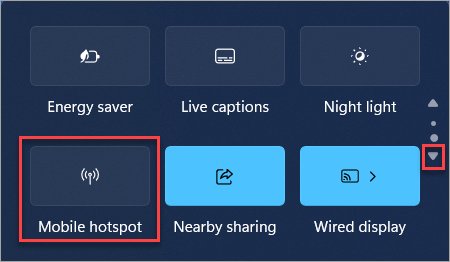
You can also toggle the hotspot from Quick Settings. Select the network, sound or battery icons on the taskbar and find Mobile hotspot, which may sit on the second page of quick actions. Right-click it and select Go to Settings to reach the page above.
Restart network adapters and toggle Airplane mode
Airplane mode turns off every wireless radio, and a disabled Wi-Fi adapter is the most common reason for the "Turn on Wi-Fi" error. Cycling both resets the radio without a full restart.
- Open Settings > Network & internet > Airplane mode, turn it on, wait ten seconds, and turn it off.
- On a laptop with a physical Wi-Fi switch, make sure the switch is in the on position.
- Select Search on the taskbar, type device manager, and open Device Manager.
- Expand Network adapters and right-click your Wi-Fi adapter.
- Select Disable device, confirm, then right-click the adapter again and select Enable device.
- Return to Settings > Network & internet > Mobile hotspot and turn the hotspot on.
Run the Windows network troubleshooter
On Windows 11 the network and internet troubleshooter runs in the Get Help app. It checks the adapter and connection and applies fixes it finds.
- Select Start, type Get Help, and open the app.
- In the search bar, type connect to network and internet.
- Select Run network diagnostics.
- Select Yes if Get Help asks for consent to run diagnostics.
- Follow the prompts until the checks finish, then try the hotspot again.
Update or reinstall Wi-Fi and network drivers
A hotspot that broke after an update often points at the Wi-Fi driver. Before you uninstall anything, download the current network driver from your PC maker's website, because the PC may have no connection afterwards.
- Open Device Manager and expand Network adapters.
- Right-click your Wi-Fi adapter and select Update driver > Search automatically for drivers.
- Also open Settings > Windows Update and select Check for updates, then install what it offers.
- If the hotspot still fails, right-click the Wi-Fi adapter and select Uninstall device.
- Tick Attempt to remove the driver for this device, then select Uninstall.
- Select Start > Power > Restart so Windows reinstalls the adapter.
- If Windows does not reinstall a driver, run the backup driver you saved from the manufacturer's site.
While the adapter is open in Device Manager, check the Power Management tab. Clearing Allow the computer to turn off this device to save power stops Windows switching off the radio that carries the hotspot.
Verify required Windows services are running
Two services matter here. WLAN AutoConfig runs Wi-Fi itself, and Windows Mobile Hotspot Service (icssvc) handles connection sharing. The hotspot service is set to Manual by default, so it starts when needed rather than at boot.
- Press Win + R, type
services.msc, and press Enter. - Find WLAN AutoConfig, right-click it, and select Restart.
- Find Windows Mobile Hotspot Service, double-click it, and check Startup type is not Disabled.
- If it was disabled, set Startup type to Manual and select Apply.
- Select Start if the service is stopped, then select OK.
- Turn the hotspot on again from Settings > Network & internet > Mobile hotspot.
Do the same check for Internet Connection Sharing (ICS) if a cleanup tool or tweak guide changed your services, as its default startup type is also Manual.
Reset TCP/IP and DNS for Windows 11 mobile hotspot
These commands reset the network stack and refresh the PC's own address, which helps when the source connection is unreliable. Run them from an administrator Command Prompt: select Search, type command prompt, and select Run as administrator > Yes.
netsh winsock reset
netsh int ip reset
ipconfig /release
ipconfig /renew
ipconfig /flushdns
Run each line in order and press Enter after each. The first two reset Winsock and TCP/IP, the next two drop and request a fresh IP address, and the last clears the DNS resolver cache.
You should see: Each command reports that it completed. Restart the PC after the netsh resets, then turn the hotspot back on.
Reset network settings in Windows 11
Network reset removes and reinstalls every network adapter and returns their settings to defaults. Use it last, because VPN clients and Hyper-V virtual switches may need setting up again, and known networks may switch to the Public profile.
| Windows version | Path to Network reset | Then |
|---|---|---|
| Windows 11 | Settings > Network & internet > Advanced network settings > Network reset | Select Reset now > Yes and let the PC restart |
| Windows 10 | Settings > Network & Internet > Status > Network reset | Select Reset now > Yes and let the PC restart |
After the restart, reconnect to your Wi-Fi network, then set the hotspot name, password and band again under Properties, since the reset can return them to defaults.
How to check Windows 11 mobile hotspot is working
- Turn on Mobile hotspot in Settings and confirm the toggle stays on.
- On a phone or second laptop, open the Wi-Fi list and confirm your hotspot name appears.
- Join it with the password from Properties or by scanning the QR code.
- Open the Quick Settings panel on the PC and check the Mobile hotspot quick action shows a connected device count.
- Load a website on the connected device to prove traffic passes through the PC.
Mobile hotspot won't turn on or connect in Windows 11
"We can't set up mobile hotspot. Turn on Wi-Fi"
Windows cannot use the Wi-Fi radio because it is off, in Airplane mode, or disabled.
- Turn Wi-Fi on and Airplane mode off from the taskbar network icon.
- Check the laptop's physical Wi-Fi switch.
- In Device Manager > Network adapters, right-click the Wi-Fi adapter and select Enable device if it is offered.
- If the adapter is missing from Network adapters, install the driver from your PC maker's website.
Mobile hotspot greyed out or cannot turn on in Windows 11
Windows has no usable adapter to share over, or a policy prohibits Internet Connection Sharing.
- Confirm Wi-Fi is on and the adapter is enabled, as in the previous fix.
- On a work or school PC, ask your IT admin, because the block is usually set centrally.
- On a personal Windows 11 Pro PC, press Win + R, type
gpedit.msc, and press Enter. - Go to Computer Configuration > Administrative Templates > Network > Network Connections.
- Open Prohibit use of Internet Connection Sharing on your DNS domain network and set it to Not Configured.
- Restart the PC and try the hotspot again.
Mobile hotspot not showing in Windows 11 on the other device
The other device's Wi-Fi does not support the band the hotspot broadcasts on.
- Open Settings > Network & internet > Mobile hotspot > Properties > Edit.
- Change Network band to the 2.4 GHz option, then select Save.
- Turn the hotspot off and on, then refresh the Wi-Fi list on the other device.
Can't connect to mobile hotspot from a phone or laptop
A wrong or changed password, or an old saved profile on the other device.
- Check the password under Properties in the hotspot settings, or scan the QR code instead of typing it.
- On the other device, forget the saved hotspot network and join it again.
- If you changed the band or name recently, turn the hotspot off and on so the new settings apply.
Connected to the hotspot but no internet
The connection Windows is sharing has no internet, or the wrong source is selected.
- Load a website on the PC itself to confirm the source connection works.
- Under Share my internet connection from, select the connection that has internet.
- Run the commands in the TCP/IP and DNS reset section, restart, and turn the hotspot back on.
Sharing over Bluetooth does not connect
The two devices are not paired, or Bluetooth itself is misbehaving.
- Pair the other device with the PC over Bluetooth first.
- Set Share over to Bluetooth and turn the hotspot on.
- If pairing itself fails, the same Bluetooth checks that get AirPods connecting on Windows 11 apply here, then switch back to Wi-Fi sharing if Bluetooth is not required.
Windows 11 mobile hotspot FAQ
Why is mobile hotspot on Windows 11 not working?
The usual causes are Wi-Fi turned off or Airplane mode on, a disabled Wi-Fi adapter, a source connection with no internet, or a band the other device cannot use. Outdated drivers, a stopped hotspot service, or a policy that blocks Internet Connection Sharing cause the rest.
Why can't I set up mobile hotspot in Windows 11?
Windows shows "We can't set up mobile hotspot" when it cannot use the Wi-Fi radio. Turn Wi-Fi on, turn Airplane mode off, check any physical wireless switch, and enable the Wi-Fi adapter in Device Manager under Network adapters.
Why can't my devices connect to my Windows 11 mobile hotspot?
Most connection failures come from a wrong password or an unsupported band. Check the password under Properties in the Mobile hotspot settings, or scan the QR code, and set Network band to the 2.4 GHz option for older phones and laptops.
Why is the mobile hotspot greyed out in Windows 11?
The toggle is greyed out when Windows has no Wi-Fi adapter to share over, or when the Group Policy "Prohibit use of Internet Connection Sharing on your DNS domain network" is enabled. Enable the adapter first, then ask IT or set that policy to Not Configured.
How do I reset my Windows hotspot?
Turn the Mobile hotspot toggle off and on, then edit Properties to set a new name, password and band. For a full reset, open Settings > Network & internet > Advanced network settings > Network reset, select Reset now, and set the hotspot up again after the restart.
Why is mobile hotspot not showing in Windows 11?
If the Mobile hotspot quick action is missing, it may be on the second page of Quick Settings. If the other device cannot see the network, change the hotspot's Network band to one that device supports and turn the hotspot off and on.
Can Windows 11 share its internet over Bluetooth instead of Wi-Fi?
Yes. Under Share over in the Mobile hotspot settings, choose Bluetooth instead of Wi-Fi. The other device must be paired with the PC, and Wi-Fi sharing is usually faster, which is why it is the default.
Does Windows 11 mobile hotspot use my cellular data?
Only when you share a cellular connection. If Share my internet connection from is set to a cellular connection, every connected device uses data from your plan. Sharing Wi-Fi or Ethernet does not touch cellular data.
Bottom line: fixing mobile hotspot in Windows 11
Start with Wi-Fi on, Airplane mode off, the right source under Share my internet connection from, and a 2.4 GHz band, then work through the adapter, driver and service fixes before you reach for Network reset. Most hotspot failures are a radio that is off or a band mismatch, which take seconds to fix, while Network reset removes VPN adapters and resets every network profile.


![How to find word count in Microsoft Word [updated 2026]](https://techdows.com/wp-content/uploads/2026/10/Word-Review-tab-with-the-Word-Count-menu-and-Show-Word-Count-ticked-600x252.jpg)