A Logitech mouse usually stops working because its connection to the receiver or Bluetooth was lost, the batteries are low, or the receiver sits in a USB hub, KVM switch or a port the PC is powering down.
The nine fixes below start with the two-minute port and battery checks, then move to re-pairing, drivers, firmware and a hardware test on Windows 11 and Windows 10.
1. Check the Logitech mouse USB connection and receiver port
Logitech states that its receivers must be plugged directly into the computer. USB hubs and KVM switches are not supported, and moving the receiver to another port or PC can drop the link.
- Unplug the USB receiver, or the cable of a wired mouse, from the computer.
- Wait about 10 seconds so Windows unloads the device driver.
- Plug it straight into a USB port on the computer itself, not into a hub, dock, monitor port or KVM switch.
- If it still does nothing, try a different USB port, and try a USB 2.0 port if you were using a USB 3.0 one.
- On a desktop with the receiver at the back, move it to a front port so the case does not block the signal.
- Check a wired mouse's cable along its length for kinks, cuts or a loose plug.
If the pointer moves again, you are done. If you must use a hub, Microsoft notes it needs its own power supply, but Logitech still recommends a direct port.
Logitech mouse not working: match the symptom to the fix
Logitech's own troubleshooting splits mouse failures by symptom. Find your row and start with that fix.
| What you see | Likely cause | Start with |
|---|---|---|
| Nothing happens and the power LED is off | Dead batteries or the power switch is off | Fix 2 |
| The LED is on but the pointer does not move | Lost link between mouse and receiver or Bluetooth | Fixes 1 and 5 |
| The pointer lags, freezes or stops every few minutes | Radio interference, distance or USB power saving | Fixes 4 and 6 |
| The pointer jitters or jumps | Dirty or cracked sensor lens, or firmware | Fixes 7 and 9 |
| It stopped after you pressed the button underneath | The Easy-Switch channel changed | Fix 5 |
| Device Manager shows a warning on the mouse | Driver problem | Fix 3 |
| It fails on every computer you try | Hardware fault | Fix 9 |
2. Check Logitech mouse batteries and power switch
Low batteries are the first cause Logitech lists for a lost connection, and a low battery can also cause lag and jumpy movement.
- Turn the mouse over and slide the power switch to ON.
- Check the power indicator. On models that have one, it should light green.
- If it stays dark, replace the batteries with brand-new ones, matching the + and – marks.
- For a rechargeable mouse, connect its charging cable and leave it to charge before testing again.
- Turn the mouse off and back on once it has power, then move it to wake it.
Some Bluetooth models, such as the MX Vertical, should have the charging cable unplugged while you pair them over Bluetooth.
3. Update or reinstall Logitech mouse drivers in Device Manager
A damaged or outdated driver can stop the pointer even when the hardware is fine. Reinstalling it makes Windows load the driver again at the next start.
- Save your work and close open apps.
- Right-click the Start button and select Device Manager.
- Expand Mice and other pointing devices and find the Logitech or HID-compliant mouse entry.
- Right-click it and select Update driver, then Search automatically for updated driver software.
- If nothing changes, right-click the same entry, select Uninstall device and confirm with Uninstall.
- Select Start > Power > Restart. Windows reinstalls the driver as it starts.
If Windows does not reinstall the driver after the restart, return to Update driver and select Search for updated drivers on Windows Update.
4. Check Logitech wireless mouse interference and hardware conflicts
Logitech lists radio interference from wireless speakers, PC power supplies, monitors, cell phones and garage door openers as common causes of a mouse that keeps cutting out.
- Keep other electrical devices at least 8 inches (20 cm) away from the receiver.
- Move the mouse closer to the receiver.
- Stop using the wireless mouse on a metal surface; use a desk or a mouse pad instead.
- Unplug any USB hub or KVM switch between the receiver and the PC.
- Move the receiver to another USB port, ideally on the front of a desktop.
- For Bluetooth models, remember that walls, wiring and other radio devices shorten the range.
5. Reset or re-pair a Logitech mouse with Logi Bolt, Unifying or Bluetooth
Re-pairing rebuilds the link Logitech says is usually lost. Pick the route that matches how your mouse connects.
| Connection | How to re-pair | Notes |
|---|---|---|
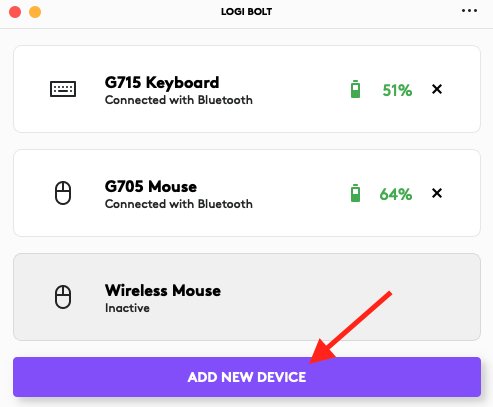
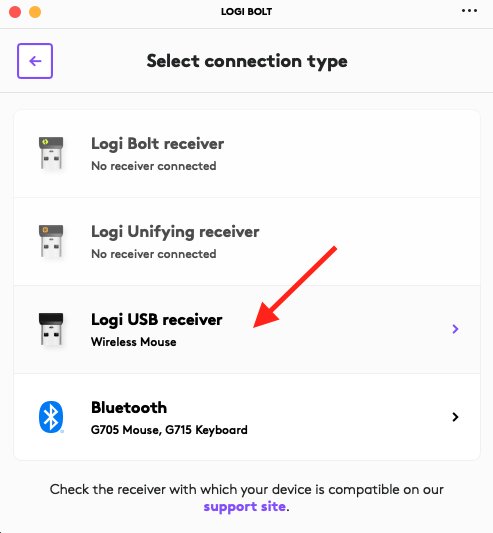
| Logi Bolt or Unifying receiver | Install the Logi Bolt app, click ADD DEVICE, choose Logi USB receiver or Logi Unifying receiver, then follow the on-screen pairing steps | Plug the receiver directly into the PC first |
| Bluetooth, Windows 11 | Open Settings > Bluetooth & devices, select More options (…) > Remove device on the mouse, then Add device and pick it again | Put the mouse in pairing mode before Add device |
| Bluetooth pairing mode with Easy-Switch | Pick a channel with the Easy-Switch button underneath, then hold it for three seconds until the LED blinks rapidly | A slow-blinking LED means the channel is discoverable but not paired |
| Easy-Switch channel changed by accident | Press the Easy-Switch button to return to the channel you first paired | A steady LED means that channel is paired |
| Wireless mouse with a Reset button | Press the Reset button on the bottom of the mouse, or on the receiver if it has one | Microsoft notes this disconnects and reconnects the wireless link |
A non-Unifying receiver cannot be unpaired. Logitech says a replacement receiver can be paired with its Connection Utility software.
6. Adjust Logitech mouse settings in Windows and test the buttons
A mouse that works but behaves oddly is often a setting, not a fault. Windows power saving can also cut off the USB port the receiver uses.
- Select Start > Settings > Bluetooth & devices > Mouse.
- Check Primary mouse button is set to Left if left and right clicks seem swapped.
- Move the Mouse pointer speed slider if the pointer feels too slow or too fast.
- Under Scrolling, check Roll the mouse wheel to scroll and Scrolling direction if the wheel acts wrongly.
- Under Related settings, select Additional mouse settings and test the Double-click speed on the Buttons tab.
- To stop USB power saving, open Control Panel > Hardware and Sound > Power Options > Change plan settings > Change advanced power settings.
- Expand USB settings > USB selective suspend setting, set both values to Disabled and select OK.
7. Update the Windows operating system and Logitech mouse firmware
Logitech ships firmware updates that fix bugs and improve functions, and it lists firmware as a cause of jumping or lagging pointers.
- Select Start > Settings > Windows Update and select Check for updates.
- Let Windows download and install the available updates, and restart if asked.
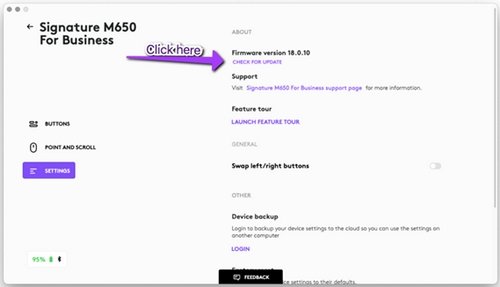
- Open Logi Options+ and select your mouse.
- Click Settings on the left side of the window.
- Under ABOUT, note the firmware version and click CHECK FOR UPDATE.
- Follow the firmware update tool's instructions and keep the mouse powered until it finishes.
Logitech also advises checking that no Windows update is running in the background when the pointer lags.
8. Restart the PC and power cycle the Logitech mouse and receiver
A full restart clears temporary driver and Bluetooth faults. Power cycling the mouse and receiver at the same time forces a fresh handshake.
- Slide the mouse power switch to OFF.
- Unplug the USB receiver from the computer.
- Select Start > Power > Restart.
- After Windows loads, plug the receiver back into a direct USB port.
- Slide the mouse switch to ON and move it to wake it.
9. Test a Logitech mouse for hardware failure
If none of the fixes above work, find out whether the fault is the mouse or the PC. Logitech treats a mouse that fails on every port as a likely defective product.
- Turn the mouse off or unplug it.
- Clean the sensor on the bottom with compressed air or a cotton swab.
- Look at the sensor lens for a crack, which causes jitter or random movement.
- Connect the mouse and its receiver to a different computer.
- If it fails there too, check its warranty and contact Logitech Support.
- If it works on the other computer, return to fixes 3, 6 and 7 on your own PC.
Microsoft makes the same point: a mouse that shows no lights and no pointer on a second PC may need replacing.
How to check your Logitech mouse is working again
- Move the mouse in a slow circle and confirm the pointer follows without jumps or pauses.
- Left-click and right-click on the desktop; right-click should open the context menu.
- Scroll a long web page up and down with the wheel.
- Open Device Manager and confirm the mouse under Mice and other pointing devices has no yellow warning icon.
- For a Bluetooth mouse, check it is listed under Settings > Bluetooth & devices.
- Use the PC normally for 15 minutes to confirm the mouse no longer drops out.
Troubleshoot Logitech mouse not working on a laptop or after it just stopped
Logitech mouse not working on a laptop
The receiver is in a dock or hub, the port is powered down to save battery, or Bluetooth is off.
- Plug the receiver directly into a USB port on the laptop, not into a dock or USB-C hub.
- Set USB selective suspend setting to Disabled as in fix 6.
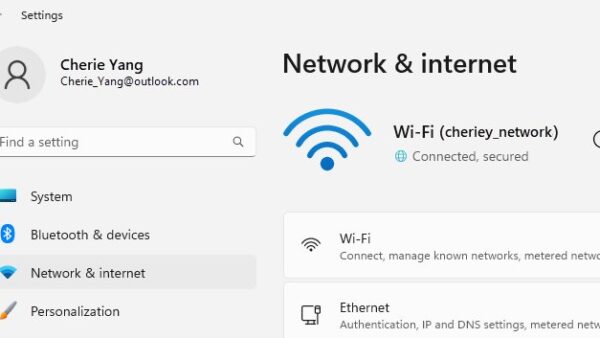
- For Bluetooth models, open Settings > Bluetooth & devices and turn on Bluetooth.
- On Windows 11, run the Bluetooth troubleshooter in the Get Help app.
Logitech mouse just stopped working
Usually dead batteries, a receiver moved to another port, or a changed Easy-Switch channel.
- Fit new batteries or charge the mouse.
- Return the receiver to the port it was in, or a different direct port.
- Press the Easy-Switch button to go back to the channel you paired.
- Re-pair the mouse with the Logi Bolt app or Bluetooth settings.
Logitech mouse not working right: lag, jumping or drifting
Logitech links lag to connection and interference problems, and jumping to firmware or the tracking surface.
- Move the mouse closer to the receiver and move other wireless devices away.
- Clean the sensor and use the mouse on a mouse pad rather than a metal surface.
- Update the firmware from Logi Options+.
- Check that a Windows update is not running in the background.
Logitech mouse isn't working anymore on any computer
A hardware fault in the sensor, circuit board or switch.
- Test it with fresh batteries on a second computer.
- If it still fails, check the warranty and contact Logitech Support.
A laptop's built-in pad has its own fixes; you can fix a touchpad that stops working while you sort out the external mouse.
Additional tips for maintaining your Logitech mouse
Most of these habits come straight from Logitech's own troubleshooting notes, and they stop the common dropouts from coming back.
| Habit | Why it helps |
|---|---|
| Keep the receiver in a direct USB port, ideally a front one | Hubs and KVM switches are not supported, and the case can block the signal |
| Keep wireless speakers, phones and monitors 8 inches (20 cm) from the receiver | These devices cause radio interference |
| Replace batteries before they run flat, or charge regularly | Low power causes lag and lost connections |
| Clean the sensor with compressed air or a cotton swab | Dirt on the lens causes jitter |
| Avoid metal desks without a mouse pad | Metal surfaces weaken the wireless link |
| Check Logi Options+ for firmware updates now and then | Firmware updates fix bugs and add functions |
If another pointing device on the same PC also misbehaves, a broader fix for a mouse that isn't working covers non-Logitech models too.
Logitech mouse not working FAQ
Why is my Logitech mouse not working on my laptop?
The most common reasons are a receiver plugged into a dock or hub, a USB port the laptop powers down to save energy, or Bluetooth being off. Plug the receiver straight into the laptop, disable USB selective suspend, and check Bluetooth in Settings.
Why did my Logitech mouse just stop working?
Logitech says a mouse that suddenly stops has usually lost its connection. Low batteries, moving the receiver to another port or PC, radio interference and metal surfaces all break the link. Fit fresh batteries, plug the receiver in directly, then re-pair the mouse.
How do I reset a Logitech wireless mouse?
Turn it off and on, then re-pair it. Use the Logi Bolt app's ADD DEVICE option for a receiver, or remove and re-add it in Windows Bluetooth settings. Some wireless mice also have a Reset button on the bottom.
Can I plug a Logitech receiver into a USB hub?
Logitech does not support it. Its support pages state the receiver must be plugged directly into the computer, and that USB hubs and KVM switches are not supported. A direct front port gives the most reliable connection.
Why is my Logitech mouse lagging or jumping?
Logitech links lag to connection and interference problems and jumping to firmware or the tracking surface. Move the mouse closer to the receiver, keep other wireless devices 8 inches away, clean the sensor and update the firmware in Logi Options+.
How do I update my Logitech mouse firmware?
Open Logi Options+, select the mouse and click Settings on the left. Under ABOUT, click CHECK FOR UPDATE, and the firmware update tool shows whether an update is available. Follow its instructions and keep the mouse powered.
How do I know if my Logitech mouse is broken?
Test it with fresh batteries on a different computer. If it shows no lights and the pointer does not move on a second PC either, the mouse is likely faulty. Check the warranty and contact Logitech Support.
Why does my Logitech Bluetooth mouse not connect?
It must be in pairing mode and within range. Hold the Easy-Switch button for three seconds until the LED blinks rapidly, then select Add device in Settings > Bluetooth & devices. Some models need Bluetooth Low Energy support on the PC.
Bottom line: how to fix a Logitech mouse that is not working
Start with fresh batteries and a direct USB port, then re-pair the mouse with the Logi Bolt app or Bluetooth settings. Logitech identifies a lost connection as the usual cause, and those three steps restore it in most cases; drivers, firmware and a second-PC test cover the rest.