Mail Drop is an Apple iCloud feature that uploads email attachments too large for your mail provider, up to 5 GB per message, and delivers them to the recipient as a download link that lasts 30 days.
This guide explains how Mail Drop works, its limits, how to send files with it from Mail on iPhone, Mail on Mac and iCloud.com on a Windows PC, and what to do when it fails.
How to send a large attachment with Mail Drop
You do not open Mail Drop as a separate app. It appears when an attachment is bigger than your email account allows, and Mail offers to send it through iCloud instead.
- Write a new message in Mail on your iPhone or Mac, or in Mail on iCloud.com in a browser.
- Attach the large file as you would any other attachment.
- Select Send.
- When Mail asks whether to deliver the attachment with Mail Drop, accept the prompt.
- Wait for the upload to finish. The recipient gets the message with the attachment or a Mail Drop link, valid for 30 days.
Mail Drop on iPhone, Mac or PC: which one to use
| Your situation | Use this | Why |
|---|---|---|
| The video or file is on your iPhone or iPad | Mail app on iPhone | Mail offers Mail Drop on screen when the file exceeds your account's limit |
| The file is on a Mac and you use Gmail, Outlook.com or another provider in Mail | Mail on Mac with Send large attachments with Mail Drop turned on | Works with non-iCloud accounts as long as you are signed in to your Apple Account |
| You are on a Windows PC or a Chromebook | Mail on iCloud.com in a browser | Apple supports Mail Drop from icloud.com/mail on a Mac or PC with an up-to-date browser |
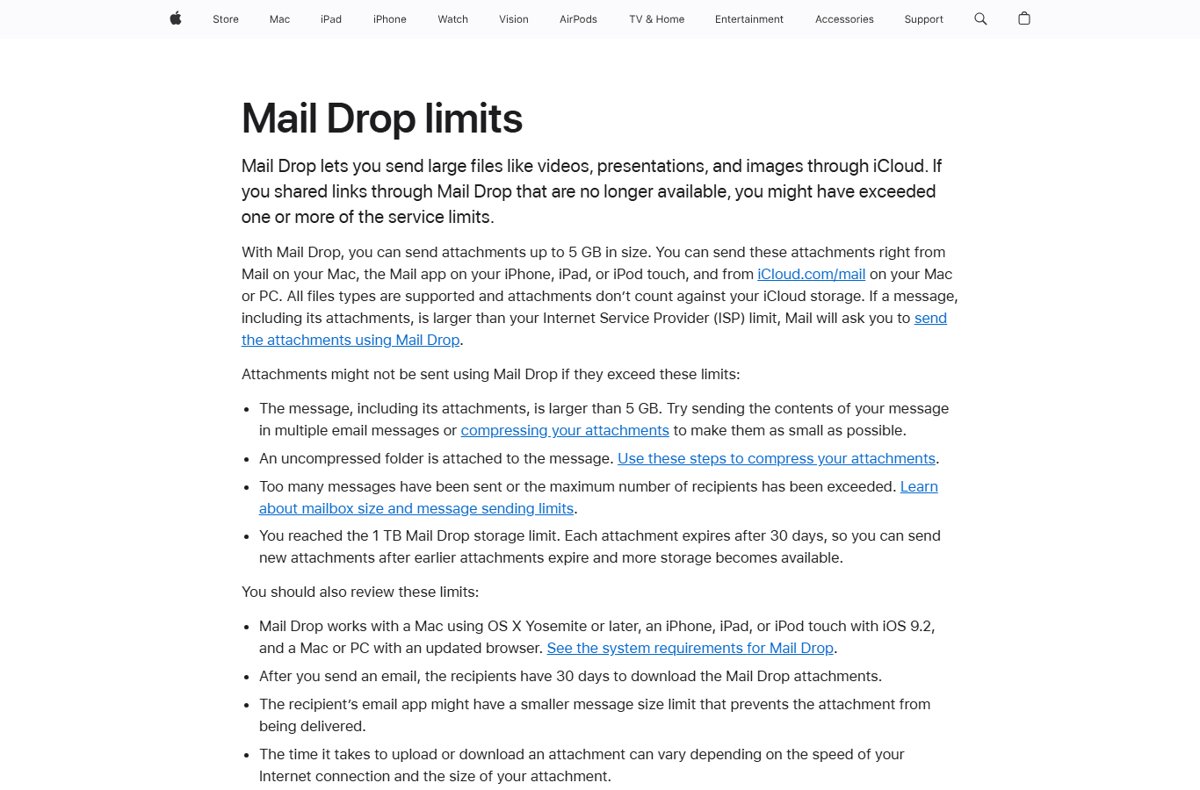
| The file is over 5 GB | Split it across several emails or compress it | 5 GB is the maximum for one message, attachments included |
Mail Drop requirements for iPhone, Mac and Windows PC
| Device | Minimum requirement | Account needed |
|---|---|---|
| iPhone, iPad, iPod touch | iOS 9.2 or later | An email account set up in the Mail app |
| Mac | OS X Yosemite or later | Signed in to your Apple Account; Mail Drop then works with iCloud and other mail accounts |
| Windows PC or Mac browser | An up-to-date web browser | An Apple Account with iCloud Mail, used at icloud.com/mail |
How to use Mail Drop on iPhone
The iPhone Mail app does not have a Mail Drop switch. It offers Mail Drop on its own once a file passes the size your email account accepts.
- Open the Mail app and start a new message.
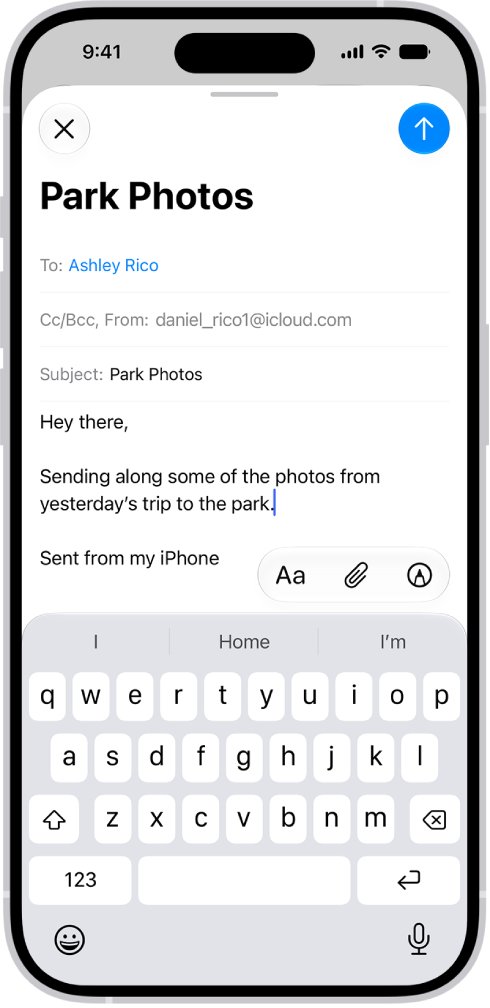
- Tap in the message body where the attachment should go, then tap the attachment button above the keyboard.
- Tap Attach File to pick a document in Files, or Photo Library to pick a photo or video.
- Add the recipient and subject, then tap send.
- When Mail says the attachment is too large, follow the onscreen prompt to send it using Mail Drop.
- Keep Mail open on a stable Wi-Fi connection until the upload completes.
Large videos are the most common reason to see the prompt, since iCloud Mail itself caps normal messages at 20 MB.
How to use Mail Drop on Mac
With an iCloud account, Mail on Mac uses Mail Drop automatically when you are signed in to iCloud and click Send. For Gmail, Outlook.com or another provider, turn the option on per account first.
- Open Mail and choose Mail > Settings.
- Click Accounts, select the non-iCloud account, then click Account Information.
- Select Send large attachments with Mail Drop and close the window.
- Start a new message, click the Attach button in the toolbar, choose Attach Files, select the file and click Choose File. You can also drag the file from Finder into the message.
- Click Send. If Mail asks whether to use Mail Drop, confirm. Select Don't ask again for this account to stop the prompt.
Compress a folder before you attach it: Control-click it in Finder and choose Compress to create a .zip file.
How to use Mail Drop on PC with iCloud.com
On a Windows PC, Apple supports Mail Drop through iCloud Mail in a web browser. Turn the setting on once, then attach files as usual.
- Go to icloud.com/mail and sign in to your Apple Account.
- Select the Settings button at the top of the Mailboxes list, then choose Settings.
- Select Composing in the sidebar, then turn on Use Mail Drop when sending large attachments.
- Write a new email and select the Attach button in the top-right corner of the message window, or drag the file into the email.
- Choose the file from your PC, iCloud Drive or iCloud Photos, then select Open, Attach or Add.
- Send the email. If Mail asks whether to deliver the attachments using Mail Drop, accept.
To zip a folder first on Windows 11 or Windows 10, right-click it and choose Show more options > Send to > Compressed (zipped) folder.
How to get a file from a Mail Drop email
Depending on the recipient's email app, the file shows as an attachment or as a Mail Drop link. Either way, the download comes from iCloud.
- Open the email that contains the Mail Drop attachment or link.
- Select the link or the attachment to start the download from iCloud.
- Save the file to your device before 30 days pass from the date it was sent.
- If the link has expired, ask the sender to send the file again with a new Mail Drop.
How to check that a Mail Drop email was delivered
- Send a small test Mail Drop to a second address you own, such as a Gmail or Outlook.com account.
- Open the message there and confirm it shows the attachment or a Mail Drop link.
- Select the link and confirm the file downloads and opens.
- Check your Outbox on the sending device: an empty Outbox means the message left Mail.
What is Mail Drop and how does it work?
Mail Drop sends large files such as videos, presentations and images through iCloud rather than through your email provider's servers. The file is uploaded to iCloud, encrypted, and stored for up to 30 days.
| Stage | What happens |
|---|---|
| You attach a file | Mail checks the message size against your provider's limit |
| The message is too large | Mail asks whether to send the attachments with Mail Drop, or uses it automatically for iCloud on Mac |
| You send | The attachment uploads to iCloud and is encrypted there |
| The recipient opens the email | They see an attachment or a Mail Drop link and download the file from iCloud |
| 30 days later | The file expires and the link stops working |
Key features of Mail Drop: size limit, expiry and storage
| Feature | Mail Drop | Normal iCloud Mail |
|---|---|---|
| Maximum message size | 5 GB, attachments included | 20 MB |
| How long the recipient can download | 30 days | No expiry; the file sits in the email |
| Counts against iCloud storage | No | Yes, as part of your mailbox |
| Total storage cap | 1 TB of Mail Drop attachments; space frees as older ones expire | Your iCloud plan, 5 GB free |
| File types | All file types | All file types |
| Remove a file after sending | Not possible | Not applicable |
Best practices for using Mail Drop
| Practice | Reason |
|---|---|
| Compress folders into a .zip before attaching | Mail Drop will not send an uncompressed folder |
| Keep each message under 5 GB, or split the content across several emails | 5 GB is the hard ceiling per message |
| Send over a fast, stable connection | Upload and download times depend on connection speed and file size |
| Tell the recipient to download within 30 days | Each attachment expires after 30 days |
| Double-check the file before you send | You cannot remove a file once it has been sent with Mail Drop |
| Avoid posting one Mail Drop link to a large audience | A link with an excessive number of downloads or heavy traffic may stop working for recipients |
Why is Mail Drop not working? Troubleshooting common issues
Mail Drop will not send the attachment
The message is over 5 GB, or it contains an uncompressed folder.
- Check the total size of all attachments in the message.
- Compress any attached folder into a .zip file and attach that instead.
- If the total is still above 5 GB, split the files across several emails.
Mail on Mac never offers Mail Drop for a Gmail or Outlook.com account
The account option is off, or Mail is not signed in to your Apple Account.
- Confirm you are signed in to your Apple Account on the Mac.
- Choose Mail > Settings > Accounts, select the account and click Account Information.
- Select Send large attachments with Mail Drop, then send the message again.
iCloud.com sends the large file as a normal attachment and it fails
The iCloud.com Mail setting for Mail Drop is turned off.
- On icloud.com/mail, select the Settings button above the Mailboxes list and choose Settings.
- Select Composing and turn on Use Mail Drop when sending large attachments.
- Attach the file again and send.
Sending fails with a sending limit message
iCloud Mail limits you to 1,000 messages and 1,000 recipients a day, and 500 recipients per message.
- Open your Outbox and resend or delete any stuck messages.
- Reduce the recipient list below 500 for one message.
- Wait until the next day if you have hit the daily total.
Mail Drop stopped working after many large sends
The 1 TB Mail Drop storage limit has been reached.
- Wait for older Mail Drop attachments to expire after their 30 days.
- Send new files once that space frees up.
The recipient cannot open or download the Mail Drop link
The link has passed 30 days, has had too many downloads, or the recipient's mail service rejected the message for size.
- Check the send date. After 30 days, send the file again.
- If many people downloaded the link, send a fresh Mail Drop to the recipient directly.
- If the email bounced, the recipient's provider has a smaller size limit. Ask for another address or split the files.
Mail Drop FAQ
What is Mail Drop and how does it work?
Mail Drop is an iCloud feature that uploads attachments too big for your email provider to iCloud, encrypted, and sends the recipient a download link or attachment. Files can be up to 5 GB per message, and the recipient has 30 days to download them.
What is a Mail Drop on email?
A Mail Drop on email is an attachment stored in iCloud instead of inside the message. The email carries a link or attachment that downloads the file from Apple's servers. It is a feature of Apple Mail and iCloud Mail, not a separate email service.
How do I send a Mail Drop?
Attach a large file in Mail on iPhone, Mail on Mac, or Mail on iCloud.com, then send. When the file exceeds your provider's size limit, Mail asks whether to deliver it with Mail Drop. Accept the prompt and wait for the upload to finish.
How do I get mail from Mail Drop?
Open the email and select the Mail Drop link or attachment to download the file from iCloud. Save it to your device within 30 days of the send date. After that the file expires and the sender must send it again.
Why is Mail Drop not working?
The usual causes are a message over 5 GB, an uncompressed folder in the attachments, an exceeded iCloud sending limit, or the 1 TB Mail Drop storage limit. On a Mac, the account option Send large attachments with Mail Drop may also be off.
Can I use Mail Drop with Gmail?
Yes. Add your Gmail account to Mail on Mac or iPhone. On a Mac, turn on Send large attachments with Mail Drop in that account's Account Information settings and stay signed in to your Apple Account. On iPhone, Mail offers Mail Drop when the file is too large.
Does Mail Drop use my iCloud storage?
No. Attachments sent with Mail Drop do not count against your iCloud storage. They count toward a separate 1 TB Mail Drop limit, and that space frees up as each attachment expires after 30 days.
How big a file can Mail Drop send?
Mail Drop sends attachments up to 5 GB, and the whole message including attachments cannot exceed 5 GB. Without Mail Drop, iCloud Mail messages are limited to 20 MB. All file types are supported.
Can I delete a file after sending it with Mail Drop?
No. Apple states that files already sent with Mail Drop cannot be removed. You can only remove an attachment before you send the email. The file stays available to the recipient until it expires after 30 days.
Should you use Mail Drop for large files?
Use Mail Drop for one-off files between 20 MB and 5 GB that a recipient needs within a month, from Mail on iPhone or Mac, or from iCloud.com on a Windows PC. It needs no extra app, works with non-iCloud mail accounts on a Mac, and does not touch your iCloud storage. Its one hard catch is the 30-day expiry, so it suits handing a file over, not keeping it shared.

![Here’s list of all apps and games from Google’s Play Pass subscription [constantly updated]](https://techdows.com/wp-content/uploads/2026/10/Google-Play-Pass-sign-up-page-with-game-and-app-icons-above-600x338.jpg)