To use Google Calendar as a planner, create a separate calendar for each area of your life, block time for every task as an event, and keep undated to-dos in Google Tasks so they show beside your schedule.
This guide covers daily and weekly planning, colors and views, Tasks and Keep, focus time, appointment schedules, family and work setups, and fixes for missing reminders.
How to use Google Calendar as a planner: the quick setup
This setup takes about ten minutes in a browser on your computer. Some steps, such as creating new calendars, only work on the web.
- Go to calendar.google.com and sign in to your Google Account.
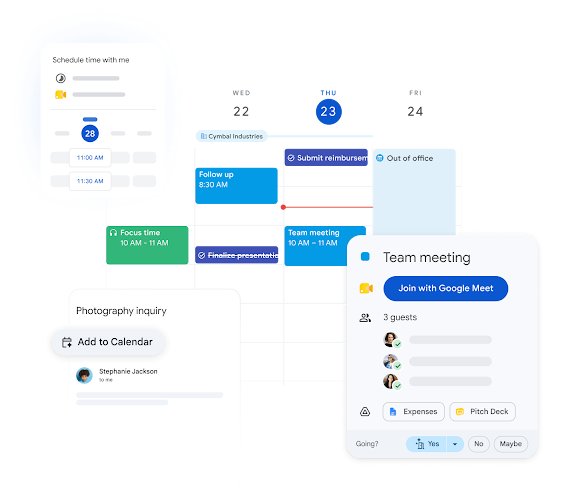
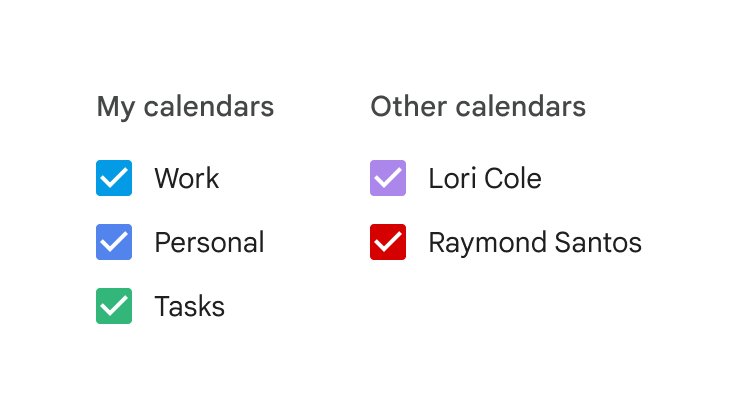
- On the left, next to Other calendars, click Add other calendars and then Create new calendar. Make one each for areas such as Work, Study, Health and Home.
- Click an empty time slot, type a task title such as "Write report draft", pick the matching calendar and click Save.
- Click Create at the top left, select Task, add a date for a to-do that has no fixed time, and click Save.
- Switch to Week view at the top right to see your plan for the next seven days.
- Open Settings menu > Settings > Notification settings and make sure Notifications is set to how you want reminders delivered.
That is a working planner. The sections below turn it into a daily routine, a weekly review and a long-range goal tracker.
Getting started with Google Calendar for planning
Google Calendar runs in a browser on a computer and as an app on Android and iPhone. There is no Windows program to install, although you can put Google Calendar on the Windows desktop as a shortcut or app window.
| What you need | Details |
|---|---|
| A Google Account | A free personal account covers events, tasks, calendars, sharing and appointment schedules |
| A supported browser | Chrome, Firefox, Safari or Microsoft Edge, kept up to date, with JavaScript and cookies turned on |
| The web address | calendar.google.com, then sign in |
| A computer for setup | New calendars and appointment schedules can only be created from a browser, not the phone app |
| A work or school account (optional) | Needed for working hours, focus time, Time Insights and labels |
If you want a separate window on a PC rather than a browser tab, you can install Google Calendar on Windows as a web app.
Basic features of Google Calendar for planning
Each planning job maps to one Calendar feature. Knowing which one to reach for keeps the planner tidy.
| Feature | Planning use | Key detail |
|---|---|---|
| Events | Time blocks for work, classes, workouts and appointments | Drag down while selecting a slot to make the block longer |
| Quick create | Type "Tennis practice at 5pm" in a date box | Calendar reads the time from the text; Shift + C opens quick create |
| All-day events | Deadlines, trips and themed days | Shown at the top of the day, not in the time grid |
| Repeating events | Routines such as a daily planning slot or weekly review | Set with the Does not repeat drop-down; up to 730 occurrences |
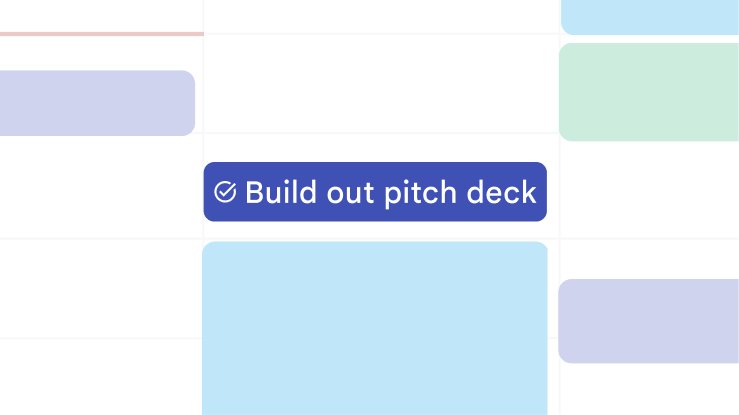
| Tasks | To-dos with a date, a deadline or subtasks | Dated tasks show on the calendar; untimed ones notify at 9 AM |
| Multiple calendars | Separate life areas you can show or hide | Created from the browser; you become the owner |
| Notifications | Reminders by alert, desktop pop-up or email | Set for all events, per calendar or per event |
Using Google Calendar as a daily planner
A daily planner in Calendar works best as time blocking: every task you mean to do today gets a slot on the grid. Plan the day the evening before or first thing in the morning.
- Press 1 or D (with keyboard shortcuts on), or select Day at the top right, to open today in Day view.
- Create a repeating 15-minute event called "Plan the day" at the same time each morning, using the Does not repeat drop-down set to Daily.
- Click each empty slot and add a block for your top priorities first, then meetings, then admin work.
- Assign each block to its calendar, such as Work or Study, so the colors show where the day goes.
- Add short to-dos that do not need a slot as Tasks with today's date.
- Click Complete next to a task as you finish it, and drag any block you missed to a free slot later in the day or week.
Leave empty gaps between blocks. A schedule packed edge to edge breaks the first time a meeting overruns.
Planning weekly and monthly goals in Google Calendar
Goals need a home that is visible beyond today. Use all-day events for milestones and a recurring review slot to move them forward.
- Create a calendar named "Goals" so milestones stay separate from daily blocks.
- Click Create, tick All day, and add each milestone or deadline on its due date in the Goals calendar.
- Add a repeating weekly event, such as Sunday at 6 PM, called "Weekly review", with the repeat set to Weekly.
- During the review, switch to Week view and block time for the steps that move each goal forward.
- On the first day of each month, switch to Month or Year view to check upcoming milestones and spread the work across the weeks.
- Add larger goals as Tasks with subtasks, using Task options > Add a subtask for each step.
Customizing Google Calendar for effective planning
A planner is only useful if you can read it at a glance. These settings control what you see and how dense it looks.
| What to change | Where | Planning effect |
|---|---|---|
| Default view | Top right: Day, Week, Month, Year, Schedule or 4 days | The view you pick becomes the default until you change it |
| Week start day and custom view | Settings > View options | Start the week on Monday or set a custom number of days |
| Calendar color | Options next to the calendar name > pick a color or Add custom color | Each life area gets its own color |
| Single event color | Right-click the event and choose a color | Flag high-priority blocks; others see it only with edit permission |
| Color set and density | Settings > Appearance | Modern or Classic text; Responsive, Comfortable or Compact spacing |
| Hide a calendar | Options > Hide from list | Remove areas you do not plan with today |
| Notification timing | Settings for my calendars > calendar > Event notifications | Set a different reminder lead time per calendar |
The Modern and Classic color sets only appear when the Calendar background is set to Light.
Enhancing planning with Google Tasks and Keep
Google Tasks holds to-dos with dates, deadlines, repeats and subtasks, and dated tasks appear on your calendar. Google Keep holds notes and checklists in the side panel next to your schedule.
- In Google Calendar, click Show side panel at the bottom right if the panel is hidden.
- Click Tasks on the right, click the Down arrow at the top and select Create a new list for each project.
- Click Add a task, enter the to-do, then click Edit to add details or a date and time.
- Drag a task in the list to reorder your priorities.
- Click Keep in the same side panel and choose Take a note or New list for meeting notes, ideas or a shopping list, then click Done.
- Press Ctrl + Alt + . on Windows to jump to the side panel when keyboard shortcuts are turned on.
Tasks with a time send a notification at that time. Tasks with only a date notify at 9 AM.
Advanced Google Calendar features for better planning
Several of the most useful planning features need a Google Workspace work or school account. Check the account column before you look for them.
| Feature | What it does | Account needed |
|---|---|---|
| Focus time | Blocks time, mutes Chat notifications and can automatically decline meetings; created from Day or Week view | Workspace Business Standard or Plus, Enterprise, Education or Nonprofits |
| Working hours | Tells people when you are unavailable for meetings | Work or school account |
| Out of office | Declines meetings during the time off, and can repeat | Work or school account |
| Time Insights | Opens from More insights and shows time breakdown, time in meetings and people you meet with | Work or school account, on a computer |
| Labels | Tag events and track them in Time Insights; up to 200 labels | Work or school account |
| Appointment schedules | A booking page where others reserve slots | Personal or Workspace; some features need Workspace or Google One |
| Offline calendar | View the last 4 weeks and all future events without internet in Chrome | Any account |
Offline mode is read-only: you cannot create or edit events or open Tasks until you reconnect.
How to schedule focus time in Google Calendar
Focus time is the strongest time-blocking tool for eligible work and school accounts, because it can decline meetings for you.
- Open Google Calendar in Day or Week view.
- Click the time you want to protect.
- At the top of the event, click Focus time.
- Select the start and end time.
- Keep Do not disturb checked to mute Chat notifications, and check Automatically decline meetings.
- Click Save, then use Does not repeat in the event editor to make it a daily or weekly block.
Integrating Google Calendar with other tools for unified planning
Calendar shares a side panel with Gmail, Drive, Docs, Sheets and Slides, so your plan stays one click away from the work itself.
- In Gmail, open an email that needs action and click Add to Tasks at the top to turn it into a task.
- For an email about a meeting or deadline, click More above the message and select Create event. Calendar opens with the subject and text copied in.
- In Docs, Sheets or Slides, click Show side panel and then Google Calendar to check or add events without leaving the file.
- To connect tools such as Asana or Trello, click Get Add-ons in the side panel, select the tool and click Install.
- Share a project calendar with teammates from Settings and sharing > Shared with > Add people and groups, then click Send.
Before you rely on one calendar for everything, you can export your Google data with Takeout to keep a backup copy.
How to use Google Calendar as a family planner
When you create a family group on Google, a calendar called "Family" is added automatically. Every family member can see and edit its events on any signed-in device.
- Set up a family group on Google if you do not have one, and invite the household.
- Open Google Calendar and create an event.
- Next to Calendars, open the drop-down and select the family calendar.
- Add the title, time and details, invite non-family members if needed, and click Save.
- To be reminded of family events, find the family calendar under My calendars, click Options > Settings > Event notifications and click Add notification.
You do not get notifications when another family member creates, edits or deletes a family event, so check the family calendar during your weekly review.
Use Google Calendar as a booking system with appointment schedules
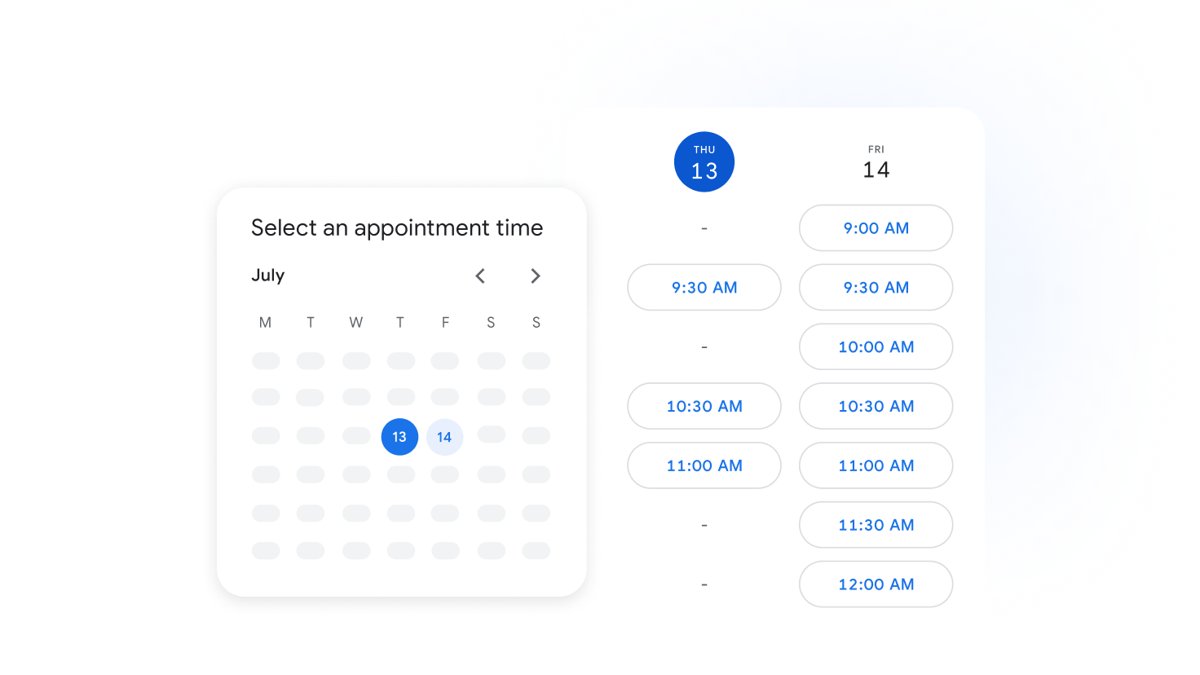
An appointment schedule gives you a booking page where clients, students or colleagues pick a free slot. You set it up on a computer; the phone apps cannot create one.
- Open Google Calendar on a computer and click Create at the top left.
- Select Appointment schedule.
- Add a title, choose the Appointment duration, and set your General availability.
- Under Booked appointment settings, add buffer time and a maximum number of bookings per day.
- Under Calendars, select Check calendars for availability to avoid double-booking, then click Next.
- Choose the location or Google Meet option, add a description, and click Save.
By default, people must book at least 4 hours ahead, so a booking page checked straight after setup may show no slots for today.
Best practices for using Google Calendar as a planner
| Practice | How to apply it in Calendar |
|---|---|
| Plan in one place | Put fixed commitments, focus blocks and dated to-dos in the same calendar view instead of a separate paper list |
| One calendar per life area | Work, Study, Health and Home calendars can be hidden or shown in one click |
| Block the important work first | Add priority blocks before you accept meetings for the week |
| Leave buffers | Keep 10 to 15 minutes between blocks, or add buffer time to appointment schedules |
| Review weekly | A repeating weekly event keeps goals, tasks and the next week's blocks in sync |
| Keep reminders meaningful | Set notifications per calendar so routine blocks stay quiet and deadlines alert you |
| Clear finished tasks | Use List options > Delete all completed tasks to keep lists short |
Tips for maximizing productivity with Google Calendar keyboard shortcuts
Turn shortcuts on in Settings by checking Enable keyboard shortcuts and clicking Save. Press ? at any time to list them all.
| Shortcut | Action |
|---|---|
| c | Create a new event |
| t | Jump to today |
| g | Go to a specific date |
| 1 or d / 2 or w / 3 or m | Day, Week or Month view |
| 4 or x | Custom view |
| 5 or a | Agenda (Schedule) view |
| j or n | Move to the next date range |
| / | Search your calendar |
| z | Undo |
| Ctrl + s | Save an event from its details page |
How to use Google Calendar as a student planner
A student setup works best with classes as fixed repeating events and study time as movable blocks around them.
| Planner element | Calendar setup |
|---|---|
| Class timetable | One repeating event per class on a Classes calendar, ending on the last day of term |
| Assignment due dates | All-day events on a Deadlines calendar, plus a task with subtasks for each stage |
| Study sessions | Time blocks on a Study calendar, two or three days before each deadline |
| Exams | All-day events with an email notification a week before |
| Group projects | A shared calendar with project members, set to Make changes to events |
| Weekly review | A repeating Sunday block to move unfinished tasks and plan next week |
How to use Google Calendar for work as a professional planner
At work, Calendar has to balance meetings that others add with the deep work you need to protect.
| Planner element | Calendar setup |
|---|---|
| Availability | Set Working hours so colleagues see when you cannot meet |
| Deep work | Repeating focus time blocks with Automatically decline meetings on |
| Inbox actions | Turn emails into tasks with Add to Tasks and into events with Create event |
| Client meetings | An appointment schedule booking page with buffer time |
| Time off | An Out of office event that declines meetings during that time |
| Monthly review | Time Insights and labels to see where meeting time goes |
How to check your Google Calendar planner is working
- Switch to Schedule view and confirm today's blocks and dated tasks appear in order.
- Create a test event 15 minutes ahead with a 10-minute notification, keep Calendar open, and confirm the alert appears.
- Open the Google Calendar app on your phone and check that the new calendars and events are listed there.
- Hide one calendar with Options > Hide from list and confirm its events disappear, then show it again from Settings.
- Mark a test task complete and confirm it is shown as completed in the Tasks panel.
Google Calendar planner not working: reminders, loading and missing features
Google Calendar reminders do not appear on the computer
Notifications are off, the browser blocks calendar.google.com, or the Calendar tab is closed.
- Open Settings menu > Settings > Notification settings and use the Notifications drop-down to choose how reminders reach you.
- In Chrome, open More > Settings > Privacy and security > Site settings > Notifications.
- Next to Allowed to send notifications, click Add, enter calendar.google.com and click Add.
- Keep Google Calendar open in a browser tab while you work.
Google Calendar not loading in the browser
JavaScript or cookies are off, or the browser is out of date.
- Turn on JavaScript and cookies for the browser.
- Update Chrome, Firefox, Safari or Microsoft Edge to the latest version.
- If several Google accounts are signed in, open a private window and sign in to the one that owns the calendar.
Tasks do not show on the calendar
The task has no date, or Tasks is turned off by the admin on a work account.
- Open the task in the Tasks panel and click Edit to add a date.
- On a work or school account, ask your administrator whether Tasks is enabled.
- If you are offline, reconnect, because tasks cannot be opened in offline mode.
Focus time, working hours or Time Insights option is missing
These need an eligible work or school account, and the admin can turn them off.
- Check that you are signed in to your work or school account, not a personal account.
- For focus time, switch to Day or Week view before you click a time slot.
- Ask your administrator to turn the feature on for your organization.
Google Calendar planner FAQ
How do I use Google Calendar as a daily planner?
Open Day view each morning and add a time block for every task you plan to do, starting with your priorities. Put short to-dos in Google Tasks with today's date, and mark them complete as you go. A repeating 15-minute planning event keeps the habit going.
How do I use Google Calendar tasks?
Click an empty slot or Create, select Task, add a title and date, and click Save. Tasks with a date appear on the calendar, and you can add details, deadlines, repeats and subtasks. The Tasks icon in the side panel shows all your lists.
How do I use Google Calendar as a family calendar?
Create a family group on Google, and a calendar called "Family" is added for everyone in it. Choose that calendar when you create an event, and every member can see and edit it. You can also share it with people outside the family from the calendar's settings.
Can I use Google Calendar as a booking system?
Yes. Create an appointment schedule from Create > Appointment schedule on a computer. It gives you a booking page where people pick a free slot, with buffer time, daily limits and calendar conflict checks. Some advanced options need a Google Workspace or Google One subscription.
How do I use Google Calendar effectively for work?
Set working hours, protect deep work with repeating focus time blocks, and turn emails into tasks or events from Gmail. Use separate calendars per project and a weekly review to plan the next week. Time Insights shows how much time meetings take.
How do I use Google Calendar on my phone?
Install the Google Calendar app on Android or iPhone and sign in with the same Google Account. Your events, calendars and dated tasks sync automatically. Create new calendars and appointment schedules from a computer, because the app cannot create them.
How do I use Google Calendar on a PC?
Open calendar.google.com in Chrome, Edge, Firefox or Safari and sign in. Google does not offer a Windows program, but you can turn on offline mode in Chrome to view your calendar without internet. Keyboard shortcuts make planning faster on a PC.
How do I get to Google Calendar?
Go to calendar.google.com in a web browser and sign in to your Google Account. You can also open it from the side panel in Gmail, Drive and Docs by clicking the Calendar icon.
Can I use Google Calendar offline?
Yes, in Chrome. Open Settings > Offline, click Turn on offline calendar and wait for Ready for offline. Offline, you can view the last 4 weeks and all future events, but you cannot create or edit events or open tasks.
Is Google Calendar good as a planner?
Yes, for most people who plan on a computer and phone. It is free, syncs across devices, and combines events, tasks, reminders and sharing in one view. It lacks a dedicated journal or habit tracker, so long notes are better kept in Google Keep.
Conclusion: is Google Calendar a good planning partner?
Use Google Calendar as your main planner if you already use a Google Account, with one calendar per life area, daily time blocks, dated tasks and a weekly review. It keeps commitments, to-dos and reminders in one synced view across computer and phone at no cost, and work accounts add focus time and Time Insights to protect your time.


![How to find word count in Microsoft Word [updated 2026]](https://techdows.com/wp-content/uploads/2026/10/Word-Review-tab-with-the-Word-Count-menu-and-Show-Word-Count-ticked-600x252.jpg)