Press Ctrl + Tab to switch to the next tab and Ctrl + Shift + Tab to switch to the previous one in Chrome, Edge, Opera and Safari.
This guide gives the exact keys for each browser on Windows and Mac, the tab shortcuts in File Explorer and Windows Terminal, how to set your own shortcut, and fixes for when the keys do nothing.
Change tab keyboard shortcut: Ctrl + Tab and Ctrl + Shift + Tab
These two shortcuts are the basic method for switching between browser tabs. They move one tab at a time and need no setup.
- Click anywhere on the current webpage so the browser window has focus.
- Hold Ctrl and press Tab to move one tab to the right.
- Keep holding Ctrl and press Tab again for each further tab.
- Hold Ctrl + Shift and press Tab to move one tab to the left.
- In Chrome and Edge, use Ctrl + Page Down and Ctrl + Page Up if you prefer keys that point in a direction.
Ctrl + Page Down and Ctrl + Page Up do exactly the same job as Ctrl + Tab and Ctrl + Shift + Tab in Chrome and Edge.
Shortcut keys for switching tabs in different browsers
Every major browser supports a next-tab key, a previous-tab key and a number shortcut. Match your browser and system to a row.
| Browser | Next tab | Previous tab | Jump to tab 1-8 / last tab |
|---|---|---|---|
| Google Chrome on Windows | Ctrl + Tab or Ctrl + Page Down | Ctrl + Shift + Tab or Ctrl + Page Up | Ctrl + 1 to 8 / Ctrl + 9 |
| Google Chrome on Mac | Command + Option + Right arrow | Command + Option + Left arrow | Command + 1 to 8 / Command + 9 |
| Microsoft Edge on Windows | Ctrl + Tab or Ctrl + Page Down | Ctrl + Shift + Tab or Ctrl + Page Up | Ctrl + 1 to 8 / Ctrl + 9 |
| Opera on Windows and Mac | Ctrl + Tab | Shift + Ctrl + Tab | Ctrl + ` returns to the previous active tab |
| Mozilla Firefox on Windows | Ctrl + Tab | See the Firefox section | Ctrl + 1 to 8 / Ctrl + 9 |
| Safari on Mac | Control + Tab or Shift + Command + ] | Control + Shift + Tab or Shift + Command + [ | Command + 1 to 8 / Command + 9 |
Keyboard navigation and tabs: the Tab key vs browser tabs
The word "tab" covers two different things on a keyboard. The Tab key on its own moves focus inside a page, while Ctrl + Tab moves between whole tabs.
| What you want to move between | Keys | Where it works |
|---|---|---|
| Open tabs in a browser | Ctrl + Tab / Ctrl + Shift + Tab | Chrome, Edge, Opera, Safari; Ctrl + Tab in Firefox |
| Links, buttons and form fields on a page | Tab / Shift + Tab | Every browser; on a Mac, Safari also uses Option + Tab |
| Tabs inside a Windows dialog box | Ctrl + Tab / Ctrl + Shift + Tab | System dialogs such as Properties windows |
| Open apps and windows | Alt + Tab on Windows, Command + Tab on Mac | The whole desktop, not tabs inside one app |
| Panes of the browser window | F6 / Shift + F6 | Edge and Chrome: address bar, toolbars and page content |
Switching tabs in Google Chrome, Microsoft Edge, and Opera
Chrome, Edge and Opera share the Ctrl + Tab pair. Chrome and Edge add the Page keys and number keys on top.
- Open the browser window that holds the tabs you want to move through.
- Press Ctrl + Tab or Ctrl + Page Down to go to the next tab.
- Press Ctrl + Shift + Tab or Ctrl + Page Up to go to the previous tab.
- Press Ctrl + 1 through Ctrl + 8 to jump straight to that tab position.
- Press Ctrl + 9 to jump to the last tab, however many are open.
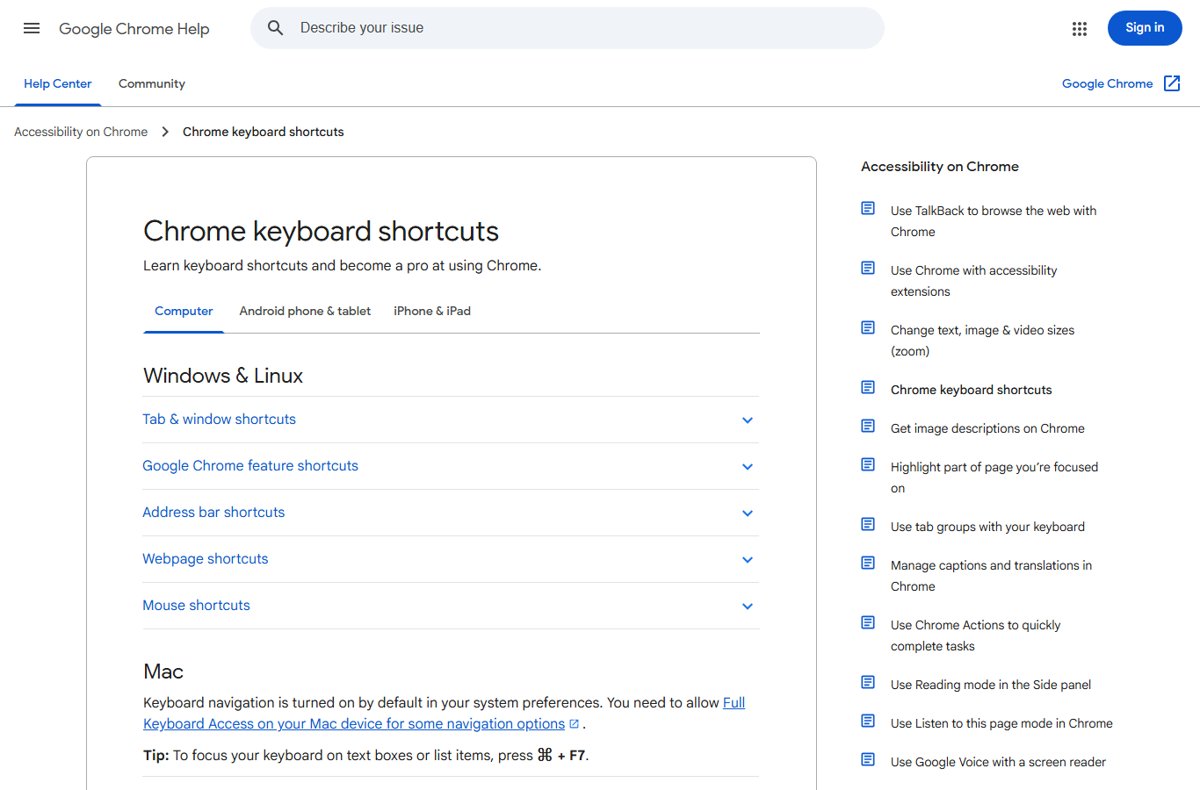
- In Opera, press Ctrl + ` (the key above Tab) to return to the tab you used last.
On a Mac, Chrome uses Command + Option + Right arrow and Command + Option + Left arrow for the next and previous tab. Opera keeps Ctrl + Tab on both systems.
Switching tabs in Mozilla Firefox
Firefox uses Ctrl + Tab for the next tab and the number keys for direct jumps. One setting decides whether Ctrl + Tab follows tab order or recent use.
- Press Ctrl + Tab to move to another open tab.
- Press Ctrl + 1 through Ctrl + 8 to jump to the first eight tabs; on a Mac, use Command + 1 through Command + 8.
- Press Ctrl + 9 (Command + 9 on a Mac) to jump to the last tab.
- Open Firefox Settings and find the Tabs section.
- Turn on Ctrl+Tab cycles through tabs in recently used order if you want Ctrl + Tab to flip between the tabs you used last.
- Turn the same option off if you want Ctrl + Tab to step through tabs from left to right.
Firefox added that recently used option back in version 50, when it made Ctrl + Tab cycle in recently used order as a preference.
On Linux desktops that use GNOME, Firefox takes Alt + 1 through Alt + 9 for the number jumps instead of Ctrl.
Switching tabs in Safari on Mac
Safari offers two pairs of tab keys. Control + Tab matches other browsers, and the bracket keys are the Mac-style alternative.
- Press Control + Tab or Shift + Command + ] to go to the next tab.
- Press Control + Shift + Tab or Shift + Command + [ to go to the previous tab.
- Press Command + 1 through Command + 8 to select one of the first eight tabs.
- Press Command + 9 to select the last tab.
- Press Shift + Command + \ to open the tab overview, then pick a tab with the arrow keys.
To move between separate Safari windows rather than tabs, press Command + ` (the key above Tab).
How to change tabs with keyboard on Windows apps
Windows uses the same Ctrl + Tab logic outside the browser. File Explorer, Windows Terminal and system dialog boxes all accept it.
| Where you are | Next tab | Previous tab | Jump to a tab |
|---|---|---|---|
| File Explorer | Ctrl + Tab | Ctrl + Shift + Tab | Ctrl + 1 to 9 |
| Windows Terminal | Ctrl + Tab | Ctrl + Shift + Tab | Ctrl + Alt + 1 to 8 |
| A dialog box with tabs (Properties, Options) | Ctrl + Tab | Ctrl + Shift + Tab | Ctrl + 1, 2, 3… |
| Between whole app windows | Alt + Tab (hold Alt, tap Tab) | Ctrl + Alt + Tab, then the arrow keys | Windows key + Tab opens Task View |
Excel is the main exception: its sheet tabs use Ctrl + Page Down and Ctrl + Page Up, and you can cycle through Excel sheet tabs the same way on Mac and the web with slightly different keys.
In File Explorer, Ctrl + T opens a new tab and Ctrl + W closes the active one.
Moving between multiple tabs: jump to a tab number or reorder tabs
With 15 tabs open, tapping Ctrl + Tab gets slow. These keys reach a far tab, move it, or pick several at once.
| You want to | Press | Browsers |
|---|---|---|
| Go straight to the third tab | Ctrl + 3 (Command + 3 on Mac) | Chrome, Edge, Firefox, Safari |
| Go to the rightmost tab | Ctrl + 9 (Command + 9 on Mac) | Chrome, Edge, Firefox, Safari |
| Move the current tab left or right | Ctrl + Shift + Page Up / Ctrl + Shift + Page Down | Chrome |
| Select several tabs | F6 twice, then Shift + Ctrl + H | Chrome on Windows |
| Return to the tab used last | Ctrl + ` | Opera |
| Pick a tab from a list | Ctrl + M toggles the tab menu | Opera |
| See all tabs as thumbnails | Shift + Command + \ | Safari |
Tabs you keep open all day are easier to reach by number when they sit first in the strip. In Firefox you can pin or unpin a tab from the keyboard so those tabs stay at the left.
Using Tab and Shift+Tab to move around a webpage
Without Ctrl, the Tab key never changes browser tabs. It moves focus from one link, button or field to the next on the current page.
- Click an empty part of the page, or press Ctrl + F6 in Edge to put focus on the page content.
- Press Tab to move focus to the next link, button or form field.
- Press Shift + Tab to move focus back one item.
- Press Enter to open the focused link or press the focused button.
- In Safari, press Option + Tab to include links, since plain Tab highlights only fields and pop-up menus by default.
Safari can swap the two keys: turn on Press Tab to highlight each item on a webpage in the Advanced pane of Safari settings.
Keyboard shortcut for accessing the address bar or search box
After switching tabs, the next job is usually typing a new address or search. Each browser has a key that jumps straight to the address bar.
- Press Ctrl + L in Chrome, Edge, Firefox or Opera on Windows to select the address bar.
- Press Alt + D in Chrome or Edge as an alternative; F4 also works in Edge.
- Press Command + L in Safari, Chrome or Opera on a Mac.
- Press Ctrl + E or Ctrl + K in Edge to start a search query in the address bar.
- Type the address or search terms and press Enter.
Alt + D also selects the address bar in File Explorer, so the same habit works when browsing folders.
Customizing keyboard shortcuts for tab management in browser settings
Only some browsers let you change tab keys in their own settings. This table shows what each one offers using built-in browser settings alone.
| Browser | Built-in setting | What it changes |
|---|---|---|
| Opera | Settings (Alt + P) > Advanced > Browser > Shortcuts > Configure shortcuts | Assign any key combination to most browser commands, including tab cycling |
| Opera | Settings > Advanced > Browser > Shortcuts > Enable advanced keyboard shortcuts | Adds single-key shortcuts: 1 cycles left and 2 cycles right through tabs |
| Firefox | Settings > Tabs > Ctrl+Tab cycles through tabs in recently used order | Switches Ctrl + Tab between tab order and recent-use order |
| Safari | Settings > Advanced > Press Tab to highlight each item on a webpage | Swaps what Tab and Option + Tab highlight on a page |
| Chrome and Edge | No built-in editor for tab keys | Use the system-level options in the next section |
To change an Opera shortcut, hover over the command in Configure shortcuts, click Type a shortcut, then press the new keys.
Assigning custom shortcuts to switch tabs on Windows and Mac
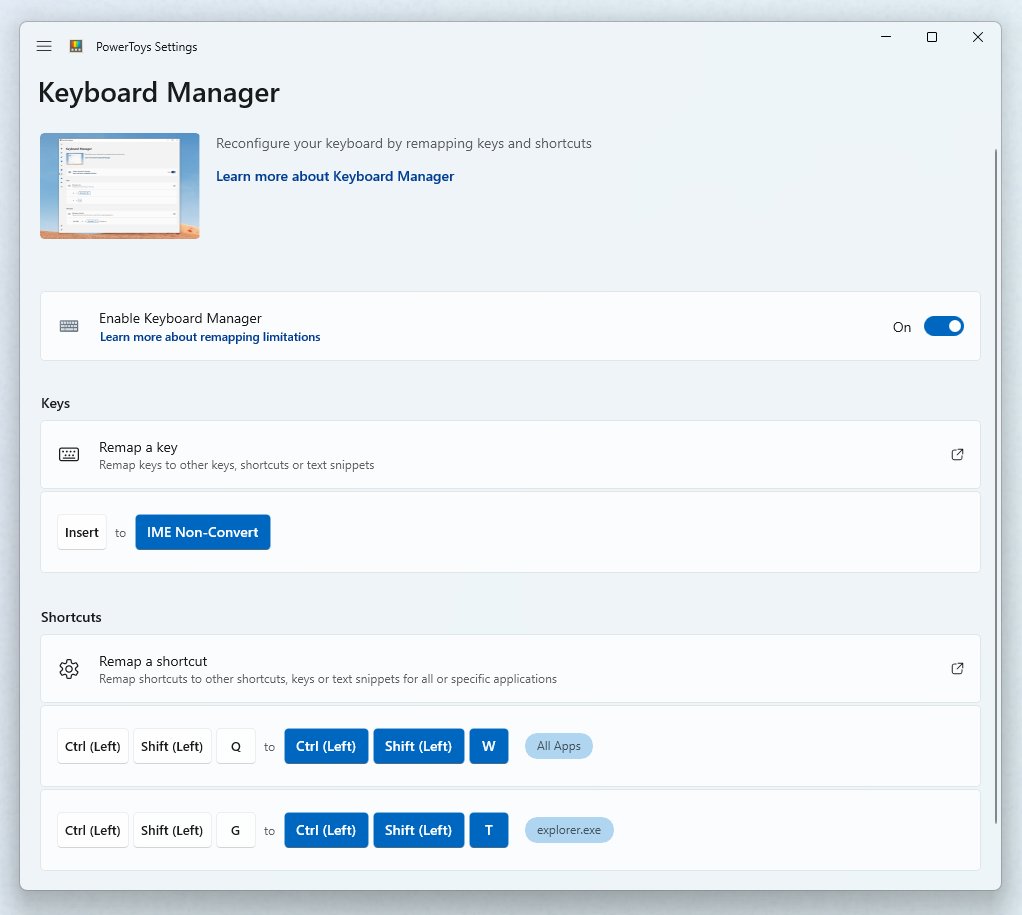
On Windows, Microsoft PowerToys Keyboard Manager can remap a tab shortcut for one app only. On a Mac, App Shortcuts can bind keys to a browser menu command.
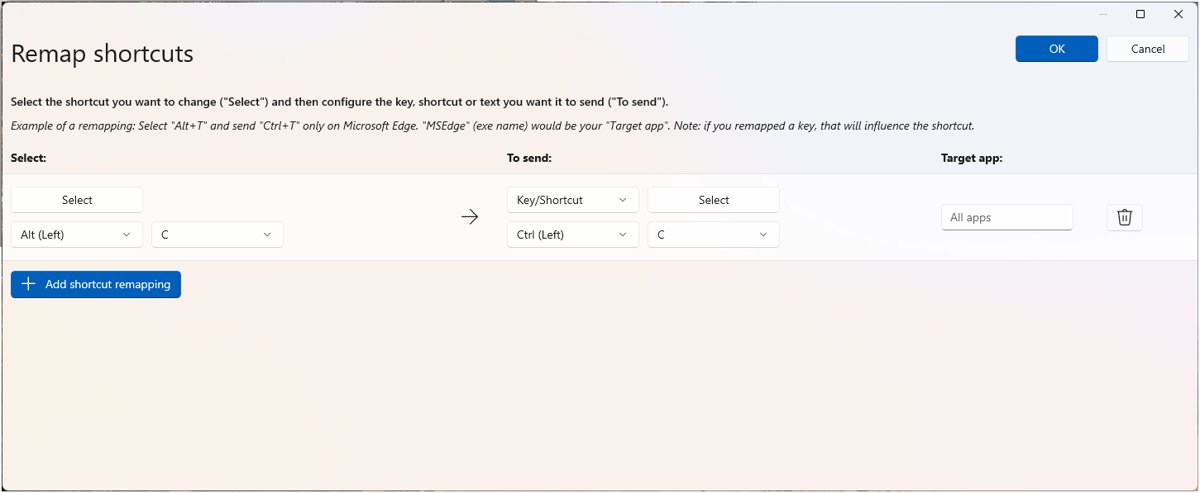
- On Windows, open PowerToys Settings, select Keyboard Manager and choose Remap a shortcut.
- Select Add shortcut remapping, enter your new keys in the Select column and Ctrl + Tab in the To send column.
- Set the target app to the browser's process name, for example msedge for Microsoft Edge, so the remap does not apply everywhere.
- Save the remap and keep PowerToys running; remaps stop when PowerToys closes.
- On a Mac, choose Apple menu > System Settings > Keyboard > Keyboard Shortcuts, then select App Shortcuts.
- Click the add button, choose the browser in Application, type the menu command exactly as it appears in Menu title, press your keys in Keyboard shortcut and click Done.
macOS can only bind existing menu commands, so check the browser's menu bar for the exact tab command name first. A shortcut that already belongs to another command will not work.
How to check which tab is active after a keyboard switch
- Look at the tab strip: the active tab is highlighted and its page fills the window.
- Press Ctrl + L (Command + L on Mac) and check that the address shown belongs to the tab you wanted.
- Press Esc to leave the address bar without changing the page.
Best practices for efficient tab navigation with the keyboard
These additional tips for efficiency save the most keystrokes once the basic pair is a habit.
| Habit | Keys | Why it helps |
|---|---|---|
| Use numbers for far tabs | Ctrl + 1 to 8, Ctrl + 9 | One keystroke instead of many Ctrl + Tab presses |
| Keep key tabs at the left | Pin or drag them to the start | Their numbers stay the same all day |
| Close a tab without the mouse | Ctrl + W (Command + W on Mac) | Fewer open tabs means shorter cycles |
| Bring back a tab closed by mistake | Ctrl + Shift + T (Command + Shift + T on Mac) | Restores it in Chrome, Edge, Opera and Safari |
| Open a fresh tab | Ctrl + T (Command + T on Mac) | Opens and switches to the new tab in one step |
| Leave tabs alone and switch apps | Alt + Tab on Windows, Command + Tab on Mac | Moves between apps without touching the tab order |
Troubleshooting common issues when changing tabs with keyboard
Check your shortcut keys: Ctrl + Page Down does nothing on a laptop
Page Up and Page Down often share keys with the arrows and need the Fn key.
- Find the keys marked PgUp and PgDn on your keyboard.
- Hold Ctrl and Fn together, then press PgDn or PgUp.
- Use Ctrl + Tab and Ctrl + Shift + Tab instead, which need no Fn key.
- On a Mac in Chrome, use Command + Option + Right arrow or Left arrow.
Resolve conflicting software: a remapping tool changed the tab keys
A key-remapping utility such as PowerToys Keyboard Manager intercepts the shortcut first.
- Open PowerToys Settings and select Keyboard Manager.
- Choose Remap a shortcut and delete any row that uses Ctrl + Tab or Ctrl + Page Down.
- If remaps misbehave, turn Keyboard Manager off and on again to reset its key hook.
- If the browser runs as administrator, run PowerToys as administrator too, or the remap is ignored there.
Verify browser and system settings: Ctrl + Tab jumps to the wrong tab in Firefox
Firefox is set to cycle through tabs in recently used order rather than left to right.
- Open Firefox Settings and find the Tabs section.
- Clear Ctrl+Tab cycles through tabs in recently used order.
- Press Ctrl + Tab again; it now steps to the tab on the right.
Tab skips buttons and links on a Mac
macOS keyboard navigation is set to move focus between text boxes and lists only.
- Press Control + F7 (or Fn + Control + F7) to switch Tab to all controls.
- In Safari, press Option + Tab to reach links, or turn on Press Tab to highlight each item on a webpage under Advanced.
- In Chrome on a Mac, allow Full Keyboard Access in system settings for the remaining navigation keys.
Ctrl + Page Down changes browser tabs instead of Excel sheets
In Excel for the web in Chrome, the browser keeps Ctrl + Page Down for its own tabs.
- Click a cell in the Excel grid.
- Press Alt + Ctrl + Page Down for the next sheet.
- Press Alt + Ctrl + Page Up for the previous sheet.
Reset browser settings: tab keys still fail in Chrome after an extension changed things
An extension or changed setting is overriding normal browser behaviour.
- Open Chrome and select More (three dots) > Settings.
- Select Reset settings.
- Select Restore settings to their original defaults, then Reset settings.
- Test Ctrl + Tab again. Bookmarks and passwords are kept, while extensions, themes and pinned tabs are reset.
Change tabs with keyboard FAQ
How do you change tabs with the keyboard?
Press Ctrl + Tab to go to the next tab and Ctrl + Shift + Tab to go to the previous one. This works in Chrome, Edge, Opera and Safari, and Ctrl + Tab also works in Firefox. Ctrl + 1 to Ctrl + 8 jump to a specific tab.
What is the keyboard shortcut to change tabs in Chrome?
On Windows, press Ctrl + Tab or Ctrl + Page Down for the next tab, and Ctrl + Shift + Tab or Ctrl + Page Up for the previous tab. On a Mac, Chrome uses Command + Option + Right arrow and Command + Option + Left arrow.
How do you change tabs with the keyboard in Edge?
Press Ctrl + Tab or Ctrl + Page Down for the next tab, and Ctrl + Shift + Tab or Ctrl + Page Up for the previous one. Ctrl + 1 through Ctrl + 8 switch to a specific tab, and Ctrl + 9 switches to the last tab.
How do you change tabs with the keyboard in Firefox?
Press Ctrl + Tab to move to another tab, and Ctrl + 1 to Ctrl + 8 to jump to a tab by position. Ctrl + 9 opens the last tab. If Ctrl + Tab follows recent use instead of tab order, change the option in the Tabs section of Firefox Settings.
How do you change tabs with the keyboard on a Mac?
In Safari, press Control + Tab or Shift + Command + ] for the next tab, and Control + Shift + Tab or Shift + Command + [ for the previous one. In Chrome on a Mac, use Command + Option + Right arrow or Left arrow.
How do you change tabs with the keyboard in Windows?
In File Explorer and Windows Terminal, press Ctrl + Tab for the next tab and Ctrl + Shift + Tab for the previous one. To switch between whole app windows instead, hold Alt and tap Tab until the window you want is selected.
How do you change tabs with the keyboard in Excel?
Excel sheet tabs use Ctrl + Page Down for the next sheet and Ctrl + Page Up for the previous sheet. In Excel for the web, add Alt: Alt + Ctrl + Page Down and Alt + Ctrl + Page Up, because the browser keeps the plain keys.
How do you change tabs with keys other than Ctrl + Tab?
Use the number keys: Ctrl + 1 to Ctrl + 8 jump to that tab position, and Ctrl + 9 goes to the last tab. On a Mac, use Command with the same numbers. Chrome and Edge also accept Ctrl + Page Down and Ctrl + Page Up.
Why does the Tab key not switch browser tabs?
The Tab key on its own moves focus between links, buttons and fields on the current page. Switching tabs needs Ctrl held down with it: Ctrl + Tab for the next tab and Ctrl + Shift + Tab for the previous tab.
Which keyboard shortcut to use for changing tabs
Use Ctrl + Tab and Ctrl + Shift + Tab as the everyday pair, and Ctrl + 1 to Ctrl + 9 when the tab you need is more than two or three positions away. The Ctrl + Tab pair works in every major browser, in File Explorer, Windows Terminal and dialog boxes, so one habit covers almost every tabbed window. The number keys reach a far tab in one press. On a Mac, Chrome is the main exception and uses Command + Option + arrow keys.