To fix "This file does not have an app associated with it", open Settings > Apps > Default apps, type the file's extension in the search bar and pick an installed app that can open it.
This guide covers what file associations are, when the error appears, every fix from Open with to Command Prompt, and what to do when files still will not open.
Fix the no app associated with this file error in Default apps
The message means Windows has no app registered for that file or link type. Giving the type a default app clears it on Windows 11 and Windows 10.
- Note the file's extension, such as .pdf or .heic. If you cannot see it, turn on file name extensions first (see the next method).
- Open Start > Settings > Apps > Default apps. You can also press Windows + R, type
ms-settings:defaultappsand press Enter. - Type the extension, for example
.pdf, in the search bar at the top of the page. - Select the matching result, then choose the app you want to open that file type.
- Double-click the file again. It now opens in the app you picked.
If no suitable app appears in the list, nothing on the PC can open that type yet. Install one first, as shown in the Microsoft Store method below.
Understanding file associations in Windows
A file association links a file name extension to the app that opens it. Microsoft notes that most extensions work with more than one installed program, so the association records which one you prefer.
| Part | What it is | Why it matters for this error |
|---|---|---|
| File name extension | The letters after the last dot, such as .docx, .pdf, .zip or .mp4 | Windows reads the extension, not the file's contents, to decide which app to start |
| Default app | The app set in Settings > Apps > Default apps for an extension or link type | With no default and no capable app, Windows shows the no-app error |
| Link type (protocol) | A link scheme such as mailto: or ms-settings: that also needs a handler app | Clicking a link with no handler produces the same kind of error |
| File type (ProgID) | The named type an extension points to, for example .txt to txtfile | The assoc command shows this link; ftype shows the command that opens it |
| Open command string | The program path Windows runs, for example %SystemRoot%\system32\NOTEPAD.EXE %1 for txtfile |
If the program it names was uninstalled, the association is broken |
Renaming an extension does not convert the file. A .heic photo renamed to .jpg is still a HEIC file, and the app may refuse it.
Common scenarios where the file association error occurs
Match what happened just before the message to a row. The right fix depends on whether an app is missing or only unassigned.
| When the error appears | Likely cause | Fix to use |
|---|---|---|
| Opening a file type you have never used, such as .epub or .rar | No installed app supports that extension | Install an app from the Microsoft Store |
| Opening a file that worked before you uninstalled a program | The association still points at the removed program | Set a new default in Default apps, or reinstall the program |
| Clicking a link, a Settings shortcut or a button inside another app | The link type has no handler app, or the handler app is damaged | Search the link type in Default apps, then repair or reset the app |
| Opening a file with no extension or a misspelt one | Windows cannot tell what the file is | Show extensions and check the name, then use Open with |
| Many file types fail at once, often after an upgrade | Damaged system files or a corrupted user profile | Run DISM and SFC, then test a new user account |
| One Word or Excel file fails while others open | The file itself is damaged | Use Open and Repair in the Office app |
Show file name extensions in File Explorer to check the file type
Windows hides extensions for known file types by default. Seeing the real extension tells you which app the file needs.
- On Windows 11, open File Explorer and select View > Show > File name extensions.
- On Windows 10, open File Explorer and select View > Options > Change folder and search options.
- On the View tab, under Advanced settings, clear Hide extensions for known file types and select OK.
- Look at the full name of the file that fails. A name like
report.pdf.exeorphotowith no extension is a warning sign. - If the extension is wrong only because of a typo, rename the file. Do not change a correct extension to force a different app.
Be wary of a file that claims to be a document but ends in .exe or .msi. Those are program and installer files, so do not run them unless you trust the source.
Use "Open with" to choose an app for the file
Open with lets you pick any installed app for one file without hunting through Settings.
- Right-click the file in File Explorer.
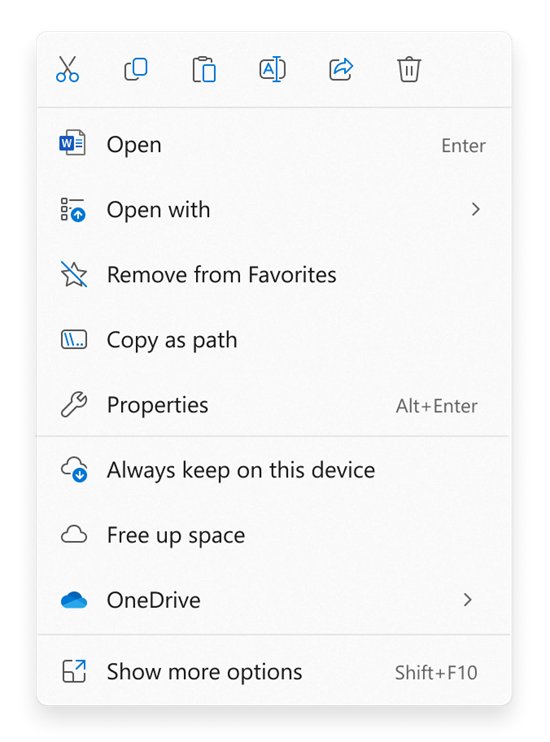
- Select Open with > Choose another app. On Windows 11, select Show more options first if Open with is missing.
- Pick an app from the list that matches the file type, for example Photos for images or Notepad for plain text.
- Confirm the choice. Set the same app in Settings > Apps > Default apps if you want every file of that type to open in it.
Notepad opens most text-based files, and Windows Media Player and Photos handle many video and picture formats. If you need to find where a desktop program's .exe lives before you pick it, you can open the app's file location from the Start menu.
Install the app the file type needs from the Microsoft Store
When no installed app understands the extension, the fix is to install one. Windows can search the Store for apps that handle that type.
- Right-click the file and select Open with > Search the Microsoft Store.
- Alternatively, open Microsoft Store and type the extension, such as
.epub, in the search box. - Read the app's description to confirm it opens that format, then install it.
- Open the file again. If it still shows the error, set the new app as the default in Settings > Apps > Default apps.
For a program you previously used from its vendor's website, reinstall it from that vendor's official site instead. Reinstalling restores the associations its installer registers.
Fixing the error by repairing or resetting the default app
If the right app is installed and already set as the default, the app's own registration may be damaged. Repair keeps its data; Reset is the stronger option.
- On Windows 11, open Start > Settings > Apps > Installed apps. On Windows 10, open Start > Settings > Apps > Apps & features.
- On Windows 11, select the More icon next to the app. On Windows 10, select the app.
- Select Advanced options. Not every app has this link.
- Select Repair if it is available, then try the file again.
- If Repair is missing or does not help, select Reset.
- For a desktop program, open Control Panel > Programs > Programs and Features, right-click the program and select Repair, or Change if Repair is not offered.
If neither option exists, uninstall the app and reinstall it. A fresh install registers its file types again.
Fix file associations with assoc and ftype in Command Prompt
The assoc command shows or changes which file type an extension uses, and ftype shows the program that file type runs. Both work only in Command Prompt, not PowerShell, and changes need administrator rights.
assoc .txtShows the file type linked to .txt, such as .txt=txtfile. Run ftype txtfile next to see the program that opens it, for example txtfile=%SystemRoot%\system32\NOTEPAD.EXE %1. To link an extension to an existing type, run assoc .log=txtfile from an administrator Command Prompt. To remove a broken link, type the extension and an equals sign with nothing after it, such as assoc .bak=.
You should see: assoc prints the extension and its file type. If it reports that no association was found, Windows has no link for that extension, which matches the error. If ftype points at a program path that no longer exists, reinstall that program or choose another app in Default apps.
To keep a record before you change anything, run dism /online /get-defaultappassociations from an administrator Command Prompt. It lists the default app associations Windows has stored.
Repair a damaged Word or Excel file with Open and Repair
When one Office document fails while others of the same type open, the file is the problem, not the association.
- Open Word or Excel and select File > Open > Browse. Do not use the Recent list, which skips the Open dialog box.
- Go to the folder that holds the damaged file and select it.
- Select the arrow next to the Open button, then select Open and Repair.
- In Excel, select Repair to recover as much as possible, or Extract Data to pull out values and formulas if Repair fails.
- Save the recovered file under a new name.
If Office itself will not start, repair the Office installation from Control Panel > Programs > Programs and Features in the same way as other desktop programs.
Run SFC and DISM to repair Windows file association errors
If many file types or built-in apps fail at once, Windows system files may be damaged. Microsoft's order is DISM first, then System File Checker.
- Type
cmdin the Search box, right-click Command Prompt and select Run as administrator. Select Allow or enter the administrator password. - Type
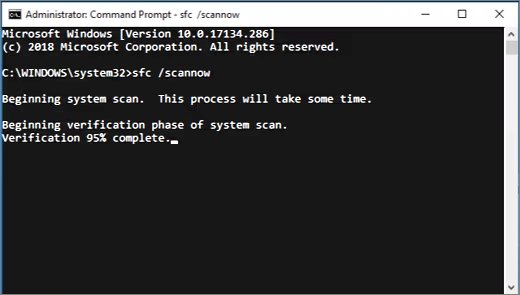
DISM.exe /Online /Cleanup-image /Restorehealthand press Enter. It can take several minutes. - When DISM finishes, type
sfc /scannowand press Enter. Keep the window open until verification reaches 100%. - Read the result. "Windows Resource Protection did not find any integrity violations" means system files are fine.
- "Windows Resource Protection found corrupt files and successfully repaired them" means the repair worked. Restart and try the file again.
- If you see "Windows Resource Protection could not perform the requested operation", start Windows in safe mode and run
sfc /scannowagain.
Create a new user profile to test file associations
Default app choices are stored per user. If the error appears only in your account, a damaged profile is the likely cause, and a new account proves it.
- Add a new user account in Settings > Accounts and make it an administrator.
- Sign out, sign in to the new account and open the same file.
- If it opens, your old profile is the problem. Open File Explorer and go to This PC > C: > Users and the folder for your old account.
- Select all the files and folders there and copy them, then paste them into the new account's folder under C:\Users.
- Restart the PC and sign in as the new user. Reinstall or sign in to apps that need it.
If you use a Microsoft account, switch the new user from a local account to your Microsoft account afterwards. Email apps need their messages imported separately.
Check that the file opens in the right app
- Double-click the file that showed the error. It should open straight in the app you chose, with no message.
- Open Settings > Apps > Default apps, search the extension again and confirm the app you picked is listed beside it.
- Open Command Prompt, run
assocfollowed by the extension, such asassoc .pdf, and confirm a file type is returned. - Restart the PC and open the file once more. The association should survive the restart.
Fix file type not supported and other file opening errors
"File type not supported" or "file format not supported"
The app you assigned opens the extension in general but not this variant, or the file was renamed without being converted.
- Show file name extensions and confirm the real extension.
- If someone renamed the file, change it back to its original extension.
- Right-click the file, select Open with > Search the Microsoft Store and install an app made for that format.
- Ask the sender to export the file in a common format, such as .pdf, .docx or .jpg.
Excel file not opening
The workbook is damaged, or Excel's link to the extension is broken.
- Open Excel first, then use File > Open, the arrow next to Open and Open and Repair.
- If no Excel file opens from File Explorer, set Excel as the default for .xlsx in Settings > Apps > Default apps.
- If Excel itself fails, repair Office from Control Panel > Programs > Programs and Features.
"File not found" error in Windows
A shortcut or a recent-files entry points at a file that was moved, renamed or deleted.
- Open File Explorer and browse to the folder where the file should be instead of using the shortcut.
- Type the file name in the File Explorer search box to find where it moved.
- If the file has gone, check the Recycle Bin and restore it from there.
- Delete the broken shortcut and create a new one from the file's real location.
Files not working in any app, or several types fail at once
System files or the user profile are damaged, so associations for many types are lost together.
- Install pending updates from Start > Settings > Windows Update.
- Run DISM and then
sfc /scannowfrom an administrator Command Prompt. - Test the same files in a new user account.
- If Settings will not open to change default apps, fix that first, then set the defaults again.
Proactive steps to avoid file association issues
| Habit | Why it prevents the error |
|---|---|
| Uninstall programs from Settings or Control Panel, never by deleting their folder | A deleted folder leaves associations pointing at a program that no longer exists |
| Set a new default app before you remove the old one | The file type always has a working handler, so the error never appears |
| Keep file name extensions visible in File Explorer | You spot missing, doubled or wrong extensions before you open the file |
| Never rename an extension to make a file open in another app | Renaming does not convert the file, so the app rejects it or shows an error |
| Let Windows Update install updates | Updates repair built-in apps and system files that handle common file types |
| Install apps for new formats from the Microsoft Store or the vendor's own site | Official installers register their file types correctly |
File association error FAQ
How do I fix "This file does not have an app associated with it"?
Open Settings > Apps > Default apps, type the file's extension in the search bar, select the result and choose an installed app. If no app can open it, install one from the Microsoft Store, then set it as the default.
How do I fix file type not supported?
Check the real extension in File Explorer, then open the file in an app built for that format. Right-click the file and use Open with > Search the Microsoft Store to find one. If the file was renamed, change the extension back.
How do I fix file format not supported?
The app cannot read that format or variant. Install an app that supports it, or ask the sender to save it in a common format such as .pdf or .docx. Changing the extension does not convert the file.
What is wrong with this file if no app will open it?
Either no installed app supports its extension, or the file is damaged. Show file name extensions to confirm the type. If other files of the same type open fine, the file itself is likely corrupted.
How do I fix an Excel file not opening?
Open Excel, select File > Open, choose the workbook, then select the arrow next to Open and pick Open and Repair. If no Excel files open from File Explorer, set Excel as the default app for .xlsx.
Why is my file not found?
The shortcut or recent-files entry you used points at a location the file no longer occupies. Browse to the folder in File Explorer, search for the file name, or check the Recycle Bin if it was deleted.
How do I fix file not found in Windows?
Open the file from its real folder in File Explorer instead of a shortcut. Use the File Explorer search box to locate it, restore it from the Recycle Bin if needed, and recreate the shortcut from the new location.
Why are my files not working in Windows?
When many file types fail together, system files or your user profile may be damaged. Run DISM and sfc /scannow from an administrator Command Prompt, then test the same files in a new user account.
Can I fix a file association from Command Prompt?
Yes. In an administrator Command Prompt, assoc shows or sets the file type for an extension, and ftype shows the program that type runs. For example, assoc .log=txtfile makes .log files open like text files.
Bottom line: which fix clears the no app associated error
Set a default app for the extension in Settings > Apps > Default apps first, and install an app from the Microsoft Store if none is listed. The error almost always means the file type has no working handler. Repair, Command Prompt and SFC are only needed when the right app is installed and the error still returns.

![OneDrive icons meaning [all symbols explained in 2026]](https://techdows.com/wp-content/uploads/2026/10/OneDrive-Files-On-Demand-setup-screen-showing-cloud-and-green-check-icons-518x338.jpg)