To open OneDrive settings on Windows, select the OneDrive cloud icon in the taskbar, select the Help & Settings gear icon, then select Settings.
This guide covers the same shortcut on Windows 11, Windows 10, Mac, the OneDrive website, iPhone, iPad and Android, plus what each settings tab controls and what to do when the icon is missing.
How to open OneDrive settings in two clicks
This route works on Windows 11 and Windows 10 as long as the OneDrive sync app is running and signed in.
- Select the OneDrive cloud icon at the right end of the taskbar, in the notification area.
- If the cloud is not there, select the Show hidden icons arrow next to the notification area and select it there.
- Select the Help & Settings gear icon in the OneDrive pop-up.
- Select Settings. The OneDrive settings window opens on the Sync and back up tab.
The same gear menu also holds Pause syncing and Close OneDrive, so you can reach those without opening the full settings window.
Quick reference: Fastest ways to open OneDrive settings
| Your device | Fastest route | What you land on |
|---|---|---|
| Windows 11 or Windows 10 PC | OneDrive cloud icon > Help & Settings > Settings | Sync and back up, Account, Notifications, About |
| Windows PC, OneDrive icon missing | Start > type OneDrive > open OneDrive, then use the cloud icon | The same settings window once the app is running |
| OneDrive app from the Microsoft Store | More > Settings | Reset app, Dark mode, Get more storage |
| Mac | OneDrive cloud icon in the menu bar > Help & Settings > Preferences | General, Notifications, Account, Backup, Network, Office, About |
| Web browser | onedrive.com > Settings at the top of the page > Options | Manage storage, Notifications, Restore your OneDrive and more |
| iPhone, iPad or Android | Profile picture or person icon > Settings | Accounts, Options, About |
What you can control from OneDrive settings
OneDrive settings decide what syncs, which account is connected, how much bandwidth OneDrive uses and when it interrupts you. The desktop app and the website control different things, so pick the right one before you start looking.
| What you want to change | Where it lives | Platform |
|---|---|---|
| Back up Desktop, Documents and Pictures | Desktop app > Sync and back up > Manage backup | Windows |
| Which cloud folders download to this computer | Desktop app > Account > Choose folders | Windows and Mac |
| Files On-Demand and upload or download speed | Desktop app > Sync and back up > Advanced settings | Windows |
| Add a second account or disconnect this PC | Desktop app > Account | Windows and Mac |
| Personal Vault auto-lock time | Desktop app > Account | Windows |
| Storage used, plans and upgrades | OneDrive website > Manage storage | Any browser |
| Restore your whole OneDrive to an earlier date | OneDrive website > Settings > Options > Restore your OneDrive | Any browser, Microsoft 365 subscribers |
| Camera upload and app notifications | Mobile app > Settings > Options | iPhone, iPad, Android |
With a work or school account, your IT admin can lock some of these options, so a setting may be missing or greyed out.
Quick access OneDrive settings on Windows 11
On Windows 11 the OneDrive cloud can sit on the taskbar itself or behind the overflow arrow, depending on which icons you have chosen to show.
- Look at the right end of the taskbar for the white or blue OneDrive cloud icon.
- If it is not visible, select the Show hidden icons up arrow and select the cloud there.
- In the OneDrive pop-up, select the Help & Settings gear icon.
- Select Settings.
- Use the tabs on the left (Sync and back up, Account, Notifications, About) to reach the option you want.
A brown warning circle on the cloud in Windows 11 means the account needs attention. Select the icon to read the message before you change anything.
Quick access OneDrive settings on Windows 10
Windows 10 uses the same OneDrive app and the same settings window. Only the taskbar layout and some status icons differ.
- Find the OneDrive cloud in the notification area at the far right of the taskbar.
- If you cannot see it, select the Show hidden icons arrow.
- Select the cloud icon to open the OneDrive activity center.
- Select the Help & Settings gear icon, then select Settings.
On Windows 10 a yellow warning triangle on the cloud marks an account that needs attention, where Windows 11 shows a brown circle.
Quick access OneDrive settings on a Mac
On macOS the settings window is called Preferences, and it opens from the menu bar rather than a taskbar.
- Select the OneDrive cloud icon in the menu bar at the top of the screen.
- Select the Help & Settings icon in the OneDrive menu.
- Select Preferences.
- Pick a tab: General, Notifications, Account, Backup, Network, Office or About.
If the cloud is not in the menu bar, open the Applications folder and start OneDrive from there.
Quick access OneDrive settings on the web
Browser settings cover your account and storage, not the sync behaviour of any one computer.
- Go to onedrive.com and sign in with your Microsoft account.
- Select the Settings icon at the top of the page.
- Select Options to open the settings pages.
- Choose a page in the left navigation, such as Manage storage, Notifications, Personal Vault or Restore your OneDrive.
Work or school accounts skip the Options step: select Settings and the menu lists items such as Restore OneDrive directly.
Quick access OneDrive settings on iPhone, iPad, and Android
The OneDrive mobile app uses the same route on iPhone, iPad and Android phones and tablets.
- Open the OneDrive app.
- Tap your profile picture or the person icon.
- Tap Settings.
- Tap Accounts to manage the signed-in account, Options for camera upload, notifications, device security and Personal Vault, or About for support links.
The mobile app allows only one personal account to be active at a time.
How to add OneDrive to Quick access in File Explorer
Searches for quick access OneDrive often mean pinning the OneDrive folder in File Explorer, not the settings window. Pinning works the same way on Windows 11 and Windows 10.
- Open File Explorer from the taskbar or Start menu.
- Find your OneDrive folder in the navigation pane on the left.
- Right-click the folder, or press and hold it on a touch screen.
- Select Pin to Quick access.
- To remove it later, right-click the pinned entry and select Unpin from Quick access.
On Windows 11 the pinned folder appears under Home, which replaced the old Quick access landing page in version 22H2. On Windows 10 it appears under Quick access, where File Explorer opens by default.
How to manage access on OneDrive files and folders
Who can open a shared file is controlled from the item itself, not from the settings window.
- Sign in at onedrive.com and select one file or folder.
- Select the info icon in the upper-right corner to open the Details pane.
- Under Has Access, select Manage access.
- Select Stop sharing to remove all access, or select the X next to a link and confirm with Remove link.
- To change one person's rights, select their name, choose an option under Direct Access and select Apply.
These steps match a work or school account. With a personal account, select Shared in the left pane of OneDrive.com to see what you have shared. On a PC or Mac you can also right-click an item in your OneDrive folder and select Share.
Understanding the main OneDrive settings tabs
The Windows settings window has four tabs. The Mac Preferences window splits the same controls across more tabs.
| Tab | What it holds | Open it when you want to |
|---|---|---|
| Sync and back up | PC folder backup, Photos, videos and Screenshots folders, startup, battery saver and metered network preferences, and Advanced settings (file collaboration, upload and download rates, Files On-Demand) | Change what OneDrive backs up or how it uses your disk and network |
| Account | Add an account, Unlink this PC, Choose folders, Personal Vault auto-lock time | Switch accounts, add a work account, or limit which folders download |
| Notifications | On and off switches for notifications about individual events | Stop pop-ups you do not need |
| About | Device ID, version number and the OneDrive Insider program | Check the installed version before you troubleshoot |
Common OneDrive settings tasks and how to do them
Each task below starts from the OneDrive settings window on Windows unless the row says otherwise.
| Task | Steps | Good to know |
|---|---|---|
| Pause OneDrive sync quickly | Select the cloud icon > Help & Settings > Pause syncing, then choose 2, 8 or 24 hours | Sync resumes on its own. Select the paused icon to resume early |
| Choose which OneDrive folders sync to your computer | Account > Choose folders, clear the folders you do not want, select OK | Cleared folders leave this PC but stay online. Desktop, Documents, Pictures and Personal Vault cannot be cleared |
| Manage Desktop, Documents and Pictures backup | Sync and back up > Manage backup, switch each folder on or off, select Save changes | When you stop a backup, you choose whether files stay only in OneDrive or only on the PC |
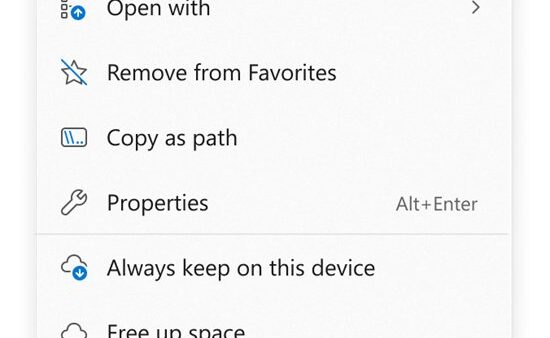
| Make a file or folder available offline | In File Explorer, right-click the item and select Always keep on this device | New files added to that folder also download automatically |
| Free up space without deleting cloud files | Right-click the item in File Explorer and select Free up space | The item becomes online-only and needs an internet connection to open |
| Check OneDrive storage usage | Sign in at onedrive.com and open Manage storage | Work or school accounts show a Storage used link at the lower left |
| Add another OneDrive account | Account > Add an account, then sign in | Only one personal account per device, but several work or school accounts |
| Unlink OneDrive from a computer | Account > Unlink this PC > Unlink account (Mac: Unlink this Mac) | No data is lost. Files resync after you sign in again |
| Limit upload or download speed | Sync and back up > Advanced settings, set a rate between 50 and 100,000 KB/sec | Adjust automatically for uploads uses only spare bandwidth |
Folder backup is only one layer of protection. If you also want a copy outside the cloud, you can back up OneDrive to another drive on a schedule.
How to tell whether OneDrive is syncing correctly
The cloud icon in the taskbar or menu bar reports sync health at a glance. Check it after any settings change.
- Look at the OneDrive cloud icon and note any badge on it.
- Sync arrows on the cloud mean files are uploading or downloading. Wait for the arrows to clear.
- A pause symbol means sync is paused. Select the icon and choose Resume syncing.
- A red circle with a white cross means one or more files cannot sync. Select the icon to see which ones.
- A grey line through the cloud means you are not signed in or setup is not finished.
- In File Explorer, confirm the file badges: a blue cloud outline is online-only, a green tick is available locally, and a solid green circle with a white tick is always kept on the device.
If the activity center shows Processing changes for a long time, treat it as a sync problem and move to the troubleshooting steps below.
Useful OneDrive settings for beginners
These defaults are the ones most new users change in their first week, and each one has a clear trade-off.
| Setting | Recommended choice | Why |
|---|---|---|
| Files On-Demand (Advanced settings) | Keep Free up disk space selected | Cloud files take no local space until you open them |
| PC folder backup (Manage backup) | Turn on Desktop and Documents | Those files then appear on every device signed in to the same OneDrive |
| Battery saver and metered network preferences | Leave sync paused on battery saver and metered connections | OneDrive does this automatically to save power and data |
| Upload rate | Use Adjust automatically on a slow connection | OneDrive then uses only unused bandwidth |
| Notifications tab | Turn off events you never act on | Fewer pop-ups without changing how sync works |
| Personal Vault auto-lock (Account) | Keep a short lock time | The vault holds your most sensitive files |
Troubleshooting: When you cannot open OneDrive settings
The OneDrive icon is missing on Windows
The icon is hidden in the overflow area, or the OneDrive app is not running.
- Select the Show hidden icons arrow next to the notification area and look for the cloud.
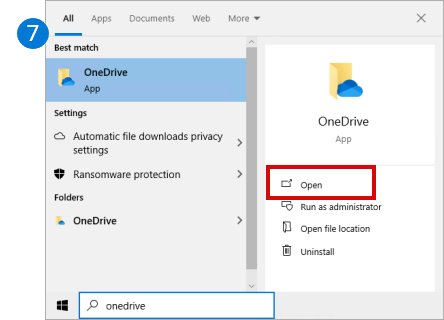
- If it is not there, select Start, type OneDrive and select the OneDrive app.
- Wait for the cloud to appear, then open Help & Settings > Settings.
The OneDrive icon is missing on Mac
OneDrive is not running, or its settings are damaged.
- Open the Applications folder and start OneDrive.
- If the icon still does not appear, Control-click OneDrive in Applications and select Show Package Contents.
- Open Contents > Resources and double-click ResetOneDriveApp.command (or ResetOneDriveAppStandalone.command for the standalone app).
- Start OneDrive, finish setup and choose your previous folder location so unchanged files are not downloaded again.
OneDrive opens but settings or sync behave wrongly on Windows
The app's local configuration is corrupt.
- Press Windows + R.
- Type
%localappdata%\Microsoft\OneDrive\onedrive.exe /resetand select OK. - If Windows cannot find it, run
C:\Program Files\Microsoft OneDrive\onedrive.exe /reset, thenC:\Program Files (x86)\Microsoft OneDrive\onedrive.exe /reset. - Select Start, type OneDrive and open the app again.
- After the full sync finishes, reselect your folders under Account > Choose folders.
OneDrive for work or school will not start at all
A Group Policy setting blocks the sync app on that PC.
- Ask your IT admin whether the OneDrive sync app is blocked by policy.
- If you manage the PC yourself, back up the registry first.
- Open
HKEY_LOCAL_MACHINE\Software\Policies\Microsoft\Windows\OneDriveand check whetherDisableFileSyncNGSCis set to 1. - Change it to 0 or remove it. If a Group Policy Object set it, the change returns at the next policy refresh until the policy is removed.
Some settings are missing or greyed out
A work or school administrator manages them.
- Check which account the setting belongs to on the Account tab.
- Contact your IT admin to change a managed setting, such as the Network rates.
OneDrive Quick access is not working in File Explorer
The OneDrive folder was unpinned, or Windows 11 now shows pinned folders under Home.
- On Windows 11, select Home in File Explorer and look for the pinned OneDrive folder there.
- If it is gone, right-click the OneDrive folder in the navigation pane and select Pin to Quick access again.
- If files sync slowly as well, confirm the PC is online and check your network adapter settings on Windows 11.
Resetting OneDrive does not delete files. It disconnects sync and then runs a full sync, so expect some delay on large libraries.
OneDrive settings FAQ
How do I access OneDrive settings?
Select the OneDrive cloud icon in the Windows taskbar, select the Help & Settings gear icon, then select Settings. On a Mac, the same menu shows Preferences instead. On the OneDrive website, select Settings at the top of the page, then Options.
How do I access OneDrive settings on Windows 10?
Select the OneDrive cloud in the notification area next to the clock, or under the Show hidden icons arrow. Then select the Help & Settings gear icon and choose Settings. The settings window is the same as on Windows 11.
How do I get to settings in OneDrive if the icon is gone?
Start the app first. Select Start, type OneDrive and open the OneDrive app. The cloud icon then appears in the notification area, and you can open Help & Settings > Settings from it.
How do I add OneDrive to Quick access?
Open File Explorer, right-click your OneDrive folder in the navigation pane and select Pin to Quick access. On Windows 11 the pinned folder shows under Home. To remove it, right-click the entry and select Unpin from Quick access.
Why is OneDrive Quick access not working?
The folder is usually unpinned or you are looking in the wrong place. On Windows 11, pinned folders appear under Home in File Explorer. Right-click the OneDrive folder and select Pin to Quick access to add it back.
What is Quick access in OneDrive?
In Microsoft 365 apps, Quick access is a list in the side navigation of the Open screen. It shows the document libraries you own and shared libraries you use, with More places for recent locations. It is separate from Quick access in File Explorer.
How do I manage access on OneDrive?
Select the file or folder on OneDrive.com, open the Details pane with the info icon and select Manage access under Has Access. From there you can stop sharing, remove a link or change a person's permission.
Where is Help and Settings in OneDrive?
Help & Settings is the gear icon in the pop-up that opens when you select the OneDrive cloud icon. It holds Settings, Pause syncing and Close OneDrive.