To browse all Netflix movies and TV shows, select the Shows or Movies shortcut at the top of the Netflix home screen and scroll the genre rows, or open a genre page directly with its code, such as netflix.com/browse/genre/34399 for all movies.
This guide covers the 4 ways that reach the whole catalog: the browse shortcuts, Search, genre codes, and Netflix's own Top 10 and social channels.
Method 1: Using the Netflix Browse Feature
The home screen shows rows picked for your profile. The shortcuts at the top narrow those rows to one type of title.
- Sign in to Netflix and choose your profile.
- Select Movies or Shows in the shortcuts at the top of the screen.
- Scroll down to see genre rows such as comedies, dramas and documentaries.
- Scroll each row to the right; the titles Netflix recommends most for you start on the left.
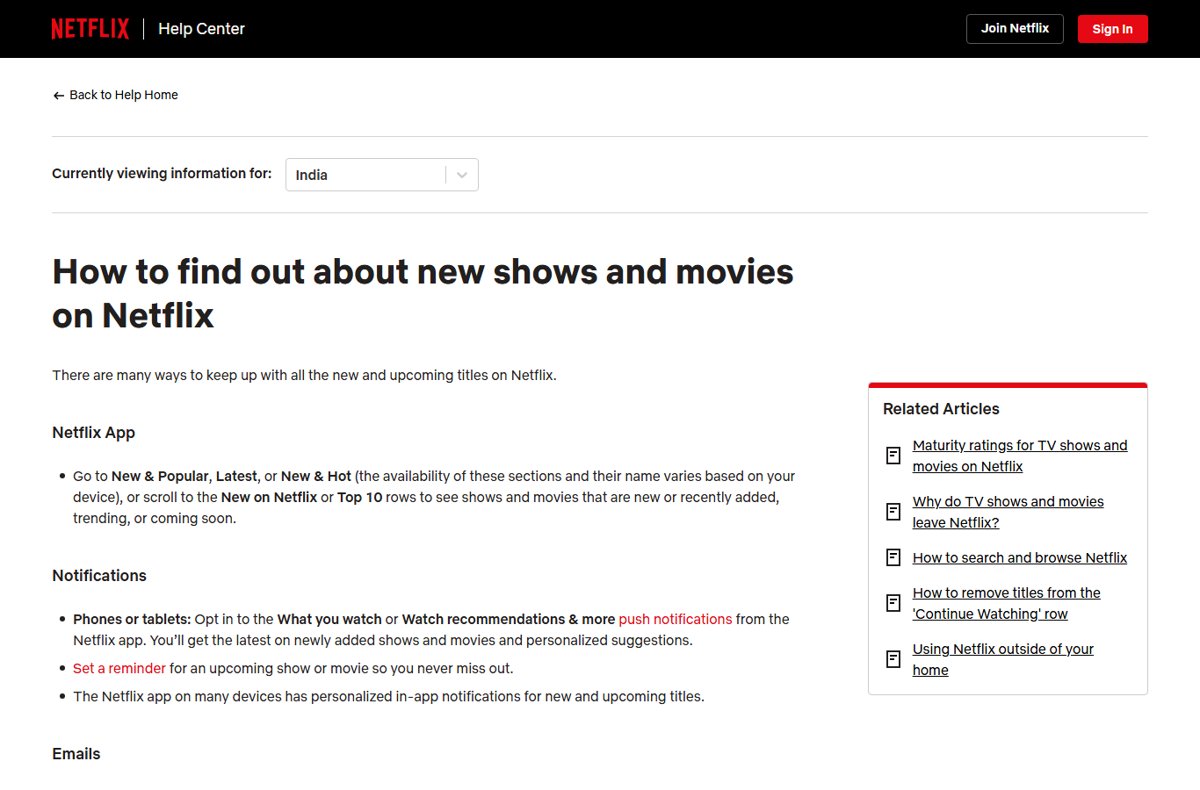
- To see what is new, open New & Popular, Latest or New & Hot, depending on your device, or scroll to the New on Netflix and Top 10 rows.
- Select a title to open its details page and start watching.
Section names vary by device, so a TV, phone and web browser can label the same area differently.
Which way of browsing Netflix should you use?
| Your goal | Use this | Why |
|---|---|---|
| Pick something tonight from what suits you | Method 1: browse shortcuts | Rows are ranked for your profile |
| Find a specific title, actor or genre | Method 2: Search | Search covers the entire catalog available to you |
| See one whole genre without personal ranking | Method 3: genre code pages | Each code opens a full genre page on netflix.com |
| Know what everyone is watching or what is new | Method 4: Top 10 site and social channels | Weekly charts and official announcements by country |
| Use third-party websites and apps that list the catalog | Treat as a backup only | They are not run by Netflix, and regional lists change when licences end |
Method 2: Search by title, genre, actor or language
Search reaches every title available in your country, not just the rows on your home screen. Netflix accepts more than titles as search terms.
- Select the Search icon in the Netflix app or on netflix.com.
- Type a genre such as Comedy or Drama to list every match.
- Type an actor's name, such as Jennifer Aniston, to see their titles.
- Type a language term such as Spanish movies or Hindi Dubbed Movies & TV to filter by language.
- Type Atmos or UHD to find titles in that audio or video quality.
- Type Netflix to list Netflix-produced titles, which carry the red N logo.
- On a computer, use Browse by Languages on the web to filter by audio, subtitle or original language.
Method 3: Utilizing Netflix’s Secret Codes
Every Netflix genre page has a number in its web address. Type netflix.com/browse/genre/ followed by the code to open that genre in a browser, with every title in it rather than one row.
| To browse | Code | Type this address |
|---|---|---|
| Movies | 34399 | netflix.com/browse/genre/34399 |
| TV Shows | 83 | netflix.com/browse/genre/83 |
| Action & Adventure Movies | 1365 | netflix.com/browse/genre/1365 |
| Comedy Movies | 6548 | netflix.com/browse/genre/6548 |
| Dramas | 5763 | netflix.com/browse/genre/5763 |
| Horror movies | 8711 | netflix.com/browse/genre/8711 |
| Thrillers | 8933 | netflix.com/browse/genre/8933 |
| Sci-Fi Movies | 1492 | netflix.com/browse/genre/1492 |
| Romantic Movies | 8883 | netflix.com/browse/genre/8883 |
| Documentaries | 6839 | netflix.com/browse/genre/6839 |
| Children & Family Movies | 783 | netflix.com/browse/genre/783 |
| Anime | 7424 | netflix.com/browse/genre/7424 |
Codes are web addresses, so use them in a web browser. The titles listed depend on your country, and each page shows sub-genre rows with an Explore more link to dig deeper.
Method 4: Social Media and Community Recommendations
Netflix publishes what is popular and what is new on its own sites and social accounts, which beats unofficial lists for accuracy.
- Open
netflix.com/tudum/top10to see the weekly Top 10 movies and shows. - Choose your country, then switch between Movies | English, Movies | Non-English, Shows | English and Shows | Non-English.
- Pick an earlier week, or All Time, from the date list to see past charts.
- Visit
about.netflix.com/new-to-watchfor Netflix original titles announced for the current month. - Follow Netflix's official Facebook, Instagram, X (Twitter) and YouTube accounts for your region for posts about newly added titles.
- On a phone, opt in to the What you watch or Watch recommendations & more notifications in the Netflix app.
How to check you are seeing the full catalog
- In your Netflix account settings, check the profile's maturity rating; a lower rating hides titles.
- Check the profile's language preferences, which also change what appears.
- Search for a title you know is on Netflix in your country and confirm it appears.
- Open a genre code page in a browser and compare it with the same genre row in the app.
Fix Netflix browsing problems
A movie or show you expected is missing
Maturity ratings, language settings or regional licensing limit what a profile sees.
- Check the maturity rating and language preferences on the profile.
- Search for the exact title; if it still does not appear, it is not licensed in your country.
- Suggest the title at
help.netflix.com/titlerequest.
A title disappeared from Netflix
Some licensed titles leave when the licence is not renewed.
- Open a title's details page and look for Last day to watch on Netflix, which appears when it leaves within the next month.
- Watch the titles you want to finish before that date.
Rows of titles or Search are missing on a Roku
The Roku is not using the enhanced Netflix interface.
- Open Netflix's help article for Roku rows and search, and follow its steps to enable the enhanced interface.
- Restart the Roku and open Netflix again.
Frequently Asked Questions
How do I find all movies on Netflix?
Open netflix.com/browse/genre/34399 in a browser to see the Movies genre page, or select Movies at the top of the Netflix home screen and scroll the genre rows. Search for a genre such as Comedy to list every match.
How do I browse Netflix?
Use the shortcuts at the top of the home screen, such as Shows or Movies, then scroll the rows. New & Popular, Latest or New & Hot, depending on your device, shows recently added and upcoming titles.
How do I search movies on Netflix?
Select the Search icon and type a title, genre, actor's name, language or quality term such as UHD. Search covers every title available in your country, not only the rows recommended on your home screen.
How does Netflix recommend movies and shows?
Netflix ranks titles from your viewing history and ratings, members with similar tastes, and title details such as genre, cast and release year. Time of day, language, device and viewing time also count. Age and gender are not used.
How do I get more movies on Netflix?
The catalog depends on your country and Netflix's licences. Check that the profile's maturity rating and languages are not hiding titles, then request a missing show or movie at help.netflix.com/titlerequest.
Can you watch Netflix in a browser?
Yes. Sign in at netflix.com in a computer web browser to browse and play titles. The browser is also where genre code links and Browse by Languages work.
Where do downloaded Netflix movies go?
Downloads stay inside the Netflix app. On an iPhone, iPad, Android or Fire device, tap My Netflix > Downloads; on a Chromebook, open Downloads. They are deleted if you cancel your membership.
How do I get different movies on Netflix?
Switch the shortcut to Movies, search by a new genre or language, or open a genre code page such as 6839 for documentaries. Rating titles with a thumbs up also changes what Netflix recommends next.
Conclusion
Use the Movies or Shows shortcut for everyday picks, and bookmark a few genre code pages in your browser for full genre lists. The shortcuts stay ranked for your taste, while code pages show a whole genre at once, and both come from Netflix itself rather than an outside list.