To check certificates on Windows 10, press Windows + R, type certmgr.msc for your own user certificates or certlm.msc for the computer's certificates, and press Enter.
This guide covers seven ways to view certificates, the stores they live in, how to judge whether one is healthy, and what to do when one is expired or untrusted.
Method 1: Check Certificates with Certificate Manager
Certificate Manager is built into Windows 10. certmgr.msc opens the current user's stores, and certlm.msc opens the local computer's stores.
- Press Windows + R to open Run.
- Type
certmgr.mscand press Enter. For computer certificates, typecertlm.mscinstead and approve the User Account Control prompt. - In the left pane, expand Certificates – Current User or Certificates – Local Computer.
- Expand a store such as Personal and select Certificates.
- Read the Issued To, Issued By and Expiration Date columns in the right pane.
- Double-click a certificate to open its details.
What Certificates Are Used for in Windows 10
A digital certificate binds a name, such as a website, person or software publisher, to a public key, and a trusted authority vouches for it. Windows checks certificates every time you open an HTTPS site, run signed software or sign in with some work accounts.
| Use | Where you meet it |
|---|---|
| Secure websites (HTTPS) | The padlock in Edge or Chrome; the site's certificate proves its identity |
| Code signing | The publisher name shown when you install or run a signed program |
| Driver signing | Windows checks driver signatures against trusted root certificates during installation |
| Client authentication | Work Wi-Fi, VPN and some company sign-ins use a certificate in your Personal store |
| Email signing and encryption | Signed or encrypted messages use a personal certificate |
| Trust anchors | Root certificates of every authority Windows trusts sit in Trusted Root Certification Authorities |
Before You Start: User Certificates vs Computer Certificates
Windows keeps two main sets of stores. Pick the right one before you search, or the certificate you want can look missing.
| You want to check | Open this | Why |
|---|---|---|
| Certificates installed for your account only | certmgr.msc (Current User) |
Stored under HKEY_CURRENT_USER and visible only to you |
| Certificates used by the whole PC, services or IIS | certlm.msc (Local Computer) |
Stored under HKEY_LOCAL_MACHINE and shared by every user |
| A service's own certificates | MMC with Service account | Each service can have its own store |
| A website's certificate | The browser's address bar | Site certificates are checked live, not stored in Windows |
| A file before you install it | Double-click the file or run certutil -dump |
Nothing is added to a store |
Current user stores, except Personal, inherit the local computer's stores. A root certificate added for the computer also shows in every user's Trusted Root Certification Authorities store. You need administrator rights to view or change local computer certificates.
Method 2: Check Computer Certificates with MMC
The Microsoft Management Console route reaches the same stores and can also open a service account's certificates. Save the console to reopen it in one click later.
- Press Windows + R, type
mmcand press Enter, then select Yes at the User Account Control prompt. - Select File > Add/Remove Snap-in.
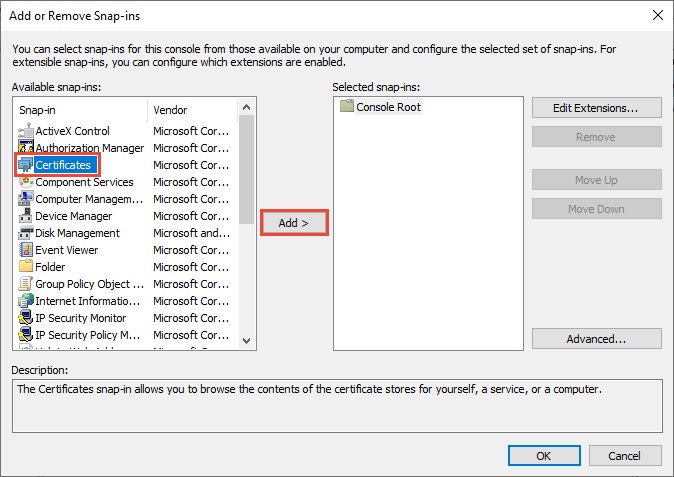
- Under Available snap-ins, choose Certificates and select Add.
- Select Computer account and then Next. Choose My user account or Service account for other stores.
- Leave Local computer selected and select Finish, then OK.
- Expand Console Root > Certificates (Local Computer), then open Personal, Trusted Root Certification Authorities or Intermediate Certification Authorities.
- Optional: select File > Save As to keep the console for later use.
Method 3: Check a Website Certificate in Microsoft Edge or Google Chrome
Both browsers show a site's security status next to the address. The developer tools give a full certificate view in either browser.
- Open the site and look at the icon to the left of the web address: a lock means a secure connection, while Not secure or a warning icon means a problem.
- Select the icon to see the site's connection summary.
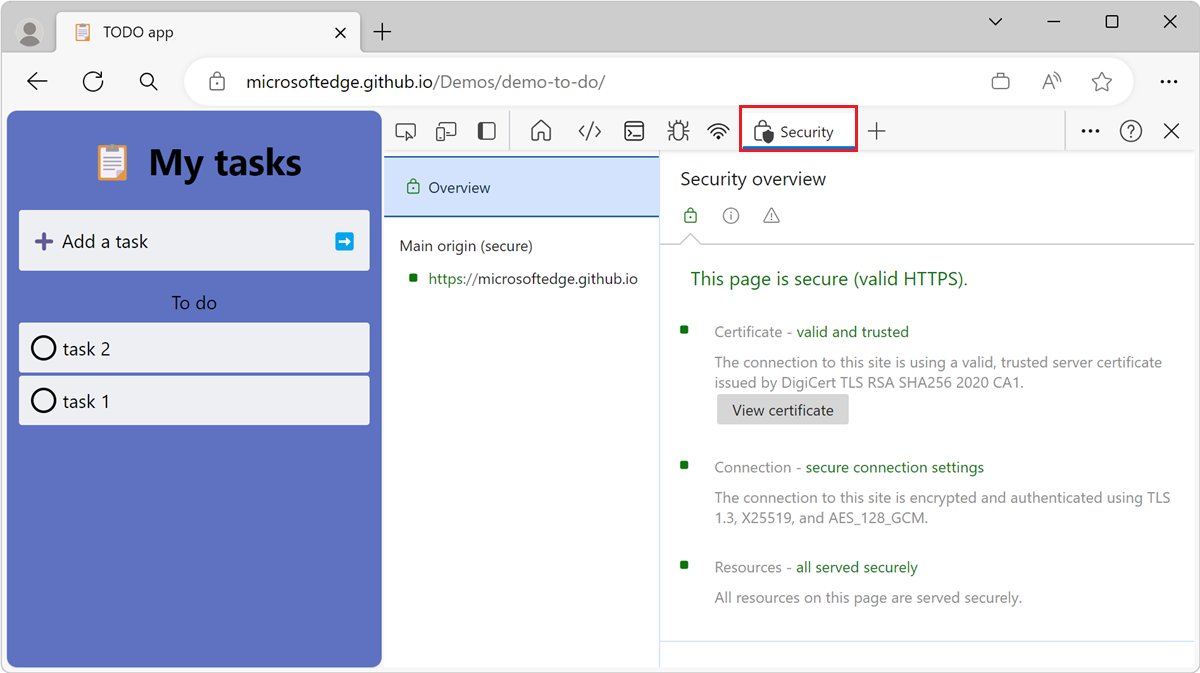
- For the full certificate, press Ctrl + Shift + I to open DevTools.
- Select the Security tab; if it is not visible, find it under More Tools.
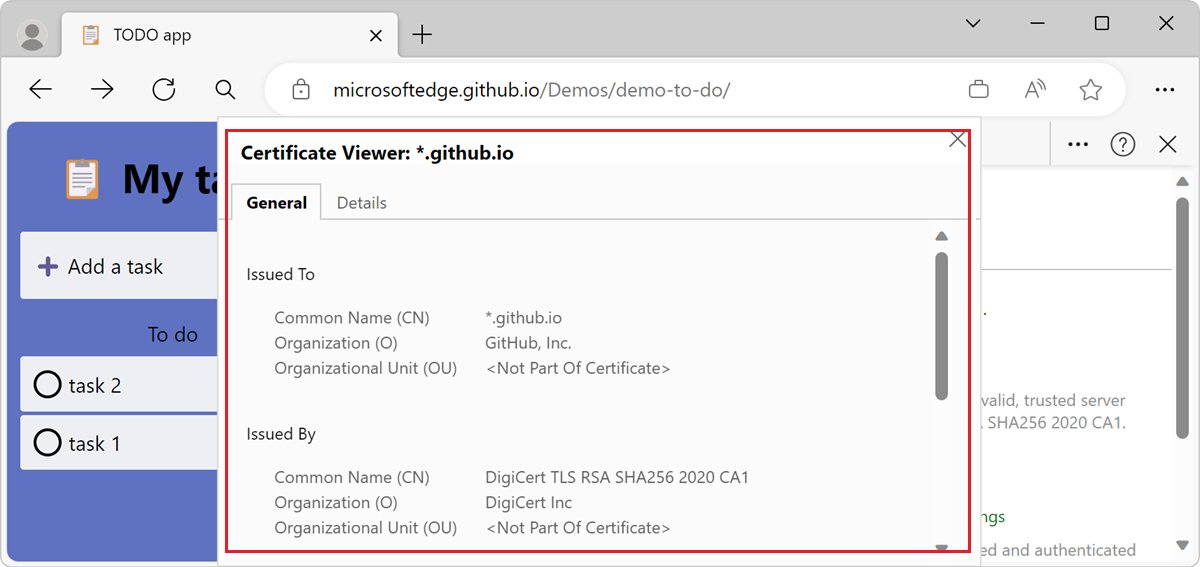
- In Security Overview, select View certificate to open the Certificate Viewer.
- Check that the name listed matches the site's domain, and check the validity dates.
A domain match matters most. A certificate for www.example.com on a page at a different domain triggers a warning even when the certificate itself is in date.
Method 4: Check Certificates with PowerShell
PowerShell exposes every store as the Cert: drive. Run PowerShell as administrator to read LocalMachine stores.
Get-ChildItem Cert:\CurrentUser\My | Format-List Subject, Issuer, NotAfter, Thumbprint, HasPrivateKeyLists every certificate in your Personal store with its subject, issuer, expiry date (NotAfter), thumbprint and whether its private key is present. Replace CurrentUser\My with LocalMachine\My for the computer's Personal store, or LocalMachine\Root for trusted roots. To find certificates that expire within 30 days, run Get-ChildItem Cert:\LocalMachine\My | Where-Object { $_.NotAfter -lt (Get-Date).AddDays(30) }.
You should see: A block of properties appears for each certificate. No output means the store is empty or the filter matched nothing.
PowerShell 7.1 and later also accept -ExpiringInDays, -DnsName and -CodeSigningCert on the Cert: drive. For example, Get-ChildItem -Path Cert:\* -Recurse -ExpiringInDays 0 lists certificates in every store that have already expired.
Method 5: Check Certificates with Certutil
certutil ships with Windows and works in Command Prompt. It reads the local machine stores by default; add -user for your own stores.
certutil -store MyDumps every certificate in the local computer's Personal store, including serial number, issuer, NotBefore and NotAfter dates, subject and hash. Use certutil -user -store My for your own Personal store, or certutil -store Root for trusted root certificates. Run Command Prompt as administrator for machine stores.
You should see: Each certificate is listed with an index number, and the output ends with CertUtil: -store command completed successfully.
Microsoft notes that -store slows down on stores holding more than 10 certificates, and recommends PowerShell when you only need one certificate type.
Method 6: Check a Certificate File Before Installing It
Inspect a .cer or .crt file before you import it, so you know who issued it and what it is for.
- Open File Explorer and go to the folder holding the certificate file.
- Double-click the file to open the Certificate window without installing it.
- On the General tab, read Issued to, Issued by and the Valid from dates.
- Open the Details tab to check the subject, the key usage and the thumbprint against the one the sender gave you.
- Open the Certification Path tab to see the chain up to its root.
- Close the window without selecting Install Certificate if anything does not match.
To read the same file in Command Prompt, run certutil -dump C:\path\to\file.cer. To test its chain, run certutil -verify C:\path\to\file.cer.
Method 7: Check a Software Publisher Certificate
Signed programs and scripts carry an Authenticode signature from the publisher's code-signing certificate. Check it before running a file from an unfamiliar source.
- Right-click the
.exe,.msior script file and select Properties. - Open the Digital Signatures tab; if there is no such tab, the file is not signed.
- Select the signature in the list and select Details.
- Confirm the signer name is the publisher you expect.
- Select View Certificate to see the issuer and validity dates.
- In PowerShell, run
Get-AuthenticodeSignature -FilePath "C:\path\to\file.exe"and confirm the Status column readsValid.
An unsigned file returns blank signature fields in PowerShell. If a file is both embedded-signed and catalog-signed, PowerShell reports the Windows catalog signature.
Common Certificate Stores in Windows 10
Each store holds one kind of certificate. The store name in brackets is the one PowerShell and certutil use.
| Store in Certificate Manager | Short name | What it holds |
|---|---|---|
| Personal | My | Certificates with private keys issued to you or this computer |
| Trusted Root Certification Authorities | Root | Root certificates of every authority Windows trusts |
| Intermediate Certification Authorities | CA | Intermediate certificates that link site and app certificates to a root |
| Trusted Publishers | TrustedPublisher | Publishers whose signed software is trusted |
| Untrusted Certificates | Disallowed | Certificates Windows has been told to reject |
| Enterprise Trust | Trust | Certificate trust lists set by an organisation |
Current user stores live under HKEY_CURRENT_USER\Software\Microsoft\SystemCertificates, and local computer stores under HKEY_LOCAL_MACHINE\Software\Microsoft\SystemCertificates. Use the tools above instead of editing these keys.
How to Tell If a Certificate Is Healthy
Open the certificate by double-clicking it in Certificate Manager, then run through these checks.
- On the General tab, confirm today's date falls between the Valid from dates.
- Confirm Issued to matches the site, user, computer or publisher you expect.
- Look for the line saying you have a private key that corresponds to the certificate, if you need it for sign-in or signing.
- On the Certification Path tab, confirm the chain ends at a trusted root and Certificate status reports that the certificate is OK.
- On the Details tab, check Enhanced Key Usage lists the purpose you need, such as server or client authentication.
Troubleshooting Common Certificate Problems
The certificate you installed does not appear
It went into the other location: your user stores instead of the computer's, or the reverse.
- Open both
certmgr.mscandcertlm.msc. - Check Personal, Intermediate Certification Authorities and Trusted Root Certification Authorities in each.
- Or search every store at once with
Get-ChildItem -Path Cert:\ -Recursein an administrator PowerShell window.
A certificate shows as expired
Its NotAfter date has passed, and Windows no longer accepts it.
- Note the issuer on the General tab.
- Request a renewed certificate from the issuer, your IT team or the site owner.
- Install the renewed certificate, then confirm the new expiry date in Certificate Manager.
Certificate status says the chain cannot be verified
An intermediate or root certificate in the chain is missing from the stores.
- Open the Certification Path tab and find the certificate marked with an error.
- Get the missing intermediate certificate from the issuing authority's own site.
- Import it into Intermediate Certification Authorities, then reopen the certificate to recheck.
Browser warns that the site's certificate is not valid
The name does not match the domain, the certificate has expired, or the PC clock is wrong.
- Check that your PC's date and time are correct.
- Open DevTools > Security > View certificate and compare the listed names with the address.
- If the certificate is wrong, leave the site and contact its owner instead of bypassing the warning.
Certificate Manager says you lack permission
Local computer stores need administrator rights.
- Sign in with an administrator account.
- Run
certlm.mscor PowerShell as administrator. - Use
certmgr.mscif you only need your own certificates.
Safety Tips When Managing Certificates
| Tip | Why it matters |
|---|---|
| Never delete a root certificate you do not recognise without checking first | Windows and apps rely on root certificates; removing one can break sites, updates or drivers |
| Export a certificate before deleting it | An exported copy lets you restore it if something stops working |
| Import root certificates only from your organisation or a known authority | A rogue root lets an attacker impersonate any website |
Protect exported .pfx files with a strong password |
They contain the private key |
| Do not click through browser certificate warnings on sign-in or payment pages | The warning is often the only sign of an intercepted connection |
Use certmgr.msc unless you need machine certificates |
It avoids accidental changes that affect every user |
Frequently Asked Questions
Where are certificates stored on Windows 10?
User certificates are stored under HKEY_CURRENT_USER\Software\Microsoft\SystemCertificates, and computer certificates under HKEY_LOCAL_MACHINE\Software\Microsoft\SystemCertificates. View them with certmgr.msc and certlm.msc rather than in the registry.
How do I see the certificates installed on Windows?
Press Windows + R, type certmgr.msc and press Enter to see your user certificates. Type certlm.msc instead for certificates installed for the whole computer. Expand a store such as Personal to list them.
How do I check certificates in Windows Server?
Use the same tools: certlm.msc for the server's own certificates, the MMC Certificates snap-in, certutil -store My, or Get-ChildItem Cert:\LocalMachine\My in PowerShell. Run each as administrator.
How do I find certificates that are about to expire?
In PowerShell, run Get-ChildItem Cert:\LocalMachine\My | Where-Object { $_.NotAfter -lt (Get-Date).AddDays(30) }. In Certificate Manager, sort the Expiration Date column instead.
What is the difference between certmgr.msc and certlm.msc?
certmgr.msc opens the current user's certificate stores and needs no admin rights. certlm.msc opens the local computer's stores, which every user and service shares, and needs administrator rights.
How do I access certificates on Windows 10 from Command Prompt?
Run certutil -store My for the computer's Personal store or certutil -user -store My for your own. Swap My for Root or CA to list trusted root or intermediate certificates.
How do I check my Microsoft certifications rather than PC certificates?
Microsoft exam certifications are a different thing. Sign in to Microsoft Learn, open your Certification Dashboard, and select View Certificates to preview or download them, or View Transcript to share your record.
Is it safe to delete old certificates?
Expired personal certificates are usually safe to remove, but export them first. Leave root and intermediate certificates alone unless your IT team or the issuer tells you to remove a specific one.
Which tool to keep using
Use certmgr.msc and certlm.msc for a quick look, and PowerShell's Cert: drive when you need to search or audit expiry dates across stores. The snap-ins show every detail with no typing, while PowerShell filters by expiry or purpose in one line and works the same on Windows Server. If you are unsure which Windows release you run, check your Windows version first, since these tools behave the same on Windows 10 and 11.