To open Outlook in safe mode in Windows 11, press Windows + R, type Outlook.exe /safe and select OK, or hold Ctrl while you open Outlook and select Yes.
This guide covers classic Outlook and new Outlook, the Run, Ctrl, Command Prompt, Terminal and shortcut routes, how to confirm safe mode, and how to find the add-in that forced it.
Open Outlook In Safe Mode Using the Run Command
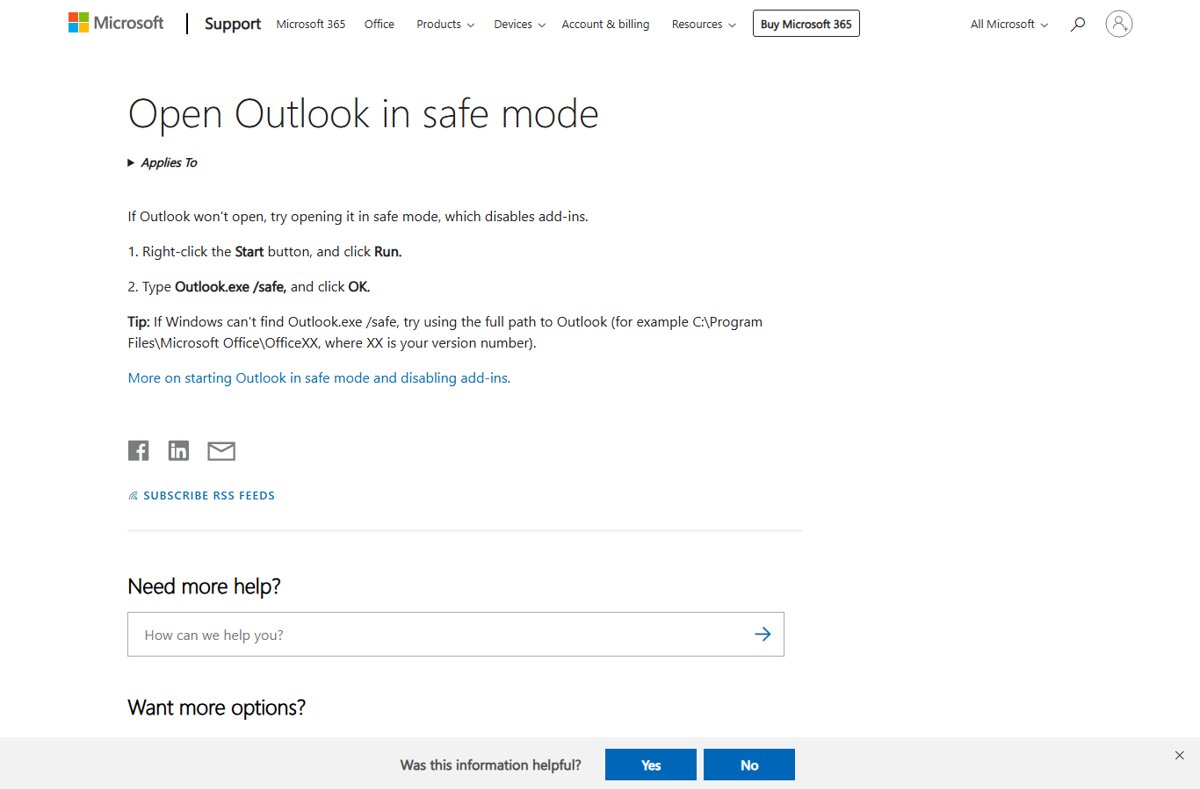
This is Microsoft's documented route for classic Outlook. Close Outlook first, or the command just switches to the open window.
- Close Outlook completely.
- Right-click the Start button and select Run, or press Windows + R.
- Type
Outlook.exe /safe. - Select OK.
- Choose your profile if Outlook asks, then select OK.
If Windows cannot find Outlook.exe, use the full path instead, for example "C:\Program Files\Microsoft Office\root\Office16\OUTLOOK.EXE" /safe for Microsoft 365. Older installs use a C:\Program Files\Microsoft Office\OfficeXX folder, where XX is the version number.
Which safe mode method should you use?
| Your situation | Use this | Why |
|---|---|---|
| Outlook crashes at startup | Run: Outlook.exe /safe |
Microsoft's main documented method |
| You prefer a hotkey and no typing | Hold Ctrl and open Outlook | Works from any Outlook shortcut or Start entry |
| The Run box is blocked or you work in a console | Command Prompt or Windows Terminal with the full path | Same switch, typed in a shell |
| You troubleshoot often | A desktop shortcut with /safe in the target |
One double-click each time |
| You only want the Reading Pane off | Outlook.exe /safe:1 |
Starts with the Reading Pane off |
| You use new Outlook for Windows | olk.exe --safe |
New Outlook uses dashes, not slashes |
Open Outlook in safe mode with the Ctrl key
- Find the Outlook shortcut on the desktop, taskbar or Start menu.
- Press and hold Ctrl.
- Double-click or select the Outlook shortcut while still holding Ctrl.
- Select Yes when Outlook asks whether to start in safe mode.
You can also select Start, type Outlook.exe /safe in the search box and press Enter, which avoids the Run box altogether.
Open Outlook In Safe Mode From Command Prompt or Windows Terminal
Microsoft's switch reference says to give the full path to the program in quotation marks, then a space and the switch. The path below is the default for Microsoft 365 and Office 2016 or later.
- Select Start, type Terminal or Command Prompt, and open it.
- In Command Prompt, type
"C:\Program Files\Microsoft Office\root\Office16\OUTLOOK.EXE" /safeand press Enter. - In a PowerShell tab of Windows Terminal, put
&and a space in front of the same quoted path, then add/safe, and press Enter. - For new Outlook, type
olk.exe --safeinstead. - Leave the window open or close it; Outlook keeps running either way.
If the path is not found, Office is installed somewhere else. Open File Explorer, find OUTLOOK.EXE under C:\Program Files\Microsoft Office, and use that path.
Open Outlook In Safe Mode With a Desktop Shortcut
- Right-click an empty area of the desktop and select New > Shortcut.
- For the location, enter
"C:\Program Files\Microsoft Office\root\Office16\OUTLOOK.EXE" /safewith the quotation marks and the space before/safe. - Select Next.
- Name the shortcut, for example Outlook Safe Mode, and select Finish.
- Double-click the new shortcut whenever you need safe mode.
What Outlook Safe Mode Does
Office safe mode is not the same as Windows safe mode. Only Outlook starts with reduced features; Windows itself runs normally.
| Switch or mode | What changes |
|---|---|
Outlook.exe /safe |
No Reading Pane or toolbar customizations; all COM add-ins turned off |
Outlook.exe /safe:1 |
Reading Pane off only |
Outlook.exe /safe:3 |
COM add-ins turned off only |
| Office safe mode restrictions | Preferences and customizations are not saved, and the AutoCorrect list is not loaded |
New Outlook olk.exe --safe |
PST files, S/MIME, offline access and web add-ins disabled; Outlook forces a restart within one day |
| New Outlook recovery mode | Starts after five failed launches in a row; same limits, but the session can continue |
Automated safe mode is different: Office starts it on its own when an add-in, file, registry entry or template stops the app from starting, and asks whether to disable the faulty part.
How To Tell If Outlook Is Running In Safe Mode
- Look for the Reading Pane: after
Outlook.exe /safeit does not appear even if you normally use it. - Check the ribbon for buttons that come from add-ins, such as the Teams meeting button; they are missing because COM add-ins are off.
- Change a view setting, close Outlook and reopen it normally; safe mode does not save preferences.
- To leave safe mode, close Outlook and start it the usual way.
Troubleshooting Outlook After It Opens In Safe Mode
If Outlook works in safe mode but not normally, an add-in is the most likely cause. When it keeps reopening there, these fixes for Outlook stuck in safe mode go further.
Why does Outlook only open in safe mode?
A COM add-in fails at startup, so Office offers safe mode each time.
- In safe mode, select File > Options > Add-ins.
- Next to Manage, choose COM Add-ins and select Go.
- Clear all the check boxes and select OK.
- Restart Outlook normally, then turn add-ins back on one at a time until the problem returns.
Classic Outlook crashes and asks to open in safe mode after an update
An older Outlook build clashes with a newer Microsoft Teams Meeting add-in, as Microsoft confirmed in March 2026.
- Open Word and select File > Account > Update Options > Update Now to update Office.
- If you must stay on the older build, open Outlook in safe mode and go to File > Options > Add-ins > Go.
- Clear Microsoft Teams Meeting Add-in for Microsoft Office and select OK.
- Restart Outlook.
Why can't I open Outlook in safe mode?
Outlook was still running, the path was wrong, or Office itself is damaged.
- Close every Outlook window, then run the command again.
- Use the full quoted path to OUTLOOK.EXE.
- Repair Office from Control Panel > Programs and Features: right-click Microsoft Office and choose Change.
An add-in shows as disabled after automated safe mode
Office disabled the item that stopped it from starting.
- Select File > Options > Add-Ins.
- On the Manage menu choose Disabled Items and select Go.
- Select the item and select Enable only after updating or reinstalling it.
Frequently Asked Questions
How do I open Outlook in safe mode in Windows 10?
The steps match Windows 11. Press Windows + R, type Outlook.exe /safe and select OK. On Windows 10 you can also select Start, type Outlook.exe /safe and press Enter.
How do I open Outlook in safe mode in Office 365?
Microsoft 365 uses the same switch. Run Outlook.exe /safe, or use the full path C:\Program Files\Microsoft Office\root\Office16\OUTLOOK.EXE followed by /safe if Windows cannot find the program.
How do I open Outlook in safe mode from cmd?
Type the full path to OUTLOOK.EXE in quotation marks, add a space and /safe, and press Enter. For Microsoft 365 the default path is C:\Program Files\Microsoft Office\root\Office16\OUTLOOK.EXE.
What is the hotkey to open Outlook in safe mode?
Hold the Ctrl key while you open Outlook from its shortcut, then select Yes when Outlook asks whether to start in safe mode.
How do I open Outlook in safe mode without Run?
Hold Ctrl while opening Outlook, type Outlook.exe /safe in the Start search box and press Enter, or create a desktop shortcut whose target ends in /safe.
How do I open new Outlook in safe mode?
Run olk.exe –safe. New Outlook uses two dashes instead of a slash. Its safe mode disables PST files, S/MIME, offline access and web add-ins, and forces a restart within one day.
Why do we need to open Outlook in safe mode?
Safe mode starts Outlook with add-ins and customizations turned off. If Outlook works there but crashes normally, an add-in or customization is the cause, which tells you where to look.
Why does Outlook open in safe mode on its own?
Office starts automated safe mode when an add-in, file, registry entry or template prevents a normal start. It names the problem and offers to disable it.
How do I get Outlook out of safe mode?
Close Outlook and start it normally. Safe mode lasts only for that session, unless the underlying problem makes Office offer it again.
Bottom Line
Use Outlook.exe /safe from the Run box, or hold Ctrl while opening Outlook, then turn COM add-ins off and back on one at a time. Safe mode only proves whether add-ins or customizations are at fault; the add-in check is what actually fixes a crashing Outlook.