To enable or disable autofill in Microsoft Edge, open Settings and more (the three dots) > Settings > Passwords and autofill, then switch the autofill toggle on or off for passwords, payment info and personal info.
This guide covers each type of autofill, how to edit or delete saved entries, how to clear old form data, and the policy that switches autofill off on managed PCs.
Disabling Autofill in Microsoft Edge
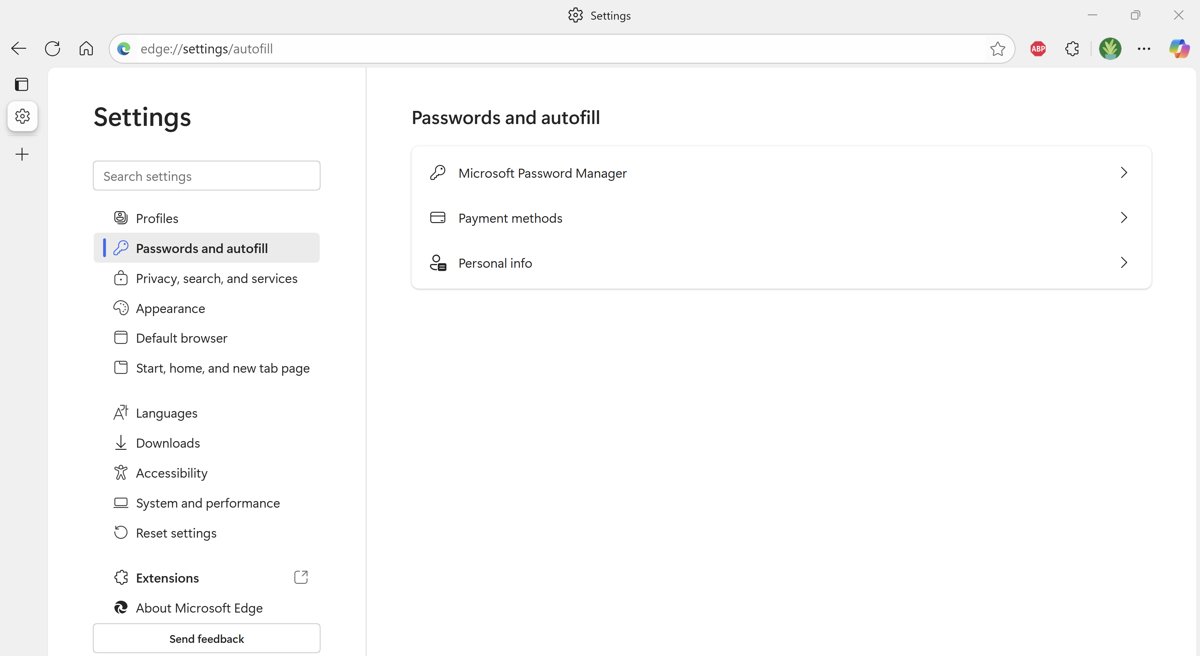
Edge keeps passwords, payment cards and personal details such as addresses in one place, Passwords and autofill. Each type has its own switch, so turn off only the ones you want gone.
- Open Edge and select Settings and more (the three dots in the top-right corner).
- Select Settings, then Passwords and autofill. You can also type
edge://settings/profilesin the address bar. - For passwords, open Microsoft Password Manager, select More settings and turn off Autofill passwords and passkeys.
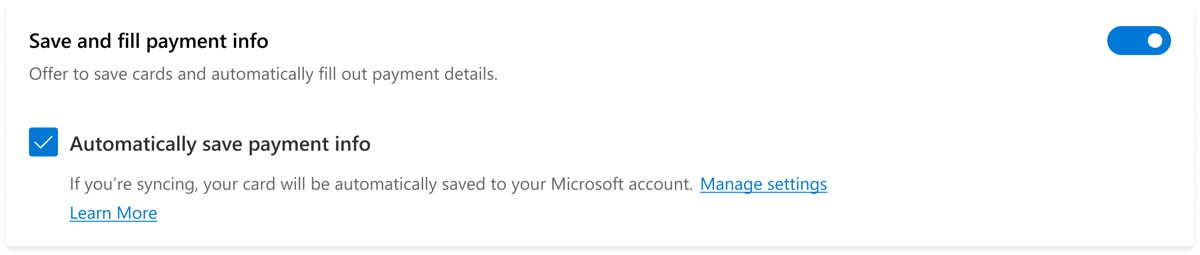
- For cards, open Payment info and turn off Save and fill payment info.
- For names, addresses and phone numbers, open Personal info and turn off its save-and-fill switch.
- Reload any open web form; Edge stops suggesting saved entries.
Understanding Autofill in Microsoft Edge
Autofill is several features that share one settings page. Each one saves a different kind of data and fills a different kind of field.
| Autofill type | What it fills | Where to switch it |
|---|---|---|
| Passwords and passkeys | Sign-in fields on sites you saved | Passwords and autofill > Microsoft Password Manager > More settings |
| Payment info | Credit and debit card fields at checkout | Passwords and autofill > Payment info |
| Personal info | Name, address, email and phone fields | Passwords and autofill > Personal info |
| Form entries | Text you typed before into the same field | Cleared with browsing data |
Edge stores this data on your device. If sync is on for these items, it also goes to the Microsoft cloud with your Microsoft account so every signed-in copy of Edge can use it.
Enabling Autofill in Microsoft Edge
- Select Settings and more > Settings > Passwords and autofill.
- Open Microsoft Password Manager, select More settings and turn on Autofill passwords and passkeys.
- Open Payment info and turn on Save and fill payment info. Turn on Automatically save payment info if you want new cards saved without asking.
- Open Personal info and turn on its save-and-fill switch.
- Fill in a form or checkout once and select Yes when Edge offers to save the details.
Microsoft Password Manager in Edge needs a personal account profile. Work or school profiles may have it restricted by the organisation.
Managing Autofill Entries
Turning autofill off does not delete what Edge already saved. Edit or remove individual entries from the same settings page.
- Open Settings > Passwords and autofill > Microsoft Password Manager.
- Select the right arrow next to a saved password, then the eye icon to view it or Edit to change it, and select Save.
- Remember that editing a password in Edge does not change it on the website; change it on the site too.
- Open Payment info or Personal info to review saved cards and addresses, and remove any you no longer use.
- To wipe stored form entries in bulk, go to Settings > Privacy, search, and services > Clear browsing data, select Choose what to clear, pick a time range and tick the autofill and password items.
Turn off Edge autofill for every user with Group Policy
On Windows Pro, Enterprise or Education with the Microsoft Edge administrative templates installed, Group Policy can switch autofill off so users cannot turn it back on.
| To stop | Policy (Administrative Templates/Microsoft Edge) | Registry value under HKLM\SOFTWARE\Policies\Microsoft\Edge |
|---|---|---|
| Address and form autofill | Enable AutoFill for addresses = Disabled | AutofillAddressEnabled, REG_DWORD 0 |
| Card autofill and Express Checkout | Enable AutoFill for payment instruments = Disabled | AutofillCreditCardEnabled, REG_DWORD 0 |
| Saving new passwords | Password manager and protection > Enable saving passwords to the password manager = Disabled | PasswordManagerEnabled, REG_DWORD 0 |
Disabling address autofill also stops Edge saving or suggesting entries in every web form except payment and password fields. Disabling the password policy blocks new saves, but previously saved passwords still work.
How to check autofill is on or off
- Open a sign-in page or checkout form you used before.
- Click into the first field.
- With autofill on, Edge shows a drop-down of saved entries; with it off, no list appears.
- If the toggle cannot be changed, type
edge://policyin the address bar to see whether an organisation policy controls it.
Fix Edge autofill when it will not stop or will not fill
Autofill keeps suggesting old entries after you turned it off
Turning a feature off stops new saves but keeps existing data and plain form history.
- Open Settings > Privacy, search, and services > Clear browsing data > Choose what to clear.
- Choose the longest time range in the list.
- Tick the autofill form data item and confirm the clear.
- If sync is on, clear it on each device or turn off sync for that data first.
You cannot turn autofill on because the toggle is greyed out
An organisation policy manages the setting.
- Type
edge://policyin the address bar to see which policies apply. - Look for AutofillAddressEnabled, AutofillCreditCardEnabled or PasswordManagerEnabled.
- On a work PC, ask IT to change it; on your own PC, set the matching Group Policy back to Not Configured.
Saved cards do not fill at checkout
Save and fill payment info is off, or the site's card form is not recognised.
- Turn on Save and fill payment info under Payment info.
- Click into the card number field to bring up the suggestion list.
- Enter the CVV yourself; Microsoft does not store it.
Privacy Considerations
Autofill trades convenience for exposure on shared PCs. Anyone using your Windows account can fill saved details unless you add a sign-in check.
- Open Settings > Passwords and autofill > Microsoft Password Manager > More settings.
- Keep Autofill passwords and passkeys on if you use it.
- Select Prompt for the device sign-in options before viewing or filling website password.
- Confirm with Windows Hello or your device PIN or password.
- On a shared or public computer, turn autofill off entirely and clear browsing data before you leave.
Device sign-in replaces the old Custom Primary Password feature, which Microsoft is retiring in favour of Windows Hello and system sign-in.
Additional Tips for Efficient Browser Use
| Tip | Why it helps |
|---|---|
| Use a separate Edge profile for work and personal browsing | Each profile keeps its own autofill data and settings |
| Turn on sync only for the data you need on other devices | Less personal data leaves the PC |
| Keep extension count low | Each Edge extension you enable can read pages you visit |
| Review saved passwords flagged by Password Monitor | Edge warns when a saved password appears in a known leak |
| Bookmark edge://settings/profiles | It opens Passwords and autofill in one step |
Frequently asked questions
How do I turn off autofill in Edge?
Select Settings and more > Settings > Passwords and autofill. Turn off Autofill passwords and passkeys under Microsoft Password Manager, Save and fill payment info under Payment info, and the switch under Personal info.
How do I turn on autofill in Edge?
Go to Settings > Passwords and autofill and switch on the autofill toggles for passwords, payment info and personal info. Edge then offers to save details the next time you fill in a form.
How do I enable or disable autofill settings for one type of data only?
Each autofill type has its own toggle under Passwords and autofill. Turn off Payment info to stop card filling while keeping passwords, or the reverse. The other types keep working.
How do I get autofill to stop showing old entries?
Clear the saved data. Open Settings > Privacy, search, and services > Clear browsing data, pick the longest time range and tick the autofill form data item. Turning autofill off alone does not delete what was saved.
How do I disable autofill in the browser on a work computer?
Administrators set the Edge policies Enable AutoFill for addresses and Enable AutoFill for payment instruments to Disabled. The registry values AutofillAddressEnabled and AutofillCreditCardEnabled set to 0 under HKLM\SOFTWARE\Policies\Microsoft\Edge do the same.
How do I turn off autofill on my computer in Windows 11?
Windows does not have one autofill switch; each browser controls its own. In Microsoft Edge, use Settings > Passwords and autofill. Other browsers keep separate settings that need changing too.
Does turning off autofill delete my saved passwords?
No. Saved passwords stay in Microsoft Password Manager until you remove them. With the password policy disabled, users still use previously saved passwords but cannot add new ones.
Is Edge autofill safe to use?
It is safer with a device sign-in check. Turn on Prompt for the device sign-in options before viewing or filling website password so Edge asks for Windows Hello or your PIN first.