To use your Galaxy phone on a Windows 11 PC today, pair it with the built-in Phone Link app through Link to Windows, because Samsung's current DeX pages describe DeX only on monitors, TVs and tablets and offer no Windows app.
This guide covers the Phone Link setup, running phone apps in windows, moving files, using your PC keyboard and mouse, running full DeX on a separate monitor, and fixes for connection problems.
If DeX for PC is no longer supported: use Link to Windows
Samsung Galaxy phones ship with Link to Windows preinstalled, and Windows 11 includes Phone Link. Together they put your phone's apps, photos, messages and screen on the PC over Wi-Fi.
- Connect the PC and the Galaxy phone to the same Wi-Fi network.
- On the PC, type Phone Link in the taskbar search box and open Phone Link.
- Select Android and sign in with your Microsoft account if asked.
- On the phone, open Settings > Advanced features > Link to Windows and sign in with the same Microsoft account.
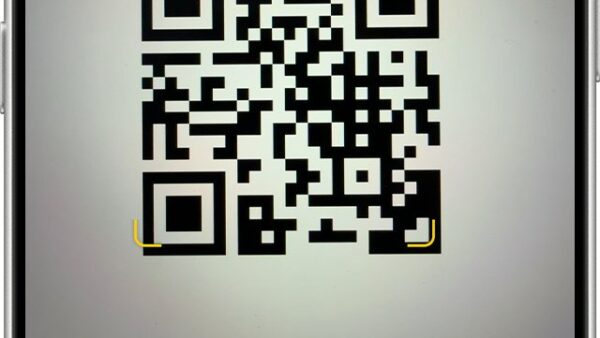
- On the PC, select the I have the Link to Windows app ready check box, then select Pair with QR code.
- On the phone, tap Link your phone and PC, tap Continue, and scan the QR code shown on the PC.
- Allow the permissions the phone asks for, tap Done, and return to Phone Link on the PC.
If the camera route fails, select Pair manually on the PC and type the code it shows into the phone.
Should you use DeX for PC, Link to Windows, or external DeX?
| Your situation | Use this | Why |
|---|---|---|
| You want phone apps in windows next to Windows apps | Link to Windows + Phone Link | Apps open in separate windows and can be pinned to Start or the taskbar |
| You want to drag photos and files between phone and PC | Link to Windows file drag and drop | Up to 100 files per transfer, 512 MB per file, no cable |
| You want a full DeX desktop on a big screen | External DeX on a monitor or TV | Samsung's DeX desktop runs on the external display, with up to 4 workspaces |
| You are looking for the old DeX for PC app | Link to Windows instead | Samsung's current DeX pages list monitor, TV and tablet use only, with no Windows download |
| You only want to read texts and notifications on the PC | Phone Link | Messages and notifications sync without mirroring the whole screen |
What you need to use Samsung DeX for PC on Windows 11
| Requirement | Detail |
|---|---|
| Windows version | Windows 11, or Windows 10 with the October 2022 update or later |
| Phone | An Android device running Android 10 or later; Galaxy phones have Link to Windows preinstalled |
| Network | Phone and PC on the same Wi-Fi network, ideally the same 2.4 GHz or 5 GHz band |
| Account | The same Microsoft account signed in on Phone Link and Link to Windows |
| Phone screen | Android 10 or later with Link to Windows preinstalled, and a PC graphics card that supports DirectX 11 |
| Multiple apps at once | Android 11 or later on the phone; Microsoft recommends at least 8 GB of RAM on the PC |
Phone Link does not support multiple Android profiles or work and school accounts, so only apps from the phone's default profile appear.
Check whether your Galaxy device supports DeX for PC
Samsung lists these models as compatible with Samsung DeX. Every one of them also works with Link to Windows, which needs only Android 10 or later.
| Family | Models Samsung lists for DeX | Exceptions Samsung notes |
|---|---|---|
| Galaxy S | S8, S9, S10, S20, S21, S22, S23, S24 and S25 series | None listed |
| Galaxy Note | Note8, Note9, Note10 series and Note20 series | None listed |
| Galaxy foldables | Fold, Z Fold2 to Z Fold7, and Z Flip7 | Z Flip7 FE cannot use DeX over HDMI or wireless DeX |
| Galaxy A | A90 5G | None listed |
| Galaxy Tab | Tab S4, Tab S5e, Tab Active Pro, Tab S6, Tab S7 to Tab S11 series, Tab Active 3 | Tab S9 FE, Tab S10 Lite, Tab S10 Plus and Tab S10 FE have no HDMI output |
Install Samsung DeX on Windows 11: what to install today
There is no DeX installer on Samsung's current DeX pages. The Windows half of the connection is Phone Link, which most Windows 11 PCs already have.
- Open Settings on the PC.
- Search for Phone Link.
- Select Enable or disable Phone Link.
- Turn on the Phone Link toggle.
- Select Install in the pop-up window that appears.
- Open Phone Link from the Start menu once the install finishes.
On the Galaxy phone there is nothing to install: Link to Windows sits under Settings > Advanced features > Link to Windows. Other Android phones can get it from the Google Play Store.
Connect your Galaxy device to Windows 11 (Wi-Fi, not USB)
Link to Windows connects over Wi-Fi, so no USB cable is involved. Use this route when the phone is already linked to your Microsoft account, for example after a Windows reinstall.
- Type Phone Link in the taskbar search box and open it.
- Select Android as your device.
- Pick your Galaxy phone from the list of devices linked to your Microsoft account.
- If no phone is listed, scan the QR code shown on the PC with the Link to Windows camera on the phone.
- Grant the permissions Link to Windows asks for on the phone.
Use apps in DeX
Phone Link's Apps page is the Windows 11 equivalent of opening phone apps in DeX windows.
- Open Phone Link and select Apps.
- Click an app to open it in its own window on the PC.
- Open more apps the same way to use them side by side with Windows apps.
- Right-click an app to pin it to Start, the taskbar, or your Phone Link favorites.
- Select Open phone screen above the apps list to mirror the whole phone in a separate window.
Recently used phone apps also appear when you click the ^ button in the taskbar corner and select the Phone Link icon. Sound from these apps keeps playing on the phone, not the PC.
Move files between DeX and Windows 11
File drag and drop works on Samsung devices with Link to Windows preinstalled, version 1.0.52.30 or later. Keep the Phone Link window open, because minimizing it cancels the transfer.
- Open Phone screen in Phone Link and open My Files or Gallery on the mirrored phone.
- Long-press a file until a checkmark appears, then tap any other files you want.
- Long-press the selection and drag the thumbnail onto the Windows desktop or a File Explorer folder.
- Release when the cursor shows Copy.
- To go the other way, drag files from File Explorer into the Phone Link window and release on Copy.
- Find PC-to-phone files on the phone in Internal Storage > Downloads.
Each transfer takes up to 100 files of up to 512 MB each. Folders and cloud-only files cannot be dragged.
How to check the connection worked
- Open Phone Link on the PC and confirm your Galaxy phone's name appears at the top.
- Select Apps and open any phone app; it should open in its own window.
- Drag a photo from the phone's Gallery onto the desktop and check it appears there.
- On the phone, open Settings > Advanced features > Link to Windows and confirm your PC is listed as connected.
Use your Windows keyboard and mouse in DeX
Your PC's mouse, trackpad, keyboard, pen or touch screen drive the phone apps directly. These are the mouse actions Phone Link maps to touch.
| Mouse action on the PC | What the phone receives |
|---|---|
| Single click | A single tap |
| Right-click anywhere on the phone screen | Back to the previous page |
| Click and hold | Tap and hold, which opens context menus |
| Click, hold and drag | Text or content selection |
| Mouse scroll | Vertical or horizontal scrolling between pages |
| Shift + Space (keyboard) | Switches between keyboard languages added on the phone |
Typing language follows the phone's physical keyboard setting under Settings > General Management > Language and input > Physical keyboard. Some games ignore mouse input and need a touch-screen PC.
Understand the DeX desktop on Windows 11
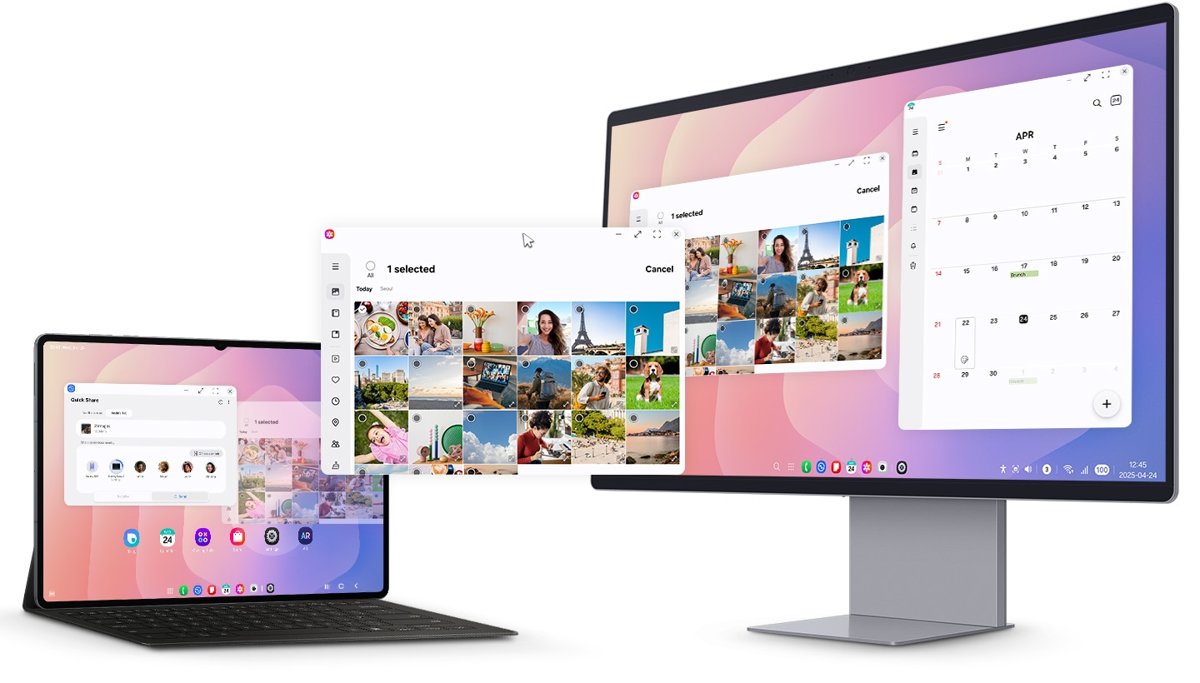
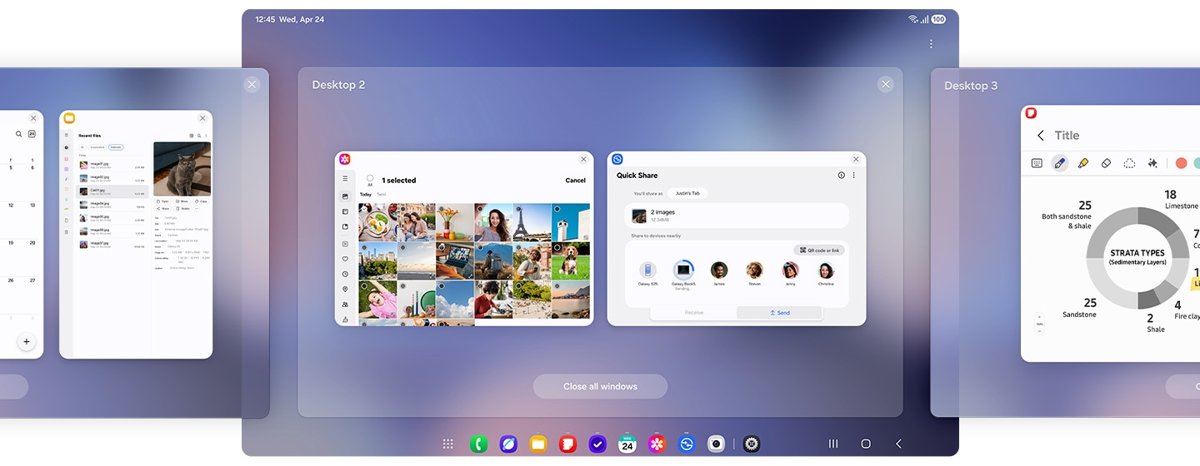
The full DeX desktop only appears on an external display or a Galaxy tablet. Phone Link on Windows 11 shows phone apps as Windows windows instead.
| Feature | DeX on a monitor or tablet | Phone Link on Windows 11 |
|---|---|---|
| Desktop | Samsung's own desktop with taskbar and windows | Your Windows 11 desktop |
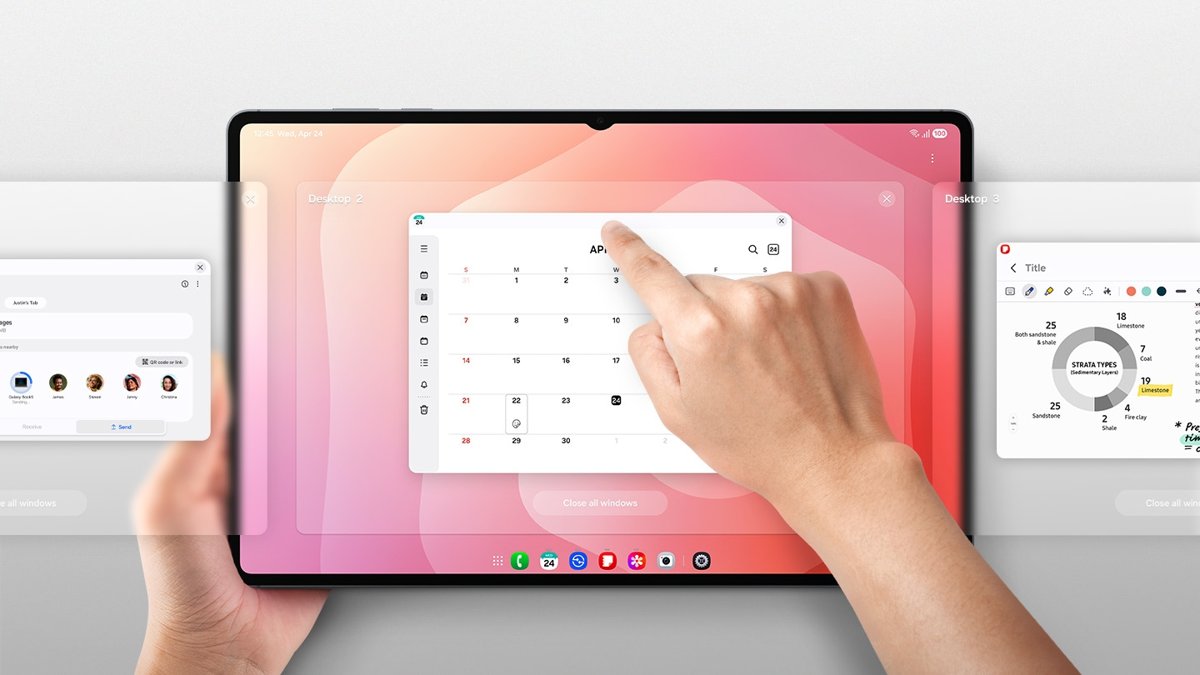
| Workspaces | Up to 4 desktops | Windows 11 virtual desktops |
| Apps open at once | Up to 5 per workspace; a sixth minimizes the first | Several app windows, on Android 11 or later |
| Connection | HDMI adapter or wireless DeX (Miracast) | Wi-Fi through Link to Windows |
| Phone during use | Works as a touchpad or keyboard | Screen can go black for privacy |
Use full Samsung DeX without Windows: connect to a monitor
Full DeX runs from the phone onto any monitor with an HDMI adapter, or wirelessly onto a Miracast-capable TV or monitor.
- For a wired connection, plug a USB-C to HDMI adapter into the phone and connect it to the monitor's HDMI input.
- For a wireless connection, swipe down to open the Quick Panel and tap Wireless DeX.
- Alternatively, open Settings > Device Connections > Samsung DeX > Connect wirelessly.
- Select the TV or monitor from the list.
- Use the phone as a touchpad, or pair a Bluetooth keyboard and mouse to the phone.
Samsung recommends Samsung Smart TVs released after 2019 for wireless DeX, and performance depends on the TV and the Wi-Fi network.
Adjust DeX settings
| What to change | Where |
|---|---|
| DeX connected display options | Phone: Settings > Device Connections > Samsung DeX > Connected Display |
| Switch an external display to mirroring | Phone: Quick Settings panel > Wired DeX, or Connected Display > Screen Mirroring |
| Black phone screen while linked | PC: Phone Link Settings > Phone screen > Hide my Android device's screen while it's connected to my PC |
| Recent apps in the taskbar corner | PC: Phone Link Settings > Features > Show recently used apps in Windows notification area |
| Sync over mobile data | Phone: Link to Windows Settings > Sync over mobile data |
Mirroring mode is not available while wireless DeX is connected.
Use DeX and your phone at the same time
| Scenario | What happens | What to do |
|---|---|---|
| Phone screen mirrored in Phone Link | The phone screen turns black by default | Press the power button or swipe the screen to use the phone |
| A call arrives while the screen is black | The phone screen shows normally | Answer on the phone as usual |
| DeX and Phone Link open together | Microsoft says having both open may cause issues with both apps | Keep only one of them open at a time |
| DeX on a tablet plus a monitor | Multi Workspace on both needs a Book Cover Keyboard or Bluetooth mouse | Pair one before using Extended mode |
Best practical uses for Samsung DeX on or near Windows 11
| Task | Best tool | Reason |
|---|---|---|
| Reply to texts while working on the PC | Phone Link | Messages sync to the PC keyboard |
| Run a phone-only app on the PC | Phone Link Apps | The app opens in its own window and can be pinned |
| Copy phone photos to a PC folder | Link to Windows drag and drop | No cable, up to 100 files at once |
| Present from the phone in a meeting room | Wireless DeX to a TV | Full DeX desktop without a PC |
| Work from a hotel or office desk with only a monitor | Wired DeX with an HDMI adapter | The phone becomes the computer |
Troubleshooting Samsung DeX on Windows 11
Phone and PC will not connect
Different accounts, different networks, or battery saving cutting the link.
- Confirm Phone Link and Link to Windows use the same Microsoft account.
- Connect both devices to the same Wi-Fi network and the same band.
- Turn off Battery saver on the PC and the phone.
- On the phone, open Settings > Apps > Link to Windows > Battery and stop battery optimization for the app.
- On the PC, open Settings > System > Shared experiences and select Fix now if it appears.
Same Wi-Fi network, still no connection
Router wireless isolation (AP isolation) blocks devices from talking to each other.
- Sign in to the router's admin page.
- Look under Wireless > Advanced Wireless Setting for AP Isolation.
- Turn AP isolation off and reconnect both devices.
"Update Required" page in Phone Link
Phone Link or Link to Windows is older than the minimum version.
- On the PC, open Phone Link Settings > About and select Update if offered.
- On the Galaxy phone, open Settings > Advanced features > Link to Windows, tap … > Link to Windows, then tap Update.
- Close and reopen Phone Link once both updates finish.
Issues when DeX and Phone Link run together
Running both at once can cause problems in both apps.
- Exit DeX on the phone or disconnect the external display.
- Close Phone Link and open it again.
A phone app shows a black window on the PC
Some apps block screen casting.
- Open that app on the phone itself instead.
- Use other apps through Phone Link as normal.
Dragged files show a red cursor and do not copy
A transfer is still running, a folder was selected, or the 100-file or 512 MB limit was exceeded.
- Wait for the previous transfer to finish.
- Select files only, not folders.
- Split large batches into groups under 100 files.
Security and privacy tips
| Tip | Why it matters |
|---|---|
| Pair only on a trusted, private Wi-Fi network | Microsoft notes the fastest connection is not possible on public networks such as hotels or airports |
| Keep the black screen option on | It hides your phone's content from people near the phone while the PC shows it |
| Lock the PC when you step away | Anyone at an unlocked PC can open your phone apps and messages |
| Remove the phone when you sell or lend the PC | Unlinking stops the PC from reaching your phone content |
| Review the permissions Link to Windows asks for | They decide which phone content the PC can show |
Frequently asked questions
How do I use Samsung DeX on Windows 11?
Pair the Galaxy phone with the Phone Link app through Link to Windows, which is preinstalled on Galaxy phones. Samsung's current DeX pages cover monitors, TVs and tablets only, so Phone Link is how you get phone apps, files and the phone screen on a Windows 11 PC.
How do I use Samsung DeX on Windows 10?
Use Phone Link on Windows 10 with the October 2022 update or later. Pair it with Link to Windows on the Galaxy phone using the QR code, and keep both devices on the same Wi-Fi network.
How do I use Samsung DeX on a laptop or PC?
Open Phone Link on the laptop, choose Android, and scan the QR code with Link to Windows on the phone. Phone apps then open in windows, and the laptop keyboard and touchpad control them.
How do I set up Samsung DeX on Windows?
Install or enable Phone Link from Settings on the PC, then open Settings > Advanced features > Link to Windows on the Galaxy phone. Sign both into the same Microsoft account and pair with the QR code.
Is there a Samsung DeX app for Windows to download?
Samsung's current DeX pages list no Windows download. The Windows-side app you need is Phone Link, which most Windows 11 PCs already include and which installs from Settings if it is missing.
Do I need to turn off Link to Windows to use Samsung DeX?
Microsoft says having Phone Link and DeX open at the same time may cause issues with both apps. Keep only one open at a time, for example close Phone Link while the phone runs DeX on a monitor.
Can I connect Samsung DeX to Windows 11 with a USB cable?
Link to Windows connects over Wi-Fi, not USB, and file drag and drop needs no cable. A USB-C to HDMI adapter is for running full DeX on a monitor or TV, not for connecting to Windows.
How do I use Samsung DeX on a computer monitor without a PC?
Connect the phone to the monitor with a USB-C to HDMI adapter, or tap Wireless DeX in the Quick Panel for a Miracast-capable display. The phone then runs the DeX desktop on its own.
Samsung's other phone-to-PC app, Samsung Flow, is separate from DeX and Phone Link.
Bottom line
On Windows 11, pair your Galaxy phone with Phone Link through Link to Windows, and keep full DeX for a monitor or TV. Link to Windows is preinstalled on Galaxy phones, needs no cable, and gives you phone apps, file drag and drop and the phone screen on the PC, while Samsung now documents DeX only for external displays and tablets.