To do shift lock on Roblox PC, turn on the shift lock switch in the experience's settings menu, then press Shift during play to lock the camera behind your character.
This guide covers turning shift lock on and off, how it changes the camera, and why it sometimes does nothing in a particular game.
Step-by-Step Guide to Enabling Shift Lock on Roblox PC
Shift lock works the same on a desktop PC and a laptop, as long as the game allows it.
- Launch Roblox and enter a game (an experience).
- Open the in-experience Roblox menu and go to its Settings tab.
- Locate the shift lock switch in the list of settings.
- Turn the shift lock switch on, then close the menu to return to the game.
- Press Shift once to lock the camera; press Shift again to release it.
When it is active, the mouse cursor sits locked in the centre of the screen and the camera moves just over your character's right shoulder.
What is Shift Lock in Roblox?
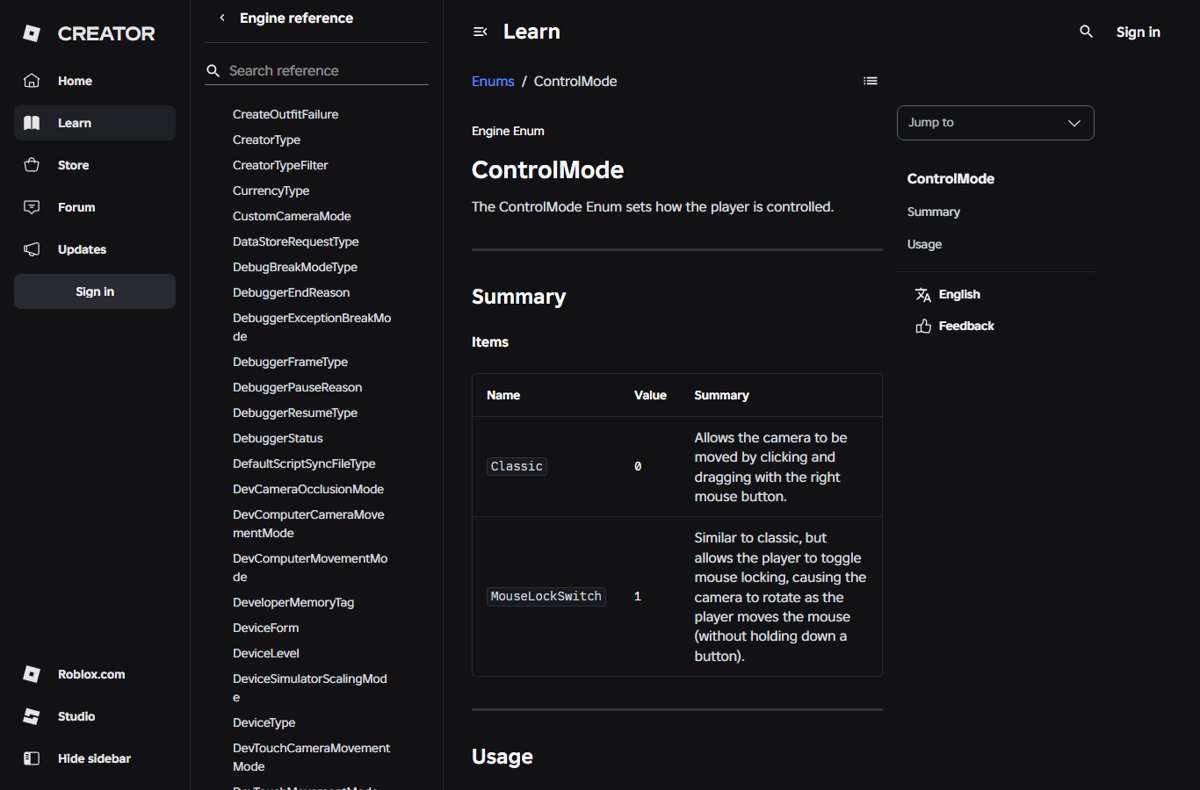
Shift lock is Roblox's mouse lock camera mode. Roblox documents it as a toggle that the player switches with Shift.
| Behaviour | Classic camera | Shift lock on |
|---|---|---|
| Cursor | Free to move | Locked to the centre of the screen |
| Turning the camera | Hold the right mouse button and drag | Move the mouse, no button needed |
| Character facing | Faces the direction you walk | Always faces the same way as the camera |
| Camera position | Behind the character | Offset just over the right shoulder |
| Who controls availability | Always available | The game's developer can turn the option off |
Benefits of Using Shift Lock
Because the character always faces where the camera points, shift lock turns mouse movement directly into aim and direction.
| Benefit | Where it helps |
|---|---|
| Improved precision and control | Obby jumps, where you need to face an exact direction before you leap |
| Enhanced aiming and shooting | Combat and shooter games, since the centre of the screen is where you face |
| Simplifies gameplay for new players | No need to hold the right mouse button to turn the camera |
| Better movement in confined spaces | Narrow corridors and ledges where the classic camera swings around |
| Competitive edge | Fast turns in PvP games, because the mouse alone rotates your character |
Prerequisites for Using Shift Lock on Roblox PC
| Requirement | Why it matters |
|---|---|
| Compatible Roblox version | Keep Roblox updated so the settings menu matches current builds |
| Proper input devices: keyboard and mouse | Shift lock is a keyboard and mouse feature; the mouse turns the camera |
| Shift lock switch enabled in Roblox settings | Pressing Shift does nothing while the switch is off |
| A game that allows shift lock | Developers can disable mouse lock for their experience |
| Adequate system performance | Low frame rates make the locked camera feel sluggish |
| Familiarity with basic controls | W, A, S, D still move you; the mouse now steers |
If the menu looks different from these steps, update Roblox on Windows and rejoin the game.
How to Use Shift Lock During Gameplay
Activating shift lock is a two-part job: the switch in Roblox settings makes it available, and the Shift key turns it on and off in game.
- Confirm the shift lock switch is on in the experience's settings.
- Press Shift to activate shift lock; the cursor jumps to the centre of the screen.
- Move the mouse to turn the camera and your character together.
- Use W, A, S and D to move relative to where the camera faces.
- Press Shift again whenever you need a free cursor, for example to click a menu or shop button.
Tips for optimal use: switch it off for building and menus, and on for jumping, aiming and tight spaces.
How to check shift lock is on
- Confirm activation: look for the cursor fixed in the centre of the screen.
- Move the mouse without pressing a button; the camera should orbit and your character should turn with it.
- Check the camera sits slightly over the right shoulder of your character.
- If turning feels too fast or slow, adjust the camera sensitivity in the same settings menu.
Deactivating Shift Lock on Roblox PC
- Using keyboard shortcuts: press Shift once to release the camera for the moment.
- Using the settings menu: open the in-experience Roblox menu and go to Settings.
- Turn the shift lock switch off so pressing Shift no longer locks the camera.
- Close the menu and return to the game.
Turning the switch off is the fix when you keep triggering shift lock by accident, for example while using Shift to sprint in games that map it to running.
Troubleshooting Common Issues with Shift Lock on Roblox PC
Shift lock not activating
Either the switch in settings is off, or the game's developer has turned mouse lock off for that experience.
- Open the Roblox menu, go to Settings, and make sure the shift lock switch is on.
- If the switch is missing or greyed out, the developer has disabled it; the game cannot be changed from your side.
- Try another experience to confirm shift lock works on your PC.
Shift lock activates but does not work properly
The game uses its own camera or remaps the Shift key, for example to sprint.
- Check the game's own controls or settings for a camera or sprint option.
- Turn off any other program that remaps keys or locks the mouse.
- Update Roblox and rejoin the game.
Shift lock stuck or not deactivating
The Shift press is not reaching Roblox, usually because another window has focus.
- Click inside the Roblox window so it has focus, then press Shift again.
- Try the Shift key on the other side of the keyboard.
- Turn the shift lock switch off in settings to release the camera.
Tips for Effective Use of Shift Lock on Roblox PC
| Tip | Why |
|---|---|
| Lower mouse sensitivity in Roblox settings | The camera now turns with every mouse movement, so smaller movements give finer aim |
| Toggle off before opening menus or chat | A locked cursor cannot click buttons |
| Use it on narrow obby jumps | Your character faces exactly where you look before you jump |
| Leave it off for building games | Placing items needs a free cursor |
| Practise in a simple obby first | Additional tips for better control come quickly once the mouse feels natural as steering |
Roblox notes that shift-lock related developer APIs are being deprecated in favour of a newer mouse behaviour setting, so some newer games handle the locked camera through their own controls.
Frequently asked questions
How do I do shift lock on a Roblox laptop?
The same way as on a desktop. Turn on the shift lock switch in the experience's settings, then press Shift to lock the camera. A touchpad works, but a mouse makes turning the locked camera much easier.
How do I do shift lock on a keyboard?
Press the Shift key once the shift lock switch is on in Roblox settings. The camera locks behind your character's right shoulder. Press Shift again to unlock it and free the cursor.
Why can't I shift lock in Roblox?
Either the shift lock switch is off in Roblox settings, or the game's developer has turned mouse lock off for that experience. Turn the switch on first. If the option is missing in one game only, the developer has disabled it.
How do I do shift lock in MM2 on PC?
Use the same steps: turn on the shift lock switch in the in-game Roblox settings, then press Shift. If nothing happens in one game but works in others, that game's developer controls whether mouse lock is allowed.
Why is my shift lock not working in Roblox?
The switch may be off, the game may disable mouse lock, or another app may be remapping Shift. Check the switch in settings, test a different game, and close any key-remapping software before rejoining.
How do I turn off shift lock in Roblox?
Press Shift once to release the camera. To stop it turning on again, open the Roblox menu, go to Settings and turn the shift lock switch off. The classic camera then needs the right mouse button to rotate.
Does shift lock give an advantage in Roblox?
It can. Your character always faces where the camera points, so aiming and precise jumps are easier with the mouse alone. Many players still switch it off for menus and building, where a free cursor works better.


![Clear or refresh cache in Google Chrome [Windows 11]](https://techdows.com/wp-content/uploads/2026/10/Google-Chrome-Help-page-listing-steps-to-delete-browsing-data-on-a-computer-600x338.jpg)