To reset Windows 10 to factory settings, open Settings > Update & Security > Recovery, select Get started under Reset this PC, and choose Keep my files or Remove everything.
This guide covers both reset options, resetting from the recovery screen when Windows will not start, a full clean install, and what to do when the reset fails.
How to Reset Windows 10 to Factory Settings via Settings Menu
Use this route whenever Windows 10 still starts and you can sign in.
- Select Start > Settings > Update & Security > Recovery.
- Under Reset this PC, select Get started.
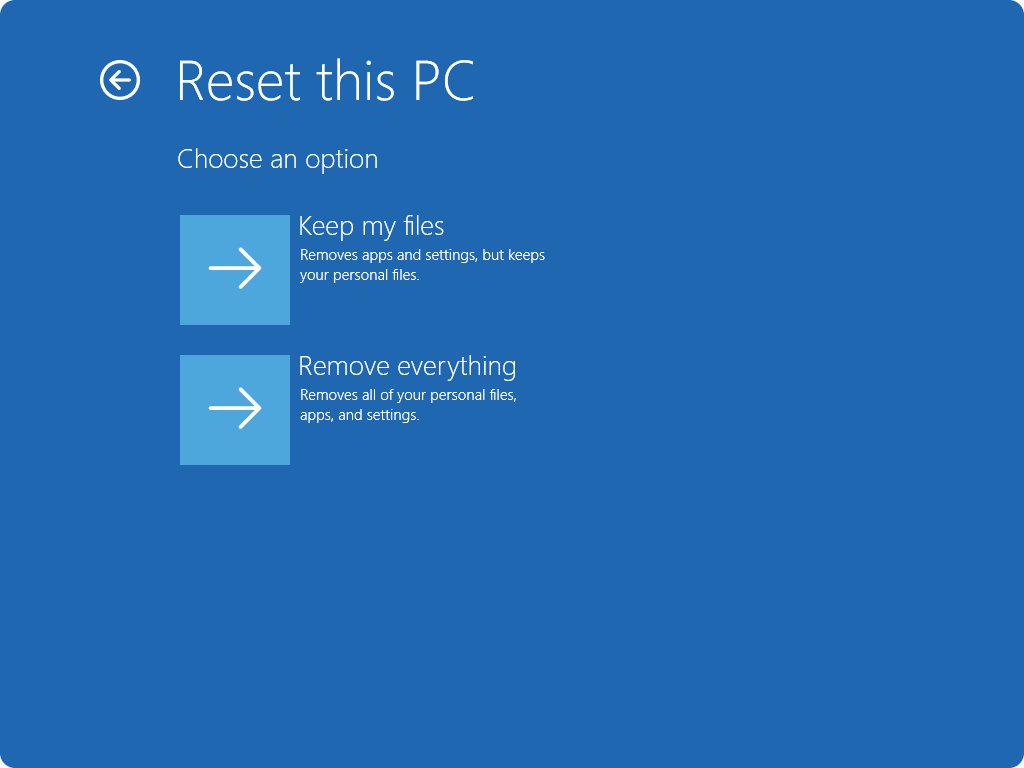
- Choose Keep my files to keep personal files, or Remove everything to wipe the PC.
- Choose Cloud download to fetch a fresh copy of Windows, or Local reinstall to rebuild from files already on the PC.
- Review the summary and select Reset.
- Leave the PC alone while it restarts; the screen can stay black for up to 15 minutes.
Do not restart the PC yourself during the reset. Microsoft warns that a manual restart can make the reset fail.
Understanding What “Reset” Means for Windows 10
Reset this PC reinstalls Windows 10. What survives depends on the option you pick.
| Item | Keep my files | Remove everything |
|---|---|---|
| Personal files (documents, photos) | Kept | Removed |
| User accounts | Kept | Removed |
| Apps you installed yourself | Removed | Removed |
| Windows settings you changed | Removed (important settings are kept) | Removed |
| Apps and customizations from the PC maker | Restored to factory state | Restored to factory state |
| Windows and drivers | Reinstalled in an updated state | Reinstalled in an updated state |
A reset is not the same as System Restore. System Restore only rolls system files, registry settings and installed programs back to an earlier restore point and leaves personal files alone.
Methods to Reset Windows 10 to Factory Settings
| Your situation | Use this | Why |
|---|---|---|
| Windows starts, you want a fresh system but your files | Settings > Reset this PC > Keep my files | Fixes software problems without touching documents |
| Selling or giving the computer away | Settings > Reset this PC > Remove everything, with Clean data on | Removes accounts and data, and wipes the drive more thoroughly |
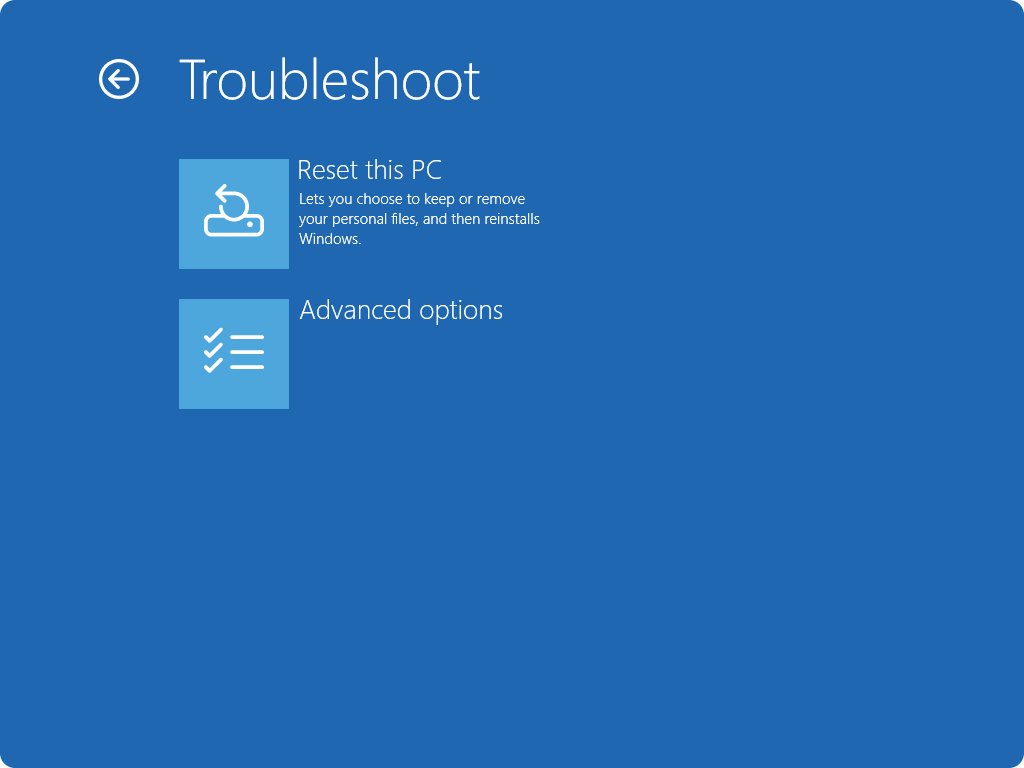
| Windows will not start or you cannot sign in | Advanced startup: Troubleshoot > Reset this PC | Runs from the recovery environment outside Windows |
| Local recovery files are damaged | Cloud download | Pulls a fresh copy of Windows from the internet |
| Slow internet connection | Local reinstall | Uses files already on the PC, no large download |
| Only want to undo a recent change | System Restore (rstrui.exe) |
Rolls back system changes, keeps everything else |
| Reset keeps failing or you want a new partition layout | Clean install from USB media | Replaces everything on the drive |
If only file associations are wrong, a full reset is overkill: reset the Open With settings instead.
Precautions Before Resetting Windows 10
| Check | Why it matters |
|---|---|
| Back up personal files to an external drive or OneDrive | Remove everything deletes them, and a failed reset can leave the PC unbootable |
| Note the apps you installed | Both options remove apps you installed yourself; you reinstall them afterwards |
| Have your BitLocker recovery key ready | Encrypted devices can ask for it during the reset |
| Know your Microsoft account password | Signing in afterwards applies the digital license saved to that account |
| Plug a laptop into power | The reset can take a long time and restarts several times |
| Check Windows 10 support status | Windows 10 stopped getting free updates and security fixes on October 14, 2025 |
How to Reset Windows 10 Using Advanced Startup Options
Use the Windows Recovery Environment (Windows RE) when Windows will not load, or when you are stuck at the sign-in screen.
- On the sign-in screen, press and hold Shift while you select Power > Restart.
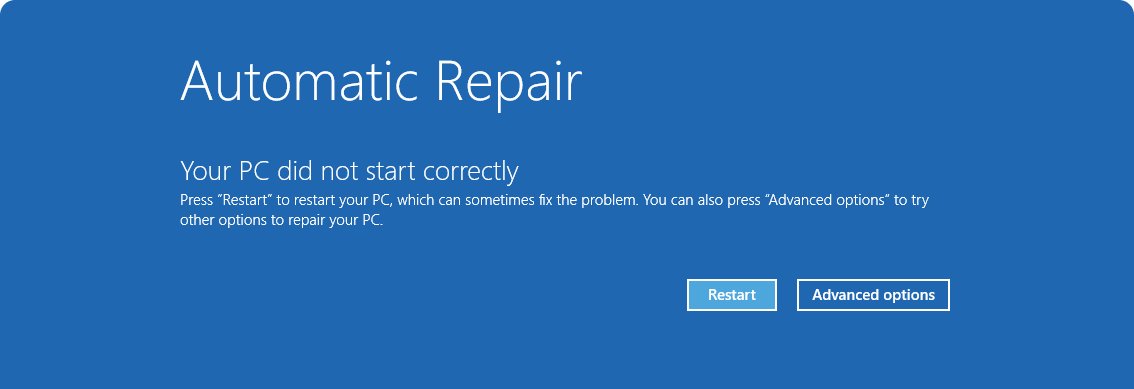
- If Windows does not start at all, interrupt the boot twice; Windows enters recovery on the third start.
- On the blue recovery screen, select Troubleshoot.
- Select Reset this PC.
- Choose Keep my files or Remove everything, then the account and reinstall method when asked.
- Select Reset and wait for the PC to restart into setup.
From a working desktop you can also reach this screen through Settings > Update & Security > Recovery. A USB recovery drive boots straight into Windows RE too.
Resetting Windows 10 from Manufacturer’s Recovery Partition or Factory Image
Windows 10 no longer needs a separate recovery image on a local partition. Reset this PC itself restores the PC maker's preinstalled apps and customizations to their factory state, so it is the factory reset on most PCs.
- Start Reset this PC from Settings or from Troubleshoot in Windows RE.
- Choose Keep my files or Remove everything.
- Select Change settings if it is offered, to review the options.
- Leave Restore preinstalled apps on if you want the maker's software back, as it shipped.
- Confirm and select Reset.
If your PC maker supplied its own recovery tool or recovery media, use the steps on the maker's support site for your model. A recovery drive made on the PC offers Recover from a drive, which restores the original partition layout, Windows and the maker's customizations.
Performing a Clean Installation of Windows 10 (Advanced)
A clean install wipes the drive, partitions included. Use it when a reset fails repeatedly. You need a working PC and a blank USB flash drive of at least 8 GB.
- On a working PC, open the Windows 10 download page and run the Media Creation Tool to create installation media on the USB drive.
- Plug the USB drive into the PC you are resetting and start it from the USB drive using its boot menu.
- Choose language and keyboard settings, then select Next.
- If a product key screen appears, select I don't have a product key and pick the edition that was installed.
- Accept the license terms and choose the custom install option.
- Delete all partitions on Disk 0, select Disk 0 Unallocated Space, and select Next.
- When setup finishes, sign in with your Microsoft account so the digital license is applied.
The boot menu key is usually F2, F12, Delete or Esc, depending on the PC maker. Everything on the drive is deleted, so back up first.
How to check the reset worked
- Confirm the PC boots to the Windows 10 setup screens (after Remove everything) or to your account (after Keep my files).
- Open Settings > Update & Security > Activation and check that Windows is activated.
- Open File Explorer and confirm your documents are present if you kept them.
- Reinstall the apps you need; both reset options remove apps you installed yourself.
Post-Reset Considerations and Tips
| Task | What to do |
|---|---|
| Updates | Run Settings > Update & Security > Windows Update and install everything offered |
| Activation | Sign in with your Microsoft account if Windows is not activated |
| Apps | Reinstall your apps from their official sites or the Microsoft Store |
| Files | Copy your backup back if you chose Remove everything |
| Security | Windows 10 no longer gets free security fixes, so plan a move to Windows 11 if the PC qualifies |
| Selling the PC | Stop at the first setup screen and let the new owner finish setup |
Moving to Windows 11 later? The process is different there; see how to reset all settings in Windows 11.
Troubleshooting Common Issues During Reset
Reset this PC will not start or fails partway
Damaged recovery files or a problem inside the running copy of Windows.
- Start the reset from Windows RE instead: hold Shift, select Power > Restart, then Troubleshoot > Reset this PC.
- Switch between Cloud download and Local reinstall; a cloud download avoids damaged local files.
- If it still fails, do a clean installation from USB media.
The screen stays black during the reset
Normal behaviour; the screen can stay black for up to 15 minutes.
- Wait at least 15 minutes before doing anything.
- Do not power off or restart the PC manually, which can make the reset fail.
- If it never comes back, start Windows RE and try the reset again.
The reset asks for a BitLocker recovery key
The drive is encrypted and the reset needs the key to unlock it.
- Find the recovery key you saved when BitLocker was turned on.
- Type the key when prompted.
- Without the key, the only option left is a clean install, which erases the drive.
Windows will not start, so Settings is unreachable
Boot files or the system itself are damaged.
- Interrupt the boot twice so Windows enters recovery on the third start.
- Or start from a USB recovery drive or Windows 10 installation media and choose the repair option instead of installing.
- Select Troubleshoot > Reset this PC, or Recover from a drive on a recovery drive.
Frequently asked questions
How do I reset Windows 10 to factory default settings?
Open Settings > Update & Security > Recovery and select Get started under Reset this PC. Choose Keep my files or Remove everything, pick Cloud download or Local reinstall, and select Reset. Windows reinstalls itself and restores the PC maker's preinstalled apps.
How do I reset Windows 10 to sell my computer?
Use Reset this PC with Remove everything, and turn on Clean data under Change settings. That removes all accounts, files and apps. Microsoft notes this erasure is aimed at consumers and does not meet government or industry data erasure standards.
Can I reset Windows 10 without losing my files?
Yes. Choose Keep my files in Reset this PC. Windows reinstalls and keeps your personal files and user accounts, but removes the apps and drivers you installed yourself. Back up anyway, because a failed reset can leave files unreachable.
How do I reset Windows 10 to an earlier date?
Use System Restore rather than a reset. Press Windows + R, type rstrui.exe, press Enter, and pick a restore point. It rolls back system files, registry settings and installed programs to that date without touching your personal files.
Why can't I reset my PC in Windows 10?
Usually the recovery files on the PC are damaged or something in the running system blocks the reset. Start the reset from Windows RE, try Cloud download instead of Local reinstall, and use a clean install from USB media if both fail.
How long does a Windows 10 factory reset take?
It depends on the drive speed, the option you choose and, for Cloud download, your internet speed. Expect several restarts and a black screen that can last up to 15 minutes. Do not restart the PC manually while it works.
Can I reset Windows 10 to Windows 11?
No. Reset this PC reinstalls the version already on the PC. To move to Windows 11, upgrade through Windows Update if the PC meets the requirements. Microsoft recommends it because Windows 10 support ended on October 14, 2025.
Does a factory reset remove viruses?
Remove everything reinstalls Windows and deletes all user files and apps, which removes infections stored there. Keep my files keeps personal files, so anything hidden in them survives. Scan your backup before copying it back.
Do I need a product key after resetting Windows 10?
Usually not. A PC that was activated reactivates with its digital license. If a product key screen appears during a clean install, select I don't have a product key, then sign in with your Microsoft account after setup.


![Clear or refresh cache in Google Chrome [Windows 11]](https://techdows.com/wp-content/uploads/2026/10/Google-Chrome-Help-page-listing-steps-to-delete-browsing-data-on-a-computer-600x338.jpg)