Windows Sound Recorder records internal PC sound only when your audio driver offers a Stereo Mix input: enable it under More sound settings > Recording, then pick it as the recording device inside Sound Recorder and press Ctrl + R.
This guide covers the preparation, the Stereo Mix setup, the free loopback route when Stereo Mix is missing, recording quality, and fixes when Sound Recorder records silence.
The fastest way to record PC sound with Sound Recorder
- Select Start > Settings > System > Sound.
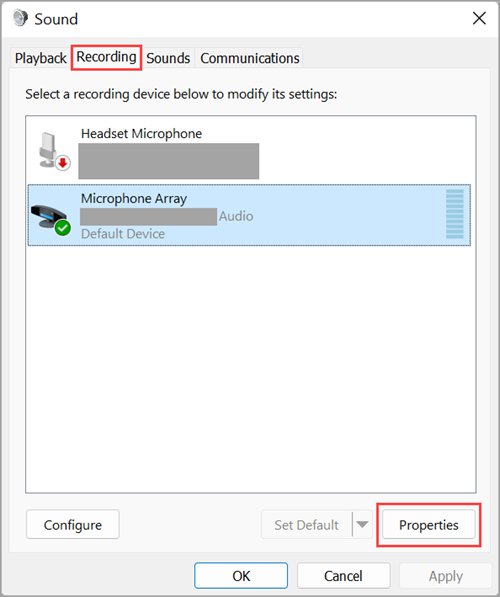
- Under Advanced, select More sound settings and open the Recording tab.
- Select Stereo Mix, select Properties, and set Device usage to Use this device (enable).
- Open Sound Recorder from the Start menu.
- Choose Stereo Mix as the recording device in the app.
- Play the sound on your PC and press Ctrl + R to record; press Esc to stop and save.
If there is no Stereo Mix on the Recording tab, skip to the section on what to do when Stereo Mix is not available.
Understanding the Challenges of Recording Internal Sound on Windows
Sound Recorder records from input devices, such as a microphone. Sound playing through your speakers is output, so the app cannot hear it unless something feeds that output back in as an input.
| Route | Where it comes from | Works with Sound Recorder? |
|---|---|---|
| Microphone | Built-in or USB mic | Yes, but it records the room, not the PC's own audio |
| Stereo Mix (also called What you hear) | An input provided by some sound card drivers | Yes, once enabled and selected |
| WASAPI loopback | A Windows audio interface that some recording apps can use | No, use an app such as Audacity |
| Virtual audio cable | Third-party driver software | Possible, but needs extra software |
Microsoft added recording device and file format choices to the redesigned Windows 11 Sound Recorder, which replaced Voice Recorder. That device menu is what lets the app record Stereo Mix.
Preliminary Checks and Preparations
| Check | Where | Why it matters |
|---|---|---|
| Sound Recorder is installed | Start > search Sound Recorder | It ships with Windows 11; recordings live inside the app and are deleted if it is uninstalled |
| Apps may use input devices | Settings > Privacy & security > Microphone > Let apps access your microphone | Sound Recorder needs this permission for any input, including Stereo Mix |
| Windows and drivers are current | Settings > Windows Update > Check for updates | Stereo Mix comes from the audio driver |
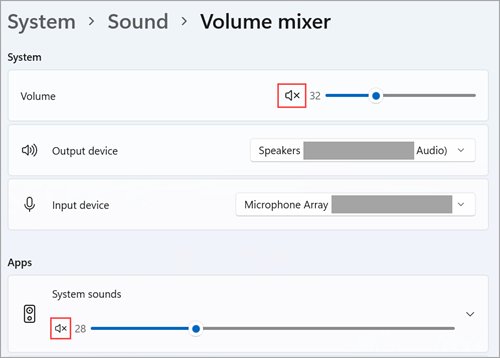
| Audio is not muted | Right-click the speaker icon on the taskbar and check the volume mixer | A muted output can give a silent recording |
| Length fits | Plan around three hours | Microsoft caps each Sound Recorder file at three hours |
Enabling and Using Stereo Mix for Internal Audio Recording
Stereo Mix appears on the Recording tab only on PCs whose sound driver provides it. Enable it once, then select it whenever you record.
- Select Start > Settings > System > Sound.
- Under Advanced, select More sound settings.
- Open the Recording tab and select Stereo Mix.
- Select Properties and set Device usage to Use this device (enable), then select OK.
- Open Sound Recorder and choose Stereo Mix from the recording device menu.
- Start playback of the audio you want, then select Start recording or press Ctrl + R.
- Press Space to pause and Esc to stop; the file appears in the recordings list.
Play a few seconds back before a long session. If the waveform stays flat, see the troubleshooting section.
If Stereo Mix Is Not Available
Many laptops and USB headsets ship without Stereo Mix. Sound Recorder then has no input that carries PC sound, so use a recorder that supports WASAPI loopback instead. Audacity is free and documents this setup.
- Install Audacity from audacityteam.org.
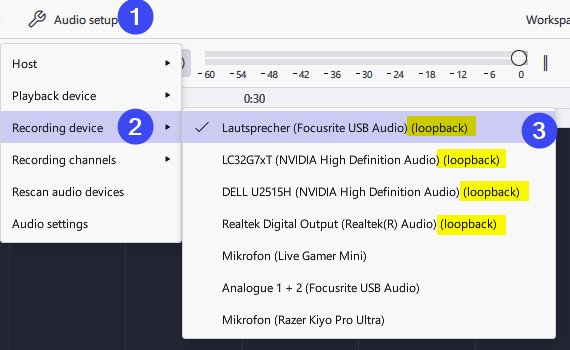
- Open Audacity and select Audio Setup.
- Set Host to Windows WASAPI.
- Choose the output you listen through as the recording device; it is marked (loopback).
- Make sure input monitoring is off.
- Start the audio playing first, then select Record.
- Stop, then export the recording to a file.
Audacity notes that WASAPI cannot start recording when no audio stream exists, which is why playback must start first.
Using Third-Party Recording Software for Improved Results
Sound Recorder is the simplest tool when Stereo Mix exists. Third-party recording software gives better results when you need editing, other formats or no Stereo Mix at all.
| Your situation | Use this | Why |
|---|---|---|
| Stereo Mix is listed and you just need a quick capture | Sound Recorder | Built in, Ctrl + R to start, Esc to save |
| No Stereo Mix on the Recording tab | Audacity with Windows WASAPI loopback | Records any output device without a special driver |
| You want to trim, normalise or remove noise | Audacity | Records and edits in one app |
| You need the PC sound and your voice on separate tracks | A virtual audio cable plus a multi-track recorder | Routes each source separately; requires installing a driver |
Download any recorder only from its developer's own site, never from a download portal.
Best Practices for High-Quality Internal Sound Recording
- Close apps that play notifications or alerts, because Stereo Mix and loopback record every sound the PC makes.
- Set the source app's volume to a normal listening level; very low playback records as a quiet file.
- Pick the file format you need inside Sound Recorder before you start.
- Record a ten-second test and play it back.
- Keep each Sound Recorder session under three hours, the per-file limit.
- Rename the recording straight away: right-click it, select Rename, type a name and select Rename.
How to check the recording captured PC sound
- Watch the visualization in Sound Recorder while audio plays; it should move with the sound.
- Stop the recording with Esc.
- Play the new file from the recordings list.
- Confirm you hear the PC audio, not room noise picked up by a microphone.
- If the file is silent, check that Stereo Mix, not the microphone, is the selected device.
Troubleshooting Common Issues
Windows Sound Recorder is not recording anything
The app has no permission to use input devices, or the wrong device is selected.
- Select Start > Settings > Privacy & security > Microphone.
- Under Let apps access your microphone, turn on access for Sound Recorder.
- Reopen Sound Recorder and select Stereo Mix as the device.
The recording is silent or very quiet
Stereo Mix is disabled, its level is low, or the PC output is muted.
- Open Settings > System > Sound > More sound settings > Recording.
- Select Stereo Mix > Properties and confirm Use this device (enable) is set.
- Right-click the taskbar speaker icon and make sure nothing in the volume mixer is muted.
- Record a new test while audio is playing.
Windows Sound Recorder is not working at all
A driver or Windows component needs updating, or the audio stack has a fault.
- Select Start > Settings > Windows Update > Check for updates and install updates.
- Select Start > Settings > System > Troubleshoot > Other troubleshooters.
- Select Run next to Audio.
- Restart the PC and try again.
Stereo Mix is missing from the Recording tab
The audio driver does not provide it, or it is hidden.
- Install pending driver updates from Windows Update.
- Check the Recording tab again.
- If it is still missing, use the Audacity loopback method above.
Legal and Ethical Considerations
Record internal sound only for content you own, have permission to copy, or are allowed to keep for personal use, and tell people before you record a call. Streams, music and videos are usually covered by copyright and their service terms, and many places require consent from everyone on a call. Stereo Mix captures every sound the PC plays, so it records the other side of a call too.
Frequently asked questions
Does Windows have an audio recorder?
Yes. Windows 11 includes Sound Recorder, which replaced Voice Recorder. It records from a microphone or another input, such as Stereo Mix, for up to three hours per file, and you can keep using other apps while it records.
Where is Sound Recorder in Windows 11?
Select Start and search for Sound Recorder, or find it in the app list. If it is missing, it can be reinstalled from the Microsoft Store. Recordings are stored inside the app, so uninstalling it deletes them.
How do I use Windows Sound Recorder?
Open Sound Recorder, choose the recording device, then select Start recording or press Ctrl + R. Press Space to pause and Esc to stop and save. Right-click a recording to rename, share or delete it.
Can Windows Sound Recorder record computer audio?
Yes, when your sound driver provides Stereo Mix. Enable it on the Recording tab of More sound settings and select it as the device in Sound Recorder. Without Stereo Mix, use a loopback recorder such as Audacity.
How do I record sound on Windows without a microphone?
Use Stereo Mix as the input in Sound Recorder, or use Audacity with Windows WASAPI as the host and an output device marked (loopback) as the recording device. Both capture what the PC plays.
Why is Windows Sound Recorder not recording?
Usually the app lacks permission or the wrong device is selected. Turn on Sound Recorder under Settings > Privacy & security > Microphone, then pick the correct device in the app. Silent files of PC audio mean Stereo Mix is disabled or not selected.
How do I adjust the microphone volume for Sound Recorder?
Select Start > Settings > System > Sound > Input, select the chevron next to your microphone, and drag the Input volume slider under Input settings. Record a short test to check the level.
Conclusion
Use Sound Recorder with Stereo Mix when your PC offers it, and switch to Audacity's WASAPI loopback when it does not. Sound Recorder is built in and simple, but it can only record inputs; loopback records any output device without extra drivers.