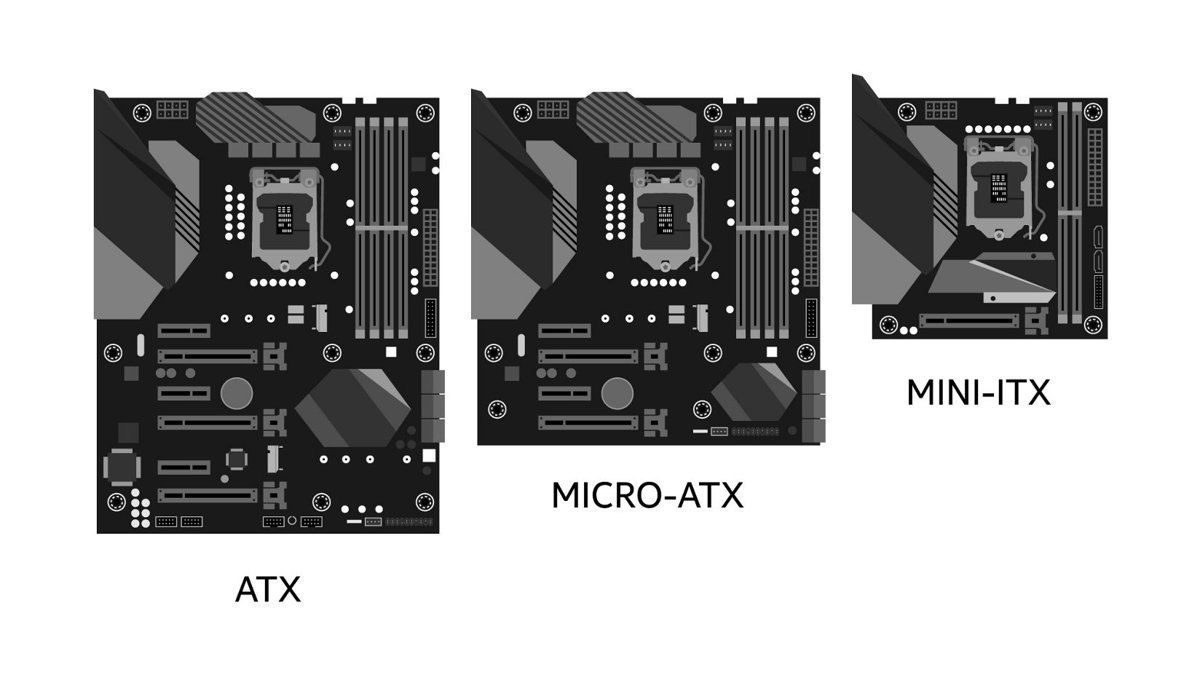
The three common motherboard types are ATX at 12 x 9.6 inches with up to seven expansion slots, Micro ATX at 9.6 x 9.6 inches, and Mini ITX at 6.7 x 6.7 inches with one full-size PCIe slot.
This guide compares their sizes, slots, memory, case fit, cooling and connectors, then gives a checklist for picking one and the build mistakes each size tends to cause.
ATX vs Micro ATX vs Mini ITX: The Quick Comparison
| Form factor | Size | Expansion slots | Memory (DIMM) slots | Pick it when |
|---|---|---|---|---|
| Extended ATX (eATX) | 12 x 13 in (some 12 x 10.1 in) | More than ATX | Up to eight | You build a workstation and have a large case |
| ATX | 12 x 9.6 in | Usually seven, spaced 0.7 in apart | Up to four | You want the most room for cards, drives and upgrades |
| Micro ATX | 9.6 x 9.6 in | Typically two full-size x16 slots among fewer slots | Up to four | You want a smaller tower with four RAM slots |
| Mini ITX | 6.7 x 6.7 in | One full-size PCIe slot | Typically two | You want the smallest PC and need only a graphics card |
Sizes and slot counts above are the standard figures Intel publishes for each form factor; check the exact board's spec page before you buy.
What “Motherboard Type” Actually Means
When builders say motherboard type, they usually mean form factor: the standard size and mounting-hole layout that decides which cases the board fits. Socket and chipset are separate choices that decide which processor works and which features you get.
| Term | What it decides | Example |
|---|---|---|
| Form factor | Board size, slot count and case fit | ATX, Micro ATX, Mini ITX |
| Socket | Which processor generation fits | Varies by CPU generation; check the CPU maker's documentation |
| Chipset | Overclocking, PCIe lanes and USB ports | Intel Z-series allows overclocking; H- and B-series do not |
| Memory type | Which RAM generation works | Listed on the board's spec page |
ATX (Full Size): Where It Wins
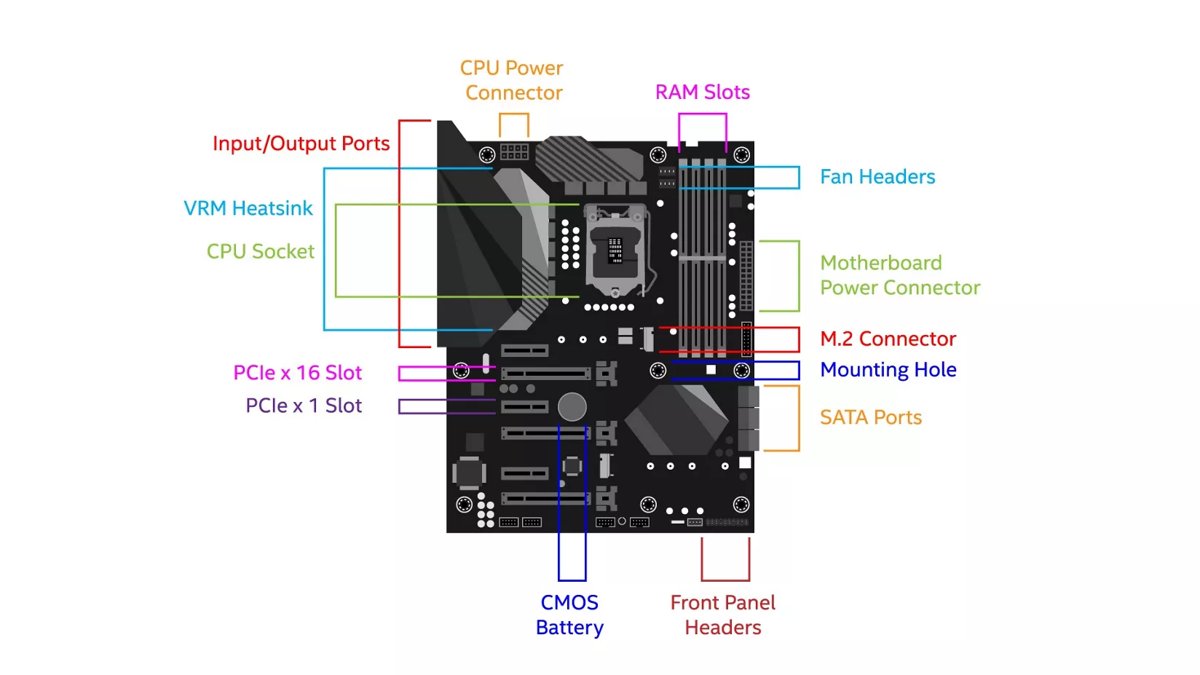
Choose ATX when you want the most expansion and the easiest build. Intel calls ATX the current standard for full-size motherboards, with usually seven expansion slots and four memory slots. The extra room spreads out slots, connectors and M.2 drives, and a bigger case is easier to work in and upgrade later. The cost is size: it needs a mid-tower or larger case, and a full ATX board usually takes nine mounting screws.
Micro ATX (mATX): The Practical Middle Ground
Choose Micro ATX for a compact tower that still holds four RAM sticks and a graphics card. At 9.6 x 9.6 inches it is the ATX design cut shorter, with two full-size x16 slots and four DIMM slots. It fits mini-tower cases and also mounts in larger ATX cases, so it suits budget and mid-range builds that may move into a bigger case later. The trade-off is fewer expansion slots, and a thick graphics card can cover the slot below it.
Mini ITX (mITX): Small Case, Big Tradeoffs
Choose Mini ITX only when a small case matters more than upgrade room. Intel describes it as a small form factor for compact computers, with one full-size PCIe slot and typically two DIMM slots. That one slot goes to the graphics card, so there is no room for extra cards, and two memory slots cap how much RAM you can add later. Small cases also limit cooler height, radiator size and graphics card length.
Dimensions, Standoffs, and Case Compatibility
Intel notes that Micro ATX boards stay compatible with larger ATX cases, and larger cases generally list smaller form factors among those they accept. The reverse never works: an ATX board does not fit a Mini ITX case.
| Case size | ATX | Micro ATX | Mini ITX |
|---|---|---|---|
| Full tower or eATX case | Yes | Yes | Usually; check the case spec sheet |
| ATX mid-tower | Yes | Yes | Usually; check the case spec sheet |
| Micro ATX mini-tower | No | Yes | Usually; check the case spec sheet |
| Mini ITX case | No | No | Yes |
Always confirm the supported form factors on the case's spec sheet. Standoffs, the threaded posts the board screws onto, must sit only under the board's holes; Intel warns not to insert unnecessary standoffs.
Expansion Slots and What You Can Really Fit
| What you want to install | ATX | Micro ATX | Mini ITX |
|---|---|---|---|
| One graphics card | Yes | Yes | Yes, using the only slot |
| Graphics card plus capture, sound or network card | Yes | Usually, if the card does not cover the next slot | No |
| Four memory sticks | Yes | Yes | No, typically two slots |
| Several M.2 drives | Most room | Some | Fewest, often on the back of the board |
Slot count on paper is not the whole story: a two- or three-slot-thick graphics card covers the slot below it. Check card thickness against the slot spacing before you buy extra cards.
Cooling, Airflow, and Radiator Fit
| Check before buying | Where to find it | Most at risk |
|---|---|---|
| Maximum CPU cooler height | Case spec sheet | Mini ITX cases |
| Supported radiator sizes and positions | Case spec sheet | Mini ITX and small Micro ATX cases |
| Maximum graphics card length | Case spec sheet | Mini ITX cases |
| Cooler compatibility with your CPU socket | Cooler maker's spec page | All sizes |
| Number of fan headers | Motherboard spec page | Mini ITX boards |
Intel's build advice is to err on the larger side: a bigger case is easier to work with and leaves room for better cooling and future upgrades.
Power Delivery and Connector Layout Differences
Every size uses the same two main power connections: an 8-pin CPU connector near the top of the board and a 24-pin connector on the side. What changes is how much room you have to route the cables.
| Connector | Where it usually sits | Watch for |
|---|---|---|
| 8-pin CPU power | Top edge of the board | In small cases, plug it in before fitting the cooler or radiator |
| 24-pin main power | Right-hand edge | Cable reach and bend room in compact cases |
| Front panel and USB headers | Bottom and right edges | Graphics cards that cover bottom headers on smaller boards |
| Graphics card power | On the card itself | Card length and power cable clearance against the case side |
Storage and Connectivity Variations You’ll Notice
| Feature | What varies by board | What to check |
|---|---|---|
| M.2 slots | Count and position; M.2 devices run 16 to 110 mm long | Number of slots and supported lengths |
| SATA ports | Fewer on smaller boards | Installing an M.2 drive may disable some SATA or PCIe storage; read the manual |
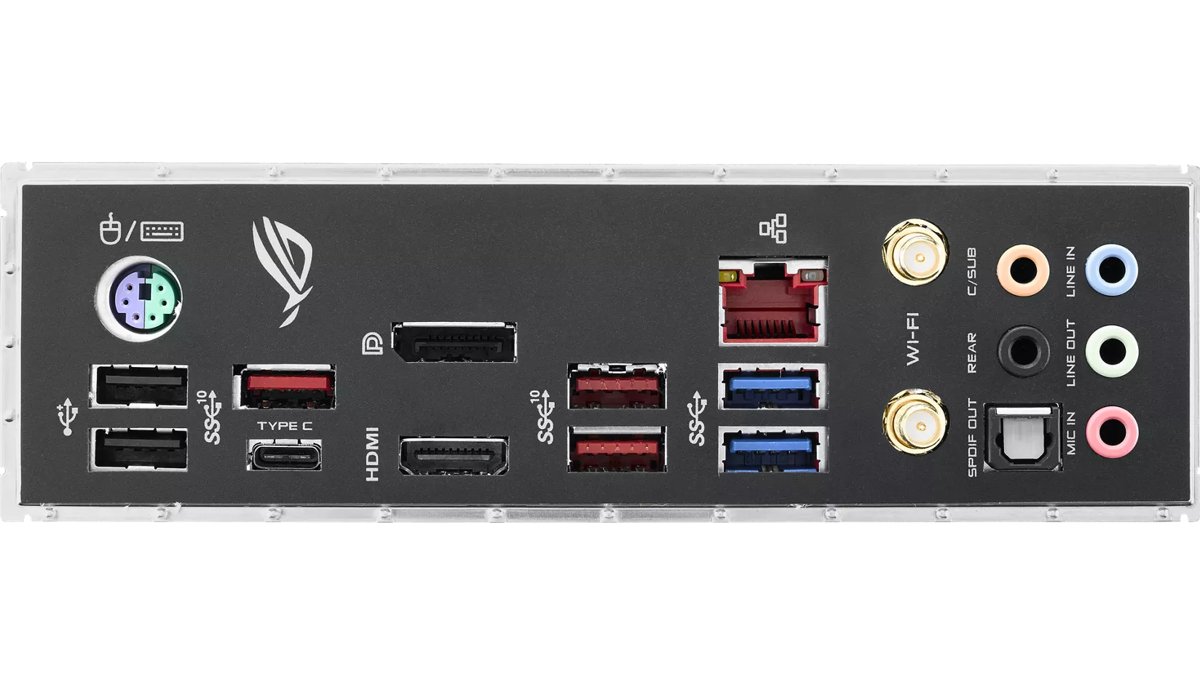
| USB ports | Depends on chipset tier | Higher-end chipsets offer more USB ports and PCIe slots |
| Onboard Wi-Fi | Model by model, not by size | Look for Wi-Fi in the model name or spec page |
Choosing the Right Form Factor: A Build-First Checklist
- Decide the case size first, because it sets the largest board you can use.
- Count the expansion cards you need beyond a graphics card; any extra card rules out Mini ITX.
- Decide how much memory you may add later; four DIMM slots mean ATX or Micro ATX.
- Count the M.2 and SATA drives you plan to use and check the board's storage limits.
- Confirm the CPU socket and chipset match your processor and whether you want overclocking.
- Check the case limits for cooler height, radiator size and graphics card length.
- Pick the smallest board that meets every line above; if unsure, go one size bigger.
Troubleshooting and Common Build Mistakes
The board doesn't line up with the standoffs
Standoffs are set for a different form factor, or extra standoffs sit where the board has no hole.
- Lift the board out and compare its holes with the standoff positions.
- Remove any standoff that has no matching hole on the board.
- Lower the board without dragging it across the standoffs and fit the center screw first.
The GPU hits a cable or blocks a slot
A thick card covers the next slot or bottom headers on a smaller board.
- Connect front panel and USB header cables before installing the card.
- Move the card to a slot that gives it breathing room, if the board has one.
- Check card thickness and length against the board and case before buying.
The PC doesn't turn on after the build
A power connection is missing or the power supply has a fault.
- Check both the 24-pin and the 8-pin CPU power cables are fully seated.
- Check the power supply switch and wall connection.
- If nothing happens at all, test with another power supply.
The PC starts but shows no picture
A loose cable or a card that is not fully seated.
- Check all cables, especially power cables, are connected.
- Reseat the graphics card and memory.
- Connect the monitor to the graphics card, not the motherboard output, if a card is installed.
FAQs
What are the different types of motherboard?
For desktop PCs the main types are Extended ATX, ATX, Micro ATX and Mini ITX. ATX measures 12 x 9.6 inches, Micro ATX 9.6 x 9.6 inches and Mini ITX 6.7 x 6.7 inches. Larger boards have more expansion and memory slots.
How many types of motherboard are there?
Four desktop form factors cover almost every board sold today: Extended ATX, ATX, Micro ATX and Mini ITX. Within each size, boards still differ by socket, chipset and features.
Are all motherboards the same?
No. They differ in size, processor socket, chipset, memory type and connectors. A board must match your case's form factor and your CPU's socket. Two boards of the same size can still support different processors and features.
Are all motherboards the same style or shape?
No. ATX is rectangular at 12 x 9.6 inches, while Micro ATX and Mini ITX are square at 9.6 and 6.7 inches. Extended ATX is wider still. Smaller boards generally fit in larger cases, but check the case spec sheet.
What type of motherboard do I have?
Find the model name on the board itself, its box or your PC maker's spec page, then check the manufacturer's spec page for its form factor. In Windows, System Information (msinfo32) gives a hardware overview of the PC you can use to start that search.
What motherboard would you choose and why?
For most desktop builds, ATX or Micro ATX. ATX gives the most expansion and an easier build; Micro ATX keeps four RAM slots in a smaller case. Choose Mini ITX only when a very small PC matters more than upgrade room.
Can a Micro ATX board go in an ATX case?
Yes. Intel describes Micro ATX as fitting mini-towers while staying compatible with larger ATX cases. Check the case's spec sheet and use only the standoffs that match the smaller board's holes, since Intel warns against unnecessary standoffs.
Bottom Line
Pick ATX for room and upgrades, Micro ATX for a compact tower with four RAM slots, and Mini ITX only for a small PC with one graphics card. The form factor fixes your case size, slot count and memory capacity for the life of the build, so choose for the cards, drives and RAM you will add later, not just today.