Minecraft “Exit Code: 1” means the Java Edition game process stopped with a general error, and the fastest fix is to launch the plain vanilla installation with no mods; if that starts, a mod or mod loader is the cause.
If the vanilla game also crashes, work through the remaining four solutions in order: Java, the launcher installation, graphics drivers and overlays, then a clean reinstall, reading the game log at each step.
Solution 1: Identify and Fix Mod or Mod Loader Issues (Forge/Fabric)
Most Exit Code: 1 crashes happen on modded installations, so test the game without mods before you change anything else. This takes two minutes and tells you which half of the problem you are in.
- Open the Minecraft Launcher and select Minecraft: Java Edition.
- Pick the default vanilla installation from the installation drop-down, not your Forge or Fabric installation.
- Select Play and wait for the title screen.
- If the vanilla game starts, the crash comes from a mod, a missing dependency mod or a loader built for a different game version.
- Open your modded installation, select Open game directory for it, and move the contents of the mods folder to a backup folder on your desktop.
- Launch the modded installation with no mods. If it now starts, the loader is fine and one of the mods is the cause; if it still crashes, install the loader build made for your exact game version.
- Add the mods back in small batches, launching after each batch, until the crash returns.
Every mod and every loader is built for a specific Minecraft version. A mod made for one release rarely loads on another, even a minor update apart.
5 ways to fix Minecraft exit code 1
Match what you see to a row and start with that solution. Each one rules out a cause, so the order matters when you are unsure.
| What you see | Start with | Why |
|---|---|---|
| Crash only on a Forge, Fabric or modpack installation | Solution 1: mods and mod loader | Vanilla works, so a mod, a missing dependency or a mismatched loader is the cause |
| Log mentions a Java version, class version or runtime | Solution 2: correct Java version | The game is running on a Java build it was not made for |
| Crash started after editing an installation or adding custom Java | Solution 3: reset the launcher profile | Custom Java paths and arguments carry over to every launch |
| Crash with a graphics, OpenGL or driver line in the log | Solution 4: drivers, overlays and conflicting software | The game cannot create its window or render the first frame |
| Every installation crashes, even a new vanilla one | Solution 5: clean reinstall | Launcher or game files are damaged |
What Does Minecraft Exit Code 1 Mean?
Exit Code: 1 is the launcher reporting that the Java process ended with a general failure. The number itself does not name the cause; the game log and crash report do.
| Part of the message | What it tells you |
|---|---|
| “Game crashed” or “The game crashed whilst…” | The game started loading, then stopped on an error |
| Exit Code: 1 | A general error code from the Java process, not a specific fault |
| Appears on Windows, macOS and Linux | The error comes from the game and its mods, not from one operating system |
| Appears only in Java Edition | Bedrock Edition does not run on Java and uses different error codes |
Common Causes of Exit Code: 1 (Mods, Java, Launcher, and System Conflicts)
| Cause | Typical sign | Fix |
|---|---|---|
| Incompatible or broken mod | Vanilla works, modded crashes | Solution 1 |
| Missing mod dependency | Log names a mod that “requires” another mod | Solution 1 |
| Mod loader built for another game version | Crash before the title screen on every modded launch | Solution 1 |
| Wrong Java version or a custom Java path | Log mentions Java or class file versions | Solution 2 |
| Edited installation settings or corrupted launcher profile | Crash started after you changed an installation | Solution 3 |
| Outdated graphics driver, overlay or security software | Log mentions OpenGL, the driver or a blocked file | Solution 4 |
| Damaged launcher or game files | Every installation fails | Solution 5 |
Before You Start: Quick Checks to Save Time
These quick checks before trying advanced fixes solve a share of crashes on their own and cost nothing.
- Restart the PC, then close other launchers, recorders and overlay apps before opening Minecraft.
- Confirm you are using the official Minecraft Launcher, not a third-party launcher.
- Check that the game version on the installation matches the version your mods and loader were built for.
- Make sure the drive holding the game has free space; a full drive stops the game writing its files.
- Install pending updates in Settings > Windows Update, then restart.
- Copy the last lines of the game output log before you change anything, so you can compare after each fix.
How to Fix Exit Code 1 With Mods or Modpacks
Once Solution 1 shows a mod is responsible, narrow it to one file instead of rebuilding the whole pack.
- Read the crash report or log for a mod name near the top of the error; it often names the mod that failed to load.
- Look for lines saying a mod requires another mod or a specific version, and install the missing dependency from the same mod's official page.
- If no mod is named, split your mods into two halves and launch with only one half.
- Keep halving the half that crashes until one mod remains.
- Update that mod to the build for your game version, or remove it.
- For a modpack, update or reinstall the whole pack from its own launcher instead of swapping single files, because pack versions are tested together.
Solution 2: Install or Switch to the Correct Java Version for Your Minecraft Version
The Minecraft Launcher installs the Java runtime the game needs when you start Java Edition. Since Java Edition 26.1 (March 2026) the game requires Java 25, and the included runtime is the Microsoft Build of OpenJDK 25.
- Open the Minecraft Launcher, select Minecraft: Java Edition, and open the list of installations.
- Open the settings of the installation that crashes.
- Check whether it is set to use a custom Java installation instead of the launcher's own runtime.
- If it points to a Java you installed yourself, remove that custom path so the launcher uses its own runtime, then save.
- For a modded installation that needs a specific Java, install that version from its vendor and point the installation to it.
- To see which Java is on your PATH, open Command Prompt and run
java -version.
A separately installed Java does not replace the launcher's runtime unless an installation is set to use it. Removing old Java versions you no longer need avoids pointing an installation at the wrong one by mistake.
Solution 3: Reset or Repair the Minecraft Launcher Profile
A changed installation keeps its custom Java path, memory setting and arguments on every launch. A fresh installation and an app repair remove both problems without touching your worlds.
- In the launcher, open the list of Java Edition installations and create a new installation.
- Choose the same game version, leave the Java, memory and argument settings at their defaults, and create it.
- Launch the new installation. If it works, delete or stop using the old one.
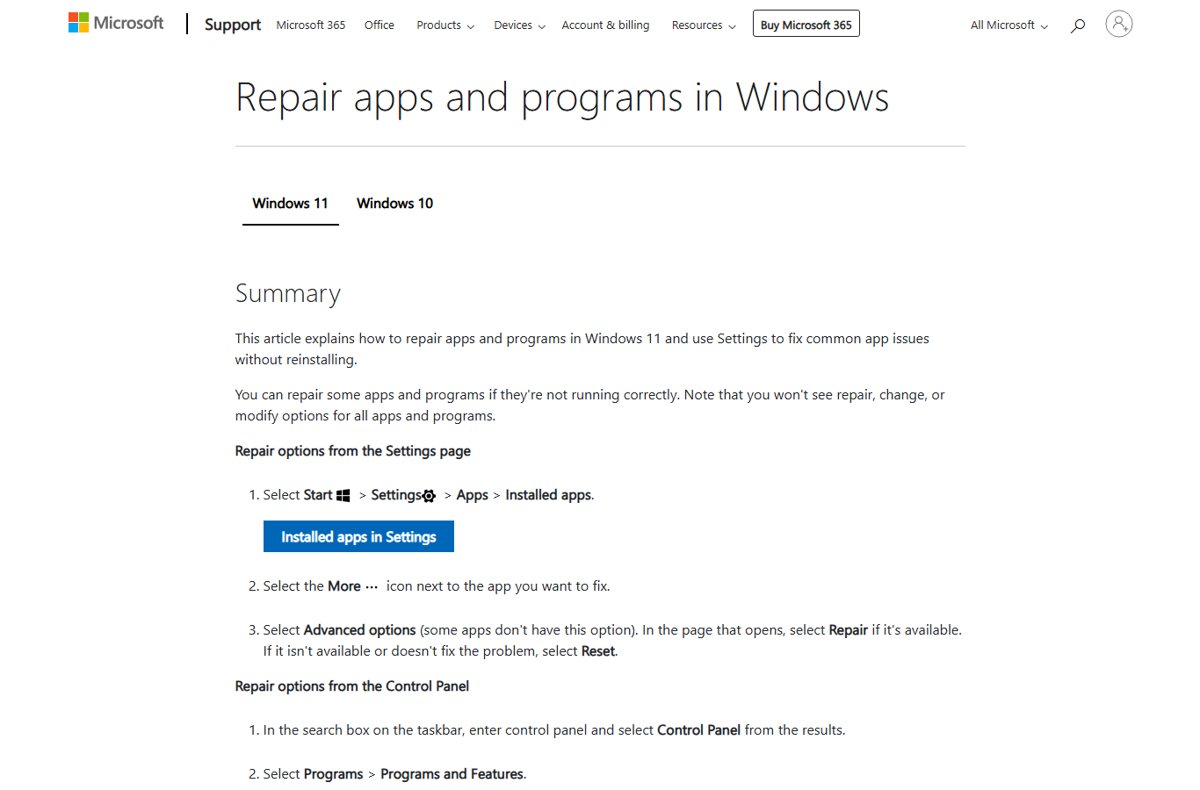
- If the launcher itself misbehaves, open Settings > Apps > Installed apps in Windows.
- Select the More icon next to Minecraft Launcher, then Advanced options.
- Select Repair; if that does not help, select Reset.
From Java Edition 26.1 the game allocates 4 GB of RAM by default. An old installation with a lower or very high custom memory value can still crash, so the default is the safe starting point.
Solution 4: Check Graphics Drivers, Overlays, and Conflicting Software
Windows Update delivers most graphics drivers, but a game-ready driver from the GPU maker is often newer. Get drivers only from the manufacturer's own site.
- Install updates under Settings > Windows Update, including any driver updates offered.
- Open Device Manager and find your graphics card under the display adapters group.
- Update the driver from there, or reinstall it if the update finds nothing.
- If the crash began right after a driver update, roll the driver back from Device Manager instead.
- For the newest driver, use the NVIDIA, AMD or Intel driver page for your exact card.
- Close screen recorders, FPS counters and chat overlays, then launch again.
- If the launcher window itself flickers or stays blank, turn off hardware acceleration in the launcher settings.
Security software can quarantine a game or mod file and cause the same crash. Check its quarantine or history list and restore the Minecraft file there; do not turn protection off.
Solution 5: Reinstall Minecraft Cleanly (Last-Resort Fix)
Reinstall only after the other four solutions fail. Your worlds sit in the game directory, so back it up first.
- In the launcher, open any Java Edition installation and select Open game directory.
- Copy the whole folder, including your worlds, screenshots and settings, to another drive or folder.
- Open Settings > Apps > Installed apps, select the More icon next to Minecraft Launcher, and choose Uninstall.
- Restart the PC.
- Install the Minecraft Launcher again from minecraft.net or the Microsoft Store and sign in.
- Launch the default vanilla installation once before you copy back your worlds.
- Copy back only your worlds and settings first; add mods last.
How to Read Minecraft Crash Reports and Logs for Exit Code: 1
The popup only says the game crashed. The log and crash report say why, usually in the first error block, not the last line.
| What to look for | Where | What it points to |
|---|---|---|
| Lines marked ERROR or an exception name | Launcher game output log, or the log files in the game directory | The first failure; later errors are usually consequences |
| A mod ID or file name | Crash report header and the lines below “Description” | The mod to update or remove (Solution 1) |
| “requires” followed by a mod and version | Log near the mod loading lines | A missing dependency (Solution 1) |
| Java version or class file version text | Top of the log or crash report | Wrong Java runtime (Solution 2) |
| OpenGL, GLFW or a driver name | Crash report system details | Graphics driver or overlay (Solution 4) |
| Access denied or file not found | Log | Security software or a damaged install (Solutions 4 and 5) |
Select Open game directory on the installation to reach its files. Share the full crash report, not a screenshot of the popup, when you ask for help.
How to check the fix worked
- Launch the installation that crashed and wait for the title screen.
- Open a world and play for a few minutes, since some mod errors appear only when a world loads.
- Quit to the title screen and close the game normally.
- Check that the launcher shows no crash message and that no new crash report was created in the game directory.
What to Do If Minecraft Still Crashes After These Fixes
Exit code 1 with a Java error
An installation still points to a separately installed Java build.
- Open the settings of the failing installation in the launcher.
- Remove any custom Java path and save the installation.
- Launch again so the launcher uses its own runtime.
Exit code 1 only on a modded installation
One mod, a missing dependency or a loader version mismatch remains.
- Launch the modded installation with an empty mods folder.
- If it starts, add mods back in halves until the crash returns.
- If it still fails, reinstall the loader for your exact game version.
Minecraft closed with exit code -1, 3, 143 or 255
A different number, but the launcher still only reports that the process ended; the log holds the cause.
- Open the launcher's game output log or the newest crash report.
- Find the first ERROR line and match it to the table in the crash report section above.
- Apply the matching solution, then launch a new default installation to confirm.
When Exit Code: 1 Still Won’t Go Away: Advanced Tips and Where to Get Help
If a fresh vanilla installation on an updated PC still crashes, collect the full crash report and the game output log before you contact anyone. Mod-related crashes go to the mod's author; vanilla crashes go to Minecraft support.
- Minecraft Help Center — Official Java Edition support articles and contact options
- Repair apps and programs in Windows — Microsoft steps for Repair and Reset under Installed apps
- Update drivers through Device Manager — Microsoft steps to update, reinstall or roll back a driver
- About the Microsoft Build of OpenJDK — The Java distribution the launcher includes from Java Edition 26.1
Frequently Asked Questions
What causes exit code 1 in Minecraft?
Exit code 1 is a general error from the Java Edition game process. The usual causes are an incompatible or missing mod, a mod loader built for another game version, the wrong Java runtime, an edited launcher installation, outdated graphics drivers, or damaged game files.
How do I fix exit code 1 in Minecraft?
Launch the default vanilla installation with no mods first. If it starts, remove and re-add mods in batches to find the broken one. If vanilla also crashes, reset Java settings, create a fresh installation, update graphics drivers, then reinstall the launcher as a last step.
How do I stop exit code 1 from coming back in Minecraft?
Keep every mod and the mod loader on builds made for the same game version, update mods before you update the game, and leave the installation's Java setting at the launcher default. Back up the game directory before adding large modpacks.
How do I fix the Minecraft exit code 1 Java error?
Open the failing installation's settings in the Minecraft Launcher and remove any custom Java path so the launcher uses its own runtime. From Java Edition 26.1, the game requires Java 25, and the launcher includes the Microsoft Build of OpenJDK 25.
How do I fix Minecraft exit code -1, 3, 143 or 255?
Treat them the same way as exit code 1. The number only says the game process ended; the crash report or game output log names the cause. Find the first ERROR line, then apply the matching fix for mods, Java, drivers or damaged files.
Do I need to install Java separately to play Minecraft?
No. The Minecraft Launcher installs the Java runtime it needs when you start Java Edition. You need your own Java install only when a specific modded setup asks for one, and then you point that installation to it in its settings.
Will reinstalling Minecraft delete my worlds?
Your worlds live in the game directory, so back it up before you uninstall. Select Open game directory on any Java Edition installation, copy the whole folder somewhere safe, then reinstall and copy your worlds back after the first clean launch.
How much RAM should Minecraft use to avoid crashes?
From Java Edition 26.1 the game allocates 4 GB of RAM by default, up from 2 GB. Leave the default on a vanilla installation. Raise it only for large modpacks, and keep enough memory free for Windows and other running apps.
Can antivirus software cause Minecraft exit code 1?
Yes, if it quarantines a game or mod file. Check the security app's quarantine or history list and restore the Minecraft file there. Do not turn protection off; restoring the single file fixes the crash without leaving the PC unprotected.
Bottom Line
Launch a plain vanilla installation first; if it works, fix the mods, and if it does not, reset Java and the installation before touching drivers or reinstalling. Mods and mismatched loaders cause most Exit Code: 1 crashes, and the vanilla test separates them from Java, driver and file problems in one launch.