Yes, you can uninstall Windows 11 26H2: on most PCs you remove the KB5121794 enablement package under Settings > Windows Update > Update history > Uninstall updates, and after a full upgrade you use Go back in Settings > System > Recovery, which is usually available for 10 days.
This guide covers both routes, a DISM command for the rollback, the Windows RE route for a PC that no longer starts, how to confirm you are back on 25H2 or 24H2, and how to stop the Windows 11 26H2 update from coming straight back.
Uninstall Windows 11 26H2 from Windows Update
Most PCs reach 26H2 from 24H2 or 25H2 through KB5121794, a small enablement package that switches on features already sitting dormant in the monthly updates. Microsoft says 24H2, 25H2 and 26H2 share one core operating system with an identical set of system files, which is why the 26H2 enablement package installs with a single restart.
Removing that package is the rollback on these PCs. Microsoft's general procedure for removing any Windows update is below.
- Select Start > Settings > Windows Update.
- Under More options, select Update history.
- Scroll to Related settings and select Uninstall updates.
- Find the entry for KB5121794 in the list.
- Select Uninstall next to it and confirm.
- Restart the PC when Windows asks, and let it finish before you sign in.
Microsoft notes that some updates cannot be uninstalled. If KB5121794 is not in the list, your PC most likely got 26H2 as a full upgrade, so use the Recovery route below instead.
Which uninstall route fits how 26H2 was installed
| Your situation | Use this | Why |
|---|---|---|
| Updated from 24H2 or 25H2 through Windows Update | Uninstall KB5121794 in Update history | 26H2 arrived as an enablement package on top of the version you had |
| Upgraded from 23H2 or Windows 10 with the Installation Assistant, ISO or Media Creation Tool | Go back in Settings > System > Recovery | A full upgrade keeps the old install in windows.old for a limited time |
| Want a command, or need to check how many days are left | DISM /Online /Get-OSUninstallWindow then /Initiate-OSUninstall |
Same rollback as Go back, run from an admin Command Prompt |
| Windows no longer starts after 26H2 | Troubleshoot > Advanced options > Uninstall Updates in Windows RE | Works without reaching the desktop |
| More than 10 days have passed and Go back is gone | Clean install of the older version from install media | The rollback files are deleted once the window closes |
| 26H2 works but something is broken | Repair 26H2 first, or check the known issues list | A reinstall of the current version keeps files and apps |
If only one app or device misbehaves, repair Windows 11 26H2 or check the 26H2 known issues before you roll back. Microsoft lists mitigations for its launch issues.
What to do before you roll back 26H2
| Check | Why it matters |
|---|---|
| Back up your personal files | Go back keeps personal files, but a failed rollback or a clean install does not |
| Have your BitLocker recovery key | Microsoft says an encrypted device needs the key to use some Windows RE tools |
| Leave the windows.old and $windows.~bt folders alone | Microsoft says Go back needs everything in them after a full upgrade |
| Remove any user accounts added after the upgrade | Microsoft lists this as a requirement for Go back |
| Keep the USB drive you upgraded with, if you used one | Microsoft lists it as a requirement for Go back |
| Note apps and drivers installed since the upgrade | Go back removes apps and drivers installed after the upgrade and undoes Settings changes |
| Plug in a laptop | The rollback restarts the PC and must not lose power partway |
Uninstall Windows 11 26H2 from Recovery settings
Use this route after a full upgrade to 26H2, for example from 23H2 with the 26H2 Installation Assistant or an ISO. Microsoft says the option is available for a limited time, in most cases 10 days.
- Open Settings and select System > Recovery.
- Under Recovery options, select Go back if it is shown.
- If Go back is not shown, check that more than 10 days have not passed and that windows.old is still on the C: drive.
- Follow the prompts that open and confirm the rollback.
- Wait while the PC restarts and restores the previous version.
Go back keeps your personal files. It removes apps and drivers installed after the upgrade, plus any changes you made in Settings.
Roll back 26H2 with DISM from Command Prompt
DISM runs the same operating system rollback as Go back, and it also tells you how many days you have. Open Command Prompt as administrator before you run it.
- Type
cmdin the Start search box, right-click Command Prompt and select Run as administrator. - Run
DISM /Online /Get-OSUninstallWindowto see how many days after the upgrade an uninstall can still start. - Run
DISM /Online /Initiate-OSUninstallto revert the PC to the previous Windows installation. - Accept the restart prompt, or add
/Quietto restart automatically or/NoRestartto restart later yourself. - To keep the rollback open longer on a fresh upgrade, run
DISM /Online /Set-OSUninstallWindow /Value:30with any value from 2 to 60 days.
Microsoft warns that once the days since installation pass this value, you cannot go back. A value below 2 or above 60 falls back to the default of 10. Running the uninstall a second time returns error 1168, but the first one still completes after the restart.
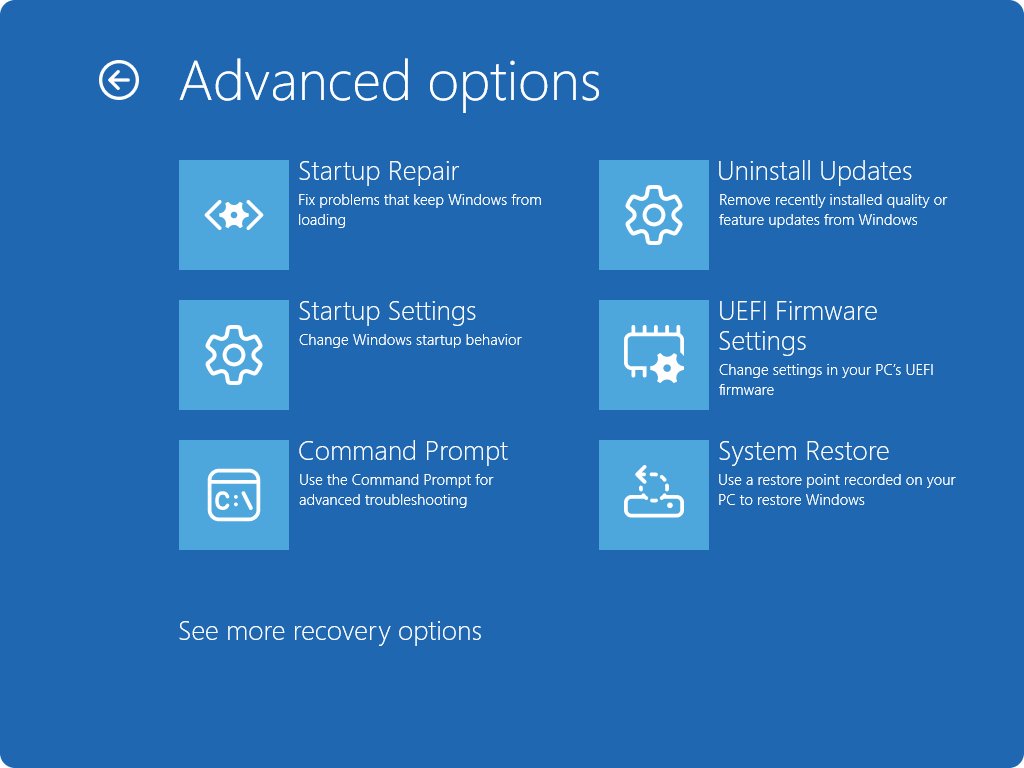
Uninstall 26H2 from Windows RE when Windows will not start
Windows Recovery Environment has an Uninstall Updates tool that removes recent updates without reaching the desktop. Windows opens it automatically after the PC fails to start twice.
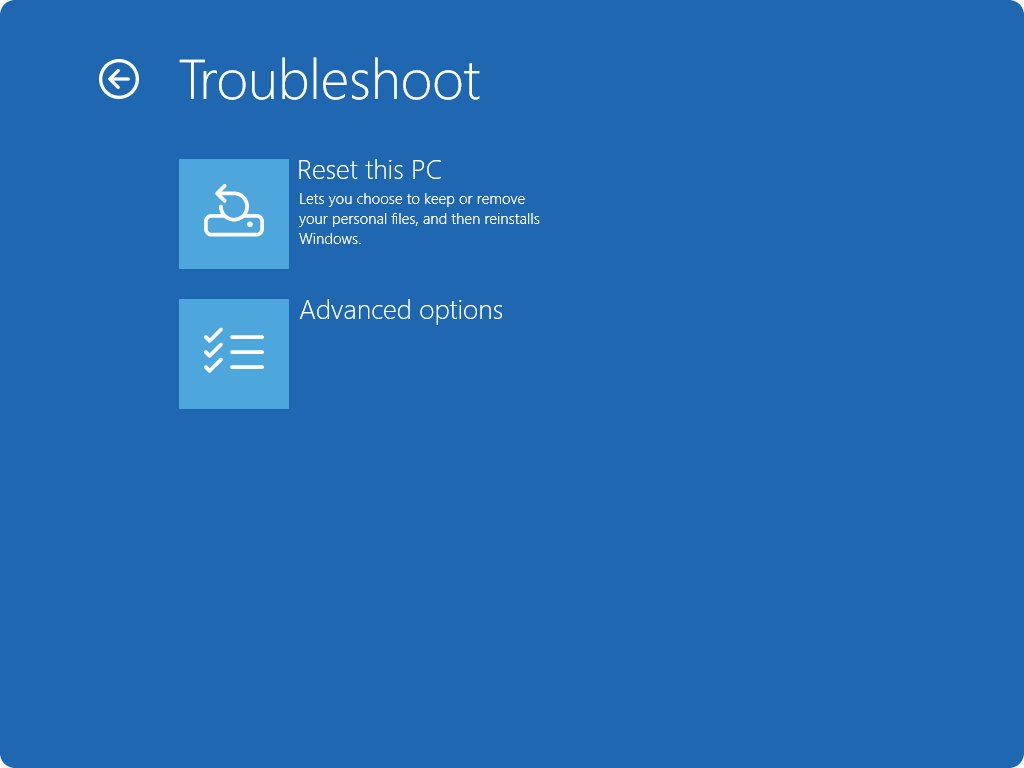
- Turn the PC on and hold the power button as soon as the Windows logo appears to force it off.
- Repeat that once more, then turn the PC on a third time to reach Automatic Repair.
- Select Advanced options.
- Select Troubleshoot > Advanced options > Uninstall Updates.
- Choose the feature update option to remove 26H2; Uninstall latest quality update removes the last monthly update instead.
- Enter your BitLocker recovery key if Windows asks for it, then confirm and let the PC restart.
If Windows still starts, you can reach the same menu from Settings > System > Recovery by selecting Restart now next to Advanced startup, or by holding Shift while you select Power > Restart.
How to check you are back on 25H2 or 24H2
The version and build number prove the rollback worked. The 26H2 build numbers are easy to tell apart.
- Type
winverin the Start search box and press Enter. - Read the version and OS build in the window that opens.
- Build 26200 means 25H2, 26100 means 24H2, and 26300 means 26H2 is still installed.
- For more detail, open Settings > System > About and read Version under Windows specifications.
- Open Settings > Windows Update > Update history and confirm KB5121794 no longer appears in the uninstall list.
Still seeing 26300? Follow the steps to check which Windows 11 version you have, then restart once more and check again.
What removing 26H2 keeps, removes and changes
| Item | After the rollback |
|---|---|
| Personal files | Kept by Go back and by removing the update |
| Apps added, removed or updated after the upgrade | Microsoft says they might not be available or work properly |
| Drivers installed after a full upgrade | Removed by Go back |
| Settings changed after a full upgrade | Undone by Go back |
| 26H2 features such as the redesigned Start menu | Gone, because they switch off with the enablement package |
| Support end date on 25H2 (Home and Pro) | 12 October 2027, against 10 October 2028 on 26H2 |
| Support end date on 24H2 (Home and Pro) | 13 October 2026, two weeks after 26H2 shipped |
| Support end date on 25H2 (Enterprise and Education) | 10 October 2028 |
Rolling back to 24H2 Home or Pro leaves you on a version whose updates end on 13 October 2026. Going back to 25H2 buys a year; the 26H2 end of support date is a year later again.
How to stop 26H2 from reinstalling after you remove it
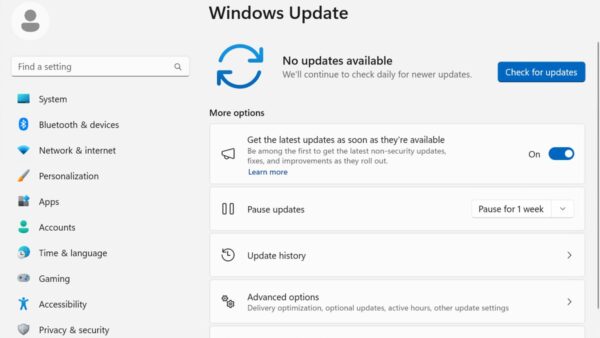
Windows Update offers 26H2 again once it is removed, so hold it off until the problem that made you roll back is fixed.
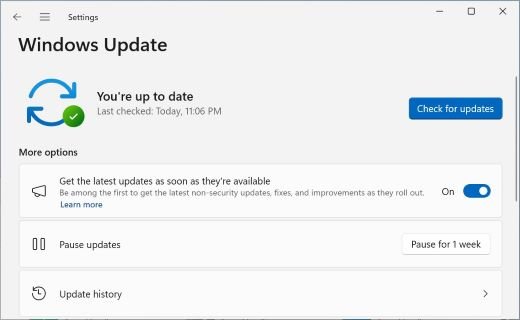
- Open Settings > Windows Update.
- Turn off Get the latest updates as soon as they're available, so the PC is not first in line.
- Next to Pause updates, choose how long to pause.
- Before the pause ends, check the known issues list for a fix to the problem you hit.
- On Pro, Enterprise or Education, set a target version by policy if you need to stay on 25H2 longer.
A pause only delays updates. To hold the version for longer, see how to block the 26H2 update, and how to pause updates in Windows 11 without skipping security fixes.
Fix a 26H2 rollback that will not start
The Go back button is missing or greyed out
More than 10 days have passed, the windows.old folder was deleted, or 26H2 arrived as an enablement package rather than a full upgrade.
- Check Settings > Windows Update > Update history > Uninstall updates for KB5121794 and remove it there if listed.
- Run
DISM /Online /Get-OSUninstallWindowas administrator to see whether a rollback window still exists. - Remove any user accounts added since the upgrade, then look for Go back again.
- If the window has closed, back up your files and do a clean install of the older version from install media.
KB5121794 is not in the Uninstall updates list
The PC reached 26H2 through a full upgrade, or the update is one Microsoft marks as not removable.
- Open Settings > System > Recovery and use Go back if it is shown.
- If Go back is not shown, run
DISM /Online /Get-OSUninstallWindowto confirm whether a rollback is still possible. - If neither works, try repairing 26H2 with Fix problems using Windows Update before a clean install.
Windows will not start after installing 26H2
A driver or update conflict stops Windows before the desktop loads.
- Force the PC off twice during startup so it opens Automatic Repair.
- Select Advanced options > Troubleshoot > Advanced options > Uninstall Updates and remove the latest update.
- If that fails, try Startup Repair from the same Advanced options menu.
- Have your BitLocker recovery key ready, because Windows RE asks for it on encrypted drives.
The PC updates straight back to 26H2
Windows Update still offers the feature update after the rollback.
- Turn off Get the latest updates as soon as they're available in Settings > Windows Update.
- Select a pause period next to Pause updates.
- On Pro or higher, set a target release version by policy to stay on your chosen version.
Frequently asked questions
Can I uninstall Windows 11 26H2?
Yes. If 26H2 came through Windows Update on a 24H2 or 25H2 PC, uninstall KB5121794 from Settings > Windows Update > Update history > Uninstall updates. After a full upgrade, use Go back in Settings > System > Recovery, which is usually available for 10 days.
Can you roll back Windows 11 26H2?
Yes, for a limited time. Microsoft says you have 10 days in most cases to go back after a full upgrade. You can check the remaining window with DISM /Online /Get-OSUninstallWindow and extend it to as many as 60 days while it is still open.
How do I go back to 25H2 from 26H2?
On a PC that updated from 25H2 through Windows Update, remove the KB5121794 enablement package in Update history and restart. Then run winver: build 26200 confirms 25H2. After a full upgrade, use Go back in Recovery settings instead.
Will uninstalling 26H2 delete my files?
No. Go back keeps your personal files, although it removes apps and drivers installed after the upgrade and undoes Settings changes. A clean install is different and erases the drive, so back up your files before any rollback in case it fails.
What happens after the 10-day rollback window ends?
Windows deletes the files needed to go back, and Go back disappears from Recovery settings. The only way to an older version then is a clean install from install media, after checking whether you can still install Windows 11 25H2.
Is it safe to go back to 24H2 from 26H2?
It works, but Windows 11 24H2 Home and Pro stop getting updates on 13 October 2026, two weeks after 26H2 shipped. Going back to 24H2 on those editions leaves you on an unsupported version almost immediately, so 25H2 is the better target.
Can I uninstall 26H2 if Windows will not boot?
Yes. Force the PC off twice during startup to open Automatic Repair, then select Advanced options > Troubleshoot > Advanced options > Uninstall Updates. Have your BitLocker recovery key ready, because Windows RE asks for it on encrypted drives.
Will Windows 11 26H2 reinstall itself after I remove it?
It can, because Windows Update offers the feature update again. Turn off Get the latest updates as soon as they're available and pause updates, or set a target version by policy on Pro and higher editions to stay where you are.
Should I uninstall 26H2 or repair it?
Repair first if one feature or device is broken. Fix problems using Windows Update reinstalls the current version and keeps files, apps and settings. Uninstall only when the problem is 26H2 itself and Microsoft has not published a fix or workaround.
Bottom line: should you uninstall Windows 11 26H2?
Uninstall 26H2 only when it breaks something you depend on and no fix exists yet, and go back to 25H2 rather than 24H2. Because 26H2 is a small switch on top of 25H2, removing it is quick, and reinstalling later is just as quick once the problem is fixed. Compare 26H2 and 25H2 to see what you give up, and act inside the 10-day window if you upgraded in full.

How to block the Windows 11 26H2 update - Techdows
[…] A PC that got 26H2 before the block took effect needs a rollback instead; here is how to safely uninstall 26H2. […]