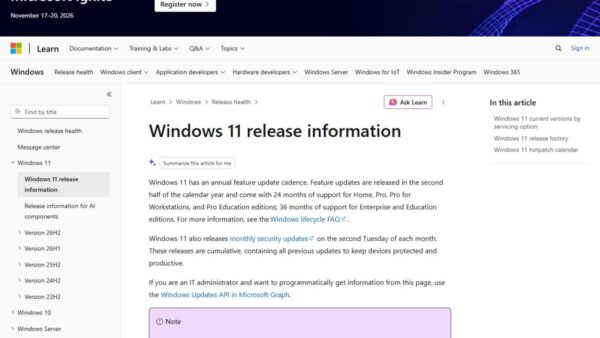
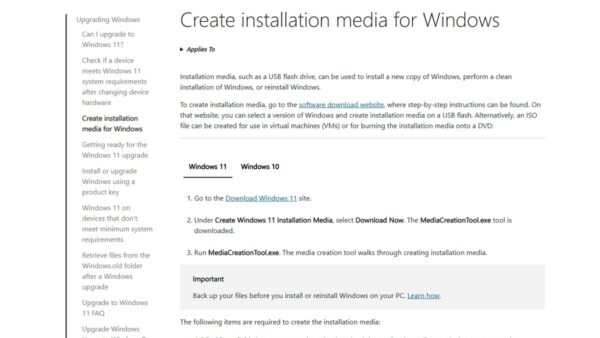
The Windows 11 Installation Assistant on Microsoft's Download Windows 11 page now installs Windows 11 2026 Update, version 26H2: run it, select Accept and Install, and select Restart Now when it is ready.
This guide covers the steps, what the tool needs, when Windows Update is the better route, how to confirm the version and how to go back within 10 days.
How to upgrade with the Windows 11 26H2 Installation Assistant
Microsoft calls the Installation Assistant the best option for installing Windows 11 on the PC you are using. It keeps your files by default and needs no USB drive.
- Open
https://www.microsoft.com/en-us/software-download/windows11. - Under Windows 11 Installation Assistant, select Download Now.
- Open the downloaded file and select Run. You need to be an administrator.
- Wait while the tool confirms the hardware is compatible.
- Read the license terms and select Accept and Install.
- Keep using the PC while it downloads and prepares Windows 11.
- When the tool is ready, select Restart Now. The PC restarts a few times; do not turn it off.
The one click that matters is Accept and Install; the rest is waiting. Plug a laptop into power before you start.
Installation Assistant or Windows Update: which should you use?
The Installation Assistant is not the fastest route for every PC. Windows 11 24H2 and 25H2 PCs get 26H2 as a small enablement package through Windows Update.
| Your situation | Use this | Why |
|---|---|---|
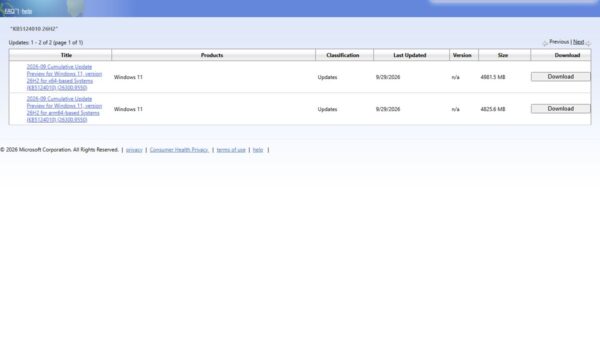
| Windows 11 24H2 or 25H2, and 26H2 is offered | Windows Update | Enablement package KB5121794 installs with one restart |
| Windows 11 24H2 or 25H2, not offered yet | Windows Update with Get the latest updates as soon as they're available on, or the Installation Assistant | Microsoft is rolling 26H2 out in phases; Microsoft describes its assistant as the way to update without waiting for that rollout |
| Windows 10 (version 2004 or later) on compatible hardware | Installation Assistant | Upgrades in place and keeps files by default |
| Windows 11 23H2 or older | Installation Assistant | The enablement package only covers 24H2 and 25H2 |
| Arm-based PC (Snapdragon) | Windows Update | The Installation Assistant runs only on x64 processors |
| Clean install, another PC or a bootable USB | Media Creation Tool or the ISO | The Installation Assistant only upgrades the PC it runs on |
For those last cases, the Windows 11 26H2 ISO and the Media Creation Tool clean install cover the steps.
What the Installation Assistant needs
| Requirement | Detail |
|---|---|
| License | A Windows 10 or Windows 11 license; the upgrade from Windows 10 is free |
| Current Windows | Windows 10, version 2004 or later, or Windows 11 |
| Free disk space | 9 GB to download Windows 11 |
| Processor type | x64 (Intel or AMD); the tool does not run on Arm-based PCs |
| Account | An administrator account to run the tool |
| Hardware | The PC must meet the Windows 11 minimum requirements, including TPM 2.0 and Secure Boot |
| Backup | Files move to the new installation by default, but Microsoft recommends a backup first |
Check the full Windows 11 26H2 system requirements if the PC is older.
Install the update after it's generally available through Windows Update
Windows 11, version 26H2 became generally available on September 29, 2026. On a 24H2 or 25H2 PC, Windows Update is lighter than the Installation Assistant.
- Select Start > Settings > Windows Update.
- Turn on Get the latest updates as soon as they're available.
- Select Check for updates.
- When Windows 11, version 26H2 is available appears, select Download & install.
- Restart when prompted to finish.
If the offer never appears, work through the checks for 26H2 not showing in Windows Update.
What the Installation Assistant does and does not do
| Question | Answer |
|---|---|
| Which version does it install? | The current release shown on Microsoft's download page: Windows 11 2026 Update, version 26H2 |
| Does it keep files? | Yes, by default files and data move to the new installation |
| Can it make a bootable USB? | No; use the Media Creation Tool or the ISO |
| Can it clean install? | No; it upgrades the Windows already on the PC |
| Does it work on Arm PCs? | No; it only works on x64 processors |
| Can I use the PC during the download? | Yes; the PC only becomes unavailable after Restart Now |
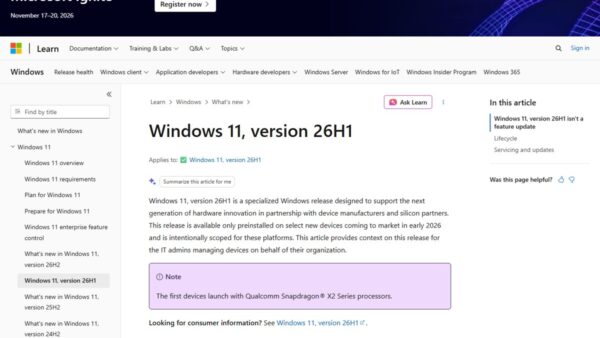
| Does it enable the new context menu redesign? | No. It installs 26H2 as Microsoft ships it, and Microsoft's What's new in Windows 11, version 26H2 page lists a redesigned Start menu but no context menu redesign |
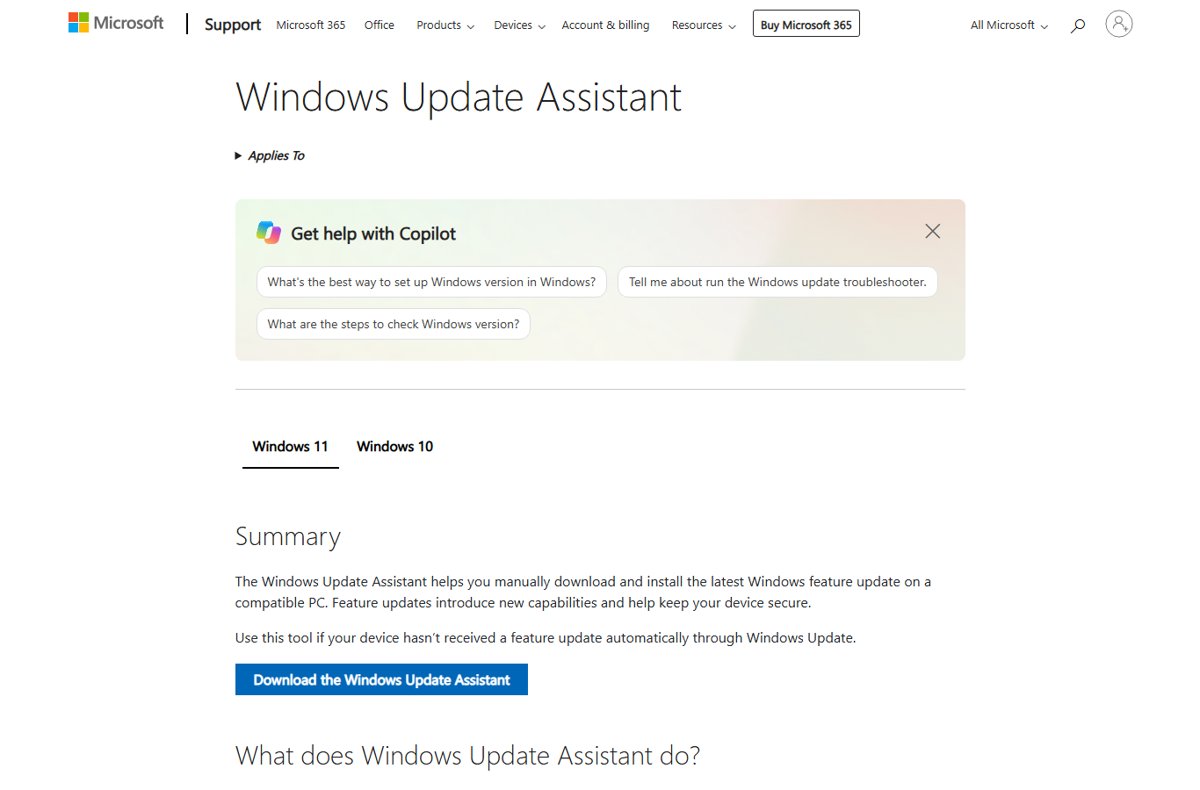
| Is it the Windows Update Assistant? | In practice, yes. Microsoft's Windows Update Assistant support article sends Windows 11 users to the same Download Windows 11 page, where the tool is labelled Windows 11 Installation Assistant |
The same approach works for any feature update: the Windows Update Assistant installs updates manually when the rollout has not reached you.
How to check that the PC is on 26H2
- Right-click Start and select Settings.
- Select System, then About.
- Under Windows specifications, check that Version reads 26H2.
- Check that OS build starts with 26300, the build number for version 26H2.
- For a quicker check, type
winverin the taskbar search box and select winver; the window shows the version and build.
How to go back if 26H2 causes problems
In most cases you have 10 days after the upgrade to go back. Apps added, removed or updated after the upgrade may not work afterwards.
- Open Settings and select System > Recovery.
- Select Go back if the option is available.
- Follow the prompts. Personal files stay; apps, drivers and settings changes made after the upgrade are removed.
- Keep the
windows.oldand$windows.~btfolders intact until you decide, and remove any user accounts added after the upgrade.
Fix Installation Assistant problems
The Installation Assistant will not run on the PC
The PC has an Arm processor, runs Windows 10 older than version 2004, or the account is not an administrator.
- Check the processor type under Settings > System > About > Device specifications.
- On an Arm PC, use Settings > Windows Update instead.
- On Windows 10 older than 2004, install the pending Windows 10 updates first.
- Sign in with an administrator account and run the tool again.
The tool says the PC is not compatible
The hardware check found a missing Windows 11 requirement, most often TPM 2.0 or Secure Boot.
- Run PC Health Check and select Check now to see which requirement fails.
- If TPM is the problem, check whether it is switched off in the UEFI firmware.
- If the processor is unsupported, the PC cannot get 26H2 through Microsoft's tools.
Not enough disk space
The tool needs 9 GB of free space to download Windows 11.
- Open Settings > System > Storage to see what uses the space.
- Remove temporary files or move large files to another drive.
- Run the Installation Assistant again.
Problems after the upgrade
Microsoft lists known issues for 26H2, including USB Audio Class 1.0 devices failing with Code 10.
- Check the Windows 11, version 26H2 known issues page on Windows release health.
- Apply the documented workaround if your symptom matches.
- Use Go back within 10 days if the PC is unusable.
The 26H2 known issues list tracks each problem and its status.
Frequently Asked Questions
Where do I download the Windows 11 26H2 Installation Assistant?
Download it from Microsoft's Download Windows 11 page at microsoft.com/software-download/windows11. Select Download Now under Windows 11 Installation Assistant. The page lists Windows 11 2026 Update, version 26H2 as the current release.
Is there a Windows 11 26H2 Update Assistant?
Yes, under another name. Microsoft's Windows Update Assistant article points Windows 11 users to microsoft.com/software-download/windows11, where the tool is called the Windows 11 Installation Assistant. It installs the latest feature update, now 26H2, without waiting for the automatic rollout.
Does the Installation Assistant delete my files?
No. By default, files and data move to the new Windows installation. Microsoft still recommends backing up files first, for example to OneDrive, before any Windows upgrade.
Can I use the Installation Assistant on an Arm PC?
No. Microsoft states the Windows 11 Installation Assistant does not run on Arm-based PCs and only works with x64 processors. Arm PCs get 26H2 through Settings > Windows Update.
How much space does the Installation Assistant need?
Microsoft says the PC needs 9 GB of free disk space to download Windows 11 with the Installation Assistant. The PC must also run Windows 10, version 2004 or later, and have a Windows 10 or Windows 11 license.
Should I use the Installation Assistant if I already have Windows 11 25H2?
Only if you do not want to wait. On 24H2 and 25H2, Windows Update installs 26H2 as a small enablement package with one restart once it is offered. Microsoft's assistant lets you update without waiting for the rollout, but it downloads far more.
How long does the Installation Assistant take?
It varies with your internet speed and PC. Microsoft notes that a full Windows 11 upgrade usually takes longer than a typical feature update, and the PC restarts a few times after Restart Now. You can keep working while it downloads.
Bottom Line
Use the Installation Assistant to move a compatible Windows 10 PC, or a Windows 11 PC on 23H2 or older, straight to 26H2; on 24H2 or 25H2, use Windows Update instead. The assistant upgrades in place and keeps your files, but it downloads a full copy of Windows. Windows Update turns 24H2 and 25H2 into 26H2 with a small package and a single restart.