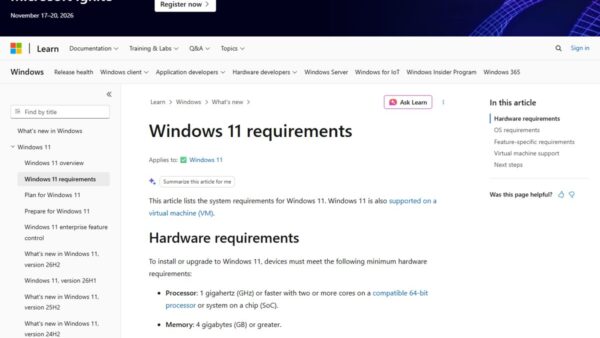
Windows 11 version 26H2 is OS build 26300, version 25H2 is build 26200, and version 24H2 is build 26100, and on 29 September 2026 the newest 26H2 build was 26300.9550.
This guide shows how to read the build number on your own PC, what each part of the number means, why the three versions share the same revision after the dot, and where the preview builds fit.
Which Windows 11 version your build number means
Match the first five digits of your OS build to a row. The digits after the dot are the monthly update level, not the version.
| OS build starts with | Windows 11 version | What it tells you |
|---|---|---|
| 26300 | 26H2 (the Windows 11 2026 Update) | You are on the release that reached general availability on 29 September 2026 |
| 26200 | 25H2 | You can move to 26H2 with a small enablement package once Windows Update offers it |
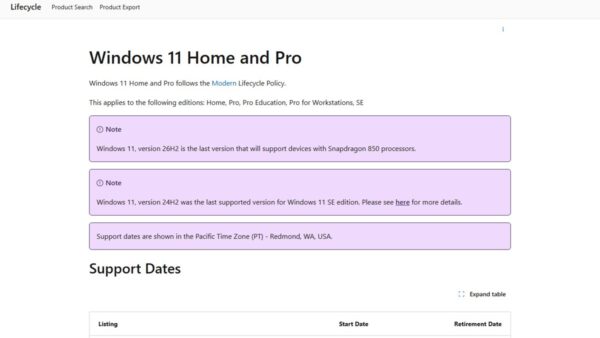
| 26100 | 24H2 | You can also move to 26H2 with the enablement package; Home and Pro reach end of updates on 13 October 2026 |
| 28000 | 26H1 | A version for new devices only; it is not offered 26H2 and gets a path to a future release instead |
| 22631 | 23H2 | An older release on a different code base; Home and Pro editions have already reached end of updates |
The Windows 11 26H2 overview covers the release as a whole; this page stays on the numbers.
Check if Windows 11 26H2 is installed from Winver
Winver opens the About Windows box, which shows the version name and the OS build on one line. Microsoft's Insider team confirmed that devices moved to 26H2 show the new version here and in Settings.
- Select the search box on the taskbar.
- Type
winverand press Enter. - Read the line that starts with Version, for example Version 26H2 (OS Build 26300.9550).
- Match the build to the table above: 26300 means 26H2, 26200 means 25H2, 26100 means 24H2.
- Select OK to close the box.
Check if Windows 11 26H2 is installed from Settings
The About page lists Edition, Version and OS build together, which helps when you also need to know whether you run Home or Pro.
- Right-click Start and choose Settings.
- Select System in the left pane.
- Scroll down and select About.
- Look under Windows specifications.
- Read Version (26H2 on the new release) and OS build (26300.xxxx on the new release).
Read the build number from Command Prompt or PowerShell
Use this on a remote session or in a script where opening Settings is awkward. The OS Version line ends in the build number.
systeminfo | findstr /B /C:"OS Name" /B /C:"OS Version"systeminfo collects system details and findstr keeps only the lines that begin with OS Name and OS Version, so you see the edition and the build without the rest of the report.
You should see: An OS Version line that ends in Build 26300 means 26H2; Build 26200 means 25H2 and Build 26100 means 24H2.
What the 26300, 26200 and 26100 build numbers mean
A Windows 11 build number has two parts. The part before the dot names the version, and the revision after the dot counts the cumulative updates installed on top of it.
| Part | Example | Meaning |
|---|---|---|
| Major build | 26300 | The version: 26300 is 26H2, 26200 is 25H2, 26100 is 24H2 |
| Revision | .9550 | The monthly update level; it rises with each cumulative update |
| Shared servicing branch | 26300.9550, 26200.9550, 26100.9550 | 24H2, 25H2 and 26H2 are serviced by the same monthly update, so the revision matches across all three |
| Enablement package | 26200 to 26300 | A small update that switches on features already delivered by monthly updates and raises the major build number, completed with one restart |
| Separate core | 28000 (26H1) | 26H1 is built on a different Windows core, which is why its numbers do not follow the 261xx to 263xx pattern |
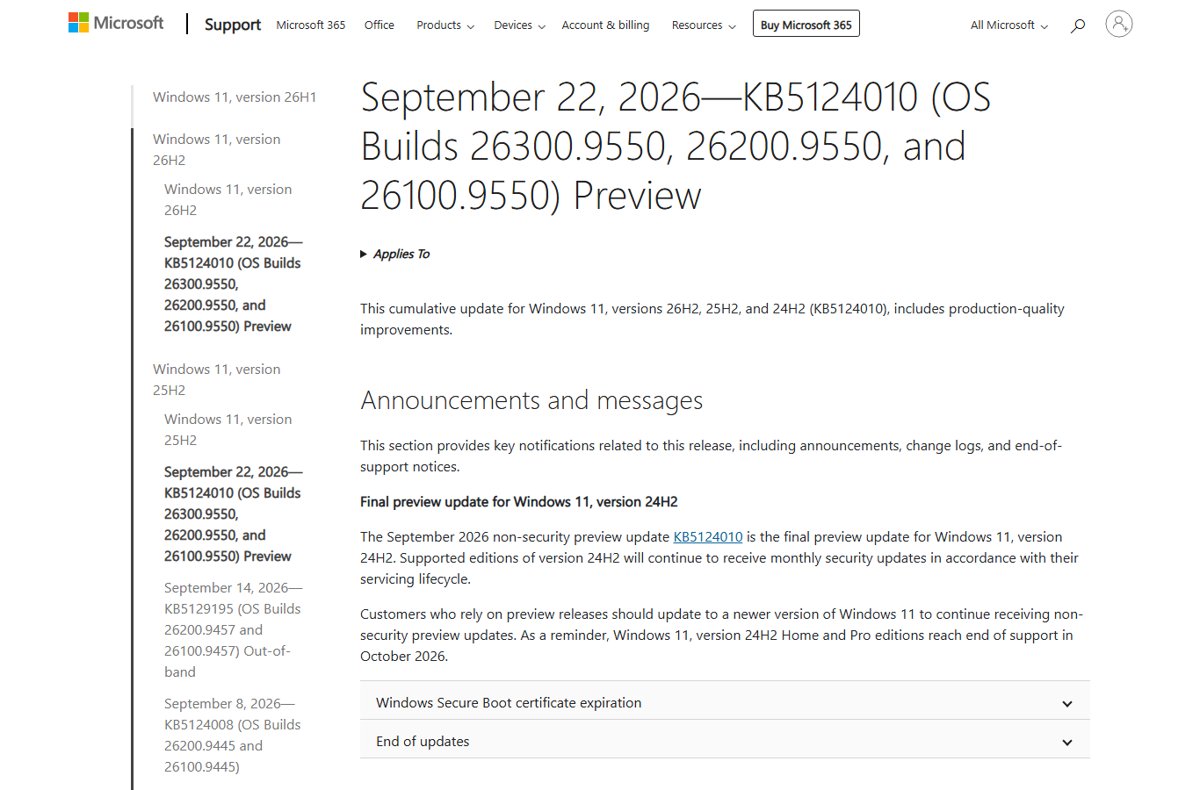
Microsoft's September 2026 preview update, KB5124010, is titled with all three builds at once: 26300.9550, 26200.9550 and 26100.9550. That single KB is the clearest proof that the three versions share one code base. The 26H2 enablement package explainer covers how the switch between them works.
What’s the difference between Windows 11 26H2 and 25H2?
Under the hood the two versions are the same code, so the practical differences are the build label, the features switched on by default and the support clock.
| Windows 11 26H2 | Windows 11 25H2 | |
|---|---|---|
| OS build | 26300 | 26200 |
| Availability date | 29 September 2026 | 30 September 2025 |
| Latest build on 29 September 2026 | 26300.9550 | 26200.9550 |
| End of updates: Home, Pro, Pro Education, Pro for Workstations | 10 October 2028 | 12 October 2027 |
| End of updates: Enterprise, Education, IoT Enterprise, Enterprise multi-session | 9 October 2029 | 10 October 2028 |
| How you get it | Enablement package on 24H2 and 25H2 PCs | Already installed or via its own enablement package |
| Features disabled by default in 25H2 | Selected ones are enabled by default | Stay off until turned on |
Installing 26H2 resets the support lifecycle: 24 months for Home and Pro, 36 months for Enterprise and Education. For the upgrade decision itself, read the 26H2 vs 25H2 comparison.
Windows 11 current versions by servicing option
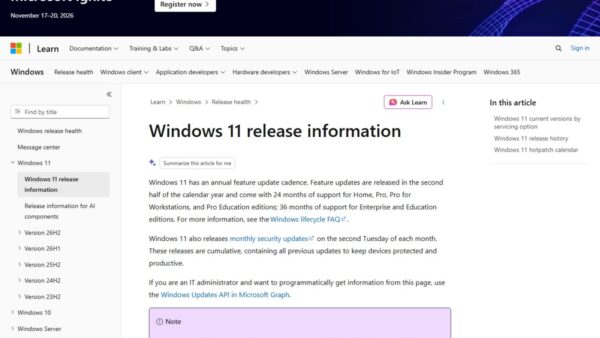
These are the builds Microsoft listed on its release information page on 29 September 2026, for the General Availability Channel and the LTSC edition.
| Version | Servicing option | Available | End of updates (Home/Pro) | End of updates (Enterprise/Education) | Latest build |
|---|---|---|---|---|---|
| 26H2 | General Availability Channel | 2026-09-29 | 2028-10-10 | 2029-10-09 | 26300.9550 |
| 26H1 | General Availability Channel | 2026-02-10 | 2028-03-14 | 2029-03-13 | 28000.3086 |
| 25H2 | General Availability Channel | 2025-09-30 | 2027-10-12 | 2028-10-10 | 26200.9550 |
| 24H2 | General Availability Channel | 2024-10-01 | 2026-10-13 | 2027-10-12 | 26100.9550 |
| 23H2 | General Availability Channel | 2023-10-31 | End of updates | 2026-11-10 | 22631.7584 |
| 24H2 LTSC | Long-Term Servicing Channel | 2024-10-01 | Mainstream end 2029-10-09 | IoT Enterprise LTSC 2024 extended to 2034-10-10 | 26100.9550 |
IoT Enterprise edition is not supported on 26H1, and hotpatching is not available on 26H1 either.
Windows 11 release history
The 26H2 release history had two entries on launch day. Recent 25H2 and 24H2 updates are included to show how the revision numbers line up.
| Date | Update | Builds | Type |
|---|---|---|---|
| 2026-09-29 | No KB listed | 26300.9457 | 26H2 general availability entry |
| 2026-09-29 (26H2 listing) | KB5124010 | 26300.9550 | 2026-09 D (fourth-week preview) |
| 2026-09-22 | KB5124010 | 26200.9550 and 26100.9550 | Non-security preview |
| 2026-09-14 | KB5129195 | 26200.9457 and 26100.9457 | Out-of-band |
| 2026-09-08 | KB5124008 | 26200.9445 and 26100.9445 | Monthly security update |
| 2026-08-27 | KB5120998 | 26200.9278 and 26100.9278 | Non-security preview |
The letter in an update type such as 2026-09 D marks the week: B is the second week (security release) and D is the fourth week (preview). KB5124010 is also the final preview update for 24H2. The 26H2 update history tracks every new build as it ships.
Windows 11 hotpatch calendar
Hotpatch devices get a baseline cumulative update in the first month of each quarter, which needs a restart. The other two months bring security-only hotpatches that install without a restart.
| Month | Update type | Type | Restart |
|---|---|---|---|
| October 2026 | 2026.10 B | Baseline | Yes |
| November 2026 | 2026.11 B | Hotpatch | No |
| December 2026 | 2026.12 B | Hotpatch | No |
Microsoft had not yet published the build or KB numbers for these three months when 26H2 launched.
Changes in build 26300.8697
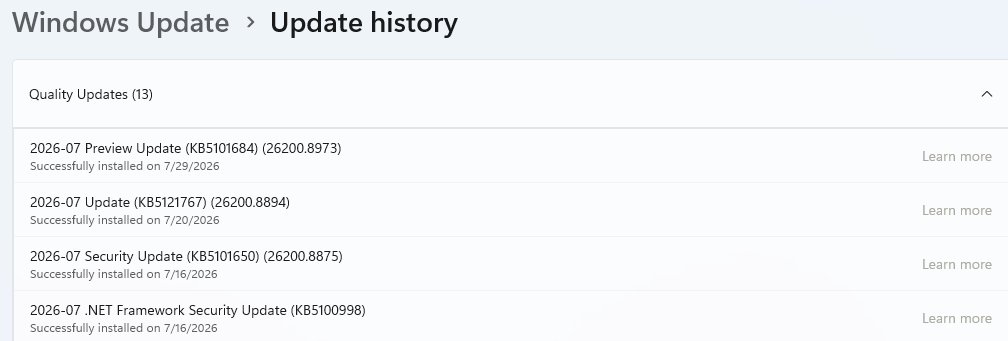
Build 26300.8697 was released to the Insider Experimental channel on 19 June 2026, and it is the build where devices in that channel started showing version 26H2 in Settings and winver. Before that, 26300 builds had shipped to the Dev Channel since at least January 2026 (26300.7674 on 27 January) without the 26H2 label.
| Build released on 19 June 2026 | Channel | Version it represents |
|---|---|---|
| 26300.8697 | Experimental | 26H2 |
| 26220.8690 | Beta | 25H2 series |
| 28020.2308 | Beta (26H1) | 26H1 series |
| 28120.2315 | Experimental (26H1) | 26H1 series |
| 29613.1000 | Experimental (Future Platforms), including Canary 29600 series | Future platform |
The same post confirmed that 26H2 shares a servicing branch with 25H2 and arrives through an enablement package with a single restart. Channel names changed around this time, and the 26H2 Insider channels guide explains who gets which build.
Download Windows 11 update 26300.8697
Build 26300.8697 was an Insider preview, and later builds have replaced it: Release Preview received 26300.9278 on 27 August 2026 and the public release is 26300.9550. Pick the route that matches what you actually want.
| What you want | Where to get it | Build you end up on |
|---|---|---|
| The finished 26H2 release on a 24H2 or 25H2 PC | Settings > Windows Update | 26300.9550 or later |
| The preview build Microsoft shipped before launch | Windows Insider Program, Release Preview Channel | 26300.9278 was the Release Preview build; Insider channels now carry newer builds |
| An ISO for a clean install | Windows Insider ISO download page (26H2 ISOs posted 31 August 2026) | Depends on the image |
| 26300.8697 specifically | Not offered any more | Insider channels only serve their current build |
For the public ISO route, use the official 26H2 ISO links.
New features in version 26H2
Most 26H2 features reached 24H2 and 25H2 PCs through monthly updates before launch, so the enablement package mainly switches on what is already there. Microsoft names these changes for 26H2.
| Change | Who notices it | Source of the change |
|---|---|---|
| Windows settings backup enabled by default | Commercial devices | Introduced earlier, not previously on by default for commercial PCs |
| App-specific actions from the taskbar | Commercial devices | Introduced earlier, now enabled by default |
| Some File Explorer enhancements | Commercial devices | Introduced earlier, now enabled by default |
| Select features disabled by default in 25H2 turned on | All editions | Enabled by default in 26H2 |
| Machine Identity Isolation settings now honoured | Domain-joined PCs with Credential Guard | 26H2 enables the feature, which causes a known sign-in issue on some domains |
The 26H2 new features rundown covers each change in more depth.
Upgrading to Windows 11 26H2
26H2 is offered as an enablement package to eligible PCs on 24H2 and 25H2, and the rollout is phased over the next few months. Most PCs are not offered it on day one, and Microsoft may place safeguard holds on PCs with a known compatibility issue.
- Open Settings and select Windows Update.
- Turn on Get the latest updates as soon as they're available.
- Select Check for updates.
- When your PC is eligible, select the option to download and install Windows 11, version 26H2.
- Restart when prompted; one restart completes the move to build 26300.
- Run
winveragain and confirm the build now starts with 26300.
If the offer does not appear, work through the fixes for 26H2 not showing in Windows Update. A PC on 26H1 (build 28000) will never see the offer.
Additional resources
- Windows 11 release information — Current build for every version, release history and hotpatch calendar
- Windows 11, version 26H2 known issues and notifications — Rollout status and open issues
- KB5124010 (OS Builds 26300.9550, 26200.9550 and 26100.9550) — The update shared by all three versions
- How to get the Windows 11 2026 Update — Microsoft's launch announcement
- What version of Windows am I running? — Every built-in way to read your version and build
Frequently Asked Questions
What is the Windows 11 26H2 build number?
Windows 11 version 26H2 is OS build 26300. On 29 September 2026, launch day, Microsoft listed 26300.9550 as the latest 26H2 build, delivered with KB5124010. The revision after the dot rises each month as new cumulative updates install.
What is the 26H2 version number?
The version number is 26H2, which Windows shows next to Version in winver and in Settings > System > About. The name means the second-half release of 2026. It is marketed as the Windows 11 2026 Update and carries OS build 26300.
What are the Windows 11 26H1 and 26H2 build numbers?
Windows 11 26H1 is build 28000 and 26H2 is build 26300. They are built on different Windows cores, so a PC on 26H1 cannot update to 26H2. Microsoft says 26H1 devices will get a path to a future Windows release instead.
What is Windows 11 26H2 build 26300.9278?
Build 26300.9278 is the 26H2 build Microsoft released to the Release Preview Channel on 27 August 2026, a month before general availability. The public release on 29 September 2026 moved on to build 26300.9550.
What is Windows 11 26H2 build 26300.8697?
Build 26300.8697 is the Insider Experimental build from 19 June 2026 that first labelled the 26300 series as version 26H2 in Settings and winver. It has since been replaced by newer builds and is no longer offered.
What are builds like 26300.8772 or 26300.9032?
Any 26300 build with a revision lower than the launch builds (26300.9457 and 26300.9550) is from the preview period before general availability. Numbers between 26300.8697 and 26300.9278 fall between the June Experimental build and the August Release Preview build.
Why do 24H2, 25H2 and 26H2 have the same revision number?
The three versions share one servicing branch, so a single monthly update services all of them. KB5124010, for example, lists OS builds 26300.9550, 26200.9550 and 26100.9550 at once. Only the major build number differs.
Can I download a Windows 11 26H2 build 26300 ISO?
Yes. Microsoft posted 26H2 ISOs on the Windows Insider ISO download page on 31 August 2026, during the Release Preview. Download it only from Microsoft, never from a third-party mirror.
Can I go from 24H2 build 26100 straight to 26H2?
Yes. Microsoft offers 26H2 as an enablement package to eligible PCs on both 24H2 and 25H2. The update is small and completes with a single restart, though the phased rollout means your PC may not see it immediately.
Does a higher build number mean my PC is on 26H2?
No. Only the first five digits identify the version. A PC on 25H2 at 26200.9550 has the same monthly fixes as 26300.9550 but is still 25H2. Check that the build starts with 26300.
Bottom Line
Read the first five digits of your OS build: 26300 means you are on 26H2, and 26200 or 26100 means the enablement package has not reached your PC yet. Because 24H2, 25H2 and 26H2 share one servicing branch, the revision after the dot is identical across all three and says nothing about which version you run. The major build number is the only reliable signal.