The ROCCAT Swarm download for Windows 11 and Windows 10 is free from the Turtle Beach support site, and the current package is a 79.39 MB zip. It configures ROCCAT keyboards, mice, headsets and mousepads, and keeps their firmware up to date.
Newer Turtle Beach and ROCCAT hardware uses Swarm II instead. This guide covers both official links, which app your device needs, install steps, supported products and fixes for a device the app will not detect.
Which ROCCAT Swarm download do you need?
Match the device first. Swarm and Swarm II are separate apps, and each one only sees the products it supports.
| Your device and system | What to download | Size | Windows support |
|---|---|---|---|
| Older ROCCAT gear such as the Kone AIMO, Kone Pro, Kain, Burst Pro, Vulcan AIMO or Elo 7.1 | ROCCAT Swarm 1.9482.0.0 | 79.39 MB | Windows 7 to 11, 32-bit and 64-bit |
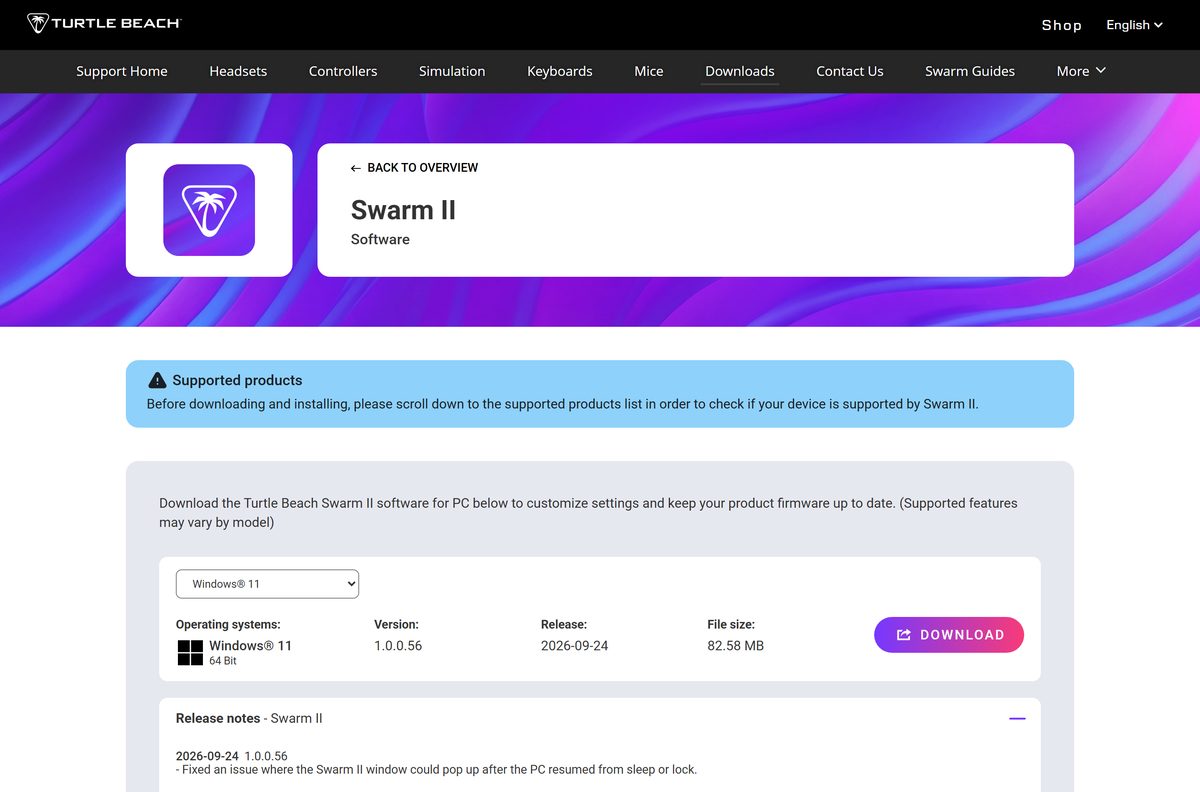
| Kone II, Vulcan II TKL, Burst II, Stealth 600 Gen 3 or another current product | Swarm II 1.0.0.56 | 82.58 MB | Windows 11 and 10, 64-bit only |
| Vulcan II, Magma, Kone XP Air, Pure Air or Sense AIMO XXL | Either app, Swarm II listed first | 82.58 MB or 79.39 MB | Swarm II needs 64-bit Windows |
| A 32-bit copy of Windows | ROCCAT Swarm | 79.39 MB | Swarm II does not run on 32-bit |
Open your device’s own entry on the downloads page when in doubt. It lists every app that supports that model.
Download ROCCAT Swarm from the official Turtle Beach page
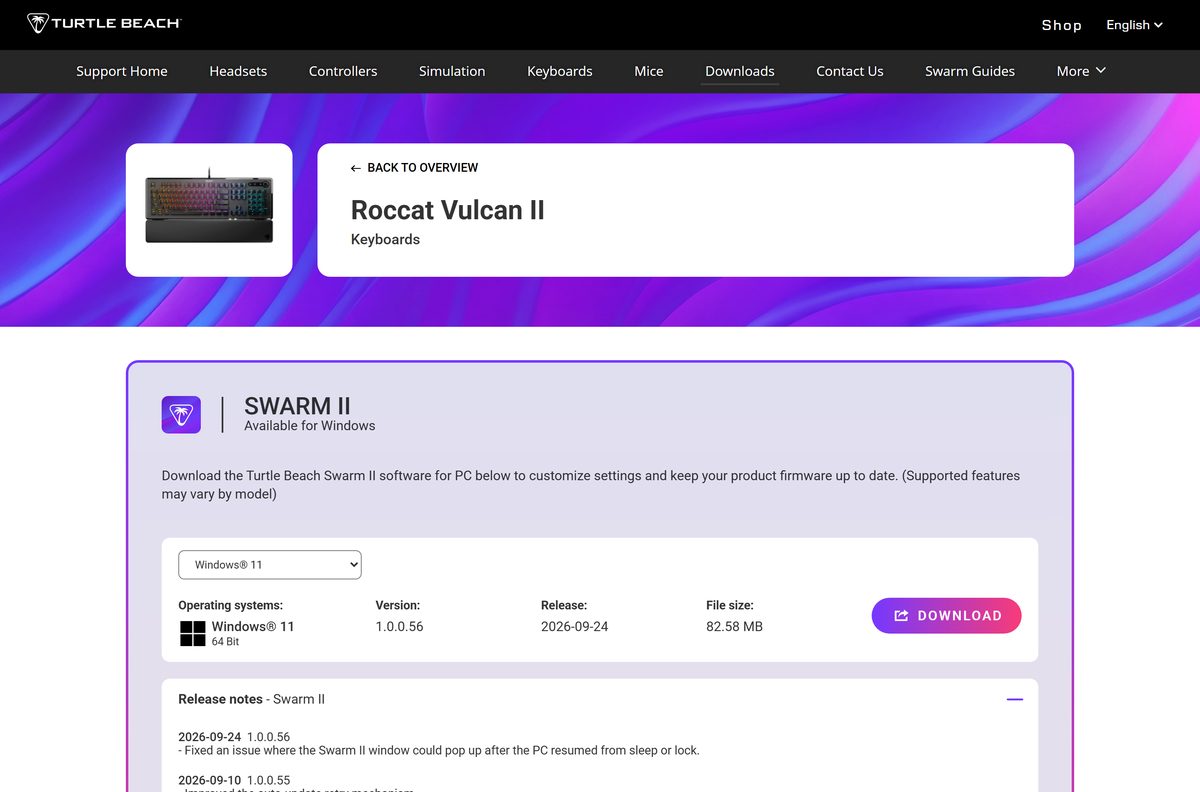
Turtle Beach now hosts all ROCCAT software on its own support site. The download arrives as a zip file with the installer inside.
- ROCCAT Swarm on the Turtle Beach downloads page — 79.39 MB · version 1.9482.0.0, released 2026-09-08
- Swarm II on the Turtle Beach downloads page — 82.58 MB · version 1.0.0.56, released 2026-09-24
- Swarm guides and supported product lists — links every supported device to its download entry
Select the Windows 11 or Windows 10 tab on the entry, then select DOWNLOAD. The zip name carries the version, such as ROCCAT_Swarm_1.9482.0.0.zip.
Check the ROCCAT Swarm system requirements
ROCCAT Swarm still supports Windows 7, which makes it the only choice for older or 32-bit PCs.
| Field | Value |
|---|---|
| Software | ROCCAT Swarm |
| Developer | Turtle Beach (ROCCAT brand) |
| Latest version | 1.9482.0.0, released 2026-09-08 |
| Price | Free |
| Windows | Windows 11, 10, 8.1, 8 and 7 |
| Architecture | 32-bit (x86) and 64-bit (x64); no ARM64 build listed |
| macOS | Not offered |
| Download size | 79.39 MB (83,243,234 bytes) |
| Package | ZIP archive with the Windows installer |
| Languages | English, French, German, Italian, Spanish, Portuguese and three Chinese variants |
| Successor | Swarm II 1.0.0.56, 64-bit Windows 11 and 10 only |
| Official source | Turtle Beach support downloads page |
| Last verified | 2026-09-25 |
How to install ROCCAT Swarm on Windows 11 and 10
Extract the zip before you run anything inside it. Running the installer straight from the archive often fails.
- Open the ROCCAT Swarm entry on the Turtle Beach downloads page.
- Select the Windows 11 or Windows 10 tab above the version block.
- Select DOWNLOAD and save the zip file.
- Right-click the zip in Downloads and select Extract All, then Extract.
- Open the extracted folder and double-click the setup file.
- Select Yes at the User Account Control prompt.
- Work through the installer and accept the licence agreement.
- Plug the ROCCAT device into a USB port on the PC.
- Open ROCCAT Swarm from the Start menu and wait for the device to appear.
- Accept any firmware update the app offers, and keep the device connected until it finishes.
Install Swarm II the same way. Its zip only runs on 64-bit Windows 11 or Windows 10.
Is there a ROCCAT Swarm download for Mac?
Turtle Beach lists Windows editions only for both Swarm apps.
| Your computer | What to use | Result |
|---|---|---|
| Mac with Apple silicon or Intel | Downloads page, Windows tabs only | No macOS build of ROCCAT Swarm |
| Mac, newer Turtle Beach device | Swarm II listing | No macOS build of Swarm II |
| A Windows 10 or Windows 11 PC | ROCCAT Swarm | Full configuration and firmware updates |
Configure the device on a Windows PC when you need new lighting, macros or firmware.
Is ROCCAT Swarm free?
The app is a companion for hardware you already own.
Yes, ROCCAT Swarm and Swarm II are both free. Turtle Beach offers both apps as free downloads from its support site, with no licence key, subscription or paid tier. A site that charges for the installer, or bundles it with a key generator, is not selling the real software.
ROCCAT Swarm or Swarm II: which should you install?
Swarm II arrived on 2024-04-19 and takes over from Swarm for newer products. Several ROCCAT models appear under both apps on the downloads page.
Install Swarm II if your device is on its list and your Windows is 64-bit. Use ROCCAT Swarm for older models, 32-bit PCs and Windows 7 or 8. Swarm II gets updates most often, with five releases between 2026-08-04 and 2026-09-24. ROCCAT Swarm still receives maintenance builds and covers dozens of legacy devices that Swarm II does not list.
Which devices ROCCAT Swarm and Swarm II support
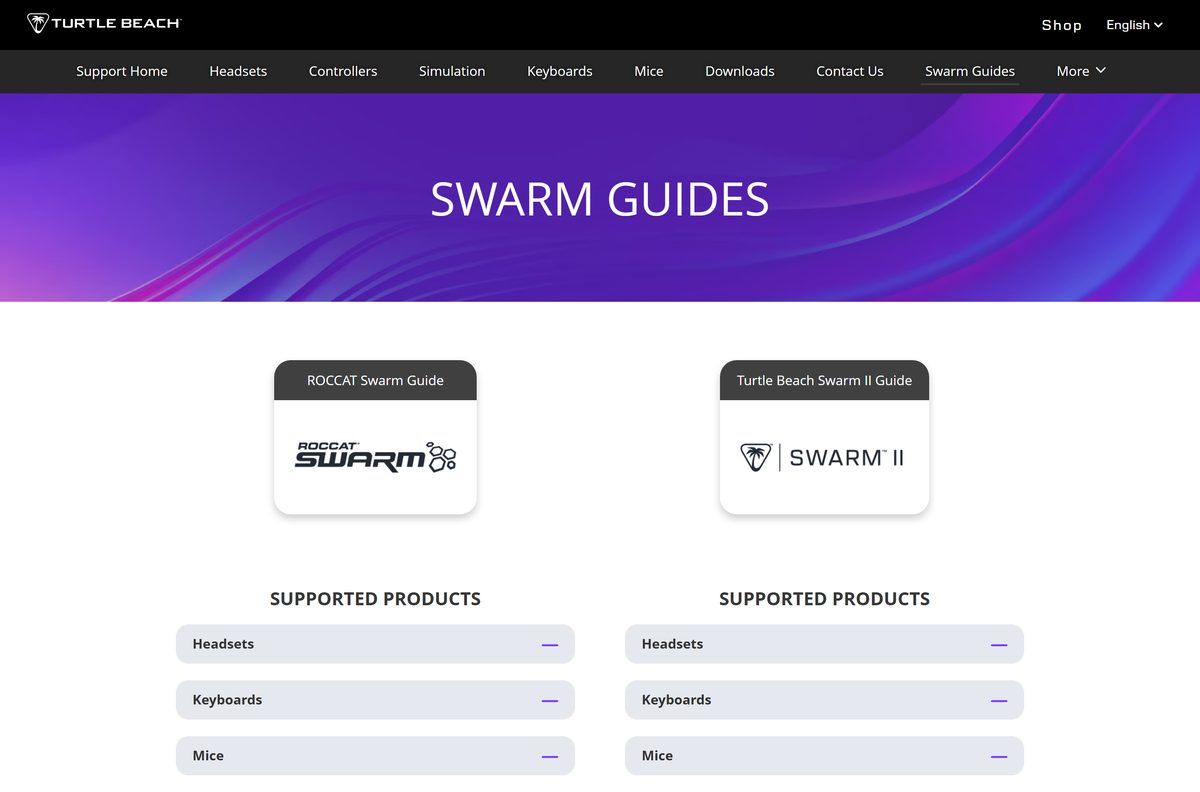
The downloads page groups supported products into mice, keyboards, headsets and mousepads. ROCCAT Swarm adds a streaming category.
| Category | ROCCAT Swarm | Swarm II |
|---|---|---|
| Mice | Kone AIMO, Kone AIMO Remastered, Kone Pro, Kone Pro Air, Kone XP, Kone Air, Kone EMP, Kain 100/120/200 AIMO, Burst Core, Burst Pro, Burst Pro Air, Kova AIMO, Leadr, Nyth, Pure Air, Pure SEL | Kone II, Kone II Air, Kone XP Air, Burst II Air, Burst II Pro, Pure Air, Pure SEL |
| Keyboards | Vulcan 80, 100 and 120/121/122 AIMO, Vulcan Pro, Vulcan TKL Pro, Vulcan TKL AIMO, Vulcan II family, Magma, Magma Mini, Pyro, Horde AIMO, Isku+, Ryos MK FX, Suora FX | Vulcan II, Vulcan II Max, Vulcan II Mini, Vulcan II Mini Air, Vulcan II TKL, Vulcan II TKL Pro, Vulcan TKL AIMO, Magma |
| Headsets | Elo 7.1 Air, Elo 7.1 USB, Syn Pro Air, Syn Max Air, Khan AIMO | Stealth 500, Stealth 600 Gen 3, Stealth 700 Gen 3, Stealth Pro II, Atlas Air, Atlas 200 |
| Mousepads | Sense AIMO, Sense AIMO XXL | Sense AIMO XXL |
| Streaming | Torch | Not listed |
The full lists sit on the Swarm guides page, where each model links to its own download entry.
How to update ROCCAT Swarm to the latest version
Recent builds improved the auto-update process, so a connected PC usually updates on its own.
- Open the ROCCAT Swarm entry and read the Version field.
- Expand Release notes to see what changed in each build.
- Download the newest zip if your copy is older than 1.9482.0.0.
- Close ROCCAT Swarm.
- Extract the new zip and run the setup file over the existing install.
- Reopen the app and accept any firmware update for connected devices.
Fix ROCCAT Swarm not installing or not detecting a device
Most failures come from the wrong app for the device, an unextracted zip or a USB hub.
The installer will not start
Windows blocks files that arrive in a downloaded zip until you confirm the source.
- Right-click the zip and select Properties.
- Tick Unblock on the General tab, then select OK.
- Extract the zip again with Extract All.
- Run the setup file from the extracted folder and select Yes at the prompt.
- Download the zip again if its size does not match 79.39 MB.
The app opens but the device never appears
The device is supported by Swarm II rather than ROCCAT Swarm.
- Find the model on the Swarm guides page.
- Open its download entry and check which apps it lists.
- Install Swarm II if ROCCAT Swarm is not listed.
- Close the app you are not using, so both do not run at once.
A wired device still does not show up
Hubs, front-panel ports and wireless dongles in the wrong port can hide the device.
- Plug the device or its dongle into a USB port on the back of the PC.
- Remove any USB hub or extension cable from the path.
- Close ROCCAT Swarm and open it again.
- Restart Windows and reconnect the device.
Swarm II refuses to install
Swarm II is built for 64-bit Windows 11 and Windows 10 only.
- Press Windows + I and open System, then About.
- Read System type under Device specifications.
- Install ROCCAT Swarm instead if the PC runs 32-bit Windows or Windows 7 or 8.
How to uninstall ROCCAT Swarm
The app registers in the standard Windows apps list.
- Close ROCCAT Swarm.
- Open Settings with Windows + I.
- Select Apps, then Installed apps.
- Search for ROCCAT Swarm and select the three-dot menu beside it.
- Select Uninstall and confirm.
- Restart the PC before you install Swarm II or reinstall Swarm.
Which other Turtle Beach apps can replace ROCCAT Swarm?
Turtle Beach splits its PC software by product family.
| App | Covers | Platforms | Link |
|---|---|---|---|
| Swarm II | Current ROCCAT and Turtle Beach mice, keyboards, headsets and mousepads | Windows 11 and 10, 64-bit | Downloads page |
| Turtle Beach Audio Hub | Stealth 600 and 700 Gen 2, Elite and Scout Air headsets | Windows and Mac | Downloads page |
Pick the app by device. The newest app does not detect every older model.
Frequently asked questions
Is ROCCAT Swarm free?
Yes. ROCCAT Swarm is a free download from the Turtle Beach support site, and so is its successor, Swarm II. There is no subscription, licence key or paid tier for either app.
What is the official ROCCAT Swarm download page?
The ROCCAT Swarm entry on the Turtle Beach support downloads page at support.turtlebeach.com. Turtle Beach owns the ROCCAT brand and hosts all its software there, including Swarm II and the Swarm guides.
Does ROCCAT Swarm work on Windows 11?
Yes. ROCCAT Swarm lists Windows 11 and Windows 10 in 32-bit and 64-bit editions, plus Windows 8.1, 8 and 7. Swarm II also runs on Windows 11, but only on 64-bit systems.
How big is the ROCCAT Swarm download?
The ROCCAT Swarm 1.9482.0.0 zip is 79.39 MB, or 83,243,234 bytes. The Swarm II 1.0.0.56 zip is slightly larger at 82.58 MB.
Is there a ROCCAT Swarm offline installer?
The download is a full 79.39 MB zip rather than a small web stub, so you can copy it to another PC. Version 1.9479.0.0 removed the app’s offline download function, and updates now arrive through auto-update.
Is ROCCAT Swarm available for Mac?
No. Turtle Beach lists Windows editions only for ROCCAT Swarm and for Swarm II. Configure the device on a Windows 10 or Windows 11 PC instead.
Does ROCCAT Swarm support 64-bit and ARM64 Windows?
ROCCAT Swarm supports 32-bit and 64-bit Windows. Swarm II supports 64-bit Windows 11 and 10 only. Turtle Beach lists no ARM64 build for either app.
Is ROCCAT Swarm safe to download?
Yes, when it comes from support.turtlebeach.com, which serves the zip from Turtle Beach’s own servers. Avoid mirror sites that repackage the installer or charge for it.
What is the latest version of ROCCAT Swarm?
ROCCAT Swarm 1.9482.0.0, released on 2026-09-08, is the latest build. Swarm II is at 1.0.0.56, released on 2026-09-24.
Why won’t ROCCAT Swarm install or detect my device?
Most often the device belongs to Swarm II, or the installer ran from inside the zip. Extract the zip first, then check the device’s download entry to see which Swarm app supports it.
Has Swarm II replaced ROCCAT Swarm?
For newer products, yes. Swarm II launched on 2024-04-19 and supports current devices such as the Kone II and Vulcan II TKL. ROCCAT Swarm still receives updates for older ROCCAT models.
Which ROCCAT devices work with Swarm?
ROCCAT Swarm supports mice such as the Kone AIMO, Kone Pro and Burst Pro, keyboards such as the Vulcan AIMO range and Magma, headsets such as the Elo 7.1 and Syn Pro Air, the Sense AIMO mousepads and the Torch.