Tasklist.exe is the built-in Windows command that lists every running process, its process ID (PID) and its memory use, on your own PC or on a remote computer.
This guide covers its full syntax, the filters that narrow the list, service and remote queries, exporting results, and fixes for when the command fails.
The fastest way to list running processes with tasklist
You need no admin rights and no download for a basic list. The command ships with Windows 11, Windows 10 and Windows Server.
- Press Win + R, type
cmdand press Enter to open Command Prompt. - Type
tasklistand press Enter. - Read the table: each row is one running process with its image name, PID, session and memory usage.
- Type
tasklist /?and press Enter whenever you need the built-in help for every switch.
The rest of this guide shows how to cut that long list down to the one process you care about.
What Is Tasklist.exe?
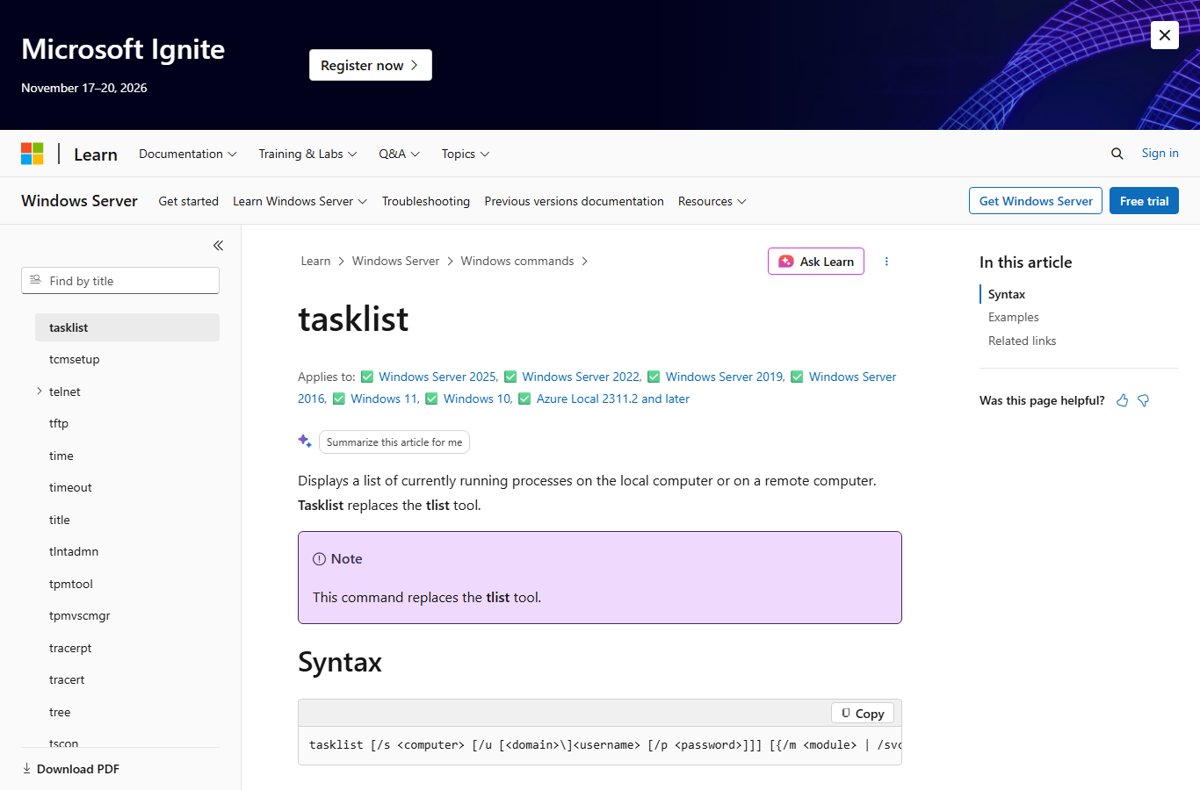
Microsoft describes tasklist as a command that displays the currently running processes on the local computer or on a remote computer. It replaced the older tlist tool.
| Question | Answer |
|---|---|
| What it does | Lists running processes (tasks) with details you can filter and export |
| Where it runs | Windows 11, Windows 10, Windows Server 2016, 2019, 2022 and 2025 |
| Local or remote | Both; add /s <computer> to query another machine |
| What Tasklist.exe can show | Image name, PID, session, memory use, status, user name, CPU time, window title, hosted services and loaded DLL modules |
| Output formats | Table (default), list or CSV |
| Does it change anything? | No. It only reads process information; ending a process is the job of taskkill |
| Is it safe? | The genuine command is part of Windows and is read-only |
Seeing an unfamiliar system process such as dwm.exe in the output is normal. The guide on what Desktop Window Manager (dwm.exe) does explains one of the most common ones.
Tasklist.exe Syntax and Common Options
The full syntax from Microsoft's reference is: tasklist [/s <computer> [/u [<domain>\]<username> [/p <password>]]] [{/m <module> | /svc | /v}] [/fo {table | list | csv}] [/nh] [/fi <filter> [/fi <filter> [ ... ]]].
Switches are not case-sensitive, and you can combine most of them in one command. Only one of /m, /svc or /v is shown in the syntax braces, with one exception noted below.
| Switch | What it does | Rule to remember |
|---|---|---|
/s <computer> |
Queries a remote computer by name or IP address | Do not type backslashes before the name |
/u <domain>\<username> |
Runs the query with another account's permissions | Works only together with /s |
/p <password> |
Supplies the password for the /u account |
Needs /u |
/m <module> |
Lists tasks that loaded a DLL matching the pattern | Without a name it lists every module for each task |
/svc |
Lists the services hosted in each process, untruncated | Valid only with table output |
/v |
Shows verbose details such as status, user name, CPU time and window title | Use /v with /svc for complete untruncated output |
/fo table, /fo list, /fo csv |
Sets the output format | Table is the default |
/nh |
Hides the column headers | Valid with table or CSV output |
/fi <filter> |
Includes or excludes processes by a condition | Repeat /fi to stack several filters |
/? |
Prints help at the command prompt | Safe to run anytime |
Viewing and Filtering Running Processes
A filter is written as "NAME operator value" inside double quotes after /fi. The operators are eq (equal), ne (not equal), gt, lt, ge and le.
Text filters such as IMAGENAME accept only eq and ne. Number filters such as PID and MEMUSAGE accept all six operators.
| You want to see | Run this | Filter notes |
|---|---|---|
| Every copy of one program | tasklist /fi "IMAGENAME eq excel.exe" |
IMAGENAME takes eq or ne |
| One process by its ID | tasklist /fi "PID eq 1234" |
PID takes all six operators |
| Processes using more than about 500 MB | tasklist /fi "MEMUSAGE gt 500000" |
MEMUSAGE is measured in KB |
| Frozen programs only | tasklist /fi "STATUS eq NOT RESPONDING" |
STATUS values: RUNNING, NOT RESPONDING, UNKNOWN |
| Processes that used more than one minute of CPU | tasklist /fi "CPUTIME gt 00:01:00" |
CPU time format is HH:MM:SS |
| Processes run by one account | tasklist /fi "USERNAME eq <domain\user>" |
Takes eq or ne |
| Everything except SYSTEM processes that are running | tasklist /fi "USERNAME ne NT AUTHORITY\SYSTEM" /fi "STATUS eq running" |
Two stacked /fi filters |
| A window by its title | tasklist /v /fi "WINDOWTITLE eq <title>" |
Local computer only |
| Processes in one session | tasklist /fi "SESSION eq 1" |
SESSIONNAME filters by name instead |
| Detailed CSV of all tasks above PID 1000 | tasklist /v /fi "PID gt 1000" /fo csv |
Example from Microsoft's reference |
Using output formats for analysis: /fo list prints one field per line, which is easier to read for a single process. /fo csv produces comma-separated values that Excel opens directly.
To search the plain list for a word instead of an exact name, pipe it into findstr: tasklist | findstr /i excel. The /i switch ignores upper and lower case.
Checking Services and Remote System Tasks
Many Windows services share one host process, so a single svchost.exe row can hide several services. The /svc switch shows which services live inside each process.
Remote queries use your current sign-in by default. Add /u and /p only when another account has the rights on that computer.
| Task | Command | What to expect |
|---|---|---|
| Viewing services hosted by processes | tasklist /svc |
A services column lists every service in each process |
| Services inside svchost.exe only | tasklist /svc /fi "IMAGENAME eq svchost.exe" |
One row per svchost.exe instance with its services |
| Find the process that hosts one service | tasklist /svc /fi "SERVICES eq <service name>" |
Use the service name, not its display name |
| Checking tasks on a remote computer | tasklist /s srvmain |
Lists processes on srvmain with your current credentials |
| Remote query with another account | tasklist /s srvmain /u maindom\hiropln /p <password> |
/u is accepted only when /s is present |
| Combining remote queries with filters and service output | tasklist /s srvmain /svc /fi "MODULES eq ntdll*" |
Services for remote processes that loaded a DLL starting with ntdll |
| Which programs loaded a given DLL | tasklist /m ntdll* |
Lists matching tasks and the module |
The STATUS and WINDOWTITLE filters are not supported when you query a remote system. Filter by IMAGENAME, PID, MEMUSAGE or USERNAME instead.
Practical Tasklist.exe Examples for Troubleshooting
Each row below matches a common problem to the command that answers it. Replace the sample names and numbers with your own.
| Problem | Command | Next step |
|---|---|---|
| Find processes using the most memory | tasklist /fi "MEMUSAGE gt 1000000" |
Lower the number (in KB) until the list shows the few heavy processes |
| Identify a process by PID from an error message or log | tasklist /v /fi "PID eq 4820" |
The verbose row shows its name, user and window title |
| Check whether a suspicious executable is active | tasklist /fi "IMAGENAME eq <name>.exe" /v |
If a row appears, note the user account and PID before acting |
| See which DLLs a suspicious program loaded | tasklist /m /fi "IMAGENAME eq <name>.exe" |
Compare the module list with what the program should need |
| Capture a process snapshot before and after a problem | tasklist /v /fo csv > before.csv, then tasklist /v /fo csv > after.csv |
Open both files in Excel and look for new or grown rows |
| Program appears hung | tasklist /fi "STATUS eq NOT RESPONDING" |
End it with taskkill /pid <PID> |
| Excel still running after you closed it | tasklist /fi "IMAGENAME eq excel.exe" |
A leftover row means a background copy is still open |
The > symbol writes the output to a file instead of the screen, and >> appends to an existing file. A timestamped log is as simple as running tasklist >> processlog.txt on a schedule.
Never end a process just because its name is unfamiliar. Look up the name first; many Windows components run under generic names.
Tasklist.exe vs Task Manager, PowerShell, and Taskkill
These four tools overlap, but only tasklist and taskkill run in plain Command Prompt scripts on every Windows edition. Pick by what you need to do next.
| Your situation | Use this | Why |
|---|---|---|
| You want a live, clickable view with graphs | Task Manager | It refreshes continuously and ends tasks with a click; see 12 shortcuts to open Task Manager |
| You need a one-off text list or a CSV for a report | tasklist | Plain text output that redirects to a file with > |
| You are writing a batch file or checking a remote server | tasklist | Works in cmd scripts and supports /s, /u and /p |
| You want to sort, calculate or chain results | PowerShell Get-Process |
It returns objects, so a pipeline into Where-Object WorkingSet -GT 20MB filters by real numbers |
| You need the owner of a process in PowerShell | Get-Process -IncludeUserName |
Needs an elevated PowerShell window for processes you do not own |
| You found the process and want to stop it | taskkill | taskkill /pid <PID> or taskkill /im <name>.exe; add /f to force and /t for child processes |
How Tasklist.exe compares with Taskkill: tasklist only reads, taskkill ends. The two share the same /s, /u, /p and /fi filter syntax, so a filter you tested with tasklist works unchanged with taskkill.
Taskkill always ends remote processes forcefully, whether or not you add /f. Run the matching tasklist query first to confirm exactly what it will hit.
If you prefer the graphical tool, Windows 11 also has a redesigned version; see how to enable or disable the new Task Manager in Windows 11.
How to check your tasklist filter works
Test a filter on a process you control before you trust it in a script or feed it to taskkill.
- Open Notepad.
- In Command Prompt, run
tasklist /fi "IMAGENAME eq notepad.exe". - Confirm that one row appears and note its PID.
- Run
tasklist /fi "PID eq <that PID>"and confirm it returns the same row. - Close Notepad and run the first command again; the notepad.exe row is gone.
- For exports, open the CSV file and check that the first line holds column headers, unless you added
/nh.
Fix tasklist when it does not work
"tasklist is not recognized" or "tasklist command not found"
The command was mistyped, or it was run outside Windows, where tasklist does not exist.
- Check the spelling: the command is one word,
tasklist, with no space. - Make sure you are on Windows 10, Windows 11 or Windows Server; tasklist is a Windows command only.
- Open a fresh Command Prompt with Win + R,
cmd, Enter, and runtasklistagain. - If Windows still cannot find it, open Command Prompt as administrator and run
sfc /scannowto repair protected system files. - Restart the PC after the scan finishes and try again.
Tasklist.exe application error
A damaged system file, or a file that only uses the tasklist.exe name.
- Select Start, type
cmd, right-click Command Prompt and choose Run as administrator. - Run
sfc /scannowand wait for the scan to reach 100 percent. - Restart Windows and run
tasklistagain. - If the error names a tasklist.exe running from an unusual folder, scan the PC with Windows Security before doing anything else.
Frequently Asked Questions
What does tasklist do?
Tasklist displays every process currently running on a Windows computer, local or remote, with details such as image name, PID, session and memory use. It is read-only: it reports processes but never ends or changes them. Use taskkill to stop a process it shows.
How do I use the tasklist command?
Open Command Prompt, type tasklist and press Enter to list all processes. Add /fi with a filter, such as tasklist /fi "IMAGENAME eq chrome.exe", to narrow the list, and /fo csv to change the output format. Run tasklist /? for the full switch list.
How do I find a specific running process with Tasklist.exe?
Filter by the exact file name with tasklist /fi "IMAGENAME eq excel.exe", or by ID with tasklist /fi "PID eq 1234". For a partial name, pipe the list into findstr: tasklist | findstr /i excel. The /i switch makes the search ignore case.
Can Tasklist.exe show which Windows services are running inside a process?
Yes. Run tasklist /svc to list the services hosted by each process, which is most useful for svchost.exe. The /svc switch works only with the default table output. To find the host of one service, add /fi "SERVICES eq <service name>".
How do I use Tasklist.exe on a remote computer?
Add /s and the computer name or IP address without backslashes, for example tasklist /s srvmain. To use a different account, add /u domain\user and /p password. The STATUS and WINDOWTITLE filters do not work in remote queries.
What is the best way to export Tasklist.exe results to a file?
Use CSV output and redirect it to a file: tasklist /v /fo csv > processes.csv. Excel opens the file directly, with one column per field. Use >> instead of > to append to an existing file, and /nh to leave out the header row.
How is Tasklist.exe different from Task Manager, PowerShell, and Taskkill?
Task Manager is a live graphical view. Tasklist is a text command for scripts, exports and remote servers. PowerShell's Get-Process returns objects you can sort and calculate with. Taskkill ends the processes that tasklist finds, using the same filter syntax.
How do I use Microsoft task list?
If you mean the Windows tasklist command, open Command Prompt and type tasklist. If you want a to-do list for your own tasks, that is a different product: Microsoft's to-do app is Microsoft To Do, which has nothing to do with running processes.
Is tasklist one word?
Yes. The command is typed as one word, tasklist, and the program file is tasklist.exe. Typing task list with a space makes Windows look for a command named task, which fails with a "not recognized" error.
Bottom Line
Use tasklist with /fi filters whenever you need a process list you can save, script or pull from another computer, and switch to taskkill only after the same filter returns exactly the process you expect. Tasklist is built into every current Windows version, needs no admin rights for a local list, and its filters carry over unchanged to taskkill, so testing with tasklist first prevents ending the wrong process.