To change the screen saver on Windows 10 or 11, open Settings > Personalization > Lock screen, select Screen saver, pick one from the drop-down list and click OK.
This guide covers every way to open Screen Saver Settings, the wait time, photo and 3D Text options, sign-in on resume, the Registry check, and fixes for a greyed-out or silent screen saver.
Change the screen saver in Windows 10 or Windows 11
Both versions still use the classic Screen Saver Settings dialog, and Settings is the front door to it. This is how to change and configure your screensaver in Windows in one pass.
- Press Windows + I to open Settings.
- Select Personalization > Lock screen.
- Scroll to Related settings and select Screen saver.
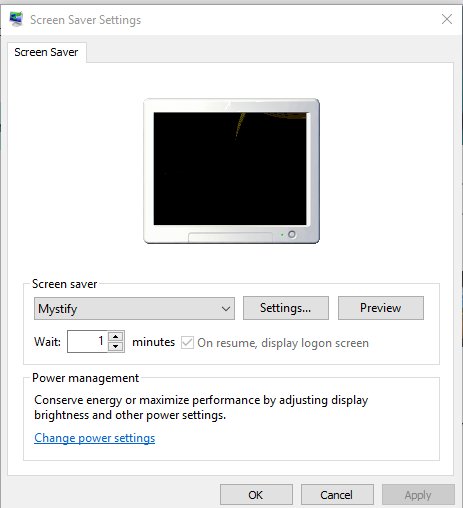
- In the Screen Saver Settings window, choose a screen saver from the Screen saver drop-down list.
- Set the Wait box to the number of idle minutes before it starts.
- Tick On resume, display logon screen if you want Windows to ask for your password or PIN when you come back.
- Click Apply, then OK.
The new screen saver starts the next time the PC sits idle for the wait time you set.
Accessing Screen Saver Settings in Windows
Every route below opens the same Screen Saver Settings window. Pick the one that suits how you work.
| Your situation | Use this route | Why |
|---|---|---|
| You use the mouse and the Settings app | Settings > Personalization > Lock screen > Screen saver | The route Microsoft documents for current Windows |
| You want the dialog in one step | Press Windows + R, type control desk.cpl,,1 and press Enter |
Skips Settings completely |
| You are writing a shortcut or script | %windir%\system32\control.exe desk.cpl,screensaver,@screensaver |
Full path works from any shortcut target |
| The link or dialog is greyed out | Check the policies in the work or school section below | An administrator policy has locked it |
Open Screen Saver Settings with a command
Microsoft documents this command for opening the Screen Saver Settings console from Command Prompt. It also works in the Run box and in PowerShell.
control desk.cpl,,1Opens the Display control panel item (desk.cpl) straight on its screen saver page. The longer documented form %windir%\system32\control.exe desk.cpl,screensaver,@screensaver opens the same page and suits a desktop shortcut.
You should see: The Screen Saver Settings window opens with the Screen saver drop-down list, the Wait box and the On resume, display logon screen check box.
Choose a screen saver and set the delay
The delay is the Wait value, counted in minutes of no keyboard or mouse input. Change it any time without picking a new screen saver.
- Open Screen Saver Settings with
control desk.cpl,,1or from Settings > Personalization > Lock screen. - Pick a screen saver in the Screen saver drop-down list.
- Click Settings… to adjust that screen saver, for example the message in 3D Text or the picture folder for Photos.
- Type the idle time in the Wait box, or use its arrows to change the minutes.
- Click Preview to see it full screen, then move the mouse to return.
- Click OK to save the screen saver and the delay.
To change the screen saver picture, choose Photos, click Settings… and point it at the folder that holds your pictures.
Understanding the Screen Saver Settings Window
| Control | What it does |
|---|---|
| Screen saver drop-down list | Selects the screen saver; (None) turns screen savers off |
| Settings… | Opens options for the selected screen saver, such as custom text or a picture folder |
| Preview | Runs the selected screen saver immediately so you can see it |
| Wait | Minutes of inactivity before the screen saver starts |
| On resume, display logon screen | Locks the PC so you must sign in again when the screen saver ends |
| Apply / OK | Saves the choice to your user profile |
Windows stores these choices per user, so each account on the PC can have its own screen saver and delay.
Types of Screensavers Available in Windows
The built-in list is short. The four animated ones ship as .scr files in %windir%\system32.
| Screen saver | File | What you can change in Settings… |
|---|---|---|
| 3D Text | sstext3d.scr |
A custom message |
| Bubbles | bubbles.scr |
Options in its own Settings… dialog |
| Mystify | mystify.scr |
Options in its own Settings… dialog |
| Ribbons | ribbons.scr |
Options in its own Settings… dialog |
| Photos | Built in | The folder of your own pictures to show |
| (None) | No file | Turns screen savers off |
Understanding the Concept of a Screensaver
A screen saver is an animated image or pattern that appears after the PC has been idle for a set time.
| Reason | Still relevant? |
|---|---|
| Preventing burn-in on CRT monitors | No; the original purpose, largely gone with LCD and LED panels |
| Reducing burn-in on OLED displays | Yes; it keeps static images from staying on screen for long periods |
| Locking the PC when you walk away | Yes, with On resume, display logon screen ticked |
| Personalization | Yes; your own photos or a custom 3D Text message |
| Saving energy | No; Microsoft recommends sleep, which uses far less power than a running screen saver |
Screen saver versus turning off the display
| Screen saver | Screen turns off / sleep | |
|---|---|---|
| Where to set it | Screen Saver Settings > Wait | Windows 11: Settings > System > Power & battery > Screen, sleep, & hibernate timeouts |
| What you see | An animation or your photos | A black screen; the display is powered down |
| Power use | Screen and PC stay fully on | Much lower, especially in sleep |
| Security | Locks only if On resume, display logon screen is ticked | Depends on your sign-in settings |
| Which wins | Only visible if its wait is shorter than the screen-off timer | If the screen turns off first, you never see the screen saver |
A screen saver does not turn off the monitor. Set Turn my screen off after for that, and keep it longer than the screen saver Wait if you want to see both.
Additional Settings and Security Tips
Ticking one box turns the screen saver into an automatic lock. That matters on a laptop you carry or a desk you share.
- Open Screen Saver Settings.
- Tick On resume, display logon screen.
- Set Wait to a short time, such as 5 minutes, so the PC locks soon after you leave.
- Click OK.
- Press Windows + L when you leave, which locks the PC at once without waiting for the screen saver.
On managed PCs, the Password protect the screen saver policy can force this box on or off, and the check box then appears greyed out.
Advanced Customizations and Tips
| You want to | Do this | Note |
|---|---|---|
| Show your own photos | Choose Photos, click Settings… and pick your picture folder | The folder can be changed any time |
| Show a custom message | Choose 3D Text, click Settings… and type your text | Click Preview to check the text |
Install a custom .scr file |
Run rundll32.exe desk.cpl,InstallScreenSaver file, replacing *file* with the screen saver file name |
Only use .scr files from a source you trust; they are programs |
| Open the dialog from a desktop shortcut | Create a shortcut with the target %windir%\system32\control.exe desk.cpl,screensaver,@screensaver |
One double-click to the dialog |
| Tips for changing the screen saver on Windows 11 | Use Preview before OK, keep the screen-off timer longer than Wait, and tick On resume, display logon screen on laptops | Also check how to change the home screen on Windows 11 to match the rest of the desktop |
Advanced check: verify the timeout in the Registry
Click Preview first; if the screen saver runs, your choice is saved. To confirm the exact values, read them from the Registry without changing anything.
reg query "HKCU\Control Panel\Desktop"Lists your desktop values. ScreenSaveActive is 1 when enabled, ScreenSaverIsSecure is 1 when sign-in on resume is on, ScreenSaveTimeOut is the wait in seconds, and SCRNSAVE.EXE names the selected screen saver file.
You should see: A 10-minute wait shows as ScreenSaveTimeOut REG_SZ 600. If SCRNSAVE.EXE is missing, the screen saver is set to (None).
Policy values under HKCU\Software\Policies\Microsoft\Windows\Control Panel\Desktop take precedence over these. If that key exists, an administrator policy controls your screen saver.
How to turn the screen saver off
- Press Windows + R, type
control desk.cpl,,1and press Enter. - Select (None) in the Screen saver drop-down list.
- Click Apply, then OK.
Windows then removes the screen saver entry from your profile. Your display timer in power settings still turns the screen off.
What to do if the screen saver will not start
The screen goes black instead of showing the screen saver
The screen-off timer is shorter than the screen saver Wait time.
- Open Settings > System > Power & battery > Screen, sleep, & hibernate timeouts.
- Set Turn my screen off after to a longer time than the screen saver Wait.
- Leave the PC idle and check the screen saver appears first.
The screen saver never appears at all
The drop-down list is set to (None), or no timeout is set.
- Open Screen Saver Settings with
control desk.cpl,,1. - Select a screen saver other than (None).
- Enter a Wait time of at least 1 minute and click OK.
- Run
reg query "HKCU\Control Panel\Desktop"and confirmScreenSaveTimeOuthas a value.
A policy enables the screen saver but it still does not start
Enable screen saver is on, but no Screen saver timeout policy sets a wait time, so Windows has no timeout.
- Ask the administrator to also configure Screen saver timeout under User Configuration > Administrative Templates > Control Panel > Personalization.
- Sign out and back in after the policy updates.
Why you cannot change the screen saver on a work or school PC
Group Policy settings under User Configuration > Administrative Templates > Control Panel > Personalization can lock each part of the dialog. Only the administrator who set them can change them.
The Screen Saver Settings dialog will not open
The Prevent changing screen saver policy blocks the dialog but does not stop a screen saver from running.
- Run
reg query "HKCU\Software\Microsoft\Windows\CurrentVersion\Policies\System"and look forNoDispScrSavPage. - If it is present, ask your IT team to change the policy.
The screen saver drop-down list is greyed out
The Force specific screen saver policy picks the screen saver for you, or Enable screen saver is disabled.
- Run
reg query "HKCU\Software\Policies\Microsoft\Windows\Control Panel\Desktop". - Look for
SCRNSAVE.EXEorScreenSaveActivein the output. - Ask your IT team whether the policy can be relaxed for your account.
The On resume, display logon screen box is greyed out
The Password protect the screen saver policy forces sign-in on or off.
- Look for
ScreenSaverIsSecureunder the same Policies key. - Use Windows + L to lock manually if sign-in is forced off and you need it.
Troubleshooting Common Screensaver Issues
Why did my screen saver change on its own?
A theme carries its own screen saver, so applying a theme can replace yours. A Force specific screen saver policy also overrides your pick.
- Open Screen Saver Settings after applying any theme.
- Select your screen saver again and click OK.
- If it keeps reverting, run
reg query "HKCU\Software\Policies\Microsoft\Windows\Control Panel\Desktop"to check for a forcedSCRNSAVE.EXE.
Windows does not ask for a password after the screen saver
On resume, display logon screen is not ticked.
- Open Screen Saver Settings.
- Tick On resume, display logon screen.
- Click OK, wait for the screen saver, then move the mouse to test.
A change to the screen saver has no effect
Changes apply the next time a screen saver starts, not to one that is already running.
- Move the mouse to end the running screen saver.
- Click Preview in Screen Saver Settings to start the new one.
Windows 10 support status
| Item | Status |
|---|---|
| Windows 10 Home and Pro end of support | October 14, 2025 |
| Final Windows 10 version | 22H2 |
| Screen saver steps in this guide | Unchanged on Windows 10 22H2; same dialog and same control desk.cpl,,1 command |
| Screen-off timer | The Windows 11 Power & battery path in this guide differs on Windows 10 |
Windows 10 no longer receives regular security updates after that date, so a locking screen saver is a small safeguard, not a replacement for moving to a supported version.
Frequently Asked Questions
Where is Screen Saver Settings in Windows 10 and 11?
Screen Saver Settings is reached from Settings > Personalization > Lock screen > Screen saver. The faster route is to press Windows + R, type control desk.cpl,,1 and press Enter, which opens the dialog directly on both versions.
How do I change the screen saver timeout or timer?
Change the Wait value in Screen Saver Settings. It counts minutes of no keyboard or mouse input. Type a new number, click OK, and the new timeout applies from the next idle period.
How do I change the screen saver picture?
Select Photos in the Screen saver drop-down list, click Settings… and choose the folder that holds your pictures. Confirm the folder, then click OK in Screen Saver Settings. The Photos screen saver then shows the pictures from that folder.
How do I change the screen saver on a laptop or PC?
The steps are the same on a laptop and a desktop PC. Open Settings > Personalization > Lock screen, select Screen saver, choose one from the list, set Wait and click OK. On a laptop, keep the screen-off timer longer than Wait.
How do I make Windows require a password after the screen saver?
Tick On resume, display logon screen in Screen Saver Settings and click OK. Windows then shows the sign-in screen when the screen saver ends. If the box is greyed out, a Password protect the screen saver policy controls it.
Why can't I change my screen saver settings in Windows?
An administrator policy usually locks them. Prevent changing screen saver blocks the dialog, Force specific screen saver greys out the list, and Enable screen saver set to disabled turns the section off. On a work or school PC, only IT can change these.
Why did my screen saver change on its own?
Applying a theme can replace your screen saver, because a theme includes one. A Force specific screen saver policy on a managed PC also overrides your choice. Reselect your screen saver after changing themes.
How do I keep the screen saver from changing?
Set the screen saver again after you apply a theme, and avoid switching themes afterwards. If it still reverts, check for a forced SCRNSAVE.EXE policy value with reg query and ask your IT team to remove it.
Does a screen saver turn off the monitor?
No. A screen saver keeps the display on and draws an animation or photos. Turning the screen off is a separate power setting, Turn my screen off after, under Settings > System > Power & battery on Windows 11.
The Bottom Line
Use control desk.cpl,,1 to open Screen Saver Settings, pick a screen saver, set Wait and tick On resume, display logon screen. That one dialog controls everything on both Windows 10 and 11, and the sign-in box makes the screen saver a lock rather than only decoration. For energy savings, rely on the screen-off and sleep timers instead.
Final words: if the display itself looks wrong behind the screen saver, see how to change screen resolution and scaling in Windows.

![Fix: VLC Is Unable To Open MRL File [Step by Step Guide]](https://techdows.com/wp-content/uploads/2026/09/VLC-Media-menu-open-with-Open-File-highlighted-showing-CtrlO-shortcut-508x338.jpg)