Stamps.com Connect is a free download for Windows 11, Windows 10 and Mac that links your Stamps.com account to thermal label printers and USB postal scales. Install it once, sign in, and the browser version of Stamps.com can print NetStamps rolls, read package weights and print envelopes.
This guide covers the right installer for your computer, setup steps, the Stamps.com plan you need, supported printers and scales, and fixes for printing and weight errors.
Which Stamps.com Connect download do you need?
Match your computer and what you print to a row. Connect is one installer per operating system.
| Your setup | What to download | Note |
|---|---|---|
| Windows 11 or Windows 10 PC | Stamps.com Connect for Windows (Connect article) | Sign in with your Stamps.com account |
| Mac | Stamps.com Connect for macOS (Connect article) | Runs from the menu bar |
| You print only NetStamps sheets, or envelopes from Chrome | Nothing extra: print from the browser | Connect is optional here |
| You want a full desktop program instead of the browser | Stamps.com Desktop App on the Microsoft Store | Separate app, not Connect |
| You need XML import/export, ODBC or packing slips | Classic PC Software (Download page) | Windows only |
Connect does not replace your Stamps.com account. It gives the web version access to printers and scales the browser cannot reach on its own.
Download Stamps.com Connect for Windows 11 and Windows 10
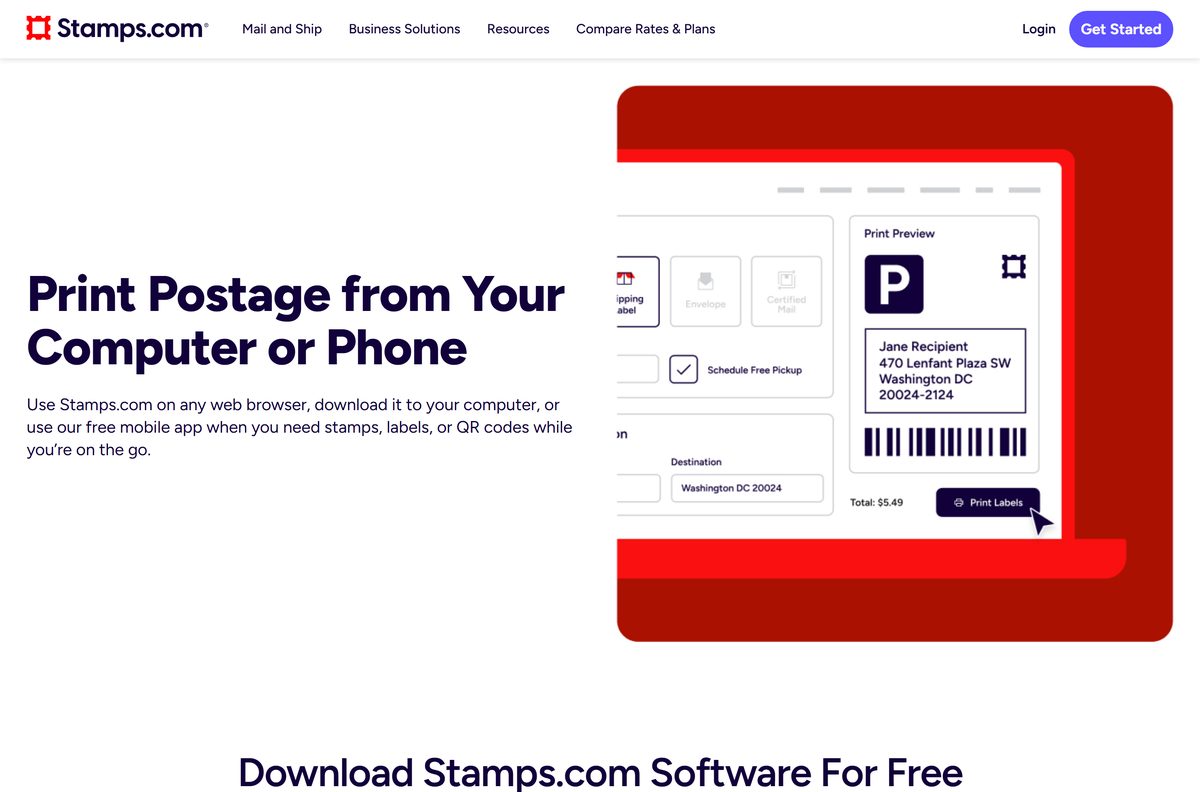
Stamps.com hosts the installer links in its own help center. The Install Stamps.com Connect section has a Windows tab and a Mac tab.
- Stamps.com Connect help article (installers) — Windows and Mac installer links, plus troubleshooting
- Stamps.com Download page — lists Connect for Windows and macOS under Installers
- Stamps.com pricing and 30-day trial — the account Connect signs in to
- Connect and use a USB postal scale — scale setup after Connect is installed
Download Connect only through stamps.com or help.stamps.com. Stamps.com also prompts you to download it when you click Weigh without Connect installed.
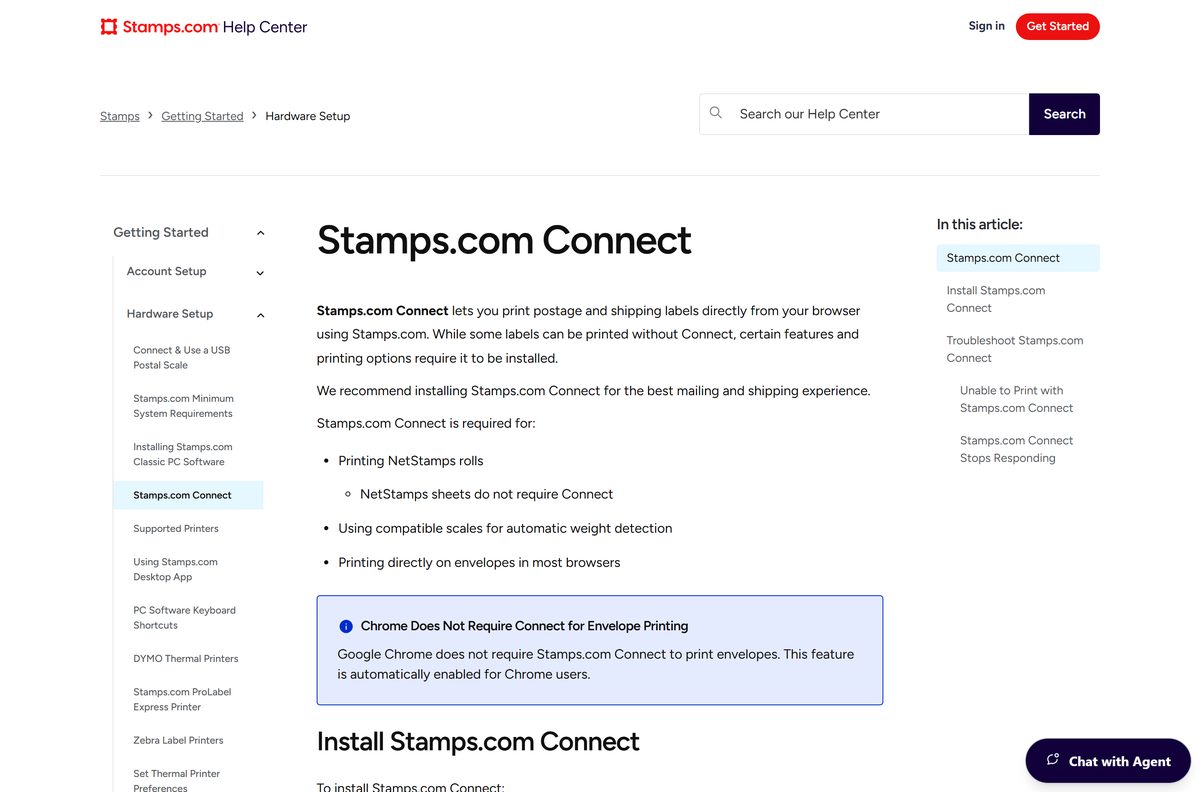
How to install Stamps.com Connect on Windows 11 and 10
Have your Stamps.com username and password ready. Connect asks for them at the end of setup.
- Open the Stamps.com Connect article and select the Windows tab under Install Stamps.com Connect.
- Click the Stamps.com Connect installer link and save the file.
- Open the downloaded installer from your Downloads folder.
- Follow the on-screen instructions to complete the installation.
- When prompted, sign in with your Stamps.com username and password.
- Select the ^ icon on the taskbar and confirm the Stamps.com Connect icon is in the system tray.
Right-click the tray icon to check your status. If Sign In appears in the menu, you are signed out.
Which Stamps.com Connect download do you need for your Mac?
The Mac installer does the same job as the Windows one: it links the browser to your printer and scale.
| Your Mac | What to install | Note |
|---|---|---|
| Printing from Stamps.com in Safari or Firefox | Stamps.com Connect for macOS | Needed for envelopes, NetStamps rolls and scales |
| Printing envelopes from Google Chrome only | No Connect needed | Chrome prints envelopes without it |
| You prefer a native Stamps.com program | Stamps.com for Desktop on the Mac App Store | Full client, separate from Connect |
After you install it, select the Stamps.com Connect icon in the menu bar and choose Sign In if it appears.
Is Stamps.com Connect free?
The helper costs nothing. The Stamps.com account it signs in to does.
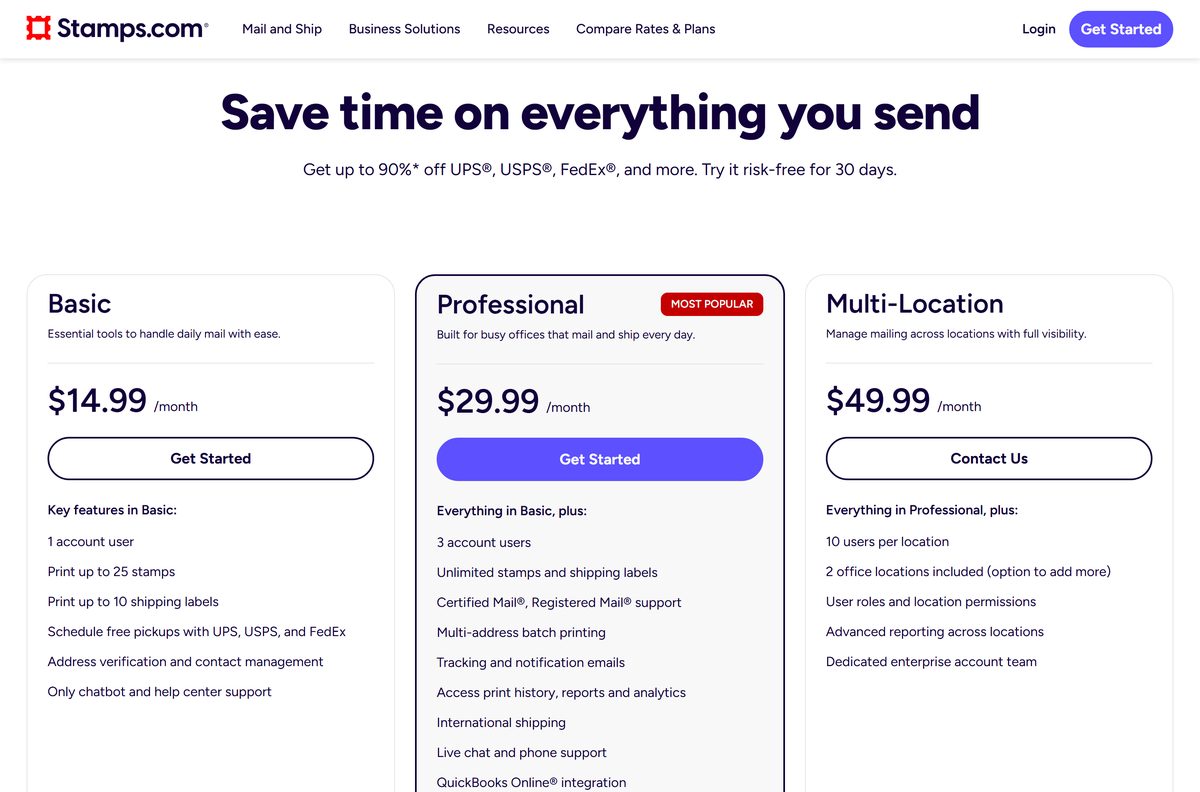
Yes, the Connect download is free, but you need a paid Stamps.com plan or the 30-day risk-free trial to use it. Stamps.com Basic is $14.99 a month with 25 stamps and 10 labels a month. Professional starts at $29.99 a month with unlimited stamps and labels. Multi-Location starts at $49.99 a month. You can cancel any time, and postage is billed separately.
Should you install Stamps.com Connect or the Desktop App?
Both appear on the Stamps.com Download page, so the choice trips people up.
Install Connect if you use Stamps.com in a browser. Install the Desktop App if you want Stamps.com as its own program. Connect runs in the background and hands print jobs and scale weights to the web version. The Desktop App is a complete client from the Microsoft Store or the Mac App Store. The Classic PC Software stays the pick for XML import/export, ODBC and packing slips.
How to check your Stamps.com Connect version and update it
Stamps.com changed the Connect icon in a recent release, which makes an old install easy to spot.
- On Windows, select the ^ icon on the taskbar to show hidden icons.
- Compare the Connect icon with the old and new icons in the Connect troubleshooting guide.
- If the old icon shows, use the Check for Updates feature in Connect, or reinstall from the Connect article.
- Install the same Connect version on every workstation that shares a scale or printer.
Mismatched Connect versions across a network cause sync errors, so update every PC at the same time.
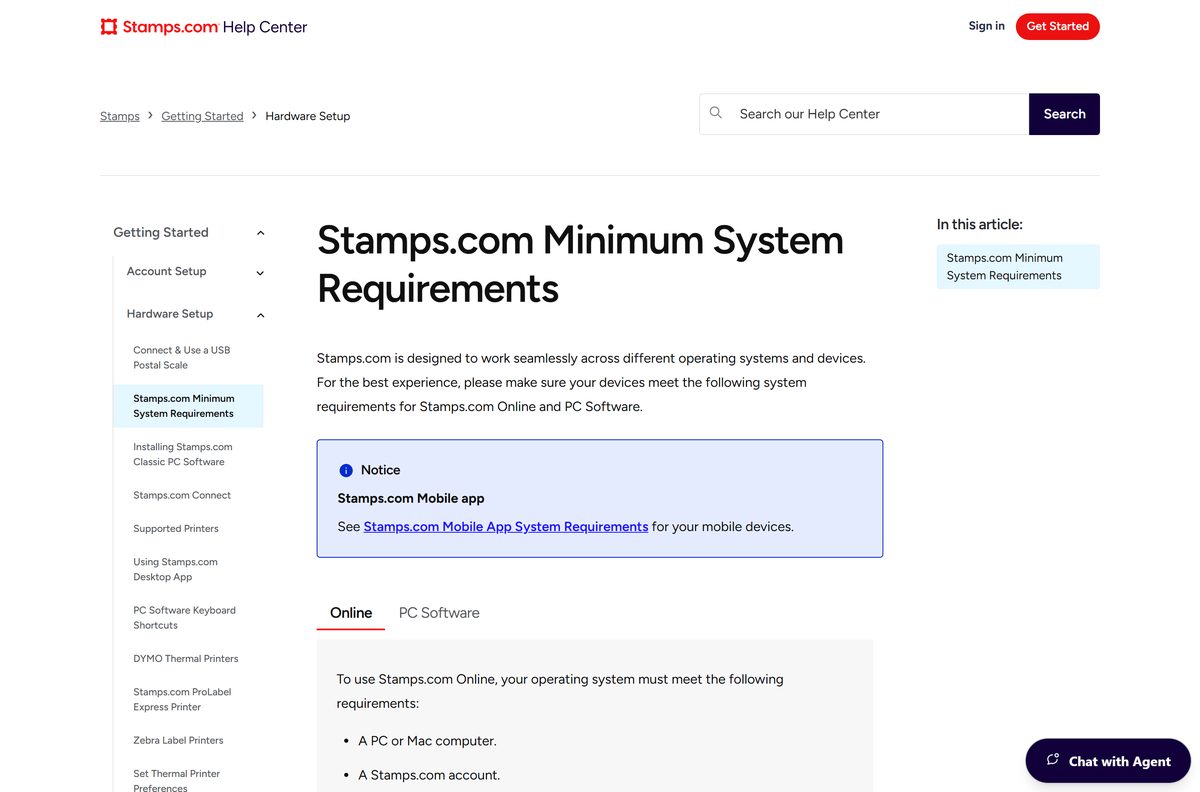
Check the Stamps.com Connect system requirements before you install
Stamps.com publishes requirements for its web and PC software rather than for Connect alone.
| Field | Value |
|---|---|
| Software | Stamps.com Connect |
| Developer | Stamps.com |
| Latest version | Not published; one current build per platform |
| Price | Free download; needs a Stamps.com plan from $14.99/month or the 30-day trial |
| File size | Not stated by Stamps.com |
| Windows | Windows 10 or higher, including Windows 11 |
| Mac | Separate macOS installer |
| Processor and memory | 1 GHz or faster, 2 GB RAM (Stamps.com PC requirements) |
| Disk space | 100 MB free (Stamps.com PC requirements) |
| Browser | Latest Chrome, Firefox, Safari or Edge |
| Account | Stamps.com username and password |
| Official source | help.stamps.com Connect article |
| Last verified | 25 September 2026 |
You also need a broadband connection, since Connect relays every print job from your Stamps.com account. The full list is on the minimum requirements page.
What Stamps.com Connect can print to and weigh with
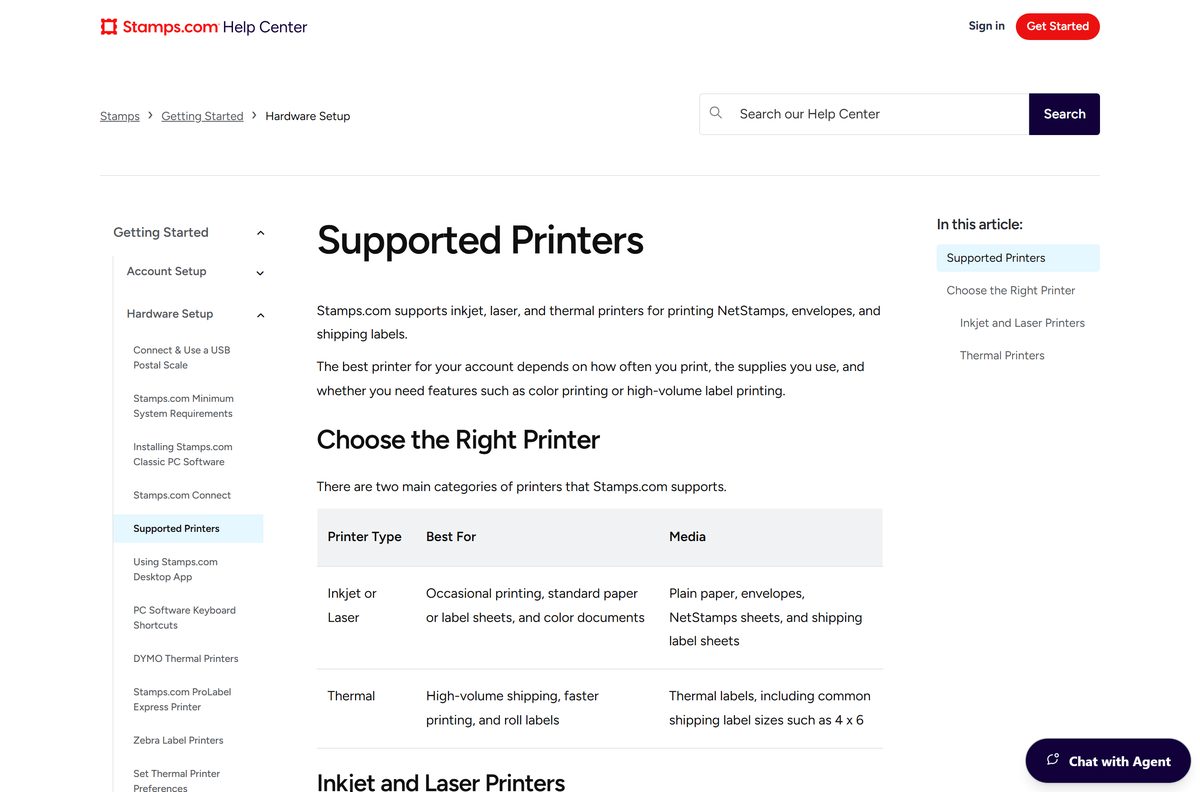
Connect matters most for thermal printers and USB scales, which browsers do not see as usable devices.
| Device | Supported models or media | Needs Connect? |
|---|---|---|
| Thermal printers | Stamps.com ProLabel Express, Zebra ZD220 and ZSB, Onyx ProLabel II Select, DYMO LabelWriter 450, 450 Turbo, 450 DUO, Seiko SLP 620, 650, 650SE | Yes, for NetStamps rolls |
| Inkjet and laser printers | Plain paper, envelopes, NetStamps sheets, label sheets | Envelopes need it outside Chrome |
| USB postal scales | ONYX 5 lb, 70 lb and 400 lb scales recommended | Yes, for automatic weights |
See the full Supported Printers list and the USB scale guide before you buy hardware.
Fix Stamps.com Connect not printing or not reading your scale
Match the symptom to the fix.
Postage or labels will not print
Connect is not installed, or you are signed out.
- On Windows, open Start > Settings > Apps > Installed apps and search for Stamps.com Connect.
- On a Mac, open Finder > Applications and look for Stamps.com Connect.
- Right-click the tray icon on Windows, or select the menu bar icon on a Mac.
- If Sign In appears, sign in with your Stamps.com username and password.
Weight error, or ‘Scale Error -6’
Connect is not running, or the scale lacks power or a stable USB link.
- Open Stamps.com Connect and sign in.
- Plug the scale straight into the computer, not a USB hub.
- Move the cable to a different USB port, preferably on the back of a desktop.
- Try a spare USB cable, then weigh the package again.
Connect stops responding or freezes
The app has hung or the install is damaged.
- On Windows, open Control Panel > Programs > Programs and Features, right-click Stamps.com Connect and select Uninstall.
- Download and reinstall Connect from the Connect article, then sign in.
- On a Mac, open Applications > Utilities > Activity Monitor, select Stamps.com Connect and force quit it, then reopen it.
NetStamps misaligned or cut off
Printer settings or a badly seated roll.
- Sign out of Connect and print a sample NetStamps sheet from the browser.
- Adjust margins and scaling in the browser’s print settings.
- For rolls, remove the roll, wipe the sensor and reinsert it the right way for your printer.
No gear icon next to Weigh on multiple PCs
Outdated Connect, different logins or stale browser data.
- Install the latest Connect on every PC.
- Sign in to Connect with the same credentials on each workstation.
- Clear your browser cache and cookies, then reload Stamps.com.
The Connect troubleshooting guide also covers the ‘Incorrect Computer Selected’ error.
How to uninstall Stamps.com Connect
Removing Connect does not touch your Stamps.com account, balance or print history.
- On Windows, type Control Panel in the search bar and open it.
- Select Programs > Programs and Features.
- Right-click Stamps.com Connect and select Uninstall or Uninstall/Change.
- Follow the on-screen instructions to remove it.
- On a Mac, quit Connect from the menu bar, open Finder > Applications and drag Stamps.com Connect to the Trash.
Which way to print from Stamps.com fits your setup?
Pick by the hardware and features you need.
| Option | Best for | What you need |
|---|---|---|
| Stamps.com Connect | Browser users with thermal printers or USB scales | Windows or Mac, Stamps.com account |
| Chrome with no helper | NetStamps sheets and envelopes on an office printer | Latest Google Chrome |
| Stamps.com Desktop App | Stamps.com as a standalone program | Microsoft Store on Windows or the Mac App Store |
| Classic PC Software | XML import/export, ODBC, packing slips, doc tabs | Windows 10 or higher |
All four routes use the same Stamps.com account and plan.
Frequently asked questions
Is Stamps.com Connect free?
Yes, the Connect download itself is free from Stamps.com. You need a Stamps.com account to sign in to it, and plans start at $14.99 a month for Basic, with a 30-day risk-free trial.
Where is the official Stamps.com Connect download?
Stamps.com links the Windows and Mac installers from its Stamps.com Connect help article on help.stamps.com. The Download page at stamps.com/download lists Connect for Windows and Connect for macOS under Installers.
Does Stamps.com Connect work on Windows 11?
Yes. Stamps.com ships a Windows installer for Connect, and its PC requirements call for Windows 10 or higher, which includes Windows 11. After installing, you find Connect under Start > Settings > Apps > Installed apps.
Is there a Stamps.com Connect for Mac?
Yes. Stamps.com publishes a separate Connect installer for macOS. After installing, the Connect icon sits in the menu bar at the top of the screen, and the app appears in your Applications folder.
Do I need Stamps.com Connect to print postage?
Not always. You need Connect for NetStamps rolls, automatic weights from a USB scale, and envelope printing in browsers other than Google Chrome. NetStamps sheets and envelopes printed from Chrome work without it.
How big is the Stamps.com Connect download?
Stamps.com does not state an installer size for Connect. Your browser shows the file size when the download starts, and the Windows and Mac installers are separate files.
Why does Stamps.com show a weight error?
The weight error usually means Connect is not running or you are not signed in. Open Connect, sign in with your Stamps.com credentials, and weigh the package again. Plug the scale straight into the computer, not a USB hub.
Can I use Stamps.com Connect on several computers?
Yes. When Connect runs on more than one computer, a gear icon appears next to the Weigh button. Click it to choose which computer gets print jobs and reads the scale. Sign in with the same credentials on every workstation.
Is Stamps.com Connect the same as the Stamps.com Desktop App?
No. Connect is a small helper that links the browser version of Stamps.com to your printers and scales. The Desktop App is a full Stamps.com client, from the Microsoft Store on Windows and the Mac App Store on a Mac.
Which thermal printers work with Stamps.com Connect?
Stamps.com supports the Stamps.com ProLabel Express, Zebra ZD220 and ZSB, Onyx ProLabel II Select, DYMO LabelWriter 450, 450 Turbo and 450 DUO, and Seiko SLP 620, SLP 650 and SLP 650SE.