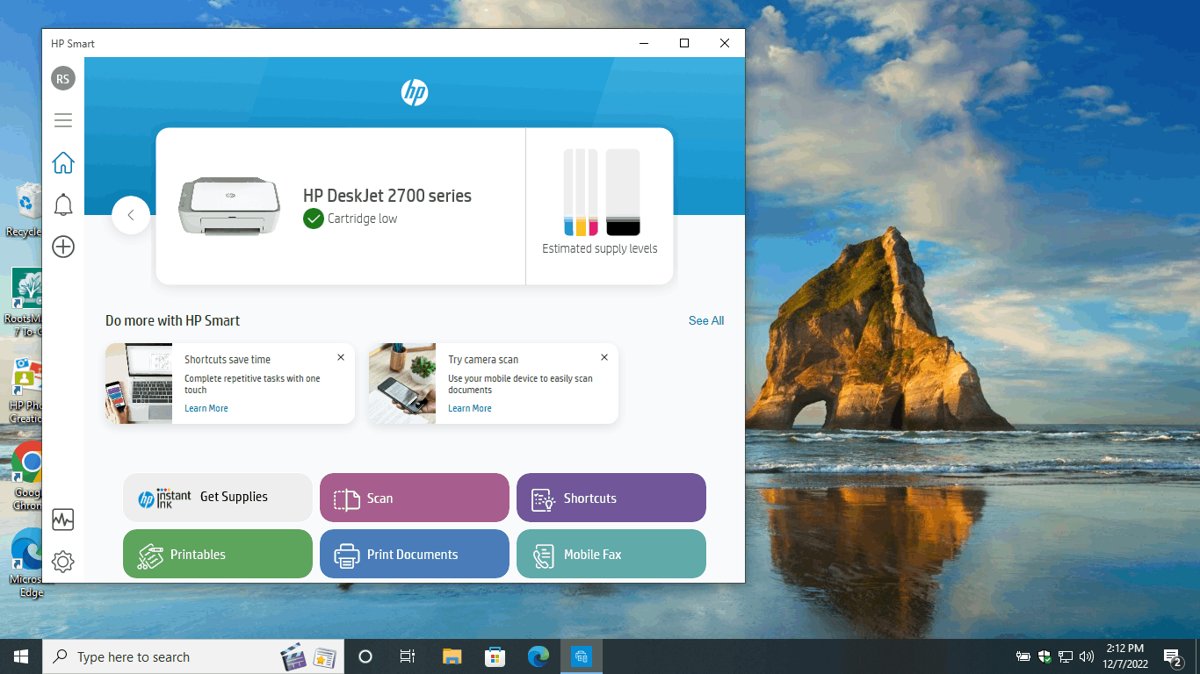
Open the HP app and read the estimated supply levels shown next to your printer, or look at the ink drop icon on the printer's own control panel.
This guide covers all three ways to read HP ink and toner levels, how Smart Tank models differ, how to print a status report, and what to do when the numbers look wrong.
The fastest way to read HP ink levels
The printer answers first. Most HP models report their own supplies on the control panel with no software involved.
- Wake the printer and look at the control panel home screen.
- Find the ink drop icon, the cartridge icon, or an Ink Levels menu option. LaserJet models show a toner level indicator instead.
- Open it and read the level reported for each supply.
- On an HP Smart Tank printer, look at the tank window on the front of the printer and check the ink sits between the maximum and minimum fill lines.
Every figure an HP printer reports for a cartridge is an estimate calculated from usage, not a measurement of the liquid left.
Before You Start: What HP Ink Level Readings Really Mean
HP shows supply state as a droplet, a bar or a percentage. The symbol tells you what to do next.
| What you see | What it means | What to do |
|---|---|---|
| A full ink droplet | The cartridge is full. | Nothing. |
| A partially full droplet | The cartridge is getting low. | Order a replacement now, keep printing. |
| An empty or blinking droplet | The supply is very low or empty. | Replace it before the next long job. |
| A toner level indicator | A LaserJet reports toner the same way ink is reported. | Treat a low reading as an order trigger. |
| A percentage or bar in the HP app | An estimate calculated from pages already printed. | Judge print quality before replacing anything. |
| Ink visible in a Smart Tank window | The real liquid level, not an estimate. | Refill when it nears the minimum fill line. |
Wording shifts slightly between models and driver versions, so a tab named Estimated Ink Levels on one printer may read Supply Levels on another.
Which of the 3 easy ways should you use?
| Your situation | Use this | Why |
|---|---|---|
| Phone or tablet in hand and the printer already set up | Way 1: the HP app | Levels sit next to the printer image on the home screen |
| Sitting at the Windows PC or Mac that prints | Way 2: the printer entry in system settings | Nothing extra to install |
| No computer nearby, or the app reports nothing | Way 3: the printer display or its Embedded Web Server | The reading comes straight off the printer |
Way 1: Check HP Ink Levels with the HP Smart App
HP now lists this software simply as the HP app. It is the same tool, and it tracks ink and paper levels alongside setup, printing and scanning.
- Install the app from the Microsoft Store, the Apple App Store or Google Play, or start from 123.hp.com.
- Open the app and add your printer if it is not listed yet.
- Select your printer on the home screen.
- Read the estimated supply levels displayed next to the printer image.
- Give it a few minutes if the levels are blank. They can take a moment to arrive from the printer.
HP lists support for Windows 10 (64-bit) and Windows 11 PCs, macOS computers, and Apple and Android phones and tablets.
Way 2: Check Ink Levels from Windows or Mac Printer Settings
The printer entry your operating system already holds carries the same estimate. Match your system to the row below.
| Your computer | Path to open | What appears there |
|---|---|---|
| Windows 11 | Press Win + I, open Printers & scanners, select the HP printer, click Open print queue, then Printer and Properties | An Estimated Ink Levels or Supply Levels tab |
| Windows 10 | Settings > Devices > Printers & Scanners, select the printer, then Manage | Printer properties, plus Print a Test Page for a quality check |
| macOS | System Settings > Printers & Scanners, select the printer, then Options & Supplies | The supply information the HP driver reports, plus Print Test Page |
No supply tab appears when the installed driver does not report supplies. Use Way 1 or Way 3 on that machine instead.
Way 3: Check Ink Levels on the Printer Display or Embedded Web Server
A networked HP printer publishes its own status page, so any browser on the same network can read it.
- On a touchscreen model, tap the ink drop icon on the home screen and read the level for each supply.
- On a model without a touchscreen, print a network configuration page from the printer's menu.
- Find the printer's IP address on that printout.
- Type the IP address into the address bar of a browser on a computer connected to the same network.
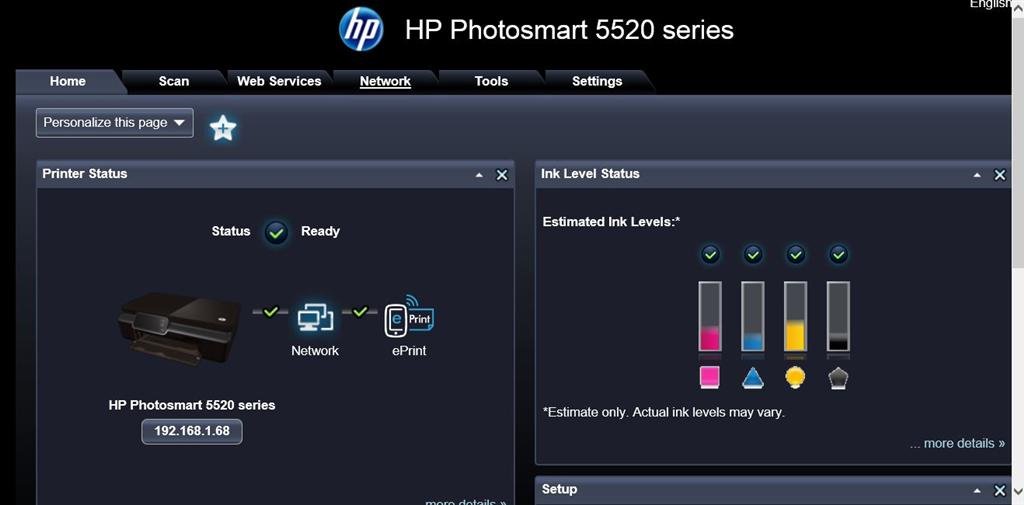
- The printer's Embedded Web Server opens. Read the estimated supply levels on its status page.
- Bookmark the address so the next check takes one click.
The Embedded Web Server is unreachable over a guest network, because the browser never reaches the printer's address.
How to Check Ink Levels on HP Smart Tank Printers
Smart Tank models hold ink in refillable tanks filled from spill-free bottles, so the reading is a look, not an estimate.
- Look at the tank window on the front of the printer.
- Compare each colour against the maximum and minimum fill lines on the tank.
- Refill any tank whose ink has dropped near the minimum line, using the HP ink bottle for that colour.
- Close the tank cap firmly before printing again.
- Open the HP app afterwards if you also want the on-screen level to match what you just poured.
Smart Tank models ship with enough ink for thousands of pages depending on the model, so the tank window changes slowly.
How to check the reading is worth trusting
A level on screen proves nothing until a page comes out. Print one and compare.
- On Windows 10, open Settings > Devices > Printers & Scanners, select the printer, click Manage, then Print a Test Page.
- On macOS, open System Settings > Printers & Scanners, select the printer, click Options & Supplies, then Print Test Page.
- From the printer itself, look for the test page option under Setup, Tools or Maintenance on the control panel.
- Check the printed page for faded bands, missing colours or streaks.
- Reopen the HP app and confirm the level for the colour that printed has moved.
A test page that prints cleanly while the screen warns of low ink means the warning is an order trigger, not a fault.
How to Tell Which HP Cartridge Is Low
The reading names the supply. Match the pattern you see to the cartridge behind it.
| Reading | The supply it points to | Next step |
|---|---|---|
| One droplet or bar clearly lower than the rest | That colour is the one running out | Note the cartridge number printed on the cartridge label |
| Black low, colours full | The black cartridge | Replace black on its own |
| Colour low, black full | The colour supply | Check whether your model uses one combined colour cartridge or separate ones before ordering |
| Toner level indicator low on a LaserJet | The toner cartridge | Order the toner listed for that model |
| An ink alert on screen while pages still print normally | A low supply, not an empty one | Keep printing and buy a spare |
| No level for one cartridge only | A seating or chip fault on that cartridge | Reseat it, then read the level again |
How to Print a Supply or Printer Status Report
A printed report puts the supply figures on paper, which is the version to take to the shop.
- On the printer control panel, open Setup, Tools or Maintenance. HP models keep the report options under one of these.
- Select the printer status or configuration report and print it.
- Read the estimated ink or toner level listed for each supply on the printout.
- Print the network configuration page from the same menu if you also need the printer's IP address.
- Keep the printout beside the printer so the next low-ink warning has something to compare against.
A status report also separates a printer fault from a connection fault, because it prints without any computer involved.
What to Do When Ink Levels Look Wrong
No levels appear at all
The app has not finished talking to the printer, or the printer is off the network.
- Wait a few minutes. Levels can take that long to arrive.
- Confirm the printer is on the same wireless network as your phone or computer.
- Turn the printer off, wait 30 seconds, then turn it back on.
- Restart the computer and reopen the app.
A new cartridge reads far lower than expected
The figure is an estimate calculated from usage, not a measurement of the ink left.
- Print a test page.
- Judge the print quality rather than the number.
- Replace the cartridge only when it is empty or near empty.
- Read the level from the printer's own report as a second opinion.
A cartridge reads empty but pages keep printing
The warning fires before the supply is exhausted.
- Order a replacement now.
- Keep printing until quality drops.
- Swap the cartridge at the first faded or streaked page.
Quick Troubleshooting Tips
Levels stop updating after working for weeks
The printer's connection has gone stale.
- Turn the printer off, wait 30 seconds, then turn it back on.
- Restart the computer.
- Reopen the HP app and select the printer again.
The printer reports a cartridge problem instead of a level
The cartridge is not making contact.
- Remove each cartridge gently.
- Inspect the copper-coloured contacts on the cartridge.
- Reinstall it firmly until you hear a click.
- Close the access door and read the levels again.
Levels disappeared after a system update
The app, print driver or printer firmware is out of step.
- Update the HP app from the store you installed it from.
- Update the print driver for the model.
- Apply any pending printer firmware update from the control panel or the HP app.
A third-party or refilled cartridge shows no level
Some HP printers accept only cartridges carrying a new or used HP chip. The HP OfficeJet Pro 9125e is one of them.
- Check the supply requirements listed for your exact model.
- Fit an HP cartridge if the model requires an HP chip.
- Judge a non-HP cartridge by print quality, since no estimate will be reported for it.
When Should You Replace HP Ink or Toner?
A low-ink warning and an empty cartridge are two different events.
Replace a cartridge when it reads empty or near empty, or when a printed page shows fading, streaks or a missing colour. Treat the first low-ink warning as the moment to order a spare, not the moment to swap. HP's own guidance is to stop relying on the warning light alone, open the printer utility and check the actual levels, then replace any cartridge that is empty or near empty. The on-screen figure is an estimate calculated from usage, so a page that still prints cleanly is better evidence than a droplet icon. HP Instant Ink removes the timing question by shipping replacements automatically as supplies run low.
Frequently Asked Questions
How do I check ink levels on my HP printer?
Open the HP app and read the estimated supply levels next to the printer image, or tap the ink drop icon on the printer's control panel. Both report the same estimate, calculated from the pages the printer has already produced.
How to check ink levels on a computer?
On Windows 11 press Win + I, open Printers & scanners, select the HP printer, click Open print queue, then Printer and Properties, and open the Estimated Ink Levels tab. On macOS use System Settings, Printers & Scanners, then Options & Supplies.
How can I see my ink levels without a computer?
Use the printer itself. Tap the ink drop icon on a touchscreen model, or print a status report from the Setup, Tools or Maintenance menu on a model without a screen. Smart Tank owners simply look at the tank window.
Where to check ink levels if the printer has no screen?
Print a network configuration page from the printer's menu, find the IP address on it, and type that address into a browser on the same network. The printer's Embedded Web Server opens and lists the estimated supply levels.
How to view ink levels on an iPhone or Android?
Install the HP app from the Apple App Store or Google Play, add the printer, then select it on the home screen. The estimated supply levels appear next to the printer image, usually within a couple of minutes.
How to check ink levels on an Epson printer?
HP's tools do not read another brand's supplies. The shape is the same on any printer: the maker's own app, the printer's control panel, or the printer entry under Printers & Scanners in Windows or macOS settings.
How to check ink levels on an Epson EcoTank such as the ET-2800 or ET-2850?
EcoTank models use refillable tanks, so the reliable reading is visual. Look at the tanks on the printer and compare the ink against the fill lines, exactly as you would on an HP Smart Tank printer.
How to check ink levels on a Canon printer?
Use Canon's own printer app or the printer's control panel, or open the printer entry under Printers & scanners on the computer that prints to it. An HP app will not list a Canon printer's supplies.
How to check ink levels on a Brother printer?
Read them from the Brother printer's control panel, or from its own web page if it is on the network. The computer route is identical to the HP one: open the printer entry in Windows or macOS settings and look for the supply information.
How to check ink levels on a Kyocera printer?
Kyocera devices are laser printers, so they report toner rather than ink. Check the toner level indicator on the control panel, print a status report, or open the printer entry in your operating system's printer settings.
Why do my HP ink levels look wrong?
The reported figure is an estimate calculated from usage, and it varies by model and driver version. Print a test page and judge print quality. Replace a cartridge only when it is empty, near empty, or printing badly.
Does HP show ink levels for refilled or third-party cartridges?
Often not. Some HP printers accept only cartridges carrying a new or used HP chip, and a cartridge without one reports no level at all. Judge those cartridges by the quality of the printed page instead.

![How to Update Graphics Driver on Windows 11/10 [2026 Guide]](https://techdows.com/wp-content/uploads/2026/09/Intel-support-page-listing-graphics-drivers-by-Windows-version-600x338.jpg)