VRAM is the dedicated memory on a graphics card, Task Manager's GPU view shows how much you have, and you cannot add more to a card you already own.
This guide covers four ways to check VRAM on Windows 11 and Windows 10, how to see which apps are using it, and what actually helps when you run short.
How to Check Your VRAM
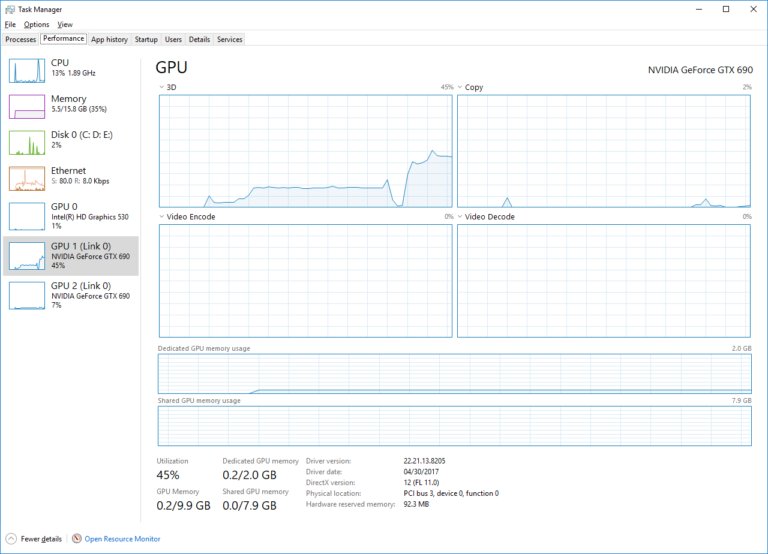
Task Manager is the quickest check on Windows 11 and Windows 10. It shows both the total and how much is in use right now.
- Right-click the Start button and select Task Manager, or press Ctrl + Shift + Esc.
- Select the Performance tab.
- Choose GPU in the left pane. On a PC with two graphics chips, they appear as GPU 0 and GPU 1.
- Read the dedicated memory figure below the engine graphs. It shows how much VRAM is in use against the total on the card.
- Read the shared memory figure next to it. This is system RAM the GPU can borrow, not VRAM.
The GPU view needs a graphics driver that supports WDDM 2.0, the driver model introduced with the original release of Windows 10. If you are not sure which card you have in the first place, see what graphics card do I have.
What Is VRAM?
VRAM (video RAM) is memory reserved for the graphics processor. On a discrete graphics card it sits on the card itself, next to the GPU, and the GPU reads from it far faster than it can reach system RAM.
Windows reports graphics memory in three buckets, and mixing them up causes most of the confusion around VRAM.
| Memory type | What it is | Can it change? |
|---|---|---|
| Dedicated memory (discrete card) | The VRAM chips on the graphics card, used only by the GPU | No. Fixed when the card is made |
| Dedicated memory (integrated graphics) | A slice of system RAM some integrated GPUs reserve in firmware or at driver start-up, taken away from Windows | Depends on the chip and the PC maker; many integrated GPUs reserve little or nothing |
| Shared memory | Normal system RAM that the GPU or the CPU can use as needed | Grows or shrinks on demand, capped at half of installed RAM |
| Total available graphics memory | Dedicated plus the shared ceiling, shown in Display adapter properties | Rises if you add system RAM |
VRAM holds what the GPU is working on: textures, geometry and the finished frames waiting to go to the display. NVIDIA's own tools call this the frame buffer.
Which VRAM check should you use?
| Your situation | Use this | Why |
|---|---|---|
| You want the total and live usage | Task Manager > Performance > GPU | Shows dedicated and shared memory side by side, updating in real time |
| You need a report to send to support | dxdiag, Display tab | Lists the adapter and its memory, and saves everything to a text file |
| You have Intel integrated graphics | Display adapter properties, Adapter tab | The method Intel documents; shows total available graphics memory |
| You have an NVIDIA card and like the command line | nvidia-smi | Prints total, used and free frame buffer memory |
| You want to see what is using VRAM | Task Manager > Details, GPU memory columns | Breaks usage down per process |
Check VRAM with the DirectX Diagnostic Tool (dxdiag)
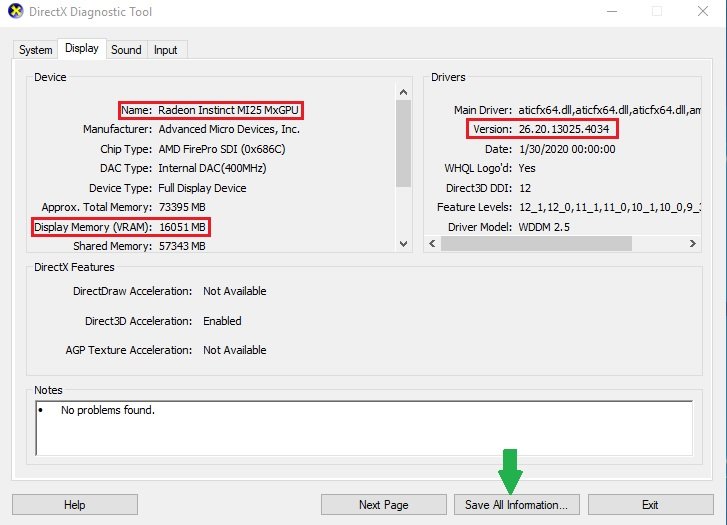
dxdiag ships with Windows and shows the graphics adapter's properties, including its video memory.
- Press Win + R, type
dxdiagand press Enter. - Select Yes if it asks whether to check that drivers are digitally signed.
- Open the Display tab.
- Find the memory figures in the Device section, beside the adapter Name.
- Select Save All Information to save a text report if support has asked for one.
Check VRAM in Display settings (Display adapter properties)
This is the route Intel documents for its graphics. It shows the adapter's total available graphics memory rather than live usage.
- Right-click an empty area of the desktop and select Display settings.
- On Windows 11, scroll to Related settings and select Advanced display. On Windows 10, select Advanced display settings.
- Select the Display adapter properties link.
- Stay on the Adapter tab and read the memory values under Adapter Information.
Check VRAM on an NVIDIA card with nvidia-smi
nvidia-smi installs with the NVIDIA driver on 64-bit Windows and Linux. Run it in Command Prompt, PowerShell or Terminal.
nvidia-smi --query-gpu=name,memory.total,memory.used --format=csvPrints one line per NVIDIA GPU with its name, total frame buffer memory (VRAM) and the amount currently used. Run plain nvidia-smi for the full table, where the same figures sit under memory usage.
You should see: One CSV line per GPU showing the card name, its total VRAM and the amount in use. If Windows cannot find the command, the NVIDIA driver is missing or the card is not an NVIDIA GPU.
See what's using your VRAM
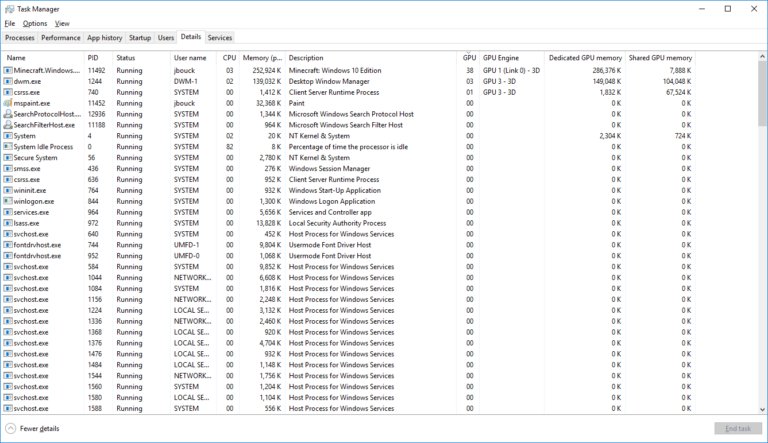
Task Manager can split GPU memory use by app, which answers the question of what is eating your VRAM.
- Open Task Manager with Ctrl + Shift + Esc.
- Select the Details tab.
- Right-click any column header and choose Select columns.
- Tick the dedicated and shared GPU memory counters, then select OK.
- Select the dedicated GPU memory column header to sort the biggest users to the top.
The per-app figures include memory shared between processes, so they add up to more than the Performance tab total.
Can You Increase VRAM?
No for a discrete graphics card, and not in the way most guides promise for integrated graphics. The only real way to get more dedicated VRAM is a different graphics card. VRAM on a graphics card is physical memory soldered to the board, so no setting, driver or registry edit can add to it. Intel states plainly that the graphics memory for its integrated GPUs cannot be set manually: Windows allocates it dynamically, up to half of system memory. Some integrated GPUs do reserve a fixed slice of RAM in firmware, and on those PCs the maker's firmware setup may offer a size setting; check your PC or motherboard manual before assuming it exists.
Changing that firmware reservation only moves RAM from Windows to the GPU. It does not create memory, and Windows can already lend the GPU shared memory on demand.
Alternatives to Increasing VRAM
When an app or game says you are short on video memory, these are the changes that actually move the number.
| If this is your setup | Do this | What it changes |
|---|---|---|
| Intel integrated graphics (5th gen Core or later) | Add system RAM | Intel confirms more RAM raises the graphics memory available, since the GPU can use up to half |
| Any GPU, VRAM full in Task Manager | Close the apps at the top of the dedicated GPU memory column | Frees VRAM for the app you care about |
| Laptop with integrated and NVIDIA or AMD graphics | Settings > System > Display > Graphics, pick the app, select Options > High performance > Save | Runs the app on the discrete GPU with its own VRAM |
| Game runs out of VRAM | Lower texture quality and resolution in the game's settings | Smaller textures and frames need less video memory |
| Discrete card too small for your work | Replace the graphics card | The only way to get more dedicated VRAM |
Myths and Misconceptions About VRAM
| Myth | Fact |
|---|---|
| Shared GPU memory is extra VRAM | It is ordinary system RAM. It is slower for the GPU to reach than the memory on the card. |
| Shared GPU memory permanently takes half your RAM | Intel describes the figure as a limit, not a reservation. Windows hands the RAM back when the GPU is not using it. |
| A registry edit or BIOS tweak adds VRAM to a graphics card | The chips on the card set the amount. Software can only change how much system RAM is lent to integrated graphics. |
| Adding RAM increases your graphics card's VRAM | It only raises what integrated graphics can borrow. A discrete card's VRAM stays the same. |
| More VRAM always means a faster GPU | VRAM sets how much data the GPU can hold, not how fast it processes it. A slow GPU with lots of memory is still slow. |
Factors to Consider When Choosing a GPU Based on VRAM
If the answer to "can you increase VRAM" is a new card, weigh memory against the rest of the specification.
| Factor | What to check |
|---|---|
| Your apps' requirements | The minimum and recommended video memory on each game's or program's system requirements page |
| Resolution and texture settings | Higher resolutions and texture packs fill VRAM faster, so size memory for the settings you play at |
| GPU speed | Compare the card's benchmark performance too; memory alone does not set frame rates |
| Integrated vs discrete | Integrated graphics share system RAM; a discrete card brings its own VRAM |
| Desktop or laptop | Laptop graphics cannot be swapped, so the VRAM you buy is the VRAM you keep |
Fix VRAM checks that show missing or odd numbers
Task Manager shows no GPU entry, so you cannot check VRAM usage
The graphics driver does not support WDDM 2.0, or Windows is using a generic driver.
- Run
dxdiag, open the Display tab and check Driver Model under Drivers. - If the device Name reads Microsoft Basic Display Adapter, run Windows Update to fetch the real driver.
- If Windows Update finds nothing, install the driver from your PC maker or from Intel, AMD or NVIDIA, then restart.
Shared GPU memory shows half of your RAM
Windows lets the GPU use up to half of physical memory, and Task Manager shows that ceiling.
- Read the in-use part of the shared memory figure, not the total; only the in-use part is RAM the GPU holds right now.
- Treat the total as a limit, not RAM that is gone. Nothing needs fixing.
Dedicated GPU memory is tiny or zero on a laptop
You are looking at the integrated GPU, which may reserve little or no dedicated memory.
- Check whether Task Manager lists a second GPU under Performance.
- Select that GPU to see the discrete card's VRAM.
- If only one GPU appears, the laptop has integrated graphics only and relies on shared memory.
nvidia-smi lists no processes or no per-app memory on Windows
NVIDIA notes that per-process GPU memory is not available on Windows in WDDM mode, because Windows manages that memory.
- Use Task Manager's Details tab with the dedicated GPU memory column for per-app usage.
- Keep using nvidia-smi for the card-wide total and used figures.
You want to test VRAM for faults
Windows has no built-in VRAM tester. Windows Memory Diagnostic checks system RAM only.
- Update the graphics driver first, since driver faults cause most display crashes.
- Check the card maker's support site for its own diagnostic tools.
- If artifacts or crashes continue on a new driver, contact the card or PC maker about a hardware check.
Frequently Asked Questions
How do I check my VRAM on Windows?
Open Task Manager with Ctrl + Shift + Esc, select Performance, then GPU. The dedicated memory figure shows your VRAM in use against the total. This works on Windows 11 and Windows 10 with a current graphics driver.
How do I check VRAM usage?
Task Manager's Performance tab shows live usage: the dedicated memory figure shows how much VRAM is in use now. For NVIDIA cards, nvidia-smi also prints used and free frame buffer memory.
How do I see what's using my VRAM?
Open Task Manager, select the Details tab, right-click a column header, choose Select columns and add the dedicated GPU memory counter. Sort by that column to see which apps use the most video memory.
What is VRAM used for?
VRAM stores the data the graphics processor is working on, such as textures, 3D geometry and the finished frames waiting to be shown on screen. Keeping that data on the card lets the GPU reach it much faster than system RAM.
How do I know how much VRAM I need?
Check the system requirements page for the games or programs you use; most list minimum and recommended video memory. Higher resolutions and texture settings need more, so size for the settings you actually run.
Is shared GPU memory the same as VRAM?
No. Shared GPU memory is ordinary system RAM that Windows lends to the GPU when needed, up to half of installed memory. Dedicated GPU memory is the actual VRAM, or memory reserved exclusively for graphics.
Can I increase VRAM on Intel integrated graphics?
Not manually. Intel says its graphics memory is allocated dynamically to balance Windows and running apps. Adding system RAM raises the amount available on 5th generation Intel Core processors and later, because the GPU can use up to half of it.
How do I test VRAM?
Windows has no built-in VRAM test; Windows Memory Diagnostic checks system RAM only. Update the graphics driver first, then use any diagnostic your card or PC maker provides, and contact them if crashes or artifacts continue.
Does dxdiag show VRAM?
Yes. Run dxdiag, open the Display tab and read the memory figures in the Device section. Select Save All Information to keep a text copy of the report.
Conclusion
Check VRAM in Task Manager, find the apps filling it in the Details tab, and replace the graphics card if the total is too small for your work. Dedicated VRAM is fixed hardware. Integrated graphics can only borrow more when you add system RAM, and closing heavy apps or switching to a discrete GPU is the fastest fix you control.