To edit environment variables on Windows 10 or 11, open Start, search for Environment Variables, select Edit the system environment variables, then click Environment Variables and edit the value you need.
This guide covers the same job from Command Prompt and PowerShell, safe PATH edits, user versus system scope, backups, and fixes when a change does not stick.
How to Edit an Existing Environment Variable
These steps work the same on Windows 10 and Windows 11. Editing a system variable needs an administrator account.
- Open Start and type Environment Variables.
- Select Edit the system environment variables to open System Properties on the Advanced tab.
- Click Environment Variables.
- Select the variable under User variables or System variables, then click Edit.
- Change the Variable value, or for Path, change the entry in the list of folders.
- Click OK on every open dialog to save the change.
- Close and reopen any Command Prompt, PowerShell or app that needs the new value.
Programs that were already open keep their old copy of the variables until you restart them.
Which method should you use?
| Your situation | Use this | Why |
|---|---|---|
| You want to see every variable and edit one or two | Environment Variables window | Shows user and system lists side by side and edits Path as a list |
| You need to add a folder to Path | Environment Variables window | No 1,024-character limit and no risk of flattening %VAR% references |
You are scripting a simple variable such as JAVA_HOME |
setx in Command Prompt |
One line, saved permanently; add /m for a system variable |
| You are scripting in PowerShell or need to delete a saved variable | [Environment]::SetEnvironmentVariable() |
Writes to the User or Machine scope and can remove a value |
| You only need the value for one test run | set in Command Prompt or $Env: in PowerShell |
Lasts until you close that window, so nothing is left behind |
| You switch between sets of variables for different projects | PowerToys Environment Variables | Microsoft's utility applies and removes named profiles of variables |
What Environment Variables Do in Windows
Environment variables are named text values that Windows and programs read at startup. They hold search paths, temporary folders and app settings, so one change can redirect every program that reads the variable.
| Variable | What it controls | Example value |
|---|---|---|
PATH |
The folders Command Prompt searches for programs when you type a command name | C:\WINDOWS\System32\WindowsPowerShell\v1.0\ |
TEMP and TMP |
Where programs write temporary files | A folder under your user profile |
COMSPEC |
The command processor Windows uses, listed by set |
The path to cmd.exe |
PSModulePath |
The folders PowerShell searches for modules | $HOME\Documents\PowerShell\Modules and others |
JAVA_HOME |
The JDK folder that Maven, Gradle and Android Studio look for | C:\Program Files\Microsoft\jdk-21.0.x.x-hotspot |
Each running process gets its own copy of these values from the process that started it. That is why a change reaches new windows but not open ones.
User Variables vs. System Variables
| User variables | System variables | |
|---|---|---|
| Applies to | Only your Windows account | Every account on the PC |
| Who can change them | You, without admin rights | An administrator |
| PowerShell and .NET name | User scope |
Machine scope |
setx switch |
None (the default) | /m |
| Registry key | HKEY_CURRENT_USER\Environment |
HKEY_LOCAL_MACHINE\System\CurrentControlSet\Control\Session Manager\Environment |
| Start search result | Edit environment variables for your account | Edit the system environment variables |
Windows has two Path variables, one in each list. A program started by you sees a single Path built from the system Path plus your user Path.
Add a folder to the user Path when only you need the tool. Use the system Path when every account on the PC must run it.
How to Open the Environment Variables Window
| Route | Steps | Opens |
|---|---|---|
| Start search (system) | Open Start, type Environment Variables, select Edit the system environment variables, then click Environment Variables | User and system lists; system edits need admin rights |
| Start search (your account) | Open Start and search for Edit environment variables for your account | Your user variables, without an admin prompt |
| Control Panel | Open Control Panel, select System, select Advanced system settings, stay on the Advanced tab and click Environment Variables | User and system lists |
| User Accounts (standard account) | Open User Accounts in Control Panel and click Change my environment variables | The signed-in user's own variables |
A standard account that opens Advanced system settings is asked for an administrator password. If you type one, the user variables shown belong to that administrator, not to you. Use the account-only search or Change my environment variables instead.
How to View Current Environment Variables
The Environment Variables window shows the saved values. A terminal shows what one running window actually received, which is what matters when a command fails.
| Where | Type this | What you get |
|---|---|---|
| Command Prompt | set |
Every variable in that window |
| Command Prompt | set p |
Every variable whose name starts with p, including Path |
| Command Prompt | path |
The current command path on its own |
| PowerShell | Get-ChildItem Env: |
Every variable in the session |
| PowerShell | $Env:Path |
The Path value for the session |
| PowerShell | [Environment]::GetEnvironmentVariable('Path','User') |
Only the saved user Path; use 'Machine' for the system Path |
How to Back Up Environment Variables Before Editing
Back up before you touch Path. One bad paste or a truncated setx command can wipe folders that dozens of programs rely on, and Windows keeps no undo for it.
- Open Command Prompt. For the system copy, right-click it and choose Run as administrator.
- Export your user variables:
reg export HKCU\Environment "%USERPROFILE%\Desktop\user-env.reg" - Export the system variables:
reg export "HKLM\System\CurrentControlSet\Control\Session Manager\Environment" "%USERPROFILE%\Desktop\system-env.reg" - Check that both
.regfiles now sit on your desktop. - Also copy the current Path to Notepad from Edit in the Path dialog, so you can see what was there.
- To restore later, run
reg import "%USERPROFILE%\Desktop\user-env.reg"(and the system file from an admin window), then open a new terminal.
The key names contain a space in the system case, so keep the quotation marks exactly as shown.
How to Add a New Environment Variable Using the GUI
- Open Start, search for Environment Variables and select Edit the system environment variables.
- Click Environment Variables.
- Under User variables to add it for yourself, or System variables to add it for every account, click New.
- Type the Variable name, for example
JAVA_HOME. The name cannot contain an equals sign. - Type the Variable value, for example
C:\Program Files\Microsoft\jdk-21.0.x.x-hotspot. - Click OK on each dialog, then open a new terminal to use the variable.
How to Edit the PATH Variable
Path is a list of folders separated by semicolons. Windows searches the current folder first, then each Path folder in order, and runs the first match it finds.
- Back up your variables first, using the steps above.
- Open Start, type Environment Variables and select Edit the system environment variables.
- Click Environment Variables.
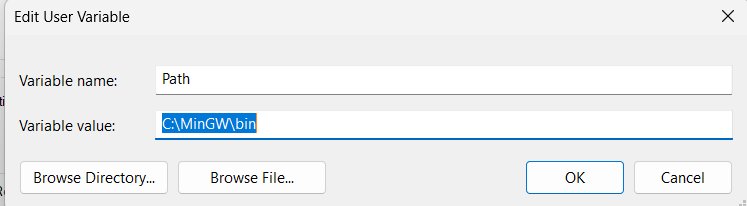
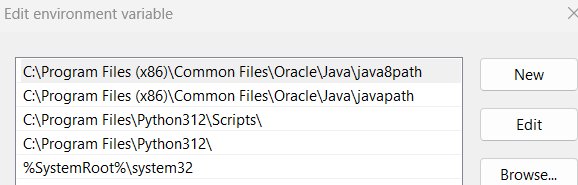
- Select Path under User variables (just you) or System variables (everyone), then click Edit.
- Click New and type the folder that holds the program, not the program file itself, for example
C:\Tools. - To stop Windows searching a folder, select that entry and remove it from the list.
- Click OK on all open windows, then restart Command Prompt or PowerShell.
Order matters when two folders hold a program with the same name. With several JDKs installed, the one listed first in Path runs, so place the version you want earlier in the list.
How to Edit Environment Variables from Command Prompt
Command Prompt has two commands. set changes the current window only; setx saves the value to the registry for future windows.
- Set a temporary variable for this window only:
set MYVAR=C:\Projects - Add a folder to Path for this window only:
set path=C:\Tools;%path% - Save a user variable permanently:
setx JAVA_HOME "C:\Program Files\Microsoft\jdk-21.0.x.x-hotspot" - Save a system variable permanently from an admin Command Prompt:
setx MACHINE "Brand1 Computer" /m - Close the window and open a new one.
setxvalues never appear in the window where you ran it.
Do not use setx to change Path. It cuts any value over 1,024 characters and saves the cropped text, which can erase existing entries. It also replaces references such as %JAVA_HOME% with their current text, so later changes to that variable stop flowing into Path.
How to Edit Environment Variables from PowerShell
$Env: changes the current session only. The .NET [Environment] class saves to the User or Machine scope; Machine changes need PowerShell run as administrator.
- Set a temporary variable in the current session:
$Env:Foo = 'An example' - Save a user variable permanently:
[Environment]::SetEnvironmentVariable('Foo', 'Bar', 'User') - Save a system variable permanently from an admin window:
[Environment]::SetEnvironmentVariable('Foo', 'Bar', 'Machine') - Read the saved value back:
[Environment]::GetEnvironmentVariable('Foo', 'User') - Add a folder to your user Path:
$old = [Environment]::GetEnvironmentVariable('Path', 'User') - Then save the joined value:
[Environment]::SetEnvironmentVariable('Path', "$old;C:\Tools", 'User') - Open a new PowerShell window and run
$Env:Pathto confirm the folder is listed.
To keep a value for PowerShell sessions only, add a line such as $Env:PATH += ';C:\Tools' to the profile file whose path $PROFILE shows.
Common Examples
These are real cases taken from Microsoft and Python documentation. Replace the example folder with the one on your PC.
| Goal | Variable and value | Scope |
|---|---|---|
| Set JAVA_HOME for Maven, Gradle or Android Studio | JAVA_HOME = your JDK folder, then add %JAVA_HOME%\bin to Path |
System variables |
| Add Python to PATH | Add %LocalAppData%\Python\bin to Path (the Python install manager default) |
User variables |
| Fix "'powershell.exe' is not recognized" | Add C:\WINDOWS\System32\WindowsPowerShell\v1.0\ to Path; confirm the folder with $PsHome |
System variables |
| Move the npm cache to another drive | setx /M npm_config_cache D:\packages\npm |
System |
| Move the pip cache to another drive | setx /M PIP_CACHE_DIR D:\packages\pip |
System |
| Run a downloaded command-line tool by name | Add the folder holding the .exe to Path |
User variables |
How to Delete Environment Variables
Deleting a saved variable removes it from the registry, so back it up first. A common case is Chrome warning about an unsupported environment variable: SSLKEYLOGFILE, which goes away once that variable is gone.
- Open PowerShell. Use Run as administrator if the variable is a system variable.
- Delete a user variable:
[Environment]::SetEnvironmentVariable('Foo', '', 'User') - Delete a system variable:
[Environment]::SetEnvironmentVariable('Foo', '', 'Machine') - Remove a temporary variable from the current PowerShell session:
Remove-Item -Path Env:\Foo - Clear a temporary variable in Command Prompt:
set Foo= - Open a new window and check that
[Environment]::GetEnvironmentVariable('Foo', 'User')returns nothing.
setx is not the tool for removal; Microsoft's own page says it cannot remove values added to the local or system environments. In PowerToys Environment Variables, select the ••• button beside a variable to remove it.
When Changes Take Effect
| How you made the change | Where it applies | What to do next |
|---|---|---|
| Environment Variables window | Programs started after you click OK | Restart open terminals and apps; reboot if one still shows the old value |
setx |
Future command windows only, never the current one | Open a new Command Prompt |
[Environment]::SetEnvironmentVariable() with User or Machine |
New processes; not the current session | Open a new PowerShell window |
set or $Env: |
The current window and programs it starts | Nothing; it ends when the window closes |
| Direct registry edit | Nothing until apps are told the environment changed | Restart the PC so every program reads the new value |
Temporary vs. Permanent Changes
| Temporary (process) | Permanent (user or system) | |
|---|---|---|
| Command Prompt | set NAME=value |
setx NAME value (add /m for system) |
| PowerShell | $Env:NAME = 'value' |
[Environment]::SetEnvironmentVariable('NAME','value','User') |
| Graphical tool | None | Environment Variables window or PowerToys |
| Survives closing the window | No | Yes |
| Survives a restart | No | Yes, stored in the registry |
| Best for | Testing a value or one build | Tools you use every day |
Where Environment Variables Are Stored
| Scope | Stored in | Lasts |
|---|---|---|
| User | HKEY_CURRENT_USER\Environment |
Until you delete it |
| System (Machine) | HKEY_LOCAL_MACHINE\System\CurrentControlSet\Control\Session Manager\Environment |
Until an administrator deletes it |
| Process | The memory of one running program, copied from its parent | Until that program closes |
| PowerShell profile | The script file that $PROFILE points to |
Every PowerShell session that loads the profile |
Edit these keys through the Environment Variables window or the commands above rather than Registry Editor. A direct registry change is not announced to running programs.
How to check your change worked
- Close every Command Prompt, PowerShell and Windows Terminal window that was open before the change.
- Open a new PowerShell window.
- Print the variable, for example
echo $env:JAVA_HOME, and confirm it shows the new value. - For a Path change, run
$Env:Pathand look for the folder you added. - Run the tool by name, for example
java -version. A version line instead of "is not recognized" proves Path works. - In Command Prompt,
set JAVA_HOMEgives the same check.
Troubleshooting Environment Variable Problems
"is not recognized as an internal or external command" after editing Path
The folder is missing from Path, the entry points at the file instead of its folder, or the window was opened before the change.
- Open the Path list and check the folder is present and spelled correctly.
- Make sure the entry is the folder, for example
C:\Tools, notC:\Tools\tool.exe. - Close the terminal and open a new one, then run the command again.
The new value does not show up in Command Prompt or PowerShell
setx and the saved scopes only reach windows opened after the change.
- Close the window you ran the command in.
- Open a new window and print the variable again.
- If an app started from the taskbar still sees the old value, restart the PC.
setx cut Path short and entries are missing
setx keeps only the first 1,024 characters and saves the cropped text over the old value.
- Run
reg importon the backup.regfile you exported before editing. - Open a new terminal and confirm Path is complete with
$Env:Path. - Make future Path edits in the Environment Variables window instead of
setx.
Cannot edit system environment variables, or asked for an admin password
System (Machine) variables need administrator permission; a standard account cannot change them.
- Sign in with an administrator account, or ask one to make the change.
- For your own settings, search Start for Edit environment variables for your account and use user variables instead.
- In PowerShell, run the window as administrator before using the
'Machine'scope.
The wrong version of a program runs
Two Path folders hold a program with the same name, and Windows runs the first one listed.
- Run
$Env:Pathand find both folders. - Edit Path so the folder you want appears before the other one, or remove the old entry.
- Open a new terminal and check the version again.
Best Practices for Editing Environment Variables
| Practice | Why |
|---|---|
| Export both registry keys before any Path change | A bad edit is undone with one reg import |
Edit Path in the GUI, not with setx |
setx truncates at 1,024 characters and flattens %VAR% references |
| Prefer user variables over system variables | They need no admin rights and cannot break other accounts |
| Add folders, never file names, to Path | Windows searches folders for the command name |
Keep references like %JAVA_HOME%\bin in Path |
Updating JAVA_HOME then updates Path too |
Test with set or $Env: before saving |
A temporary value vanishes if it turns out wrong |
Keep names short and free of = |
Names cannot contain an equals sign, and saved names must stay under 255 characters |
Frequently Asked Questions
How do I edit environment variables in Windows 11?
Open Start, type Environment Variables and select Edit the system environment variables. Click Environment Variables, select the variable, click Edit, change the value and click OK on each dialog. Reopen any terminal or app that needs the new value.
How do I edit environment variables in Windows 10?
The steps match Windows 11. Search Start for Environment Variables, choose Edit the system environment variables, and click Environment Variables. You can also reach it from Control Panel, System, Advanced system settings, on the Advanced tab.
How do I edit system environment variables?
Use an administrator account, open Edit the system environment variables from Start, click Environment Variables, and edit entries under System variables. From a command line, use setx with /m or SetEnvironmentVariable with the Machine scope in an elevated window.
How do I edit user environment variables in Windows 11 without admin rights?
Search Start for Edit environment variables for your account. It opens your own user variables without an administrator prompt. In PowerShell, SetEnvironmentVariable with the User scope also works from a normal window.
How do I edit environment variables as admin?
Sign in with an administrator account or approve the elevation prompt when you open Advanced system settings. For commands, right-click Command Prompt or PowerShell and choose Run as administrator before running setx /m or the Machine scope.
How do I change Windows environment variables from the command line?
In Command Prompt, run setx NAME value to save a user variable, or add /m for a system variable. In PowerShell, use [Environment]::SetEnvironmentVariable('NAME','value','User'). Both take effect in new windows only.
Do I need to restart after editing environment variables?
Usually not. Close and reopen the terminal or app that uses the variable, because running programs keep their old copy. Restart the PC if a program started from the taskbar still shows the old value.
What is the difference between user and system environment variables?
User variables apply to your account only and live in HKEY_CURRENT_USER\Environment. System variables apply to every account and live under HKEY_LOCAL_MACHINE. Changing system variables needs administrator rights.



Download Node.js for PC, Windows 11/10 & Mac (Free) - Techdows
[…] keep it permanently, add the folder under Edit environment variables for your account > […]
cmd.exe Windows Command Processor: All you need to know - Techdows
[…] for Environment variables, select Edit the system environment variables, then Environment Variables, and confirm ComSpec under System variables is […]
Chrome: “You are using an unsupported environment variable: SSLKEYLOGFILE” - Techdows
[…] If you’ve Avast installed, you should know the antivirus sets SSLKEYLOGFILE in the Chrome process but not in the system environment variables. […]
How to find advanced system settings in Windows 11 - Techdows
[…] Properties dialog on the Advanced tab, where Performance, User Profiles, Startup and Recovery, and Environment Variables […]
Where is the Temp Folder in Windows 11 and How to Access it - Techdows
[…] the user variables for your account, select TEMP, select Edit, and enter the new folder […]
How to remove a Conda environment (step-by-step guide) - Techdows
[…] choice on Windows. Conda changes PATH only while an environment is active, so there are no Windows environment variables to edit after a […]