To fix Antimalware Service Executable high CPU, memory or disk usage in Windows 11, update Microsoft Defender, let any running scan finish, then cap scan CPU and move scheduled scans to a time you are away.
This guide covers what MsMpEng.exe does, the Microsoft-documented fixes in order, how to find the exact files Defender is scanning, and safe exclusions for trusted folders only.
The fastest way to calm Antimalware Service Executable down
Most spikes come from a scan in progress or a scan that starts right after a definition update. These steps clear the common case in a few minutes without lowering your protection.
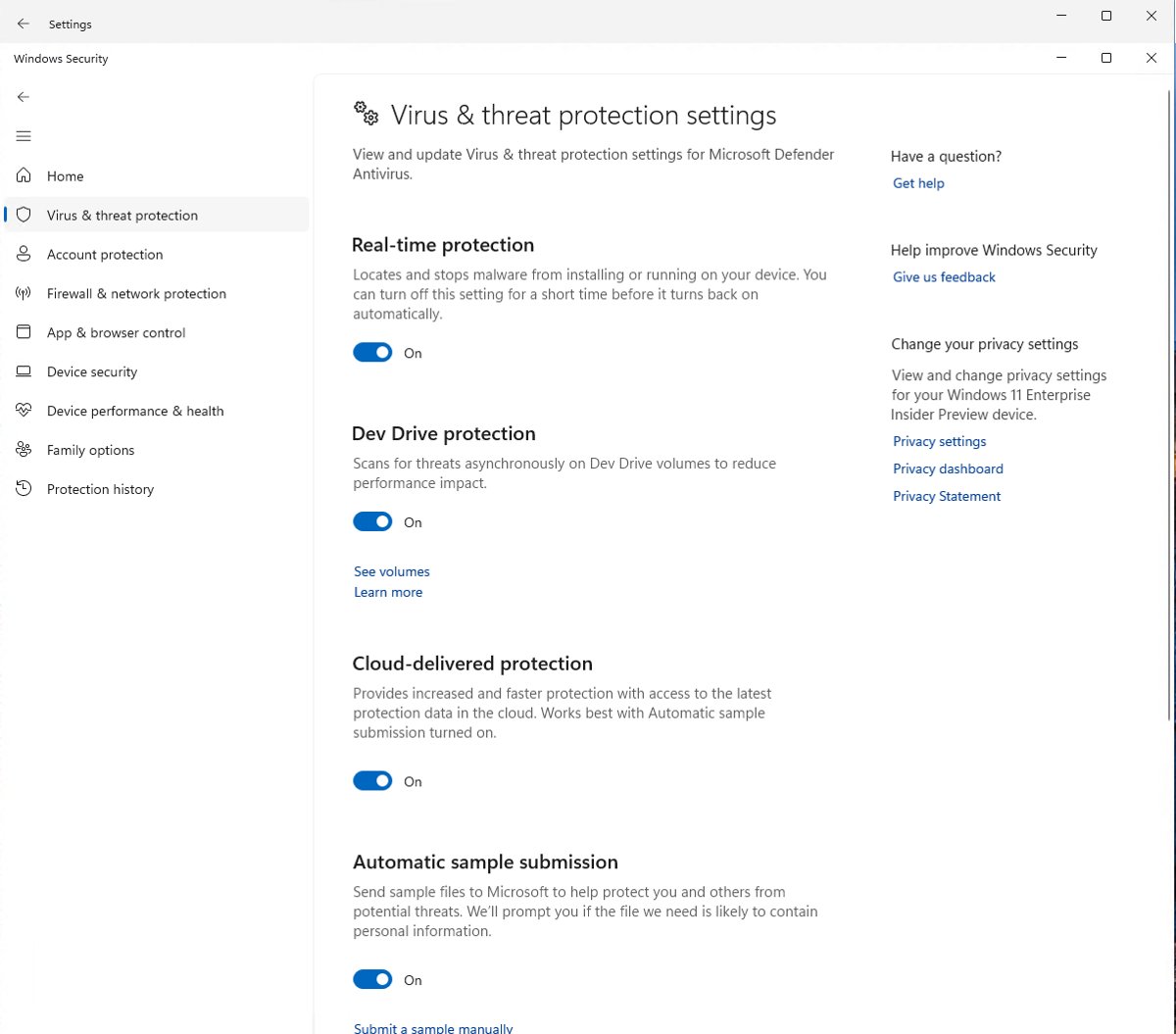
- Select Start, type Windows Security, and open the app.
- Select Virus & threat protection and look under Current threats for the last scan time. If a scan started a few minutes ago, let it finish.
- Select Protection updates, then Check for updates, and install anything offered.
- Open Settings > Windows Update, select Check for updates, and restart when asked.
- If usage stays high after the restart, open PowerShell as administrator and run
Set-MpPreference -ScanAvgCPULoadFactor 30 -EnableLowCpuPriority $true. - Open Task Manager with Ctrl + Shift + Esc and watch Antimalware Service Executable on the Processes tab for a few minutes.
If it still runs hot while you work, a specific file, folder or app is triggering constant scans. The performance analyzer section below shows exactly which one.
Understanding Antimalware Service Executable
Antimalware Service Executable is the Microsoft Defender Antivirus service, running as MsMpEng.exe. Microsoft's troubleshooting page uses all three names for the same process. It scans files as they are opened, runs scheduled scans, and checks new definitions.
| What triggers high usage | What Defender is doing | Resource hit hardest |
|---|---|---|
| A scheduled or on-demand scan | A quick scan checks startup locations, memory and profiles; a full scan reads every fixed drive and can take hours | Disk and CPU |
| A new security intelligence update | Defender scans after an update by default, so a scan can appear outside your schedule | CPU |
| Unsigned programs (.exe, .dll) | Every launch of an unsigned binary triggers a real-time scan | CPU |
| Archives, HTA, CHM or files used as databases | Complex formats must be unpacked before they can be scanned | CPU and memory |
| Obfuscated scripts | Defender works harder to decide whether a script hides a payload | CPU |
| Large .iso, .vhdx or similar files in a synced or redirected profile folder | Scanning over a network or sync path adds latency, so scans run longer | Disk |
| Another security product (antivirus, VPN, DLP, EDR) | Two products scan each other's files and activity | CPU and disk |
| Actual malware | Defender starts a full scan during remediation when the spread is unclear | CPU and disk |
Short bursts are normal. Constant high use while the PC is idle, or every time you open one app, points to a cause in the table above.
Practical Solutions
Match what you see to a row, then jump to that fix. The last rows cover common advice that does not change how Defender scans.
| Your situation | Do this | Why |
|---|---|---|
| High CPU for a while, then it settles | Nothing, or move the scan time | A scheduled or post-update scan was running |
| High CPU while you work, every day | Cap scan CPU and reschedule scans | Microsoft suggests lowering the 50% default to 20 or 30 |
| Spikes every time one app, game or build tool runs | Run the performance analyzer, then exclude only that trusted path | It names the files, paths and processes costing the most scan time |
| Constant scanning of a code or project folder | Use a Dev Drive with performance mode | Microsoft calls it better protection than folder exclusions |
| High disk use after downloading large images or VMs | Move .iso or .vhdx files out of synced folders | Scanning redirected or synced paths is slower |
| Usage started after installing another security tool | Perform a clean boot and check with that vendor | Conflicting products scan each other |
| Behaviour is new and unexplained | Update Windows and Defender, then run an offline scan | Old definitions and hidden malware both cause long scans |
| You want to disable Windows Defender | Do not; install another antivirus if you prefer one | Windows 11 turns Defender off automatically when a compatible antivirus is active |
| Advice to trim startup programs, change Windows Search indexing or raise virtual memory | Helps overall load only | None of these change what MsMpEng.exe scans |
| Nothing above works and Windows itself is damaged | Reset Windows 11 and keep your files | A last resort once scans and updates are ruled out |
1. Adjust Windows Defender Settings
Two scan settings control how much CPU a scheduled scan may take. Microsoft's performance guide recommends low CPU priority and a lower CPU cap than the default 50%. Neither setting touches real-time protection.
- Select Start, type PowerShell, and select Run as administrator.
- Run
Set-MpPreference -ScanAvgCPULoadFactor 30to limit scans to about 30% CPU on average. Microsoft allows 5 to 100; never enter 0, because 0 turns throttling off. - Run
Set-MpPreference -EnableLowCpuPriority $trueso your apps get CPU time ahead of a scheduled scan. - Run
Set-MpPreference -ScanOnlyIfIdleEnabled $trueso scheduled scans wait until the PC is not in use. - Close PowerShell. The changes apply to the next scheduled scan.
The cap is guidance, not a hard limit, so short peaks above it still happen. A lower cap also makes each scan take longer to complete.
2. Move Scheduled Scans to a Time You Are Away
By default, the daily quick scan is set for 2:00 AM with a 120-minute offset. If your PC is off or busy at that hour, move it. Pick a time when the PC is on but quiet, such as lunch.
- Open PowerShell as administrator.
- Run
Set-MpPreference -ScanScheduleQuickScanTime 12:30:00 -ScanScheduleOffset 0 -RandomizeScheduleTaskTimes $false, replacing 12:30:00 with your chosen time in 24-hour format. - Keep quick scans as the scheduled type. Microsoft recommends quick scans and generally advises against scheduling full scans because of the time and resources they take.
- Leave full scans on battery off, which is the default, so a laptop does not drain itself scanning.
- Run a full scan by hand only when you need one, from Virus & threat protection > Scan options.
3. Update Windows and Defender
Old definitions mean each update brings a bigger change, and by default Defender scans after every definition update. Update once, then let that follow-up scan finish.
- Open Windows Security > Virus & threat protection.
- Select Protection updates, then Check for updates.
- Open Settings > Windows Update and select Check for updates.
- Install every update offered, then restart.
- Leave the PC on and idle so the post-update scan can complete once.
4. Find What Defender Is Scanning With the Performance Analyzer
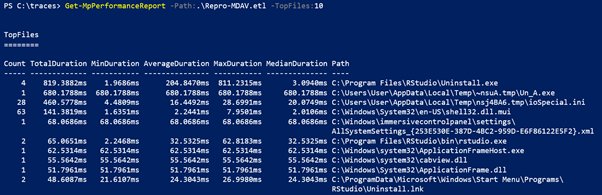
The performance analyzer is a built-in PowerShell tool that records Defender's scans and lists the files, extensions, paths and processes that cost the most scan time. Microsoft lists it for Windows 10 and Windows 11 on platform version 4.18.2108.7 or later.
Record while the problem is happening. A recording of an idle PC shows nothing useful.
- Open PowerShell as administrator.
- Run
New-MpPerformanceRecording -RecordTo $env:USERPROFILE\defender.etlto start recording. - Reproduce the slowdown: open the app, copy the folder, or run the build that makes usage climb.
- Press Enter in PowerShell to stop and save the recording.
- Run
Get-MpPerformanceReport -Path $env:USERPROFILE\defender.etl -TopFiles 10 -TopScansPerFile 3to list the ten files with the most scan impact. - Note the paths and processes that appear at the top. These are the only candidates for an exclusion.
If PowerShell says Windows Performance Recorder is already recording, run wpr -cancel -instancename MSFT_MpPerformanceRecording and start again.
5. Exclude Only Trusted Folders From Scanning
An exclusion tells Defender to stop checking a file, folder, file type or process. Microsoft warns that this can leave your device and data vulnerable, so exclude only a narrow path the analyzer named and that you trust completely.
- Open Windows Security > Virus & threat protection.
- Select Manage settings.
- Under Exclusions, select Add or remove exclusions and approve the prompt.
- Add a new exclusion and choose Folder or File as its type.
- Pick the exact folder or file the performance analyzer named, not its parent drive or profile folder.
- Watch usage for a day, and remove the exclusion if it did not help.
Never exclude these, even if you trust them: the whole C: drive, C:\Users, C:\Program Files app folders, C:\Windows\Temp or your AppData Temp folder, Prefetch, Spool, or file types such as .exe, .dll, .zip, .ps1 and .js. Microsoft lists them because attackers abuse them.
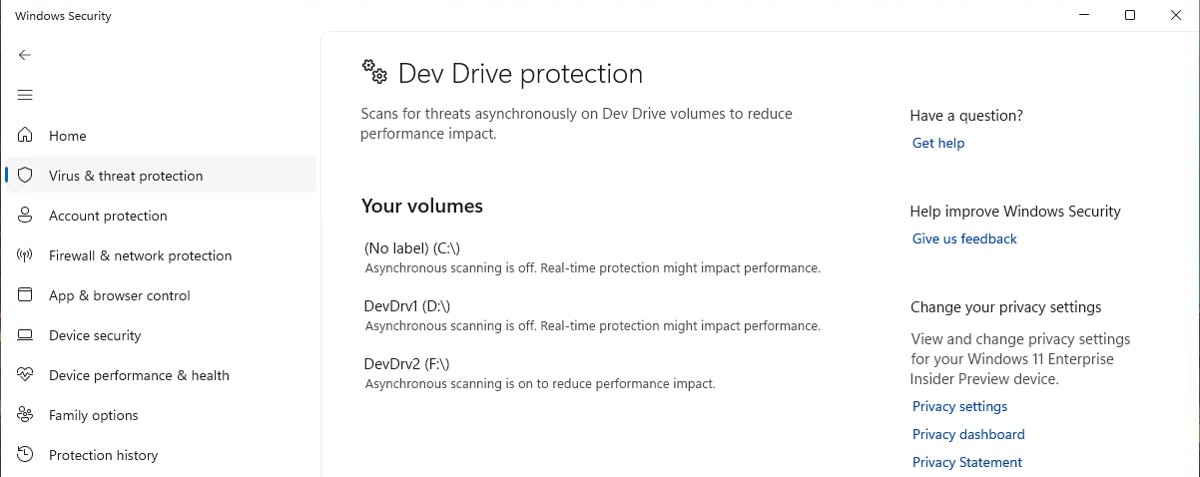
Developers can avoid exclusions entirely with a Dev Drive. Its performance mode defers scans until after files open, and Microsoft rates that better protection than folder exclusions.
6. Perform a Clean Boot
A clean boot starts Windows with only Microsoft services and no startup apps. If Antimalware Service Executable calms down, another program, often a second security tool, is triggering the scanning.
- Sign in with an administrator account, then search for and open System Configuration.
- On the Services tab, select Hide all Microsoft services, then Disable all, then Apply.
- On the Startup tab, select Open Task Manager.
- On the Startup apps tab in Task Manager, select each enabled item and choose Disable.
- Close Task Manager, select OK in System Configuration, and restart.
- Re-enable services and startup apps a few at a time until the high usage returns. The last group you turned on holds the culprit.
This is also the right way to optimize startup programs: keep disabled any startup app you do not need. For a conflicting antivirus, VPN or DLP tool, check that vendor's support site for known Defender issues.
7. Check for Malware Manually
Malware can keep Defender busy, because Defender launches a full scan while it cleans up an infection. The offline scan runs before Windows loads, so it can catch threats that hide while Windows runs.
- Save and close your open files, because the PC restarts.
- Open Windows Security > Virus & threat protection > Scan options.
- Select Microsoft Defender Antivirus (offline scan) and start the scan.
- Let the PC restart. Defender loads in the Windows Recovery Environment, scans, and restarts again.
- After sign-in, open Windows Security and select Protection history to see the results.
8. Reset Windows 11
Reset only after updates, scan settings, a clean boot and an offline scan have all failed. Keep my files reinstalls Windows and removes apps and settings but keeps your documents and photos.
- Back up your files to OneDrive or an external drive.
- Open Settings > System > Recovery.
- Under Recovery options, select Reset PC.
- Choose Keep my files.
- Follow the on-screen instructions to complete the reset, then reinstall your apps.
Should You Disable Windows Defender Instead?
No. Turning off real-time protection only hides the symptom, and Windows Security turns it back on automatically soon after. While it is off, files you open or download are not scanned.
Keep Microsoft Defender Antivirus and real-time protection on, and fix the cause with scan limits, a better scan time, updates or one narrow exclusion. Tamper protection is built to keep real-time protection and the Defender service running, and if you prefer another antivirus, Windows 11 switches Defender to disabled mode automatically once that product is active.
How to check the fix worked
- Open PowerShell as administrator and run
Get-MpPreference. Confirm ScanAvgCPULoadFactor shows your new value and EnableLowCpuPriority is True. - In the same output, confirm ScanScheduleQuickScanTime shows the time you chose.
- Run
Get-MpComputerStatusand confirm RealTimeProtectionEnabled and AntivirusEnabled both read True. - Check AntivirusSignatureLastUpdated shows today or yesterday.
- Use the PC normally for a day with Task Manager open. Antimalware Service Executable should rise briefly, then drop back instead of holding high.
How to undo the scan and exclusion changes
These commands put back Microsoft's defaults for every setting this guide changed.
- Open PowerShell as administrator.
- Run
Set-MpPreference -ScanAvgCPULoadFactor 50to restore the default CPU cap. - Run
Set-MpPreference -ScanScheduleQuickScanTime 02:00:00 -ScanScheduleOffset 120 -RandomizeScheduleTaskTimes $trueto restore the default scan time. - Open Windows Security > Virus & threat protection > Manage settings > Add or remove exclusions.
- Select each exclusion you added and remove it.
Fix Antimalware Service Executable problems that remain
Unable to stop Antimalware Service Executable in Task Manager
Tamper protection guards the Defender service and keeps real-time protection on, so ending the task is blocked by design.
- Leave the process running; it is a core part of Windows security.
- Reduce its load instead with the CPU cap in method 1.
- Move scans out of your working hours with method 2.
Antimalware Service Executable high disk usage
A full scan is reading every fixed drive, or large .iso and .vhdx files sit in a synced or redirected profile folder.
- Check Current threats in Virus & threat protection for a scan in progress and let it finish.
- Move large disk images and VM files out of OneDrive or other synced folders into a local folder.
- Keep full scans off the schedule and run them by hand when you are away.
Antimalware Service Executable high memory or RAM use
Unpacking archives, CHM or HTA files, or scanning files used as databases makes the engine hold more data at once.
- Run the performance analyzer in method 4 while memory is high.
- Look for archives or file types at the top of the report.
- If the file belongs to a trusted app you rely on, exclude that exact file path only, not its file type.
Why is Antimalware Service Executable running when another antivirus is installed
Windows 11 keeps Defender active until a compatible antivirus registers, and Smart App Control can keep Defender in passive mode.
- Open PowerShell and run
Get-MpComputerStatus. AMRunningMode reading Normal means Defender is still the active antivirus. - If your other antivirus is not listed, reinstall or update it from its vendor.
- Check that vendor's support site for known conflicts with Defender.
Frequently Asked Questions
How do I fix Antimalware Service Executable?
Update Defender and Windows, let any running scan finish, then cap scan CPU with Set-MpPreference -ScanAvgCPULoadFactor 30 and move the daily quick scan to a quiet time. If one app triggers it, use the performance analyzer to find the exact path.
How do I end Antimalware Service Executable?
You cannot end it from Task Manager, and you should not try. Tamper protection keeps the Microsoft Defender Antivirus service running. Lower its impact by limiting scan CPU and rescheduling scans instead.
How do I turn off Antimalware Service Executable?
Windows 11 turns it off automatically when you install a compatible third-party antivirus. Switching off real-time protection in Windows Security is only temporary, because Windows turns it back on soon after, and your PC is unprotected in the meantime.
Is Antimalware Service Executable important?
Yes. It is Microsoft Defender Antivirus, the built-in malware protection in Windows 11. It scans files as you open them, runs scheduled scans and applies definition updates, so stopping it leaves the PC without antivirus unless another product is active.
How do I reduce Antimalware Service Executable CPU usage?
Run Set-MpPreference -ScanAvgCPULoadFactor 30 and Set-MpPreference -EnableLowCpuPriority $true in an administrator PowerShell window. Microsoft's performance guidance suggests lowering the default 50% cap to 20 or 30, which makes scans slower but lighter.
Why is Antimalware Service Executable running all the time?
It runs all the time because real-time protection checks every file you open. Heavy use usually means a scheduled scan, a scan after a definition update, an unsigned app launching repeatedly, or large files in a synced folder.
Can I stop Antimalware Service Executable?
Not safely. It is the Defender service and tamper protection keeps it running. Installing another compatible antivirus puts Defender into disabled mode automatically, which is the only supported way to stop it on Windows 11.
Is Antimalware Service Executable bad or a virus?
No. The genuine process is MsMpEng.exe, Microsoft Defender Antivirus. High usage is a performance issue, not an infection. If you suspect malware is disguising itself, run a Microsoft Defender Antivirus offline scan from Scan options.
How do I remove Antimalware Service Executable?
Microsoft documents uninstalling Defender only on Windows Server, not Windows 11. If you want a different antivirus, install it, and Windows 11 switches Microsoft Defender Antivirus to disabled mode automatically. Removing it by other means leaves the PC exposed.