To enable or disable the pop-up blocker in Microsoft Edge, open Settings, go to Site permissions > Pop-ups and redirects, and switch the Blocked (recommended) toggle on or off.
This guide covers Edge on Windows, Mac, Android, iPhone and iPad, per-site allow and block rules, the policies that lock the setting on work PCs, and fixes for both directions of failure.
How to Enable or Disable the Pop-up Blocker in Edge on Windows or Mac
The blocker is on by default in every new Edge profile, and the steps are the same on Windows and macOS.
Recent Edge builds put the page under Privacy, search, and services > Site permissions. Older builds list it as a separate Cookies and site permissions category in the left pane, with the same Pop-ups and redirects page inside.
- Open Edge and select Settings and more (the three dots at the top right), or press Alt + F.
- Select Settings.
- Select Privacy, search, and services, then Site permissions. On older builds, select Cookies and site permissions instead.
- Select All permissions, then Pop-ups and redirects.
- Turn the Blocked (recommended) toggle on to block pop-ups, or off to let every site open them.
- Close the Settings tab. The change applies right away, with no restart.
Turning the toggle off affects every website. If only one site needs pop-ups, leave the blocker on and allow that site instead, as shown below.
What the Pop-up Blocker in Microsoft Edge Does
Microsoft describes the feature as stopping websites from automatically opening a new window, a new tab, or a partial window over the page you are reading. The key word is automatically.
| What a site tries to do | Blocked by Edge? | Why |
|---|---|---|
| Open a new window or tab on page load, with no click | Yes | This is exactly what the blocker targets |
| Open a window after you select a button or link | No | Edge treats a click as your request for the window |
| Show an advertisement drawn inside the page that looks like a pop-up | No | It is part of the page, not a new window |
| Send website notifications to the lower-right corner of the screen | No | Notifications are a separate permission |
| Automatically send you to a different page | Yes, with the same toggle | Edge groups redirects with pop-ups on one setting |
Some pop-ups are legitimate. A bank that opens a statement in a new window is a common example Microsoft gives. Others imitate warnings, prizes or free downloads to start a scam.
Should You Turn the Pop-up Blocker Off Completely?
Almost never. Allowing one site keeps the protection everywhere else and takes the same number of clicks.
| Your situation | Do this | Why |
|---|---|---|
| One site (bank, school portal, payment page) needs a pop-up | Allow that site only | Every other site stays blocked |
| A whole company domain with many subdomains needs pop-ups | Ask IT to set PopupsAllowedForUrls with a [*.] pattern | One rule covers every subdomain |
| You need pop-ups for a few minutes only | Allow the site, then remove it afterwards | Edge has no timed or temporary switch |
| A single site keeps opening junk windows | Block that site | The rule holds even if the global toggle is off |
| The toggle is greyed out | Check edge://policy | An administrator policy controls the setting |
| You are testing a web app you build | Turn the blocker off in a separate Edge profile | Your everyday profile keeps its protection |
How to Allow Pop-ups for One Website in Microsoft Edge
Use this when a site tells you to disable your pop-up blocker. The site gets permission, and the blocker keeps working on every other site.
- Copy the site's address from the address bar, for example
https://www.example.com. - Select Settings and more > Settings > Privacy, search, and services > Site permissions.
- Select All permissions > Pop-ups and redirects.
- Go to Allowed to send pop-ups and use redirects and select Add site.
- Paste the address, including the
https://at the start, and select Add. - Confirm the address now appears in the Allow list, then reload the site's tab.
Enter the site exactly as it appears in the address bar. https://example.com and https://login.example.com are different sites, so a portal that signs you in on one host and opens windows from another may need both.
How to Block Pop-ups for a Specific Website
A per-site block matters when the global toggle is off, or when you want a record that one site must never open windows. Edge keeps each site's permissions on its own page under All sites.
- Visit the site once so Edge has an entry for it.
- Select Settings and more > Settings > Privacy, search, and services > Site permissions.
- Select All sites, then select the website in the list.
- Find Pop-ups and redirects on that site's permission page.
- Choose Block from the drop-down menu.
- Reload the site's tab so the new rule applies.
How to Remove a Site from the Allow or Block List
Every site you allow is a permanent exception until you change it. Review the Allow list when a project ends or a site changes hands.
- Select Settings and more > Settings > Privacy, search, and services > Site permissions.
- Select All permissions > Pop-ups and redirects and read the entries under Allowed to send pop-ups and use redirects.
- Note any site that no longer needs permission.
- Go back to Site permissions, select All sites, and open that site's page.
- Next to Pop-ups and redirects, choose Block to withdraw an allowed site, or Allow to lift a block.
- Return to Pop-ups and redirects and confirm the site has left the old list.
How to Enable or Disable Pop-ups in Edge on Android
The Android app has its own switch, separate from the desktop setting. It does not sync from your PC.
- Open the Edge app and tap the menu … at the bottom of the screen.
- Tap Settings.
- Tap Site permissions, then Pop-ups and redirects.
- Turn Pop-ups and redirects off to block pop-ups.
- Turn it on only when you need to allow pop-ups on the device.
On Android the label describes the permission, not the blocker. Off means blocked, which is the reverse of the desktop Blocked (recommended) switch.
How to Enable or Disable Pop-ups in Edge on iPhone or iPad
On iOS and iPadOS the setting sits under privacy rather than site permissions.
- Open the Edge app and tap the menu ….
- Tap Settings.
- Tap Privacy & security, then Block pop-ups.
- Turn Pop-ups and redirects off to block pop-ups.
- Turn it back on only while a site you trust needs a pop-up, then switch it off again.
How to Know When Edge Has Blocked a Pop-up
Edge does not show a dialog when it stops a pop-up. It places a small blocked-pop-up icon in the address bar of the tab that tried.
- Open the page that should, or should not, open a window.
- Look in the address bar for the blocked pop-up icon.
- If you use a screen reader, press F6 to move to the tab bar and listen for the blocked announcement.
- Open Settings > Privacy, search, and services > Site permissions > All permissions > Pop-ups and redirects and confirm the toggle state.
- For an allowed site, confirm it is listed under Allowed to send pop-ups and use redirects and that the window now opens without the icon.
Pop-ups vs. Redirects: What’s the Difference?
Edge controls both with one switch, so allowing a site's pop-ups also lets it redirect you automatically. That is one more reason to allow single sites only.
| Behaviour | What you see | Which Edge setting controls it |
|---|---|---|
| Pop-up | A new window, tab or partial window opens without a click | Pop-ups and redirects |
| Redirect | The page you opened sends you on to a different address by itself | Pop-ups and redirects |
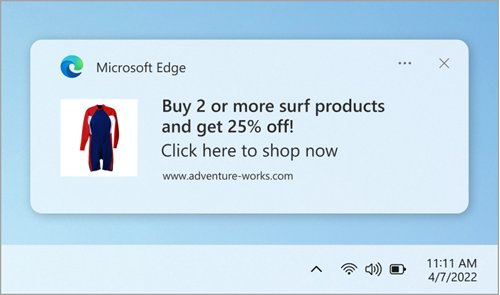
| Website notification | A message in the lower-right corner and in the Windows notification center, even with Edge closed | Notifications (separate permission) |
| In-page advertisement | A box inside the page styled like a window | Not controlled by the pop-up blocker |
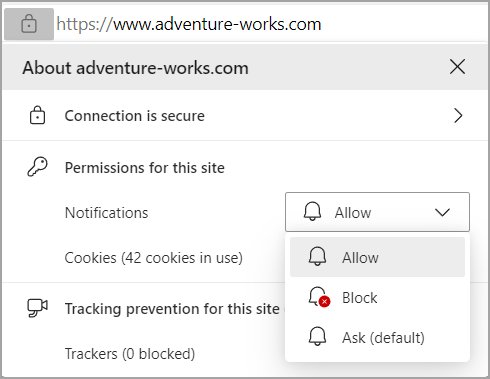
If messages keep appearing in the corner of the screen, they are notifications. Block them under Site permissions > All sites > the site > Notifications > Block.
What to Do If Pop-ups Are Still Blocked After You Allow Them
The site still says your pop-up blocker is on
The address in the Allow list does not match the host that opens the window.
- Open the site and copy the address shown when the pop-up should appear.
- Compare it with the entry under Allowed to send pop-ups and use redirects, including
https://and anywww.or subdomain. - Add the exact host if it differs, for example a separate sign-in or payment domain.
- Reload the page and try the action again.
The Pop-ups and redirects setting is greyed out or reverts
An administrator policy sets DefaultPopupsSetting or a pop-up site list.
- Type
edge://policyin the address bar and press Enter. - Look for DefaultPopupsSetting, PopupsAllowedForUrls or PopupsBlockedForUrls in the list.
- If one is present, ask your IT department to add the site to the allowed list.
Pop-ups stay blocked even for allowed sites
An ad-blocking or privacy extension closes the window before Edge's rule applies.
- Select Settings and more > Extensions > Manage extensions.
- Turn every extension off, then retry the site.
- If the pop-up now opens, turn extensions back on one at a time to find the one responsible. The full process is in how to enable or disable extensions in Microsoft Edge.
- Open the site in a new InPrivate window from Settings and more to compare against a clean session.
What to Do If Pop-ups Are Still Appearing
Pop-ups keep opening with the blocker turned on
An outdated browser, an extension, tracking content or unwanted software is opening them.
- Select Settings and more > Settings > About Microsoft Edge and install any update shown.
- Turn extensions off under Settings and more > Extensions > Manage extensions, then re-enable them one at a time.
- Select Privacy, search, and services > Cookies and turn on Block third-party cookies.
- Clear your browser cache, as Microsoft's article *View and delete browser history in Microsoft Edge* describes.
- Run a full scan with Windows Security to check for malware.
Boxes that look like pop-ups appear inside the page
They are advertisements built into the website, which the pop-up blocker cannot stop.
- Check whether the box moves with the page when you scroll. If it does, it is page content.
- Close it with the site's own close control, or leave the site.
Messages pop up in the corner of the screen even with Edge closed
A website has notification permission, which is separate from pop-ups.
- Select Settings and more > Settings > Privacy, search, and services > Site permissions > All sites.
- Open the site sending the messages.
- Set Notifications to Block.
A pop-up will not close and Edge stops responding
A scam page is holding the browser in a loop of dialogs or full-screen windows.
- Right-click Start and select Task Manager.
- Select Processes in the left menu.
- Under Apps, right-click Microsoft Edge and select End task.
- Reopen Edge normally, and do not call any phone number the pop-up showed.
- Scan the device with Windows Security if you suspect malware or a tech support scam.
How Edge Pop-up Settings Work with Tracking Prevention and SmartScreen
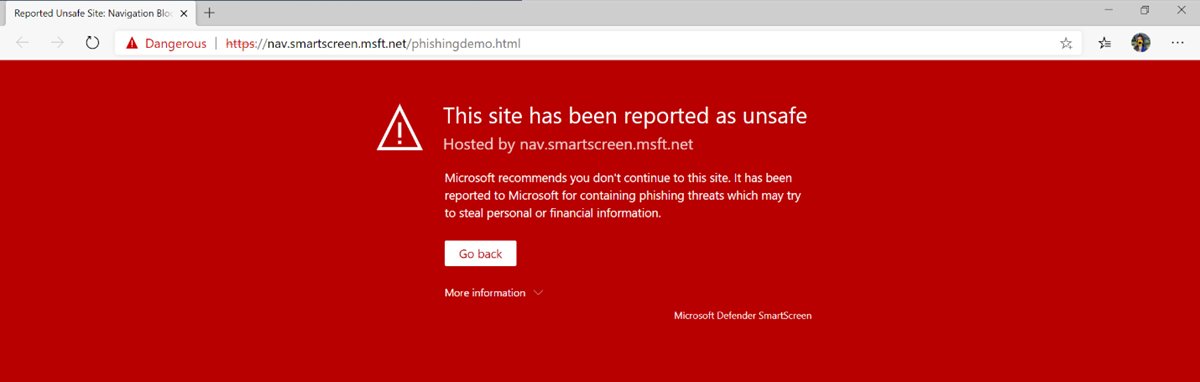
These are three separate protections. Allowing pop-ups for a site does not switch off the other two, and neither of them controls pop-up windows.
| Feature | What it stops | Where to change it | Effect on pop-ups |
|---|---|---|---|
| Pop-up blocker | Windows and redirects a site opens without a click | Site permissions > Pop-ups and redirects | Direct control |
| Tracking prevention (Basic, Balanced, Strict) | Trackers reading storage or loading from the network; Balanced is the default | Privacy, search, and services | None directly; Strict can break embedded content a pop-up relies on |
| Microsoft Defender SmartScreen | Reported phishing and malware sites, and downloads with a bad or unknown reputation | Privacy, search, and services | None; it still warns if a pop-up opens a dangerous page |
If an allowed pop-up opens but loads blank under Strict, add a tracking prevention exception for that site at edge://settings/privacy/trackingPreventionExceptions rather than lowering the level for every site. Keep SmartScreen on in every case.
Managing Pop-ups on a Work or School Computer
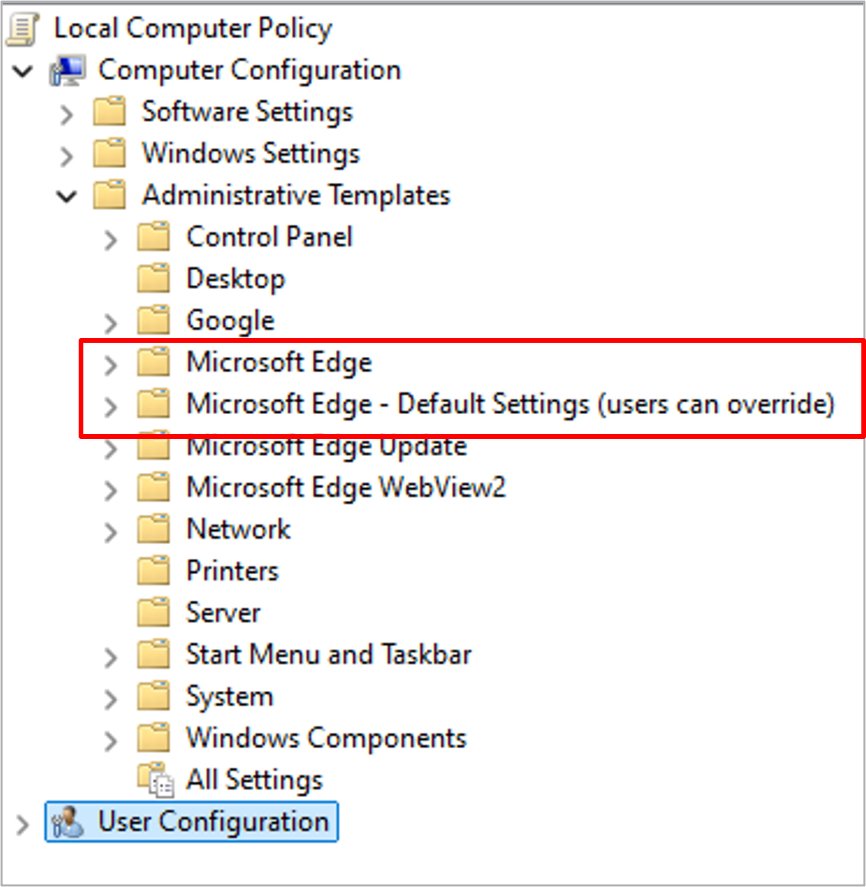
On a managed PC, IT can set pop-up rules through Group Policy, Intune or the registry. Mandatory policies override your own choice and grey out the setting.
All three policies live under Administrative Templates > Microsoft Edge > Content settings in the Group Policy editor, and under HKLM\SOFTWARE\Policies\Microsoft\Edge in the registry.
| Policy | Group Policy name | What it does | Example value |
|---|---|---|---|
| DefaultPopupsSetting | Default pop-up window setting | 1 allows pop-ups on all sites; 2 blocks them on all sites; unset leaves blocking on and user-changeable | REG_DWORD 2 |
| PopupsAllowedForUrls | Allow pop-up windows on specific sites | List of URL patterns allowed to open pop-ups; wildcards allowed | https://www.contoso.com or [*.]contoso.edu |
| PopupsBlockedForUrls | Block pop-up windows on specific sites | List of URL patterns that can never open pop-ups | [*.]example.com |
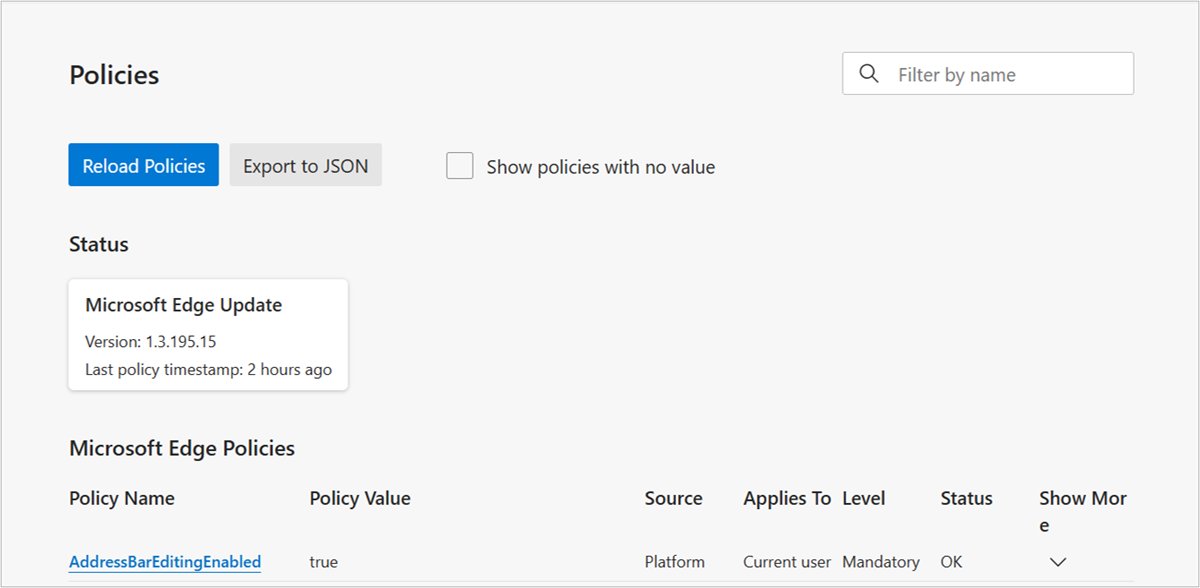
The site lists also apply to Edge on macOS, Android and iOS through each platform's management profile. Open edge://policy to see which of these reached your browser.
Refresh pop-up policies after IT changes them
Domain-joined PCs pick up Group Policy on a schedule. Run this from Command Prompt or PowerShell when IT says a pop-up rule has been changed.
gpupdate /forceForces Windows to download and apply the latest Active Directory group policy, including Edge's pop-up policies.
You should see: Close and reopen Edge, open edge://policy, and the new PopupsAllowedForUrls or DefaultPopupsSetting value appears in the list.
Quick Reference: Edge Pop-up Blocker Settings
| Task | Platform | Path |
|---|---|---|
| Turn the blocker on or off | Windows and Mac | Settings > Privacy, search, and services > Site permissions > All permissions > Pop-ups and redirects > Blocked (recommended) |
| Allow one site | Windows and Mac | Pop-ups and redirects > Allowed to send pop-ups and use redirects > Add site |
| Block or reset one site | Windows and Mac | Site permissions > All sites > the site > Pop-ups and redirects |
| Turn pop-ups on or off | Android | Menu … > Settings > Site permissions > Pop-ups and redirects |
| Turn pop-ups on or off | iPhone and iPad | Menu … > Settings > Privacy & security > Block pop-ups |
| See enforced rules | Managed PCs | edge://policy |
| Stop corner-of-screen messages | Windows and Mac | Site permissions > All sites > the site > Notifications > Block |
Best Practices for Pop-ups in Microsoft Edge
Keep Blocked (recommended) switched on and add only the specific sites that need pop-ups to the Allow list, then review that list every few months. The allow list gives a bank or school portal what it needs while every other site stays blocked, and one toggle also covers redirects, so turning it off exposes you to both scam windows and forced page jumps.
Pair the blocker with SmartScreen and at least Balanced tracking prevention. If a page says it needs pop-ups turned off entirely, allow that site instead; the result is the same for the site.
Other site settings live in the same area of Edge; see how to access Internet Options in Microsoft Edge for where the old Internet Explorer options went.
Common Questions About Pop-ups in Edge
How do I enable or disable pop-ups in Microsoft Edge?
Open Settings, select Privacy, search, and services, then Site permissions, All permissions and Pop-ups and redirects. Turn Blocked (recommended) off to allow pop-ups everywhere, or on to block them. Older Edge builds show the same page under Cookies and site permissions.
What does enable pop-ups mean?
Enabling pop-ups lets a website open new windows or tabs, and redirect you, without you clicking anything. Edge blocks this by default. Some sites, such as banking or school portals, use pop-ups for statements, sign-in or payment windows, so they ask you to allow them.
How do I enable pop-ups for just one website?
Go to Site permissions > All permissions > Pop-ups and redirects in Edge Settings. Under Allowed to send pop-ups and use redirects, select Add site, paste the full address starting with https://, and select Add. Every other site stays blocked.
How do I temporarily disable pop-ups blocking?
Edge has no timer for the pop-up blocker. Add the site to the Allow list, finish your task, then switch that site back to Block from Site permissions > All sites. This is safer than turning the global toggle off and forgetting it.
How do I permanently disable pop-ups in Edge?
Keep Blocked (recommended) switched on under Pop-ups and redirects; it stays on until you change it. On a work PC, IT can enforce blocking with the DefaultPopupsSetting policy set to 2. Pop-ups opened by clicking a link and in-page ads still appear.
How do I disable all pop-ups on my Windows computer?
The Edge pop-up blocker only covers websites in Edge. Corner-of-screen messages from sites are notifications, which you block under Site permissions > All sites > the site > Notifications. Pop-ups that appear with no browser open usually come from installed software, so scan with Windows Security.
How do I make sure pop-ups are enabled for a site?
Check that the site's exact address appears under Allowed to send pop-ups and use redirects, then reload the page. If no blocked-pop-up icon appears in the address bar when the window should open, the permission is working.
How do I disable this pop-up that will not close?
Right-click Start, open Task Manager, select Processes, right-click Microsoft Edge under Apps and choose End task. Reopen Edge normally. Never call a phone number shown in the pop-up, and scan the PC with Windows Security if you suspect a scam.
How do I enable pop-ups in Edge on my phone?
On Android, tap the menu, then Settings > Site permissions > Pop-ups and redirects and turn it on. On iPhone or iPad, tap the menu, then Settings > Privacy & security > Block pop-ups and turn Pop-ups and redirects on. Turn it off again afterwards.