Open Command Prompt as administrator, run ipconfig /release, then run ipconfig /renew to drop your current IP address and request a new one from the router's DHCP server.
This guide covers what each command changes, the adapter-specific and IPv6 variants, how to confirm the new address, and fixes for 169.254.x.x addresses and DHCP errors.
How to Run ipconfig /release and /renew on Windows
These steps match Microsoft's own Windows network troubleshooting sequence and work the same on Windows 11 and Windows 10. Expect the connection to drop for a few seconds between the two commands.
- Select Search on the taskbar and type
command prompt. - To the right of the Command Prompt result, select Run as administrator, then select Yes at the User Account Control prompt.
- Type
ipconfig /release, with a space before the slash, and press Enter. Your adapters lose their IPv4 address and the connection stops. - Type
ipconfig /renewand press Enter. Windows asks the DHCP server, usually your router, for a new address. - Wait for the prompt to return. The output lists each adapter with its IPv4 Address, Subnet Mask and Default Gateway.
The same two commands work in Windows PowerShell and Windows Terminal. Open either one with Run as administrator and type the commands exactly as above.
What ipconfig /release and ipconfig /renew Do
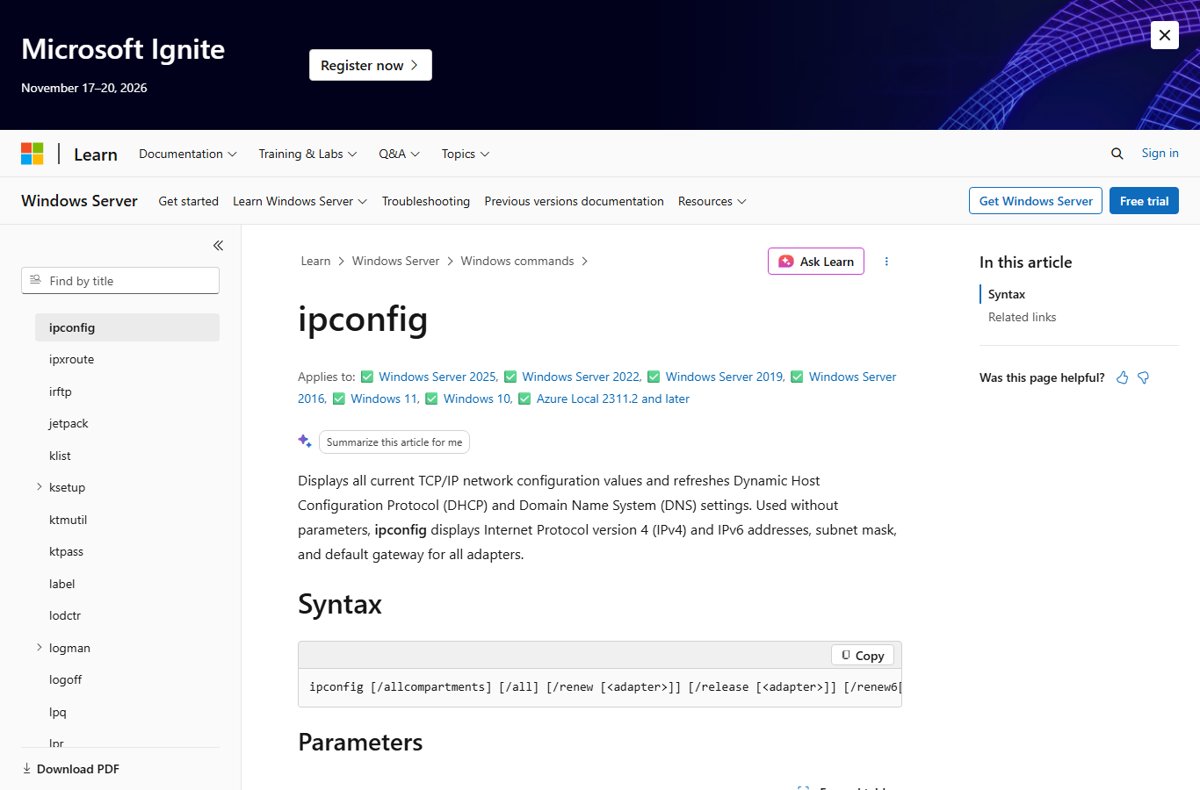
Both switches talk to DHCP, the service that hands out addresses automatically. Microsoft's ipconfig reference defines them as follows.
| Command | What changes when it runs | Applies to |
|---|---|---|
ipconfig /release |
Sends a DHCPRELEASE message to the DHCP server, releases the current DHCP configuration and discards the IPv4 address. TCP/IP is disabled on that adapter until you renew. | All adapters, or the one you name, set to obtain an address automatically |
ipconfig /renew |
Renews the DHCP configuration: the adapter requests an address, subnet mask, default gateway and DNS servers again. | Only adapters set to obtain an IP address automatically |
ipconfig /release6 |
Sends a DHCPRELEASE message to the DHCPv6 server and discards the IPv6 address configuration. | Adapters that obtain IPv6 settings automatically |
ipconfig /renew6 |
Renews the DHCPv6 configuration. | Only adapters configured to obtain an IPv6 address automatically |
Neither command touches the DNS cache, saved Wi-Fi passwords or adapter drivers. The router may hand back the same address it gave you before; a renew guarantees a fresh lease, not a different number.
When You Should Release and Renew Your IP Address
Release and renew fixes problems with the address itself. Match your situation to a row before you run anything.
| Your situation | Will release and renew help? | What to do |
|---|---|---|
ipconfig shows a 169.254.x.x address and there is no internet |
Often. Windows could not get an address from the router | Run ipconfig /renew; if the 169.254 address comes back, use the fixes further down |
| You moved the PC to a different network or router and it still has the old address | Yes | ipconfig /release, then ipconfig /renew |
| The router was reset or its address range was changed | Yes | ipconfig /release, then ipconfig /renew |
| One website loads an old version or will not resolve | No. That is the DNS cache | Run ipconfig /flushdns instead |
| The adapter uses a manually typed (static) address | No. /renew only works on adapters set to obtain an address automatically |
Check the address in Settings, or switch IP assignment to Automatic (DHCP) |
| Every device in the house is offline | No. The fault is the router, modem or provider | Restart the modem and router first |
For the DNS cache case, the full walkthrough is in How to Use ipconfig flushdns at the Command Prompt.
Release and renew a single adapter
Running the switches with no adapter name resets every DHCP adapter at once, including a VPN or virtual adapter you may not want to touch. Name the adapter to limit the change to one connection.
ipconfig
ipconfig /release "Wi-Fi"
ipconfig /renew "Wi-Fi"
ipconfig /renew Ether*
Run plain ipconfig first and copy the adapter name exactly as it appears after adapter in the output, such as Wi-Fi or Ethernet. Microsoft's reference says names that contain spaces go in quotation marks, for example "Local Area Connection". The asterisk wildcard also works: Ether* matches every adapter whose name starts with Ether, and *Con* matches every name containing Con.
You should see: Only the named adapter's section changes in the output. It shows a new or refreshed IPv4 Address and a Default Gateway, while other adapters keep their existing settings.
Release and renew an IPv6 address, or both in one line
The IPv6 switches are separate. /release and /renew do not touch a DHCPv6 lease, and /release6 and /renew6 do not touch IPv4.
ipconfig /release6
ipconfig /renew6
ipconfig /release && ipconfig /renew
/release6 and /renew6 accept an adapter name the same way as the IPv4 switches. Microsoft notes /renew6 works only on adapters configured to obtain an IPv6 address automatically, so many home networks never need it. The last line uses the Command Prompt && separator to run both IPv4 commands from one line; the second command runs only if the first one completes successfully.
You should see: After /renew6, the adapter lists an IPv6 address again. After the one-line command, the prompt returns with the renewed IPv4 settings. If the line stops after the release, type ipconfig /renew on its own.
In PowerShell, run the two commands on separate lines instead, since the && operator arrived only in PowerShell 7 and Windows PowerShell 5.1 does not accept it.
What to check after renewing
A renew that returns to the prompt without an error is only half the proof. These checks confirm the adapter has a working lease and can reach the network.
- Run
ipconfigand find your adapter. The IPv4 Address should sit in your router's range, for example 192.0.2.25, and must not start with 169.254. - Check the Default Gateway line is filled in, for example 192.0.2.1. A blank gateway means the renew did not finish.
- Run
ipconfig /alland check the adapter lists DNS servers as well as an address, since the renew hands out both. - Run
pingfollowed by your gateway's address. Replies confirm the PC can reach the router. - Open a website in your browser to confirm the internet connection works end to end.
For other ways to read your address, including from Settings, see How to Find Your IP Address on Windows.
Release/Renew vs Other Network Troubleshooting Commands
Each command fixes a different layer of the connection. Microsoft's Wi-Fi troubleshooting sequence runs them in the order below from an administrator Command Prompt, which also works as a practical order when a single command does not help.
| Command | What it resets | Use it when |
|---|---|---|
ipconfig /all |
Nothing. It displays the full TCP/IP configuration for every adapter | Before any fix, to see the address, gateway, DNS servers and DHCP status |
netsh winsock reset |
The Winsock catalog that apps use to reach the network | Microsoft's sequence runs it first when the connection stays broken |
netsh int ip reset |
The TCP/IP stack settings | Second in Microsoft's sequence, before the release and renew |
ipconfig /release and /renew |
The DHCP lease: IP address, gateway and DNS servers handed out by the router | The address is missing, wrong or 169.254.x.x |
ipconfig /flushdns |
The DNS client resolver cache | Names resolve to old addresses or keep failing |
ipconfig /registerdns |
Refreshes the PC's own DNS registration | A domain PC's name is missing on the company DNS server |
| Restarting the router | The router itself, including its DHCP server | Several devices fail at once, or /renew cannot reach the DHCP server |
Release and renew only changes one PC's lease. Restarting the router resets the device that hands out the addresses, which is why it fixes problems a renew cannot.
Best Practices and Things to Know Before Using These Commands
The commands are safe to run, but /release cuts your connection until /renew succeeds. Plan around that.
| Before you run it | Why it matters |
|---|---|
| Use an administrator Command Prompt or PowerShell window | Microsoft's troubleshooting steps run these commands elevated, and a standard window can refuse the change |
Do not run /release over Remote Desktop or a remote session |
Releasing the address drops the session, and you cannot send /renew afterwards |
| Pause downloads, video calls and file copies | Every connection on the released adapter stops until the renew finishes |
| Name the adapter if you use a VPN or virtual adapters | With no name, the commands act on every DHCP adapter at once |
| Check whether the adapter uses a static address | /renew does nothing useful there; the address comes from Settings, not DHCP |
Run ipconfig /all first and note the current values |
You can compare the address, gateway and DNS servers after the renew |
Common Errors and How to Fix Them
Match the message or symptom you see, then follow only the fix under it.
APIPA address: 169.254.x.x after renewing
Microsoft says a 169.254.x.x address means Windows could not get an IP address from your router, so it assigned itself an Automatic Private IP Addressing (APIPA) address.
- Check the cable is firmly connected, or that Wi-Fi shows as connected to your network.
- Unplug the power cable from the router and the modem, wait at least 30 seconds, then plug both back in.
- Run
ipconfig /renewagain once the router's lights are steady. - If the address still starts with 169.254, sign in to the router and check its DHCP server is turned on.
- Check the adapter is not set to a static address: open Settings > Network & internet, select your Wi-Fi or Ethernet connection, select Edit next to IP assignment, choose Automatic (DHCP), and select Save.
"Unable to contact your DHCP server"
The renew request did not get an answer, because the router's DHCP service, the cable, the switch or something on the PC is blocking it.
- Restart the modem and router as described above, then run
ipconfig /renewagain. - Try another cable or router port, or connect a second device, to see whether the router hands out addresses at all.
- Open Device Manager, expand Network adapters, and check the adapter is enabled. Right-click it and select Enable device if it is off.
- Press Win + R, type
services.msc, press Enter, and check DHCP Client shows Running. - On a work network, report it to IT. Microsoft's DHCP checklist also covers switch MAC filtering and firewalls blocking UDP ports 67 and 68, which only an administrator can change.
"No operation can be performed while it has its media disconnected"
One of your adapters has no network link, such as an unplugged Ethernet port or a Wi-Fi adapter that is not connected, and ipconfig reports it while processing all adapters.
- Read which adapter the message names. If it is one you do not use, the error does not affect your working connection.
- Run
ipconfigto find the adapter you actually use. - Run
ipconfig /renewfollowed by that adapter's name in quotation marks, such asipconfig /renew "Wi-Fi". - If the named adapter is the one you need, plug in the cable or connect to your Wi-Fi network, then run the command again.
"An error occurred while renewing interface" or "Access is denied"
The command ran without administrator rights, or the adapter's lease could not be renewed.
- Close the window and reopen Command Prompt with Run as administrator, then select Yes at the User Account Control prompt.
- Confirm the title bar starts with Administrator:, then run
ipconfig /releaseandipconfig /renewagain. - If the interface error continues, work through the DHCP fixes above, because the renew is not reaching the DHCP server.
- On a work PC without an administrator account, ask your IT team to run the commands.
ipconfig release and renew not working at all
The network stack or adapter itself is misconfigured, so a fresh lease alone cannot fix it.
- In an administrator Command Prompt, run
netsh winsock reset, thennetsh int ip reset, thenipconfig /release,ipconfig /renewandipconfig /flushdns. - Restart the PC and test the connection.
- If it still fails, select Start, enter settings, and select Settings > Network & internet.
- On Windows 11, select Advanced network settings > Network reset. On Windows 10, select Status > Network reset.
- Select Reset now > Yes. The PC restarts, reinstalls its network adapters and sets their settings back to the defaults, so reconnect to Wi-Fi afterwards.
Frequently Asked Questions
What does ipconfig /release and renew do?
ipconfig /release tells the DHCP server you are giving up your current IP address and disables TCP/IP on the adapter. ipconfig /renew then requests a fresh address, subnet mask, gateway and DNS servers from the router.
How do I run ipconfig release and renew?
Open Command Prompt as administrator, type ipconfig /release and press Enter, then type ipconfig /renew and press Enter. The same commands work in PowerShell and Windows Terminal. Your connection drops briefly between the two.
Can I run ipconfig release and renew in one command?
Yes. In Command Prompt, type ipconfig /release && ipconfig /renew. The && separator runs the renew only if the release succeeded, so type ipconfig /renew separately if the line stops early. In Windows PowerShell 5.1, run them on two lines.
What is the difference between ipconfig release and renew?
Release gives up the current DHCP lease and leaves the adapter without an IPv4 address. Renew asks the DHCP server for a lease. Renew on its own refreshes an existing lease; release first forces a clean start.
Will running ipconfig /release and ipconfig /renew break my internet connection?
Only for a moment. The connection stops after /release and returns when /renew succeeds, usually within seconds. Never run /release over Remote Desktop, because the session drops before you can send the renew.
Do I need administrator rights to use ipconfig /release and ipconfig /renew?
Use an administrator window. Microsoft's own troubleshooting steps open Command Prompt with Run as administrator before running these commands. If you see "Access is denied" or an elevation message, reopen the window as administrator and run them again.
What should I do if ipconfig /renew says it is unable to contact the DHCP server?
Restart the modem and router, wait 30 seconds, and run ipconfig /renew again. Then check the cable or Wi-Fi link, that the adapter is enabled in Device Manager, and that the router's DHCP server is turned on.
Is ipconfig /renew the same as restarting my router?
No. ipconfig /renew refreshes one PC's lease from the router. Restarting the router resets the device that hands out addresses, which fixes problems affecting every device on the network. Try the renew first when only one PC is affected.
Should I use ipconfig /release and /renew on a computer with a static IP address?
No. Microsoft's reference says /renew works only on adapters configured to obtain an address automatically. A static address stays fixed in Settings > Network & internet, so change or check it there instead.
Does ipconfig /renew give me a new IP address every time?
Not necessarily. Many routers hand the same device the same address it had before. The renew guarantees a fresh lease and current settings from the DHCP server, not a different number.
Bottom Line
Run ipconfig /release and ipconfig /renew from an administrator Command Prompt when your PC shows a 169.254.x.x address, a missing gateway or an old network's address, and name the adapter if you use a VPN. The pair only resets the DHCP lease, so it fixes address problems in seconds and nothing else. If one site fails, flush DNS instead; if every device is offline, restart the router.